
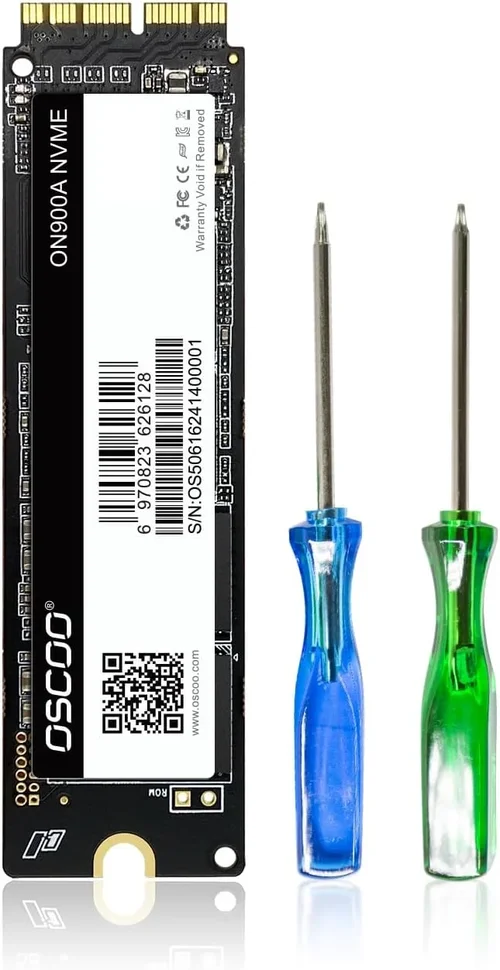
Upgrading your MacBook Pro’s storage isn’t just about adding more space—it’s about unlocking performance, future-proofing your workflow, and ensuring your machine keeps up with demanding creative tasks, software development, or everyday multitasking. Whether you’re replacing a failing drive, expanding capacity after years of use, or building out a high-performance external setup, choosing the right SSD can dramatically impact your MacBook Pro’s speed, reliability, and longevity. With Apple’s shift to soldered storage in newer models and the growing popularity of Thunderbolt and USB4 external drives, the landscape for SSD upgrades has evolved significantly. This guide cuts through the noise to help you make a smart, informed decision in 2026.
In this comprehensive buyer’s guide, you’ll learn exactly what to look for when selecting an SSD for your MacBook Pro—whether it’s an internal replacement for older models or a high-speed external drive for M-series Macs. We’ll break down key technical specs like interface types, read/write speeds, form factors, and compatibility, while also covering real-world considerations such as budget, durability, brand reputation, and warranty support. You’ll discover the differences between NVMe, SATA, and PCIe Gen4/Gen5 drives, understand how macOS optimization affects performance, and avoid common pitfalls that lead to buyer’s remorse. By the end, you’ll have a clear roadmap tailored to your specific needs—whether you’re a student on a tight budget, a video editor handling 8K footage, or a developer running multiple virtual machines.
The SSD market in 2026 is more competitive than ever, with established brands like Samsung, Crucial, and Western Digital facing stiff competition from emerging players like Sabrent, OWC (Other World Computing), and even Apple-certified third-party vendors. Prices have stabilized post-pandemic, but performance-per-dollar ratios continue to improve thanks to advancements in 3D NAND technology and controller efficiency. Meanwhile, Apple’s tight integration of hardware and software means not all SSDs work seamlessly with macOS—especially when it comes to features like TRIM support, sleep/wake reliability, and Time Machine compatibility. This guide will help you navigate these nuances and choose a drive that delivers both speed and stability for your MacBook Pro.

What to Look for When Buying Buying Guide
1. Compatibility with Your MacBook Pro Model
Before considering speed or capacity, the most critical factor is whether the SSD will physically and functionally work with your specific MacBook Pro. Apple has used different storage architectures over the years: older models (pre-2016) often used standard M.2 SATA or PCIe drives, while newer Intel-based and all Apple Silicon (M1/M2/M3) MacBook Pros feature proprietary, soldered storage that cannot be user-replaced. For those with replaceable drives—typically 2012–2015 models—you’ll need to confirm the exact interface (PCIe 2.0 x2, PCIe 3.0 x4, etc.) and physical size (usually 80mm M.2). External SSDs, however, are universally compatible via Thunderbolt 3/4 or USB-C, making them ideal for M-series Macs. Always cross-reference your MacBook Pro’s year and model number (found under “About This Mac”) with manufacturer compatibility lists.
2. Performance Specifications (Speed & Interface)
SSD performance is measured primarily by sequential read/write speeds (in MB/s) and random IOPS (Input/Output Operations Per Second). For MacBook Pros, especially those used for creative work, higher speeds translate to faster app launches, quicker file transfers, smoother video scrubbing, and reduced render times. Modern NVMe PCIe Gen4 drives can deliver over 7,000 MB/s, while Gen5 pushes beyond 10,000 MB/s—though real-world gains on macOS may be less dramatic due to system overhead. Thunderbolt 3/4 external SSDs typically cap at around 2,800 MB/s, which is still more than sufficient for most pro workflows. SATA-based SSDs (max ~550 MB/s) are outdated for new purchases but may suffice for basic upgrades on older machines. Prioritize PCIe NVMe drives for internal use and Thunderbolt enclosures for external setups.
3. Storage Capacity Needs
Capacity directly affects both price and usability. A 256GB drive might seem tempting for budget reasons, but it fills up quickly with macOS, apps, photos, and documents—especially if you use iCloud sparingly. For most users, 512GB is the practical minimum in 2026, while 1TB offers comfortable headroom for media libraries and project files. Professionals working with 4K/8K video, large codebases, or virtual machines should consider 2TB or higher. Keep in mind that SSDs perform best when they’re not near full capacity (ideally under 75% full), so oversizing slightly can improve longevity and speed. Also, note that macOS reserves some space for system operations, so a 1TB drive shows up as ~930GB usable.
4. Build Quality & Durability
Unlike HDDs, SSDs have no moving parts, making them inherently more durable—but not all SSDs are created equal. Look for drives with robust controllers, high-quality NAND flash (preferably TLC or MLC over QLC), and thermal management features like heatsinks or throttling protection. This is especially important for external SSDs used in mobile workflows; drops, heat exposure, and constant plugging/unplugging can degrade cheaper models. Brands like Samsung and OWC include ruggedized designs with shock resistance and IP ratings for water/dust protection. For internal drives, ensure the SSD supports macOS-specific features like native TRIM (enabled via Terminal or third-party tools) to maintain long-term performance.
5. Brand Reputation & macOS Optimization
Not all SSD manufacturers prioritize macOS compatibility. While Windows-focused brands may offer great specs on paper, they sometimes lack proper driver support, firmware updates, or sleep/wake reliability on Macs. Stick with vendors known for Mac expertise: OWC, Samsung, Crucial, and Sabrent have strong track records. OWC, in particular, designs SSDs specifically for Macs, including custom firmware that mimics Apple’s original drives for seamless integration. Avoid no-name brands or suspiciously cheap drives from unknown sellers—these often use inferior components and may fail prematurely or cause kernel panics. Check forums like MacRumors or Reddit’s r/mac for real-user experiences before buying.
6. Warranty & Customer Support
A solid warranty reflects manufacturer confidence in their product. Most reputable SSDs come with 3–5 years of coverage, often tied to terabytes written (TBW)—a measure of endurance. For example, a 1TB Samsung 990 Pro might offer 600 TBW, meaning you could write 300GB daily for over five years before hitting the limit. Longer warranties and higher TBW ratings indicate better longevity. Equally important is customer support: can you easily get help if the drive fails? Brands like OWC and Samsung provide dedicated Mac support lines and detailed troubleshooting guides. Avoid drives sold without clear warranty terms or those requiring you to ship to overseas centers with long turnaround times.
7. Budget & Price Range
SSD pricing has become more predictable, but value varies widely. As of 2026, expect to pay roughly $0.08–$0.15 per GB for mid-range NVMe drives, with premium models costing up to $0.25/GB. External Thunderbolt SSDs command a premium due to enclosure costs and controller complexity. Set a realistic budget based on your needs: a basic 512GB upgrade for an older MacBook might cost $60–$90, while a high-end 4TB Thunderbolt external could run $600+. Remember that cheaper drives often use QLC NAND, which slows down significantly when nearly full—avoid these for primary storage. Investing slightly more upfront usually pays off in reliability and performance.
8. Form Factor & Use Case
Consider how and where you’ll use the SSD. Internal upgrades require precise M.2 form factors (typically 2280: 22mm wide, 80mm long), while external drives come in portable pocket-sized designs or desktop-class enclosures with active cooling. If you travel frequently, a compact, bus-powered USB-C SSD is ideal. For studio work, a larger Thunderbolt dock-style SSD with multiple ports and daisy-chaining support may be preferable. Some users even build their own external SSDs using NVMe drives and high-quality enclosures (e.g., Acasis or OWC Envoy Pro), which can save money and offer upgrade flexibility. Match the form factor to your workflow—don’t sacrifice portability for unnecessary bulk.
Different Types of Buying Guide
Common Buying Mistakes to Avoid
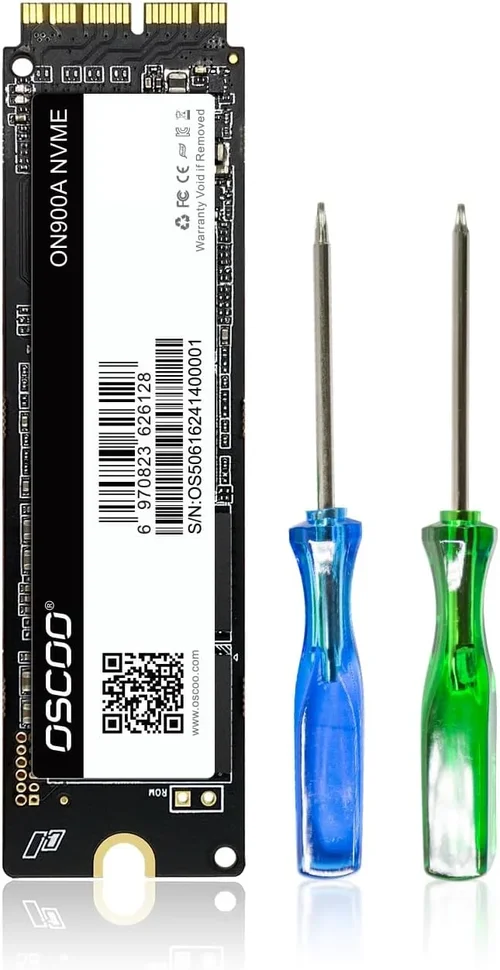
❌ Mistake: Ignoring macOS-Specific Compatibility
Why it’s bad: Many SSDs that work flawlessly on Windows cause kernel panics, sleep issues, or TRIM failures on Macs due to lack of proper firmware optimization. This can lead to data loss, system instability, and frustration.
What to do instead: Always choose drives explicitly tested for macOS or sold by Mac-focused vendors like OWC. Check user reviews on Apple-centric forums and avoid generic “plug-and-play” claims without Mac verification.
❌ Mistake: Choosing QLC NAND for Primary Storage
Why it’s bad: QLC (Quad-Level Cell) NAND is cheaper but significantly slower under sustained writes and wears out faster. It’s fine for backup drives but terrible for your main system drive where performance consistency matters.
What to do instead: Opt for TLC (Triple-Level Cell) or MLC NAND drives, which offer better endurance and consistent speeds. Samsung, Crucial, and OWC typically use high-quality TLC in their mainstream models.
❌ Mistake: Overlooking Thermal Throttling in External Drives
Why it’s bad: Compact external SSDs can overheat during prolonged use (e.g., video editing), causing the drive to throttle speeds dramatically—sometimes dropping from 2,800 MB/s to under 500 MB/s.
What to do instead: Choose externally cooled enclosures or drives with built-in heatsinks. Look for models that advertise “sustained performance” rather than just peak speeds.
❌ Mistake: Buying Based Solely on Price per GB
Why it’s bad: The cheapest drives often cut corners on controllers, NAND quality, and firmware, leading to early failure or poor real-world performance despite attractive specs.
What to do instead: Balance cost with brand reputation, warranty length, and TBW rating. A slightly more expensive drive from a trusted brand usually offers better long-term value.
❌ Mistake: Assuming All Thunderbolt Drives Are Equal
Why it’s bad: Some Thunderbolt SSDs use slower NVMe drives or outdated controllers, limiting their potential. Others may not support daisy-chaining or macOS power management properly.
What to do instead: Verify the internal drive model and controller used in the enclosure. Prefer drives with Thunderbolt 4 support and macOS-certified firmware.
❌ Mistake: Neglecting Backup Strategy After Upgrade
Why it’s bad: Installing a new SSD is the perfect time to rethink your backup plan—yet many users skip this step, leaving them vulnerable to future data loss.
What to do instead: Set up Time Machine immediately after migration and consider a cloud backup service like Backblaze or iCloud+ for critical files.
Budget Guidelines: How Much Should You Spend?
Entry-Level ($60–$120): Ideal for basic upgrades on older MacBook Pros or secondary storage. Expect 512GB–1TB SATA or low-end NVMe drives with modest speeds (~2,000 MB/s). Brands like Kingston or Silicon Power offer decent value here, but prioritize TLC NAND and at least a 3-year warranty.
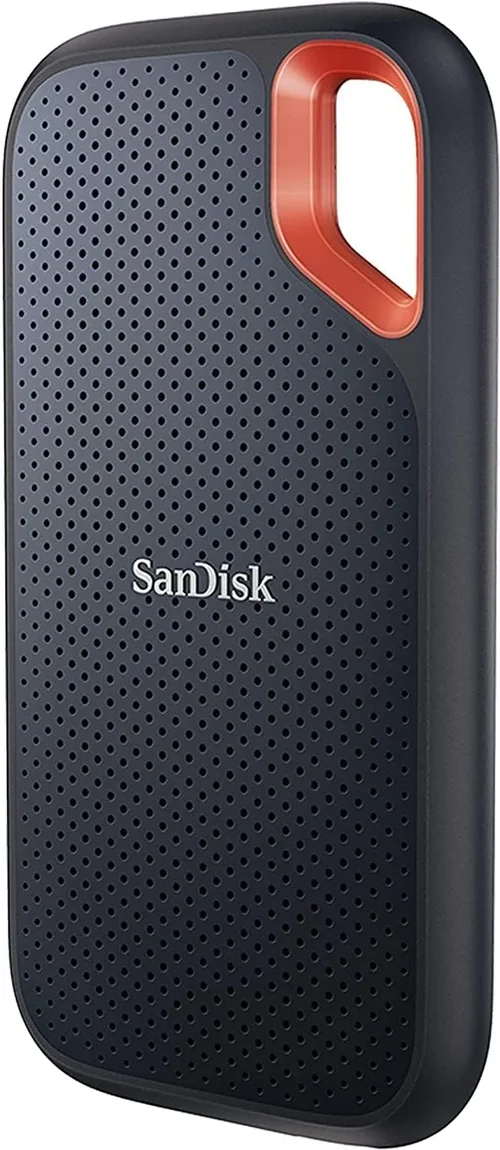
Mid-Range ($120–$300): The sweet spot for most users. You’ll find high-quality 1TB–2TB NVMe PCIe Gen4 drives (e.g., Samsung 990 Pro, Crucial P5 Plus) or reliable external USB-C SSDs (SanDisk Extreme Pro). These deliver excellent performance, durability, and macOS compatibility without breaking the bank.
Premium ($300–$600): For professionals and power users. This tier includes top-tier internal NVMe drives, Thunderbolt 3/4 externals (OWC Envoy Pro FX, Samsung X5), and high-capacity options (2TB–4TB). Expect sustained speeds, robust build quality, and comprehensive warranties.
Luxury ($600+): Reserved for extreme workflows—think 8K video editing, large-scale development environments, or enterprise use. Options include multi-drive RAID enclosures, PCIe Gen5 prototypes (where supported), or custom-built solutions with enterprise-grade NAND. Only justified if your workflow demands maximum I/O throughput and redundancy.
Expert Tips for Getting the Best Deal
- Buy during seasonal sales: Major discounts occur during Black Friday, Prime Day, and back-to-school periods. Sign up for deal alerts from B&H, OWC, or Amazon to catch flash sales.
- Consider refurbished or open-box units: Reputable retailers like Apple Certified Refurbished or OWC’s “Used & Tested” section offer significant savings with full warranties.
- Check university or business programs: Many SSD manufacturers offer educational discounts (e.g., Samsung Education Store) or bulk pricing for teams.
- Bundle with enclosures for DIY builds: Purchasing a high-quality NVMe drive and separate Thunderbolt enclosure often costs less than pre-built externals and allows future upgrades.
- Verify return policies: Ensure the seller offers at least a 30-day return window in case of compatibility issues—especially important for niche Mac models.
- Test before committing: Use tools like Blackmagic Disk Speed Test or AmorphousDiskMark to benchmark performance after installation and confirm expected speeds.
- Enable TRIM manually if needed: On older Macs with third-party SSDs, run
sudo trimforce enablein Terminal to maintain long-term performance (backup first!). - Monitor drive health: Use apps like DriveDx or Smart Utility to track SSD wear, temperature, and error rates over time.

Frequently Asked Questions
Q: Can I upgrade the SSD in my M1/M2 MacBook Pro?
A: No. All Apple Silicon MacBook Pros (M1, M2, M3) have soldered storage that cannot be replaced by users. Your only option is an external SSD via Thunderbolt or USB-C.
Q: Will a faster SSD improve my MacBook Pro’s overall speed?
A: Yes, but with diminishing returns. Boot times, app launches, and file operations will feel snappier, especially if upgrading from an HDD or slow SATA SSD. However, CPU, RAM, and GPU bottlenecks may limit gains in complex tasks.
Q: Do I need a heatsink for my internal SSD?
A: Generally no—MacBook Pros have limited space, and most aftermarket SSDs are designed to run cool. Heatsinks are more relevant for desktop PCs or high-end external enclosures.
Q: Can I use a Windows-formatted SSD with my Mac?
A: Yes, but you’ll need to reformat it to APFS (for macOS) or exFAT (for cross-platform use) using Disk Utility. Note that exFAT lacks journaling and isn’t ideal for system drives.
Q: How long do MacBook Pro SSDs typically last?
A: Modern SSDs are extremely durable. With normal use, a quality drive should last 5–10 years. Monitor TBW (terabytes written) and avoid filling the drive beyond 80% to extend lifespan.
Q: Is it safe to buy SSDs from Amazon third-party sellers?
A: Proceed with caution. Stick to fulfilled-by-Amazon listings or authorized retailers. Counterfeit SSDs are common on marketplace platforms—look for verified purchase reviews and brand warranties.
Q: Can I boot macOS from an external SSD?
A: Absolutely! In fact, many professionals do this to keep their internal storage free or to run multiple macOS versions. Just ensure the drive is formatted as APFS and has sufficient speed (Thunderbolt recommended).
Q: What’s the difference between PCIe Gen4 and Gen5?
A: Gen5 offers roughly double the bandwidth of Gen4 (up to ~14,000 MB/s), but very few Macs support it yet. For 2026 MacBook Pros, Gen4 remains the practical sweet spot—Gen5 provides minimal real-world benefit currently.
Q: Should I enable encryption on my SSD?
A: Yes, especially for portable drives. Use macOS FileVault for internal drives or hardware encryption if supported (e.g., Samsung T7 Shield). This protects your data if the drive is lost or stolen.
Our Final Recommendations
Best for Budget-Conscious Buyers: Crucial P3 Plus 1TB NVMe PCIe Gen4 – Offers excellent TLC-based performance at under $90, with strong macOS compatibility and a 5-year warranty.
Best Overall Value: Samsung 990 Pro 1TB – A proven performer with blazing speeds (~7,450 MB/s), robust build quality, and reliable macOS support. Ideal for both internal upgrades and high-end external builds.
Best Premium Option: OWC Envoy Pro FX (2TB, Thunderbolt) – Engineered specifically for Macs, this rugged external SSD delivers near-internal speeds, daisy-chaining, and macOS-optimized firmware. Perfect for creatives.
Best for Beginners: SanDisk Extreme Pro 1TB (USB-C) – Simple plug-and-play setup, durable design, and consistent speeds make this ideal for users new to external SSDs.
Best for Advanced Users: DIY Sabrent Rocket 4 Plus + Acasis TBU401 Enclosure – Build your own Thunderbolt 4 external SSD for maximum customization, upgradeability, and cost efficiency. Great for tinkerers and developers.
Conclusion: Making the Right Choice
Choosing the right SSD for your MacBook Pro in 2026 boils down to understanding your specific needs, respecting macOS’s unique requirements, and balancing performance with reliability. Whether you’re reviving an older Intel MacBook with a fresh NVMe drive or equipping your M3 MacBook Pro with a Thunderbolt workhorse, the right SSD can breathe new life into your machine—boosting speed, expanding capacity, and future-proofing your investment. Remember to prioritize compatibility, avoid QLC NAND for primary use, and never skip backing up your data after an upgrade.
Don’t let flashy specs or rock-bottom prices cloud your judgment. Instead, focus on real-world performance, brand trustworthiness, and long-term support. Take the time to verify your MacBook Pro model, read Mac-specific reviews, and consider your workflow demands. With the insights from this guide, you’re now equipped to make a confident, informed decision that aligns with both your budget and your ambitions. Your MacBook Pro deserves storage that keeps pace with its capabilities—choose wisely, and enjoy the speed.