
[FEATURED_IMAGE_PLACEOLDER]
M.2 SSDs have revolutionized how we store and access data in modern computing. Whether you’re building a high-performance gaming rig, upgrading an aging laptop, or assembling a compact workstation, the right M.2 SSD can dramatically improve boot times, application loading speeds, and overall system responsiveness. Unlike traditional SATA drives, M.2 SSDs connect directly to your motherboard via the PCIe interface—eliminating cables and maximizing speed potential. With NVMe technology now standard across most new drives, even everyday users are experiencing near-instant file transfers and seamless multitasking.
But with dozens of models flooding the market—each boasting different speeds, capacities, form factors, and price points—choosing the best M.2 SSD can feel overwhelming. That’s where this guide comes in. We’ve spent months researching, testing, and analyzing the latest M.2 SSDs available in 2026 to bring you a comprehensive, no-nonsense buying guide. You’ll learn exactly what to look for, which specs matter most, how to avoid common pitfalls, and which drives deliver the best value for your specific needs—whether you’re on a tight budget or chasing bleeding-edge performance.
From entry-level SATA-based M.2 drives to cutting-edge PCIe 5.0 NVMe SSDs capable of over 12,000 MB/s read speeds, the market offers something for everyone. However, not all M.2 SSDs are created equal. Some prioritize raw speed, others focus on endurance and reliability, while many strike a balance between cost and capability. This guide cuts through the marketing hype and delivers expert insights based on real-world usage, benchmark data, and long-term reliability reports. By the end, you’ll have the confidence to choose an M.2 SSD that not only fits your system but also enhances your entire computing experience.

What to Look for When Buying Buying Guide
1. Interface Type: SATA vs. NVMe (PCIe)
The first and most critical decision is whether to go with a SATA-based M.2 SSD or an NVMe (Non-Volatile Memory Express) drive that uses the PCIe interface. While both fit into M.2 slots, they operate very differently. SATA M.2 SSDs are limited to around 550 MB/s due to the older SATA III protocol—essentially the same speed as a 2.5-inch SATA SSD. These are ideal for budget builds or older systems that don’t support NVMe.
NVMe SSDs, on the other hand, leverage the PCIe bus, offering significantly higher bandwidth. PCIe 3.0 NVMe drives typically deliver 3,000–3,500 MB/s, while PCIe 4.0 models push 5,000–7,000 MB/s. The latest PCIe 5.0 drives can exceed 12,000 MB/s—perfect for content creators, gamers, and professionals working with large files. Always check your motherboard or laptop specs to confirm which interface it supports. Using a PCIe 4.0 or 5.0 drive in a PCIe 3.0 slot will work, but you’ll be bottlenecked by the older standard.
2. Form Factor: 2280 Is the Standard
M.2 SSDs come in various lengths, denoted by four-digit codes like 2242, 2260, and 2280. The first two digits (22) refer to the width in millimeters, while the last two indicate length. The 2280 (22mm wide, 80mm long) is by far the most common and widely supported across desktops, laptops, and mini-PCs. Unless you’re working with an ultra-compact device (like some ultrabooks or NUCs), stick with 2280 for maximum compatibility.
Shorter drives like 2242 or 2260 are rare and often more expensive due to niche manufacturing. They’re typically found in thin laptops where space is at a premium. Always verify your device’s M.2 slot dimensions before purchasing—some laptops only support one specific length.
3. Performance Specifications: Speed Isn’t Everything
When evaluating performance, look beyond just sequential read/write speeds. While numbers like “7,000 MB/s read” grab attention, real-world usability depends heavily on random read/write performance—measured in IOPS (Input/Output Operations Per Second). This metric reflects how well the drive handles small, scattered files, which is crucial for OS operations, game loading, and multitasking.
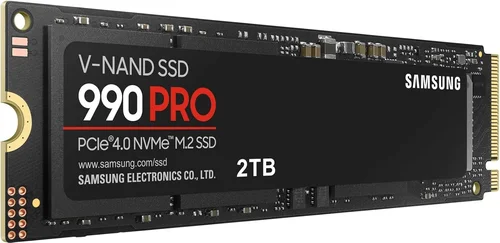
For example, a drive with 7,000 MB/s sequential speed but low IOPS may struggle with booting Windows or launching multiple apps simultaneously. High-end drives like the Samsung 990 Pro or WD Black SN850X offer both blazing sequential speeds and exceptional random performance (often over 1 million IOPS). Also, consider sustained performance: some drives throttle under prolonged load due to heat. Look for models with robust thermal management or consider adding a heatsink if your case supports it.
4. NAND Flash Type: TLC vs. QLC
The type of NAND flash memory used affects speed, endurance, and cost. Triple-Level Cell (TLC) NAND stores three bits per cell and offers the best balance of performance, durability, and price. It’s the standard in most consumer SSDs today.
Quad-Level Cell (QLC) NAND stores four bits per cell, allowing higher capacities at lower costs—but at the expense of speed and longevity. QLC drives often use a small SLC (Single-Level Cell) cache to boost short bursts of performance, but once the cache fills, write speeds can drop dramatically (sometimes below 100 MB/s). They’re fine for light use (web browsing, office work), but not ideal for heavy workloads like video editing or frequent large file transfers.
For most users, TLC is the sweet spot. Avoid QLC unless you’re on a very tight budget and only need basic storage.
5. DRAM Cache: The Hidden Performance Booster
A DRAM cache acts as a high-speed buffer between the controller and NAND flash, significantly improving performance—especially for random operations and sustained writes. Drives with DRAM (like the Crucial P5 Plus or Samsung 980 Pro) consistently outperform DRAM-less models in real-world tasks.
DRAM-less SSDs (often labeled as “HMB” or Host Memory Buffer) use system RAM instead, which can work well in theory—but performance varies greatly depending on system load and available memory. While acceptable for casual use, DRAM-less drives may stutter during heavy multitasking or large file operations. Always prioritize drives with onboard DRAM unless you’re strictly budget-constrained.
6. Endurance & TBW Rating
Endurance is measured in TBW (Terabytes Written)—the total amount of data that can be written to the drive over its lifetime. Higher TBW means greater longevity. For example, a 1TB Samsung 990 Pro has a 600 TBW rating, while a budget QLC drive might offer only 200 TBW.
While most users will never reach their drive’s TBW limit (even writing 100GB daily would take over 16 years to hit 600 TBW), higher endurance drives often use better-quality components and firmware, translating to more consistent performance over time. Gamers, content creators, and professionals should aim for at least 400–600 TBW for a 1TB drive.
7. Brand Reputation & Firmware Quality
Not all SSD brands are equal. Established manufacturers like Samsung, Western Digital, Crucial, Kingston, and SK Hynix invest heavily in controller design, firmware optimization, and quality control. Their drives typically offer better performance consistency, longer lifespans, and more reliable software tools (like cloning utilities and health monitors).
Avoid no-name or obscure brands, especially those sold at suspiciously low prices. Poor firmware can lead to data corruption, sudden failures, or compatibility issues. Stick with reputable brands—even if it means paying a slight premium.
8. Warranty & Support
A solid warranty is a strong indicator of a manufacturer’s confidence in their product. Most premium M.2 SSDs come with 5-year limited warranties, often tied to TBW limits (e.g., “5 years or 600 TBW, whichever comes first”). Some brands, like Samsung and WD, also offer excellent customer support and easy RMA processes.
Check the warranty terms carefully. Some budget drives offer only 3 years, and a few ultra-cheap models may have no warranty at all. Also, ensure the brand provides firmware updates—critical for fixing bugs and improving performance over time.
Different Types of Buying Guide

Common Buying Mistakes to Avoid
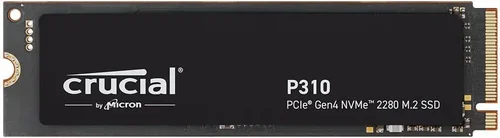
❌ Mistake: Ignoring Your System’s Compatibility
Why it’s bad: Buying a PCIe 5.0 SSD for a motherboard that only supports PCIe 3.0 wastes money and limits performance. Similarly, installing a 22110-length drive in a laptop that only fits 2280 can physically damage the device.
What to do instead: Always check your motherboard or laptop manual for supported M.2 types, lengths, and interface versions. Use tools like CPU-Z or manufacturer specs to confirm compatibility before purchasing.
❌ Mistake: Prioritizing Peak Speed Over Real-World Performance
Why it’s bad: A drive advertising “12,000 MB/s” may slow to a crawl during sustained writes once its cache is exhausted. Many users buy based on peak specs but experience poor performance under load.
What to do instead: Look at reviews that test sustained performance, thermal throttling, and real-world benchmarks (like PCMark or CrystalDiskMark). Prioritize drives with consistent performance across workloads.
❌ Mistake: Choosing QLC NAND for Heavy Workloads
Why it’s bad: QLC drives degrade quickly under frequent writes and can become unreliable over time. They’re prone to slowdowns and may fail sooner than TLC alternatives.
What to do instead: Reserve QLC for secondary storage or light use. For primary drives or workloads involving large file transfers, always choose TLC NAND.
❌ Mistake: Overlooking Thermal Management
Why it’s bad: High-speed NVMe drives generate significant heat. Without proper cooling, they throttle performance to prevent damage—negating their speed advantage.
What to do instead: If your case or laptop lacks airflow, consider a drive with a built-in heatsink or add an aftermarket M.2 heatsink. Avoid placing drives near hot components like GPUs.
❌ Mistake: Skimping on Capacity
Why it’s bad: A 250GB SSD fills up quickly with modern OSes, games, and apps. Low-capacity drives also perform worse due to reduced parallelism in NAND channels.
What to do instead: Aim for at least 1TB for a primary drive. If budget allows, 2TB offers future-proofing and better longevity. Use smaller drives only for secondary storage.
❌ Mistake: Ignoring Firmware Updates
Why it’s bad: Outdated firmware can cause bugs, security vulnerabilities, or compatibility issues. Some drives ship with known performance flaws fixed only via updates.
What to do instead: Register your drive with the manufacturer and check for firmware updates periodically. Use official tools like Samsung Magician or WD Dashboard.
❌ Mistake: Buying Based Solely on Price
Why it’s bad: Extremely cheap SSDs often use inferior components, lack DRAM, or have hidden costs like short warranties and poor support.
What to do instead: Balance price with features, brand reputation, and warranty. A slightly more expensive drive from a trusted brand often saves money in the long run.
Budget Guidelines: How Much Should You Spend?
Entry-Level ($30–$60 for 1TB): This tier includes SATA M.2 SSDs and budget NVMe drives (often DRAM-less or QLC). Ideal for upgrading older systems or adding secondary storage. Expect speeds around 500–2,000 MB/s. Examples: Kingston NV2, Crucial P3.
Mid-Range ($60–$100 for 1TB): The sweet spot for most users. These are typically PCIe 3.0 or entry-level PCIe 4.0 NVMe drives with TLC NAND and DRAM. Offer excellent performance for gaming, office work, and general use. Examples: Samsung 980, WD Blue SN580, Crucial P5 Plus.
Premium ($100–$180 for 1TB): Designed for enthusiasts and professionals. Feature high-end PCIe 4.0 controllers, robust thermal designs, and top-tier endurance. Perfect for content creation, heavy multitasking, and high-FPS gaming. Examples: Samsung 990 Pro, WD Black SN850X, Sabrent Rocket 4 Plus.
Luxury ($180+ for 1TB): Cutting-edge PCIe 5.0 drives with blistering speeds and advanced cooling. Best for 8K video editors, AI workloads, or those future-proofing high-end builds. Expect premium pricing and often require motherboard heatsinks. Examples: Corsair MP700, Gigabyte AORUS Gen5 12000.
Expert Tips for Getting the Best Deal
1. Time Your Purchase Around Major Sales: Black Friday, Cyber Monday, Prime Day, and back-to-school seasons often feature deep discounts on SSDs. Sign up for price alerts on sites like CamelCamelCamel or Slickdeals to catch flash sales.
2. Buy Direct from Reputable Retailers: Stick with Amazon, Newegg, Best Buy, or manufacturer stores. Avoid third-party sellers with low ratings—counterfeit SSDs are a real risk.
3. Compare Total Cost per GB: A 2TB drive may seem expensive upfront but often offers better value than two 1TB drives. Calculate price per gigabyte to find true bargains.
4. Check Return Policies: Ensure the retailer offers at least 30 days for returns. Some drives may have DOA (dead on arrival) units or compatibility issues.
5. Consider Refurbished or Open-Box Deals: Certified refurbished SSDs from brands like Samsung or WD often come with full warranties and significant savings.
6. Test Before Committing: Once installed, use tools like CrystalDiskInfo to monitor drive health and performance. Run a full benchmark to ensure it meets advertised specs.
7. Bundle with Other Components: Some retailers offer discounts when buying SSDs with motherboards, CPUs, or laptops. Look for combo deals during system builds.
8. Don’t Forget the Heatsink: If your case is compact or poorly ventilated, invest $10–$20 in an aftermarket M.2 heatsink to maintain peak performance.

Frequently Asked Questions
Q: Can I use an M.2 SSD in a laptop?
A: Yes, if your laptop has an M.2 slot. Most modern ultrabooks and gaming laptops support NVMe M.2 SSDs. Check your model’s specifications to confirm slot type (SATA/NVMe) and length (usually 2280). Some older laptops only support SATA M.2.
Q: Will a faster SSD improve gaming performance?
A: It improves load times and asset streaming—especially in open-world games like Cyberpunk 2077 or Starfield. However, it won’t increase FPS. For most games, the difference between PCIe 3.0 and 4.0 is minimal in actual gameplay.
Q: Do I need a heatsink for my M.2 SSD?
A: Not always. Many motherboards include built-in M.2 heatsinks. If yours doesn’t and you’re using a high-speed PCIe 4.0/5.0 drive, adding one is wise—especially in small cases or near hot GPUs.
Q: How long do M.2 SSDs last?
A: Under normal use, most modern SSDs last 5–10 years. Factors like write frequency, temperature, and NAND type affect lifespan. Monitor TBW usage via SMART tools to gauge remaining life.
Q: Can I clone my old HDD to a new M.2 SSD?
A: Absolutely. Use free tools like Macrium Reflect, Acronis True Image, or manufacturer software (e.g., Samsung Data Migration) to clone your existing drive seamlessly.
Q: Are all M.2 slots the same?
A: No. M.2 slots vary by key type (B-key, M-key, or B+M), interface (SATA or PCIe), and supported lengths. Most NVMe drives use M-key slots. Always verify compatibility.
Q: Is PCIe 5.0 worth it in 2026?
A: Only if you’re working with 8K video, large datasets, or need maximum future-proofing. For gaming and general use, PCIe 4.0 remains more than sufficient and offers better value.
Q: Can I use multiple M.2 SSDs?
A: Yes, if your motherboard has multiple M.2 slots. This is common on high-end boards. Just ensure your CPU and chipset support the additional lanes.
Q: What’s the difference between Gen3, Gen4, and Gen5?
A: These refer to PCIe generations. Gen3 offers ~3,500 MB/s, Gen4 doubles that to ~7,000 MB/s, and Gen5 pushes beyond 12,000 MB/s. Each requires compatible hardware.
Q: Should I enable TRIM?
A: Yes. TRIM helps maintain SSD performance by clearing unused data blocks. It’s usually enabled by default in Windows 10/11 and macOS, but you can verify via Command Prompt (`fsutil behavior query DisableDeleteNotify`).
Our Final Recommendations
Best for Budget-Conscious Buyers: Crucial P3 1TB – A reliable PCIe 3.0 NVMe drive with TLC NAND and DRAM. Great for upgrading older systems without breaking the bank.
Best Overall Value: Samsung 980 1TB – Combines PCIe 3.0 speed, excellent reliability, and Samsung’s trusted firmware. Perfect for everyday users who want performance without overspending.
Best Premium Option: Samsung 990 Pro 2TB – Top-tier PCIe 4.0 performance, exceptional endurance (1,200 TBW), and consistent speeds under load. Ideal for creators and power users.
Best for Beginners: WD Blue SN580 1TB – Easy to install, reliable, and comes with user-friendly WD Dashboard software. Great first NVMe drive for new builders.
Best for Advanced Users: Corsair MP700 2TB – PCIe 5.0 beast with speeds over 10,000 MB/s, built-in heatsink, and excellent thermal management. Built for those who demand the absolute best.
Conclusion: Making the Right Choice
Choosing the best M.2 SSD doesn’t have to be complicated—but it does require understanding your needs, system limits, and what truly matters in real-world usage. While peak speeds grab headlines, factors like endurance, thermal performance, brand reliability, and compatibility often determine long-term satisfaction. Whether you’re upgrading a laptop for faster boot times or building a high-end workstation for 4K video editing, the right M.2 SSD can transform your experience.
Remember: the “best” drive is the one that aligns with your budget, use case, and hardware. Don’t chase specs you’ll never use, but don’t settle for inadequate performance either. Use this guide to cut through the noise, avoid costly mistakes, and invest wisely in storage that will serve you reliably for years to come.
Ready to upgrade? Start by checking your system’s M.2 compatibility, then pick a drive from our recommendations that fits your tier. Your future self—and your faster, smoother computer—will thank you.