
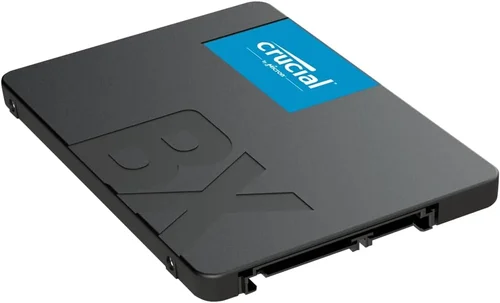
If you’re looking to upgrade your laptop, desktop, or even an older system, a 2.5-inch SSD is one of the most impactful hardware investments you can make in 2026. Whether you’re a student trying to speed up a five-year-old laptop, a content creator needing faster file access, or a gamer tired of long load times, the right solid-state drive can transform your computing experience. Unlike traditional hard drives, 2.5-inch SSDs have no moving parts, deliver blazing-fast read and write speeds, and significantly improve boot times, application launches, and overall system responsiveness. With prices continuing to drop and capacities increasing, there’s never been a better time to make the switch—or to upgrade to a higher-performance model.
This comprehensive buying guide is designed to cut through the noise and help you make an informed decision. We’ll walk you through every critical factor you need to consider—from performance benchmarks and endurance ratings to brand reliability and warranty terms. You’ll learn how to compare different models, avoid common pitfalls, and find the best 2.5 SSD for your specific needs and budget. Whether you’re spending $50 or $300, this guide ensures you get maximum value without overspending on features you don’t need. By the end, you’ll have a clear roadmap to choosing the ideal drive that balances speed, capacity, durability, and cost.
The 2.5-inch SSD market in 2026 is more competitive than ever. Major manufacturers like Samsung, Crucial, Western Digital, Kingston, and SanDisk continue to innovate, pushing the boundaries of NAND flash technology, controller efficiency, and power management. Meanwhile, newer brands and value-focused options have entered the space, offering compelling alternatives at lower price points. Despite the rise of M.2 NVMe drives, 2.5-inch SATA SSDs remain relevant—especially for older systems, budget builds, and users who prioritize ease of installation and broad compatibility. This guide focuses exclusively on 2.5-inch form factor SSDs, which use the SATA III interface, and covers everything you need to know to pick the best one for your setup.

What to Look for When Buying Buying Guide
1. Budget & Price Range
Your budget is often the first and most important filter when shopping for a 2.5-inch SSD. Prices in 2026 range from under $30 for basic 240GB models to over $200 for high-capacity, high-endurance drives. While it’s tempting to go for the cheapest option, skimping too much can lead to poor performance, shorter lifespan, or compatibility issues. A good rule of thumb is to allocate at least $0.10–$0.15 per gigabyte for a reliable drive. For example, a 1TB SSD should cost between $100 and $150 for a quality model. Avoid drives priced significantly below this range—they may use outdated NAND, lack DRAM cache, or come from unproven brands with questionable firmware.
2. Performance Specifications
Performance is where SSDs shine—but not all 2.5-inch drives are created equal. Since these drives use the SATA III interface, they’re capped at around 550–560 MB/s for both read and write speeds. While this may seem limiting compared to NVMe drives, it’s more than enough for most users. What matters more than peak speed is consistency. Look for drives that maintain high speeds under sustained workloads, such as large file transfers or video editing. Check reviews for real-world benchmarks, not just manufacturer claims.
Key performance metrics to consider:
– Sequential read/write speeds (typically 500–560 MB/s)
– Random 4K read/write IOPS (important for multitasking and OS responsiveness)
– Controller type (e.g., Phison, Silicon Motion, Marvell)
– DRAM cache presence (dramatically improves performance and longevity)
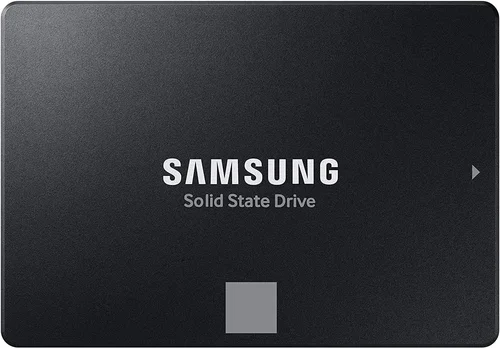
Drives with DRAM cache outperform DRAM-less models, especially during heavy use. For example, the Samsung 870 EVO includes a DRAM buffer, while some budget drives like the Kingston A400 omit it to cut costs—resulting in slower performance over time.
3. Build Quality & Durability
Unlike mechanical hard drives, SSDs are inherently more durable because they have no moving parts. However, build quality still varies. Look for drives with robust casings, quality solder joints, and reliable NAND flash. Higher-end models often use 3D TLC (Triple-Level Cell) or MLC (Multi-Level Cell) NAND, which offer better endurance and longevity than QLC (Quad-Level Cell) or TLC without DRAM.
Endurance is measured in TBW (Terabytes Written)—the total amount of data that can be written to the drive over its lifetime. A 1TB drive with 600 TBW will last longer under heavy use than one with 200 TBW. For average users, even 200 TBW is more than sufficient (that’s writing 100GB per day for over five years), but content creators or server users should aim for 400+ TBW.
Also consider power efficiency, especially for laptops. SSDs with low power draw help extend battery life and reduce heat output.
4. Features & Functionality
Beyond raw speed and capacity, modern 2.5-inch SSDs come with a range of features that enhance usability and security. Some of the most valuable include:
– Hardware encryption (e.g., AES-256) for data security
– Power-loss protection to prevent data corruption during outages
– Built-in thermal throttling to maintain performance under load
– Software suites for cloning, monitoring, and firmware updates
For example, Samsung’s Magician software provides real-time health monitoring, performance optimization, and secure erase tools. Crucial’s Storage Executive offers similar functionality. These tools can extend the life of your drive and simplify maintenance.
Additionally, some drives support S.M.A.R.T. (Self-Monitoring, Analysis, and Reporting Technology), which allows you to track drive health and predict failures before they happen.
5. Brand Reputation
Brand matters—especially when it comes to reliability and long-term support. Established brands like Samsung, Crucial (a subsidiary of Micron), Western Digital, and Kingston have proven track records for quality control, firmware updates, and customer service. They also tend to use higher-grade components and undergo rigorous testing.
While lesser-known brands may offer lower prices, they often cut corners on NAND quality, controller reliability, or firmware stability. In some cases, rebranded or counterfeit drives have flooded the market, leading to data loss and frustration. Stick with reputable manufacturers unless you’ve thoroughly vetted a new brand through independent reviews and user feedback.
That said, some value brands like TeamGroup or ADATA offer solid performance at competitive prices—just ensure they include DRAM and use TLC NAND.
6. Warranty & Support
A strong warranty is a sign of confidence in a product’s longevity. Most premium 2.5-inch SSDs come with a 3- to 5-year limited warranty. Samsung, for instance, offers a 5-year warranty on its 870 EVO and 870 QVO lines, while Crucial provides 5 years on the MX500. Some drives even offer warranties based on TBW—meaning the warranty expires when you reach the rated endurance, whichever comes first.
Check the warranty terms carefully. Some require registration, while others are void if the drive is used in certain environments (e.g., industrial applications). Also, verify that the manufacturer offers accessible customer support, including live chat, email, or phone assistance.
7. Size & Portability
All 2.5-inch SSDs share the same physical dimensions: 2.75 x 3.95 x 0.27 inches (7mm height is standard, though some are 9.5mm). This makes them compatible with most laptops, desktops, and external enclosures. However, portability becomes a factor if you plan to use the drive externally or in multiple systems.
For external use, consider pairing your SSD with a USB 3.2 Gen 2 enclosure (10 Gbps) to maximize speed. Some drives come with built-in USB adapters or are sold as portable SSDs (e.g., Samsung T7 Shield), but these are technically external and not internal 2.5-inch SATA drives.
If you’re upgrading a laptop, ensure the drive fits in the existing bay and that you have the right SATA cable or adapter. Most modern laptops use 7mm drives, but older models may require 9.5mm.
8. User Reviews & Ratings
Never rely solely on manufacturer specs. Real-world user reviews provide invaluable insights into reliability, performance consistency, and potential issues. Check platforms like Amazon, Newegg, Best Buy, and tech forums (e.g., Reddit’s r/buildapc or Tom’s Hardware) for honest feedback.
Look for patterns in reviews:
– Are users reporting sudden failures?
– Is performance dropping after a few months?
– Are there complaints about cloning software or compatibility?
A drive with 10,000+ reviews and a 4.7-star rating is generally a safer bet than one with only 50 reviews, even if the specs look good on paper.
Different Types of Buying Guide

Common Buying Mistakes to Avoid
❌ Mistake: Choosing a DRAM-less SSD for Primary Storage
Why it’s bad: DRAM-less SSDs use system memory (HMB) or slower caching methods, leading to performance drops during heavy multitasking or large file transfers. Over time, this can result in sluggishness and reduced lifespan.
What to do instead: Always opt for a drive with a dedicated DRAM cache if it’s your primary boot drive. The performance and longevity benefits far outweigh the slight price increase.
❌ Mistake: Ignoring TBW and Endurance Ratings
Why it’s bad: A drive with low TBW may fail prematurely under heavy write workloads, such as video editing or database use. Replacing a failed drive means downtime and potential data loss.
What to do instead: Match the TBW rating to your usage. For everyday tasks, 200–400 TBW is fine. For professional use, aim for 600+ TBW.
❌ Mistake: Buying Based Solely on Price per GB
Why it’s bad: The cheapest drives often use QLC NAND or outdated controllers, sacrificing speed, endurance, and reliability. You may save $20 upfront but spend more in the long run due to replacement costs.
What to do instead: Balance price with performance and build quality. A mid-range drive with TLC NAND and DRAM is usually the best value.
❌ Mistake: Overlooking Compatibility
Why it’s bad: Not all systems support every SSD. Older laptops may lack SATA III ports, or the BIOS may not recognize large drives. Some external enclosures don’t support UASP (USB Attached SCSI Protocol), limiting speed.
What to do instead: Check your system’s specifications before buying. Ensure the drive is SATA III (6 Gbps) compatible and that your laptop or desktop has an available 2.5-inch bay or adapter.
❌ Mistake: Skipping Firmware Updates
Why it’s bad: Outdated firmware can cause bugs, performance issues, or security vulnerabilities. Some drives have had critical fixes released post-launch.
What to do instead: Download the manufacturer’s software (e.g., Samsung Magician) and check for firmware updates after installation.
❌ Mistake: Not Backing Up Before Cloning
Why it’s bad: Cloning a drive can fail due to software errors, bad sectors, or incompatible partitions, potentially corrupting your data.
What to do instead: Always back up important files to an external drive or cloud service before cloning. Use reliable cloning software like Macrium Reflect or Acronis True Image.
❌ Mistake: Assuming All 2.5-inch SSDs Are the Same
Why it’s bad: While they share a form factor, internal components vary widely. A $30 drive won’t perform like a $150 one, even if both are 1TB.
What to do instead: Research specific models, read reviews, and compare specs. Don’t assume compatibility or performance based on size alone.
Budget Guidelines: How Much Should You Spend?
– Entry-Level ($25–$60): Ideal for basic upgrades or secondary storage. Look for 240GB–500GB drives from reputable brands. Expect SATA III speeds, but avoid DRAM-less models if possible. Good for older laptops or light office use.
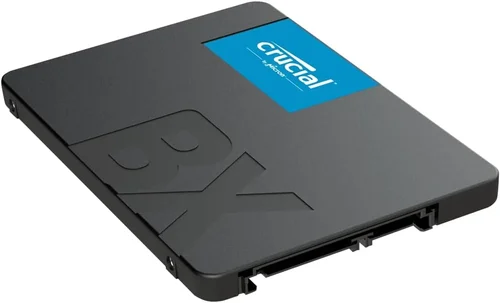
– Mid-Range ($70–$130): The sweet spot for most users. 500GB–1TB drives with DRAM cache, TLC NAND, and solid endurance. Perfect for students, home users, and general productivity. Models like the Crucial MX500 or Samsung 870 EVO offer excellent value here.
– Premium ($140–$250): For power users and professionals. 1TB–2TB capacities with high TBW, advanced controllers, and robust firmware. These drives handle sustained workloads and offer better longevity. Ideal for content creation, gaming, or small business use.
– Luxury ($250+): Top-tier drives with enterprise-grade features like power-loss protection, hardware encryption, and 5+ year warranties. Best for NAS systems, servers, or users who demand maximum reliability and performance.
Expert Tips for Getting the Best Deal
– Buy during major sales events: Black Friday, Cyber Monday, Amazon Prime Day, and back-to-school seasons often feature deep discounts on SSDs. Sign up for price alerts on sites like CamelCamelCamel or Honey.
– Check multiple retailers: Compare prices on Amazon, Newegg, Best Buy, B&H, and direct from manufacturers. Sometimes the manufacturer’s site offers exclusive bundles or extended warranties.
– Look for open-box or refurbished deals: Certified refurbished drives from reputable sellers often come with full warranties and can save you 20–30%. Just ensure they’re tested and include original accessories.
– Consider capacity upgrades: If you’re replacing a 256GB drive, jumping to 1TB may cost only $30–$40 more but gives you four times the space—great for future-proofing.
– Use student or military discounts: Some brands offer discounts through UNiDAYS, ID.me, or educational portals. Samsung and Crucial have student programs that can save you 10–15%.
– Read the return policy: Ensure the retailer offers at least 30 days to return or exchange. Some drives may have compatibility issues that only appear after installation.
– Test the drive after installation: Use tools like CrystalDiskMark or AS SSD Benchmark to verify performance. Check S.M.A.R.T. status with CrystalDiskInfo to ensure the drive is healthy.
– Don’t forget the accessories: If you’re installing in a desktop, you may need a 2.5-inch to 3.5-inch mounting bracket. For laptops, ensure you have the right screwdriver and SATA cable.
Frequently Asked Questions
Q: Can I use a 2.5-inch SSD in a desktop computer?
A: Yes, absolutely. Most desktop cases have 2.5-inch drive bays, or you can use a mounting bracket to secure the SSD in a 3.5-inch bay. Connect it via SATA data and power cables, and you’re ready to go.
Q: Is a 2.5-inch SSD faster than an NVMe drive?
A: No. NVMe drives using the M.2 interface can reach speeds over 3,500 MB/s, while 2.5-inch SATA SSDs are limited to ~560 MB/s. However, for most everyday tasks, the difference isn’t noticeable, and SATA SSDs offer better compatibility with older systems.
Q: Do I need to format a new SSD before use?
A: Most new SSDs come pre-formatted, but it’s a good idea to initialize and format them using your operating system’s disk management tool. This ensures proper partitioning and file system setup (e.g., NTFS for Windows, APFS for macOS).
Q: How long do 2.5-inch SSDs last?
A: With typical use, a quality SSD can last 5–10 years or more. Factors like TBW rating, usage patterns, and environmental conditions affect lifespan. Most users will upgrade before the drive fails.
Q: Can I recover data from a failed SSD?
A: Data recovery from SSDs is more difficult than from HDDs due to TRIM and wear-leveling. If the drive is still detectable, tools like Recuva or professional services may help. Always maintain backups.
Q: Should I enable TRIM?
A: Yes. TRIM helps maintain SSD performance by clearing unused data blocks. It’s enabled by default in Windows 10/11, macOS, and most Linux distributions. You can check its status in Windows via Command Prompt: fsutil behavior query DisableDeleteNotify (0 means enabled).
Q: Are external 2.5-inch SSDs the same as internal ones?
A: Not exactly. External SSDs often use the same internal components but come in rugged enclosures with USB interfaces. Internal 2.5-inch SATA SSDs require a separate enclosure or direct connection to a motherboard.
Q: Can I use an SSD as a boot drive?
A: Yes, and it’s highly recommended. Installing your operating system on an SSD drastically improves boot times, application launches, and overall system responsiveness.
Q: What’s the difference between SATA III and SATA II?
A: SATA III supports speeds up to 6 Gbps (~600 MB/s), while SATA II is limited to 3 Gbps (~300 MB/s). A SATA III SSD will work in a SATA II port but at reduced speed. Always check your system’s SATA version.
Q: Do SSDs need defragmentation?
A: No. Defragmentation is unnecessary and can reduce SSD lifespan by increasing write cycles. Modern operating systems automatically disable defrag for SSDs.
Our Final Recommendations
– Best for Budget-Conscious Buyers: Crucial BX500 1TB – At around $80, this drive offers solid performance, DRAM cache, and a 3-year warranty. Great for upgrading older systems without breaking the bank.
– Best Overall Value: Samsung 870 EVO 1TB – The gold standard for SATA SSDs. Excellent performance, 5-year warranty, 600 TBW endurance, and reliable firmware. Priced around $110, it’s worth the premium.
– Best Premium Option: Western Digital Black 2TB – Designed for power users, this drive delivers top-tier performance, 1,200 TBW, and advanced thermal management. Ideal for content creators and gamers.
– Best for Beginners: Kingston KC600 512GB – Easy to install, includes cloning software, and offers strong performance with DRAM. Perfect for first-time upgraders.
– Best for Advanced Users: Samsung 870 QVO 2TB – High capacity at a reasonable price, using QLC NAND. Best for users who need lots of storage for media or backups and don’t perform heavy writes.
Conclusion: Making the Right Choice
Choosing the best 2.5-inch SSD in 2026 doesn’t have to be overwhelming. By focusing on your specific needs—whether that’s budget, performance, capacity, or durability—you can narrow down the options and make a confident decision. Remember, the goal isn’t to buy the fastest or most expensive drive, but the one that delivers the best balance of value, reliability, and compatibility for your use case.
Prioritize drives with DRAM cache, TLC NAND, and strong warranties from reputable brands. Avoid the temptation to cut corners on price, as a failing drive can cost you far more in lost data and downtime. Take advantage of seasonal sales, read real user reviews, and don’t forget to back up before cloning.
Whether you’re breathing new life into an old laptop or building a reliable desktop setup, a quality 2.5-inch SSD is a smart, future-proof investment. With the insights from this guide, you’re now equipped to choose wisely and enjoy faster, smoother, and more responsive computing for years to come.