

Editing 4K video is one of the most demanding tasks you can throw at a computer. Whether you’re cutting together cinematic travel vlogs, color grading high-frame-rate drone footage, or assembling multi-camera wedding films, your storage system plays a critical role in how smoothly—and efficiently—you can work. A slow or unreliable drive can mean laggy playback, dropped frames, frustrating export times, and even project corruption. That’s why choosing the right SSD isn’t just a nice-to-have—it’s essential for professional-grade 4K editing.
This comprehensive buying guide is designed to help you navigate the crowded SSD market with confidence. We’ll break down exactly what matters when selecting solid-state drives for 4K video workflows, from raw speed and endurance to form factor compatibility and real-world reliability. Whether you’re a freelance editor working from a laptop, a studio technician building out a high-performance workstation, or a content creator upgrading your rig for smoother timelines, this guide will equip you with the knowledge to make a smart, future-proof investment. By the end, you’ll know not only which SSDs perform best but also how to match the right drive to your specific needs, budget, and setup.
The SSD landscape has evolved rapidly over the past few years. NVMe Gen4 drives now dominate the high-end segment, offering blistering sequential read/write speeds that dramatically improve scrubbing through 4K timelines and loading large media files. Meanwhile, more affordable SATA SSDs remain viable for backup or secondary storage, and portable NVMe drives have become indispensable for on-the-go editors. With options ranging from $50 entry-level drives to $1,000+ enterprise-grade beasts, it’s easy to overspend—or worse, underspend and bottleneck your entire workflow. This guide cuts through the noise, focusing exclusively on drives that deliver the performance, durability, and value required for serious 4K editing in 2026.
What to Look for When Buying Buying Guide
1. Performance Specifications
When it comes to 4K editing, raw speed isn’t everything—but it’s close. Look for SSDs with high sequential read and write speeds (measured in MB/s or GB/s), as these directly impact how quickly your editing software can load, scrub, and export large video files. For 4K workflows, aim for at least 3,000 MB/s read and 2,500 MB/s write; premium NVMe Gen4 drives now exceed 7,000 MB/s. More importantly, pay attention to sustained performance under load. Many drives throttle after a few minutes of heavy use due to thermal issues—a dealbreaker when rendering long timelines. Check reviews that test real-world performance, not just synthetic benchmarks.
Random 4K read/write speeds (measured in IOPS) also matter, especially if you’re working with fragmented media or using proxy workflows. A drive with strong random performance ensures snappier responsiveness in your NLE (non-linear editor) like Adobe Premiere Pro, DaVinci Resolve, or Final Cut Pro. Don’t overlook cache behavior either: DRAM-cached SSDs maintain consistent speeds longer than DRAM-less models, which can slow dramatically once their SLC cache is exhausted.
2. Capacity Requirements
4K video files are massive. A single minute of ProRes 422 HQ 4K footage can consume 8–10 GB, while RAW formats like REDCODE or Blackmagic RAW can exceed 20 GB per minute. This means capacity isn’t just about how much you can store—it’s about workflow efficiency. For active editing, we recommend a minimum of 1TB, but 2TB is the sweet spot for most professionals. If you work with multi-cam projects, high-bitrate codecs, or extensive B-roll libraries, consider 4TB or larger.
Also consider how you’ll use the drive. Will it host your OS and apps, or just media? Many editors use a fast NVMe drive for active projects and a larger, slightly slower drive (or external array) for archive storage. Remember: SSDs perform best when they’re not nearly full. Aim to keep at least 10–20% free space to maintain optimal speed and longevity.
3. Form Factor & Compatibility
Not all SSDs fit all systems. The two main form factors are 2.5-inch SATA (which uses a traditional laptop drive shape) and M.2 NVMe (a compact stick-like module that plugs directly into your motherboard). For 4K editing, M.2 NVMe is almost always the better choice due to its superior speed and space efficiency—especially in laptops and compact desktops.
Check your system’s compatibility before buying. Most modern PCs and Macs support M.2 NVMe, but some older systems only accept SATA. Also verify whether your motherboard supports PCIe Gen3 or Gen4—Gen4 drives offer double the bandwidth but won’t reach full speed on Gen3 slots. If you’re using a MacBook Pro (M1/M2/M3), note that internal storage is soldered and non-upgradeable, so you’ll need a high-speed external SSD instead.
4. Endurance & Durability
SSDs have a finite lifespan measured in terabytes written (TBW)—the total amount of data that can be written before the drive may fail. For 4K editors who constantly import, export, and overwrite large files, endurance is crucial. Look for drives with a TBW rating of at least 600TB for a 1TB model; 2TB drives should offer 1,200TB or more. Enterprise or prosumer drives often exceed 3,000TBW.
Durability also includes shock resistance, temperature tolerance, and build quality. Unlike HDDs, SSDs have no moving parts, making them inherently more rugged—but cheaply made drives may use lower-quality NAND flash or controllers that degrade faster under heavy use. Opt for drives from reputable brands with proven track records in professional environments.
5. Brand Reputation & Reliability
Not all SSDs are created equal, even if they share similar specs. Brands like Samsung, Western Digital, Crucial, Sabrent, and Kingston have established themselves as leaders in reliability and performance. Samsung’s 990 Pro and WD’s Black SN850X are consistently top performers in real-world editing tests. Avoid no-name or ultra-budget brands that cut corners on components or firmware.
Reliability also extends to firmware updates and long-term support. Reputable manufacturers regularly release firmware updates to fix bugs, improve performance, and enhance compatibility—critical for maintaining stable editing workflows over time.
6. Warranty & Support
A strong warranty is a good indicator of a manufacturer’s confidence in their product. Most premium SSDs come with 5-year limited warranties, often tied to TBW limits (e.g., “5 years or 1,200TBW, whichever comes first”). This is especially important for professionals who rely on their drives daily. Check what the warranty covers: some exclude “commercial use,” which could be problematic if you’re editing for clients.
Customer support matters too. If a drive fails mid-project, you need responsive, knowledgeable help—not automated chatbots. Brands like Samsung and Crucial offer solid support channels, including live chat and detailed troubleshooting guides.
7. Price-to-Performance Ratio
It’s tempting to go for the fastest drive available, but that doesn’t always mean the best value. A $400 4TB Gen4 drive might offer marginal real-world benefits over a $250 2TB model for typical 4K editing tasks. Focus on the price per gigabyte ($/GB) and consider your actual needs. If you rarely work with 8K or multi-stream 4K, a high-end Gen4 drive may be overkill.
That said, don’t skimp on performance for your primary editing drive. The time saved in faster exports, smoother playback, and reduced lag often justifies the extra cost. Think of it as an investment in productivity—not just hardware.
8. Thermal Management
High-speed NVMe drives generate significant heat, especially during sustained writes (like exporting a 4K timeline). Without proper cooling, they throttle down to prevent damage, killing performance. Many premium M.2 drives now include built-in heatsinks or are designed to work with motherboard-mounted heatspreaders. If your case has poor airflow or you’re using a laptop, consider a drive with excellent thermal efficiency or an aftermarket heatsink.
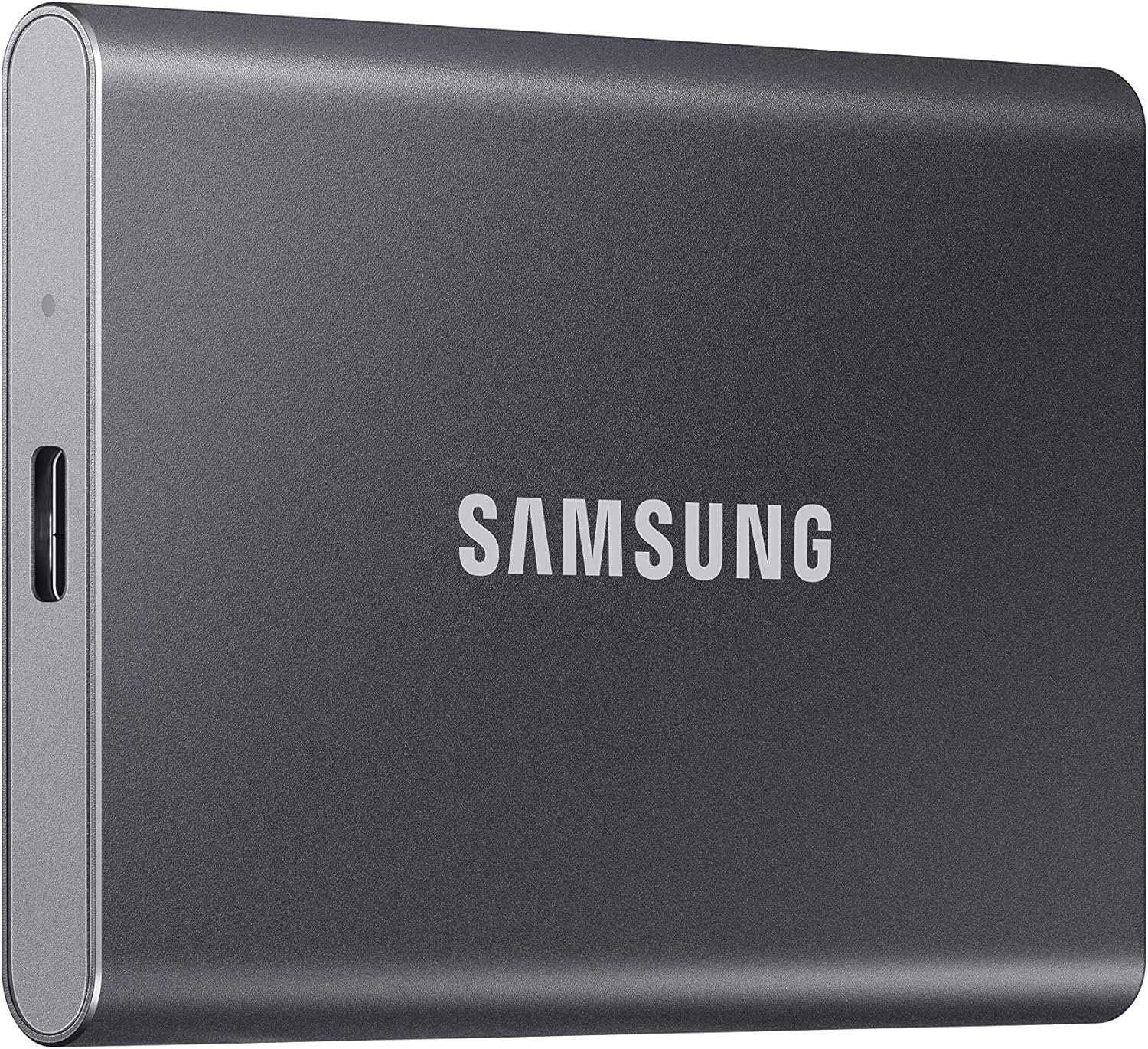
External SSDs often include aluminum enclosures that double as heat sinks—another reason they’re popular among mobile editors.
Different Types of Buying Guide

Common Buying Mistakes to Avoid

❌ Mistake: Prioritizing Peak Speeds Over Sustained Performance
Why it’s bad: Many SSDs advertise peak speeds that are only achievable for short bursts. Once the cache fills up, performance can drop by 50% or more—leading to stuttering during long exports or multi-cam playback.
What to do instead: Look for reviews that test sustained write performance over 10+ minutes. Drives like the Samsung 990 Pro or WD Black SN850X maintain high speeds even under continuous load.
❌ Mistake: Buying a DRAM-less SSD for Primary Editing
Why it’s bad: DRAM-less SSDs use system memory (HMB) instead of dedicated cache, which can slow down during heavy multitasking and reduce longevity. They’re fine for backups but risky for active projects.
What to do instead: Always choose an SSD with onboard DRAM for your main editing drive. It ensures consistent performance and better wear leveling.
❌ Mistake: Ignoring Thermal Throttling
Why it’s bad: A drive that overheats will throttle its speed to cool down, defeating the purpose of buying a high-performance SSD. This is especially common in laptops or tightly packed desktop builds.
What to do instead: Check if your case or laptop has adequate airflow. Consider drives with built-in heatsinks or add an aftermarket M.2 heatsink. Monitor temps with tools like HWInfo or CrystalDiskInfo.
❌ Mistake: Choosing Capacity Over Endurance
Why it’s bad: A 4TB drive with low TBW may fail sooner than a 2TB drive with higher endurance—even if it seems like a better deal per gigabyte.
What to do instead: Calculate your monthly data write volume and choose a drive with a TBW rating at least 3–5x your annual usage. For heavy editors, aim for 1TB+ TBW per year.
❌ Mistake: Using Consumer Drives for Professional Workflows
Why it’s bad: Consumer SSDs aren’t built for 24/7 operation or heavy write cycles. They may lack power-loss protection, advanced error correction, or robust firmware—critical for mission-critical editing.
What to do instead: Opt for prosumer or enterprise-grade drives like the Samsung 990 Pro, WD Red SN770, or Sabrent Rocket 4 Plus, which are designed for sustained professional use.
❌ Mistake: Overlooking Interface Compatibility
Why it’s bad: Plugging a Gen4 NVMe drive into a Gen3 slot limits its speed to Gen3 levels—wasting money and potential.
What to do instead: Verify your system’s PCIe generation before buying. If you’re building a new PC, invest in a Gen4-compatible motherboard to future-proof your setup.
❌ Mistake: Skipping Backup Strategy
Why it’s bad: Even the best SSD can fail without warning. Relying on a single drive for your entire project is a recipe for disaster.
What to do instead: Implement a 3-2-1 backup rule: 3 copies of your data, on 2 different media types, with 1 offsite (e.g., cloud or external drive stored elsewhere).
Budget Guidelines: How Much Should You Spend?
Entry-Level ($80–$150): This range covers reliable Gen3 NVMe drives like the Crucial P3 or Kingston NV2. They offer solid performance for light 4K editing—ideal for hobbyists or students. Expect speeds around 3,500 MB/s read, 3,000 MB/s write, and decent endurance. Perfect for secondary drives or budget builds.
Mid-Range ($150–$300): The sweet spot for most professionals. Drives like the Samsung 980 Pro (Gen4) or WD Black SN770 deliver 5,000–7,000 MB/s speeds, excellent sustained performance, and robust warranties. A 2TB model in this range will handle demanding 4K timelines with ease and last for years.
Premium ($300–$600): For editors working with 8K, RAW, or multi-stream 4K, premium drives like the Samsung 990 Pro or Sabrent Rocket 4 Plus offer top-tier speeds (7,400+ MB/s), advanced thermal management, and enterprise-level endurance. These are built for studios and full-time creators.
Luxury ($600+): Reserved for extreme workloads or RAID setups. Think 8TB+ Gen4 drives or PCIe Gen5 models (like the upcoming Corsair MP700 Pro). While overkill for most, they future-proof high-end workstations and support lightning-fast collaborative editing.

Expert Tips for Getting the Best Deal
1. Buy During Major Sales Events: Look for discounts during Black Friday, Prime Day, or back-to-school seasons. SSD prices drop significantly, especially on last-gen models (e.g., Gen3 drives when Gen4 dominates).
2. Compare Prices Across Retailers: Use price-tracking tools like CamelCamelCamel (Amazon) or Honey to monitor fluctuations. Sometimes smaller retailers like B&H Photo or Newegg offer better bundles or warranties.
3. Consider Refurbished or Open-Box Units: Reputable sellers often sell certified refurbished SSDs at 20–30% off with full warranties. Just ensure they’re from the manufacturer or authorized resellers.
4. Bundle with Other Upgrades: Some retailers offer discounts when you buy an SSD with a motherboard, CPU, or laptop. This can save you $50–$100 overall.
5. Check Manufacturer Rebates: Brands like Samsung and WD frequently run mail-in rebate promotions, effectively reducing the price by $20–$50.
6. Read Real-World Reviews: Skip the spec sheets and watch YouTube reviews from editors who test drives in actual Premiere Pro or DaVinci Resolve workflows. Look for terms like “sustained write,” “thermal throttling,” and “real-world scrubbing.”
7. Test Before Committing: If possible, borrow or rent a drive to test in your system. Some SSDs perform differently depending on your CPU, RAM, and software configuration.
8. Prioritize Warranty Over Minor Price Differences: A $20 savings isn’t worth it if the warranty is only 3 years instead of 5. Long-term reliability matters more than upfront cost.

Frequently Asked Questions
Q: Can I use a SATA SSD for 4K editing?
A: Yes, but with limitations. SATA SSDs max out at ~550 MB/s, which may cause lag when scrubbing high-bitrate 4K footage or working with multiple streams. They’re best suited for proxy workflows, backup, or older systems without NVMe support.
Q: Do I need a Gen4 NVMe drive for 4K editing?
A: Not necessarily—but it helps. Gen4 drives offer nearly double the bandwidth of Gen3, resulting in faster file transfers, quicker exports, and smoother playback in complex timelines. If your system supports Gen4, it’s worth the investment for future-proofing.
Q: How much SSD space do I really need for 4K projects?
A: For active editing, allocate at least 1TB per major project. A 2TB drive is ideal for most professionals, allowing room for OS, apps, cache files, and multiple projects. Always keep 20% free space for optimal performance.
Q: Are external SSDs fast enough for 4K editing?
A: Absolutely—if they use NVMe and connect via Thunderbolt 3/4 or USB 3.2 Gen 2×2 (20 Gbps). Drives like the Samsung T7 Shield or SanDisk Extreme Pro deliver 1,000+ MB/s and are perfect for MacBook editors or on-location work.
Q: Will a faster SSD improve my export times?
A: It can, but only if your CPU and GPU aren’t the bottleneck. In most cases, a fast SSD reduces file read/write delays during export, shaving off 10–30% of total time—especially with large projects.
Q: Should I RAID my SSDs for better performance?
A: RAID 0 can double speed but doubles the risk of failure (if one drive dies, you lose everything). For most editors, a single high-capacity NVMe drive is safer and simpler. Use RAID for redundancy (RAID 1) or large arrays (RAID 5/6) in studio environments.
Q: How do I know if my SSD is throttling?
A: Use monitoring tools like CrystalDiskInfo or HWInfo to check temperatures and real-time speeds. If speeds drop sharply after a few minutes of use and temps exceed 70°C, your drive is likely throttling.
Q: Can I install my OS and editing software on the same SSD as my media?
A: Yes, and it’s recommended for best performance. Keeping your OS, apps, and active projects on the same fast NVMe drive reduces latency and improves responsiveness.
Q: Are PCIe Gen5 SSDs worth it in 2026?
A: Only if you’re working with 8K RAW or multi-camera 4K at high frame rates. Gen5 offers 14,000+ MB/s but requires a compatible motherboard and generates significant heat. For most 4K editors, Gen4 remains the optimal balance of speed, cost, and compatibility.
Our Final Recommendations
Best for Budget-Conscious Buyers: Crucial P3 2TB (Gen3 NVMe) – At under $150, it delivers reliable 3,500/3,000 MB/s speeds and 1,200TBW endurance. Ideal for entry-level 4K editing without breaking the bank.
Best Overall Value: Samsung 980 Pro 2TB (Gen4 NVMe) – Consistently top-rated for performance, reliability, and thermal efficiency. Offers 7,000/5,100 MB/s speeds and a 5-year warranty. A proven workhorse for professionals.
Best Premium Option: Samsung 990 Pro 4TB (Gen4 NVMe) – With 7,450/6,900 MB/s speeds, exceptional sustained performance, and a massive 2,400TBW endurance, this drive is built for heavy-duty 4K/8K workflows and future-proofing.
Best for Beginners: WD Black SN770 1TB (Gen4 NVMe) – Easy to install, affordable, and delivers smooth 4K editing performance. Great first NVMe drive with strong software support and a user-friendly dashboard.
Best for Advanced Users: Sabrent Rocket 4 Plus 4TB (Gen4 NVMe) – High-end performance with excellent thermal design and competitive pricing. Perfect for editors pushing the limits with RAW, HDR, and multi-stream timelines.
Conclusion: Making the Right Choice
Choosing the right SSD for 4K editing isn’t just about picking the fastest or biggest drive—it’s about matching the right combination of speed, capacity, endurance, and compatibility to your unique workflow. A well-chosen SSD won’t just prevent frustration; it will unlock smoother timelines, faster exports, and greater creative freedom. Remember to prioritize sustained performance over peak specs, invest in reliability, and always back up your work.
Whether you’re editing on a laptop in a café or running a studio workstation, the drive you choose becomes the foundation of your creative process. Take the time to assess your needs, read real-world reviews, and don’t compromise on quality for your primary editing drive. With the insights from this guide, you’re now equipped to make a confident, informed decision that will serve you well through countless 4K projects ahead.
Ready to upgrade? Start by identifying your bottleneck—is it slow scrubbing, long exports, or limited storage? Then select a drive from our recommendations that aligns with your budget and performance goals. Your future self (and your clients) will thank you.