

Choosing the right storage drive—whether a solid-state drive (SSD) or a hard disk drive (HDD)—is one of the most critical decisions you’ll make when building, upgrading, or buying a computer in 2026. With technology evolving at breakneck speed, the gap between SSDs and HDDs has never been more pronounced. Gone are the days when HDDs dominated every system; today, SSDs offer lightning-fast performance, improved reliability, and shrinking price gaps that make them increasingly accessible. Yet, HDDs still hold strong in specific use cases, particularly for bulk storage and budget builds. The challenge isn’t just picking between two technologies—it’s understanding which one aligns with your unique needs, workflow, and long-term goals.
This comprehensive buying guide is designed to cut through the noise and help you make a confident, informed decision. Whether you’re a gamer chasing faster load times, a content creator managing terabytes of 4K footage, a student on a tight budget, or a professional building a high-performance workstation, we’ll walk you through every factor that matters. You’ll learn how to evaluate performance, durability, capacity, cost, and compatibility—plus get expert tips on avoiding common pitfalls and maximizing value. By the end of this guide, you won’t just know whether to choose an SSD or HDD—you’ll know exactly which model fits your life.
The storage market in 2026 is more dynamic than ever. NVMe SSDs now dominate the high-performance segment, while SATA SSDs remain a reliable middle ground. Meanwhile, HDD manufacturers continue to push capacity limits, with 30TB+ drives now available for enterprise and prosumer use. Prices have stabilized after years of volatility, and new form factors like M.2 and U.2 are becoming standard. With so many options, it’s easy to feel overwhelmed. But with the right knowledge, you can navigate this landscape like a pro. Let’s dive in and break down everything you need to know to pick the perfect drive.

What to Look for When Buying Buying Guide
1. Budget & Price Range
Your budget is the foundation of your storage decision. SSDs and HDDs differ dramatically in cost per gigabyte, and this gap directly impacts what you can afford. As of 2026, HDDs remain significantly cheaper per terabyte—often costing between $0.02 and $0.04 per GB—while SSDs range from $0.08 to $0.20 per GB, depending on type and capacity. For example, a 4TB HDD might cost around $100, while a comparable SATA SSD could run $250–$300, and an NVMe SSD even more.
If you’re building a budget PC or need massive storage for media archives, HDDs offer unbeatable value. However, if performance, boot speed, and application responsiveness matter more than sheer capacity, investing in an SSD—even at a higher upfront cost—can dramatically improve your computing experience. Consider your total system budget: allocating more to storage can yield outsized returns in daily usability. A $50 SSD upgrade might feel expensive, but it can reduce boot times from minutes to seconds and make multitasking feel seamless.
2. Performance Specifications
Performance is where SSDs shine—and HDDs struggle to keep up. The key metrics to compare are read/write speeds, access times, and input/output operations per second (IOPS). Modern NVMe SSDs can deliver sequential read speeds exceeding 7,000 MB/s, while even high-end HDDs top out around 200 MB/s. Random access times tell a similar story: SSDs respond in microseconds, whereas HDDs take milliseconds due to mechanical delays.
For everyday tasks like web browsing, office work, or media playback, both drives will perform adequately. But for gaming, video editing, software development, or running virtual machines, SSDs provide a transformative experience. Faster load times, quicker file transfers, and snappier system responsiveness are standard. NVMe drives, especially those using PCIe 4.0 or 5.0 interfaces, are ideal for power users. SATA SSDs are slower but still vastly superior to HDDs and are perfect for older systems or budget builds.
Don’t overlook endurance ratings, measured in terabytes written (TBW). High-end SSDs can handle hundreds or even thousands of terabytes before wear becomes a concern. HDDs don’t have a TBW limit but are more prone to mechanical failure over time. Always check manufacturer specs and real-world benchmarks—synthetic tests don’t always reflect daily use.
3. Build Quality & Durability
Durability is a major differentiator between SSDs and HDDs. SSDs have no moving parts, making them inherently more resistant to shock, vibration, and physical damage. Drop an SSD from a desk, and it’s likely to survive. Drop an HDD, and the spinning platters or read/write heads could be damaged, leading to data loss.
This makes SSDs ideal for laptops, portable devices, and environments where mobility or rough handling is a factor. HDDs, with their delicate internal mechanics, are better suited for stationary desktops or external enclosures with shock protection. Temperature tolerance also favors SSDs—they operate reliably across a wider range, though extreme heat can still degrade NAND flash over time.
Longevity is another consideration. While SSDs have a finite number of write cycles, modern wear-leveling algorithms and over-provisioning extend their lifespan well beyond typical consumer use. Most users will never reach their SSD’s TBW limit. HDDs, on the other hand, can fail suddenly due to mechanical wear, power surges, or manufacturing defects. Regular backups are essential regardless of drive type, but SSDs offer peace of mind for those who value reliability.
4. Features & Functionality
Beyond raw speed and durability, modern drives come with a host of features that enhance usability and security. Look for support for advanced technologies like TRIM (which maintains SSD performance over time), S.M.A.R.T. monitoring (for early failure detection), and hardware encryption (such as TCG Opal or AES-256).
NVMe SSDs often include thermal throttling protection and power-loss protection, which prevent data corruption during unexpected shutdowns. Some high-end models even feature heatsinks or require motherboard-mounted cooling solutions to maintain peak performance under load. For enterprise or prosumer use, features like power failure immunity and end-to-end data protection are critical.
HDDs are catching up with features like helium-filled enclosures (which reduce friction and allow more platters in the same space), multi-actuator technology (for faster access), and built-in RAID support. However, they still lag behind SSDs in responsiveness and efficiency. Consider your workflow: if you need fast boot times, quick app launches, or instant file access, SSDs are the clear winner.
5. Brand Reputation
Not all drives are created equal—even within the same category. Brand reputation matters because it reflects consistency in quality, innovation, and customer support. In the SSD space, leaders like Samsung, Western Digital, Crucial, Kingston, and Sabrent have earned trust through years of reliable products and strong firmware support.
Samsung’s 990 Pro and 980 series are benchmarks for performance and endurance. Western Digital’s Black SN850X and SanDisk Extreme Pro offer excellent speed and compatibility. Crucial, a subsidiary of Micron, provides great value with its MX and P series. Kingston and Sabrent are strong contenders in the budget and mid-range segments, often offering competitive specs at lower prices.
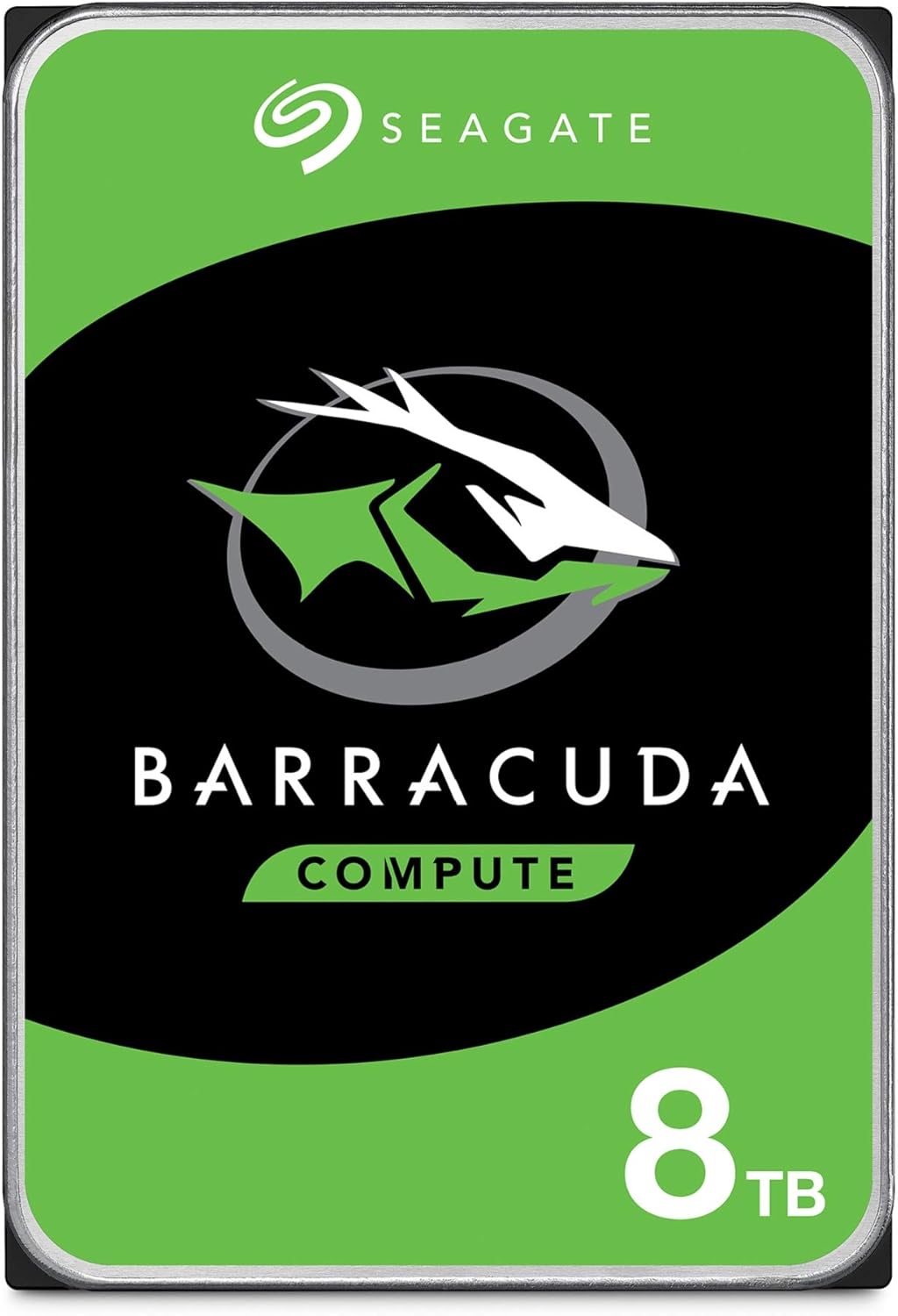
For HDDs, Seagate, Western Digital, and Toshiba dominate the market. WD’s Red and Purple lines are tailored for NAS and surveillance use, while Seagate’s IronWolf and Exos series target enterprise and creative professionals. Avoid no-name or ultra-cheap brands—they often use lower-grade components and lack proper firmware updates or warranty support.
Research user reviews, professional benchmarks, and long-term reliability studies. Sites like Backblaze publish annual drive failure rates, which can help you identify the most dependable models. A trusted brand may cost slightly more upfront, but it reduces the risk of data loss and ensures better long-term value.
6. Warranty & Support
Warranty length and support quality are often overlooked but crucial factors. Most SSDs come with 3- to 5-year warranties, with higher-end models offering up to 10 years. This reflects manufacturer confidence in their product’s longevity. HDDs typically have 2- to 5-year warranties, though some enterprise drives extend to 5 years or more.
Check what the warranty covers: does it include data recovery? Is it transferable? Are there regional limitations? Some brands require registration to activate the full warranty period. Also, consider the ease of RMA (return merchandise authorization) processes. Brands like Samsung and Crucial offer straightforward online support, while others may require phone calls or lengthy forms.
Customer support responsiveness matters too. If your drive fails, you want quick access to troubleshooting, replacement options, and clear communication. Read user experiences on forums like Reddit or Tom’s Hardware to gauge real-world support quality. A long warranty is meaningless if the process to claim it is frustrating.
7. Size & Portability
Form factor plays a big role, especially for laptops, mini PCs, or external storage. SSDs dominate in compact designs. M.2 NVMe drives are tiny—about the size of a stick of gum—and plug directly into the motherboard, saving space and reducing cable clutter. SATA SSDs are slightly larger but still slim and lightweight.
HDDs are bulkier due to their mechanical components. The standard 3.5-inch desktop drive requires more space and power, while 2.5-inch laptop drives are smaller but still thicker than SSDs. For portable external drives, SSDs are the go-to choice—they’re lighter, more durable, and often come in sleek, pocketable enclosures.
If you’re building a small form factor PC or upgrading a laptop, an M.2 SSD is usually the best fit. For desktop towers with ample space, you can mix and match—install a fast NVMe SSD for the OS and a large HDD for storage. Always verify your system’s compatibility: not all motherboards support M.2 or U.2 drives, and some laptops have limited upgrade options.
8. User Reviews & Ratings
While specs and benchmarks are important, real-world user feedback provides invaluable insights. Look beyond star ratings and read detailed reviews on retail sites, tech forums, and YouTube. Pay attention to comments about reliability, noise (especially for HDDs), heat output, and ease of installation.
Users often report issues not mentioned in official specs—like firmware bugs, compatibility problems with certain motherboards, or unexpected slowdowns over time. For example, some budget SSDs may use slower NAND or lack DRAM caches, leading to performance drops under sustained load. Others might have poor thermal management, causing throttling during long transfers.
Check for consistency across multiple sources. If several users report the same problem—like a drive failing after a few months—it’s a red flag. Conversely, consistent praise for speed, quiet operation, or customer service can reinforce a purchase decision. Use tools like Amazon’s “verified purchase” filter or Newegg’s review system to focus on authentic experiences.
Different Types of Buying Guide
Common Buying Mistakes to Avoid
❌ Mistake: Prioritizing Capacity Over Speed
Why it’s bad: Buying a massive HDD for your OS drive might save money, but it leads to slow boot times, laggy apps, and frustration. A 4TB HDD might hold more data, but a 512GB SSD will make your system feel twice as fast.
What to do instead: Use a smaller SSD for your operating system and critical applications, then add a large HDD for storage. This hybrid setup gives you the best of both worlds.
❌ Mistake: Ignoring Form Factor Compatibility
Why it’s bad: Not all drives fit all systems. Installing an M.2 NVMe drive in a motherboard that only supports SATA will result in a non-functional drive—or worse, damage.
What to do instead: Check your motherboard or laptop manual for supported drive types. Use tools like PCPartPicker to verify compatibility before purchasing.
❌ Mistake: Choosing the Cheapest Option Without Research
Why it’s bad: Ultra-budget SSDs often use low-quality NAND, lack DRAM caches, or have poor firmware. They may fail prematurely or slow down drastically under load.
What to do instead: Stick to reputable brands and read reviews. A slightly more expensive drive from Samsung or Crucial is often worth the investment.
❌ Mistake: Overlooking Warranty and Support
Why it’s bad: A drive with a short warranty or poor customer service can leave you stranded if it fails. Data recovery is expensive and not always successful.
What to do instead: Choose drives with at least a 3-year warranty and check user experiences with RMA processes. Register your drive to activate full coverage.
❌ Mistake: Assuming All SSDs Are the Same
Why it’s bad: NVMe, SATA, DRAM-less, QLC NAND—these differences significantly impact performance and longevity. A DRAM-less SSD may be cheaper but will struggle with sustained writes.
What to do instead: Understand the tech: NVMe > SATA in speed, DRAM cache improves performance, and TLC/MLC NAND lasts longer than QLC.
❌ Mistake: Not Backing Up Data
Why it’s bad: All drives fail eventually. Relying on a single drive without backups risks permanent data loss.
What to do instead: Use the 3-2-1 backup rule: 3 copies of your data, on 2 different media, with 1 offsite (e.g., cloud or external drive).
❌ Mistake: Buying Based Solely on Price per GB
Why it’s bad: While HDDs win on cost per gigabyte, they lose on performance, power efficiency, and durability. For primary drives, speed matters more than capacity.
What to do instead: Calculate total cost of ownership, including time saved, energy use, and potential downtime. An SSD often pays for itself in productivity gains.
Budget Guidelines: How Much Should You Spend?
– Entry-Level ($30–$80): Ideal for basic computing, students, or secondary storage. Expect SATA SSDs (256GB–512GB) or 1TB–2TB HDDs. Performance is adequate for web browsing and office tasks, but don’t expect blazing speeds. Great for upgrading older systems on a tight budget.
– Mid-Range ($80–$200): The sweet spot for most users. You can get a 1TB NVMe SSD (like the Samsung 980 or WD Blue SN580) or a 2TB–4TB HDD. This tier offers excellent value, balancing speed, capacity, and reliability. Perfect for gaming, content creation, and general productivity.
– Premium ($200–$400): For enthusiasts and professionals. High-end NVMe SSDs (2TB–4TB) with PCIe 4.0/5.0 support, advanced cooling, and top-tier endurance. Also includes high-capacity HDDs (8TB+) for NAS or media servers. Expect premium build quality and long warranties.
– Luxury ($400+): Top-tier performance and capacity. Includes 4TB+ NVMe SSDs, enterprise-grade drives, or specialized models like U.2 or Optane (though Intel has largely discontinued Optane). Best for data centers, video production studios, or users who demand absolute reliability and speed.

Expert Tips for Getting the Best Deal
– Buy during major sales events: Black Friday, Cyber Monday, Amazon Prime Day, and back-to-school seasons often feature deep discounts on storage. Sign up for deal alerts from retailers like Newegg, Best Buy, or B&H.
– Check refurbished or open-box options: Certified refurbished drives from reputable sellers (like Amazon Renewed or manufacturer outlets) can save 20–40% and often come with full warranties.
– Compare prices across retailers: Use tools like Google Shopping, PriceGrabber, or CamelCamelCamel to track price history and find the lowest current price.
– Look for bundle deals: Some retailers offer SSDs with free cloning software, enclosures, or extended warranties. These add-ons can increase value.
– Verify return policies: Ensure you can return or exchange the drive if it’s defective or incompatible. Most retailers offer 30-day returns, but some have restocking fees.
– Test before finalizing: Once installed, run benchmarks (like CrystalDiskMark) and check S.M.A.R.T. status to confirm the drive is performing as expected.
– Consider future-proofing: If your budget allows, buy a slightly larger drive than you need. Storage fills up faster than expected, and upgrading later can be a hassle.
– Don’t forget installation tools: Some drives come with mounting brackets or screws. If not, ensure you have the right hardware for your case or laptop.

Frequently Asked Questions
Q: Is an SSD worth it over an HDD for everyday use?
A: Absolutely. Even for basic tasks like web browsing, document editing, and media playback, an SSD makes your system feel significantly faster. Boot times drop from minutes to seconds, apps launch instantly, and multitasking becomes smoother. The performance gain far outweighs the higher cost for most users.
Q: Can I use both an SSD and HDD in the same system?
A: Yes, and it’s a smart strategy. Install your operating system and frequently used programs on the SSD for speed, and use the HDD for storing large files like videos, photos, and backups. This hybrid setup maximizes both performance and capacity.
Q: How long do SSDs last compared to HDDs?
A: Modern SSDs are extremely durable and can last 5–10 years or more under normal use. While they have a finite number of write cycles, real-world endurance is rarely an issue for consumers. HDDs can also last many years but are more prone to mechanical failure. Both benefit from regular backups.
Q: Are NVMe SSDs compatible with all motherboards?
A: Not necessarily. NVMe drives require an M.2 slot that supports NVMe (not just SATA). Check your motherboard manual or use a tool like CPU-Z to verify compatibility. Some older boards may need a BIOS update.
Q: Do I need a heatsink for my NVMe SSD?
A: High-performance NVMe drives can get hot under sustained load, especially PCIe 4.0/5.0 models. If your case has poor airflow or you’re doing intensive tasks like video editing, a heatsink can prevent thermal throttling. Many motherboards include built-in M.2 heatsinks.
Q: Can I recover data from a failed SSD or HDD?
A: Data recovery is possible but not guaranteed. SSDs are harder to recover from due to wear-leveling and encryption. HDDs offer better recovery chances if the platters are intact. Always back up important data—professional recovery services are expensive.
Q: Are external SSDs faster than internal HDDs?
A: Yes, even over USB 3.2 or Thunderbolt, external SSDs are typically faster than internal HDDs. They’re ideal for fast file transfers, portable workstations, or expanding laptop storage.
Q: Should I defragment my SSD?
A: No. Defragmentation is unnecessary for SSDs and can reduce their lifespan by increasing write cycles. Windows and macOS automatically disable defrag for SSDs and use TRIM instead to maintain performance.
Q: What’s the difference between TLC, MLC, and QLC NAND?
A: These refer to how many bits are stored per memory cell. TLC (3-bit) is common and offers a good balance of speed, endurance, and cost. MLC (2-bit) is more durable but pricier. QLC (4-bit) is cheaper and higher-capacity but slower and less durable. For most users, TLC is the sweet spot.
Q: Can I upgrade my laptop’s storage?
A: It depends on the model. Many modern laptops allow SSD upgrades, especially if they have an M.2 slot. However, some ultrabooks have soldered storage. Check your laptop’s service manual or manufacturer website before purchasing.
Our Final Recommendations
– Best for Budget-Conscious Buyers: Crucial MX500 1TB SATA SSD – Reliable, affordable, and backed by a 5-year warranty. Great for upgrading older systems.
– Best Overall Value: Samsung 980 1TB NVMe SSD – Excellent performance, low power consumption, and strong endurance at a competitive price.
– Best Premium Option: Samsung 990 Pro 2TB – Top-tier PCIe 4.0 performance with advanced cooling and 1,200 TBW endurance. Ideal for gamers and creators.
– Best for Beginners: WD Blue SA510 500GB SATA SSD – Simple installation, solid performance, and user-friendly software. Perfect for first-time upgraders.
– Best for Advanced Users: Sabrent Rocket 4 Plus 4TB – High-capacity NVMe drive with PCIe 4.0 speeds and excellent thermal management. Great for workstations and NAS.
Conclusion: Making the Right Choice
The debate between SSDs and HDDs isn’t about which is universally better—it’s about which is better for you. SSDs deliver unmatched speed, durability, and efficiency, making them the ideal choice for primary drives, gaming rigs, and portable devices. HDDs, while slower, remain unmatched in cost-effective bulk storage for media, backups, and archives.
By understanding your needs—whether it’s blazing performance, massive capacity, or budget-friendly reliability—you can make a decision that enhances your computing experience. Use the factors we’ve outlined: budget, performance, durability, brand, warranty, and real-world feedback. Avoid common pitfalls like ignoring compatibility or prioritizing capacity over speed.
Ultimately, the best drive is the one that fits your workflow, protects your data, and delivers value over time. Whether you choose a lightning-fast NVMe SSD or a spacious HDD, invest wisely, back up regularly, and enjoy the peace of mind that comes from making an informed choice. Your data—and your sanity—will thank you.