

Solid-state drives have completely transformed the way we experience desktop computing. Gone are the days of waiting minutes for your operating system to boot or programs to load—today’s SSDs deliver near-instant responsiveness, dramatically improving everything from file transfers to multitasking performance. Whether you’re building a new desktop from scratch, upgrading an older machine, or simply looking to breathe new life into your current setup, choosing the right SSD is one of the most impactful decisions you can make. With so many brands, form factors, and technical specifications flooding the market, it’s easy to feel overwhelmed. That’s exactly why this guide exists: to cut through the noise and help you make a confident, informed choice.
In this comprehensive buying guide, you’ll learn how to evaluate SSDs based on your specific needs—whether you’re a casual user, a creative professional, a gamer, or a power user running resource-intensive applications. We’ll break down the key factors that matter most, compare top brands and models, highlight common pitfalls to avoid, and provide actionable tips to get the best value for your money. By the end, you won’t just know which SSD brand is best for desktops—you’ll understand why it’s the right fit for you. The SSD market in 2026 is more competitive than ever, with advancements in NAND technology, controller efficiency, and thermal management pushing performance and reliability to new heights. But with innovation comes complexity, and not all SSDs are created equal.

What to Look for When Buying Buying Guide
1. Budget & Price Range
Your budget is often the first and most important filter when shopping for an SSD. Prices vary widely depending on capacity, performance tier, and brand reputation. As of 2026, you can find reliable SATA SSDs starting around $30 for 500GB, while high-performance NVMe Gen4 and emerging Gen5 drives can cost $200 or more for 2TB. It’s tempting to go for the cheapest option, but skimping too much can lead to poor endurance, slower speeds, or even data loss over time. Conversely, overspending on features you’ll never use is equally wasteful.
A good rule of thumb is to allocate 10–15% of your total desktop build budget to storage. For example, if you’re spending $1,200 on a mid-range gaming PC, aim to spend $120–$180 on your primary SSD. This ensures you get a drive that balances speed, capacity, and longevity without breaking the bank. Always compare price per gigabyte (GB) when evaluating value—sometimes a slightly higher upfront cost buys significantly better performance or warranty coverage.
2. Performance Specifications
Performance is where SSDs truly shine, but not all specs are created equal. The two most commonly advertised metrics are sequential read and write speeds, measured in megabytes per second (MB/s). For NVMe drives, these typically range from 3,500 MB/s (Gen3) to over 12,000 MB/s (Gen5). However, real-world performance also depends on random read/write speeds (measured in IOPS—input/output operations per second), which affect how quickly your system handles small files and multitasking.
Don’t just focus on peak numbers. Look at sustained performance under load, especially for large file transfers or video editing workflows. Some budget drives throttle significantly after their cache fills up, causing speeds to drop dramatically. High-end drives with robust controllers and DRAM cache maintain consistent performance even during prolonged use. Also consider interface compatibility: ensure your motherboard supports the drive’s protocol (SATA, PCIe Gen3, Gen4, or Gen5) to avoid bottlenecks.
3. Build Quality & Durability
An SSD’s lifespan is largely determined by its endurance rating, expressed in terabytes written (TBW). This tells you how much data can be written to the drive over its lifetime before it’s likely to fail. For example, a 1TB drive with a 600 TBW rating can theoretically endure writing 600TB of data—equivalent to writing 164GB per day for 10 years. Higher-end drives often feature better NAND flash (like 3D TLC or MLC instead of QLC), which offers greater endurance and faster write speeds.
Physical build quality matters too. Look for drives with metal heatsinks or thermal pads, especially for Gen4/Gen5 NVMe models that generate significant heat under load. Poor thermal management can lead to throttling, reducing performance and potentially shortening the drive’s lifespan. Reputable brands also use higher-grade controllers and firmware optimized for stability and longevity. Avoid no-name or ultra-budget drives with vague specifications—they may use recycled or lower-quality components.
4. Features & Functionality
Beyond raw speed and capacity, modern SSDs come with a range of features that enhance usability and security. One of the most important is DRAM cache, which acts as a buffer for frequently accessed data and significantly improves performance and longevity. Drives without DRAM (often called DRAM-less) are cheaper but can suffer from slower speeds and reduced endurance, especially under heavy workloads.
Other valuable features include hardware encryption (like AES-256), which protects your data if the drive is lost or stolen, and power-loss protection, which prevents data corruption during unexpected shutdowns. Some premium drives also include software suites for monitoring health, updating firmware, and cloning your existing drive. While not essential for everyone, these extras can provide peace of mind and simplify maintenance. Always check whether the drive supports your operating system’s native features, such as TRIM for Windows or APFS optimization for macOS.
5. Brand Reputation
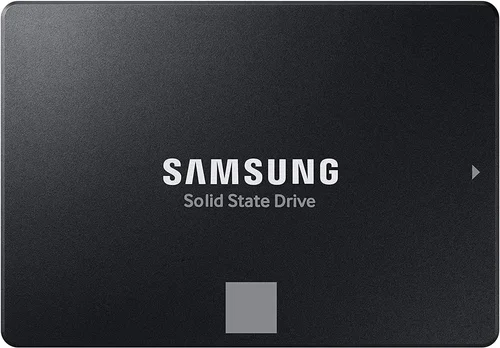
Not all SSD manufacturers are equal when it comes to reliability, customer support, and long-term firmware updates. Established brands like Samsung, Crucial, Western Digital, Kingston, and Sabrent have proven track records of delivering consistent quality and responsive service. They invest heavily in R&D, use high-quality components, and often provide detailed performance benchmarks and compatibility lists.
On the other hand, lesser-known brands may offer tempting prices but come with risks—limited warranty coverage, poor customer support, or inconsistent performance across batches. Reading professional reviews and user feedback on forums like Reddit or Tom’s Hardware can reveal patterns of issues like early failure rates or firmware bugs. Stick with brands that have a history of transparency and accountability. A reputable brand might cost a bit more upfront, but it’s a worthwhile investment in data security and system stability.
6. Warranty & Support
A strong warranty is a strong indicator of a manufacturer’s confidence in their product. Most premium SSDs come with 5-year limited warranties, often tied to both time and TBW limits (e.g., 5 years or 600 TBW, whichever comes first). Some brands, like Samsung and Crucial, also offer free data recovery services or expedited replacement programs.
Pay attention to what the warranty covers—does it include accidental damage? Is there a clear process for RMA (return merchandise authorization)? Avoid brands with vague or restrictive warranty terms. Also consider the availability of customer support: can you reach a human quickly? Are drivers and firmware updates regularly released? Good support can make a big difference if you encounter issues down the line. Remember, your SSD holds your most important files—don’t entrust it to a brand that won’t stand behind its product.
7. Form Factor & Compatibility
Desktop SSDs come in several form factors, and choosing the right one depends on your motherboard and case. The most common types are 2.5-inch SATA, M.2 2280 (the small stick-like drives), and U.2 (less common but used in enterprise setups). M.2 drives are increasingly popular due to their compact size and direct PCIe connection, eliminating the need for cables.
Before buying, check your motherboard’s manual to confirm which M.2 slots are available and what protocols they support (SATA, PCIe Gen3, Gen4, or Gen5). Some older boards only support SATA M.2 drives, while newer ones may have multiple Gen4 or even Gen5 slots. Also ensure your case has enough space and airflow—high-performance NVMe drives can get hot, and some cases include built-in heatsinks or mounting brackets. If you’re upgrading an older desktop, a 2.5-inch SATA SSD might be your only option, but it’s still a massive upgrade over an HDD.
8. User Reviews & Real-World Feedback
Spec sheets tell part of the story, but real-world user experiences reveal the rest. Look beyond star ratings and read detailed reviews that discuss long-term reliability, thermal performance, noise (if applicable), and ease of installation. Pay special attention to comments about failure rates, firmware issues, or compatibility problems with specific motherboards or operating systems.
Forums like Reddit’s r/buildapc or r/DataHoarder, as well as sites like AnandTech and Tom’s Hardware, offer in-depth discussions and long-term testing results. User reviews can also highlight quirks not mentioned in marketing materials—like a drive that runs unusually hot or requires a BIOS update to function properly. While no product is perfect, consistent praise or complaints across multiple sources are strong indicators of quality or concern.
Different Types of Buying Guide

Common Buying Mistakes to Avoid

❌ Mistake: Ignoring Your Motherboard’s Compatibility
Why it’s bad: Buying a Gen5 NVMe drive for a motherboard that only supports Gen3 will result in wasted money and underutilized performance. Similarly, installing an M.2 drive in a slot that only supports SATA can lead to boot failures or non-detection.
What to do instead: Always check your motherboard’s manual or manufacturer website for supported M.2 types and PCIe generations. Use tools like CPU-Z or the motherboard’s QVL (qualified vendor list) to verify compatibility before purchasing.
❌ Mistake: Choosing a DRAM-less SSD for Primary Use
Why it’s bad: DRAM-less SSDs rely on system memory (HMB) for caching, which can slow down performance during heavy multitasking or large file operations. They also tend to have lower endurance and may struggle with sustained writes.
What to do instead: For your primary OS and application drive, always opt for an SSD with a dedicated DRAM cache. Reserve DRAM-less models for secondary storage or budget builds where performance isn’t critical.
❌ Mistake: Overlooking Thermal Management
Why it’s bad: High-speed NVMe drives, especially Gen4 and Gen5, can reach temperatures over 70°C under load. Without proper cooling, they throttle performance to prevent damage, negating their speed advantages.
What to do instead: Choose drives with built-in heatsinks or purchase aftermarket M.2 coolers. Ensure your case has adequate airflow, and consider placing the drive away from GPU heat sources. Monitor temps using tools like HWInfo or CrystalDiskInfo.
❌ Mistake: Buying Based Solely on Price per GB
Why it’s bad: The cheapest drive per gigabyte often uses lower-quality NAND (like QLC) and lacks features like DRAM or robust controllers. This can lead to slower write speeds, reduced lifespan, and higher risk of failure.
What to do instead: Balance price with performance, endurance, and brand reputation. A slightly more expensive TLC-based drive with a 5-year warranty is usually a better long-term investment than the absolute cheapest option.
❌ Mistake: Neglecting Firmware Updates
Why it’s bad: Outdated firmware can cause compatibility issues, performance bugs, or even data corruption. Some brands release critical updates to fix early-drive problems.
What to do instead: Register your SSD with the manufacturer and periodically check for firmware updates. Use official tools (like Samsung Magician or Crucial Storage Executive) to safely apply updates.
❌ Mistake: Skipping Backup Plans
Why it’s bad: SSDs can fail suddenly without warning, unlike HDDs that often show signs of degradation. Relying solely on a single SSD for all your data is risky.
What to do instead: Implement a 3-2-1 backup strategy: keep three copies of your data, on two different media, with one offsite (e.g., cloud storage). Regularly back up your SSD to an external drive or NAS.
❌ Mistake: Confusing Capacity with Performance
Why it’s bad: Larger SSDs often perform better due to more NAND chips and parallelism, but assuming a 4TB drive is always faster than a 1TB model of the same series can be misleading—especially if the smaller drive uses higher-grade components.
What to do instead: Compare specs within the same product line. A 1TB high-end drive may outperform a 4TB budget model. Match capacity to your actual needs—don’t buy 4TB if you only use 500GB.
Budget Guidelines: How Much Should You Spend?
- Entry-Level ($30–$60): Ideal for basic computing, web browsing, and light office work. Look for reliable SATA or Gen3 NVMe drives from trusted brands like Kingston or Crucial. Expect 500GB–1TB capacity, moderate speeds (up to 3,500 MB/s for NVMe), and 3–5 year warranties. Great for upgrading old desktops or building budget systems.
- Mid-Range ($60–$120): The sweet spot for most desktop users. Offers excellent balance of speed, capacity (1TB–2TB), and features like DRAM cache and TLC NAND. Gen4 NVMe drives in this range (e.g., WD Black SN770, Samsung 980 Pro) deliver blazing performance for gaming, photo editing, and multitasking. Most come with 5-year warranties and strong thermal performance.
- Premium ($120–$200): Designed for enthusiasts and professionals. These drives feature top-tier controllers, high endurance ratings (600+ TBW), and sustained Gen4 or early Gen5 speeds. Models like the Samsung 990 Pro or Sabrent Rocket 4 Plus include advanced cooling and software suites. Perfect for video editors, 3D artists, and competitive gamers.
- Luxury ($200+): For those who demand the absolute best. Gen5 NVMe drives (e.g., Crucial T700, Gigabyte AORUS Gen5) offer speeds exceeding 12,000 MB/s and are built for future-proofing high-end workstations. Often include full-coverage heatsinks, premium materials, and extended support. Only necessary for extreme workloads like 8K video rendering or AI training.
Expert Tips for Getting the Best Deal
- Wait for seasonal sales: Major retailers like Amazon, Newegg, and Best Buy offer deep discounts during Black Friday, Prime Day, and back-to-school seasons. SSD prices can drop 20–30% during these events. Set price alerts using tools like CamelCamelCamel or Honey.
- Buy from authorized retailers: Purchasing from official partners (e.g., Samsung.com, Crucial.com, or certified resellers) ensures you get genuine products with full warranty coverage. Avoid third-party sellers with unclear return policies.
- Compare total cost of ownership: Factor in warranty length, endurance, and potential resale value. A $100 drive with a 5-year warranty and 600 TBW is often a better deal than a $80 drive with half the endurance and shorter coverage.
- Check for bundle deals: Some manufacturers offer SSDs bundled with heatsinks, cloning software, or even free games (especially gaming-focused models). These can add significant value without extra cost.
- Read the fine print on warranties: Some brands require registration within 30 days to activate the full warranty. Others void coverage if the drive is used in a RAID array. Know the terms before you buy.
- Test before finalizing: Once installed, run benchmarks (like CrystalDiskMark) and monitor temperatures during heavy use. If performance or thermals are disappointing, initiate a return while the window is still open.
- Consider refurbished or open-box: Certified refurbished SSDs from reputable sellers often come with full warranties and can save you 15–25%. Just ensure they’ve been tested and include original accessories.
- Future-proof wisely: If you plan to keep your desktop for 5+ years, investing in a Gen4 or Gen5 drive now may save you from needing another upgrade later. But don’t pay for Gen5 if your motherboard doesn’t support it.

Frequently Asked Questions
Q: Can I use an M.2 SSD in a desktop that doesn’t have an M.2 slot?
A: Yes, but you’ll need an M.2 to PCIe adapter card. These plug into a standard PCIe x4 or x16 slot and allow you to install an M.2 NVMe drive. However, performance may be limited by the adapter’s design and your motherboard’s chipset. For best results, use a native M.2 slot.
Q: Is NVMe always faster than SATA?
A: In theory, yes—NVMe drives use the PCIe interface, which offers much higher bandwidth than SATA III’s 6 Gbps limit. However, for everyday tasks like web browsing or document editing, the difference is barely noticeable. NVMe shines when transferring large files or running multiple applications simultaneously.
Q: Do I need a heatsink for my M.2 SSD?
A: It depends. Gen3 drives typically don’t need one, but Gen4 and Gen5 drives can benefit greatly from active or passive cooling. If your case has poor airflow or you’re doing sustained workloads (like video editing), a heatsink is highly recommended to prevent thermal throttling.
Q: Can I install my OS on an NVMe SSD?
A: Absolutely. In fact, it’s one of the best uses for an NVMe drive. Windows, macOS, and Linux all support booting from NVMe SSDs. Just ensure your BIOS/UEFI is updated and set to boot from the correct drive.
Q: How do I clone my old HDD to a new SSD?
A: Use cloning software like Macrium Reflect (free), Acronis True Image, or the manufacturer’s own tool (e.g., Samsung Data Migration). Connect both drives, run the software, and follow the prompts to copy everything—including the OS—to the SSD. Then swap the drives and boot from the SSD.
Q: What’s the difference between TLC, MLC, and QLC NAND?
A: These refer to how many bits are stored per memory cell. TLC (3-bit) offers a good balance of speed, endurance, and cost. MLC (2-bit) is more durable but pricier. QLC (4-bit) is cheaper and higher-capacity but slower and less durable. For most users, TLC is the sweet spot.
Q: Can I use an external SSD as my primary drive?
A: Technically yes, but it’s not ideal. External SSDs connected via USB or Thunderbolt are convenient for portability but may not match the speed or reliability of an internal drive. They’re better suited for backups, media storage, or portable workstations.
Q: How long do SSDs last?
A: Modern SSDs are extremely durable. Under normal use, a quality drive can last 10+ years. The TBW rating gives a good estimate—most 1TB drives can handle 600TB of writes, which would take decades for an average user to reach.
Q: Should I enable TRIM?
A: Yes. TRIM helps maintain SSD performance by allowing the OS to inform the drive which blocks of data are no longer in use. It’s enabled by default in Windows 10/11 and macOS, but you can verify it with commands like fsutil behavior query DisableDeleteNotify in Windows.
Q: Are all M.2 SSDs the same size?
A: No. The most common size is 2280 (22mm wide, 80mm long), but you’ll also find 2242, 2260, and 22110 variants. Always check your motherboard’s specifications to ensure compatibility.
Our Final Recommendations
- Best for Budget-Conscious Buyers: Crucial P3 1TB (Gen3 NVMe) – Offers excellent value at under $60, with DRAM cache, 400 TBW endurance, and reliable performance for everyday use.
- Best Overall Value: Samsung 980 Pro 1TB (Gen4 NVMe) – A proven performer with speeds up to 7,000 MB/s, 600 TBW, and Samsung’s industry-leading reliability and software support.
- Best Premium Option: WD Black SN850X 2TB (Gen4 NVMe) – Built for gamers and creators, featuring a robust heatsink, 1,200 TBW endurance, and consistent performance under load.
- Best for Beginners: Kingston NV2 1TB (Gen4 NVMe) – Simple, affordable, and easy to install. Great for first-time upgraders with no-frills performance and a 5-year warranty.
- Best for Advanced Users: Crucial T700 2TB (Gen5 NVMe) – The fastest consumer SSD available, delivering over 12,000 MB/s speeds. Ideal for professionals working with 8K video, AI models, or large datasets.
Conclusion: Making the Right Choice
Choosing the best SSD for your desktop isn’t just about picking the fastest or cheapest drive—it’s about finding the right balance of performance, reliability, and value for your specific needs. Whether you’re upgrading an aging system or building a high-end workstation from the ground up, the SSD you select will have a profound impact on your computing experience. From boot times to file transfers, multitasking to media creation, a quality SSD transforms your desktop into a responsive, efficient machine.
As you’ve learned throughout this guide, key factors like budget, performance specs, build quality, brand reputation, and compatibility all play crucial roles in making the right decision. Avoid common pitfalls like ignoring thermal management or choosing DRAM-less drives for primary use. Instead, prioritize drives with strong warranties, proven endurance, and real-world reliability. And remember: the best SSD isn’t necessarily the most expensive one—it’s the one that fits seamlessly into your workflow and delivers consistent performance over time.
Take the time to assess your usage patterns, check your hardware compatibility, and read both professional and user reviews before making a purchase. With the insights and recommendations provided here, you’re now equipped to navigate the crowded SSD market with confidence. Invest wisely, back up regularly, and enjoy the lightning-fast responsiveness that only a top-tier SSD can deliver. Your desktop—and your data—deserve nothing less.