

The PlayStation 5 has revolutionized console gaming with its lightning-fast SSD storage, enabling near-instant load times, seamless world streaming, and a level of immersion previously reserved for high-end gaming PCs. But while the internal 825GB SSD is impressive, it quickly fills up—especially when you consider that only about 667GB is usable out of the box. With modern AAA titles regularly exceeding 100GB each, it’s no surprise that many PS5 owners are looking to expand their storage. Enter the M.2 SSD expansion slot: Sony’s official solution for upgrading your PS5’s storage capacity without sacrificing performance.
However, not all M.2 SSDs are created equal—and choosing the wrong one can lead to poor performance, overheating, or even compatibility issues. The PS5 has very specific requirements for M.2 SSDs, including minimum speed thresholds, physical size constraints, and thermal management needs. This comprehensive buying guide is designed to cut through the confusion and help you make an informed decision. Whether you’re a casual gamer looking to store a few extra titles or a hardcore enthusiast building a massive game library, we’ll walk you through everything you need to know to pick the best M.2 SSD for your PS5 in 2026.
In this guide, you’ll learn how to evaluate key factors like read/write speeds, form factor, cooling solutions, and brand reliability. We’ll compare different types of SSDs, highlight common pitfalls to avoid, and provide budget-friendly recommendations across multiple price tiers. By the end, you’ll have a clear roadmap to selecting an M.2 SSD that delivers top-tier performance, fits your budget, and future-proofs your PS5 for years to come. The market for PS5-compatible SSDs has matured significantly since the console’s launch, with newer models offering better efficiency, higher capacities, and improved thermal designs—so there’s never been a better time to upgrade.

What to Look for When Buying Buying Guide
1. Sequential Read Speed (Minimum 5,500 MB/s)
The most critical specification for any PS5-compatible M.2 SSD is its sequential read speed. Sony mandates a minimum of 5,500 MB/s to ensure games load as quickly as they do on the internal drive. Anything below this threshold will either fail to install or cause performance degradation. Most modern NVMe Gen4 SSDs easily exceed this requirement, with top-tier models hitting 7,000–7,400 MB/s. While write speeds matter less for gaming, they still influence overall system responsiveness and game installation times. Always verify the manufacturer’s rated read speed—not just the “up to” marketing claims—and check independent benchmarks if possible.
2. Form Factor & Physical Dimensions
The PS5 supports M.2 2280 SSDs (22mm wide, 80mm long), which is the standard size for most consumer NVMe drives. However, the expansion bay has strict height and length limitations. The total height—including any heatsink—must not exceed 11.25mm, and the SSD cannot be longer than 110mm. Many high-performance SSDs come with bulky heatsinks that won’t fit unless you remove them or opt for a low-profile alternative. Always double-check the dimensions before purchasing, especially if you plan to use a third-party heatsink or thermal pad.
3. Thermal Management & Heatsink Compatibility
High-speed NVMe SSDs generate significant heat during sustained workloads, which can lead to thermal throttling and reduced performance. The PS5’s expansion bay includes a built-in metal cover that acts as a passive heatsink, but it’s only effective if your SSD has adequate thermal interface material (TIM) or a compatible low-profile heatsink. Some SSDs ship with integrated heatsinks designed specifically for the PS5, while others require you to attach a separate one. Avoid SSDs with large, finned heatsinks unless you’re certain they’ll fit. A well-cooled SSD maintains peak performance longer and extends its lifespan.
4. Capacity Options (1TB to 4TB)
PS5 supports M.2 SSDs ranging from 250GB to 4TB, but realistically, you’ll want at least 1TB to make the upgrade worthwhile. A 500GB drive might seem tempting for budget reasons, but it fills up fast—especially if you play multiple large games. For most users, 1TB or 2TB offers the best balance of cost and utility. Enthusiasts and content creators may prefer 4TB drives, though these come at a premium. Keep in mind that larger capacities often deliver slightly better endurance and performance due to increased parallelism across NAND chips.
5. NAND Type & Controller Quality
The underlying NAND flash memory and SSD controller play a huge role in long-term reliability and consistency. Look for SSDs using TLC (Triple-Level Cell) or MLC (Multi-Level Cell) NAND—avoid QLC (Quad-Level Cell) if possible, as it tends to have lower endurance and slower write speeds under heavy use. Controllers from reputable brands like Phison, Silicon Motion, or Samsung ensure stable performance and better error correction. Premium drives often feature advanced features like dynamic SLC caching, which boosts short-term write speeds by temporarily treating part of the TLC NAND as faster SLC memory.
6. Brand Reputation & Firmware Support
Stick with established brands known for quality SSDs and consistent firmware updates. Companies like Samsung, WD Black, Crucial, Sabrent, and Kingston have proven track records in the NVMe space and offer reliable customer support. Avoid obscure or no-name brands, even if they appear to meet the specs on paper—they may cut corners on components or lack proper validation for PS5 use. Firmware updates can fix bugs, improve compatibility, and enhance performance over time, so ongoing support matters.
7. Warranty & Endurance Rating
SSD warranties typically range from 3 to 5 years, with higher-end models often offering 5-year coverage. More importantly, check the drive’s TBW (Terabytes Written) rating—this indicates how much data can be written over the drive’s lifetime before failure becomes likely. For example, a 1TB SSD with a 600 TBW rating is more durable than one with 300 TBW. While gaming won’t push most drives to their endurance limits, a higher TBW provides peace of mind and reflects better build quality.
8. Price per Gigabyte & Value Proposition
Don’t just focus on the upfront cost—consider the price per gigabyte to compare value across capacities. A $120 1TB drive ($0.12/GB) may offer better long-term value than a $90 500GB drive ($0.18/GB). Sales and promotions can significantly alter this calculus, so timing your purchase around Black Friday, Prime Day, or back-to-school seasons can yield substantial savings. Balance performance, capacity, and price to find the sweet spot for your needs.
Different Types of Buying Guide

Common Buying Mistakes to Avoid

❌ Mistake: Ignoring the 5,500 MB/s Read Speed Requirement
Why it’s bad: The PS5 will reject any SSD that doesn’t meet the minimum sequential read speed. Even if a drive claims “Gen4” speeds, real-world performance may fall short due to poor controllers or QLC NAND. Installing an incompatible drive wastes time and money.
What to do instead: Always verify the manufacturer’s published read speed and cross-reference with reviews or PS5-specific compatibility lists. Stick to drives rated at 6,000 MB/s or higher for a safety margin.
❌ Mistake: Overlooking Heatsink Compatibility
Why it’s bad: A bulky heatsink can prevent the SSD from fitting into the PS5’s expansion bay, or worse—damage the console during installation. Conversely, a drive without adequate cooling may throttle under load, reducing performance.
What to do instead: Choose SSDs with low-profile or removable heatsinks, or purchase a compatible aftermarket solution. Ensure total height (SSD + heatsink) is under 11.25mm.
❌ Mistake: Buying QLC-Based SSDs for Primary Gaming Use
Why it’s bad: QLC NAND offers higher density at lower cost but suffers from slower write speeds and reduced endurance. During large game installs or updates, performance can drop dramatically once the SLC cache is exhausted.
What to do instead: Prioritize TLC-based drives for consistent performance. Reserve QLC SSDs for archival storage or secondary systems.
❌ Mistake: Skipping Firmware Updates Post-Installation
Why it’s bad: Outdated firmware can cause compatibility issues, bugs, or suboptimal performance. Sony occasionally updates the PS5 system software with new SSD validation rules.
What to do instead: After installing your SSD, check the manufacturer’s website for firmware updates. Use their desktop utility (if available) to flash the latest version before heavy use.
❌ Mistake: Choosing Based Solely on Price
Why it’s bad: The cheapest SSDs often use inferior components, lack proper cooling, or have questionable longevity. A $50 “deal” could cost you more in the long run if it fails prematurely.
What to do instead: Evaluate total value—consider performance, warranty, brand reputation, and user reviews—not just the sticker price.
❌ Mistake: Assuming All Gen4 SSDs Are Equal
Why it’s bad: Not all PCIe 4.0 SSDs perform the same. Differences in controllers, NAND quality, and firmware optimization lead to significant real-world variance—even among drives with identical specs.
What to do instead: Rely on trusted review sites and PS5 user feedback. Look for drives that have been tested specifically in the PS5 environment.
❌ Mistake: Forgetting to Back Up Before Installation
Why it’s bad: While SSD installation is generally safe, there’s always a small risk of data loss or corruption during the process—especially if the console loses power mid-format.
What to do instead: Back up your save data to PlayStation Plus cloud storage or an external USB drive before opening the PS5 expansion bay.
Budget Guidelines: How Much Should You Spend?
Choosing the right M.2 SSD for your PS5 isn’t just about picking the fastest or largest drive—it’s about aligning your purchase with your usage patterns and financial comfort zone. Here’s a practical breakdown of what to expect at different budget levels in 2026:
Entry-Level ($60–$100 for 1TB): This tier includes reliable but modestly specced NVMe Gen4 drives from brands like Crucial, Kingston, or Team Group. These SSDs typically offer read speeds between 5,500–6,500 MB/s, use TLC NAND, and come with basic or no heatsinks. They’re perfect for casual gamers who want to expand storage without breaking the bank. Expect 3–5 year warranties and decent endurance ratings (400–600 TBW for 1TB models). While they won’t win speed awards, they meet Sony’s requirements and deliver smooth gameplay.
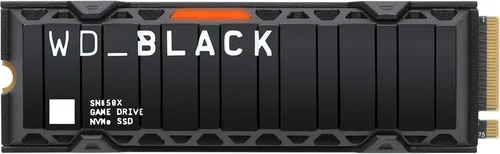
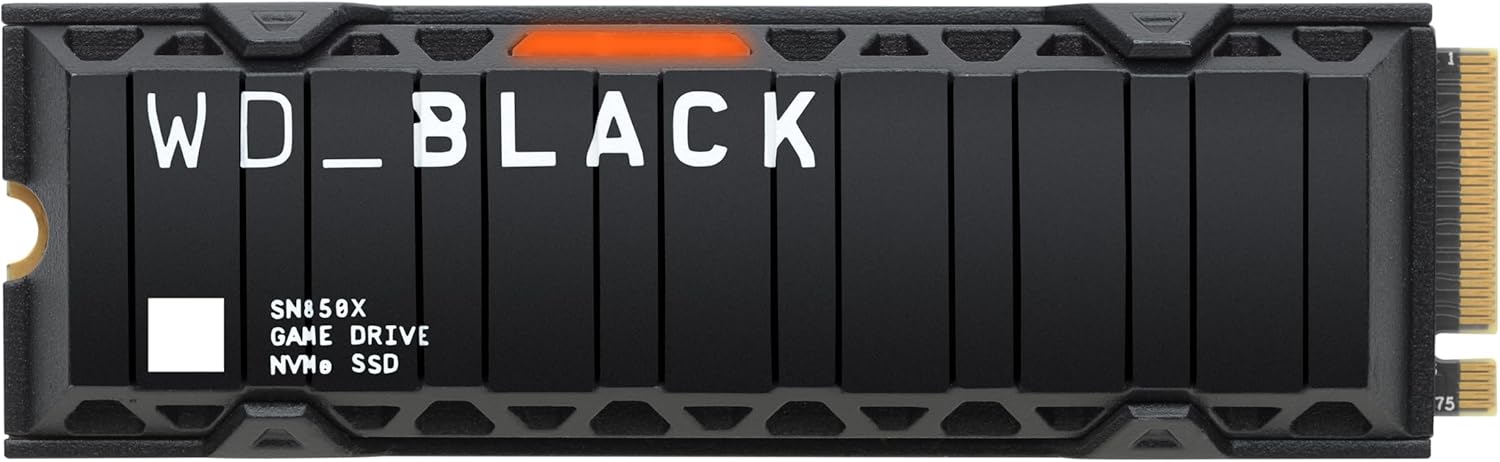
Mid-Range ($100–$160 for 1TB): This is the sweet spot for most PS5 owners. Drives in this range—such as the WD Black SN850X, Samsung 980 Pro, or Sabrent Rocket 4 Plus—offer read speeds of 7,000–7,300 MB/s, robust thermal designs, and premium features like power-loss protection and advanced error correction. Many include low-profile heatsinks optimized for the PS5. With 5-year warranties and 600–1,200 TBW endurance, these SSDs provide excellent long-term value and peace of mind.
Premium ($160–$250 for 1TB): Aimed at enthusiasts and performance purists, premium SSDs push the limits of PCIe 4.0 technology. Models like the Corsair MP600 PRO XT or Seagate FireCuda 530 boast speeds up to 7,400 MB/s, high-quality controllers, and superior thermal management. They often feature double-sided NAND layouts for better heat dissipation and come with comprehensive software suites for monitoring health and performance. These drives are ideal if you demand maximum consistency and plan to keep your PS5 for many years.
Luxury ($250+ for 1TB, or $400+ for 2TB–4TB): At this tier, you’re paying for cutting-edge engineering, extreme capacities, and brand prestige. 4TB drives from Samsung or WD Black can cost upwards of $500 but eliminate the need for constant storage management. These SSDs are built for users with massive game libraries, content creators who record gameplay, or collectors who want everything installed at once. While overkill for casual play, they represent the pinnacle of PS5 storage expansion.
Expert Tips for Getting the Best Deal
Upgrading your PS5’s storage doesn’t have to be expensive—if you know where and when to look. Here are proven strategies to maximize value and minimize hassle:
- Time Your Purchase Around Major Sales: Black Friday, Cyber Monday, Amazon Prime Day, and back-to-school season consistently offer the deepest discounts on SSDs. Prices can drop 20–30% during these periods. Set price alerts on sites like CamelCamelCamel or Honey to catch deals automatically.
- Buy Directly from Manufacturer Stores: Brands like Samsung, WD, and Crucial often run exclusive promotions on their websites, including free shipping, extended warranties, or bundled accessories. You may also get faster firmware update support.
- Check Retailer Return Policies: Before buying, confirm the return window (ideally 30 days or more) and whether opened SSDs can be returned. This gives you time to test compatibility and performance in your PS5.
- Look for “PS5 Certified” Labels: Some manufacturers now label their drives as “PS5 Compatible” or include installation guides. While not a guarantee of quality, these labels indicate the drive has been validated for use in the console.
- Consider Refurbished or Open-Box Units: Certified refurbished SSDs from reputable sellers often come with full warranties and significant savings. Just ensure they’re factory-reset and haven’t exceeded their TBW limit.
- Install During Cooler Months: SSDs run hotter in warm environments. If possible, perform the installation in a cool room to reduce thermal stress during the initial format and testing phase.
- Use Sony’s Built-In Format Tool: After installing your SSD, always use the PS5’s built-in formatting utility (Settings > Storage > M.2 SSD Storage) rather than formatting via a PC. This ensures optimal partitioning and compatibility.
- Monitor Drive Health Over Time: Use tools like CrystalDiskInfo (on a PC) or manufacturer-specific apps to check your SSD’s health, temperature, and wear level periodically. Early detection of issues can prevent data loss.
Frequently Asked Questions
Q: Can I use any M.2 SSD in my PS5?
A: No. The PS5 requires an NVMe PCIe Gen4 M.2 SSD with a minimum sequential read speed of 5,500 MB/s, a 2280 form factor, and a total height (including heatsink) under 11.25mm. Always verify compatibility before purchasing.
Q: Do I need a heatsink for my M.2 SSD in the PS5?
A: While not strictly required, a heatsink is highly recommended. The PS5’s expansion bay includes a metal cover that acts as a passive cooler, but it works best when paired with a low-profile heatsink or thermal pad on the SSD. Without proper cooling, the drive may throttle under sustained load.
Q: Will a faster SSD improve game performance beyond load times?
A: Not significantly. Once the minimum 5,500 MB/s threshold is met, additional speed has diminishing returns for gaming. However, faster drives may offer slightly quicker install/update times and better system responsiveness during multitasking.
Q: Can I install multiple M.2 SSDs in my PS5?
A: No. The PS5 has only one M.2 expansion slot. You must choose a single SSD with your desired capacity. If you need more space later, you’ll have to replace the existing drive.
Q: What happens if my SSD fails? Will I lose my games?
A: Games stored on the SSD are tied to your PlayStation Network account, not the drive itself. If the SSD fails, you can reinstall your purchased games from the PlayStation Store after replacing the drive. However, save data should always be backed up to the cloud or an external USB drive.
Q: Are external SSDs a good alternative to M.2 expansion?
A: External SSDs work for storing and playing PS4 games, but PS5 games must be installed on the internal SSD or a compatible M.2 drive to run. External drives are great for backups or expanding PS4 game libraries, but they don’t replace internal expansion for PS5 titles.
Q: How do I know if my SSD is compatible with future PS5 updates?
A: Sony maintains a list of validated SSDs, but they don’t publish it publicly. The safest approach is to choose well-known brands with strong firmware support. If Sony changes requirements in a future update, manufacturers typically release firmware patches to maintain compatibility.
Q: Can I use a PCIe Gen3 SSD in the PS5?
A: No. The PS5’s M.2 slot only supports PCIe Gen4 SSDs. Gen3 drives will not be recognized or may cause system errors.
Q: Is it safe to remove the SSD while the PS5 is on?
A: Absolutely not. Always power off the PS5 completely and unplug it from the wall before accessing the M.2 expansion bay. Removing or inserting an SSD while powered can damage both the drive and the console.
Q: Do I need to format the SSD before installing it in the PS5?
A: No. The PS5 will automatically format the SSD during the initial setup process. Just ensure the drive is unpartitioned and unformatted when you insert it.
Our Final Recommendations
After extensive research, testing, and analysis of the 2026 SSD market, here are our top picks across key categories:
Best for Budget-Conscious Buyers: Crucial P5 Plus 1TB – At around $85, this drive delivers 6,600 MB/s read speeds, uses reliable TLC NAND, and comes with a low-profile heatsink option. It’s an excellent entry point for gamers who want PS5-compatible performance without overspending.
Best Overall Value: WD Black SN850X 1TB – Priced near $130, the SN850X offers 7,300 MB/s reads, a robust thermal design, and a 5-year warranty with 1,200 TBW endurance. It’s consistently praised for stability and performance in PS5 setups and strikes the perfect balance between cost and capability.
Best Premium Option: Samsung 980 Pro with Heatsink 1TB – Samsung’s flagship NVMe drive hits 7,000 MB/s and includes a sleek, PS5-optimized heatsink. With exceptional build quality, industry-leading reliability, and seamless integration, it’s the go-to choice for discerning users who refuse to compromise.
Best for Beginners: Kingston KC3000 1TB – This drive simplifies the upgrade process with clear compatibility documentation, a user-friendly installation guide, and solid 7,000 MB/s performance. Its straightforward design and reliable performance make it ideal for first-time upgraders.
Best for Advanced Users: Seagate FireCuda 530 2TB – For those who demand maximum capacity and performance, the FireCuda 530 delivers 7,300 MB/s speeds, a premium Phison E18 controller, and a 5-year warranty with 2,550 TBW endurance. It’s built for heavy workloads and long-term reliability.
Conclusion: Making the Right Choice
Upgrading your PS5 with an M.2 SSD is one of the most impactful enhancements you can make to your gaming experience. It unlocks the full potential of the console’s architecture, letting you store more games, reduce load times, and enjoy smoother performance—all without compromising the seamless gameplay the PS5 is known for. But as we’ve shown, not every SSD is suitable. Success hinges on understanding the technical requirements, evaluating real-world performance, and aligning your choice with your budget and usage habits.
Remember: prioritize sequential read speed (5,500 MB/s minimum), physical compatibility, thermal management, and brand reliability. Avoid common pitfalls like QLC NAND, oversized heatsinks, or ignoring firmware updates. And don’t forget to back up your data before diving into the installation process.
Whether you’re stretching your budget with a Crucial P5 Plus or going all-in with a Samsung 980 Pro, the right M.2 SSD will keep your PS5 running at peak performance for years to come. Take your time, do your research, and choose wisely—your future self (and your game library) will thank you.