
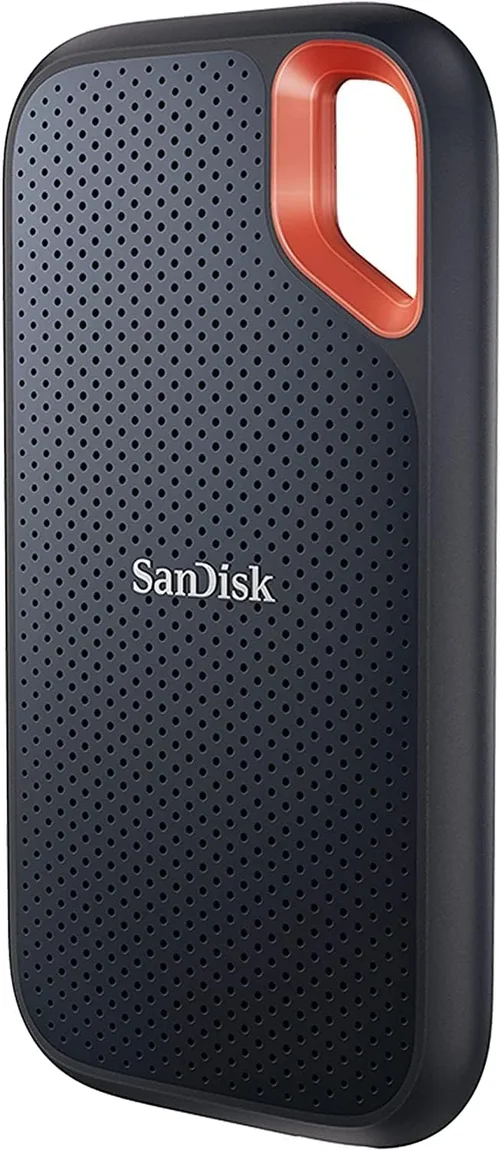
External SSDs have become essential tools for modern digital life. Whether you’re a creative professional editing 4K video on location, a student backing up research projects, or a gamer expanding storage for your console, the right external SSD can dramatically improve your workflow and data security. Unlike traditional hard drives, solid-state drives offer near-instant access to files, silent operation, and far greater resistance to physical shock—making them ideal for people who are always on the move. With prices dropping and capacities increasing, there’s never been a better time to invest in one.
This comprehensive buying guide is designed to cut through the marketing noise and help you make an informed decision. We’ll walk you through every critical factor—from performance benchmarks to build quality, brand reliability, and real-world usability. You’ll learn how to match your specific needs (like speed, durability, or budget) with the best available options on the market in 2026. Whether you’re looking for a rugged drive for outdoor shoots or a sleek desktop companion for your MacBook Pro, this guide has you covered.
The external SSD market has matured significantly over the past few years. Major brands like Samsung, SanDisk, Crucial, and WD have raised the bar with blazing-fast NVMe-based drives, while newer players like OWC and Sabrent are pushing innovation in compact designs and thermal management. At the same time, budget-friendly options from brands like Kingston and Lexar offer solid performance without breaking the bank. With so many choices, knowing what truly matters—and what’s just hype—is key to finding the perfect drive for your setup.

What to Look for When Buying Buying Guide
1. Performance Specifications
Performance is arguably the most important factor when choosing an external SSD. It directly impacts how quickly you can transfer files, load applications, or edit large media projects. Look for drives that use NVMe (Non-Volatile Memory Express) technology rather than older SATA interfaces—NVMe drives are typically 3–5x faster than their SATA counterparts. Real-world read/write speeds above 1,000 MB/s are common in mid-range models, while high-end drives can exceed 2,800 MB/s, especially those using USB 3.2 Gen 2×2 or Thunderbolt 3/4 connections.
Don’t just rely on manufacturer claims. Check independent reviews for sustained performance under load, as some drives throttle speed when they overheat during prolonged use. Also consider the interface: USB-C is standard, but ensure your computer supports the same generation (e.g., USB 3.2 Gen 2 offers 10 Gbps, while Gen 2×2 doubles that to 20 Gbps). Thunderbolt-enabled drives deliver even higher speeds but come at a premium and are best suited for Mac users or professionals working with large datasets.
2. Build Quality & Durability
Since external SSDs are often carried in bags, pockets, or backpacks, durability matters. Look for drives with aluminum or magnesium alloy enclosures—these dissipate heat better and provide structural strength. Many premium models are also rated for drop resistance (often up to 2–3 meters), water resistance (IP55 or IP67), and dust protection. For example, the Samsung T7 Shield and SanDisk Extreme Pro V2 are built to withstand harsh environments, making them ideal for photographers, videographers, or travelers.
Avoid plastic-bodied drives if you plan to use them frequently on the go—they’re more prone to cracking under pressure. Additionally, check if the drive includes a protective case or sleeve. While not always necessary, it adds an extra layer of security during transit. Remember: an SSD has no moving parts, so it’s inherently more shock-resistant than an HDD, but the casing still plays a crucial role in long-term reliability.
3. Capacity Needs
External SSDs come in a wide range of capacities, from 250GB all the way up to 8TB. Your ideal size depends entirely on your use case. Casual users storing documents, photos, and light media may find 500GB sufficient. Content creators working with RAW photos, 4K/8K video, or game libraries should aim for at least 1TB–2TB. Professionals handling massive project files or running virtual machines might need 4TB or more.
Keep in mind that larger capacities often come with better performance due to more NAND chips and improved controller efficiency. However, they also cost significantly more per gigabyte at the high end. A good rule of thumb: buy the largest capacity you can reasonably afford within your budget—future-proofing is worth the investment, especially since external SSDs are rarely upgraded later.
4. Portability & Form Factor
If you’re constantly moving between locations, size and weight matter. Most modern external SSDs are pocket-sized—roughly the size of a credit card or a small matchbox—and weigh under 100 grams. Models like the Samsung T7 Touch or Crucial X9 Pro prioritize ultra-compact designs without sacrificing speed or capacity.
However, smaller doesn’t always mean better. Some ultra-mini drives sacrifice thermal management, leading to throttling during extended transfers. Conversely, slightly larger drives (like the WD Black P50) often include better heat sinks and sustained performance. Consider your carrying habits: if you slip it into a laptop sleeve or camera bag, compactness is key. If it stays mostly on a desk, a larger form factor with better cooling may be preferable.
5. Brand Reputation & Ecosystem Compatibility
Not all brands are created equal. Established names like Samsung, SanDisk (a Western Digital brand), Crucial (Micron), and WD have proven track records for reliability, firmware updates, and customer support. They also tend to offer better encryption tools, backup software, and cross-platform compatibility (Windows, macOS, Linux, Android).
Newer or lesser-known brands might offer tempting prices, but they often lack long-term software support or fail to honor warranties consistently. Stick with reputable manufacturers unless you’re comfortable troubleshooting issues yourself. Also, consider ecosystem synergy: if you use a MacBook, a Thunderbolt-enabled drive from OWC or Samsung will integrate seamlessly. Gamers on PlayStation or Xbox should verify console compatibility—some drives require reformatting or don’t support certain features.
6. Security Features
For sensitive data—client files, financial records, personal archives—security is non-negotiable. Look for drives with hardware-based AES 256-bit encryption, which protects your data even if the drive is physically stolen. Some models, like the Samsung T7 Touch or SanDisk Extreme Pro, include fingerprint sensors for biometric access, adding a layer of convenience and protection.
Software encryption (like BitLocker on Windows or FileVault on macOS) works too, but it’s tied to your operating system and can be bypassed if the drive is connected to an untrusted machine. Hardware encryption is more robust and portable. Always enable password protection and keep recovery keys safe—losing them could mean permanent data loss.
7. Warranty & Customer Support
A solid warranty reflects a manufacturer’s confidence in their product. Most reputable brands offer 3–5 years of coverage, with some premium models (like the LaCie Rugged SSD Pro) extending to 5 years or including accidental damage protection. Check what’s covered: does it include physical damage, data recovery, or just hardware defects?
Customer support quality varies widely. Samsung and SanDisk have responsive live chat and phone support, while smaller brands may only offer email tickets with slow response times. Read user forums and Reddit threads to gauge real-world experiences. A 5-year warranty is meaningless if the company takes weeks to replace a faulty unit.
8. Price-to-Performance Ratio
External SSDs aren’t cheap, but you don’t need to overspend for great performance. Evaluate the cost per gigabyte—for example, a 1TB drive at $90 equals $0.09/GB, while a 2TB at $160 is $0.08/GB, offering better value. Avoid the cheapest options (under $0.06/GB), as they often use lower-grade NAND or outdated controllers that degrade quickly.
Balance your budget with expected lifespan. A $120 drive that lasts 5 years is smarter than a $70 one that fails in 18 months. Watch for seasonal sales (Black Friday, Prime Day, back-to-school) when prices drop 20–30%. Sign up for price alerts on sites like CamelCamelCamel or Slickdeals to catch deals early.
Different Types of Buying Guide

Common Buying Mistakes to Avoid
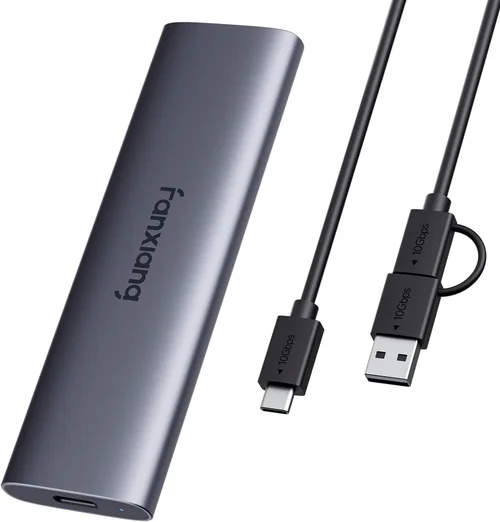
❌ Mistake: Prioritizing Price Over Performance
Why it’s bad: Choosing the cheapest SSD often means sacrificing speed, durability, and longevity. Budget drives may useQLC NAND, which wears out faster under heavy write loads, or lack thermal throttling protection, causing slowdowns during large transfers.
What to do instead: Aim for the best price-to-performance ratio within your budget. A mid-range NVMe drive like the Crucial X10 Pro offers excellent value and will outlast multiple cheap alternatives.
❌ Mistake: Ignoring Interface Compatibility
Why it’s bad: Buying a USB 3.2 Gen 2×2 drive for a laptop that only supports USB 3.0 means you’ll never reach its full speed potential. Similarly, Thunderbolt drives won’t work on non-Thunderbolt ports without adapters—and even then, performance drops.
What to do instead: Check your device’s port specifications before purchasing. Match the drive’s interface to your system’s capabilities. When in doubt, USB-C with USB 3.2 Gen 2 (10 Gbps) is a safe, widely compatible choice.
❌ Mistake: Overlooking Thermal Management
Why it’s bad: High-speed NVMe drives generate heat. Without proper cooling, they throttle performance to prevent damage, turning a 2,000 MB/s drive into a 500 MB/s one during sustained use.
What to do instead: Look for drives with aluminum enclosures, built-in heat sinks, or active cooling (rare but available in premium models). Avoid ultra-thin drives if you plan long file transfers.
❌ Mistake: Skipping Encryption for Sensitive Data
Why it’s bad: If your drive is lost or stolen, unencrypted data is easily accessible. This is a major risk for freelancers, journalists, or anyone handling confidential information.
What to do instead: Always choose a drive with hardware encryption or enable software encryption immediately after setup. Use strong, unique passwords and store recovery keys securely.
❌ Mistake: Assuming All “SSD” Labels Are Equal
Why it’s bad: Some manufacturers market slow SATA-based external drives as “SSDs” to confuse buyers. These won’t deliver the speed benefits of NVMe technology.
What to do instead: Verify the interface type in the specs. If it says “SATA III” or maxes out at 550 MB/s, it’s not a true high-performance SSD. Look for “NVMe” or “PCIe” for modern speeds.
❌ Mistake: Neglecting Warranty Details
Why it’s bad: A short or vague warranty can leave you stranded if the drive fails. Some brands limit coverage based on terabytes written (TBW), which isn’t always clearly disclosed.
What to do instead: Read the fine print. Choose brands with at least 3 years of coverage and transparent TBW ratings. Register your product upon purchase to activate warranty benefits.
❌ Mistake: Buying Based Solely on Brand Hype
Why it’s bad: Just because a brand is popular doesn’t mean every model is good. Some flagship lines have inconsistent quality across generations.
What to do instead: Research specific models, not just brands. Read professional reviews (like those from Tom’s Hardware or AnandTech) and user feedback on Amazon or Reddit.
Budget Guidelines: How Much Should You Spend?
- Entry-Level ($60–$100 for 1TB): Ideal for casual backups, document storage, or light photo libraries. Expect SATA-based drives with speeds around 500 MB/s. Brands like Kingston XS2000 or Lexar SL660 offer decent reliability at this tier. Avoid anything under $50—these often use inferior components.
- Mid-Range ($100–$180 for 1TB): The sweet spot for most users. NVMe drives like the Samsung T7, SanDisk Extreme, or Crucial X9 Pro deliver 1,000–1,500 MB/s speeds, compact designs, and solid build quality. Great for students, remote workers, and hobbyist creators.
- Premium ($180–$350 for 1TB): For professionals and power users. These include ruggedized models (SanDisk Extreme Pro V2), Thunderbolt options (OWC Envoy Pro FX), or high-endurance drives with 5-year warranties. Perfect for 4K video editing, gaming, or frequent travel.
- Luxury ($350+ for 1TB): Top-tier performance and features. Think LaCie Rugged SSD Pro (with rescue data recovery service), G-Technology G-DRIVE, or custom-built NVMe enclosures. Reserved for studios, enterprise users, or those who demand absolute reliability and speed.
Expert Tips for Getting the Best Deal
- Shop During Major Sales Events: Black Friday, Cyber Monday, Amazon Prime Day, and back-to-school seasons (July–September) offer the deepest discounts—often 25–40% off retail. Set price alerts months in advance.
- Buy Direct from Manufacturer Websites: Samsung, SanDisk, and Crucial often run exclusive promotions, bundle free software (like Adobe Creative Cloud trials), or include extended warranties not available on third-party retailers.
- Check Refurbished or Open-Box Options: Certified refurbished drives from reputable sellers (like Amazon Renewed or Best Buy Outlet) come with full warranties and can save you 20–30%. Ensure they’re factory-refurbished, not customer returns.
- Compare Total Cost of Ownership: Factor in software, cables, cases, and potential data recovery costs. A slightly more expensive drive with built-in encryption and backup tools may save money long-term.
- Verify Return Policies: Choose retailers with at least 30-day return windows (Amazon, B&H, Newegg). Test the drive immediately for defects, speed consistency, and compatibility.
- Use Manufacturer Tools: Download diagnostic software (like Samsung Magician or WD Dashboard) to monitor health, update firmware, and optimize performance. This extends lifespan and prevents surprises.
- Avoid “Too Good to Be True” Deals: If a 2TB NVMe SSD is listed for $80 on an unknown site, it’s likely counterfeit or defective. Stick to authorized retailers.
- Consider Future-Proofing: Invest in a drive with Thunderbolt or USB4 support if you plan to upgrade your computer soon. It’ll remain useful longer than a USB 3.0-only model.
Frequently Asked Questions
Q: Can I use an external SSD with my gaming console?
A: Yes, but with caveats. PlayStation 5 and Xbox Series X|S support external SSDs for storing and playing backward-compatible games, but only internal SSDs or approved expansion cards can run native PS5/Xbox Series X games. Always format the drive to the console’s required file system (exFAT or NTFS) before use.
Q: Will an external SSD improve my laptop’s performance?
A: Not directly—it won’t speed up your internal system. However, running applications or games from the external SSD can reduce load times significantly compared to a traditional HDD. It’s especially useful for expanding storage on laptops with limited internal space.
Q: How long do external SSDs last?
A: Most consumer SSDs are rated for 150–600 terabytes written (TBW). Under normal use, this translates to 5–10 years of lifespan. Heavy users (e.g., video editors writing 50GB daily) should check TBW ratings and opt for drives with higher endurance.
Q: Do I need a special cable for my external SSD?
A: Most drives include a USB-C cable, but ensure it supports the drive’s maximum speed (e.g., USB 3.2 Gen 2 cables are thicker and have blue connectors). Using a low-quality or outdated cable can bottleneck performance.
Q: Can I partition an external SSD for multiple uses?
A: Absolutely. You can create separate partitions for work files, personal backups, and games. Use Disk Management (Windows) or Disk Utility (macOS) to set this up. Just remember that partitioning doesn’t increase total capacity—it just organizes it.
Q: Are external SSDs safe for long-term archival storage?
A: SSDs are not ideal for long-term offline storage (5+ years) because NAND cells can lose charge over time, leading to data corruption. For archives, use HDDs or tape drives, and refresh SSD data every 1–2 years if stored disconnected.
Q: What’s the difference between USB 3.2 Gen 1 and Gen 2?
A: USB 3.2 Gen 1 (formerly USB 3.0) offers 5 Gbps speeds (~500 MB/s), while Gen 2 delivers 10 Gbps (~1,000 MB/s). Gen 2×2 doubles that to 20 Gbps. Always match your drive’s interface to your port for optimal performance.
Q: Can I use one external SSD across Windows and Mac?
A: Yes, but you’ll need to format it to exFAT, which both systems support natively. Avoid NTFS (Mac read-only) or APFS/HFS+ (Windows incompatible without third-party tools).
Q: Do external SSDs get hot?
A: Yes, especially during large file transfers. Quality drives manage heat through metal casings and throttling. If your drive feels uncomfortably hot or slows down, let it cool before continuing use.
Q: Is data recovery possible if my external SSD fails?
A: It’s more difficult than with HDDs due to wear-leveling and encryption. Professional recovery services exist but are expensive ($300–$3,000). Regular backups are your best defense—never rely solely on one drive.
Our Final Recommendations
- Best for Budget-Conscious Buyers: Crucial X9 Pro (1TB) – At around $90, it delivers NVMe speeds (1,050 MB/s), a compact design, and reliable Micron NAND. Great for students and casual users who want SSD performance without overspending.
- Best Overall Value: Samsung T7 (1TB) – Consistently praised for its balance of speed (1,050 MB/s), durability, AES encryption, and sleek aluminum body. Priced around $110, it’s the gold standard for everyday use.
- Best Premium Option: SanDisk Extreme Pro V2 (2TB) – Rugged IP55 rating, 2,000 MB/s speeds, hardware encryption, and a 5-year warranty. Ideal for professionals working in challenging environments.
- Best for Beginners: WD My Passport SSD (1TB) – User-friendly setup, includes backup software, and offers solid 1,000 MB/s performance. Its intuitive design makes it perfect for first-time SSD buyers.
- Best for Advanced Users: OWC Envoy Pro FX (2TB, Thunderbolt) – Blazing 2,800 MB/s speeds, bus-powered portability, and Mac/Windows compatibility. A top choice for video editors and tech enthusiasts who demand maximum throughput.
Conclusion: Making the Right Choice
Choosing the best external SSD isn’t about finding the fastest or most expensive model—it’s about aligning the drive’s features with your real-world needs. Whether you prioritize speed, durability, security, or budget, the key is to look beyond marketing claims and focus on verified performance, build quality, and long-term reliability. Use the factors outlined in this guide—performance specs, interface compatibility, warranty terms, and brand reputation—to narrow down your options confidently.
Remember, an external SSD is an investment in your productivity and data safety. Don’t rush the decision. Take time to read reviews, compare prices across trusted retailers, and consider how you’ll use the drive daily. A well-chosen SSD will serve you reliably for years, whether you’re editing footage in the field, backing up family photos, or expanding your gaming library.
Finally, always back up your data—even on an SSD. No storage device is immune to failure. Pair your new drive with a cloud backup service or a second physical drive for true peace of mind. With the right external SSD in your bag, you’ll be ready for anything 2026 throws your way.