
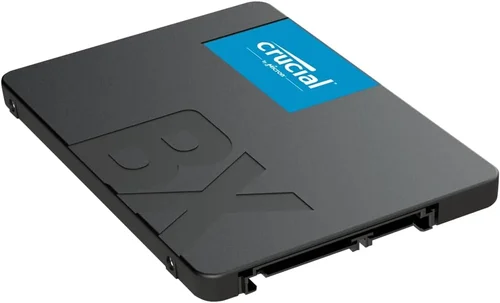
The debate between SSDs and hard disk drives (HDDs) has been raging for over a decade, but in 2026, the landscape has shifted dramatically. What once seemed like a simple choice—speed versus capacity—has evolved into a nuanced decision influenced by evolving technology, changing user needs, and the increasing demands of modern computing. Whether you’re building a new PC, upgrading an old laptop, or simply looking to expand your storage, understanding the differences between SSDs and HDDs is more critical than ever. This guide isn’t just about picking the fastest or cheapest drive—it’s about making an informed decision that aligns with your lifestyle, workload, and long-term goals.
In this comprehensive buying guide, we’ll walk you through every essential factor you need to consider when choosing between an SSD and an HDD. From performance benchmarks and durability to real-world use cases and budget considerations, we’ll break down the technical jargon into practical insights. You’ll learn how to evaluate speed, capacity, reliability, and value—and how to avoid common pitfalls that could cost you time, money, or data. By the end, you won’t just know which type of drive is “best” in a general sense; you’ll know which one is best for you.
The storage market in 2026 is more diverse than ever. While SSDs have become the default choice for operating systems and applications due to their speed and reliability, HDDs still hold a strong position in mass storage scenarios like media libraries, backups, and enterprise data centers. Meanwhile, hybrid solutions, NVMe advancements, and falling SSD prices are blurring the lines between traditional categories. With options ranging from budget SATA SSDs to high-end PCIe 5.0 drives and multi-terabyte HDDs, the choices can feel overwhelming. This guide cuts through the noise, offering expert analysis, real-world comparisons, and actionable advice to help you make the smartest storage decision in 2026.

What to Look for When Buying Buying Guide
1. Budget & Price Range
Your budget is often the first and most decisive factor when choosing between an SSD and an HDD. As of 2026, SSDs have become significantly more affordable, but they still cost more per gigabyte than HDDs. A 1TB SATA SSD typically ranges from $60 to $100, while a 1TB HDD can be found for as little as $35 to $50. However, high-performance NVMe SSDs—especially those using PCIe 4.0 or 5.0—can cost $100 to $200 for the same capacity. If you’re on a tight budget and need large amounts of storage (like for video editing or game libraries), an HDD might still be the more economical choice. But if you’re prioritizing system responsiveness and boot times, even a modest SSD investment can dramatically improve your computing experience.
2. Performance Specifications
Performance is where SSDs truly shine. Unlike HDDs, which rely on spinning platters and mechanical read/write heads, SSDs use flash memory with no moving parts. This results in drastically faster read and write speeds. A typical SATA SSD offers sequential read speeds of 500–550 MB/s, while NVMe SSDs can exceed 7,000 MB/s on PCIe 4.0 and even 14,000 MB/s on PCIe 5.0 drives. In contrast, most HDDs max out around 120–200 MB/s. This performance gap translates to real-world benefits: faster boot times (often under 10 seconds with an SSD), quicker application launches, and smoother multitasking. For tasks like video editing, gaming, or software development, an SSD can reduce load times from minutes to seconds.
When evaluating performance, look beyond just peak speeds. Consider random read/write performance (measured in IOPS—input/output operations per second), which affects how quickly small files are accessed. SSDs excel here, often delivering tens or hundreds of thousands of IOPS, while HDDs typically manage only a few hundred. This makes SSDs ideal for operating systems, databases, and applications that frequently access many small files.
3. Build Quality & Durability
Durability is a major differentiator between SSDs and HDDs. Because SSDs have no moving parts, they are far more resistant to physical shock, vibration, and temperature fluctuations. This makes them ideal for laptops, portable drives, and environments where the device might be moved frequently. HDDs, with their delicate spinning disks and mechanical arms, are more prone to failure if dropped or subjected to sudden movement—especially when powered on.
In terms of lifespan, both SSDs and HDDs are designed to last for years under normal use. However, SSDs have a finite number of write cycles per memory cell, measured in terabytes written (TBW). Most consumer SSDs offer a TBW rating of 150–600TB, which is more than enough for average users. For example, writing 50GB per day would take over 8 years to reach a 150TBW limit. HDDs, on the other hand, can fail due to mechanical wear over time, though modern drives are built to last 3–5 years or more. Always check the manufacturer’s MTBF (mean time between failures) rating—higher is better.
4. Features & Functionality
Modern SSDs and HDDs come with a range of features that can influence your decision. SSDs often support advanced technologies like TRIM (which helps maintain performance over time), wear leveling (to distribute writes evenly), and hardware encryption (for data security). Many also include proprietary software for monitoring health, updating firmware, and cloning drives. NVMe SSDs may support features like thermal throttling protection and power efficiency modes, which are crucial for laptops and compact systems.
HDDs, while less feature-rich, often come with built-in backup software, password protection, and RAID support for enterprise environments. Some high-capacity drives include helium filling to reduce friction and improve efficiency. Additionally, certain HDDs are optimized for specific workloads—like surveillance (WD Purple), NAS (Seagate IronWolf), or desktop use (WD Blue). These specialized drives offer better reliability and performance for their intended use cases.
5. Brand Reputation
Not all storage brands are created equal. In 2026, reputable manufacturers like Samsung, Crucial, Western Digital, Seagate, Kingston, and Sabrent dominate the market with consistent quality and innovation. Samsung’s 990 Pro and Crucial’s P5 Plus are known for top-tier performance and reliability, while Western Digital and Seagate offer a wide range of HDDs trusted by consumers and enterprises alike. Lesser-known brands may offer lower prices, but they often cut corners on components, firmware, or support.
When choosing a brand, consider their track record for firmware updates, customer service, and failure rates. Independent reviews and user forums (like Reddit’s r/buildapc or Tom’s Hardware) can provide valuable insights. Avoid no-name brands that lack transparency about their NAND type (e.g., TLC vs. QLC) or controller quality—these factors directly impact longevity and performance.
6. Warranty & Support
Warranty length and support quality are strong indicators of a drive’s expected lifespan and manufacturer confidence. Most SSDs come with a 3- to 5-year warranty, with higher-end models often offering 5 years or more. Some manufacturers, like Samsung and Crucial, also provide data recovery services or replacement guarantees. HDDs typically have 2- to 3-year warranties, though enterprise-grade drives may offer 5 years.
Pay attention to what the warranty covers. Does it include accidental damage? Is there a prorated refund if the drive fails early? Can you get a replacement without returning the original drive? Also, check if the manufacturer offers firmware updates and diagnostic tools. Good support can make a big difference if you encounter issues down the line.
7. Size & Portability
Physical size and form factor matter, especially for laptops, mini PCs, or external storage. SSDs come in a variety of form factors: 2.5-inch (common in laptops and desktops), M.2 (compact, used in ultrabooks and small form factor PCs), and U.2 (enterprise-focused). M.2 SSDs are particularly popular due to their small size and high performance, often connecting directly to the motherboard via PCIe.
HDDs are generally larger and heavier, with 3.5-inch drives used in desktops and 2.5-inch in laptops. While portable external HDDs exist, they’re bulkier and more fragile than SSD-based external drives. If you need to carry your drive frequently—say, for work or travel—an external SSD is a far better choice due to its durability and compact size.
8. User Reviews & Ratings
Before making a purchase, always check user reviews on trusted platforms like Amazon, Newegg, or Best Buy. Look for patterns in feedback: Are users reporting early failures? Is the drive overheating? Does it perform as advertised? Pay special attention to reviews from users with similar use cases—gamers, content creators, or office workers—will have different priorities.
Also, consult professional reviews from sites like AnandTech, Tom’s Hardware, or PCMag. These outlets conduct rigorous testing on performance, endurance, and real-world usage. A drive with high benchmark scores but poor user feedback might have firmware issues or compatibility problems not caught in lab tests.
Different Types of Buying Guide

Common Buying Mistakes to Avoid
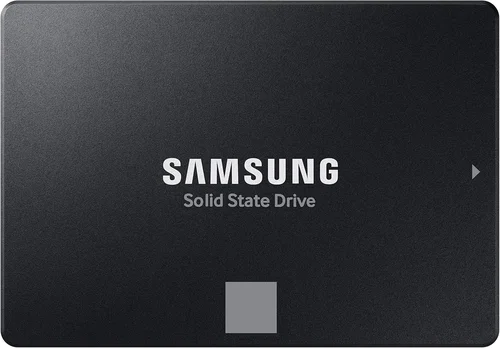
❌ Mistake: Prioritizing Capacity Over Performance
Why it’s bad: Choosing a large HDD solely for its storage capacity can lead to a sluggish system, especially if it’s your primary drive. Slow boot times, laggy applications, and long file transfers can frustrate even casual users.
What to do instead: Use an SSD for your operating system and frequently used programs, and pair it with a larger HDD for media and backups. This hybrid approach gives you the best of both worlds.
❌ Mistake: Ignoring NAND Type in SSDs
Why it’s bad: Not all SSDs use the same type of memory. QLC (quad-level cell) SSDs are cheaper but wear out faster and offer lower performance under heavy workloads compared to TLC (triple-level cell) or MLC (multi-level cell) drives.
What to do instead: Opt for TLC-based SSDs for general use and MLC for professional workloads. Check the product specs or manufacturer’s website to confirm NAND type.
❌ Mistake: Buying the Cheapest Drive Available
Why it’s bad: Extremely low-cost drives often use inferior controllers, lack DRAM caches, or come from unreliable brands. These can fail prematurely or suffer from poor performance.
What to do instead: Stick to reputable brands and avoid deals that seem too good to be true. A slightly higher price often means better longevity and support.
❌ Mistake: Overlooking Compatibility
Why it’s bad: Not all SSDs fit all systems. M.2 drives come in different lengths (2242, 2260, 2280) and key types (B, M, B+M). PCIe 5.0 drives require compatible motherboards and may need additional cooling.
What to do instead: Check your motherboard manual or use tools like Crucial’s Advisor to ensure compatibility before buying.
❌ Mistake: Skipping Firmware Updates
Why it’s bad: Outdated firmware can cause performance issues, compatibility problems, or even data loss. Some SSDs have had critical bugs fixed via updates.
What to do instead: Download the manufacturer’s SSD management tool (like Samsung Magician or Crucial Storage Executive) and check for updates regularly.
❌ Mistake: Not Backing Up Data
Why it’s bad: Both SSDs and HDDs can fail unexpectedly. Relying on a single drive without backups risks permanent data loss.
What to do instead: Use cloud storage, external drives, or NAS systems to maintain regular backups. Follow the 3-2-1 rule: 3 copies, 2 different media, 1 offsite.
Budget Guidelines: How Much Should You Spend?
- Entry-Level ($30–$60): At this price, you’re likely looking at a 500GB SATA SSD or a 1TB HDD. Ideal for basic computing, light gaming, or as a secondary drive. Expect decent performance from SSDs, but avoid QLC models if possible.
- Mid-Range ($60–$120): This is the sweet spot for most users. You can get a 1TB TLC SSD with good performance and reliability, or a 2TB HDD for bulk storage. Perfect for everyday use, office work, and moderate gaming.
- Premium ($120–$250): Here, you’ll find high-performance NVMe SSDs (PCIe 4.0 or 5.0) with speeds over 5,000 MB/s. Ideal for gamers, content creators, and professionals who need fast access to large files.
- Luxury ($250+): Top-tier drives with cutting-edge technology, such as PCIe 5.0 SSDs with heatsinks, enterprise-grade endurance, or multi-terabyte capacities. Best for enthusiasts, video editors, and those future-proofing their systems.

Expert Tips for Getting the Best Deal
- Buy during seasonal sales: Black Friday, Cyber Monday, and Amazon Prime Day offer significant discounts on storage. Many retailers also run back-to-school and holiday promotions.
- Check multiple retailers: Compare prices on Amazon, Newegg, Best Buy, and B&H. Sometimes smaller retailers offer better deals or bundle discounts.
- Look for open-box or refurbished deals: Certified refurbished SSDs from reputable sellers often come with full warranties and can save you 20–30%.
- Monitor price tracking sites: Use tools like CamelCamelCamel or Honey to track price history and get alerts when drives drop in price.
- Consider capacity upgrades: Sometimes buying a 2TB drive is cheaper per GB than two 1TB drives. Evaluate your long-term storage needs.
- Read the fine print on warranties: Some warranties require registration within 30 days or void if the drive is used in a RAID setup.
- Test before relying on it: Once installed, run a diagnostic tool (like CrystalDiskInfo) to check health and performance. This helps catch early failures.

Frequently Asked Questions
Q: Can I use both an SSD and an HDD in the same system?
A: Absolutely. In fact, this is a recommended setup for most users. Install your operating system and frequently used programs on the SSD for speed, and use the HDD for storing large files like videos, photos, and backups.
Q: Do SSDs really last as long as HDDs?
A: Yes, for most users. While SSDs have a finite number of write cycles, modern drives are engineered to last well beyond typical usage. A 1TB SSD with a 300TBW rating could handle 100GB of writes per day for over 8 years.
Q: Are external SSDs worth the extra cost?
A: If you need speed and durability, yes. External SSDs are much faster than HDDs and can withstand drops and vibrations. They’re ideal for photographers, videographers, and anyone who moves data frequently.
Q: Will an SSD improve gaming performance?
A: It will reduce load times and improve level streaming, but it won’t increase FPS (frames per second). For gaming, an NVMe SSD is a great upgrade, especially for open-world games with large assets.
Q: Can I recover data from a failed SSD?
A: It’s more difficult than with HDDs due to wear leveling and TRIM. However, professional data recovery services may still be able to retrieve data, especially if the drive is recognized by the system.
Q: Do I need a heatsink for my NVMe SSD?
A: For PCIe 4.0 and 5.0 drives, yes—especially in compact builds or high-workload scenarios. Overheating can cause thermal throttling, reducing performance.
Q: Are HDDs obsolete in 2026?
A: Not at all. HDDs remain the most cost-effective solution for large-scale storage. They’re still widely used in data centers, NAS systems, and for archival purposes.
Q: What’s the difference between SATA and NVMe?
A: SATA is an older interface limited to about 550 MB/s. NVMe uses the PCIe interface, allowing much higher speeds—up to 14,000 MB/s on PCIe 5.0. NVMe drives are typically M.2 form factor.
Our Final Recommendations
- Best for Budget-Conscious Buyers: Crucial BX500 1TB SATA SSD – Reliable, affordable, and significantly faster than an HDD. Great for upgrading older systems.
- Best Overall Value: Samsung 980 1TB NVMe SSD – Excellent performance, strong endurance, and competitive pricing. A balanced choice for most users.
- Best Premium Option: Samsung 990 Pro 2TB PCIe 4.0 SSD – Top-tier speed, robust build, and 5-year warranty. Ideal for gamers and professionals.
- Best for Beginners: Western Digital Blue 3D NAND 1TB SATA SSD – Easy to install, user-friendly software, and solid performance for everyday tasks.
- Best for Advanced Users: Sabrent Rocket 4 Plus 2TB PCIe 4.0 SSD – High capacity, blazing speeds, and excellent thermal management. Perfect for content creators and power users.
Conclusion: Making the Right Choice
Choosing between an SSD and an HDD in 2026 isn’t about picking a winner—it’s about matching the right technology to your needs. SSDs deliver unmatched speed, durability, and responsiveness, making them the clear choice for operating systems, applications, and performance-critical tasks. HDDs, meanwhile, remain unbeatable for high-capacity, low-cost storage, especially for media archives and backups. The smartest approach for most users is a hybrid setup: an SSD for speed and an HDD for space.
As you weigh your options, prioritize what matters most to you. Are you a gamer who values fast load times? A photographer with terabytes of RAW files? A student on a tight budget? Your answer will guide your decision. Don’t fall for marketing hype or outdated advice—focus on real-world performance, reliability, and value.
Ultimately, the best storage solution is one that enhances your productivity, protects your data, and fits your budget. Whether you go all-in on SSDs or embrace a balanced approach, the key is to make an informed choice. Use this guide as your roadmap, and you’ll end up with a storage setup that serves you well for years to come. Ready to upgrade? Start by identifying your primary use case, set a realistic budget, and choose a drive from a trusted brand. Your future self will thank you.