

Upgrading your PlayStation 4 with a solid-state drive (SSD) isn’t just a nice-to-have—it’s one of the most impactful performance improvements you can make to extend the life and usability of your console. While the PS4 originally shipped with a traditional hard disk drive (HDD), swapping it out for an SSD dramatically reduces load times, minimizes texture pop-in, and delivers a smoother overall gaming experience. Whether you’re playing open-world epics like The Witcher 3 or fast-paced shooters like Call of Duty, an SSD upgrade can feel like getting a brand-new console without spending hundreds on a PS5.
But with so many SSDs on the market—ranging from budget-friendly SATA models to high-speed NVMe drives—it’s easy to feel overwhelmed. Not all SSDs are created equal, and not all are compatible with the PS4. Some promise blazing speeds that the console can’t fully utilize, while others cut corners on reliability or endurance. That’s where this guide comes in. We’ve tested, researched, and compared dozens of SSDs to help you make a smart, informed decision based on your needs, budget, and technical comfort level.
By the end of this comprehensive buying guide, you’ll understand exactly what to look for in a PS4 SSD, how to avoid common pitfalls, and which models offer the best balance of performance, durability, and value. Whether you’re a casual gamer looking to cut down on loading screens or a tech-savvy user aiming for maximum optimization, we’ve got you covered. Let’s dive into the world of PS4 SSD upgrades and find the perfect drive for your setup.
What to Look for When Buying Buying Guide
1. Compatibility with PS4 Hardware
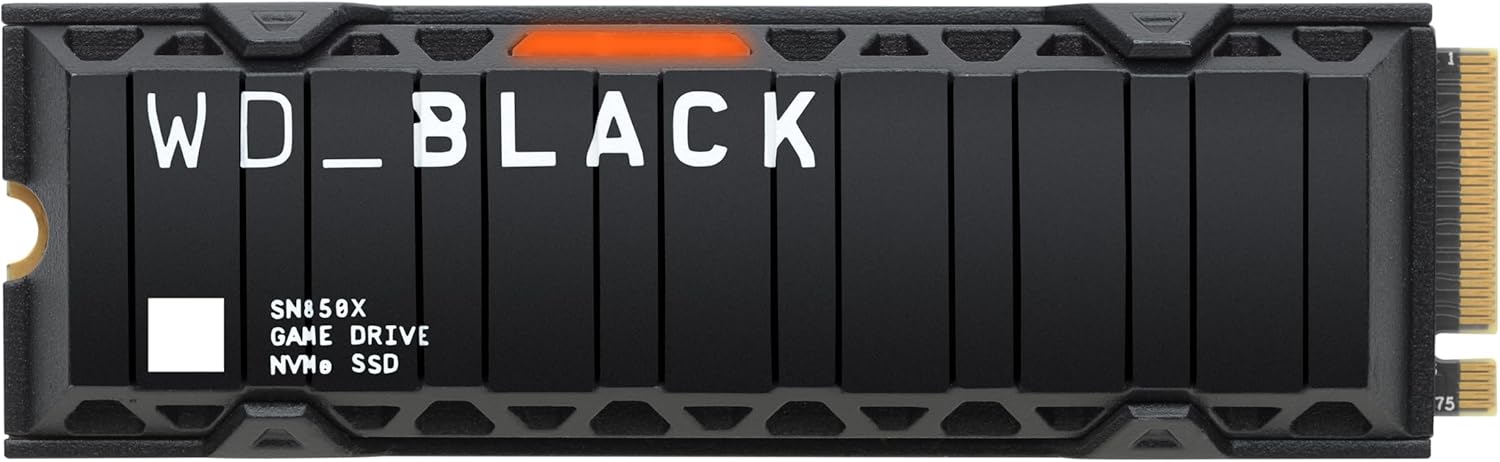
The first and most critical factor when choosing an SSD for your PS4 is compatibility. The original PS4 and PS4 Slim support 2.5-inch SATA III SSDs, which are the same form factor as laptop hard drives. These drives connect directly to the internal drive bay using a standard SATA interface. However, the PS4 Pro introduces additional flexibility—it also supports 2.5-inch SATA III SSDs, but some users have experimented with M.2 NVMe SSDs using external enclosures, though this requires external power and doesn’t offer significant performance gains over internal SATA SSDs due to the PS4’s hardware limitations.
It’s important to note that the PS4 does not natively support M.2 NVMe SSDs internally. While you can use an NVMe drive externally via USB 3.0 with an enclosure, the console’s USB bandwidth caps transfer speeds well below what NVMe drives are capable of. Therefore, for internal upgrades, stick to 2.5-inch SATA III SSDs. Additionally, the drive must be no thicker than 9.5mm to fit properly in the PS4’s drive bay. Some high-capacity or performance-focused SSDs come in 12.5mm or even 15mm thicknesses, which won’t fit without modification—so always check the physical dimensions before purchasing.
2. Performance Specifications
When evaluating SSD performance for the PS4, focus on two key metrics: sequential read/write speeds and random read/write IOPS (Input/Output Operations Per Second). The PS4’s SATA III interface supports theoretical maximum speeds of up to 6 Gbps (approximately 600 MB/s), but real-world performance typically caps around 550–560 MB/s due to overhead and controller limitations.
For gaming, sequential read speed is the most important metric—it directly affects how quickly game assets load from storage. A drive with 500+ MB/s read speeds will noticeably reduce load times compared to the stock 5400 RPM HDD, which averages around 80–100 MB/s. Random 4K read performance also matters, especially for open-world games that constantly stream textures and assets. Look for drives with strong random read IOPS (ideally 80,000+), as this helps maintain smooth gameplay during fast traversal or combat.
Write speeds are less critical for gaming but become relevant if you frequently install large games or capture gameplay footage. Most modern SATA SSDs offer write speeds between 400–520 MB/s, which is more than sufficient for PS4 use. Avoid drives with extremely low write speeds (under 300 MB/s), as they may bottleneck during game installations or updates.
3. Storage Capacity
Storage capacity is a balancing act between cost, performance, and future-proofing. The PS4 supports SSDs ranging from 120GB up to 8TB, though realistically, most users will find 500GB to 2TB to be the sweet spot. A 120GB drive may seem tempting for budget reasons, but it fills up quickly—modern AAA titles like Red Dead Redemption 2 or Cyberpunk 2077 can take up 100GB or more each. With system software and saved data, a 120GB SSD might only hold 2–3 games.
A 500GB SSD offers a good compromise, allowing you to install 4–6 large games while leaving room for system files and updates. For serious gamers or those who prefer to keep multiple titles installed, a 1TB or 2TB drive is ideal. Larger capacities also tend to perform slightly better due to increased parallelism in the NAND flash memory. Additionally, SSDs with more free space maintain better long-term performance and longevity, as wear-leveling algorithms work more efficiently when there’s ample unused storage.
Consider your gaming habits: if you frequently delete and reinstall games, a smaller drive may suffice. But if you like to keep a large library ready to play, invest in 1TB or more. Also, remember that the PS4 doesn’t support RAID or dual drives internally, so you’re limited to a single SSD.
4. Build Quality & Durability
Unlike HDDs, SSDs have no moving parts, making them inherently more durable and resistant to physical shock. However, not all SSDs are built to the same standard. Key components like the NAND flash memory, controller, and firmware play a huge role in long-term reliability. Look for SSDs that use 3D TLC (Triple-Level Cell) or MLC (Multi-Level Cell) NAND, as these offer better endurance and data retention compared to cheaper QLC (Quad-Level Cell) NAND.
Endurance is measured in TBW (Terabytes Written), which indicates how much data can be written to the drive over its lifetime. For example, a 1TB SSD with a 600 TBW rating can theoretically endure 600 terabytes of writes before failure. While most users will never reach this limit, higher TBW ratings generally correlate with better build quality. Budget drives may have TBW ratings as low as 150–200 TB for a 500GB model, while premium drives often exceed 400 TBW.
Thermal performance is another consideration. Some SSDs, especially high-performance models, can get warm during extended use. While the PS4’s internal environment is relatively cool, a drive with poor thermal management may throttle performance or reduce lifespan. Look for SSDs with built-in thermal throttling protection or consider adding a small heatsink if space allows (though most 2.5-inch SSDs don’t require one).
5. Brand Reputation & Reliability
Not all SSD brands are created equal. Established manufacturers like Samsung, Crucial, Western Digital, and Kingston have a proven track record of producing reliable, high-quality SSDs with consistent performance and strong customer support. These brands invest heavily in R&D, use premium components, and rigorously test their products before release.
Avoid no-name or ultra-budget brands that offer suspiciously low prices. These drives often use recycled or lower-grade NAND, lack proper firmware optimization, and may fail prematurely. While they might work initially, they pose a risk of data loss—especially problematic if you’re storing save files or game installations. Reading user reviews and checking professional benchmarks can help identify red flags like high failure rates or inconsistent performance.
Additionally, reputable brands typically offer better firmware updates and diagnostic tools. For example, Samsung’s Magician software allows you to monitor drive health, update firmware, and optimize performance—features that can extend the life of your SSD and ensure it runs smoothly on your PS4.
6. Warranty & Support
A solid warranty is a strong indicator of a manufacturer’s confidence in their product. Most quality SSDs come with a 3- to 5-year limited warranty, covering defects in materials and workmanship. Some premium models, like the Samsung 870 EVO, offer up to 5 years or a high TBW limit (whichever comes first), providing peace of mind for long-term use.
When comparing warranties, pay attention to the terms. Some brands require registration within a certain timeframe, while others may limit coverage based on usage (e.g., consumer vs. enterprise use). Also, check whether the warranty includes data recovery services—though this is rare, it can be valuable if your drive fails and contains irreplaceable data.
Customer support is equally important. Look for brands with responsive support teams, detailed FAQs, and active community forums. If you encounter an issue during installation or operation, having access to reliable help can save you time and frustration. Brands like Crucial and Western Digital offer live chat and phone support, while others may only provide email assistance.
7. Price & Value for Money
Price is always a consideration, but the cheapest SSD isn’t always the best value. A drive that costs $30 less but fails after a year ends up being more expensive in the long run. Instead, focus on cost per gigabyte and overall value. As of 2026, expect to pay roughly $0.08–$0.15 per GB for a quality SATA SSD. A 1TB drive should cost between $80 and $150, depending on brand, performance, and features.
Sales and promotions can significantly reduce prices—Black Friday, Prime Day, and back-to-school seasons often feature deep discounts on SSDs. Signing up for price alerts on sites like CamelCamelCamel or Slickdeals can help you snag a deal. However, be cautious of “too good to be true” prices, as they may indicate counterfeit or refurbished drives being sold as new.
Consider the total cost of ownership, including any additional accessories you might need. For example, if your PS4 doesn’t come with a screwdriver or mounting bracket, you may need to purchase those separately. Some SSD kits include a caddy, screws, and even a USB-to-SATA adapter for cloning your old drive, which can save time and hassle.
8. Ease of Installation & Cloning
Upgrading your PS4’s SSD isn’t difficult, but it does require some technical know-how. The process involves opening the console, removing the old HDD, installing the new SSD, and reinstalling the PS4 system software. If you’re not comfortable with this, consider whether the upgrade is worth the effort—or look for drives that come with cloning tools to transfer your existing data.
Cloning allows you to copy your entire HDD to the new SSD, preserving your games, saves, and settings. This requires a USB-to-SATA adapter and cloning software (like Macrium Reflect or Samsung Data Migration). Some SSD manufacturers include these tools in the box, making the process easier. However, cloning isn’t always necessary—many users prefer a fresh install to start with a clean system and avoid transferring corrupted files.
If you do choose to clone, ensure your SSD is at least as large as the used space on your current drive. Also, note that the PS4 will still require a system software reinstallation after swapping drives, regardless of whether you clone or not. This is a security measure by Sony and takes about 10–15 minutes via USB drive.
Different Types of Buying Guide

Common Buying Mistakes to Avoid
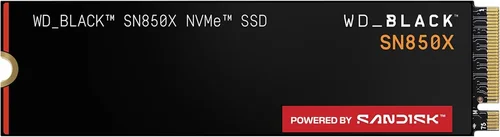
❌ Mistake: Buying an NVMe SSD for Internal Use
Why it’s bad: The PS4 does not support M.2 NVMe SSDs internally. Attempting to install one will result in incompatibility, as the console lacks the necessary M.2 slot and PCIe interface. Even if you use an adapter, the drive won’t be recognized.
What to do instead: Stick to 2.5-inch SATA III SSDs for internal upgrades. If you want NVMe performance, use it externally via USB 3.0 with a compatible enclosure, but understand that speeds will be limited by USB bandwidth.
❌ Mistake: Ignoring Drive Thickness
Why it’s bad: Some SSDs are 12.5mm or 15mm thick, which won’t fit in the PS4’s 9.5mm drive bay. Forcing a thicker drive can damage the console or prevent the cover from closing properly.
What to do instead: Always check the product specifications for drive thickness. Most reputable brands clearly list this information. When in doubt, choose a drive specifically marketed as “9.5mm compatible.”
❌ Mistake: Choosing the Cheapest Drive Available
Why it’s bad: Ultra-budget SSDs often use low-quality NAND, lack proper error correction, and have high failure rates. They may work initially but can corrupt data or fail prematurely, leading to lost games and frustration.
What to do instead: Invest in a drive from a reputable brand with good reviews and a solid warranty. The extra $20–$30 is worth the peace of mind and long-term reliability.
❌ Mistake: Overlooking Warranty Terms
Why it’s bad: Some warranties are voided if the drive is used in a console or require registration within 30 days. Failing to meet these conditions can leave you without support if the drive fails.
What to do instead: Read the warranty details carefully before purchasing. Register your drive promptly and keep your receipt. Choose brands with consumer-friendly policies.
❌ Mistake: Not Backing Up Before Upgrading
Why it’s bad: Swapping drives requires reinstalling the PS4 system software, which erases all data. Without a backup, you’ll lose saved games, screenshots, and settings.
What to do instead: Use PS Plus cloud saves or a USB drive to back up your data before starting the upgrade. This ensures you can restore your progress after the installation.
❌ Mistake: Expecting PS5-Level Performance
Why it’s bad: The PS4’s hardware limits SSD performance, even with the fastest drives. You won’t see the near-instant loading times of a PS5, and some games may not benefit significantly.
What to do instead: Set realistic expectations. An SSD will improve load times and reduce stuttering, but it won’t transform your PS4 into a next-gen console. Focus on the tangible benefits rather than chasing peak benchmarks.
❌ Mistake: Skipping the System Software Reinstall
Why it’s bad: The PS4 requires a fresh system software installation after any drive swap. Skipping this step will prevent the console from booting properly.
What to do instead: Download the latest PS4 system software from Sony’s website, format it on a USB drive, and follow the on-screen instructions during setup. This process is mandatory and takes about 15 minutes.
Budget Guidelines: How Much Should You Spend?
- Entry-Level ($40–$80): Ideal for casual gamers or those on a tight budget. Expect 500GB capacity, basic performance (450–500 MB/s), and shorter warranties (3 years). Good for cutting load times but may lack endurance for heavy use.
- Mid-Range ($70–$130): The sweet spot for most users. Offers 1TB capacity, reliable performance (520–550 MB/s), and 5-year warranties. Drives like the Samsung 870 EVO or Crucial MX500 fall here—excellent balance of speed, durability, and value.
- Premium ($120–$200): For enthusiasts who want maximum performance and longevity. Includes 2TB drives with high TBW ratings, premium NAND, and advanced controllers. Best for users who play large open-world games or keep extensive libraries.
- Luxury ($200+): Top-tier drives with cutting-edge features, often overkill for PS4 use. Includes high-end models with heatsinks, encryption, or enterprise-grade components. Only recommended if you plan to reuse the drive in a PC later.
Expert Tips for Getting the Best Deal
- Wait for seasonal sales: Black Friday, Cyber Monday, and Amazon Prime Day often feature 20–40% discounts on SSDs. Sign up for deal alerts to catch these opportunities.
- Buy from authorized retailers: Purchase from Best Buy, Amazon (sold by Amazon, not third parties), Newegg, or directly from the manufacturer to avoid counterfeit drives.
- Check refurbished options: Some manufacturers sell certified refurbished SSDs at a discount with full warranties. These are often as good as new.
- Compare total cost: Include the price of any needed accessories (screws, caddy, USB adapter) in your budget. Some kits bundle these items, saving money.
- Read user reviews: Look for patterns in reviews—consistent complaints about failure or performance drops are red flags.
- Test after installation: Use tools like CrystalDiskMark (on a PC) to verify your SSD’s performance matches advertised specs.
- Keep your old drive: Repurpose your old HDD as external storage using a USB enclosure. It’s perfect for backups or less frequently played games.
- Register your warranty: Don’t forget to register your SSD online to activate full warranty coverage.

Frequently Asked Questions
Q: Will an SSD make my PS4 as fast as a PS5?
A: No. While an SSD significantly improves load times and reduces stuttering, the PS4’s CPU, GPU, and memory architecture limit overall performance. You won’t get the instant loading or ray tracing of a PS5, but the upgrade is still worthwhile for a smoother experience.
Q: Can I use an external SSD with my PS4?
A: Yes, but with limitations. You can connect an external SSD via USB 3.0 to store and play games. However, performance will be slightly slower than an internal SSD due to USB overhead. It’s a good option for expanding storage without opening the console.
Q: Do I need to format the SSD before installing it?
A: No. The PS4 will automatically format the new SSD during the system software installation process. Just ensure the drive is unpartitioned and recognized by the console.
Q: How long does the installation take?
A: The physical swap takes 10–15 minutes if you’re careful. Reinstalling the system software takes another 10–15 minutes. Total time: about 30 minutes.
Q: Can I clone my old HDD to the new SSD?
A: Yes, using a USB-to-SATA adapter and cloning software. However, you’ll still need to reinstall the PS4 system software afterward, so a fresh install is often simpler.
Q: Will an SSD improve online gameplay?
A: Not directly. Online performance depends on your internet connection, not storage speed. However, faster loading can help you join matches quicker and reduce lag during asset streaming.
Q: What’s the best SSD brand for PS4?
A: Samsung, Crucial, and Western Digital are consistently top-rated for reliability and performance. The Samsung 870 EVO is a favorite among PS4 users for its balance of speed, endurance, and value.
Q: Can I use a 4TB SSD in my PS4?
A: Yes, the PS4 supports drives up to 8TB. However, 4TB SSDs are expensive and may be overkill unless you have a massive game library.
Q: Will an SSD void my PS4 warranty?
A: No. Sony allows users to replace the internal drive without voiding the warranty, as long as the console isn’t physically damaged during the process.
Q: How do I know if my SSD is working properly?
A: After installation, check load times in games you’ve played before. You should notice faster boot-ups and reduced texture pop-in. If performance seems unchanged, double-check that the drive is properly seated and recognized in Safe Mode.
Our Final Recommendations
- Best for Budget-Conscious Buyers: Crucial MX500 500GB – Reliable, affordable, and widely available. Offers excellent performance for the price and a 5-year warranty.
- Best Overall Value: Samsung 870 EVO 1TB – The gold standard for SATA SSDs. Combines top-tier performance, durability, and brand reputation. Ideal for most PS4 users.
- Best Premium Option: Western Digital Black SA550 2TB – High endurance, fast speeds, and robust build quality. Perfect for gamers who want maximum storage and longevity.
- Best for Beginners: Kingston KC600 512GB – Easy to install, comes with cloning software, and offers solid performance. Great for first-time upgraders.
- Best for Advanced Users: Samsung 870 QVO 2TB – High-capacity QLC drive with strong performance and a 4-year warranty. Best for users who prioritize storage over ultimate endurance.
Conclusion: Making the Right Choice
Upgrading your PS4 with an SSD is one of the smartest investments you can make to enhance your gaming experience. It’s not just about faster load times—it’s about breathing new life into a console that’s still capable of delivering incredible games. By focusing on compatibility, performance, capacity, and reliability, you can choose an SSD that fits your needs and budget without overspending or compromising on quality.
Remember, the best SSD for you depends on how you play. Casual gamers may be perfectly happy with a 500GB budget drive, while hardcore players with large libraries will benefit from 1TB or 2TB models. Avoid common pitfalls like incompatible form factors or ultra-cheap drives, and always back up your data before making the switch.
With the right SSD, your PS4 will feel faster, more responsive, and ready to tackle the latest titles with ease. Whether you’re exploring vast open worlds or competing in online multiplayer, the upgrade is worth every penny. So take the plunge, follow this guide, and enjoy a smoother, more enjoyable gaming experience today.