
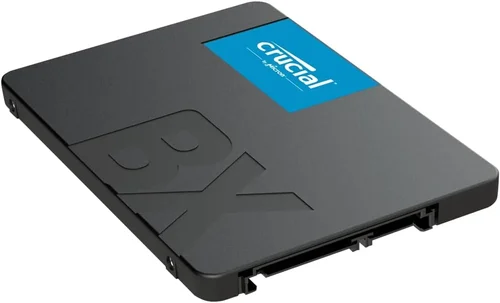
Solid-state drives (SSDs) have revolutionized how we store and access data. Gone are the days of waiting minutes for a computer to boot up or hours to transfer large files—today’s SSDs deliver near-instant responsiveness, silent operation, and rock-solid reliability. Whether you’re upgrading an aging laptop, building a high-performance gaming rig, or setting up a professional workstation, choosing the right SSD can make a dramatic difference in your daily computing experience.
But with so many options flooding the market—from budget SATA drives to blazing-fast NVMe Gen5 models—it’s easy to feel overwhelmed. Prices vary wildly, performance claims can be confusing, and not all SSDs are created equal. That’s why this comprehensive buying guide exists: to cut through the noise and help you make a smart, informed decision based on your specific needs, budget, and use case. By the end of this article, you’ll understand exactly what to look for, which specs matter most, and how to avoid common pitfalls that could cost you time, money, or data.
The SSD market in 2026 is more dynamic than ever. Manufacturers like Samsung, Crucial, WD, Kingston, and Sabrent continue to push boundaries with faster speeds, higher capacities, and improved endurance. At the same time, newer entrants and value-focused brands offer compelling alternatives that challenge the status quo. With PCIe Gen5 now mainstream and QLC NAND gaining traction for cost-effective storage, there’s never been a better time to upgrade—or to choose wisely if you’re buying your first SSD. This guide will walk you through every critical factor, compare the top types available today, and equip you with expert-level insights to ensure you get the best SSD for your situation.

What to Look for When Buying Buying Guide
1. Budget & Price Range
Your budget is often the first and most decisive factor when choosing an SSD. Prices have dropped significantly over the past few years, making high-capacity SSDs more accessible than ever. However, you’ll still find a wide spectrum—from under $50 for a basic 500GB SATA drive to over $500 for a 4TB Gen5 NVMe model with enterprise-grade features.
When setting your budget, consider not just the upfront cost but also cost-per-gigabyte (GB). For example, a 1TB SSD priced at $80 offers better value ($0.08/GB) than a 500GB drive at $45 ($0.09/GB). Also, keep in mind that higher-capacity drives often deliver better performance and longevity due to more NAND chips and better wear-leveling algorithms.
2. Performance Specifications
Performance is where SSDs truly shine—but not all performance metrics are equally important. The two key specs to focus on are sequential read/write speeds (measured in MB/s) and random IOPS (Input/Output Operations Per Second).
Sequential speeds matter most for large file transfers—like moving video projects, game installations, or backups. For everyday tasks like booting your OS or launching apps, random IOPS are far more relevant. A drive with high sequential speeds but low random IOPS may feel sluggish during normal use.
NVMe SSDs (especially Gen4 and Gen5) dominate in both categories, offering speeds up to 14,000 MB/s and millions of IOPS. SATA SSDs, while slower (capped at ~550 MB/s), are still excellent for older systems or secondary storage. Always check real-world benchmarks—not just manufacturer claims—since sustained performance under load can differ significantly from peak specs.
3. Build Quality & Durability
SSDs have no moving parts, making them inherently more durable than traditional hard drives. But durability isn’t just about physical shock resistance—it’s also about data integrity and longevity.
Look for drives with high TBW (Terabytes Written) ratings, which indicate how much data can be written over the drive’s lifetime. A consumer-grade 1TB SSD might have a 600 TBW rating, while a prosumer model could exceed 1,200 TBW. Higher-end drives often use better NAND (like TLC or MLC) instead of cheaper QLC, which trades endurance for cost savings.
Also consider thermal management. High-performance NVMe drives can get hot under sustained load, potentially throttling performance. Premium models include heatsinks or advanced thermal throttling algorithms to maintain speed. If you’re installing in a compact laptop or console (like a PS5), ensure the drive has adequate cooling or fits within thermal limits.
4. Features & Functionality
Beyond raw speed and capacity, modern SSDs come packed with features that enhance usability and security. One of the most important is hardware encryption, often compliant with TCG Opal or IEEE 1667 standards. This allows full-disk encryption without taxing your CPU—critical for laptops used in business or travel.
Another key feature is SLC caching, which uses a small portion of faster memory to boost short-term write performance. Most consumer SSDs use dynamic SLC caching, but some budget models may have very small or no cache, leading to sudden speed drops during large writes.
Power-loss protection is another differentiator, especially in desktop or NAS environments. This feature ensures data isn’t corrupted if the system loses power mid-write. While rare in consumer drives, it’s common in enterprise and high-end prosumer models.
Finally, consider software suites. Brands like Samsung (Magician), Crucial (Storage Executive), and WD (Dashboard) offer tools for monitoring health, updating firmware, and optimizing performance. These can extend your drive’s life and simplify maintenance.
5. Brand Reputation
Not all SSD brands are equal. Established manufacturers like Samsung, Western Digital, Crucial (Micron), and Kingston have proven track records for quality, consistency, and support. They invest heavily in R&D, use their own NAND (or partner closely with top-tier fabs), and rigorously test their products.
Newer or lesser-known brands may offer tempting prices, but they often cut corners—using lower-grade NAND, weaker controllers, or minimal firmware optimization. While some budget brands (like TeamGroup or Netac) have improved significantly, it’s wise to research independent reviews and failure rate data before committing.
Brand reputation also affects long-term reliability. A drive from a reputable company is more likely to receive firmware updates, have responsive customer service, and honor warranty claims without hassle.
6. Warranty & Support
Warranty terms are a strong indicator of a drive’s expected lifespan. Most consumer SSDs come with a 3- to 5-year limited warranty, often tied to TBW limits. For example, a 1TB drive with a 600 TBW rating and 5-year warranty means the warranty expires when either 600TB is written or 5 years pass—whichever comes first.
Longer warranties (like Samsung’s 5-year on most models or WD’s 5-year on Black series) signal confidence in the product. Some premium drives even offer “endurance-based” warranties that extend beyond time limits if you stay under the TBW threshold.
Support quality varies widely. Top brands offer live chat, phone support, and detailed troubleshooting guides. Budget brands may only provide email support with slow response times. Before buying, check forums or review sites for user experiences with warranty claims.
7. Form Factor & Compatibility
SSDs come in several physical formats, and choosing the wrong one can mean it won’t fit—or work—in your system.
The most common form factors are:
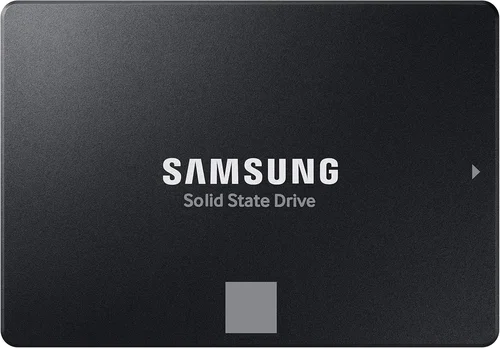
– 2.5-inch SATA: Fits most laptops and desktops with a standard drive bay. Uses SATA III interface (max ~550 MB/s).
– M.2 2280: Small, stick-like drive that plugs directly into the motherboard. Can be SATA or NVMe—check your motherboard specs.
– M.2 2242/2260: Shorter variants, used in ultra-thin laptops or compact devices.
– U.2: Larger, enterprise-focused form factor, rare in consumer systems.
For NVMe drives, ensure your motherboard supports the correct PCIe generation (Gen3, Gen4, or Gen5). A Gen5 drive in a Gen3 slot will work but at reduced speeds. Also, some laptops have BIOS limitations that prevent booting from certain NVMe drives—always verify compatibility before purchasing.
8. User Reviews & Real-World Testing
Spec sheets tell part of the story, but real-world usage reveals the rest. Look for detailed reviews from trusted sources (like Tom’s Hardware, AnandTech, or StorageReview) that test sustained performance, thermal behavior, and reliability over time.
User reviews on retail sites can also highlight issues not covered in professional tests—like compatibility quirks, firmware bugs, or inconsistent performance across units. Pay attention to patterns: if multiple users report the same problem (e.g., sudden slowdowns after a few months), it’s likely a design flaw.
Different Types of Buying Guide

Common Buying Mistakes to Avoid
❌ Mistake: Ignoring Compatibility
Why it’s bad: Buying a Gen5 NVMe SSD for a laptop that only supports SATA will result in a drive that doesn’t fit or work at all. Even within NVMe, some systems have BIOS limitations or physical space constraints.
What to do instead: Check your device’s manual or manufacturer website for supported form factors and interfaces. Use tools like Crucial’s Scanner or Samsung’s Advisor to verify compatibility before purchasing.
❌ Mistake: Prioritizing Peak Speeds Over Real-World Performance
Why it’s bad: A drive advertising 14,000 MB/s might slow to 1,000 MB/s after its cache fills up. If you regularly transfer multi-gigabyte files, this drop can be frustrating.
What to do instead: Look for sustained write speeds in reviews. Drives with large, consistent SLC caches or DRAM buffers handle long transfers better. For most users, consistent mid-range performance beats fleeting peak speeds.
❌ Mistake: Overlooking Endurance (TBW)
Why it’s bad: Cheap QLC-based SSDs may have low TBW ratings—sometimes as little as 200TB for a 1TB drive. Heavy writers (video editors, database users) could hit this limit in under two years.
What to do instead: Calculate your expected write workload. If you write 50GB daily, a 600TBW drive will last ~33 years—but a 200TBW drive only ~11 years. Choose TLC or MLC NAND for heavy use.
❌ Mistake: Skipping the Heatsink on High-Performance Drives
Why it’s bad: Gen4 and Gen5 NVMe drives generate significant heat. Without proper cooling, they throttle performance to prevent damage, negating their speed advantage.
What to do instead: If your case has poor airflow or you’re using the drive in a console (like PS5), buy a model with a built-in heatsink or purchase one separately. Ensure it fits within your system’s clearance limits.
❌ Mistake: Assuming All M.2 Drives Are NVMe
Why it’s bad: M.2 is just a form factor—it can house both SATA and NVMe drives. Installing a SATA M.2 SSD in an NVMe-only slot (or vice versa) won’t work.
What to do instead: Check the keying (notch position) and your motherboard manual. NVMe drives typically use the M key (two notches), while SATA uses B+M. When in doubt, consult compatibility lists.
❌ Mistake: Neglecting Firmware Updates
Why it’s bad: Outdated firmware can cause bugs, reduced performance, or even data corruption. Some drives ship with known issues fixed in later updates.
What to do instead: Register your drive with the manufacturer and check for firmware updates periodically. Use official tools (like Samsung Magician) to apply updates safely.
❌ Mistake: Buying Based Solely on Price
Why it’s bad: The cheapest SSD often uses inferior components, lacks DRAM cache, or has minimal testing. This increases the risk of failure and data loss.
What to do instead: Aim for the best value—not the lowest price. Mid-range drives from reputable brands usually offer the best balance of cost, performance, and reliability.
Budget Guidelines: How Much Should You Spend?
– Entry-Level ($40–$80 for 1TB): Ideal for basic upgrades or secondary storage. Look for reliable SATA or Gen3 NVMe drives from brands like Crucial BX500, Kingston NV2, or WD Green. Expect decent performance for everyday tasks but limited endurance and features.
– Mid-Range ($80–$150 for 1TB): The sweet spot for most users. Drives like the Samsung 980, Crucial P3 Plus, or WD Black SN770 offer excellent Gen4 speeds, good endurance, and strong reliability. Perfect for gaming, productivity, and moderate content creation.
– Premium ($150–$300 for 1TB): For enthusiasts and professionals. Models such as the Samsung 990 Pro, WD Black SN850X, or Sabrent Rocket 4 Plus deliver top-tier performance, robust thermal management, and advanced features like hardware encryption. Great for 4K/8K video editing, CAD, or high-frequency trading.
– Luxury ($300+ for 1TB): Cutting-edge Gen5 drives like the Corsair MP700 Pro or Gigabyte Aorus Gen5 10000. These are overkill for most users but ideal for extreme workloads, AI development, or future-proofing high-end systems. Expect premium pricing, heatsinks, and enterprise-grade endurance.
Expert Tips for Getting the Best Deal
– Buy During Seasonal Sales: The best SSD deals happen during Black Friday, Cyber Monday, Amazon Prime Day (July), and back-to-school season (August). Retailers often discount last-gen models to clear inventory for new releases.
– Compare Retailers: Don’t just check Amazon. Newegg, B&H Photo, Micro Center, and even Costco often have competitive pricing and bundle deals (e.g., free cloning software or USB enclosures).
– Watch for Refurbished or Open-Box Deals: Certified refurbished SSDs from reputable sellers (like Samsung Renewed or Amazon Renewed) can save 20–30% with full warranty coverage. Ensure they include original packaging and are factory-tested.
– Check Return Policies: Some retailers offer 30- or 60-day returns, while others have strict no-return policies on opened electronics. Buy from stores with flexible returns in case of compatibility issues.
– Use Price Tracking Tools: Browser extensions like Honey or CamelCamelCamel track historical prices and alert you when a drive drops below your target.
– Consider Bundles: Some SSDs come with free migration software, USB enclosures (for external use), or extended warranties. These add-ons can increase overall value.
– Test Before Committing: If possible, test the drive in your system before finalizing setup. Use tools like CrystalDiskMark or AS SSD Benchmark to verify speeds and health.
– Register Your Drive: Many manufacturers require registration to activate full warranty coverage. Do this immediately after purchase to avoid issues later.

Frequently Asked Questions
Q: Can I use an NVMe SSD in a SATA slot?
A: No. NVMe and SATA use different protocols and connectors. An NVMe M.2 drive will not work in a SATA M.2 or 2.5-inch SATA slot. Always verify interface compatibility.
Q: Do I need a DRAM cache?
A: DRAM improves performance consistency and longevity by caching mapping tables. While DRAM-less SSDs exist (and can be fine for light use), drives with DRAM generally offer better sustained performance and endurance—especially under heavy workloads.
Q: Will a faster SSD make my old laptop feel new?
A: Absolutely—if it supports the SSD type. Upgrading from an HDD to any SSD (even SATA) dramatically improves boot times, app launches, and overall responsiveness. For older systems, a SATA SSD is often the best cost-effective upgrade.
Q: How full should I keep my SSD?
A: Aim to keep at least 10–20% free space. SSDs need free blocks for wear leveling and garbage collection. Filling an SSD beyond 80–90% can significantly reduce performance and lifespan.
Q: Are external SSDs as fast as internal ones?
A: It depends on the interface. USB 3.2 Gen 2×2 (20 Gbps) or Thunderbolt 3/4 can match internal SATA speeds, but most external SSDs max out around 1,050 MB/s. For Gen4/Gen5 speeds, you’d need a Thunderbolt enclosure—which adds cost.
Q: Can I install an OS on any SSD?
A: Yes, as long as your system supports booting from that interface. Most modern PCs and laptops can boot from NVMe M.2 or 2.5-inch SATA SSDs. Check BIOS settings if you encounter issues.
Q: What’s the difference between TLC and QLC NAND?
A: TLC (Triple-Level Cell) stores 3 bits per cell and offers better endurance and performance. QLC (Quad-Level Cell) stores 4 bits, increasing capacity and lowering cost but reducing write speed and lifespan. Use QLC for archival storage; prefer TLC for active use.
Q: How do I clone my old drive to a new SSD?
A: Use cloning software like Macrium Reflect (free), Acronis True Image, or manufacturer tools (Samsung Data Migration, Crucial Storage Executive). Connect both drives, clone the old one to the new, then swap them.
Q: Is it safe to buy SSDs from unknown brands?
A: Proceed with caution. While some budget brands are decent, many cut corners on NAND quality, controllers, or firmware. Stick to well-reviewed models and check failure rate reports from sources like Backblaze.
Q: Do SSDs slow down over time?
A: Not inherently—but performance can degrade if the drive is nearly full or lacks TRIM support. Modern SSDs with good garbage collection and over-provisioning maintain consistent speeds for years.
Our Final Recommendations
– Best for Budget-Conscious Buyers: Crucial P3 1TB (Gen3 NVMe) – At around $60, it delivers solid Gen3 speeds, 640 TBW endurance, and Crucial’s reliable firmware. Perfect for upgrading older systems without breaking the bank.
– Best Overall Value: Samsung 980 1TB (Gen3 NVMe) – Combines Samsung’s legendary reliability with excellent real-world performance, low power consumption, and a competitive price (~$85). Great for laptops and desktops alike.
– Best Premium Option: Samsung 990 Pro 2TB (Gen4 NVMe) – With speeds up to 7,450 MB/s, 1,200 TBW endurance, and advanced thermal control, it’s the gold standard for enthusiasts and pros. Ideal for gaming rigs and creative workstations.
– Best for Beginners: WD Blue SN580 1TB (Gen4 NVMe) – User-friendly, affordable (~$75), and compatible with most systems. Includes WD Dashboard for easy monitoring and updates—perfect for first-time SSD upgraders.
– Best for Advanced Users: Corsair MP700 Pro 2TB (Gen5 NVMe) – Blazing 14,700 MB/s speeds, massive 1,800 TBW rating, and a robust heatsink. Built for 8K video editing, AI training, and extreme multitasking. Requires a Gen5-compatible motherboard.
Conclusion: Making the Right Choice
Choosing the best SSD isn’t about finding the fastest or most expensive drive—it’s about matching the right technology to your needs, budget, and system. Whether you’re breathing new life into an old laptop with a SATA upgrade or building a bleeding-edge workstation with Gen5 NVMe, the principles remain the same: prioritize compatibility, value real-world performance over marketing hype, and trust reputable brands with proven track records.
Remember, an SSD is more than just storage—it’s the foundation of your system’s responsiveness. A well-chosen drive can transform sluggish boot times into instant wake-ups, turn laggy file transfers into seamless workflows, and give you peace of mind knowing your data is safe and secure.
Take the time to assess your usage patterns, research thoroughly, and don’t rush into a purchase. With the insights from this guide, you’re now equipped to navigate the SSD landscape with confidence. Upgrade wisely, and enjoy the speed, silence, and reliability that only a great SSD can deliver.