
The internal SSD market has evolved dramatically over the past few years, and by 2026, solid-state drives have become the undisputed standard for laptop storage. Gone are the days when users had to choose between speed and capacity—today’s SSDs deliver both, often at surprisingly affordable prices. Whether you’re upgrading an aging laptop or building a new system from the ground up, selecting the right internal SSD can dramatically improve boot times, application loading, file transfers, and overall system responsiveness. But with so many options flooding the market—ranging from budget SATA drives to blazing-fast PCIe Gen5 NVMe models—it’s easy to feel overwhelmed.
This comprehensive buying guide is designed to cut through the noise and help you make an informed decision tailored to your specific needs. We’ll walk you through every critical factor you should consider, from performance benchmarks and form factors to brand reliability and long-term durability. You’ll learn how to avoid common pitfalls, understand what “speed” really means in real-world usage, and identify which features matter most for your workflow—whether you’re a casual user, a creative professional, or a hardcore gamer. By the end of this guide, you’ll have a clear roadmap to choosing the best internal SSD for your laptop in 2026.
The SSD landscape today is more diverse than ever. Major manufacturers like Samsung, Western Digital, Crucial, Kingston, and SK Hynix continue to push the envelope with innovations in NAND flash technology, controller efficiency, and thermal management. Meanwhile, newer entrants like Team Group and ADATA are offering compelling value propositions that challenge traditional pricing tiers. With capacities now routinely exceeding 4TB and read/write speeds topping 14,000 MB/s on high-end models, there’s never been a better time to upgrade. However, not all SSDs are created equal—and understanding the nuances between them is key to getting the most out of your investment.

What to Look for When Buying Buying Guide
1. Form Factor and Compatibility
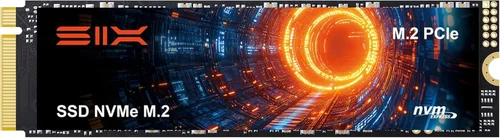
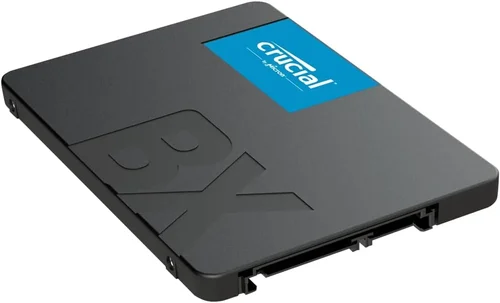
Before you even consider speed or capacity, you must ensure the SSD physically fits your laptop and is compatible with its interface. Most modern laptops use one of three primary form factors: M.2 2280 (the most common), M.2 2242 or 2260 (smaller variants found in ultraportables), or the older 2.5-inch SATA drive (typically in budget or older machines). The “2280” designation refers to the drive’s dimensions—22mm wide and 80mm long—and is the standard for most consumer laptops.
Equally important is the interface type. M.2 slots can support either SATA or NVMe protocols, and they’re not interchangeable. A SATA-based M.2 SSD will only achieve speeds around 550 MB/s, while NVMe drives leverage the PCIe bus for significantly higher throughput. Always check your laptop’s manual or manufacturer specifications to confirm which type your system supports. Attempting to install an NVMe drive in a SATA-only slot (or vice versa) simply won’t work. Some newer ultrabooks also use proprietary SSD modules, so verify compatibility before purchasing.
2. Performance Specifications
Performance is often the first thing buyers look at—and for good reason. But it’s crucial to understand what those numbers actually mean. SSD performance is typically measured in sequential read/write speeds (in MB/s) and random read/write IOPS (Input/Output Operations Per Second). Sequential speeds matter most for large file transfers, video editing, or loading massive game assets, while random IOPS affect everyday tasks like opening apps, multitasking, or booting the OS.
In 2026, PCIe Gen4 NVMe drives are the sweet spot for most users, offering read speeds between 5,000–7,000 MB/s. High-end Gen5 drives can exceed 12,000 MB/s, but they generate more heat and may require active cooling—something most laptops aren’t designed to provide. For general productivity, web browsing, and office work, even a mid-tier Gen3 NVMe drive (3,500 MB/s) will feel dramatically faster than an HDD. Don’t get seduced by peak numbers alone; sustained performance under load and thermal throttling behavior are equally important, especially in compact laptop chassis with limited airflow.
3. Capacity Needs
How much storage do you really need? This depends heavily on your usage patterns. A basic web browser, email client, and office suite might only require 256GB, but once you start installing games, creative software, or storing media libraries, capacity fills up fast. In 2026, 512GB is the new minimum for comfortable daily use, while 1TB offers a balanced mix of space and value. Creative professionals working with 4K/8K video, photographers managing RAW files, or gamers with extensive libraries should aim for 2TB or more.
Keep in mind that SSDs perform best when they’re not nearly full. Most manufacturers recommend keeping at least 10–20% of the drive free for optimal wear leveling and garbage collection. So a 1TB drive effectively gives you ~800–900GB of usable space under ideal conditions. Also, larger-capacity drives often have better endurance ratings (measured in TBW—Terabytes Written), meaning they’ll last longer under heavy write workloads.
4. NAND Flash Type and Endurance
Not all NAND flash memory is created equal. The three main types are SLC (Single-Level Cell), MLC (Multi-Level Cell), TLC (Triple-Level Cell), and QLC (Quad-Level Cell). SLC is the most durable and fastest but prohibitively expensive—it’s mostly used in enterprise environments. Consumer SSDs almost exclusively use TLC or QLC. TLC offers a great balance of speed, endurance, and cost, while QLC provides higher capacities at lower prices but with reduced write performance and longevity.
Endurance is measured in TBW (Terabytes Written)—the total amount of data that can be written to the drive over its lifetime. For example, a 1TB Samsung 990 Pro has a TBW rating of 600TB, while a similarly sized QLC drive might be rated for only 200–300TB. If you’re a light user who mostly reads data (e.g., streaming, browsing), QLC is perfectly fine. But if you frequently edit videos, compile code, or run databases, opt for TLC-based drives with higher TBW ratings.
5. Brand Reputation and Reliability
While specs matter, so does trust. Stick with established brands known for consistent quality and firmware support. Samsung, Western Digital, Crucial (a Micron brand), Kingston, and SK Hynix have proven track records of reliability and offer robust software suites for drive management, cloning, and health monitoring. Avoid no-name or obscure brands that may cut corners on components or lack proper validation testing.
Real-world reliability often differs from lab benchmarks. Look for user reports on forums like Reddit’s r/buildapc or Tom’s Hardware regarding long-term stability, failure rates, and customer service responsiveness. A drive that performs well in synthetic tests but fails prematurely in the field isn’t worth the risk—especially when your data is on the line.
6. Warranty and Support
A solid warranty is a strong indicator of a manufacturer’s confidence in their product. Most reputable SSDs come with a 3- to 5-year limited warranty, sometimes tied to the TBW limit (e.g., “5 years or 600TBW, whichever comes first”). Longer warranties generally correlate with higher-end models and better build quality.
Check what the warranty covers: does it include data recovery? Is advance replacement available? How easy is it to initiate a claim? Some brands, like Samsung, offer excellent global support with quick RMA processes, while others may require you to ship the drive internationally at your own expense. Also, register your drive upon purchase—many warranties are only valid if registered within a certain timeframe.
7. Power Efficiency and Thermal Management
Laptops are power-constrained devices, and SSD power draw directly impacts battery life. High-performance NVMe drives—especially Gen4 and Gen5 models—can consume significantly more power under load than their SATA counterparts. While this rarely affects wall-powered desktops, it can shave minutes or even hours off your laptop’s runtime during intensive tasks.
Thermal throttling is another critical concern. NVMe SSDs can get hot during sustained writes, causing the controller to slow down to prevent damage. In thin-and-light laptops with minimal cooling, this can lead to inconsistent performance. Look for drives with built-in thermal throttling safeguards or consider models with integrated heatsinks (though these may not fit in all laptops). Some manufacturers, like WD and Samsung, use advanced controller designs that minimize heat output without sacrificing speed.
8. Price-to-Performance Ratio
Finally, consider value—not just upfront cost. A $50 SSD might seem like a bargain, but if it uses low-quality QLC NAND and has a 1-year warranty, it could cost you more in the long run due to premature failure or poor performance. Conversely, dropping $400 on a top-tier Gen5 drive may be overkill if you’re only using your laptop for email and streaming.
Evaluate cost per gigabyte ($/GB) as a starting point, but weigh it against performance, endurance, and warranty. As of 2026, expect to pay roughly:
– $0.08–$0.12/GB for entry-level SATA or Gen3 NVMe
– $0.12–$0.18/GB for mainstream Gen4 NVMe
– $0.20+/GB for high-end Gen5 or enterprise-grade drives
The sweet spot for most users remains Gen4 NVMe drives in the 1TB–2TB range, offering excellent speed, reliability, and value.
Different Types of Buying Guide

Common Buying Mistakes to Avoid
❌ Mistake: Ignoring Laptop Compatibility
Why it’s bad: Buying a Gen4 NVMe drive for a laptop that only supports SATA will result in a non-functional SSD. Even among M.2 drives, keying (the position of the notch) differs between B-key (SATA) and M-key (NVMe), and mixing them up leads to frustration and wasted money.
What to do instead: Always consult your laptop’s service manual or use tools like Crucial’s Scanner or Samsung’s Advisor to verify supported form factors and interfaces before purchasing.
❌ Mistake: Prioritizing Peak Speed Over Real-World Performance
Why it’s bad: A drive advertising 7,000 MB/s might throttle to 1,500 MB/s after 30 seconds due to overheating—especially in a thin laptop. Synthetic benchmarks don’t reflect everyday use.
What to do instead: Look for reviews that test sustained workloads and thermal behavior. Prioritize drives with consistent performance under load, not just peak numbers.
❌ Mistake: Choosing QLC for Heavy Write Workloads
Why it’s bad: QLC NAND wears out faster under frequent writes. Video editors, developers, or database users may experience premature drive failure or severe slowdowns once the SLC cache is exhausted.
What to do instead: Opt for TLC-based drives like the Samsung 990 Pro or WD Black SN850X if you regularly write large amounts of data.
❌ Mistake: Overlooking Warranty Terms
Why it’s bad: A 1-year warranty on a $100 SSD offers little protection. If the drive fails after 14 months, you’re out of luck—and potentially your data.
What to do instead: Choose drives with at least a 3-year warranty, preferably 5 years. Register your product immediately and keep proof of purchase.
❌ Mistake: Skipping Firmware Updates
Why it’s bad: Manufacturers often release firmware updates to fix bugs, improve performance, or enhance compatibility. Running outdated firmware can lead to instability or reduced lifespan.
What to do instead: Use the manufacturer’s utility (e.g., Samsung Magician, WD Dashboard) to check for and install firmware updates regularly.
❌ Mistake: Assuming All 1TB Drives Are Equal
Why it’s bad: A $60 1TB QLC drive may use slower controllers and lack DRAM cache, leading to sluggish performance during multitasking or large file operations.
What to do instead: Compare specs beyond capacity: look for DRAM cache presence, controller type, NAND generation, and user reviews highlighting real-world speed.
❌ Mistake: Neglecting Backup Strategy
Why it’s bad: SSDs can fail suddenly without warning—unlike HDDs that often show signs of degradation. Relying solely on the SSD for data storage is risky.
What to do instead: Implement a 3-2-1 backup rule: 3 copies of your data, on 2 different media, with 1 offsite (e.g., cloud or external drive).
Budget Guidelines: How Much Should You Spend?
– Entry-Level ($30–$70): Ideal for basic upgrades in older laptops or secondary drives. Expect SATA or Gen3 NVMe speeds, QLC or lower-end TLC NAND, and 3-year warranties. Great for students or casual users who need more space without breaking the bank. Example: Crucial P3 1TB Gen3 NVMe.
– Mid-Range ($70–$150): The sweet spot for most users in 2026. Offers Gen4 NVMe performance, reliable TLC NAND, 5-year warranties, and capacities from 1TB to 2TB. Perfect for gamers, remote workers, and creatives who need speed and durability. Example: Samsung 980 Pro 1TB or WD Black SN770 2TB.
– Premium ($150–$300): For power users and professionals. Features top-tier Gen4 or early Gen5 drives with exceptional endurance, advanced controllers, and robust thermal designs. Ideal for 4K/8K video editing, 3D rendering, or high-frequency trading. Example: Samsung 990 Pro 2TB or Sabrent Rocket 4 Plus 2TB.
– Luxury ($300+): Reserved for enthusiasts, workstation users, or those future-proofing high-end laptops. Includes Gen5 drives with 14,000+ MB/s speeds, massive 4TB+ capacities, and enterprise-grade reliability. Overkill for most, but justified if you demand absolute peak performance. Example: Corsair MP700 Pro 4TB.
Expert Tips for Getting the Best Deal
– Buy During Seasonal Sales: SSD prices fluctuate throughout the year. The best discounts typically occur in November (Black Friday/Cyber Monday), July (Prime Day), and August (back-to-school). Avoid buying right after a new model launches—prices are highest then.
– Stick to Reputable Retailers: Purchase from authorized sellers like Amazon (sold by Amazon, not third-party), Newegg, Best Buy, or direct from the manufacturer. This ensures warranty validity and reduces the risk of counterfeit products.
– Compare Total Cost of Ownership: Factor in warranty length, expected lifespan, and performance needs—not just upfront price. A slightly more expensive drive with a 5-year warranty may save you money long-term.
– Check Return Policies: Ensure the retailer offers at least a 30-day return window. Some SSDs may have compatibility issues or arrive DOA (dead on arrival), and you’ll want hassle-free returns.
– Use Manufacturer Tools: Brands like Samsung, Crucial, and WD offer free scanning tools that analyze your system and recommend compatible drives. These are invaluable for avoiding compatibility mistakes.
– Monitor Drive Health Post-Purchase: Install monitoring software (e.g., CrystalDiskInfo, HWInfo) to track temperature, wear level, and SMART attributes. Early detection of issues can prevent data loss.
– Consider Refurbished or Open-Box Deals: Certified refurbished SSDs from manufacturers often come with full warranties and can save 20–30%. Just ensure they’re from official programs, not random eBay sellers.
– Avoid “Too Good to Be True” Deals: If a 2TB Gen5 SSD is listed for $99, it’s almost certainly fake or defective. Genuine high-performance drives have consistent pricing across reputable outlets.

Frequently Asked Questions
Q: Can I upgrade my laptop’s SSD myself?
A: In most cases, yes—but it depends on your laptop model. Many modern ultrabooks have soldered storage, making upgrades impossible. Check your laptop’s service manual or search online for “[your model] SSD upgrade” to confirm. If accessible, the process usually involves removing the back panel, unscrewing the old drive, and inserting the new one. Always back up your data first!
Q: Will a faster SSD improve my laptop’s battery life?
A: Not directly—but indirectly, yes. Faster SSDs complete tasks quicker, allowing the CPU and other components to return to low-power states sooner. However, high-performance NVMe drives may consume more power under load, potentially offsetting gains. For maximum battery life, consider power-efficient Gen3 or SATA drives.
Q: Do I need a heatsink for my laptop SSD?
A: Most laptops don’t have room for aftermarket heatsinks, and many OEMs design thermal solutions into the chassis. High-end Gen4/Gen5 drives may benefit from minimal thermal pads or built-in heat spreaders, but avoid bulky heatsinks unless your laptop specifically supports them.
Q: How do I clone my old drive to the new SSD?
A: Use cloning software like Macrium Reflect (free), Acronis True Image, or the manufacturer’s tool (e.g., Samsung Data Migration). Connect both drives (via USB adapter if needed), select source and destination, and let the software copy everything—including the OS and boot sector.
Q: Is DRAM cache important?
A: Yes, especially for sustained performance. DRAM-less SSDs use system memory (HMB) as a substitute, which works fine for light tasks but can cause slowdowns during heavy multitasking or large file transfers. Always prefer drives with dedicated DRAM cache for reliability and speed.
Q: Can I use an external SSD instead of upgrading internally?
A: Absolutely—and it’s a great option if your laptop doesn’t support upgrades. USB 3.2 Gen 2×2 or Thunderbolt 4 external SSDs can deliver near-internal speeds. However, internal upgrades offer better integration, lower latency, and no cable clutter.
Q: How long do laptop SSDs last?
A: Under normal use, most modern SSDs last 5–10 years or more. With typical workloads (under 20TB written per year), even QLC drives should outlast the laptop itself. Monitor TBW usage via SMART tools to gauge remaining lifespan.
Q: Are Gen5 SSDs worth it for laptops in 2026?
A: Only if your laptop explicitly supports PCIe Gen5 and you’re doing extremely data-intensive work (e.g., 8K video editing, AI training). For most users, Gen4 offers 95% of the real-world benefit at a much lower cost and with better thermal characteristics.
Q: What’s the difference between NVMe and SATA?
A: NVMe (Non-Volatile Memory Express) uses the PCIe interface for much higher bandwidth and lower latency than SATA, which is limited to ~600 MB/s. NVMe is the standard for modern high-speed storage, while SATA is legacy but still functional for basic needs.
Q: Should I enable TRIM on my SSD?
A: Yes—TRIM helps maintain SSD performance over time by informing the drive which blocks are no longer in use. It’s usually enabled by default in Windows, macOS, and Linux, but you can verify it in disk management tools.
Our Final Recommendations
– Best for Budget-Conscious Buyers: Crucial P3 1TB (Gen3 NVMe) – At around $60, it delivers reliable Gen3 speeds, 5-year warranty, and Crucial’s proven reliability. Perfect for upgrading older systems without overspending.
– Best Overall Value: Samsung 980 Pro 1TB (Gen4 NVMe) – A benchmark leader with excellent sustained performance, low heat output, and Samsung’s 5-year warranty. Ideal for gamers, creators, and professionals seeking a balanced upgrade.
– Best Premium Option: Samsung 990 Pro 2TB (Gen4 NVMe) – With top-tier endurance (1,200 TBW), blazing speeds, and advanced thermal management, this drive is built for demanding workloads and future-proofing high-end laptops.
– Best for Beginners: WD Blue SN580 1TB (Gen4 NVMe) – User-friendly, affordable, and compatible with nearly all modern laptops. Comes with WD Dashboard for easy monitoring and cloning.
– Best for Advanced Users: Sabrent Rocket 4 Plus 2TB (Gen4 NVMe) – Offers near-maximum Gen4 performance, robust build quality, and competitive pricing. Great for enthusiasts who want flagship specs without the Samsung premium.
Conclusion: Making the Right Choice
Choosing the best internal SSD for your laptop in 2026 doesn’t have to be overwhelming—if you know what to prioritize. Start by confirming your laptop’s compatibility, then align your choice with your actual usage needs rather than chasing peak specs. Remember: a fast SSD won’t make a slow CPU faster, but it will eliminate storage bottlenecks and breathe new life into your system.
Focus on reputable brands, realistic performance expectations, and long-term value. Whether you’re upgrading a five-year-old machine or configuring a brand-new ultrabook, the right SSD can transform your computing experience—making boot-ups instantaneous, apps launch in a blink, and file transfers feel effortless. Don’t let marketing hype or flashy numbers cloud your judgment. Instead, use the insights from this guide to make a confident, informed decision that balances speed, capacity, reliability, and budget.
Your laptop deserves the best storage it can handle. Take the time to choose wisely, back up your data, and enjoy the speed revolution that SSDs have brought to personal computing. With the right drive installed, you’ll wonder how you ever tolerated spinning disks—or slow boot times—in the first place.