
Solid-state drives have revolutionized data storage, offering faster boot times, quicker file access, and improved overall system responsiveness compared to traditional hard disk drives. Whether you’re building a new PC, upgrading an aging laptop, or expanding storage for creative work, choosing the right SSD can make a dramatic difference in your computing experience. With so many brands, form factors, and performance tiers available in 2026, it’s easy to feel overwhelmed—especially when prices vary wildly and technical specs can be confusing.
This comprehensive buying guide is designed to cut through the noise and help you make an informed decision. We’ll walk you through every critical factor you should consider—from performance benchmarks and endurance ratings to brand reliability and warranty coverage. You’ll learn how to match your specific needs (gaming, content creation, everyday use, etc.) with the right type of SSD, avoid common pitfalls, and get the best value for your money. By the end, you’ll have a clear roadmap to confidently select the ideal SSD for your setup.
The SSD market in 2026 continues to evolve rapidly, with PCIe Gen5 drives pushing bandwidth limits, QLC NAND offering high capacities at lower costs, and manufacturers refining firmware and power efficiency. Major players like Samsung, Crucial, Western Digital, Kingston, and Sabrent dominate the space, but newer entrants and niche brands are also making waves. Whether you’re on a tight budget or willing to splurge for top-tier speed, this guide will help you navigate the landscape and find the perfect balance of performance, durability, and cost.

What to Look for When Buying Buying Guide
1. Budget & Price Range
Your budget is often the first and most practical constraint when shopping for an SSD. Prices vary significantly based on capacity, interface (SATA vs. NVMe), NAND type (TLC vs. QLC), and brand reputation. As of 2026, entry-level SATA SSDs start around $20 for 250GB, while high-performance PCIe Gen5 NVMe drives can exceed $300 for just 1TB. It’s tempting to go for the cheapest option, but skimping too much can lead to poor performance, shorter lifespan, or compatibility issues.
To strike the right balance, determine your minimum required capacity first—most users find 500GB to 1TB sufficient for general use—and then allocate funds accordingly. Mid-range NVMe drives (around $60–$120 for 1TB) offer excellent value, delivering near-flagship speeds without the premium price tag. Always compare cost per gigabyte: a $90 2TB drive ($0.045/GB) is often a better deal than a $50 500GB drive ($0.10/GB).
2. Performance Specifications
SSD performance is typically measured by sequential read/write speeds (in MB/s) and random read/write IOPS (Input/Output Operations Per Second). For NVMe drives, PCIe Gen4 models commonly hit 5,000–7,000 MB/s, while Gen5 drives can exceed 10,000 MB/s. SATA SSDs are capped at ~550 MB/s due to interface limitations.
While raw speed matters for tasks like video editing or large file transfers, real-world responsiveness also depends on random performance—how quickly the drive handles small, scattered files. Look for drives with strong 4K random read/write numbers (ideally above 500K IOPS). Also check latency specs; lower is better. Don’t forget sustained performance: some drives throttle under prolonged load, so reviews that test real-world workloads are more valuable than synthetic benchmarks alone.
3. Build Quality & Durability
Durability in SSDs is primarily determined by NAND flash type and controller quality. Triple-Level Cell (TLC) NAND offers a good balance of speed, endurance, and cost, making it ideal for most consumers. Quad-Level Cell (QLC) NAND is cheaper and allows higher capacities but wears out faster under heavy write workloads—best suited for read-heavy or light-use scenarios.
Check the drive’s TBW (Terabytes Written) rating, which indicates how much data can be written over its lifetime. A 1TB TLC SSD might have a 600TBW rating, while a QLC version could be as low as 200TBW. Enterprise-grade drives use MLC or even SLC NAND for extreme endurance but come at a steep price. Also consider physical build: metal heatsinks on high-end NVMe drives help prevent thermal throttling, while budget models may lack adequate cooling.
4. Features & Functionality
Beyond basic storage, modern SSDs offer features that enhance usability and security. Hardware encryption (like AES-256) protects sensitive data if your device is lost or stolen—look for TCG Opal or IEEE 1667 compliance. DRAM cache improves performance and longevity by buffering data; DRAM-less SSDs are cheaper but can suffer under sustained loads.
Some drives include proprietary software for cloning, monitoring health (via S.M.A.R.T. data), or optimizing performance. Samsung’s Magician and Crucial’s Storage Executive are well-regarded examples. For gamers, features like Microsoft DirectStorage support (available on Windows 11) can reduce load times—ensure your SSD is compatible. Additionally, consider power efficiency if you’re using a laptop; lower power draw extends battery life.
5. Brand Reputation
Not all SSD brands are created equal. Established manufacturers like Samsung, Crucial (a Micron brand), Western Digital, and Kingston have proven track records for reliability, consistent firmware updates, and responsive customer support. These companies often use their own NAND and controllers, ensuring tighter quality control.
Newer or lesser-known brands may offer aggressive pricing, but they sometimes cut corners on components or lack long-term support. Check independent reviews from trusted sources (like Tom’s Hardware, AnandTech, or StorageReview) rather than relying solely on marketing claims. User forums and Reddit communities can also reveal real-world reliability trends—watch out for recurring complaints about failure rates or poor RMA experiences.
6. Warranty & Support
A solid warranty is a strong indicator of a manufacturer’s confidence in their product. Most reputable SSDs come with 3- to 5-year limited warranties, often tied to TBW limits (e.g., “5 years or 600TBW, whichever comes first”). Longer warranties usually correlate with higher-end models and better NAND.
Pay attention to the terms: some warranties require registration, original packaging, or proof of purchase. Also, verify if the warranty covers data recovery—most don’t, so always back up critical files. Customer support quality varies widely; Samsung and Crucial offer robust online resources and phone support, while budget brands may only provide email assistance with slow response times.
7. Form Factor & Compatibility
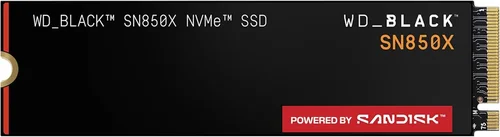
SSDs come in several physical formats, and compatibility depends on your system. The most common is M.2 2280 (22mm wide, 80mm long), used in modern laptops and desktops. Ensure your motherboard has an available M.2 slot and supports the correct interface (PCIe Gen3/4/5 or SATA).
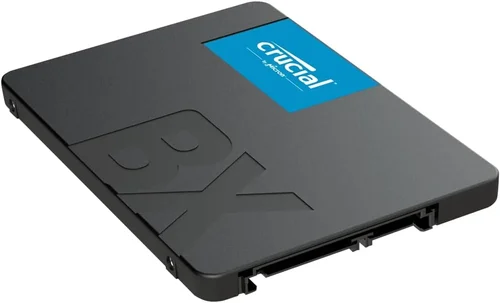
For older systems, 2.5-inch SATA SSDs are still widely used and plug into standard SATA ports. U.2 and mSATA drives exist but are niche. If you’re upgrading a laptop, double-check space constraints—some ultrabooks only fit shorter M.2 lengths (like 2242). Also, note that PCIe Gen5 drives generate more heat and may require a heatsink, which might not fit in compact builds.
8. User Reviews & Ratings
While specs tell part of the story, real-user feedback reveals how an SSD performs in everyday use. Look beyond Amazon star ratings—read detailed reviews that discuss longevity, noise (some drives emit coil whine under load), temperature behavior, and compatibility quirks.
Pay special attention to reviews from users with similar use cases (e.g., video editors, gamers, or office workers). Be wary of fake reviews; cross-reference multiple platforms like Newegg, Best Buy, and tech forums. Consistent praise for reliability over 12+ months is a strong signal of quality.
Different Types of Buying Guide

Common Buying Mistakes to Avoid

❌ Mistake: Ignoring Your System’s Compatibility
Why it’s bad: Buying a PCIe Gen5 SSD for a motherboard that only supports Gen3 wastes money and offers no performance gain. Similarly, installing an M.2 drive in a slot that doesn’t support NVMe will result in it not being detected.
What to do instead: Check your motherboard or laptop manual for supported interfaces and form factors. Use tools like CPU-Z or the manufacturer’s website to verify specs before purchasing.
❌ Mistake: Choosing QLC NAND for Heavy Workloads
Why it’s bad: QLC drives have lower write endurance and can slow down dramatically when their SLC cache is exhausted—problematic for video editors, developers, or anyone writing large files frequently.
What to do instead: Opt for TLC-based SSDs if you regularly transfer multi-gigabyte files or run virtual machines. Reserve QLC for secondary storage or light-use systems.
❌ Mistake: Overlooking DRAM Cache
Why it’s bad: DRAM-less SSDs rely on system memory (HMB) for mapping tables, which can cause stuttering during heavy multitasking or large file operations—especially on systems with limited RAM.
What to do instead: Prioritize drives with dedicated DRAM unless you’re on a very tight budget. The performance and longevity benefits far outweigh the small cost increase.
❌ Mistake: Focusing Only on Peak Speeds
Why it’s bad: Synthetic benchmarks often show inflated numbers that don’t reflect real-world usage. A drive that peaks at 7,000 MB/s may throttle to 1,000 MB/s under sustained load, negating its advantage.
What to do instead: Read reviews that test sustained performance, thermal behavior, and real-application loads (like game loading or video rendering). Consistency matters more than peak numbers.
❌ Mistake: Skipping Firmware Updates
Why it’s bad: Outdated firmware can cause compatibility issues, reduced performance, or even data corruption. Some brands release critical updates years after launch.
What to do instead: Register your SSD with the manufacturer and periodically check for firmware updates using their official utility. Enable automatic notifications if available.
❌ Mistake: Neglecting Backup Strategies
Why it’s bad: SSDs can fail suddenly without warning signs (unlike HDDs, which often show noise or slowdowns). Relying solely on a single SSD for critical data is risky.
What to do instead: Implement a 3-2-1 backup rule: three copies of your data, on two different media, with one offsite (e.g., cloud storage). Treat your SSD as primary storage, not archival.
❌ Mistake: Buying Based Solely on Brand Hype
Why it’s bad: Even top brands release flawed models. Conversely, lesser-known brands sometimes offer excellent value with minimal trade-offs.
What to do instead: Evaluate each model individually using trusted reviews, spec comparisons, and user feedback—not just brand reputation.
Budget Guidelines: How Much Should You Spend?
- Entry-Level ($20–$50): Ideal for basic upgrades or secondary storage. Expect SATA or low-end NVMe drives with QLC NAND and modest speeds (up to 3,500 MB/s for NVMe). Capacities typically range from 250GB to 500GB. Good for office work, web browsing, and light gaming—but avoid for intensive tasks.
- Mid-Range ($50–$120): The sweet spot for most users. You’ll find reliable TLC-based NVMe Gen3 or Gen4 drives with 1TB capacity, strong endurance (400–600TBW), and consistent performance. Perfect for gaming, streaming, photo editing, and general productivity. Brands like Crucial P5 Plus or WD Black SN770 excel here.
- Premium ($120–$250): For power users and professionals. These drives offer Gen4 or early Gen5 speeds, robust heatsinks, high TBW ratings (800TBW+), and advanced features like hardware encryption. Ideal for 4K/8K video editing, 3D rendering, and high-FPS gaming. Samsung 990 Pro and Sabrent Rocket 4 Plus are standout options.
- Luxury ($250+): Reserved for enthusiasts and enterprise use. Expect top-tier Gen5 performance (12,000+ MB/s), enterprise-grade NAND, extensive warranties (5–10 years), and specialized firmware. Overkill for most consumers but justified for servers, workstations, or future-proof builds.
Expert Tips for Getting the Best Deal
- Time Your Purchase: Major sales events like Black Friday, Prime Day, and back-to-school season (July–August) offer the deepest SSD discounts. Prices also drop after new generations launch (e.g., when Gen5 arrived, Gen4 prices fell sharply).
- Shop at Reputable Retailers: Stick to authorized sellers like Amazon (sold by Amazon, not third parties), Newegg, Best Buy, or direct from manufacturer websites. Avoid gray-market imports, which may lack warranty coverage.
- Compare Total Cost of Ownership: Factor in warranty length, expected lifespan, and potential downtime. A $10 cheaper drive with a 3-year warranty vs. a $20 more expensive one with 5 years may cost more in the long run if it fails early.
- Check Return Policies: Ensure the retailer allows returns within 30 days, especially if you’re unsure about compatibility. Some stores charge restocking fees for opened electronics—read the fine print.
- Use Price Tracking Tools: Services like CamelCamelCamel (for Amazon) or Honey track historical prices and alert you to drops. Set alerts for your target model and capacity.
- Consider Refurbished or Open-Box: Certified refurbished SSDs from manufacturers often come with full warranties and significant savings (20–40% off). Open-box deals at Micro Center or Best Buy can also yield bargains—just verify functionality.
- Test Before Committing: If possible, run benchmarks (CrystalDiskMark, AS SSD) and monitor temperatures after installation. This confirms real-world performance and helps catch defects early.
- Bundle When Possible: Some retailers offer discounts when buying SSDs with other components (e.g., motherboards or laptops). Look for combo deals during system builds.

Frequently Asked Questions
Q: Is NVMe always faster than SATA?
A: Not necessarily in everyday tasks. While NVMe drives have much higher theoretical bandwidth, most users won’t notice the difference in boot times, app launches, or web browsing compared to a good SATA SSD. However, for large file transfers, gaming with DirectStorage, or professional workloads, NVMe’s speed advantage becomes significant.
Q: Can I use an SSD in an external enclosure?
A: Yes! Many M.2 NVMe SSDs can be placed in USB 3.2 Gen 2×2 or Thunderbolt 4 enclosures for portable, high-speed external storage. Just ensure the enclosure supports your drive’s interface and provides adequate cooling.
Q: Do SSDs need defragmentation?
A: No—and you should never defrag an SSD. Defragmentation increases write cycles unnecessarily and reduces lifespan. Windows and macOS automatically optimize SSDs using TRIM, which maintains performance without wear.
Q: How long do SSDs last?
A: Modern consumer SSDs typically last 5–10 years under normal use, often outlasting the device itself. Endurance is measured in TBW; a 1TB TLC drive with 600TBW could theoretically write 100GB daily for over 16 years. Real-world failure is more often due to controller issues than NAND wear.
Q: Are cheaper SSDs safe for OS installation?
A: It depends. Budget drives with poor controllers or QLC NAND may struggle with the constant small writes an OS generates. For your primary drive, invest in a reputable TLC-based model with DRAM. Use cheaper drives for secondary storage or media libraries.
Q: Does SSD speed affect gaming performance?
A: Indirectly, yes. Faster SSDs reduce level load times and texture streaming hitches, especially in open-world games. With DirectStorage on Windows 11, the gap between SATA and NVMe becomes more noticeable. However, beyond a certain point (around 3,500 MB/s), diminishing returns set in.
Q: Can I mix different SSD brands in RAID?
A: Technically yes, but it’s not recommended. Mixing brands increases the risk of compatibility issues, inconsistent performance, and higher failure rates. If using RAID, stick to identical models for reliability.
Q: What’s the difference between DRAM and DRAM-less SSDs?
A: DRAM acts as a high-speed cache for the drive’s mapping table (which tracks where data is stored). DRAM-less drives use system RAM (HMB) or simulate cache in NAND, which can lead to slower performance under heavy loads and reduced longevity.
Q: Should I enable over-provisioning?
A: Over-provisioning reserves a portion of the drive for background operations, improving longevity and consistent performance. Most modern SSDs handle this automatically, but advanced users can manually allocate space (5–10%) via manufacturer tools for extra peace of mind.
Q: Are PCIe Gen5 SSDs worth it in 2026?
A: For most users, no—yet. While Gen5 offers incredible speeds, few applications fully utilize them, and they run hotter, requiring heatsinks. Unless you’re editing 8K video, running AI workloads, or building a future-proof rig, a high-quality Gen4 drive delivers 95% of the benefit at half the cost.
Our Final Recommendations
- Best for Budget-Conscious Buyers: Crucial P3 1TB (PCIe Gen3 NVMe) – Reliable TLC NAND, 3,500 MB/s speeds, 5-year warranty, and excellent value at under $60. Perfect for upgrading older systems or building a budget PC.
- Best Overall Value: Western Digital Black SN770 1TB (PCIe Gen4 NVMe) – Blends near-Gen5 speeds (5,150 MB/s) with strong endurance (600TBW), low power draw, and consistent performance. Ideal for gamers and creators wanting premium features without the premium price.
- Best Premium Option: Samsung 990 Pro 2TB (PCIe Gen4 NVMe) – Flagship performance (7,450 MB/s), exceptional thermal management, 1,200TBW endurance, and Samsung’s renowned reliability. A top choice for professionals and enthusiasts.
- Best for Beginners: Kingston NV2 1TB (PCIe Gen4 NVMe) – Simple installation, no heatsink needed, solid 4,500 MB/s speeds, and Kingston’s user-friendly support. Great for first-time upgraders or those unfamiliar with M.2 drives.
- Best for Advanced Users: Sabrent Rocket 5 2TB (PCIe Gen5 NVMe) – Pushes boundaries with 14,000 MB/s speeds, built-in heatsink, and robust firmware. Best paired with a Gen5-compatible motherboard for maximum impact in high-end workstations.
Conclusion: Making the Right Choice
Choosing the best SSD isn’t about picking the fastest or most expensive model—it’s about finding the right balance of performance, reliability, and value for your specific needs. Whether you’re breathing new life into an old laptop, building a dream gaming rig, or safeguarding your creative projects, the insights in this guide will help you avoid costly mistakes and invest wisely.
Remember to prioritize compatibility, consider your actual workload, and don’t overlook warranty and support. A slightly more expensive drive from a trusted brand can save you headaches down the road. And always back up your data—no SSD, no matter how robust, is immune to failure.
Take your time, compare options using the criteria outlined here, and don’t rush into a purchase during flash sales without doing your homework. With the right SSD, you’ll enjoy faster boots, snappier applications, and a noticeably smoother computing experience for years to come. Your future self will thank you.