

Video editing is one of the most demanding tasks you can throw at a computer. Whether you’re cutting 4K footage from a drone, color grading cinematic 8K sequences, or managing multi-camera timelines with effects and transitions, your storage system plays a pivotal role in performance, efficiency, and even creative flow. A slow or unreliable SSD can turn a smooth editing session into a frustrating battle of lag, dropped frames, and constant buffering—especially when working with high-bitrate codecs like ProRes, RED RAW, or Blackmagic RAW.
That’s why choosing the right SSD isn’t just about storage capacity—it’s about ensuring your workflow remains fluid, your projects stay safe, and your hardware keeps up with your creative ambitions. In 2026, the SSD market has evolved dramatically, offering blistering speeds, advanced cooling solutions, and enterprise-grade reliability at consumer-friendly prices. But with so many options—NVMe Gen4, Gen5, SATA, portable drives, internal vs. external, DRAM-cached vs. DRAM-less—it’s easy to get overwhelmed. This guide cuts through the noise and delivers expert-level insights to help you make the smartest SSD choice for your video editing needs.
In this comprehensive buying guide, you’ll learn exactly what to look for in an SSD tailored for video editing. We’ll break down the key performance metrics that matter most—like sustained write speeds, random I/O performance, and endurance ratings—and explain why they’re critical for handling large media files. You’ll discover the differences between drive types, understand how interface speeds (PCIe 4.0 vs. 5.0) impact real-world editing, and learn how to balance budget with performance. We’ll also highlight common pitfalls to avoid, share insider tips on getting the best value, and provide clear recommendations across every price tier—from entry-level editors to professional filmmakers. By the end, you’ll have the knowledge and confidence to invest in an SSD that doesn’t just meet your current needs, but scales with your future projects.
The SSD landscape in 2026 is more competitive than ever. With manufacturers pushing the boundaries of NAND technology, controller efficiency, and thermal management, even mid-range drives now deliver performance that would have been considered premium just a few years ago. However, not all SSDs are created equal—especially when it comes to sustained workloads like video editing. While a fast burst speed might look impressive on paper, real-world performance depends on how well a drive maintains those speeds under continuous load. That’s why this guide goes beyond marketing specs and focuses on the practical realities of editing workflows. Whether you’re using Adobe Premiere Pro, DaVinci Resolve, Final Cut Pro, or Avid Media Composer, the right SSD can dramatically reduce render times, improve timeline responsiveness, and give you peace of mind knowing your footage is stored safely and accessibly. Let’s dive in and find the perfect SSD for your setup.

What to Look for When Buying Buying Guide
1. Performance Specifications
When it comes to video editing, raw speed isn’t everything—but it’s definitely a big part of it. The two most important performance metrics to focus on are sequential read/write speeds and sustained performance under load. Sequential speeds (measured in MB/s or GB/s) determine how quickly you can import large video files, scrub through timelines, and export finished projects. For 4K and 8K editing, you’ll want drives that can consistently deliver at least 3,000–5,000 MB/s read and write speeds. NVMe Gen4 drives typically offer 5,000–7,000 MB/s, while Gen5 drives can exceed 10,000 MB/s—though real-world gains may vary depending on your system’s PCIe lane configuration and thermal throttling.
But here’s the catch: many SSDs advertise peak speeds that are only achievable in short bursts. Video editing, however, involves continuous data streaming. A drive that throttles after a few minutes of heavy use will cause lag, dropped frames, and even crashes during playback or export. That’s why sustained write performance is just as important as peak speed. Look for drives with robust thermal management—such as built-in heatsinks or dynamic throttling algorithms—that maintain consistent speeds during long renders. Drives with high-quality controllers (like Phison E18 or Samsung’s in-house designs) and DRAM cache tend to perform better under sustained loads.
Another critical factor is random I/O performance, measured in IOPS (Input/Output Operations Per Second). While sequential speeds handle large file transfers, random I/O affects how quickly your editing software can access scattered metadata, thumbnails, and proxy files. High random read/write IOPS (ideally 500K+ IOPS) ensure smoother timeline navigation and faster project loading. For editors working with complex timelines or multiple layers, this can make a noticeable difference in responsiveness.
2. Capacity & Scalability
Video files are enormous. A single minute of 4K ProRes 422 HQ footage can consume 3–5 GB, while 8K RED RAW can exceed 10 GB per minute. If you’re editing multi-camera shoots, VFX-heavy projects, or long-form documentaries, you’ll quickly fill up even large drives. That’s why capacity isn’t just about how much you can store—it’s about workflow efficiency. Running out of space mid-project means pausing to offload footage, which disrupts creativity and adds complexity.
For most editors, a minimum of 2TB is recommended. This allows you to keep active projects, proxies, and scratch disks on the same drive without constant juggling. Professional editors or those working with 8K or RAW formats should consider 4TB or larger. Larger drives also tend to perform better due to increased parallelism across NAND chips and better wear leveling. Additionally, having extra space enables you to store multiple versions of a project, backups, and archived footage—critical for long-term project management.
Scalability is another consideration. If you’re building a desktop workstation, look for motherboards with multiple M.2 slots so you can add drives as needed. For laptop users or those with limited expansion options, investing in a high-capacity drive upfront is wise. Some editors opt for a tiered storage approach: a fast NVMe SSD for active projects, a secondary SSD for backups, and a large HDD or NAS for long-term archive. This balances speed, cost, and capacity effectively.
3. Interface & Compatibility
The interface determines how fast data can travel between your SSD and your computer. In 2026, the dominant interfaces are PCIe Gen4 and Gen5, with SATA III still available but increasingly outdated for video editing. PCIe Gen4 offers up to 8 GB/s bandwidth (theoretical), while Gen5 doubles that to 16 GB/s. However, real-world performance gains depend on your system’s support. Only high-end desktops and workstations with Gen5-compatible CPUs and motherboards can fully utilize Gen5 speeds. Most laptops and mid-range desktops are still limited to Gen4.
Before buying, check your system’s specifications. Ensure your motherboard or laptop supports the SSD’s interface (M.2 NVMe) and has available PCIe lanes. Some older systems may only support SATA M.2 drives, which cap out at around 550 MB/s—far too slow for 4K+ editing. Also, verify physical compatibility: M.2 drives come in different lengths (2280 is standard), and some laptops have height restrictions due to cooling solutions.
External SSDs use USB interfaces, with USB 3.2 Gen 2×2 (20 Gbps) and Thunderbolt 3/4 (40 Gbps) being the best for video editing. Thunderbolt drives offer near-internal SSD performance and are ideal for portable workflows, but they’re more expensive. USB 3.2 Gen 2 (10 Gbps) is more affordable and sufficient for 4K editing, but may struggle with 8K or multi-stream timelines. Always match your SSD’s interface to your system’s capabilities to avoid bottlenecks.
4. Endurance & Reliability
Video editing is a write-intensive task. Constantly importing, exporting, and rendering footage wears down NAND flash memory over time. That’s why endurance—measured in TBW (Terabytes Written)—is a crucial metric. A higher TBW rating means the drive can handle more data written over its lifetime before potential failure. For example, a 2TB drive with 1,200 TBW can theoretically write 1,200 terabytes of data before reaching its endurance limit.
For professional editors, look for drives with at least 600–1,200 TBW per terabyte of capacity. Enterprise-grade drives can exceed 3,000 TBW, but they’re overkill for most users. Consumer drives from reputable brands (Samsung, WD, Crucial, Sabrent) typically offer 300–600 TBW per TB, which is sufficient for several years of heavy use. However, avoid budget drives with very low TBW ratings—they may save money upfront but risk failure during critical projects.
Reliability also depends on build quality and error correction. Drives with advanced ECC (Error Correction Code), wear leveling, and power-loss protection are less likely to corrupt data during unexpected shutdowns. Look for models with a proven track record in professional environments. Checking user reviews and professional benchmarks (like those from Puget Systems or StorageReview) can reveal real-world reliability trends.
5. Thermal Management
High-speed SSDs generate significant heat, especially during sustained workloads like video rendering. Excessive heat causes thermal throttling—where the drive slows down to prevent damage—leading to inconsistent performance. This is a common issue with compact NVMe drives in laptops or tightly packed desktop builds.
Effective thermal management is essential. Many high-performance SSDs now include built-in heatsinks or are designed to work with motherboard-mounted heatsinks. Some manufacturers, like Samsung and Corsair, offer SSDs with integrated copper heat spreaders or graphene layers to improve heat dissipation. For Gen5 drives, which run hotter, active cooling (like small fans) may be necessary in high-end workstations.
If you’re installing an SSD in a laptop or small form factor PC, consider models with lower power consumption or dynamic thermal throttling that maintains performance without overheating. External SSDs often have better airflow, but some high-speed models still benefit from passive cooling designs. Always monitor drive temperatures using tools like CrystalDiskInfo or HWMonitor to ensure they stay below 70°C under load.
6. Brand Reputation & Ecosystem
Not all SSD brands are created equal. While budget drives may offer attractive specs on paper, they often cut corners on components, firmware, and support. For video editing, where data integrity and performance consistency are paramount, choosing a reputable brand is a smart investment. Top-tier manufacturers like Samsung, Western Digital, Crucial, Sabrent, and Kingston have a proven history of reliability, consistent firmware updates, and strong customer support.
Samsung’s 990 Pro and 980 Pro are industry benchmarks for performance and endurance. Western Digital’s Black SN850X and SN770 offer excellent value and speed. Crucial’s P5 Plus and P3 Plus are popular among content creators for their balance of price and performance. Sabrent’s Rocket series, especially the Rocket 4 Plus and Gen5 models, are known for pushing speed limits while maintaining stability.
Beyond the drive itself, consider the ecosystem. Some brands offer companion software for drive monitoring, cloning, and encryption—useful for managing large media libraries. Samsung Magician, for example, provides detailed health reports, performance optimization, and firmware updates. WD Dashboard offers similar tools. These utilities can extend drive lifespan and simplify maintenance.
Avoid no-name or ultra-budget brands, especially for primary editing drives. While they may work for backups or archives, their lack of quality control and support makes them risky for mission-critical workflows.
7. Warranty & Support
A strong warranty is a sign of a manufacturer’s confidence in their product. Most premium SSDs come with 5-year limited warranties, often tied to TBW limits. For example, a 2TB drive with a 1,200 TBW rating and 5-year warranty means the warranty expires when either 5 years pass or 1,200 TB is written—whichever comes first. This is important because heavy video editors may hit the TBW limit before the time limit.
Check the warranty terms carefully. Some brands offer prorated coverage, while others provide full replacement. Also, verify whether the warranty is transferable—useful if you upgrade systems frequently. Customer support responsiveness varies widely. Samsung and Crucial are known for excellent support, while some lesser-known brands may offer slow or unhelpful service.
For professionals, consider extended warranty options or drive health monitoring services. Some cloud backup providers also offer hardware failure protection, which can cover SSD replacement costs. Always register your drive upon purchase to activate the warranty and receive firmware updates.
8. Form Factor & Portability
The physical design of your SSD affects where and how you can use it. Internal NVMe M.2 drives are compact and ideal for desktops and laptops, but require installation. 2.5-inch SATA SSDs are bulkier but easier to swap and often used in external enclosures. External SSDs, especially portable models, are essential for on-the-go editors who need to transfer projects between locations or work from different machines.
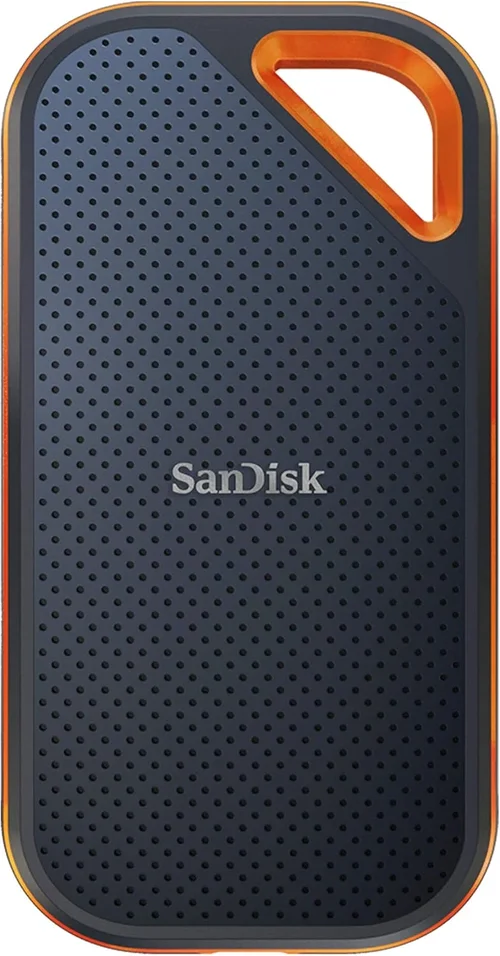
Portable SSDs like the Samsung T7 Shield, SanDisk Extreme Pro, or WD Black P50 offer rugged designs, fast USB 3.2 or Thunderbolt connectivity, and compact form factors. They’re perfect for fieldwork, client meetings, or collaborative editing. However, ensure they have adequate cooling and durable construction—especially if used in harsh environments.
For stationary workstations, internal drives provide the best performance and lowest latency. M.2 NVMe drives are the standard, but ensure your case has proper airflow and space for heatsinks. Some high-end builds use U.2 or EDSFF drives for even greater capacity and speed, though these are niche and expensive.
Consider your workflow: if you frequently move between home and studio, a portable SSD is invaluable. If you work primarily in one location, internal drives offer better performance and longevity. Balance convenience with capability based on your needs.
Different Types of Buying Guide

Common Buying Mistakes to Avoid
❌ Mistake: Prioritizing Peak Speed Over Sustained Performance
Why it’s bad: Many buyers are dazzled by advertised speeds like “7,000 MB/s” but don’t realize these are burst speeds. Under sustained load—like rendering a 4K timeline—many drives throttle dramatically, causing lag and dropped frames. This leads to frustration and wasted time.
What to do instead: Look for real-world benchmarks and reviews that test sustained write performance. Choose drives with strong thermal management and DRAM cache to maintain speed during long tasks.
❌ Mistake: Buying the Cheapest SSD Available
Why it’s bad: Budget SSDs often use lower-quality NAND, lack DRAM cache, and have poor endurance. They may work for documents but fail under video editing loads, risking data loss and project corruption.
What to do instead: Invest in a reputable brand with proven reliability. Even mid-range drives from Samsung or WD offer excellent value and longevity for the price.
❌ Mistake: Ignoring TBW and Endurance Ratings
Why it’s bad: Video editing involves constant writing. A drive with low TBW may fail prematurely, especially if you edit daily. Replacing a failed drive mid-project is costly and stressful.
What to do instead: Check the TBW rating and calculate your expected usage. Aim for at least 600 TBW per terabyte for professional use.
❌ Mistake: Overlooking Thermal Throttling
Why it’s bad: High-speed SSDs heat up quickly. Without proper cooling, they throttle, reducing performance and potentially shortening lifespan. This is especially common in laptops or compact builds.
What to do instead: Choose drives with heatsinks or use motherboard-mounted coolers. Monitor temperatures and ensure good case airflow.
❌ Mistake: Choosing the Wrong Interface
Why it’s bad: Buying a Gen5 SSD for a Gen4 system wastes money and offers no benefit. Conversely, using a SATA SSD for 4K editing creates a bottleneck.
What to do instead: Match the SSD interface to your system’s capabilities. Upgrade your motherboard if you want Gen5 speeds.
❌ Mistake: Not Planning for Future Needs
Why it’s bad: Buying a 1TB drive for 8K editing will fill up in days. Upgrading later means migrating data and reinstalling software.
What to do instead: Buy larger capacity upfront or choose a system with multiple drive bays for expansion.
❌ Mistake: Skipping Warranty and Support Research
Why it’s bad: A failed drive without warranty coverage can cost hundreds to replace. Poor support delays recovery.
What to do instead: Choose brands with strong warranties and responsive customer service. Register your drive immediately.
Budget Guidelines: How Much Should You Spend?
Entry-Level ($80–$150): Ideal for beginners or those editing 1080p or light 4K footage. Look for SATA SSDs or budget NVMe drives like the Crucial P3 or WD Blue SN580. Expect 2TB capacity and speeds around 3,500 MB/s. These drives are reliable for proxy workflows but may struggle with high-bitrate formats.
Mid-Range ($150–$300): The sweet spot for most video editors. Drives like the Samsung 980 Pro, WD Black SN770, or Sabrent Rocket 4 Plus offer 2TB–4TB capacity, Gen4 speeds up to 7,000 MB/s, and strong endurance. Perfect for 4K editing, multi-cam projects, and moderate RAW workflows.
Premium ($300–$500): For professionals and enthusiasts. Gen5 drives like the Samsung 990 Pro, Corsair MP700, or Sabrent Rocket 5 deliver 10,000+ MB/s speeds and superior thermal management. Ideal for 8K, HDR, and high-frame-rate editing. Often include heatsinks and 5-year warranties.
Luxury ($500+): Top-tier performance for studios and high-volume editors. 4TB+ Gen5 drives, enterprise-grade endurance, and advanced features like power-loss protection. Examples include the Kingston KC3000 or custom-built RAID arrays. Overkill for most users but essential for mission-critical work.
Expert Tips for Getting the Best Deal
– Buy during seasonal sales: Black Friday, Prime Day, and back-to-school periods offer significant discounts on SSDs. Sign up for deal alerts from retailers like Amazon, Newegg, or B&H.
– Check refurbished options: Certified refurbished drives from Samsung or WD often come with full warranties and save 20–30%.
– Compare TBW per dollar: Calculate endurance value by dividing TBW by price. A higher ratio means better long-term value.
– Use price tracking tools: Sites like CamelCamelCamel or Honey track price history and alert you to drops.
– Consider bundle deals: Some retailers offer SSDs with enclosures, cables, or software at a discount.
– Verify return policies: Ensure you can return or exchange the drive if it doesn’t perform as expected.
– Test before committing: Use benchmarks like CrystalDiskMark or ATTO to verify real-world speeds match claims.
– Monitor drive health: Use tools like Samsung Magician or CrystalDiskInfo to track wear and performance over time.

Frequently Asked Questions
Q: Can I use an external SSD for video editing?
A: Yes, but choose one with USB 3.2 Gen 2×2 (20 Gbps) or Thunderbolt 4 for best performance. USB 3.2 Gen 2 (10 Gbps) works for 4K, but Thunderbolt is better for 8K or multi-stream timelines.
Q: Do I need a Gen5 SSD for video editing?
A: Not necessarily. Gen4 drives are sufficient for most 4K and even 8K workflows. Gen5 offers future-proofing and faster exports, but only if your system supports it.
Q: How much SSD space do I need for video editing?
A: At least 2TB for active projects. 4TB or more is recommended for 8K, RAW, or long-form content. Always keep 20–30% free space for optimal performance.
Q: Is DRAM cache important for video editing?
A: Yes. DRAM cache improves sustained performance and longevity. Avoid DRAM-less SSDs for primary editing drives.
Q: Can I use multiple SSDs in RAID for better performance?
A: Yes, RAID 0 can double speeds, but increases failure risk. Use RAID 1 for redundancy or consider a single high-capacity drive instead.
Q: How do I know if my SSD is throttling?
A: Use monitoring tools like HWMonitor or CrystalDiskInfo. If temperatures exceed 70°C and speeds drop, thermal throttling is likely.
Q: Are portable SSDs durable enough for fieldwork?
A: Yes, models like the Samsung T7 Shield or SanDisk Extreme Pro are shock-resistant, water-resistant, and built for travel.
Q: Should I use the same SSD for OS and video files?
A: It’s better to separate them. Use one SSD for the OS and software, and another for media and projects to reduce wear and improve performance.
Q: How often should I replace my editing SSD?
A: Most high-quality SSDs last 5–7 years with heavy use. Monitor TBW and health regularly. Replace when nearing endurance limits or showing signs of failure.
Q: Can I recover data from a failed SSD?
A: It depends. Professional data recovery services can help, but it’s expensive. Always maintain backups to avoid data loss.
Our Final Recommendations
Best for Budget-Conscious Buyers: Crucial P3 Plus (2TB) – Offers Gen4 speeds, 900 TBW, and excellent value under $150. Ideal for 1080p and light 4K editing.
Best Overall Value: Samsung 980 Pro (2TB) – Reliable, fast (7,000 MB/s), and backed by a 5-year warranty. A favorite among professionals for its balance of speed and endurance.
Best Premium Option: Samsung 990 Pro (4TB) – Gen5 performance, 2,400 TBW, and advanced thermal management. Perfect for 8K and high-end workflows.
Best for Beginners: WD Blue SN580 (2TB) – Affordable NVMe drive with solid performance and WD’s reliable software suite. Great entry point.
Best for Advanced Users: Sabrent Rocket 5 (4TB) – Pushes Gen5 limits with 14,000 MB/s speeds and a robust heatsink. Built for demanding editors and creators.
Conclusion: Making the Right Choice
Choosing the right SSD for video editing isn’t just about picking the fastest or largest drive—it’s about finding the perfect balance of speed, capacity, reliability, and value for your specific workflow. Whether you’re a hobbyist cutting vacation videos or a professional filmmaker delivering cinematic content, your SSD is the backbone of your creative process. It affects everything from how smoothly your timeline plays back to how quickly you can export your final masterpiece.
Throughout this guide, we’ve covered the essential factors: performance under sustained load, interface compatibility, endurance, thermal management, and brand reliability. We’ve compared drive types, highlighted common mistakes, and provided budget-friendly and premium recommendations. The key takeaway? Don’t compromise on quality when it comes to your primary editing drive. Invest in a reputable SSD that can handle the demands of modern video formats, and you’ll save time, reduce stress, and protect your valuable work.
As you move forward, prioritize your needs. If you’re editing on the go, a portable Thunderbolt SSD might be your best bet. If you’re building a powerhouse workstation, a high-capacity Gen5 drive with a heatsink will future-proof your setup. And always remember to back up your work—no SSD is immune to failure.
Your creative vision deserves the best tools. With the insights from this guide, you’re now equipped to make a smart, informed decision. Take the time to research, compare, and choose wisely. Your future self—and your next award-winning project—will thank you.