
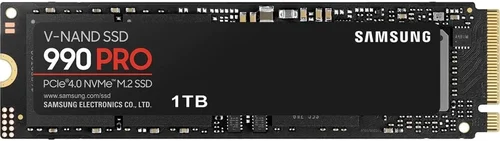
Solid-state drives have revolutionized how we store and access data, and Samsung has consistently been at the forefront of this transformation. Whether you’re upgrading your laptop, building a high-performance gaming rig, or setting up a professional workstation, choosing the right SSD can dramatically impact your system’s speed, reliability, and overall user experience. With so many models on the market—each boasting different speeds, capacities, form factors, and price points—it’s easy to feel overwhelmed. That’s where this comprehensive buying guide comes in.
In this expert-level review, we’ll walk you through everything you need to know to make an informed decision when selecting a Samsung SSD in 2026. From understanding key performance metrics like read/write speeds and endurance ratings, to comparing NVMe vs SATA interfaces, we’ll break down the technical jargon into practical insights. You’ll learn how to match your storage needs with the right drive type, avoid common pitfalls, and even discover when and where to score the best deals. Whether you’re a casual user looking to speed up your everyday computing or a power user demanding maximum throughput for video editing or AI workloads, this guide will help you find the perfect Samsung SSD for your setup.
The SSD market has evolved rapidly over the past few years, with Samsung continuing to lead innovation through its cutting-edge V-NAND technology, advanced controllers, and robust software ecosystem. In 2026, Samsung offers a diverse portfolio spanning entry-level SATA drives, high-speed PCIe Gen4 and Gen5 NVMe SSDs, and even specialized models for enterprise and creative professionals. This guide cuts through the marketing noise to deliver objective, real-world advice based on performance benchmarks, durability testing, user feedback, and long-term reliability data. By the end, you’ll not only know which Samsung SSD is best for your needs—you’ll also understand why.

What to Look for When Buying Buying Guide
1. Budget & Price Range
Your budget is often the first and most important filter when shopping for an SSD. Samsung offers drives across a wide spectrum of price points, from under $50 for basic SATA models to over $500 for high-capacity, ultra-fast PCIe Gen5 drives. It’s essential to balance cost with performance and capacity needs. For example, spending $30 more on a 1TB drive instead of a 500GB one can future-proof your system and reduce the need for frequent upgrades. Always consider cost per gigabyte—this metric helps you compare value across different capacities and models. A drive that seems expensive upfront might actually offer better long-term value if it delivers higher endurance, longer warranty, or superior performance.
2. Performance Specifications
Performance is where SSDs truly shine—and where Samsung consistently delivers. Key specs to evaluate include sequential read/write speeds (measured in MB/s), random read/write IOPS (Input/Output Operations Per Second), and interface type (SATA, PCIe Gen3, Gen4, or Gen5). For most users, sequential speeds matter for large file transfers (like videos or game installations), while random IOPS affect everyday responsiveness (app launches, multitasking, boot times).
Samsung’s flagship NVMe drives, such as the 990 PRO, can hit over 7,000 MB/s read speeds on PCIe Gen4, while newer Gen5 models like the 990 EVO push beyond 10,000 MB/s. In contrast, SATA-based drives like the 870 EVO max out around 560 MB/s due to interface limitations. If your system supports PCIe Gen4 or Gen5, investing in a compatible NVMe SSD will deliver a noticeable performance boost. However, if you’re using an older laptop or desktop with only SATA ports, a high-quality SATA SSD like the 870 QVO still offers excellent reliability and speed within those constraints.
3. Build Quality & Durability
Samsung SSDs are renowned for their build quality, thanks to in-house NAND flash memory, custom controllers, and rigorous testing. Durability is measured in terabytes written (TBW)—the total amount of data that can be written to the drive over its lifetime. Higher TBW ratings indicate greater endurance, which is crucial for workloads involving frequent writes, such as video editing, database management, or server use.
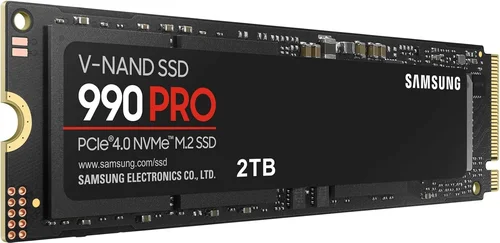
For example, the Samsung 990 PRO 2TB offers a 1,200 TBW rating, meaning it can withstand writing 1.2 terabytes of data every day for five years. Consumer-grade drives like the 870 EVO typically range from 300 to 600 TBW for 1TB models. Samsung also uses advanced error correction, wear leveling, and thermal throttling protection to maintain performance and longevity. When comparing drives, always check the TBW and mean time between failures (MTBF)—Samsung’s MTBF often exceeds 1.5 million hours, indicating exceptional reliability.
4. Features & Functionality
Beyond raw speed and capacity, Samsung SSDs come packed with features that enhance usability and security. One standout is Samsung Magician software, a free utility that provides drive health monitoring, performance optimization, firmware updates, and secure erase functions. This tool is invaluable for maintaining your SSD over time and troubleshooting issues.
Other features include hardware-based AES 256-bit encryption (available on most Samsung SSDs), which protects your data even if the drive is removed from your system. Some models also support TCG Opal and IEEE 1667 standards for enterprise-grade security. Additionally, Samsung’s Dynamic Thermal Guard helps prevent overheating during sustained workloads, ensuring consistent performance. If you’re using your SSD in a compact laptop or external enclosure, look for models with low power consumption and efficient thermal management.
5. Brand Reputation
Samsung has built a stellar reputation in the SSD market over the past decade, consistently ranking at or near the top in independent performance and reliability tests. The company manufactures its own NAND flash, controllers, and firmware, giving it full control over quality and innovation. This vertical integration allows Samsung to optimize performance and deliver timely firmware updates.
Independent reviews from sources like Tom’s Hardware, AnandTech, and StorageReview frequently praise Samsung SSDs for their speed, stability, and long-term reliability. User forums and customer feedback also highlight low failure rates and responsive support. While no brand is perfect, Samsung’s track record makes it a trusted choice for both consumers and professionals. When you buy a Samsung SSD, you’re not just getting a storage device—you’re investing in a brand known for pushing the boundaries of what SSDs can do.
6. Warranty & Support
Warranty length and support quality are critical factors, especially for long-term use. Samsung typically offers 3 to 5 years of warranty coverage on its consumer SSDs, with higher-end models like the 990 PRO coming with a 5-year limited warranty. This warranty is often tied to the TBW rating—once you exceed the specified terabytes written, the warranty may void, so it’s important to monitor usage if you’re doing heavy writing tasks.
Samsung’s customer support includes online resources, firmware updates via Magician software, and regional service centers for repairs or replacements. While some users report mixed experiences with support responsiveness, the overall consensus is that Samsung stands behind its products. Always register your SSD on Samsung’s website to activate the warranty and receive important updates. For businesses or professionals, Samsung also offers enterprise-grade support options with faster response times and dedicated account managers.
7. Size & Portability
Physical size matters, especially if you’re upgrading a laptop or building a compact PC. Samsung offers SSDs in multiple form factors: 2.5-inch SATA drives (like the 870 EVO), M.2 2280 NVMe drives (like the 990 PRO), and even smaller M.2 2242 or 2230 variants for ultra-thin devices. The M.2 form factor is increasingly popular due to its space efficiency and direct motherboard connection, eliminating the need for cables.
If you’re using an external SSD, portability becomes even more important. Samsung’s T series (like the T7 and T9) are compact, durable, and designed for on-the-go use. These drives often include ruggedized casings, shock resistance, and USB-C connectivity with Thunderbolt support. When choosing an external SSD, consider weight, size, and included accessories like cables or carrying cases. For internal upgrades, ensure your system supports the drive’s form factor and interface before purchasing.
8. User Reviews & Ratings
While specs and benchmarks are important, real-world user experiences provide invaluable insights. Platforms like Amazon, Newegg, and Best Buy feature thousands of reviews for Samsung SSDs, offering a broad perspective on performance, reliability, and ease of installation. Look for patterns in feedback—consistent praise for speed or complaints about compatibility can signal strengths or red flags.
Pay attention to reviews from users with similar use cases. For example, gamers might highlight load times and game installation speeds, while content creators may focus on file transfer performance and stability during long renders. Also, check for mentions of Samsung Magician software usability, firmware update experiences, and any issues with thermal throttling. While no product is perfect, Samsung SSDs generally receive high ratings, with many models averaging 4.5 to 4.8 stars across major retailers.
Different Types of Buying Guide

Common Buying Mistakes to Avoid
❌ Mistake: Ignoring Your System’s Compatibility
Why it’s bad: Buying a PCIe Gen4 NVMe SSD for a motherboard that only supports SATA or Gen3 will result in underutilized performance or outright incompatibility. Many users assume all M.2 slots support NVMe, but some only accept SATA-based M.2 drives.
What to do instead: Check your motherboard or laptop specifications before purchasing. Look for supported interfaces (SATA, PCIe Gen3/4/5), M.2 keying (B-key, M-key, or B+M), and available slots. Use tools like CPU-Z or Samsung Magician to verify compatibility.
❌ Mistake: Overpaying for Unnecessary Speed
Why it’s bad: A PCIe Gen5 SSD delivering 12,000 MB/s won’t feel dramatically faster than a Gen4 drive in everyday tasks like web browsing or office work. You’re paying a premium for performance you may never fully utilize.
What to do instead: Match the SSD to your use case. Gamers and creators benefit from Gen4 speeds, while general users can save money with a reliable Gen3 or SATA drive. Focus on capacity and endurance over peak bandwidth unless you have specific high-throughput needs.
❌ Mistake: Choosing Capacity Based on Price Alone
Why it’s bad: Opting for the cheapest 500GB drive might seem smart, but you’ll quickly run out of space with modern games, apps, and media files. Low-capacity drives also tend to have lower endurance and slower write speeds due to fewer NAND chips.
What to do instead: Aim for at least 1TB if possible. The price difference between 500GB and 1TB is often minimal, but the usability gain is huge. Consider future needs—will you install large games, store 4K videos, or run virtual machines?
❌ Mistake: Skipping Firmware Updates
Why it’s bad: Outdated firmware can lead to performance degradation, compatibility issues, or even data corruption. Samsung regularly releases updates to fix bugs, improve stability, and enhance security.
What to do instead: Install Samsung Magician and enable automatic update notifications. Check for firmware updates every few months, especially after major OS updates or if you notice unusual behavior.
❌ Mistake: Neglecting Thermal Management
Why it’s bad: High-performance NVMe SSDs can overheat during sustained workloads, triggering thermal throttling that reduces speed. This is especially common in laptops or compact PCs with poor airflow.
What to do instead: Use an SSD with built-in thermal protection (like the 990 PRO’s Dynamic Thermal Guard) or install a heatsink if your case supports it. Monitor temperatures using Magician or third-party tools like HWMonitor.
❌ Mistake: Buying Based on Brand Alone
Why it’s bad: While Samsung is a top-tier brand, not all its models are created equal. The 870 QVO, for example, usesQLC NAND, which offers lower endurance and slower write speeds compared to the TLC-based 870 EVO.
What to do instead: Compare specific models, not just the brand. Look at NAND type (TLC vs QLC), controller, TBW, and real-world benchmarks. A lesser-known brand with better specs might offer better value in some cases.
❌ Mistake: Ignoring Warranty Terms
Why it’s bad: Some warranties are voided if you exceed the TBW limit, even if the drive is still functioning. Others may not cover data recovery, leaving you stranded if the drive fails.
What to do instead: Read the fine print. Understand what’s covered, how to claim support, and whether the warranty is prorated. Register your drive and keep purchase receipts.
Budget Guidelines: How Much Should You Spend?
- Entry-Level ($40 – $80): Ideal for budget builds or upgrading older systems. Look for SATA SSDs like the Samsung 870 EVO (500GB–1TB) or entry-level NVMe drives like the 980 (without DRAM). Expect solid performance for everyday tasks, but lower endurance and slower write speeds under heavy load.
- Mid-Range ($80 – $150): The sweet spot for most users. Models like the 970 EVO Plus (1TB) or 980 PRO (1TB) offer excellent speed, reliability, and capacity. Perfect for gaming, productivity, and light content creation. You get near-flagship performance without the premium price.
- Premium ($150 – $300): For enthusiasts and professionals. The Samsung 990 PRO (1TB–2TB) delivers top-tier Gen4 performance with high endurance and advanced thermal management. Great for video editors, developers, and power users who need consistent speed under load.
- Luxury ($300+): Reserved for cutting-edge builds and specialized workloads. The 990 EVO (PCIe Gen5) or high-capacity 990 PRO (4TB) models offer unmatched speed and storage. These are best for AI training, 8K video editing, or future-proofing high-end systems.
Expert Tips for Getting the Best Deal
- Time Your Purchase: Major sales events like Black Friday, Cyber Monday, Amazon Prime Day, and back-to-school season often feature significant SSD discounts. Samsung also tends to reduce prices on older-gen models when new ones launch.
- Shop at Authorized Retailers: Buy from trusted sources like Amazon, Newegg, Best Buy, or Samsung’s official store. Avoid third-party sellers with unclear return policies or suspiciously low prices—counterfeit SSDs are a real risk.
- Compare Prices Across Platforms: Use price tracking tools like Honey, CamelCamelCamel, or Keepa to monitor price history and set alerts for drops. Sometimes, the same drive is $20 cheaper on one site.
- Check for Bundled Deals: Some retailers offer SSDs bundled with USB enclosures, migration software, or extended warranties. These can add value, especially if you’re building a new system.
- Consider Refurbished or Open-Box: Samsung-certified refurbished drives often come with full warranties and are significantly cheaper. Open-box items from retailers like Best Buy can also offer great savings with minimal risk.
- Read Return Policies: Ensure the seller offers a hassle-free return window (at least 30 days). Some SSDs may have compatibility issues or arrive defective, so you’ll want the option to exchange or refund.
- Test Before Committing: Once installed, use Samsung Magician or CrystalDiskMark to verify performance and health. If the drive underperforms or shows errors, contact support immediately.
- Register for Warranty: Don’t skip this step. Registration ensures you’re covered and allows Samsung to notify you of critical firmware updates or recalls.

Frequently Asked Questions
Q: Is a Samsung SSD worth the extra cost compared to other brands?
A: Generally, yes—especially if you value reliability, performance, and long-term support. Samsung’s vertical integration, consistent firmware updates, and strong warranty make it a top choice. While some competitors offer similar specs at lower prices, Samsung often delivers better real-world stability and endurance.
Q: Can I use a Samsung NVMe SSD in a SATA-only slot?
A: No. NVMe and SATA use different protocols and connectors. An NVMe M.2 SSD will not work in a SATA M.2 or 2.5-inch SATA port. Always verify your system’s supported interface before buying.
Q: Do I need a heatsink for my Samsung NVMe SSD?
A: It depends. High-performance drives like the 990 PRO can benefit from a heatsink in compact or poorly ventilated systems. For most desktops with good airflow, the built-in thermal management is sufficient. Laptops rarely support aftermarket heatsinks.
Q: How do I clone my old drive to a new Samsung SSD?
A: Use Samsung Data Migration software (free with most drives) or third-party tools like Macrium Reflect or Acronis True Image. Connect both drives, run the software, and follow the cloning wizard. Ensure the new SSD is equal or larger in capacity.
Q: What’s the difference between TLC and QLC NAND?
A: TLC (Triple-Level Cell) stores 3 bits per cell and offers better endurance and write speeds. QLC (Quad-Level Cell) stores 4 bits per cell, increasing capacity and lowering cost but reducing lifespan and performance under heavy writes. Samsung’s EVO series uses TLC, while QVO models use QLC.
Q: Can I use a Samsung SSD in a RAID setup?
A: Yes, but ensure all drives in the array are identical for best results. Samsung SSDs support RAID 0, 1, 5, and 10, but performance and reliability may vary. Consult your motherboard manual for RAID configuration steps.
Q: How long do Samsung SSDs typically last?
A: With normal use, a Samsung SSD can last 5–10 years or more. The TBW rating gives a good estimate—divide it by your average daily write volume to get a rough lifespan. Most users won’t reach the limit before upgrading for other reasons.
Q: Is the Samsung 990 PRO overkill for gaming?
A: Not necessarily. While load times won’t differ drastically from a Gen3 drive, the 990 PRO’s low latency and high IOPS improve overall system responsiveness, reduce stuttering in open-world games, and speed up level transitions. It’s a worthwhile upgrade for serious gamers.
Q: Do Samsung SSDs work with macOS?
A: Yes, but with caveats. Internal NVMe SSDs may require third-party drivers or firmware tweaks for full macOS compatibility. External SSDs like the T7 work seamlessly via USB. Always check compatibility lists before purchasing for Mac systems.
Q: What should I do if my Samsung SSD fails?
A: First, back up any recoverable data using recovery software. Then, contact Samsung support with your warranty details. If under warranty, they’ll typically replace the drive. Avoid opening the SSD yourself—this voids the warranty and risks data loss.
Our Final Recommendations
- Best for Budget-Conscious Buyers: Samsung 870 EVO (1TB) – Reliable SATA performance, excellent endurance, and low cost per gigabyte. Perfect for upgrading older systems or building a budget PC.
- Best Overall Value: Samsung 970 EVO Plus (1TB) – Outstanding Gen3 NVMe performance, great pricing, and strong reliability. Ideal for gamers and general users who want speed without overspending.
- Best Premium Option: Samsung 990 PRO (2TB) – Top-tier Gen4 speeds, high endurance, and advanced thermal management. The go-to choice for content creators, developers, and performance enthusiasts.
- Best for Beginners: Samsung 870 QVO (1TB) – Affordable, easy to install, and compatible with almost any system. Great for first-time upgraders or those needing extra storage without complexity.
- Best for Advanced Users: Samsung 990 EVO (2TB, PCIe Gen5) – Cutting-edge speed, future-proof design, and excellent for AI, 3D rendering, and high-throughput workloads. Best paired with a Gen5-compatible motherboard.
Conclusion: Making the Right Choice
Choosing the right Samsung SSD doesn’t have to be overwhelming. By focusing on your specific needs—whether that’s budget, performance, capacity, or compatibility—you can narrow down the options and find a drive that delivers real value. Samsung’s lineup in 2026 offers something for everyone, from reliable SATA workhorses to blazing-fast Gen5 powerhouses. Remember to consider not just the upfront cost, but also long-term reliability, warranty coverage, and software support.
Prioritize your use case: Are you gaming, editing videos, or just speeding up your daily workflow? Match that need with the right interface, capacity, and performance tier. Avoid common pitfalls like ignoring compatibility or overpaying for unused speed. And don’t forget to take advantage of seasonal sales and expert tools like Samsung Magician to get the most out of your investment.
Ultimately, the best Samsung SSD is the one that fits your system, your budget, and your expectations. With the insights from this guide, you’re now equipped to make a confident, informed decision. Whether you’re breathing new life into an aging laptop or building a dream machine, Samsung has a drive that will keep you ahead of the curve. Upgrade smart, upgrade with confidence—and enjoy the speed, reliability, and peace of mind that only a Samsung SSD can deliver.