
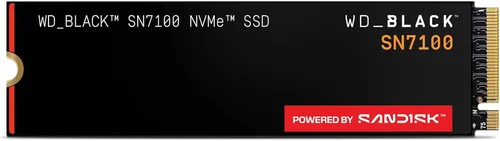
If you’re building a new PC, upgrading your laptop, or simply looking to breathe new life into an older system, one of the most impactful upgrades you can make is swapping out your traditional hard drive for a fast M.2 NVMe SSD. These compact, high-speed storage drives have revolutionized how we experience computing—delivering near-instant boot times, lightning-fast file transfers, and seamless multitasking. But with so many options flooding the market in 2026, choosing the right M.2 NVMe SSD can feel overwhelming. From budget-friendly models to blazing-fast PCIe 5.0 beasts, the landscape is packed with choices that vary wildly in performance, endurance, and price.
This comprehensive buying guide is designed to cut through the noise and help you make a smart, informed decision. Whether you’re a gamer chasing frame-rate stability, a content creator handling large 4K video files, or a casual user wanting snappier everyday performance, we’ll walk you through everything you need to know. You’ll learn how to decode technical specs, avoid common pitfalls, understand real-world performance differences, and identify which SSD offers the best value for your specific needs. By the end, you won’t just know which drive to buy—you’ll understand why it’s the right fit for you.
The M.2 NVMe SSD market has matured significantly over the past few years. What once was a niche upgrade for enthusiasts is now standard in most modern laptops and desktops. In 2026, we’re seeing widespread adoption of PCIe Gen 5 technology, improved NAND flash memory (including QLC and TLC variants), and smarter thermal management solutions. At the same time, prices have dropped dramatically, making high-capacity, high-performance SSDs more accessible than ever. With brands like Samsung, WD, Crucial, Kingston, Sabrent, and Corsair all vying for your attention, it’s crucial to look beyond marketing buzzwords and focus on what truly matters: real-world reliability, consistent performance under load, and long-term value.

What to Look for When Buying Buying Guide
1. Performance Specifications
When evaluating an M.2 NVMe SSD, raw speed numbers are often the first thing people check—and for good reason. Sequential read/write speeds (measured in MB/s or GB/s) tell you how quickly the drive can handle large files like videos, game installations, or OS backups. For example, a PCIe Gen 4 drive might offer up to 7,000 MB/s reads, while a Gen 5 model can push past 12,000 MB/s. However, don’t let peak speeds alone dictate your choice. Random read/write performance (measured in IOPS—Input/Output Operations Per Second) is equally important for everyday tasks like opening apps, loading levels in games, or multitasking. A drive with high sequential speeds but poor random performance may feel sluggish during normal use.
Also consider sustained performance. Many SSDs use dynamic SLC caching, which allows them to hit peak speeds briefly before throttling down when the cache fills up. If you regularly work with large files or run intensive workloads, look for drives with generous cache sizes and consistent performance under prolonged load. Thermal throttling is another concern—some high-end drives can overheat during heavy use unless paired with a heatsink or adequate airflow. Always check reviews that test real-world performance, not just synthetic benchmarks.
2. Form Factor & Compatibility
Not all M.2 SSDs are created equal—even if they look similar. The two most common form factors are M.2 2280 (22mm wide, 80mm long) and M.2 2242 (shorter at 42mm). Most desktops and modern laptops support 2280, but ultrabooks or compact systems may require the smaller 2242 size. Always verify your device’s manual or manufacturer specs before purchasing.
More critically, ensure your system supports NVMe protocol—not just SATA. While both use the M.2 slot, SATA-based M.2 drives are much slower (capped around 600 MB/s) and lack the full benefits of NVMe. Check your motherboard or laptop specs for PCIe lane support: Gen 3, Gen 4, or Gen 5. A Gen 5 SSD won’t magically boost speed on a Gen 3 system—it will simply run at Gen 3 speeds. Conversely, buying a Gen 3 drive for a Gen 5-ready system means leaving performance on the table. Match your SSD generation to your hardware capabilities for optimal value.
3. NAND Flash Type & Endurance
The type of NAND flash memory used in an SSD directly impacts its longevity, speed, and cost. Triple-Level Cell (TLC) NAND stores three bits per cell and offers the best balance of performance, endurance, and affordability—it’s the gold standard for consumer drives. Quad-Level Cell (QLC) NAND stores four bits per cell, allowing higher capacities at lower prices, but it’s slower, especially during writes, and has lower endurance (measured in Terabytes Written, or TBW).
For most users, TLC is the sweet spot. Gamers, students, and general users will rarely hit the TBW limit of a quality TLC drive within its warranty period. However, if you’re a video editor transferring terabytes of footage monthly or running databases, consider enterprise-grade TLC or even MLC (Multi-Level Cell) drives—though these are rare in consumer markets today. Always check the TBW rating: a 1TB drive with 600 TBW will last longer under heavy use than one with 300 TBW. Endurance matters less for light users but becomes critical for professionals.
4. DRAM Cache Presence
A DRAM cache acts as a high-speed buffer between the SSD controller and NAND flash, dramatically improving performance—especially for random reads/writes and multitasking. Drives with DRAM (often called “DRAM-equipped”) maintain consistent speeds and handle complex operations far better than DRAM-less models. While DRAM-less SSDs exist (using Host Memory Buffer or HMB technology to borrow system RAM), they typically show performance degradation under sustained load and may struggle with older systems that don’t support HMB.
Unless you’re on an extremely tight budget, always prioritize SSDs with a dedicated DRAM cache. The performance difference is noticeable in real-world use: faster app launches, smoother file operations, and better overall responsiveness. For gaming, productivity, or creative work, DRAM is non-negotiable for a premium experience.
5. Brand Reputation & Reliability
Not all SSD brands are equal when it comes to quality control, firmware updates, and long-term reliability. Established names like Samsung, Western Digital, Crucial (Micron), and Kingston have proven track records, robust customer support, and extensive testing. They also tend to use higher-quality components and offer better firmware optimization.
Avoid no-name or ultra-cheap brands that cut corners on NAND, controllers, or thermal design. A failing SSD can mean lost data, corrupted files, or system crashes—costs that far outweigh any upfront savings. Look for brands that publish detailed specs, offer firmware tools, and have positive long-term user feedback. Community forums like Reddit’s r/buildapc or Tom’s Hardware are great resources for real-user experiences.
6. Warranty & Support
A solid warranty is a strong indicator of a manufacturer’s confidence in their product. Most reputable SSDs come with 5-year limited warranties, often tied to TBW limits (e.g., “5 years or 600 TBW, whichever comes first”). Some premium drives even offer 6- or 7-year coverage. Check what the warranty covers: does it include data recovery? Is RMA (Return Merchandise Authorization) process straightforward?
Customer support quality varies widely. Samsung and WD offer excellent online tools, live chat, and detailed troubleshooting guides. Lesser-known brands may leave you stranded if issues arise. Also note that warranties are typically voided if the drive is physically damaged or used in unsupported configurations (e.g., RAID without manufacturer approval). Always register your drive and keep proof of purchase.
7. Thermal Management
High-performance NVMe SSDs—especially PCIe Gen 4 and Gen 5 models—can generate significant heat during sustained workloads. Without proper cooling, they throttle performance to prevent damage, leading to inconsistent speeds. Many premium drives now include built-in heatsinks or thermal pads, while others rely on motherboard-provided M.2 heatsinks.
If you’re building a compact PC or using a laptop with limited airflow, consider drives with lower power draw or integrated cooling. Alternatively, invest in an aftermarket M.2 heatsink (many cases include them). Monitor temperatures using tools like HWInfo or CrystalDiskInfo—ideal operating temps should stay below 70°C under load. Overheating not only hurts performance but can reduce lifespan.
8. Price per GB & Value Proposition
While price is important, focus on cost per gigabyte (GB) rather than total price. A $90 1TB drive ($0.09/GB) offers better value than a $70 500GB drive ($0.14/GB). In 2026, expect entry-level TLC drives around $0.07–$0.10/GB, mid-range Gen 4 drives at $0.10–$0.15/GB, and Gen 5 flagship models above $0.20/GB.
But value isn’t just about price—it’s performance, endurance, warranty, and reliability combined. A slightly more expensive drive with better TBW, DRAM, and brand support may save you money long-term by avoiding premature failure or data loss. Always compare total cost of ownership, not just sticker price.
Different Types of Buying Guide

Common Buying Mistakes to Avoid
❌ Mistake: Ignoring Your System’s PCIe Generation
Why it’s bad: Buying a PCIe Gen 5 SSD for a Gen 3-only motherboard wastes money—you won’t see any speed benefit, and you could have saved significantly with a Gen 3 drive.
What to do instead: Check your motherboard or laptop specs before shopping. Match the SSD generation to your hardware. If you plan to upgrade your system soon, consider future-proofing—but only if the price difference is reasonable.
❌ Mistake: Choosing Based Solely on Peak Speed Numbers
Why it’s bad: Synthetic benchmarks don’t reflect real-world usage. A drive advertised as “14,000 MB/s” may throttle heavily under load or suffer from poor random performance.
What to do instead: Read professional reviews that test sustained performance, thermal behavior, and real-application loads (like game loading or video editing). Look for consistency, not just peak numbers.
❌ Mistake: Overlooking DRAM Cache
Why it’s bad: DRAM-less SSDs may seem like a bargain, but they often struggle with multitasking and show performance drops during prolonged use—especially on systems without HMB support.
What to do instead: Unless you’re on a very tight budget and only doing light tasks (web browsing, document editing), always choose a DRAM-equipped drive for smoother, more reliable performance.
❌ Mistake: Skimping on Capacity
Why it’s bad: A 250GB SSD fills up fast—Windows alone takes 40–60GB, leaving little room for apps, games, or files. Low capacity also reduces performance due to less free space for wear leveling.
What to do instead: Aim for at least 1TB in 2026. It’s the new sweet spot for most users, offering ample space and better longevity. Only go smaller if you’re adding a secondary drive later.
❌ Mistake: Ignoring Thermal Throttling
Why it’s bad: High-speed drives can overheat in poorly ventilated cases or laptops, causing performance drops that negate their speed advantages.
What to do instead: Check if your case or laptop has an M.2 heatsink. If not, consider a drive with built-in cooling or add an aftermarket heatsink. Monitor temps during heavy workloads.
❌ Mistake: Buying Based on Brand Hype Alone
Why it’s bad: Some brands market aggressively but use lower-tier components or outdated controllers. A famous name doesn’t guarantee quality.
What to do instead: Research specific models, not just brands. Look at component breakdowns (controller, NAND type), user reviews, and long-term reliability reports.
❌ Mistake: Forgetting About Warranty Terms
Why it’s bad: A short warranty or restrictive TBW limit may leave you unprotected if the drive fails early—especially with QLC drives that have lower endurance.
What to do instead: Always check warranty length and TBW rating. Prefer 5-year coverage with at least 600 TBW for 1TB drives. Register your drive promptly.
Budget Guidelines: How Much Should You Spend?
Entry-Level ($40–$70 for 1TB): Ideal for budget builds or upgrading older systems. Look for reliable PCIe Gen 3 TLC drives with DRAM (e.g., Crucial P3, Kingston NV2). Expect speeds around 3,500 MB/s. Perfect for everyday computing, light gaming, and office work. Avoid QLC unless absolutely necessary.
Mid-Range ($70–$120 for 1TB): The sweet spot for most users in 2026. PCIe Gen 4 TLC drives like the WD Black SN770 or Samsung 980 Pro offer excellent performance (up to 7,000 MB/s), strong endurance, and robust warranties. Great for gamers, students, and home users who want speed without overspending.
Premium ($120–$200 for 1TB): For enthusiasts and professionals. These include high-end Gen 4 drives (Samsung 990 Pro) or entry-level Gen 5 models (Corsair MP700). They feature superior controllers, better thermal management, and higher TBW ratings. Ideal for 4K/8K video editing, large game libraries, or content creation.
Luxury ($200+ for 1TB): Top-tier Gen 5 drives like the Sabrent Rocket 5 or Gigabyte AORUS Gen5 12000. These push beyond 12,000 MB/s and often include heatsinks. Only justified for extreme workloads, AI training, or users who demand absolute peak performance—and have compatible hardware.
Expert Tips for Getting the Best Deal
– Buy during seasonal sales: SSD prices fluctuate throughout the year. The best discounts typically occur in November (Black Friday/Cyber Monday), July (Prime Day), and August (back-to-school). Avoid buying right after new product launches—prices are highest then.
– Compare retailers: Don’t just check Amazon. Newegg, Best Buy, B&H, and Micro Center often run exclusive promotions. Some retailers offer open-box or refurbished drives at steep discounts—just ensure they’re certified and include full warranty.
– Watch for bundle deals: Some manufacturers offer SSD + heatsink combos or include cloning software. These can add value, especially if you’re migrating from an old drive.
– Check return policies: Even the best drives can be DOA (dead on arrival). Choose retailers with hassle-free returns (30+ days) and clear RMA processes. Avoid third-party sellers with unclear terms.
– Test before committing: Once installed, run benchmarks (CrystalDiskMark, ATTO) and monitor temps. If performance is inconsistent or temps spike, contact support immediately—don’t wait until warranty expires.
– Consider capacity upgrades: Sometimes buying a 2TB drive costs only slightly more than 1TB. If your system supports it, future-proof with extra space—it improves performance and longevity.
– Use manufacturer tools: Brands like Samsung (Magician), WD (Dashboard), and Crucial (Storage Executive) offer firmware updates, health monitoring, and optimization features. Install them to keep your drive running smoothly.
– Don’t overlook used market risks: While tempting, used SSDs may have hidden wear. TBW counters aren’t always visible, and warranties are often non-transferable. Only buy used from trusted sources with verifiable history.

Frequently Asked Questions
Q: Can I use an M.2 NVMe SSD in any laptop or desktop?
A: Not necessarily. You must confirm three things: (1) your system has an M.2 slot, (2) it supports NVMe (not just SATA), and (3) the physical size (usually 2280) fits. Check your device’s manual or use tools like CPU-Z to verify compatibility.
Q: Is PCIe Gen 5 worth it in 2026?
A: Only if you have a compatible motherboard (AMD X670E/B650E or Intel Z790+) and workload that benefits from extreme speeds—like 8K video editing or large dataset processing. For gaming and general use, Gen 4 is more than sufficient and offers better value.
Q: How long do NVMe SSDs last?
A: Under normal use, a quality TLC NVMe SSD will easily outlast your system. Most 1TB drives have 600+ TBW ratings—equivalent to writing 100GB daily for 16+ years. Real-world failure is rare and usually due to manufacturing defects, not wear.
Q: Do I need a heatsink for my M.2 SSD?
A: Not always, but recommended for Gen 4/5 drives under heavy load. Many motherboards include M.2 heatsinks. If yours doesn’t, or you’re in a compact case, an aftermarket heatsink (like the Thermalright HR-09) can prevent throttling.
Q: Can I clone my old HDD to a new NVMe SSD?
A: Yes! Use free tools like Macrium Reflect, Clonezilla, or manufacturer-specific software (e.g., Samsung Data Migration). Ensure the SSD capacity is equal to or larger than the used space on your old drive.
Q: Are cheaper SSDs safe to use as boot drives?
A: Only if they’re from reputable brands and use TLC NAND with DRAM. Avoid unknown brands or QLC drives for OS installation—they may slow down over time or fail prematurely under constant write loads.
Q: What’s the difference between NVMe and SATA M.2?
A: NVMe uses the PCIe interface for much higher speeds (up to 12,000+ MB/s), while SATA M.2 is limited to ~600 MB/s—same as a 2.5” SATA SSD. Always check specs: NVMe drives will list PCIe lanes; SATA drives won’t.
Q: Will a faster SSD improve gaming performance?
A: It reduces load times and eliminates stuttering in open-world games, but won’t increase FPS. For gaming, prioritize capacity and consistent performance over peak speed. A 1TB Gen 4 TLC drive is ideal.
Q: How do I check my SSD’s health?
A: Use tools like CrystalDiskInfo (Windows), DriveDx (macOS), or the manufacturer’s utility. Look at attributes like “Media Wearout Indicator,” “Reallocated Sectors,” and “Temperature.” Healthy drives show “Good” status and low error counts.
Q: Can I use multiple NVMe SSDs in one system?
A: Yes, if your motherboard has multiple M.2 slots and sufficient PCIe lanes. Be mindful of bandwidth sharing—some slots may disable SATA ports or run at reduced speeds when multiple NVMe drives are installed.
Our Final Recommendations
Best for Budget-Conscious Buyers: Crucial P3 1TB (PCIe Gen 3) – Reliable TLC NAND, DRAM cache, and excellent value at under $60. Perfect for upgrading older systems or building a budget PC.
Best Overall Value: WD Black SN770 1TB (PCIe Gen 4) – Blends near-flagship performance (5,150 MB/s) with aggressive pricing (~$85). Great for gamers and general users who want speed without overspending.
Best Premium Option: Samsung 990 Pro 1TB (PCIe Gen 4) – Consistently tops performance charts, superb thermal management, and Samsung’s legendary reliability. Ideal for professionals and enthusiasts.
Best for Beginners: Kingston NV2 1TB (PCIe Gen 4) – Simple, affordable, and compatible with almost any modern system. No-frills design with solid real-world performance for everyday tasks.
Best for Advanced Users: Corsair MP700 1TB (PCIe Gen 5) – Delivers over 10,000 MB/s with a built-in heatsink. Built for creators and power users who need maximum throughput and don’t mind the premium price.
Conclusion: Making the Right Choice
Choosing the right M.2 NVMe SSD in 2026 doesn’t have to be daunting—if you know what to prioritize. Focus on compatibility first, then balance performance, endurance, and price based on your actual needs. Remember: the fastest drive isn’t always the best one for you. A well-chosen mid-range Gen 4 SSD will deliver a transformative experience for most users, while Gen 5 remains a niche upgrade for specialized workloads.
Don’t let marketing hype or flashy numbers cloud your judgment. Instead, lean on trusted reviews, real-world testing, and manufacturer reputation. And always consider the long game: a slightly more expensive drive with better warranty and endurance can save you headaches (and data) down the road.
Ultimately, the best SSD is the one that fits your system, meets your performance expectations, and stays within your budget—without cutting corners on reliability. Whether you’re booting up faster, loading games in seconds, or editing 8K footage smoothly, the right NVMe SSD will elevate your entire computing experience. So take your time, do your research, and invest wisely. Your future self—and your files—will thank you.