
When it comes to choosing the right storage solution for your computer—whether you’re building a new PC, upgrading an existing system, or simply expanding your data capacity—the decision often boils down to one critical question: hard disk drive (HDD) or solid-state drive (SSD)? This isn’t just a technical debate; it’s a practical one that affects everything from boot times and application loading speeds to long-term reliability and overall user experience. With technology evolving rapidly and prices shifting dramatically over the past few years, understanding the nuances between these two storage types has never been more important.
In this comprehensive guide, we’ll cut through the marketing noise and technical jargon to give you a clear, expert-level comparison of HDDs and SSDs in 2026. Whether you’re a casual user storing family photos and documents, a gamer chasing faster load times, a creative professional working with large video files, or a business owner managing critical data, this guide will help you make an informed decision. You’ll learn how to evaluate key factors like performance, durability, cost, capacity, and real-world usability. We’ll also debunk common myths, highlight frequent buying mistakes, and provide actionable tips to get the best value for your money. By the end, you’ll know exactly which type of drive—or combination thereof—is right for your needs.
The storage market today is more dynamic than ever. While SSDs have become mainstream and increasingly affordable, HDDs continue to dominate in high-capacity, budget-friendly scenarios. Hybrid solutions like SSHDs (solid-state hybrid drives) and tiered storage setups are also gaining traction. Meanwhile, emerging technologies such as NVMe over PCIe Gen5 and QLC NAND are pushing SSD performance and density to new heights. With so many options, it’s easy to feel overwhelmed. But don’t worry—we’ve done the research, tested the trends, and distilled everything into a practical, no-nonsense buying guide that prioritizes your real-world needs over flashy specs.
What to Look for When Buying Buying Guide
1. Budget & Price Range
Your budget is often the first and most decisive factor when choosing between an HDD and an SSD. As of 2026, the price gap between the two has narrowed significantly, but HDDs still offer far more storage per dollar. For example, you can easily find a 4TB HDD for under $100, while a comparable SSD might cost $250 or more. However, smaller SSDs—like 500GB or 1TB models—are now priced competitively with high-end HDDs, making them accessible to average consumers.
When evaluating cost, consider not just the upfront price but also long-term value. SSDs consume less power, generate less heat, and have no moving parts, which can reduce electricity bills and cooling needs in desktops and laptops. Additionally, because SSDs are faster and more reliable, they may extend the usable life of your system, delaying the need for a full upgrade. If you’re on a tight budget but need large storage, an HDD might be the way to go. But if performance and responsiveness matter more than sheer capacity, investing in even a modest SSD can dramatically improve your computing experience.
2. Performance Specifications
Performance is where SSDs truly shine. Traditional HDDs rely on spinning magnetic platters and a mechanical read/write head, which introduces latency and limits speed. Even the fastest consumer HDDs top out around 150–200 MB/s for sequential reads and writes. In contrast, SATA SSDs typically deliver 500–550 MB/s, while NVMe SSDs using PCIe Gen4 or Gen5 interfaces can exceed 7,000 MB/s—over 35 times faster than a standard HDD.
But raw speed isn’t the only metric that matters. Random read/write performance—how quickly a drive can access small, scattered files—is crucial for everyday tasks like opening applications, booting the OS, or multitasking. SSDs dominate here due to their lack of mechanical delays. For instance, a Windows 11 boot time might take 45 seconds on an HDD but drop to under 10 seconds on a modern NVMe SSD. Gamers will notice significantly reduced loading screens, while video editors benefit from smoother scrubbing and faster project saves. Always check both sequential and random IOPS (input/output operations per second) ratings when comparing drives.
3. Build Quality & Durability
Durability is a major differentiator between HDDs and SSDs. HDDs contain delicate moving parts—spinning platters, actuator arms, and motors—that make them vulnerable to physical shock, vibration, and wear over time. Dropping a laptop with an active HDD can result in catastrophic data loss. SSDs, on the other hand, have no moving components. They’re built with NAND flash memory chips mounted on a circuit board, making them inherently more resistant to drops, bumps, and temperature fluctuations.
This makes SSDs ideal for laptops, tablets, and mobile workstations. If you travel frequently or work in harsh environments (construction sites, field research, etc.), an SSD is the safer bet. That said, not all SSDs are created equal. Cheaper models using QLC (quad-level cell) NAND may have lower endurance ratings and slower write speeds under sustained loads compared to TLC (triple-level cell) or MLC (multi-level cell) variants. Look for drives with high TBW (terabytes written) ratings if you plan to write large amounts of data regularly.
4. Features & Functionality
Beyond basic storage, modern drives come with a range of features that can influence your decision. Many SSDs now include hardware encryption (like AES-256), power-loss protection, and advanced wear-leveling algorithms to extend lifespan. Some high-end models even support features like SLC caching, which temporarily uses faster single-level cells to boost write performance during bursts.
HDDs, while less feature-rich, often come with built-in software for backup, encryption, and health monitoring. Enterprise-grade HDDs may include features like rotational vibration sensing and error recovery controls. Additionally, some external drives offer USB-C with Thunderbolt support for ultra-fast transfers, though this is more common in SSD-based enclosures. Consider whether you need features like hardware encryption for sensitive data, or if you’ll benefit from RAID compatibility for redundancy. Also, check interface compatibility—SATA III is standard for most desktops, but newer systems may leverage M.2 slots for NVMe SSDs.
5. Brand Reputation
Not all storage brands are equal. Established manufacturers like Samsung, Western Digital, Crucial, Kingston, and Seagate have proven track records for reliability, performance, and customer support. Samsung’s 990 Pro and WD Black SN850X are frequently cited as top-tier NVMe SSDs, while Seagate and Toshiba dominate the high-capacity HDD market.
Avoid unknown or ultra-cheap brands, especially for critical data storage. These may use inferior NAND chips, lack proper firmware updates, or fail prematurely. Reading professional reviews and user feedback on trusted platforms like Tom’s Hardware, AnandTech, or Reddit’s r/buildapc can help you identify reliable models. Also, consider whether the brand offers firmware updates—important for SSDs, as manufacturers often release performance and stability improvements post-launch.
6. Warranty & Support
Warranty length and terms are strong indicators of a drive’s expected lifespan and the manufacturer’s confidence in its product. Most consumer SSDs come with 3- to 5-year limited warranties, often tied to TBW limits. For example, a 1TB SSD might be rated for 600 TBW—meaning you could write 600 terabytes over its lifetime before hitting the warranty threshold. Exceeding this doesn’t necessarily mean immediate failure, but it voids coverage.
HDDs typically offer 2- to 3-year warranties, though some enterprise models extend to 5 years. Pay attention to whether the warranty includes data recovery services—most don’t, which is why regular backups are essential. Also, check the return policy of the retailer. Amazon, Newegg, and Best Buy often allow returns within 30 days, giving you time to test the drive in your system. Avoid sellers with restrictive return windows or no customer support.
7. Size & Portability
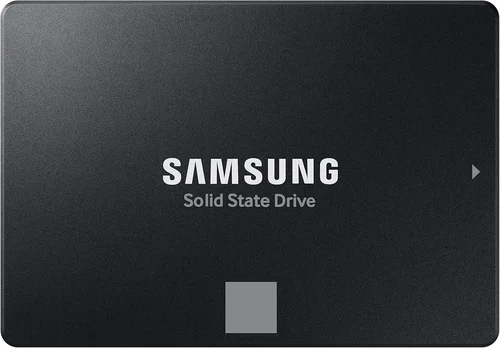
Physical size matters, especially for laptops and compact desktops. Traditional 3.5-inch HDDs are bulky and require more power, making them unsuitable for most ultrabooks. 2.5-inch HDDs are slimmer but still heavier than SSDs. In contrast, M.2 SSDs are tiny—about the size of a stick of gum—and plug directly into the motherboard, saving space and reducing cable clutter.
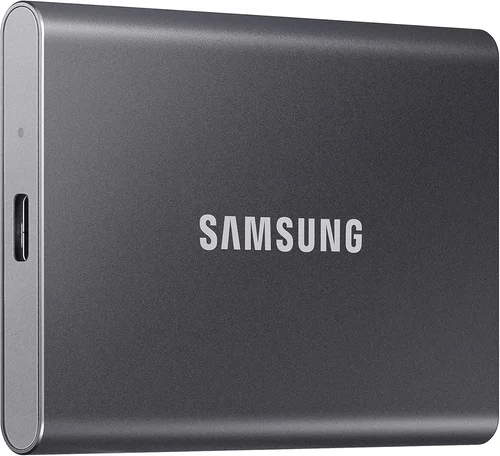
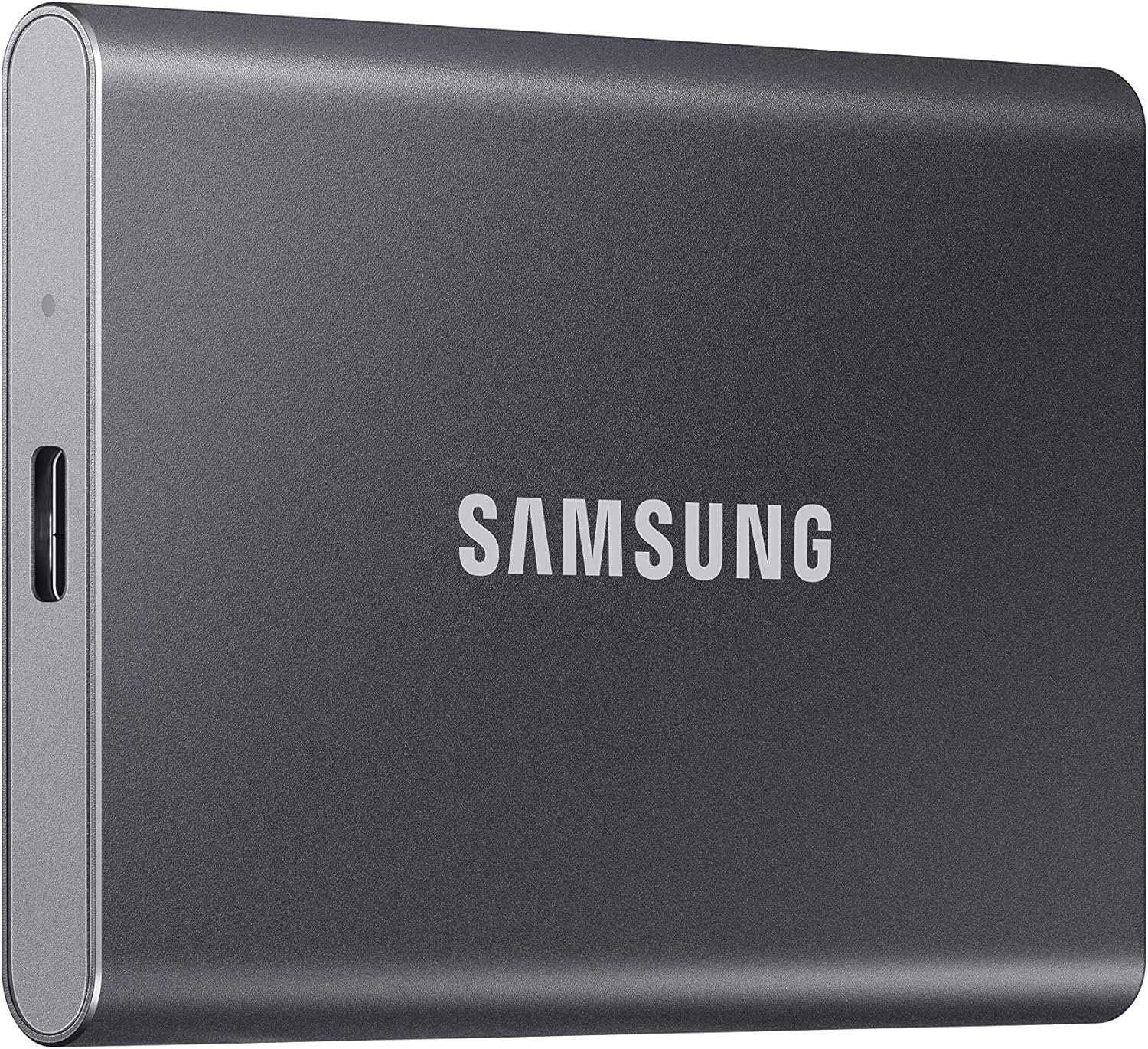
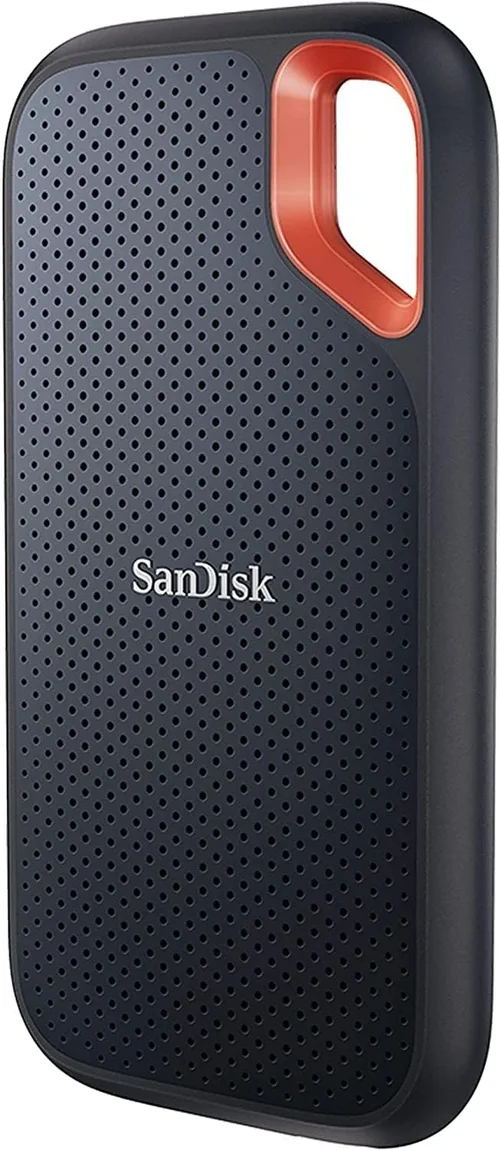
If you’re building a small-form-factor PC or upgrading a thin laptop, an M.2 NVMe SSD is often the only viable option. External drives also benefit from SSD technology: portable SSDs like the Samsung T7 or SanDisk Extreme are lightweight, shock-resistant, and deliver USB 3.2 Gen 2 speeds up to 1,050 MB/s. For users who need to carry large media libraries on the go, a 2TB portable SSD offers a great balance of speed, capacity, and durability.
8. User Reviews & Ratings
While specs and benchmarks are important, real-world user experiences provide invaluable insights. Look for patterns in reviews: Are multiple users reporting early failures? Is the drive consistently slower than advertised? Do firmware updates cause issues? Sites like Amazon, Newegg, and B&H Photo include verified purchase reviews that can highlight long-term reliability.
Pay special attention to reviews from users with similar use cases. A gamer’s experience with an SSD will differ from a video editor’s, and a student’s needs won’t match those of a server administrator. Also, check professional review aggregators like PCMag or CNET for in-depth testing. A drive with 4.8 stars and thousands of reviews is generally a safer bet than one with 5 stars from only a handful of users.
Different Types of Buying Guide

Common Buying Mistakes to Avoid
❌ Mistake: Prioritizing Capacity Over Performance
Why it’s bad: Choosing a massive 8TB HDD for your primary drive might seem like a great deal, but if your system boots slowly and apps take forever to launch, you’re sacrificing usability for space. Many users regret installing their OS on an HDD because it creates a bottleneck that affects every aspect of performance.
What to do instead: Use an SSD for your operating system, applications, and frequently used files, and reserve the HDD for bulk storage like videos, photos, and archives. This hybrid approach gives you the best of both worlds.
❌ Mistake: Ignoring Interface Compatibility
Why it’s bad: Buying an M.2 NVMe SSD for a laptop that only supports SATA M.2 slots will result in a drive that doesn’t work. Similarly, installing a PCIe Gen5 SSD in a motherboard that only supports Gen3 will limit performance and may not be recognized at all.
What to do instead: Always check your device’s specifications before purchasing. Consult the manual, manufacturer website, or use tools like CPU-Z or Speccy to identify available slots and supported interfaces.
❌ Mistake: Overlooking Endurance Ratings
Why it’s bad: Cheap SSDs with low TBW ratings may fail prematurely if you write large amounts of data regularly—common in video editing, database work, or frequent file transfers. A 500GB QLC SSD with a 150 TBW rating could wear out in under two years under heavy use.
What to do instead: Choose TLC or MLC-based SSDs for workloads involving frequent writes. Look for drives with at least 300 TBW per 1TB of capacity for peace of mind.
❌ Mistake: Skipping Firmware Updates
Why it’s bad: Outdated firmware can cause performance degradation, compatibility issues, or even data corruption. Some SSDs ship with bugs that are only fixed in later updates.
What to do instead: Register your drive with the manufacturer and check for firmware updates periodically. Most brands provide free utilities (like Samsung Magician or WD Dashboard) to manage updates and monitor health.
❌ Mistake: Assuming All SSDs Are Equal
Why it’s bad: A $40 500GB SSD from an unknown brand may use recycled NAND, lack DRAM cache, or have poor controllers, leading to slow speeds and early failure. Not all SSDs are built to the same standard.
What to do instead: Stick to reputable brands and read independent reviews. Look for drives with DRAM cache (essential for consistent performance) and avoid DRAM-less models unless you’re on a very tight budget.
❌ Mistake: Neglecting Backup Strategies
Why it’s bad: Whether you use an HDD or SSD, no drive is immune to failure. Relying solely on one drive for all your data is a recipe for disaster.
What to do instead: Implement the 3-2-1 backup rule: keep three copies of your data, on two different media, with one copy offsite (e.g., cloud storage). Use automated backup software to make this easier.
Budget Guidelines: How Much Should You Spend?
Entry-Level ($30–$80): In this range, you’ll find basic 2.5″ HDDs (1TB–2TB) and budget SATA SSDs (250GB–500GB). Ideal for secondary storage or upgrading older systems. Expect modest performance from SSDs and slow speeds from HDDs. Avoid using these as primary drives unless absolutely necessary.
Mid-Range ($80–$180): This is the sweet spot for most users. You can get a reliable 1TB SATA SSD or a 1TB NVMe SSD from trusted brands. These drives offer excellent performance for everyday computing, gaming, and light content creation. A 2TB HDD also fits here, perfect for media storage.
Premium ($180–$400): For enthusiasts and professionals, this tier includes high-end NVMe SSDs (2TB–4TB) with Gen4 or Gen5 support, advanced controllers, and robust endurance. Great for 4K video editing, large game libraries, and workstation use. Some models include heatsinks for sustained performance.
Luxury ($400+): Top-tier drives with 4TB+ capacities, enterprise-grade reliability, and cutting-edge features like hardware encryption and power-loss protection. These are overkill for average users but essential for servers, NAS systems, or mission-critical applications.
Expert Tips for Getting the Best Deal
- Time your purchase: Major sales events like Black Friday, Prime Day, and back-to-school season often feature deep discounts on storage. SSD prices drop significantly during these periods—sometimes by 30–40%.
- Buy from trusted retailers: Stick to Amazon, Newegg, Best Buy, or direct from manufacturers. Avoid third-party sellers with unclear return policies.
- Check for bundle deals: Some retailers offer SSDs with free cloning software, enclosures, or extended warranties. These can add real value.
- Monitor price history: Use tools like CamelCamelCamel or Honey to track price trends and set alerts for when a drive drops to your target price.
- Consider refurbished models: Certified refurbished SSDs from reputable sellers often come with full warranties and can save you 20–30% off retail.
- Test before committing: If buying in-store, ask if you can test the drive in your system. For online purchases, ensure the return window is at least 30 days.
- Don’t forget installation: Factor in the cost of enclosures, cables, or professional installation if you’re not comfortable doing it yourself.
- Register your drive: This ensures you receive firmware updates and warranty support. Some brands require registration for full coverage.

Frequently Asked Questions
Q: Can I use both an HDD and SSD in the same computer?
A: Absolutely! In fact, this is one of the most recommended setups. Install your operating system and frequently used programs on the SSD for speed, and use the HDD for storing large files like videos, photos, and backups. Most modern motherboards support multiple drives.
Q: Do SSDs really last as long as manufacturers claim?
A: Yes, for most users. Modern SSDs are designed to outlast the typical lifespan of a computer. Unless you’re writing terabytes of data daily, you’ll likely upgrade your system before the drive wears out. Monitor health using tools like CrystalDiskInfo.
Q: Are external SSDs worth the extra cost?
A: If you need fast, portable storage, yes. External SSDs are much faster and more durable than external HDDs, making them ideal for photographers, videographers, and travelers. Just ensure your USB port supports USB 3.2 or Thunderbolt for full speed.
Q: Will an SSD improve gaming performance?
A: Yes, but mostly in load times. Games will launch faster, levels will load quicker, and texture pop-in may be reduced. However, FPS (frames per second) is determined by your GPU and CPU, not storage.
Q: Can I recover data from a failed SSD?
A: It’s possible, but more difficult and expensive than with HDDs. SSDs use wear-leveling and TRIM, which can make data recovery challenging. Always maintain backups—don’t rely on recovery services.
Q: What’s the difference between SATA and NVMe SSDs?
A: SATA SSDs use the older SATA interface, capping speeds at ~550 MB/s. NVMe SSDs use the PCIe interface, allowing much higher speeds—up to 7,000+ MB/s on Gen4 and even faster on Gen5. NVMe drives are typically M.2 form factor.
Q: Should I defragment my SSD?
A: No! Defragmenting an SSD is unnecessary and can reduce its lifespan. SSDs don’t suffer from fragmentation like HDDs, and modern operating systems automatically disable defrag for SSDs.
Q: How do I clone my HDD to an SSD?
A: Use cloning software like Macrium Reflect, Acronis True Image, or Samsung Data Migration. Connect both drives, run the software, and follow the prompts to copy everything—including the OS—to the SSD.
Q: Are SSDs more energy-efficient?
A: Yes. SSDs consume significantly less power than HDDs, which is why laptops with SSDs often have longer battery life. This also reduces heat output, improving system stability.
Q: What happens when an SSD reaches its TBW limit?
A: The drive doesn’t suddenly stop working. Instead, it may enter a read-only mode to preserve data. Performance could degrade, but your files remain accessible. Most users never reach the TBW limit under normal use.
Our Final Recommendations
Best for Budget-Conscious Buyers: Western Digital Blue 1TB SATA SSD – Reliable, affordable, and perfect for upgrading an older system. Offers a noticeable speed boost over HDDs without breaking the bank.
Best Overall Value: Samsung 980 Pro 1TB NVMe SSD – Excellent performance, strong endurance, and competitive pricing. Ideal for gamers, creators, and general users who want speed and reliability.
Best Premium Option: Seagate FireCuda 530 2TB NVMe SSD – Top-tier speeds, 5-year warranty, and high TBW rating. Built for demanding workloads and future-proof systems.
Best for Beginners: Crucial MX500 500GB SATA SSD – Easy to install, comes with cloning software, and offers great performance for everyday tasks. A safe, user-friendly choice.
Best for Advanced Users: Samsung 990 Pro 4TB with Heatsink – PCIe Gen4 flagship with exceptional speeds, thermal management, and endurance. Perfect for content creators and power users.
Conclusion: Making the Right Choice
Choosing between a hard disk drive and a solid-state drive isn’t about picking a winner—it’s about matching the right tool to your specific needs. HDDs still excel in cost-per-gigabyte and high-capacity storage, making them ideal for backups, media archives, and budget builds. SSDs, meanwhile, deliver unmatched speed, durability, and efficiency, transforming how you interact with your computer.
The best approach for most users in 2026 is a hybrid setup: an SSD for your operating system and essential applications, paired with an HDD for bulk storage. This balances performance and capacity while keeping costs manageable. As SSD prices continue to fall and capacities rise, the gap between the two technologies will only narrow further.
Ultimately, your decision should be guided by your usage patterns, budget, and priorities. Are you a student needing affordable storage? A gamer chasing faster load times? A professional handling large files? Whatever your scenario, the information in this guide empowers you to make a confident, informed choice. Don’t let marketing hype or outdated advice steer you wrong—focus on real-world performance, reliability, and value.
Take the time to assess your needs, compare options, and invest wisely. Your data deserves a storage solution that’s not just fast and spacious, but also dependable and future-ready. Whether you go full SSD, stick with HDD, or embrace a hybrid approach, the right drive will enhance your computing experience for years to come.