
External solid-state drives (SSDs) have revolutionized how we store, transfer, and protect our digital lives. Whether you’re a creative professional editing 4K video, a student backing up research files, or a gamer expanding console storage, the right external SSD can make all the difference. Unlike traditional hard drives, SSDs use flash memory with no moving parts, delivering faster speeds, greater reliability, and silent operation. As we move deeper into 2026, the market is flooded with options—from ultra-portable thumb-drive-style models to rugged, high-capacity drives built for fieldwork. With so many brands, form factors, and performance tiers available, choosing the best external SSD can feel overwhelming. That’s exactly why this comprehensive buying guide exists: to cut through the noise and help you make a smart, informed decision based on your unique needs.
In this expert-level guide, you’ll learn everything you need to know about selecting the best external SSD in 2026. We’ll break down the key factors that truly matter—like performance specs, durability, portability, and value—and explain how to weigh them against your budget and use case. You’ll discover the differences between USB 3.2, Thunderbolt 4, and USB4 interfaces, understand why build quality often outweighs raw speed, and learn how to avoid common pitfalls like overpaying for unnecessary features. Whether you’re looking for a budget-friendly backup drive or a pro-grade solution for video production, this guide will equip you with the knowledge to choose wisely. By the end, you’ll not only know which brands lead the pack but also how to match the right drive to your workflow, ensuring you get the best performance, longevity, and peace of mind for your investment.
The external SSD market in 2026 is more competitive than ever, with major players like Samsung, SanDisk (a Western Digital brand), Crucial, Kingston, and Sabrent pushing the boundaries of speed, capacity, and design. At the same time, newer entrants like OWC (Other World Computing) and Acasis are gaining traction with innovative form factors and niche features. Prices have dropped significantly over the past few years, making high-capacity SSDs accessible to mainstream users, while cutting-edge interfaces like Thunderbolt 4 offer near-internal SSD performance for demanding applications. However, not all drives are created equal—some prioritize sleek design over durability, others boast impressive specs but suffer from thermal throttling under sustained loads. This guide will help you navigate these trade-offs and identify the drives that deliver real-world value, not just marketing hype.

What to Look for When Buying Buying Guide
1. Performance Specifications
Performance is arguably the most critical factor when choosing an external SSD, especially if you’re transferring large files, editing media, or running applications directly from the drive. The key metrics to focus on are read and write speeds, typically measured in megabytes per second (MB/s). In 2026, top-tier external SSDs can deliver sequential read/write speeds exceeding 3,000 MB/s, thanks to advancements in NAND flash technology and faster interface standards like USB4 and Thunderbolt 4. For context, a drive with 1,000 MB/s speeds can transfer a 50GB video file in under a minute, while a slower 500 MB/s drive might take twice as long.
However, don’t just rely on manufacturer claims. Look for real-world benchmarks and independent reviews that test sustained performance, not just peak speeds. Many drives experience thermal throttling—slowing down after prolonged use—due to inadequate heat dissipation. This is especially common in compact, fanless designs. If you plan to use your SSD for video editing, large backups, or gaming, prioritize drives with robust thermal management, such as aluminum enclosures that act as heat sinks. Also, consider the interface: USB 3.2 Gen 2×2 offers up to 20 Gbps, USB4 delivers up to 40 Gbps, and Thunderbolt 4 matches that while supporting daisy-chaining and dual 4K displays. Make sure your computer’s ports support the drive’s interface to avoid bottlenecks.
2. Build Quality & Durability
An external SSD is only as good as its ability to survive real-world conditions. Unlike internal drives, external SSDs are frequently moved, dropped, or exposed to dust and moisture. That’s why build quality and durability should be high on your priority list. Look for drives with ruggedized designs—especially if you’re a photographer, videographer, or traveler. Many premium models now feature IP67 or IP68 ratings, meaning they’re dust-tight and can withstand immersion in water up to 1 meter for 30 minutes. Drives with shock resistance (e.g., MIL-STD-810H certification) can survive drops from several feet onto hard surfaces.
Materials matter too. Aluminum enclosures not only look sleek but also help dissipate heat and provide structural strength. Plastic housings may be lighter and cheaper, but they’re more prone to cracking. Some drives, like the Samsung T7 Shield or SanDisk Extreme Pro, combine rubberized exteriors with reinforced corners for added protection. If you’re using your SSD in harsh environments—construction sites, outdoor shoots, or frequent air travel—invest in a model designed for rugged use. Even for everyday office or home use, a well-built drive will last longer and give you confidence that your data is safe.
3. Capacity & Scalability
Storage capacity directly impacts how much data you can store and how future-proof your investment is. In 2026, external SSDs are available in capacities ranging from 250GB to a staggering 8TB. For most users, 1TB is the sweet spot—it’s affordable, sufficient for documents, photos, and moderate video projects, and widely available. However, if you work with 4K/8K video, large game libraries, or RAW photo files, consider 2TB or higher. Keep in mind that higher capacities often come with better performance due to more NAND chips and parallel processing.
Scalability is another consideration. Some drives allow you to swap out internal SSDs (like the Sabrent Rocket XTRM-Q), giving you flexibility to upgrade capacity later. Others are sealed units, meaning you’re locked into the original capacity. If you anticipate growing storage needs, a modular or expandable design might be worth the extra cost. Also, check how the drive handles file systems—some are pre-formatted for specific operating systems (exFAT for cross-platform compatibility), while others may require reformatting. Always back up your data before changing formats.
4. Portability & Form Factor
Portability is a major advantage of external SSDs over traditional hard drives, but not all SSDs are equally portable. Size, weight, and cable design all play a role. The most portable drives are thumb-drive-sized, like the Samsung T7 Touch or Kingston XS2000, which can easily fit in a pocket or attach to a keychain. These are ideal for students, remote workers, or anyone who needs quick access to files on the go. However, their compact size can limit cooling and capacity.
Larger drives, such as the SanDisk Extreme Pro or OWC Envoy Pro FX, offer higher capacities and better performance but may require a separate power adapter or longer cables. Consider how you’ll use the drive: if you’re frequently moving between locations, a lightweight, cable-free design is preferable. Some drives include built-in cables (like the Crucial X9 Pro), eliminating the risk of losing a separate cord. Others use detachable USB-C cables, which offer flexibility but can be misplaced. Also, check the drive’s thickness—thinner drives are easier to pack, but may sacrifice durability or cooling.
5. Interface & Compatibility
The interface determines how fast data can move between your SSD and computer, so it’s essential to match the drive to your system’s capabilities. USB-C is now the standard, but not all USB-C ports are created equal. USB 3.2 Gen 2 (10 Gbps) is common and sufficient for most users, while USB 3.2 Gen 2×2 (20 Gbps) and USB4 (40 Gbps) offer significantly faster speeds. Thunderbolt 4 also delivers 40 Gbps and supports advanced features like daisy-chaining multiple devices.
Compatibility is equally important. Most external SSDs are cross-platform, working with Windows, macOS, and Linux, but some may require reformatting. For example, macOS users might prefer APFS formatting for optimal performance, while Windows users often use NTFS. exFAT is the best choice for sharing files between operating systems. Always verify that the drive supports your OS and that your computer has the necessary ports. If your laptop only has USB-A, you’ll need a USB-C to USB-A adapter, which can reduce speed. For professionals using MacBooks or high-end PCs, Thunderbolt 4 drives offer the best performance and future-proofing.
6. Security & Encryption
Data security is a growing concern, especially for professionals handling sensitive information. Many external SSDs now include hardware-based encryption and biometric authentication. For example, the Samsung T7 Touch features a built-in fingerprint reader, allowing you to unlock the drive with a touch. Other models use AES 256-bit encryption, which is virtually unbreakable with current technology. Some drives also include software suites for password protection and secure erase functions.
If you’re storing financial records, client data, or personal photos, encryption is non-negotiable. Look for drives that meet FIPS 140-2 standards, which are required for government and enterprise use. Software-based encryption is better than nothing, but hardware encryption is faster and more secure since it’s handled by a dedicated chip. Also, consider whether the drive supports self-destruct features or remote wipe in case of theft. While not common in consumer drives, these features are increasingly available in premium models.
7. Brand Reputation & Reliability
Not all SSD brands are equal when it comes to reliability and customer support. Established players like Samsung, SanDisk, and Crucial have proven track records of producing high-quality drives with low failure rates. Samsung, in particular, is known for its vertical integration—manufacturing its own NAND flash, controllers, and firmware—which leads to better optimization and consistency. SanDisk (owned by Western Digital) offers excellent rugged drives, while Crucial provides great value with its Micron-backed technology.
Newer brands like Sabrent and Acasis offer competitive specs at lower prices, but may lack long-term reliability data. Always check user reviews and failure rate reports from sources like Backblaze or TechPowerUp. A brand with a strong reputation is more likely to honor warranties, provide timely firmware updates, and offer responsive customer service. Avoid no-name brands or deals that seem too good to be true—cheap SSDs often use inferior components and have higher failure rates.
8. Warranty & Support
A solid warranty is a strong indicator of a manufacturer’s confidence in their product. Most reputable brands offer 3- to 5-year limited warranties on external SSDs. Samsung, for example, provides a 5-year warranty on its T7 series, while SanDisk offers 5 years on the Extreme Pro. Longer warranties often correlate with higher build quality and better components.
Support matters too. Check if the brand offers live chat, phone support, or detailed online resources. Some companies provide data recovery services or expedited replacement programs. Also, note that warranties may be voided if the drive is opened or modified, so avoid DIY repairs unless you’re prepared to lose coverage. Register your drive upon purchase to ensure you’re eligible for support and firmware updates.
Different Types of Buying Guide
Common Buying Mistakes to Avoid
❌ Mistake: Prioritizing Speed Over Real-World Performance
Why it’s bad: Many buyers focus solely on advertised read/write speeds, but peak performance doesn’t always translate to real-world use. Drives may throttle under sustained loads due to heat, or use compression to inflate speeds. A drive that hits 3,500 MB/s in a 10-second test might drop to 800 MB/s during a 30-minute video transfer.
What to do instead: Look for reviews that test sustained performance and thermal behavior. Choose drives with active cooling or aluminum heatsinks if you’ll be transferring large files regularly.
❌ Mistake: Ignoring Compatibility with Your System
Why it’s bad: Buying a Thunderbolt 4 drive for a laptop that only supports USB 3.0 means you’ll never reach its full potential. Similarly, formatting issues can prevent cross-platform use.
What to do instead: Check your computer’s port types and OS compatibility before purchasing. Use exFAT for cross-platform drives, and verify that your system supports the drive’s interface.
❌ Mistake: Overlooking Warranty and Support
Why it’s bad: A cheap SSD with no warranty may save money upfront but could cost more in data recovery or replacement if it fails prematurely.
What to do instead: Choose brands with at least a 3-year warranty and reliable customer support. Register your drive and keep proof of purchase.
❌ Mistake: Choosing the Cheapest Option Without Research
Why it’s bad: Budget drives from unknown brands often use low-quality NAND and controllers, leading to higher failure rates and slower real-world performance.
What to do instead: Stick to reputable brands, even in the budget tier. Look for models like the Crucial X9 or Kingston XS2000 that offer good value without sacrificing reliability.
❌ Mistake: Neglecting Security Features
Why it’s bad: Losing an unencrypted SSD with sensitive data can lead to privacy breaches or identity theft.
What to do instead: Opt for drives with hardware encryption and biometric locks if handling confidential information. Enable password protection even on personal drives.
❌ Mistake: Assuming All USB-C Drives Are the Same
Why it’s bad: USB-C is a connector type, not a speed standard. A USB-C drive could be USB 3.0 (5 Gbps) or USB4 (40 Gbps).
What to do instead: Always check the specific USB version (e.g., USB 3.2 Gen 2×2) and ensure your port supports it.
❌ Mistake: Not Considering Future Needs
Why it’s bad: Buying a 500GB drive today might seem sufficient, but file sizes are growing. You could outgrow it in a year.
What to do instead: Plan for at least 2–3 years of use. If budget allows, go for 1TB or 2TB to avoid upgrading soon.
Budget Guidelines: How Much Should You Spend?
Entry-Level ($50 – $100): This tier is ideal for casual users who need basic storage for documents, photos, or light backups. Expect capacities of 500GB to 1TB, USB 3.2 Gen 2 speeds (up to 1,050 MB/s), and plastic builds. Models like the Crucial X9 or Kingston XS2000 offer solid performance and reliability at this price. While not rugged, they’re perfect for home or office use.
Mid-Range ($100 – $200): This is the sweet spot for most buyers. You’ll find 1TB to 2TB drives with aluminum enclosures, faster speeds (up to 2,000 MB/s), and better thermal management. The Samsung T7, SanDisk Extreme, and OWC Envoy Pro FX are excellent choices here. Many include encryption and come with 5-year warranties, offering great value for students, professionals, and creatives.
Premium ($200 – $400): Designed for power users and professionals, these drives offer Thunderbolt 4 or USB4 support, speeds over 3,000 MB/s, and rugged designs. Capacities range from 2TB to 4TB. The Samsung X5, SanDisk Extreme Pro, and Sabrent Rocket XTRM-Q fall into this category. They’re ideal for 4K/8K video editing, large game libraries, and fieldwork.
Luxury ($400+): At this level, you’re paying for top-tier performance, maximum capacity (up to 8TB), and premium materials. These drives often feature modular designs, advanced cooling, and enterprise-grade encryption. The OWC Envoy Pro FX (4TB+) and Sabrent Rocket XTRM-Q (8TB) are examples. They’re best for studios, IT professionals, and those who demand the absolute best.
Expert Tips for Getting the Best Deal
1. Buy During Major Sales Events: The best time to purchase an external SSD is during seasonal sales. Black Friday, Cyber Monday, Amazon Prime Day, and back-to-school promotions often feature discounts of 20–40% on premium models. Retailers like B&H, Newegg, and Best Buy also run flash sales throughout the year.
2. Compare Prices Across Retailers: Don’t settle for the first price you see. Use price comparison tools like Google Shopping, CamelCamelCamel (for Amazon), or Slickdeals to track historical prices and find the lowest current offer. Sometimes, smaller retailers offer better deals than major chains.
3. Check for Bundled Deals: Some manufacturers bundle SSDs with accessories like carrying cases, USB-C cables, or cloud storage subscriptions. These can add significant value. For example, SanDisk often includes a 1-year subscription to RescuePRO Deluxe data recovery software.
4. Consider Refurbished or Open-Box Units: Certified refurbished drives from reputable sellers (like Samsung Renewed or Amazon Renewed) can save you 20–30% and often come with the same warranty as new units. Open-box items from Best Buy or Micro Center are also worth considering if inspected properly.
5. Read the Fine Print on Warranties: Some warranties are prorated, meaning you get less coverage over time. Others require registration within 30 days. Always read the terms to ensure full protection.
6. Test Before Committing: If buying in-store, ask to see a demo unit. Check the weight, build feel, and cable quality. For online purchases, choose retailers with generous return policies (30 days or more) so you can test the drive at home.
7. Avoid “Too Good to Be True” Deals: If a 4TB Thunderbolt SSD is listed for $150, it’s likely counterfeit or defective. Stick to authorized retailers and avoid third-party sellers with low ratings.
8. Future-Proof with Expandable Options: If you anticipate growing storage needs, consider modular drives like the Sabrent Rocket XTRM-Q, which lets you swap out M.2 SSDs. This saves money long-term compared to buying a new drive every few years.
Frequently Asked Questions
Q: Can I use an external SSD for gaming?
A: Absolutely. External SSDs are excellent for gaming, especially on consoles like the PlayStation 5 or Xbox Series X, which support external storage for games. While loading times may be slightly slower than internal NVMe drives, they’re still significantly faster than HDDs. For PC gaming, an external SSD lets you carry your game library between systems.
Q: Do external SSDs work with Mac and PC?
A: Yes, most external SSDs are cross-platform compatible. However, they may need to be reformatted. Use exFAT for seamless file sharing between Mac and PC. macOS users can also use APFS for better performance, but it won’t be readable on Windows without third-party software.
Q: How long do external SSDs last?
A: External SSDs typically last 5–10 years under normal use, depending on write cycles and build quality. Most consumer drives are rated for 150–600 terabytes written (TBW). With moderate use, this translates to many years of reliable service.
Q: Can I run software directly from an external SSD?
A: Yes, you can install and run applications from an external SSD, including video editing software, games, or development tools. Performance will depend on the drive’s speed and interface. Thunderbolt 4 drives offer near-internal SSD performance for professional workflows.
Q: Are external SSDs safe from viruses?
A: External SSDs are not immune to malware, but they’re less prone to mechanical failure than HDDs. Always use antivirus software and avoid connecting your drive to infected computers. Encrypt sensitive data to protect against unauthorized access.
Q: Do I need a powered external SSD?
A: Most portable SSDs draw power directly from the USB port and don’t require external power. However, high-capacity or multi-bay enclosures may need a power adapter. Check the specifications before purchasing.
Q: Can I recover data from a failed external SSD?
A: Data recovery is possible but not guaranteed. Professional services can sometimes retrieve data from failed SSDs, but it’s expensive. Regular backups are the best defense against data loss.
Q: Should I defragment my external SSD?
A: No. SSDs don’t benefit from defragmentation and it can reduce their lifespan by increasing write cycles. Modern operating systems automatically optimize SSDs using TRIM commands.
Q: What’s the difference between USB4 and Thunderbolt 4?
A: Both offer 40 Gbps speeds, but Thunderbolt 4 supports additional features like daisy-chaining up to six devices, dual 4K display output, and stricter certification requirements. USB4 is more widely compatible and often cheaper.
Our Final Recommendations
Best for Budget-Conscious Buyers: Crucial X9 Pro (1TB) – At around $90, this drive offers excellent performance (1,050 MB/s), a compact design, and a 5-year warranty. It’s perfect for students and casual users who need reliable, fast storage without breaking the bank.
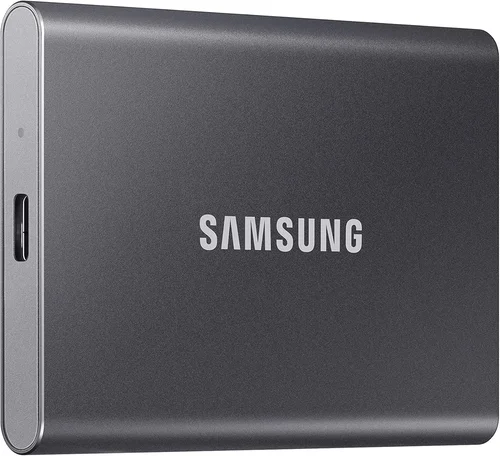
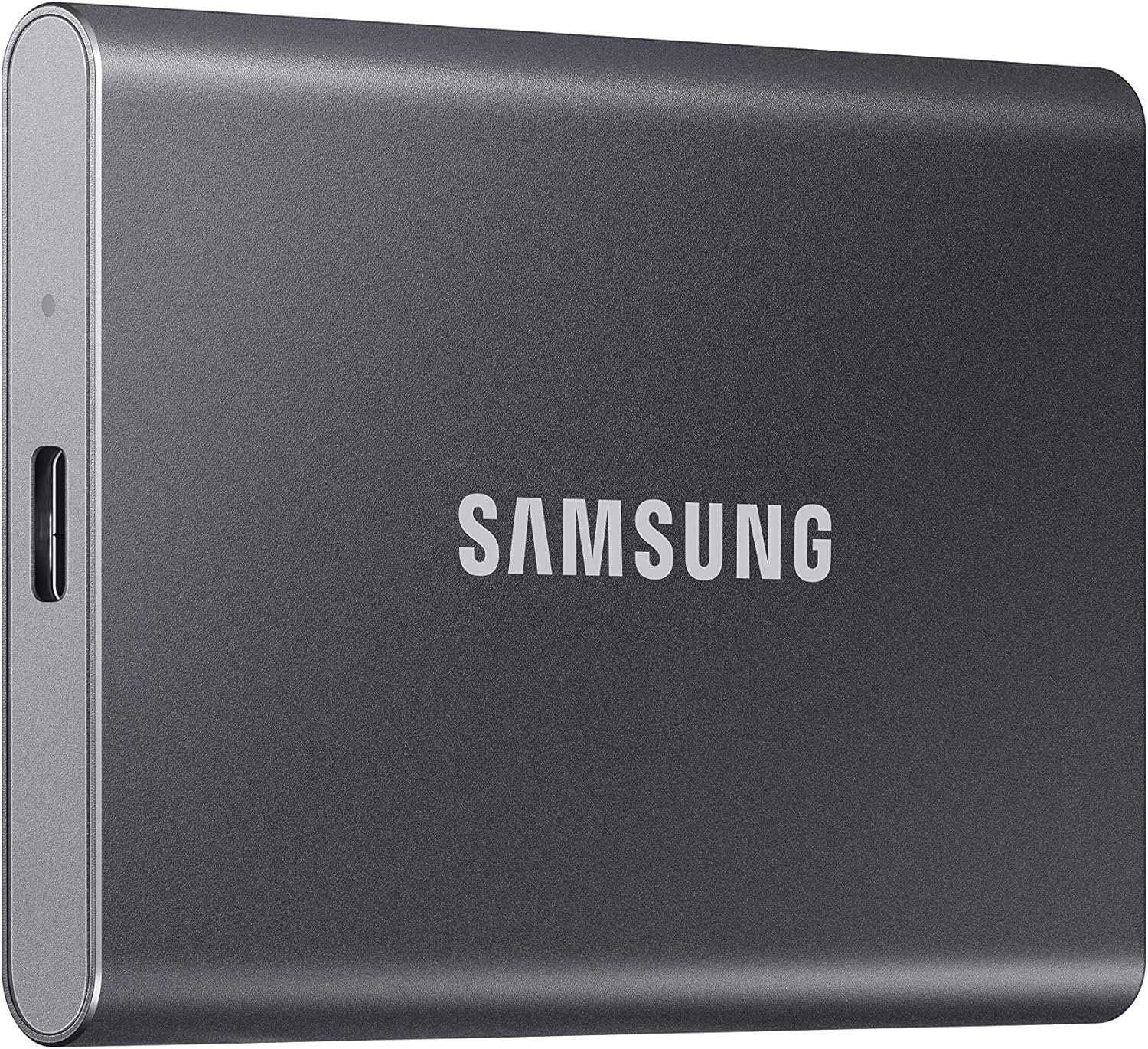
Best Overall Value: Samsung T7 (1TB) – A balanced choice with 1,050 MB/s speeds, aluminum build, AES 256-bit encryption, and a 5-year warranty. It’s fast, durable, and widely compatible, making it ideal for most users.
Best Premium Option: Samsung X5 (2TB) – This Thunderbolt 3 drive delivers blazing 2,800 MB/s speeds, making it perfect for 4K video editing and large file transfers. Its rugged design and compact form factor justify the higher price for professionals.
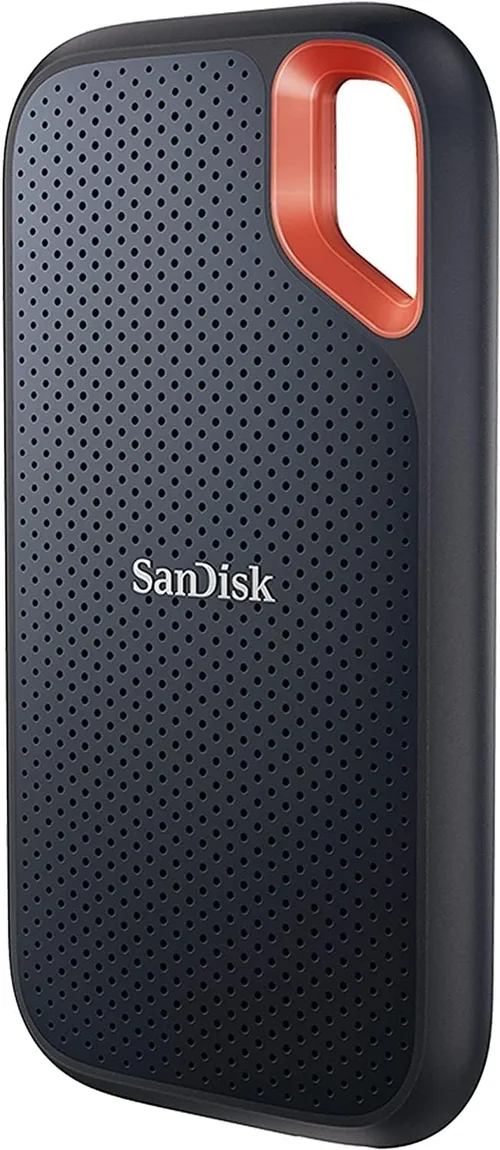
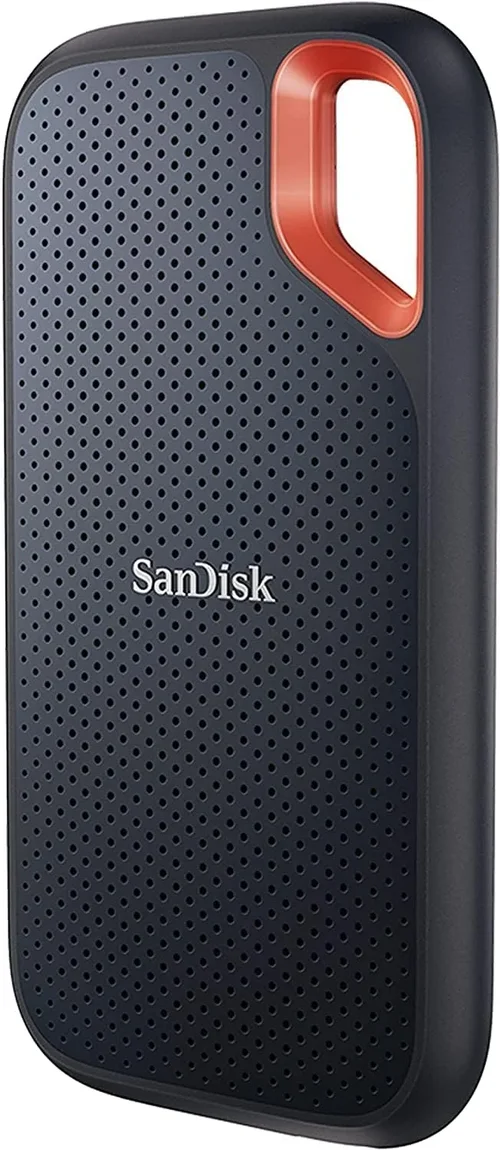
Best for Beginners: SanDisk Extreme (1TB) – With a simple setup, IP55 rating for water and dust resistance, and speeds up to 1,050 MB/s, this drive is user-friendly and reliable for first-time SSD buyers.
Best for Advanced Users: OWC Envoy Pro FX (4TB) – A modular, Thunderbolt 4 drive with swappable M.2 SSDs, speeds over 2,800 MB/s, and a sleek aluminum design. It’s ideal for tech enthusiasts who want flexibility and top-tier performance.
Conclusion: Making the Right Choice
Choosing the best external SSD in 2026 doesn’t have to be overwhelming. By focusing on your specific needs—whether it’s speed, durability, portability, or budget—you can narrow down the options and find a drive that truly enhances your workflow. Remember that the “best” SSD isn’t always the fastest or most expensive; it’s the one that aligns with how you use it. A rugged drive makes sense for a field photographer, while a Thunderbolt model is essential for a video editor. Prioritize real-world performance over marketing claims, invest in reputable brands, and don’t overlook security and warranty.
As technology continues to evolve, external SSDs will only get faster, more durable, and more affordable. But the fundamentals remain the same: match the drive to your use case, verify compatibility, and plan for the future. With the insights from this guide, you’re now equipped to make a confident, informed decision. Whether you’re backing up family photos, editing a documentary, or expanding your gaming library, the right external SSD will keep your data safe, accessible, and moving at the speed of your ambition. Take the time to research, compare, and choose wisely—your digital life deserves nothing less.