
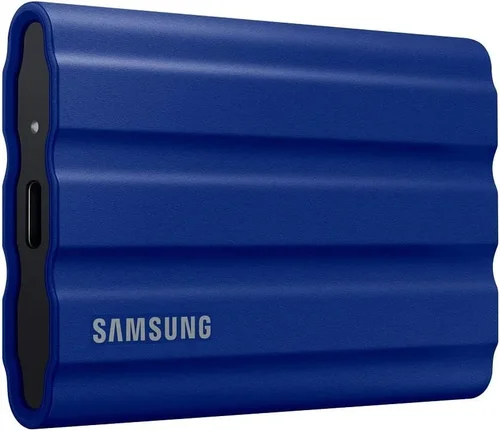
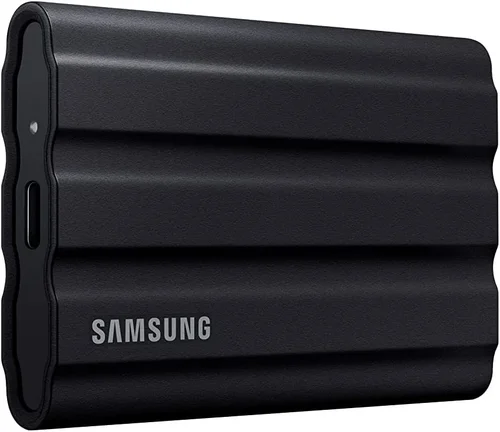
When you are shopping for a portable solid state drive today, the market feels overwhelming. Every major brand promises lightning speeds, military grade durability, and a sleek design that fits in your pocket. The Samsung T7 Shield enters this conversation as a heavy hitter. It builds on the success of the standard T7 by adding serious ruggedization without sacrificing the performance that made the original a favorite among photographers, videographers, and everyday users who just want reliable backup.
This guide exists because buying external storage is not just about picking the highest number on the spec sheet. It is about matching a drive to your actual workflow. Are you offloading 8K footage in a dusty desert? Are you carrying a drive in a backpack that gets tossed around daily? Do you need hardware encryption for sensitive client data? The answers to these questions determine if the T7 Shield is the right tool or if you should look elsewhere. We will break down every specification, compare it against the direct competition, explain the hidden costs of ownership, and give you a clear framework to decide with confidence.
Over the next several thousand words, we will cover the key factors that separate a good purchase from a regrettable one. We will explore the different capacity tiers and why price per gigabyte shifts dramatically at certain points. We will expose common buying mistakes that waste money and risk data loss. By the end, you will know exactly which model to buy, where to buy it for the best price, and how to set it up so it serves you reliably for years.

What to Look for When Buying Buying Guide
1. Real World Performance vs Marketing Speeds
Manufacturers love to advertise sequential read and write speeds. For the Samsung T7 Shield, the box promises up to 1,050 MB/s read and 1,000 MB/s write. Those numbers are achievable, but only under specific conditions. You need a USB 3.2 Gen 2 port (10 Gbps) or faster, a high quality cable, and a workload that consists of large, uncompressed files moving in a single stream. In the real world, you will rarely see those peaks.
What matters more is sustained write performance. When you copy a 50 GB folder of mixed RAW photos, Lightroom catalogs, and project files, the drive must handle thousands of small files. This is where random read/write IOPS (Input/Output Operations Per Second) become critical. The T7 Shield uses Samsung’s own controller and V-NAND, which generally maintains strong random performance. However, thermal throttling can kick in during massive sustained writes. The Shield’s rubberized exterior acts as a heatsink, but it has limits. If you are writing terabytes in one sitting, expect speeds to drop to the 600-800 MB/s range after the first few minutes. This is normal for portable drives without active cooling.
Also consider the interface bottleneck. If you plug this into a USB-A 3.0 port (5 Gbps), your hard ceiling is roughly 450 MB/s. You lose over half the drive’s potential. To get full value, you need a USB-C 10 Gbps or 20 Gbps port. Check your laptop or desktop specs before buying. A drive this fast deserves a port that can feed it.
2. Ruggedization Specifications and What They Actually Mean
The “Shield” name is not just marketing. The T7 Shield carries an IP65 rating. The “6” means dust tight. No ingress of dust whatsoever. The “5” means protection against water jets from any direction. This is not submersion protection (that would be IP67 or IP68). You cannot drop it in a lake. But you can use it in blowing sand, heavy rain, or dusty construction sites without fear.
Samsung also claims a 3 meter drop resistance. This is tested onto a steel floor. In practice, the rubber bumper absorbs significant shock. The internal PCB is conformal coated for moisture resistance. The USB-C port has a recessed design with a tight fitting plug that resists debris. These are meaningful engineering choices, not just a rubber sleeve added after the fact.
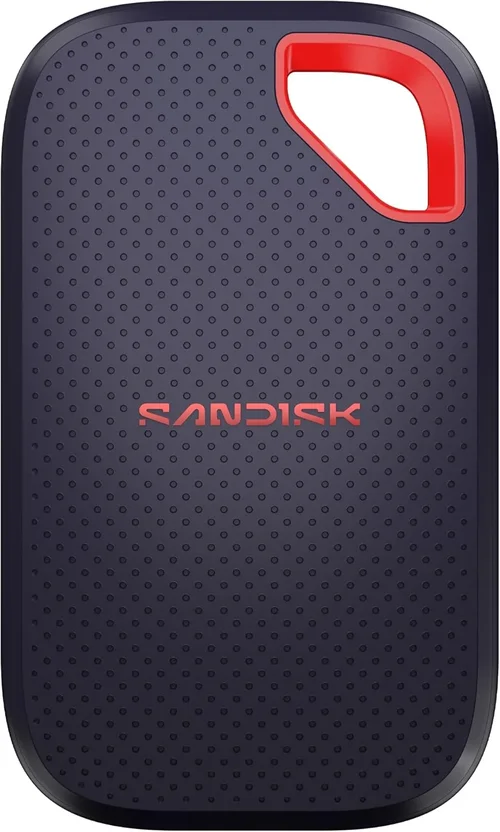
Compare this to the standard T7 (no drop rating, no IP rating) or the SanDisk Extreme Pro V2 (IP55, 2 meter drop). The T7 Shield sits at the top of the mainstream rugged portable SSD class. Only drives like the LaCie Rugged SSD Pro or G-Drive ArmorATD offer more protection, but they cost significantly more and often use slower SATA internals.
3. Capacity Tiers and Price Per Gigabyte Economics
The T7 Shield comes in 1 TB, 2 TB, and 4 TB capacities. There is no 500 GB model. This tells you Samsung positions this as a serious work tool, not a casual file shuttle. The pricing curve follows a predictable pattern. The 1 TB model often carries the highest price per gigabyte. The 2 TB model is usually the sweet spot. The 4 TB model commands a premium for density but drops the cost per gigabyte close to the 2 TB level.
As of this writing, street prices typically hover around $90-110 for 1 TB, $150-180 for 2 TB, and $300-350 for 4 TB. Sales events can shave 15-20% off these numbers. The 2 TB model at $160 works out to 8 cents per gigabyte. The 4 TB at $320 is also 8 cents per gigabyte. The 1 TB at $100 is 10 cents per gigabyte. If your budget allows, the 2 TB or 4 TB models deliver better value.
Consider your growth trajectory. Video professionals should buy one tier larger than current needs. A 1 TB drive fills fast with 4K or 8K footage. Photographers shooting high resolution RAW can manage on 1 TB longer, but catalogs and previews add up. General users backing up documents and photos will find 1 TB lasts years.
4. Hardware Encryption and Software Ecosystem
The T7 Shield features AES 256-bit hardware encryption. This means the encryption happens on the drive controller, not via software on your computer. Zero performance penalty. Zero CPU overhead. It is always on. You activate it by setting a password through Samsung Portable SSD software (available for Windows, macOS, and Android). Once set, the drive locks automatically when unplugged or when the host goes to sleep.
This is a critical feature for anyone handling client data, financial records, or personal documents. If you lose the drive, the data is unreadable without the password. There is no backdoor. Samsung cannot recover it. This is both a feature and a responsibility. Forget the password, and the data is gone forever. The drive can be reset (erased) but not unlocked.
The software also handles firmware updates. These are rare but important. Updates can improve compatibility, fix bugs, or optimize thermal behavior. Run the software once a quarter to check. The Android app lets you unlock and manage the drive from a phone or tablet with USB-C. This is handy for field offloading to a tablet.
5. Build Quality, Ergonomics, and Cable Situation
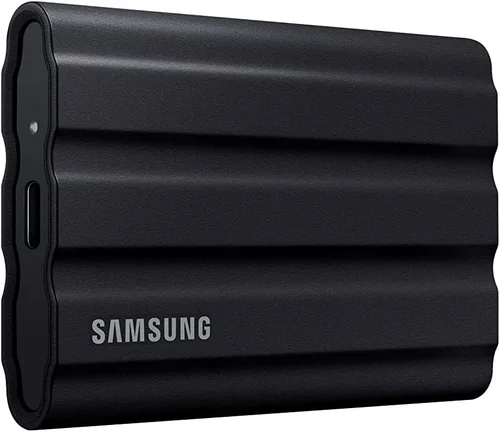
The T7 Shield feels dense. The aluminum core wrapped in thick rubber gives it a satisfying heft (98g for 1 TB, 102g for 2 TB, 124g for 4 TB). The rubber has a textured grip that resists slipping from sweaty hands. The USB-C port sits recessed behind a rubber flap that stays attached. You cannot lose the flap. This is a small but thoughtful detail.
The included cables are a point of contention. Samsung includes a USB-C to USB-C cable and a USB-C to USB-A adapter. The C-to-C cable is short (about 6 inches / 15 cm). This is fine for laptop use but annoying for desktop towers where the port is far away. The USB-A adapter is a small dongle. Easy to lose. Many users buy a longer high quality USB-C 10 Gbps cable immediately. Budget $15-20 for a 1 meter or 2 meter cable from a reputable brand like Anker, Cable Matters, or CalDigit.
The drive has a single LED indicator. It pulses during activity, stays solid when connected and idle, and blinks rapidly during firmware updates. It is not blindingly bright. You can tape it over if working in a dark studio.
6. Compatibility Across Operating Systems and Devices
Out of the box, the T7 Shield is formatted exFAT. This works natively on Windows 10/11, macOS 10.12+, Linux kernel 5.4+, iPadOS, and Android. No reformatting needed for cross platform use. This is a huge advantage over NTFS (Windows only) or APFS (Mac only).
If you work exclusively in one ecosystem, you may want to reformat. APFS on Mac gives you snapshots, better space efficiency, and native Time Machine support. NTFS on Windows gives you file permissions and compression. But you lose plug and play on the other OS. exFAT remains the best compromise for mixed environments.
Console gamers take note. The T7 Shield works perfectly with PS5 and Xbox Series X/S for storing and playing backward compatible games (PS4, Xbox One, etc). You cannot play current gen games directly from external storage on either console, but you can store them and transfer back to internal SSD much faster than redownloading. The rugged build survives the inevitable knocks when moving between entertainment centers.
7. Warranty, Support, and Data Recovery Realities
Samsung backs the T7 Shield with a 3 year limited warranty. This covers defects in materials and workmanship. It does not cover data recovery. If the drive fails, Samsung will replace the hardware. Your data is your responsibility. This is standard across the industry. No consumer drive warranty includes data recovery.
Samsung’s support infrastructure is solid. You can initiate an RMA online. They often cross ship (send replacement before receiving defective unit) for business accounts. Retail purchases usually require return first. Register your drive on Samsung’s website immediately after purchase. It speeds up warranty claims and firmware notifications.
For critical data, follow the 3-2-1 rule. Three copies. Two different media types. One offsite. The T7 Shield can be one of your two local copies. Pair it with a NAS or cloud backup for the offsite copy. Never rely on a single portable drive as your only backup.
8. Thermal Behavior and Longevity Considerations
Portable SSDs have no fans. They rely on the enclosure as a heatsink. The T7 Shield’s rubber exterior is thicker than the standard T7’s metal shell. Rubber is a thermal insulator. This sounds bad, but the internal thermal pad transfers heat from the controller and NAND to the aluminum core, which then radiates through the rubber. In practice, the Shield runs slightly warmer to the touch than the metal T7 under sustained load, but the internal temperatures are comparable.
Expect surface temperatures of 45-55°C during heavy writes. This is warm but within safe operating limits for the components (typically rated to 70-85°C). The drive will throttle before hitting dangerous temperatures. You will see speed drops, not data loss.
For maximum longevity, avoid sustained writes in direct sunlight or hot cars. Give the drive airflow. Do not stack drives. If you run a video editing workflow directly off the drive (scratch disk), consider a small USB desk fan blowing across it. This can maintain peak speeds for longer sessions.
Different Types of Buying Guide

Common Buying Mistakes to Avoid
❌ Mistake: Buying Based Only on Peak Sequential Speed
Why it’s bad: Marketing numbers (1050 MB/s) only apply to large sequential files on 10 Gbps ports. Real workloads involve small files, mixed reads/writes, and often slower ports. A drive with slightly lower peak but better random IOPS and thermal management will feel faster in daily use.
What to do instead: Look for sustained write benchmarks from independent reviewers. Check performance on your specific port type (USB-A 3.0 vs USB-C 10 Gbps vs Thunderbolt). The T7 Shield excels at sustained performance due to its thermal design, not just peak numbers.
❌ Mistake: Assuming Rugged Means Indestructible
Why it’s bad: IP65 and 3 meter drop ratings are laboratory conditions. A drop onto jagged rock at 3 meters can still crack the enclosure. Water jets are not submersion. Salt water corrodes the USB-C contacts rapidly. The rubber bumper can tear if dragged on sharp edges.
What to do instead: Treat it as resistant, not proof. Use a padded sleeve in your bag. Rinse with fresh water and dry thoroughly if exposed to salt water or mud. Inspect the port flap regularly for debris that prevents sealing.
❌ Mistake: Skipping the Cable Upgrade
Why it’s bad: The included 6 inch cable forces the drive to dangle from your laptop port. This stresses the port, the cable, and the drive’s connector. The USB-A adapter adds another failure point. A quality 1-2 meter cable lets the drive sit flat on the desk.
What to do instead: Buy a certified USB 3.2 Gen 2 (10 Gbps) or USB4 (40 Gbps) cable at purchase. Look for the USB-IF logo. Brands: Anker, Cable Matters, CalDigit, OWC, Belkin. Cost: $15-30. It protects your investment and improves ergonomics.
❌ Mistake: Not Enabling Encryption Immediately
Why it’s bad: Many users plan to “set it up later.” Later never comes. The drive gets lost or stolen with unencrypted client data, personal photos, or financial documents. The hardware encryption has zero performance cost. There is no downside to enabling it day one.
What to do instead: Before copying any data, install Samsung Portable SSD software, set a strong password (16+ characters, stored in password manager), and enable auto lock. Test the unlock process once. Then start using the drive.
❌ Mistake: Using as Sole Backup Without Redundancy
Why it’s bad: Portable drives get lost, stolen, dropped in puddles, run over by cars, or simply fail electronically. A single point of failure is not a backup strategy. It is a disaster waiting to happen.
What to do instead: Implement 3-2-1. The T7 Shield is copy 1 (local, fast). Copy 2: NAS or second external drive at home. Copy 3: Cloud backup (Backblaze, iDrive, Google Drive, OneDrive). Automate all three.
❌ Mistake: Buying the Wrong Capacity for the Wrong Reason
Why it’s bad: Buying 1 TB to save $60 over 2 TB when you shoot 4K video means you will hit capacity in weeks. You will waste time managing space, deleting files, buying another drive. The cost per gigabyte is worse at lower capacities. Conversely, buying 4 TB for document backup is overkill and ties up capital.
What to do instead: Estimate your annual data growth. Multiply by 3 years. Add 50% buffer. Round up to the nearest capacity tier. If the answer is 1.8 TB, buy 2 TB. If 3.2 TB, buy 4 TB. Do not optimize for today. Optimize for the warranty period.
❌ Mistake: Ignoring Firmware Updates
Why it’s bad: Firmware updates fix real issues: thermal throttling curves, compatibility with new OS versions, encryption bugs, SMART attribute reporting. Drives shipped months ago may have outdated firmware. Samsung does not push updates automatically.
What to do instead: Check Samsung Portable SSD software quarterly. Apply updates immediately. They take 2-3 minutes. Do not update during active work. Ensure stable power (laptop plugged in) during update.
Budget Guidelines: How Much Should You Spend?
Entry Level ($80 – $110): 1 TB Samsung T7 Shield
This tier suits students, casual photographers, and general users who need rugged portable storage for documents, photo libraries, and occasional video projects. At roughly 10 cents per gigabyte, you pay a premium for the ruggedization over the standard T7 (often $70-90 for 1 TB). The value proposition here is specific: you need the IP65 rating and drop protection. If you work exclusively at a desk, the standard T7 saves money. If the drive lives in a backpack, camera bag, or job site, the Shield earns its premium.
Expect to store roughly 25,000 RAW photos (24 MP), 50 hours of 4K video, or 200,000 documents. For Lightroom catalogs and working drives, 1 TB fills faster than for pure archive. Plan accordingly.
Mid Range Sweet Spot ($150 – $180): 2 TB Samsung T7 Shield
This is the capacity most working professionals should buy. At 7-8 cents per gigabyte, the price per GB drops significantly. You gain breathing room for 4K/6K video projects, large Lightroom catalogs with smart previews, virtual machines, and game libraries. The physical size and weight are nearly identical to the 1 TB model (102g vs 98g). There is no portability penalty.
For a hybrid shooter doing photos and video, 2 TB handles a typical wedding (photos + highlight video) with room for the catalog and exports. For a solo filmmaker, it holds several days of 4K footage. For a developer, it holds multiple VM images and container layers. This capacity hits the intersection of price, performance, and utility.
Premium ($300 – $350): 4 TB Samsung T7 Shield
The 4 TB model targets high volume creators: 8K video, high fps 4K, photogrammetry datasets, massive game libraries, full system clones. At 7-8 cents per GB, it matches the 2 TB value but requires a larger upfront commitment. The weight jumps to 124g. Still pocketable, but noticeable.
Consider this if you travel for weeks without offload capability. A wildlife photographer on a two week expedition shooting 60 MP RAW + 8K video can fill 2 TB. 4 TB buys peace of mind. Also consider if you want a single drive for complete system backups (Mac Time Machine + Windows File History + Linux rsync). A 4 TB drive can hold multiple full system images.
Luxury / Specialized ($400+): Beyond the T7 Shield
If your budget exceeds $350 for portable storage, you are looking at different tool categories. The SanDisk Extreme Pro V2 (2000 MB/s) requires USB 3.2 Gen 2×2 (20 Gbps) ports to shine. The LaCie Rugged SSD Pro (2800 MB/s) requires Thunderbolt 3/4. The Samsung T9 (2000 MB/s) is the direct successor but commands early adopter pricing. These drives make sense only if your workflow is bottlenecked by 1050 MB/s and your hardware supports faster interfaces. For 95% of users, the T7 Shield 2 TB or 4 TB remains the rational ceiling.
Expert Tips for Getting the Best Deal
Frequently Asked Questions
Q: Does the Samsung T7 Shield work with iPhone 15/16 Pro via USB-C?
A: Yes. The iPhone 15 Pro, 15 Pro Max, 16 Pro, and 16 Pro Max support USB 3.2 Gen 2 (10 Gbps) over their USB-C port. The T7 Shield works natively. You can record ProRes 4K video directly to the drive (requires iPhone 15 Pro/Pro Max or later). You need the Samsung Portable SSD app for iOS to manage encryption and firmware. The drive draws power from the iPhone, which drains battery faster. Use a powered hub or Apple’s USB-C to USB-C cable with power pass through for long sessions.
Q: Can I use the T7 Shield as a boot drive for Windows or macOS?
A: Technically yes, but not recommended. You can install Windows To Go or a macOS installer on it. However, portable SSDs lack the power loss protection (capacitors) of internal NVMe drives. A sudden unplug during a write can corrupt the OS. Boot performance is also limited by the USB protocol overhead vs PCIe. Use it for portable apps, VMs, or recovery media, not as a daily driver OS boot device.
Q: What is the difference between T7 Shield and T7 Shield “Pro” or “T9”?
A: As of this writing, there is no “T7 Shield Pro.” The lineup is T7 (standard), T7 Shield (rugged), and T9 (next gen, 2000 MB/s, USB 3.2 Gen 2×2, same rugged build). The T9 launched at a significant price premium. The T7 Shield remains the value king for 10 Gbps workflows. If you see “T7 Shield Pro” listed, it is likely a mislabeled T9 or a scam listing.
Q: How do I securely erase the T7 Shield before selling or disposing?
A: Use the Samsung Portable SSD software. Select the drive, choose “Secure Erase.” This triggers the controller’s built-in sanitize command, wiping all NAND blocks including over provisioned area. It takes seconds. Alternatively, on Linux, use `nvme format -s 1 /dev/nvmeXn1` (requires nvme-cli). On macOS, Disk Utility “Erase” with “Security Options” slider (though this is slower as it writes patterns over USB). The hardware secure erase is instant and NIST 800-88 compliant.
Q: The drive feels hot. Is this dangerous?
A: Surface temperatures of 45-55°C (113-131°F) during heavy sustained writes are normal. The internal controller throttles at ~75-80°C to protect itself. You will see speed drops before damage occurs. If the drive is too hot to hold comfortably (>55°C surface) during light loads or idle, something is wrong. Contact Samsung support. Ensure firmware is current. Do not insulate the drive (e.g., wrapping in cloth) during use.
Q: Can I use the T7 Shield with a USB hub or dock?
A: Yes, but with caveats. The hub must support USB 3.2 Gen 2 (10 Gbps) or higher for full speed. Many cheap hubs only do 5 Gbps. The hub must provide adequate power. The T7 Shield draws up to ~4.5W (900mA @ 5V) under load. Bus powered hubs often limit ports to 4.5W total. If you connect other devices, the drive may disconnect under load. Use a powered hub (with AC adapter) for reliability.
Q: What happens if I lose the encryption password?
A: The data is permanently inaccessible. There is no backdoor, no master key, no “forgot password” flow. The encryption key is derived from your password and stored in the controller’s secure enclave. You can reset the drive (erase all data) via the Samsung software by choosing “Reset Drive” which wipes the encryption key and generates a new one. But the old data is gone forever. This is by design. Store your password in a password manager.
Q: Is the T7 Shield worth it over the standard T7 for indoor use only?
A: Probably not. The standard T7 is thinner (8mm vs 12mm), lighter (58g vs 98g for 1 TB), cheaper ($10-20 less), and runs slightly cooler due to the metal shell acting as a better heatsink. If your drive never leaves a climate controlled desk, the standard T7 is the better tool. The Shield’s value is entirely in its ruggedization.
Q: How does the T7 Shield compare to building your own with an NVMe enclosure?
A: DIY NVMe enclosures (e.g., Orico, Ugreen, Acasis, Sabrent) with a quality DRAM less NVMe drive (WD Blue SN570, Kingston KC3000, Samsung 990 EVO) can match or exceed T7 Shield speeds for less money per TB at 2 TB and 4 TB. However, you lose: IP65 rating, drop certification, integrated cable management, Samsung’s firmware polish, hardware encryption with cross platform software, and a single 3 year warranty covering the whole unit. DIY is for enthusiasts who enjoy tinkering. T7 Shield is for professionals who want a tool that works out of the box.
Our Final Recommendations
Best for Budget Conscious Buyers: Samsung T7 Shield 1 TB (On Sale)
Wait for a sale price under $90. At that point, the rugged premium over the standard T7 nearly vanishes. You get IP65 and drop protection for essentially the same cost. This capacity suits students, casual photographers, and anyone backing up documents, phone backups, and light media. Pair with a $15 USB-C 10 Gbps 1m cable. Total investment ~$105. Unbeatable value for a drive that survives backpack life.
Best Overall Value: Samsung T7 Shield 2 TB
This is the drive most readers should buy. At $150-165 street price, the cost per GB is minimal. The capacity handles real professional workloads: multi day video shoots, massive Lightroom catalogs, game libraries, VM farms. The physical size is nearly identical to 1 TB. The 3 year warranty covers the period where most failures occur (bathtub curve). It future proofs against data growth. Buy once, use for years.
Best Premium Option: Samsung T7 Shield 4 TB
For the high volume creator who cannot offload daily. Wildlife photographers, documentary filmmakers, photogrammetry surveyors, traveling editors. The $300-330 price stings upfront but works out to the same per GB as 2 TB. The convenience of a single drive for a month long trip has tangible value. Ensure your backup strategy handles 4 TB (cloud upload takes days on hotel WiFi). Consider a second 4 TB for on site mirroring.
Best for Beginners: Samsung T7 Shield 1 TB + Samsung Portable SSD Software
Beginners benefit most from the guided encryption setup, automatic firmware alerts, and simple drive health monitoring in Samsung’s software. The 1 TB capacity is less intimidating to fill. The rugged build forgives the drops and spills that happen when you are learning gear management. Spend the savings over 2 TB on a quality padded case and a spare cable.
Best for Advanced Users: Samsung T7 Shield 2 TB (APFS/NTFS) + DIY Thermal Pad Mod (Optional)
Advanced users reformat to native filesystem (APFS on Mac, NTFS on Windows) for journaling, snapshots, and permissions. They monitor SMART data via smartmontools or DriveDx. They may open the drive (voids warranty) to add a 1mm thermal pad between the controller and aluminum core for sustained write sessions, dropping internal temps 5-8°C. They use `rsync`/`robocopy` scripts for verified backups. They buy two drives for rotation.
Conclusion: Making the Right Choice
The Samsung T7 Shield occupies a rare sweet spot in the portable storage market. It delivers genuine ruggedization (IP65, 3m drop) without the bulk, cost, or speed penalties of “tank” class drives. It delivers 10 Gbps speeds without requiring exotic ports or cables. It includes hardware encryption that actually works cross platform without performance loss. And it comes from a manufacturer that controls the entire stack: controller, NAND, firmware, software, and warranty.
Your decision framework is simple. If the drive lives in a controlled environment (desk, studio, server rack), buy the standard T7 or a DIY NVMe enclosure. Save money or gain speed. If the drive travels, if it sees dust, rain, drops, temperature swings, or the bottom of a gear bag, the T7 Shield is the correct tool. The capacity choice follows your data velocity: 1 TB for occasional use, 2 TB for working professionals, 4 TB for high volume field work.
Do not overthink the competition. The SanDisk Extreme Pro V2 is faster on paper but needs 20 Gbps ports to show it, has a weaker IP55 rating, and a problematic launch history (controller issues). The WD My Passport SSD is cheaper but slower, less rugged, and uses a proprietary cable. The LaCie Rugged SSD Pro is superb but costs 2-3x for Thunderbolt speeds most users cannot utilize.
Buy from an authorized retailer. Register the warranty. Enable encryption immediately. Buy a proper cable. Test within the return window. Implement 3-2-1 backup. Treat the drive as a professional tool, not a disposable gadget. The T7 Shield will repay that respect with years of reliable service.
Your data deserves a vessel that matches its value. The Samsung T7 Shield is that vessel for the vast majority of creators, professionals, and serious users in 2024 and beyond. Choose your capacity, click order, and get back to making things.