
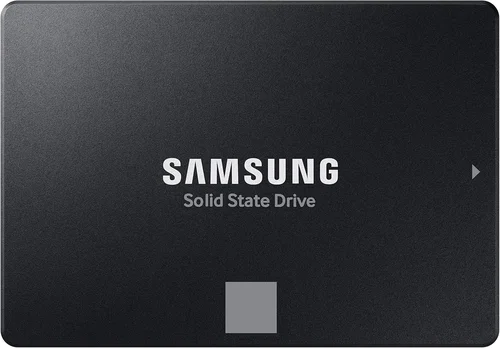
When it comes to choosing a laptop, one of the most critical decisions you’ll make—often overlooked by casual buyers—is selecting the right type of storage drive. Whether you’re a student juggling assignments, a creative professional editing 4K videos, or a gamer loading massive open-world titles, the storage solution in your laptop dramatically impacts performance, reliability, and overall user experience. In 2026, the debate between Solid State Drives (SSDs) and Hard Disk Drives (HDDs) remains central to laptop shopping, but the landscape has evolved significantly. With SSD prices continuing to drop and capacities expanding, the gap between these two technologies is wider than ever in terms of performance, yet nuanced when it comes to cost and use-case suitability.
This comprehensive buying guide is designed to cut through the technical jargon and marketing hype to help you make an informed, confident decision. You’ll learn not just the differences between SSDs and HDDs, but how to evaluate them based on your specific needs—whether that’s speed, storage capacity, durability, or budget. We’ll explore real-world performance benchmarks, longevity considerations, and emerging trends like NVMe and SATA III interfaces. By the end of this guide, you’ll understand not only which type of drive is best for your situation, but also how to spot the best deals, avoid common pitfalls, and future-proof your investment. Whether you’re upgrading an existing machine or buying your first laptop, this guide will serve as your trusted companion in navigating the 2026 storage market.
The laptop storage market in 2026 is more dynamic than ever. While HDDs still hold a foothold in budget and high-capacity segments, SSDs have become the standard in nearly every new laptop released by major manufacturers. Advances in 3D NAND technology, QLC (Quad-Level Cell) flash, and PCIe Gen 4 and Gen 5 interfaces have pushed SSD performance and efficiency to new heights. Meanwhile, HDD manufacturers continue to innovate with higher areal densities and hybrid solutions, but their mechanical nature inherently limits speed and resilience. As cloud storage and streaming services grow, local storage demands are shifting—yet for many users, having fast, reliable onboard storage remains essential. This guide will help you understand where each technology excels, so you can choose wisely based on your workflow, lifestyle, and long-term goals.

What to Look for When Buying Buying Guide
1. Budget & Price Range
Your budget is often the first and most decisive factor when choosing between an SSD and an HDD. In 2026, SSDs have become significantly more affordable, but they still command a premium over HDDs—especially at higher capacities. A 1TB SSD typically costs 30–50% more than a 1TB HDD, and that gap widens with larger drives. For budget-conscious buyers, this difference can be substantial. However, it’s important to consider total cost of ownership, not just upfront price. SSDs consume less power, generate less heat, and are less prone to failure, which can translate into longer laptop lifespan and lower long-term costs. If you’re working with a tight budget under $600, you may find laptops with 256GB or 512GB SSDs or hybrid setups (small SSD + large HDD). For mid-range ($800–$1,500) and premium ($1,500+) laptops, SSDs are almost universally standard. Always weigh the performance benefits against the price difference—sometimes paying $100 more for an SSD upgrade is worth it for the speed and reliability gains.
2. Performance Specifications
Performance is where SSDs truly shine. Unlike HDDs, which rely on spinning magnetic platters and a moving read/write head, SSDs use flash memory with no moving parts. This fundamental difference results in dramatically faster boot times, application launches, file transfers, and system responsiveness. In real-world terms, a laptop with an SSD can boot in under 10 seconds, while an HDD may take 30–60 seconds or more. NVMe SSDs, which connect via the PCIe interface, offer even greater speeds—up to 7,000 MB/s for Gen 4 drives and over 10,000 MB/s for Gen 5—compared to SATA SSDs (around 550 MB/s) and HDDs (typically 80–160 MB/s). For tasks like video editing, software development, or gaming, these speed differences are not just noticeable—they’re transformative. When evaluating performance, look for the interface type (SATA, NVMe), read/write speeds, and IOPS (Input/Output Operations Per Second), which measure how quickly the drive can handle small file operations. Higher IOPS mean smoother multitasking and faster system responsiveness.
3. Build Quality & Durability
Durability is a major advantage of SSDs, especially for users who travel frequently or work in rugged environments. Because SSDs have no moving parts, they are far less susceptible to physical shock, vibration, or drops. An HDD, with its delicate spinning platters and mechanical arm, can suffer catastrophic failure if jostled during operation—something as simple as closing a laptop lid too quickly can cause damage. SSDs are also more resistant to temperature fluctuations and consume less power, which reduces heat output and extends battery life. This makes them ideal for ultrabooks, 2-in-1 convertibles, and laptops used in mobile settings. Additionally, SSDs typically have longer lifespans under normal use, with modern drives rated for hundreds of terabytes written (TBW). While both drive types can fail, SSDs are generally more reliable over time, especially in laptops subjected to frequent movement.
4. Storage Capacity Needs
Capacity requirements vary widely depending on your use case. If you’re a casual user storing documents, photos, and web-based apps, 256GB may suffice. However, for gamers, content creators, or professionals working with large files (4K video, RAW photos, CAD models), 1TB or more is often necessary. Here’s where HDDs still hold an edge: they offer much higher capacities at lower prices. You can easily find 2TB, 4TB, or even 5TB HDDs for a fraction of the cost of同等容量的SSD. For example, a 4TB HDD might cost $100, while a 4TB SSD could run $300–$500. If you need massive storage for media libraries or backups, an HDD—or a hybrid setup—might be more practical. However, consider whether cloud storage or external drives could supplement your needs. Many users now offload large files to the cloud or external SSDs, allowing them to use smaller, faster internal SSDs without sacrificing accessibility.
5. Power Efficiency & Battery Life
Power consumption is a critical but often overlooked factor, especially for laptop users who rely on battery life. SSDs are inherently more energy-efficient than HDDs because they don’t require power to spin platters or move mechanical arms. This translates to longer battery life—typically 30–60 minutes more on a single charge, depending on usage. For students, travelers, or remote workers, this difference can be significant. Additionally, SSDs generate less heat, which reduces the workload on the laptop’s cooling system and can prevent thermal throttling during intensive tasks. Cooler operation also contributes to component longevity. If you’re choosing between two otherwise identical laptops, the one with an SSD will almost always offer better battery performance and thermal management, making it the smarter long-term choice.
6. Noise & Heat Output
One of the most noticeable differences in daily use is noise. HDDs produce audible sounds—clicking, whirring, and spinning—especially during heavy read/write operations or when the drive is accessing data. These sounds can be distracting in quiet environments like libraries, meetings, or late-night work sessions. SSDs, being silent, offer a completely noise-free experience. They also run cooler, which not only improves comfort but also helps maintain consistent performance. Overheating can cause laptops to throttle CPU and GPU speeds to prevent damage, leading to lag and reduced productivity. SSDs help mitigate this by reducing internal heat buildup. For users who value a quiet, cool-running machine—especially in compact laptops with limited cooling—SSDs are the clear winner.
7. Brand Reputation & Reliability
Not all SSDs and HDDs are created equal, even within the same category. Brand reputation matters when it comes to reliability, firmware quality, and long-term support. For SSDs, top-tier brands like Samsung, Crucial, Western Digital, and Kingston are known for consistent performance, robust controllers, and excellent endurance ratings. Samsung’s 990 Pro and Crucial’s P5 Plus are standout NVMe drives in 2026. For HDDs, Seagate, Western Digital, and Toshiba remain reliable choices, with WD’s Blue and Black series offering good balance between performance and durability. Avoid no-name or ultra-cheap brands, especially for SSDs, as they may use inferior NAND flash or lack proper error correction, leading to data corruption or early failure. Always check independent reviews and failure rate reports (like those from Backblaze) before making a decision.
8. Warranty & Support
Warranty length and support quality can be telling indicators of a drive’s expected lifespan and manufacturer confidence. Most consumer SSDs come with 3–5 year warranties, often tied to TBW (terabytes written) limits. For example, a 1TB SSD might be rated for 600 TBW, meaning you can write 600 terabytes of data over its lifetime before warranty coverage may lapse. HDDs typically offer 2–3 year warranties, with some high-end models (like WD Black) offering 5 years. When comparing drives, look not just at warranty duration but also at the terms—some manufacturers require registration, while others offer hassle-free replacements. Additionally, consider the availability of firmware updates, diagnostic tools, and customer support. Brands like Samsung and Crucial provide excellent software suites (Samsung Magician, Crucial Storage Executive) that help monitor drive health, optimize performance, and update firmware—features rarely available with budget or generic drives.
Different Types of Buying Guide

Common Buying Mistakes to Avoid
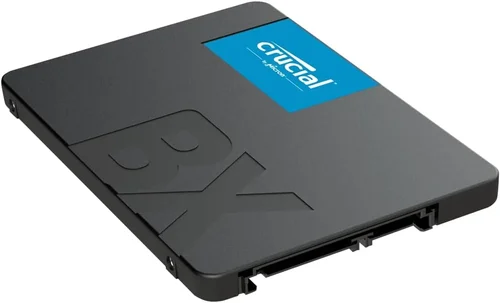
❌ Mistake: Prioritizing Capacity Over Speed
Why it’s bad: Many buyers focus solely on how much storage they can get for their money, leading them to choose a large HDD over a smaller SSD. While 2TB of space sounds appealing, the slow performance of an HDD can make everyday tasks frustrating—long boot times, laggy applications, and slow file transfers. This trade-off often results in a worse user experience, even if you have plenty of room to store files.
What to do instead: Prioritize speed for your operating system and frequently used applications. Opt for at least a 512GB SSD, and use external or cloud storage for large media files. The performance gain from an SSD far outweighs the convenience of extra onboard space in most scenarios.
❌ Mistake: Ignoring Interface Compatibility
Why it’s bad: Not all SSDs are compatible with all laptops. Some older systems only support SATA III, while newer ones may require M.2 NVMe drives. Buying an NVMe SSD for a laptop that only accepts SATA will result in a useless purchase. Similarly, physical size (2.5-inch vs. M.2 2280) matters.
What to do instead: Check your laptop’s specifications or user manual before buying. Look for the supported interface (SATA, NVMe), form factor (2.5″, M.2), and key type (B-key, M-key, or B+M). When in doubt, consult the manufacturer or use tools like Crucial’s Scanner to find compatible upgrades.
❌ Mistake: Overlooking Endurance Ratings (TBW)
Why it’s bad: SSDs have a finite number of write cycles. While modern drives are highly durable, heavy users (video editors, developers, database managers) can wear out a drive faster than expected. Ignoring TBW (terabytes written) ratings may lead to premature failure.
What to do instead: Check the TBW rating for any SSD you consider. For example, a 1TB drive with 600 TBW can handle 600 terabytes of data written over its lifetime. If you write 50GB daily, that’s about 33 years of use—more than enough for most. But for intensive workloads, choose drives with higher TBW or enterprise-grade models.
❌ Mistake: Assuming All SSDs Are the Same
Why it’s bad: The SSD market is flooded with options, and not all are created equal. Budget SSDs may use slower NAND (like QLC) or inferior controllers, leading to performance drops under sustained load. Some may lack DRAM caches, which are crucial for consistent speed.
What to do instead: Research the specific model. Look for reviews that test real-world performance, not just synthetic benchmarks. Prefer SSDs with DRAM caches and TLC or MLC NAND for better longevity and performance. Avoid ultra-cheap, no-name brands.
❌ Mistake: Neglecting Backup Strategies
Why it’s bad: Whether you use an SSD or HDD, data loss can happen due to failure, theft, or accidental deletion. Relying solely on internal storage without backups is risky. SSDs, while reliable, can still fail suddenly without warning.
What to do instead: Implement a 3-2-1 backup strategy: keep three copies of your data, on two different media, with one offsite (e.g., cloud or external drive). Use automated backup tools like Time Machine (Mac), File History (Windows), or third-party software like Acronis.
❌ Mistake: Buying Based on Brand Alone
Why it’s bad: While brand reputation matters, blindly choosing a well-known brand without checking the specific model can lead to disappointment. Some brands offer both premium and budget lines, and the cheaper options may underperform.
What to do instead: Compare models within brands. Read independent reviews from sources like Tom’s Hardware, AnandTech, or PCMag. Look at user feedback on retail sites for real-world reliability insights.
❌ Mistake: Forgetting About Future-Proofing
Why it’s bad: Buying a laptop with only a small SSD (e.g., 128GB) may seem fine initially, but OS updates, apps, and files quickly consume space. Upgrading later can be difficult or impossible on some ultrabooks.
What to do instead: Choose a laptop with at least 512GB of SSD storage, or one that allows easy upgrades. If you plan to keep the laptop for 4–5 years, invest in a larger drive now to avoid frustration later.
Budget Guidelines: How Much Should You Spend?
Entry-Level ($300–$600): In this range, you’ll typically find laptops with 128GB–256GB SSDs or 1TB HDDs. While HDDs offer more space, the performance difference is stark. If possible, stretch your budget slightly to get a 256GB SSD—many manufacturers offer this as a $50–$100 upgrade. Look for refurbished or last-gen models with SSDs for better value. Avoid pure HDD configurations unless you absolutely need the storage and can tolerate slow performance.
Mid-Range ($600–$1,200): This is the sweet spot for most buyers. Laptops in this tier almost always come with 512GB SSDs, and many offer 1TB options. You’ll find NVMe Gen 3 or Gen 4 drives, providing excellent speed for everyday tasks, gaming, and light content creation. This range offers the best balance of performance, capacity, and price. Prioritize SSDs here—there’s no compelling reason to choose an HDD.
Premium ($1,200–$2,000): Expect 1TB or larger NVMe Gen 4 SSDs as standard. These drives deliver top-tier performance, ideal for professionals working with large files. Some models may include dual SSD slots for expansion. At this level, storage is rarely a bottleneck, and you’ll benefit from faster workflows, quicker renders, and seamless multitasking.
Luxury ($2,000+): High-end laptops often feature 2TB–4TB NVMe Gen 4 or Gen 5 SSDs, sometimes in RAID configurations for even greater speed. These are built for power users—video editors, 3D artists, data scientists—who demand maximum performance and reliability. While overkill for casual users, the investment pays off in productivity and future-proofing.
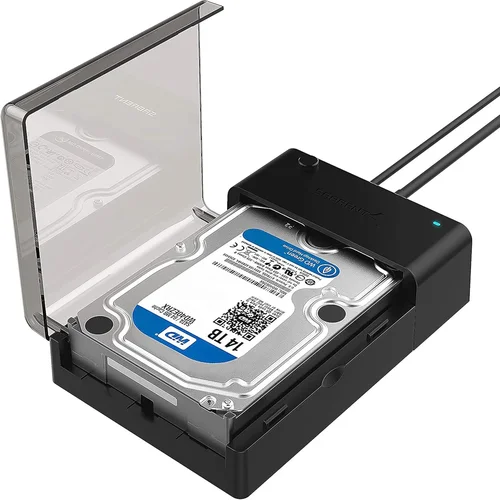
Expert Tips for Getting the Best Deal
1. Time Your Purchase Around Sales Cycles: Major sales events like Black Friday, Cyber Monday, back-to-school (July–August), and Amazon Prime Day offer significant discounts on laptops and storage upgrades. Retailers often bundle SSD upgrades at reduced prices during these periods. Sign up for deal alerts from retailers like Best Buy, Newegg, or B&H to catch flash sales.
2. Buy from Reputable Retailers with Good Return Policies: Stick to well-known stores that offer at least 14–30 days for returns and exchanges. This gives you time to test the drive’s performance and compatibility. Avoid third-party sellers on marketplaces unless they have high ratings and clear return terms.
3. Consider Refurbished or Open-Box Models: Certified refurbished laptops from manufacturers (Dell, HP, Lenovo) or retailers often come with new SSDs and full warranties at 20–40% off retail. Open-box items are typically returned due to buyer’s remorse and are in like-new condition.
4. Upgrade After Purchase: If your laptop allows it, buying a base model and upgrading the SSD yourself can save money. A 1TB NVMe SSD might cost $100, but the same upgrade from the manufacturer could be $200–$300. Just ensure the laptop has an accessible M.2 slot and supports the drive type.
5. Check for Manufacturer Rebates and Student Discounts: Many brands offer student, military, or educator discounts that can reduce the cost of SSD-equipped laptops. Apple, Microsoft, and Dell all have education stores with exclusive pricing.
6. Use Price Tracking Tools: Tools like Honey, CamelCamelCamel, or Keepa can track price history and alert you when a laptop or SSD drops to its lowest point. This helps you avoid overpaying during inflated periods.
7. Test Performance Before Committing: If buying in-store, ask to see benchmarks or boot times. For online purchases, check YouTube reviews that show real-world performance. Look for consistent speeds, not just peak numbers.
8. Prioritize Warranty and Support: A longer warranty often indicates higher confidence in the product. Choose brands that offer easy RMA processes and good customer service. Samsung and Crucial, for example, provide excellent support for SSD replacements.

Frequently Asked Questions
Q: Can I replace an HDD with an SSD in my existing laptop?
A: Yes, in most cases. If your laptop has a 2.5-inch drive bay, you can replace the HDD with a 2.5-inch SATA SSD. You’ll also need a cloning tool or fresh OS installation. For M.2 slots, check compatibility first. Some ultrabooks have soldered storage, so upgrading isn’t possible.
Q: Is a 256GB SSD enough for Windows 11?
A: It can be, but it’s tight. Windows 11 alone takes 30–40GB, and updates, apps, and temporary files can quickly fill the drive. If you only use web apps and cloud storage, 256GB may suffice. For most users, 512GB is the practical minimum.
Q: Do SSDs slow down over time?
A: Yes, but modern SSDs with wear leveling and over-provisioning minimize this. Performance drops are usually minor and only noticeable under heavy, sustained workloads. Regular TRIM support (enabled by default in Windows and macOS) helps maintain speed.
Q: Are external SSDs as fast as internal ones?
A: USB 3.2 Gen 2 or Thunderbolt 3/4 external SSDs can match or exceed SATA SSD speeds (up to 1,050 MB/s for USB 3.2, 2,800 MB/s for Thunderbolt). However, they’re slightly slower than internal NVMe drives and depend on the port speed.
Q: Can I use both an SSD and HDD in one laptop?
A: Yes, if your laptop has multiple drive bays or supports both 2.5-inch and M.2 slots. Many gaming and workstation laptops allow this setup—use the SSD for the OS and apps, and the HDD for storage.
Q: Are QLC SSDs reliable?
A: QLC (Quad-Level Cell) SSDs are cheaper and offer high capacities but have lower endurance and slower write speeds under load. They’re fine for general use but not ideal for heavy writing tasks. TLC SSDs are better for performance and longevity.
Q: How do I know if my laptop supports NVMe?
A: Check the specifications on the manufacturer’s website or use tools like CPU-Z or HWiNFO to identify the M.2 slot type. NVMe requires an M-key slot and UEFI support. Most laptops from 2017 onward support NVMe.
Q: What happens if my SSD fails?
A: Unlike HDDs, SSDs often fail without warning. Data recovery is difficult and expensive. That’s why regular backups are essential. If under warranty, contact the manufacturer for a replacement.
Q: Is it worth paying extra for a Gen 4 SSD?
A: For most users, Gen 3 is sufficient. Gen 4 offers double the speed, but real-world benefits are minimal unless you’re transferring huge files daily or working with 8K video. Gen 4 is future-proof but not necessary for average use.
Q: Can I install macOS on an external SSD?
A: Yes, macOS supports booting from external SSDs via Thunderbolt or USB-C. This is a great way to run macOS on a PC or expand storage on a Mac with limited internal space.
Our Final Recommendations
Best for Budget-Conscious Buyers: Acer Aspire 5 with 512GB SATA SSD – At under $600, this laptop offers reliable performance, a full HD display, and a fast SSD for everyday tasks. Avoid models with HDDs in this price range.
Best Overall Value: Lenovo IdeaPad 5 Pro with 1TB NVMe Gen 3 SSD – Priced around $900, it delivers excellent performance, a vibrant 2.8K display, and ample storage for students and professionals.
Best Premium Option: Dell XPS 15 with 2TB NVMe Gen 4 SSD – A top-tier machine for creators, featuring a stunning 4K OLED display, powerful specs, and lightning-fast storage. Ideal for video editing and design work.
Best for Beginners: HP Pavilion 15 with 512GB SSD – User-friendly, well-built, and affordable. Great for first-time laptop buyers who want speed without complexity.
Best for Advanced Users: ASUS ROG Zephyrus G14 with 2TB Gen 4 SSD – A compact gaming powerhouse with exceptional SSD performance, ideal for gamers and developers who need speed and portability.
Conclusion: Making the Right Choice
Choosing between an SSD and HDD for your laptop in 2026 comes down to balancing speed, capacity, durability, and budget. While HDDs still offer unbeatable value for bulk storage, SSDs have become the clear winner for performance, reliability, and user experience. For nearly every user—from students to professionals—an SSD is the smarter, more future-proof investment. The days of tolerating slow boot times and laggy systems are over. With SSD prices more accessible than ever, there’s little reason to settle for an HDD unless you absolutely need massive, low-cost storage.
As you shop, remember to prioritize your specific needs. If you value speed, silence, and battery life, go SSD—preferably NVMe if your system supports it. If you’re on a tight budget and need lots of space, consider a hybrid approach or supplement with external storage. Always check compatibility, read reviews, and take advantage of sales and upgrade options. Your laptop’s storage is the foundation of its performance, and choosing wisely will ensure a smooth, responsive experience for years to come. Don’t just buy a laptop—build a system that works as hard as you do.