

When it comes to choosing a laptop in 2026, one of the most critical—and often misunderstood—decisions you’ll make is whether to go with a solid-state drive (SSD) or a traditional hard disk drive (HDD). This choice isn’t just about storage; it affects everything from how fast your laptop boots up and launches apps to how long it lasts under daily use. With technology evolving rapidly and prices shifting dramatically over the past few years, the gap between SSDs and HDDs has narrowed in cost but widened in performance. Yet, many buyers still base their decision on outdated assumptions, outdated specs, or misleading marketing claims.
This comprehensive buyer’s guide is designed to cut through the noise and give you a clear, expert-backed roadmap for making the right storage choice for your needs. Whether you’re a student on a tight budget, a creative professional handling large video files, a gamer seeking lightning-fast load times, or a remote worker who values reliability and speed, this guide will help you understand not just what SSDs and HDDs are, but why one might be far better than the other for your specific use case. We’ll dive deep into performance benchmarks, real-world usability, longevity, pricing trends, and even future-proofing considerations so you can buy with confidence—not confusion.
The laptop market in 2026 is more diverse than ever. You can find ultra-thin ultrabooks with blazing-fast NVMe SSDs, rugged business laptops with hybrid storage setups, and budget Chromebooks that still rely on eMMC or small-capacity SSDs. Meanwhile, HDDs haven’t disappeared—they’re still found in entry-level machines and some niche workstations where massive storage capacity trumps speed. But the trend is undeniable: SSDs are now the standard, and for good reason. By the end of this guide, you’ll know exactly when an HDD might still make sense—and why, in most cases, investing in an SSD is not just smarter, but essential.

What to Look for When Buying Buying Guide
1. Budget & Price Range
Your budget is the starting point for any laptop purchase, and storage type plays a huge role in determining how much you’ll spend. In 2026, the price difference between SSDs and HDDs has shrunk significantly compared to a decade ago, but it still exists—especially at higher capacities. A 1TB SSD might cost $80–$150 more than a 1TB HDD, while a 2TB SSD could run $200+ above its HDD counterpart. However, that gap narrows dramatically when you consider total system value: laptops with SSDs often come with better processors, more RAM, and superior build quality, making the overall package more compelling.
For budget-conscious buyers, it’s tempting to opt for an HDD to save money upfront. But consider the long-term costs. Slower performance means longer wait times, reduced productivity, and potentially earlier replacement due to frustration or mechanical failure. Conversely, even entry-level SSDs now offer excellent value. A $400–$500 laptop with a 256GB SSD will feel noticeably snappier than a $350 model with a 1TB HDD. Ask yourself: do you really need 1TB of slow storage, or would 512GB of fast storage serve you better? In most scenarios, the latter wins.
2. Performance Specifications
Performance is where SSDs truly shine—and HDDs struggle to keep up. The key metric here is read/write speed, measured in megabytes per second (MB/s). Modern NVMe SSDs can deliver sequential read speeds of 3,500–7,000 MB/s, while even SATA SSDs typically hit 500–550 MB/s. In contrast, a standard 5,400 RPM HDD averages around 80–120 MB/s, and even high-performance 7,200 RPM drives max out at about 150–180 MB/s. This difference translates directly into real-world experiences: boot times drop from over a minute to under 10 seconds, applications launch instantly, and file transfers complete in fractions of the time.
But performance isn’t just about raw speed. SSDs also excel in random access performance—the ability to quickly locate and read small files scattered across the drive. This is crucial for operating system responsiveness, multitasking, and running modern software like Adobe Creative Suite, virtual machines, or development environments. HDDs, with their spinning platters and moving read/write heads, suffer from significant latency during random operations, leading to noticeable lag and stuttering.
Another often-overlooked factor is IOPS (Input/Output Operations Per Second). High IOPS mean smoother performance when handling many small tasks simultaneously—like having dozens of browser tabs open while streaming music and downloading updates. SSDs routinely achieve tens or hundreds of thousands of IOPS; HDDs typically manage only 50–200. If your workflow involves heavy multitasking or data-intensive applications, an SSD isn’t just nice to have—it’s a necessity.
3. Build Quality & Durability
Durability is a major differentiator between SSDs and HDDs, especially for mobile users. HDDs contain mechanical parts—spinning disks and actuator arms—that are vulnerable to shock, vibration, and drops. A sudden jolt while the drive is active can cause the head to scratch the platter (a “head crash”), resulting in permanent data loss. This makes HDDs risky for students, travelers, or anyone using their laptop on the go.
SSDs, by contrast, have no moving parts. They’re built with NAND flash memory chips soldered or mounted on a circuit board, making them inherently more resistant to physical trauma. Many modern laptops with SSDs meet MIL-STD-810G military-grade durability standards, surviving drops from desk height, extreme temperatures, and humidity. This robustness translates into longer lifespan and fewer unexpected failures.
Additionally, SSDs generate less heat and consume less power than HDDs. Lower thermal output means quieter operation (no fan whirring to cool a hot drive) and better battery life—often adding 30–60 minutes of extra runtime on a single charge. For ultrabooks and 2-in-1 convertibles where every gram and milliwatt counts, SSDs are the only logical choice.
4. Features & Functionality
Beyond basic storage, consider what features matter most for your use case. Do you need encryption? Fast wake-from-sleep? Support for advanced file systems? SSDs generally support newer technologies like TRIM (which maintains performance over time), hardware-based AES encryption (for secure data), and NVMe protocols that leverage PCIe lanes for ultra-fast data transfer. Many enterprise-grade SSDs also include power-loss protection and wear-leveling algorithms to extend lifespan.
HDDs, while reliable in their own right, lag behind in feature integration. Most consumer HDDs lack native encryption unless paired with software solutions, and they don’t benefit from TRIM or similar optimization tools. Wake times are slower because the platters must spin up from rest—a process that can take several seconds. If you frequently put your laptop to sleep and resume quickly (common among professionals and students), this delay becomes frustrating.
Also consider compatibility with modern operating systems. Windows 11 and macOS Ventura (and later) are optimized for SSDs, with features like InstantGo (Windows) and Power Nap (macOS) designed to work seamlessly with flash storage. Running these OSes on an HDD diminishes their responsiveness and undermines their design intent.
5. Brand Reputation
Not all SSDs or HDDs are created equal—even within the same category. Brand reputation matters because it reflects consistency in quality, reliability, and customer support. For SSDs, top-tier brands like Samsung (980 Pro, 990 EVO), Western Digital (WD Black SN850X), Crucial (P5 Plus), and Kingston (KC3000) are known for rigorous testing, strong firmware, and long warranties (often 5 years). These drives consistently rank high in independent benchmarks and user reviews.
For HDDs, Seagate and Western Digital remain dominant, with models like the WD Blue and Seagate Barracuda offering solid performance for general use. However, avoid no-name or ultra-budget brands—especially for HDDs, where poor manufacturing can lead to early failure. Look for drives with at least a 2-year warranty and check third-party reliability reports (like those from Backblaze) before buying.
When choosing a laptop, pay attention to which storage brand the manufacturer uses. Premium laptops (e.g., Dell XPS, Lenovo ThinkPad, Apple MacBook) almost always include high-quality SSDs from reputable suppliers. Budget models may use cheaper, slower SSDs or older HDD models to cut costs—so always verify the exact model number if possible.
6. Warranty & Support
Warranty terms can reveal a lot about a drive’s expected lifespan. Most consumer SSDs come with 3–5 year limited warranties, often tied to terabytes written (TBW)—a measure of how much data can be written before the drive is likely to fail. For example, a 1TB Samsung 980 Pro has a TBW rating of 600TB and a 5-year warranty. This means even heavy users writing 100GB daily would take over 16 years to reach the limit.
HDD warranties are typically shorter—1–3 years—and based solely on time, not usage. Since HDDs degrade mechanically over time regardless of use, this reflects their inherently lower endurance. If your laptop includes an HDD, check whether the warranty covers accidental damage or just defects. Many manufacturers offer extended protection plans, but these are rarely worth it for HDD-based systems due to the higher risk of physical failure.
Always register your laptop and storage drive with the manufacturer to activate warranty coverage. Keep receipts and note the serial number. And if you’re buying refurbished or open-box, ensure the warranty is transferable—some SSDs have user-replaceable components, but warranties may not carry over.
7. Size & Portability
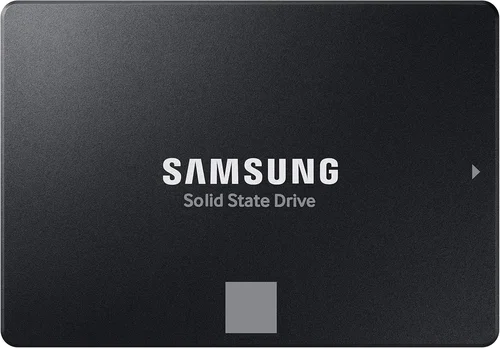
Physical size and weight matter more than you might think—especially if you carry your laptop daily. SSDs are significantly smaller and lighter than HDDs. A typical 2.5-inch HDD weighs around 150–200 grams, while an M.2 SSD (the most common form factor in modern laptops) weighs just 5–10 grams. This difference allows laptop designers to create thinner, lighter machines without sacrificing storage.
In 2026, the majority of new laptops—even budget models—use M.2 NVMe SSDs because they save space, reduce weight, and improve thermal efficiency. HDDs are increasingly relegated to larger 15.6-inch or 17-inch laptops where internal volume isn’t a constraint. If you prioritize portability (e.g., for commuting, travel, or campus use), an SSD-equipped laptop will almost always be the better fit.
Moreover, the compact nature of SSDs enables innovative designs: dual-screen laptops, foldable PCs, and ultra-slim convertibles simply wouldn’t be feasible with bulky HDDs. Even if you don’t think size matters now, you’ll appreciate the difference after carrying a lightweight SSD laptop for a full day.
8. User Reviews & Ratings
Never underestimate the power of real-user feedback. While spec sheets tell you what a drive can do, user reviews reveal what it actually does in daily life. Look for patterns: do multiple users report slow boot times on an HDD model? Are there complaints about overheating or fan noise? Conversely, do SSD users praise the instant responsiveness and quiet operation?
Platforms like Amazon, Newegg, Best Buy, and Reddit (r/laptops, r/buildapc) are goldmines for honest opinions. Pay special attention to reviews from users with similar needs—students, gamers, video editors, etc. Also check professional review sites like Notebookcheck, PCMag, and Tom’s Hardware, which conduct rigorous testing including real-world benchmarks, battery life tests, and thermal analysis.
Be wary of fake or incentivized reviews. Focus on detailed, long-term experiences rather than one-line praises. And remember: a laptop with an SSD might have fewer negative reviews simply because it performs better out of the box—leading to higher satisfaction and fewer returns.
Different Types of Buying Guide

Common Buying Mistakes to Avoid
❌ Mistake: Choosing HDD for “More Storage”
Why it’s bad: Many buyers assume that a 1TB HDD is always better than a 256GB SSD because of the larger number. But this ignores the reality of modern storage needs. Most users don’t actually need 1TB—especially when cloud storage (Google Drive, OneDrive, iCloud) and external drives offer affordable expansion. Meanwhile, a slow HDD makes everyday tasks frustrating, reducing productivity and enjoyment.
What to do instead: Prioritize speed over sheer capacity. Start with a 512GB SSD—it’s plenty for OS, apps, and active projects. Use cloud or external storage for media archives. You’ll gain responsiveness and lose almost nothing practical.
❌ Mistake: Ignoring SSD Type (SATA vs NVMe)
Why it’s bad: Not all SSDs are equal. A SATA SSD is much slower than an NVMe SSD, yet both are marketed as “SSD.” Buying a laptop with a SATA SSD thinking you’re getting top-tier performance leads to disappointment, especially if you’re used to fast desktops or newer devices.
What to do instead: Always check the SSD interface. Look for “NVMe” or “PCIe” in specs—these indicate the fastest current-gen drives. If it just says “SSD,” assume it’s SATA unless confirmed otherwise.
❌ Mistake: Overlooking Upgradeability
Why it’s bad: Some laptops solder the SSD directly to the motherboard, making upgrades impossible. Buying a low-capacity SSD model with no upgrade path traps you into insufficient storage forever.
What to do instead: Research whether the laptop has a replaceable M.2 slot or 2.5-inch bay. Business lines (ThinkPad, Latitude) and gaming laptops often allow upgrades. Avoid ultra-thin models if future expansion matters.
❌ Mistake: Assuming All Budget Laptops Use HDDs
Why it’s bad: This outdated belief leads buyers to dismiss affordable SSD options. In 2026, even $300–$400 laptops commonly include 128GB–256GB SSDs, offering vastly better performance than older HDD models.
What to do instead: Always check the storage spec—not just the price. A $399 SSD laptop will outperform a $349 HDD model in every meaningful way.
❌ Mistake: Neglecting Real-World Performance
Why it’s bad: Relying solely on synthetic benchmarks or marketing claims can mislead you. A drive might score high in lab tests but suffer from poor firmware, thermal throttling, or inconsistent real-world speeds.
What to do instead: Read hands-on reviews that test boot time, app launch, file transfer, and multitasking. Real usage matters more than peak numbers.
❌ Mistake: Forgetting About Battery Life Impact
Why it’s bad: HDDs consume more power due to spinning platters and active heads. This drains batteries faster, especially during light use like web browsing or document editing.
What to do instead: If you value all-day battery life, choose an SSD. The efficiency gain is measurable and meaningful—especially on ultraportables.
❌ Mistake: Buying Based on Brand Alone
Why it’s bad: Just because a laptop brand is reputable doesn’t mean every configuration is good. Some premium brands offer HDD base models to hit low price points, sacrificing user experience.
What to do instead: Always verify the exact storage type and model in the specific configuration you’re buying—don’t assume all units of a given laptop model are equal.
Budget Guidelines: How Much Should You Spend?
Entry-Level ($250–$500): In this range, you’ll find mostly Chromebooks and Windows laptops with eMMC storage or small SATA SSDs (128GB–256GB). Avoid HDDs here—they’re slow and often paired with weak CPUs. Look for models with at least 4GB RAM and an SSD for usable performance. Ideal for light browsing, schoolwork, and streaming.
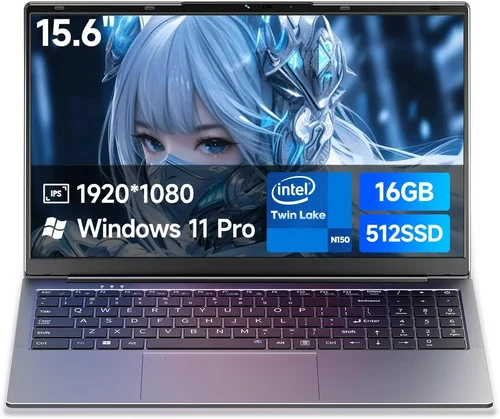
Mid-Range ($500–$900): This is the sweet spot for most buyers. You’ll get 512GB NVMe SSDs, 8–16GB RAM, and capable processors (Intel Core i5/i7 or AMD Ryzen 5/7). Performance is excellent for office work, coding, photo editing, and casual gaming. Avoid hybrids unless you truly need extra storage—pure SSD setups offer better value.
Premium ($900–$1,800): Expect top-tier NVMe SSDs (1TB+), high-refresh displays, dedicated GPUs, and premium builds. Perfect for creators, gamers, and professionals. Storage is rarely a bottleneck here—focus on GPU, CPU, and display quality instead.
Luxury ($1,800+): These laptops prioritize cutting-edge tech: PCIe 5.0 SSDs, OLED screens, and workstation-grade components. Storage is abundant and blazing fast, but the real value is in build quality, support, and ecosystem integration (e.g., MacBook Pro with unified memory).
Expert Tips for Getting the Best Deal
– Buy during seasonal sales: Back-to-school (July–September), Black Friday (November), and post-holiday clearance (January) offer the deepest discounts on laptops—especially last-gen models with SSDs.
– Check manufacturer refurbished programs: Dell Outlet, Apple Refurbished, and Lenovo Certified Renewed sell near-new laptops with full warranties at 15–30% off retail.
– Compare total cost of ownership: A slightly more expensive SSD laptop may save you money long-term by lasting longer, requiring fewer repairs, and boosting productivity.
– Test before you buy: If possible, visit a store to experience boot time, app launch, and general snappiness. You’ll instantly feel the SSD advantage.
– Read the fine print on warranties: Some “free” extended warranties exclude storage failures or require registration within 30 days.
– Consider external SSDs: If you’re stuck with a small internal SSD, a fast USB-C external SSD (like Samsung T7) can expand storage without sacrificing speed.
– Watch for bundle deals: Some retailers include free cloud storage (e.g., 100GB Google One) or backup software with SSD laptops—adds real value.

Frequently Asked Questions
Q: Can I upgrade an HDD laptop to SSD later?
A: Yes—in most cases. If your laptop has a 2.5-inch drive bay or replaceable M.2 slot, you can swap in an SSD yourself. You’ll need cloning software (like Macrium Reflect or Samsung Data Migration) to transfer your OS and files. However, some ultra-thin laptops have soldered storage, so check upgradability before buying.
Q: Is a 256GB SSD enough for everyday use?
A: For most users, yes—especially if you use cloud storage or stream media. Windows 11 uses about 30–40GB, leaving ample space for apps, documents, and photos. If you install many games or edit large videos, consider 512GB or more.
Q: Do SSDs really last longer than HDDs?
A: In terms of mechanical failure, absolutely—SSDs have no moving parts. However, SSDs do wear out over time due to write cycles. Modern SSDs are engineered to last 5–10 years under normal use, often outliving the laptop itself.
Q: Why are some SSDs more expensive than others?
A: Price differences come from interface (SATA vs NVMe), NAND type (QLC vs TLC), endurance (TBW), brand, and features like encryption. Higher-end SSDs offer better performance, longevity, and reliability.
Q: Can I use both an SSD and HDD in one laptop?
A: Yes, if the laptop has multiple drive bays or supports dual storage (common in 15-inch+ models). Install the OS and apps on the SSD for speed, and use the HDD for bulk storage like videos or backups.
Q: Are external SSDs as fast as internal ones?
A: USB 3.2 Gen 2 or Thunderbolt 3/4 external SSDs can match or exceed internal SATA SSD speeds. However, they won’t reach NVMe internal speeds and may require separate power or cooling for sustained workloads.
Q: Should I defragment my SSD?
A: No—and doing so can reduce its lifespan. SSDs don’t benefit from defragmentation like HDDs. Instead, ensure TRIM is enabled (it is by default in Windows 10/11 and macOS) to maintain performance.
Q: Do gaming laptops need NVMe SSDs?
A: While not strictly required, NVMe SSDs drastically reduce game load times and asset streaming in open-world titles. For competitive gaming or large game libraries, the speed boost is worth the investment.
Q: What’s the difference between M.2 and 2.5-inch SSDs?
A: M.2 SSDs are small, stick-like drives that connect directly to the motherboard—common in thin laptops. 2.5-inch SSDs resemble traditional HDDs and use SATA cables—found in older or larger laptops. Both can be fast, but M.2 often supports NVMe for higher speeds.
Q: Will an SSD improve my laptop’s resale value?
A: Yes. Laptops with SSDs sell faster and for higher prices because they feel modern and responsive. Buyers know they won’t need an immediate upgrade.
Our Final Recommendations
Best for Budget-Conscious Buyers: Acer Aspire 5 (2026 model) with 512GB NVMe SSD – Offers excellent performance under $600, ideal for students and home users who refuse to compromise on speed.
Best Overall Value: Lenovo IdeaPad Slim 7 – Packs a 1TB NVMe SSD, Ryzen 7 CPU, and premium build under $900. Perfect balance of power, storage, and price.
Best Premium Option: Dell XPS 15 (2026) – Features a 2TB PCIe 4.0 SSD, stunning display, and workstation-grade performance for creators and professionals.
Best for Beginners: HP Pavilion Aero 13 – Lightweight, affordable ($550), and equipped with a 256GB SSD. Great first laptop that won’t frustrate with slowness.
Best for Advanced Users: ASUS ROG Zephyrus G14 – Combines a 1TB NVMe SSD with a powerful GPU and CPU in a compact chassis—ideal for gamers and developers who demand speed and portability.
Conclusion: Making the Right Choice
The debate between SSD and HDD isn’t really a debate anymore—it’s a transition. In 2026, SSDs are the clear winner for nearly every user scenario, offering unmatched speed, durability, efficiency, and user experience. While HDDs still have a place in niche applications requiring massive, low-cost storage, their mechanical limitations make them a poor choice for mainstream laptop use.
As you shop, remember that storage is not just about capacity—it’s about how your laptop feels to use every day. A fast SSD transforms computing from a chore into a pleasure, reducing wait times, eliminating frustration, and extending the useful life of your device. Don’t let outdated habits or misleading specs steer you toward an HDD. Instead, prioritize an SSD—even if it means starting with slightly less storage—and supplement with cloud or external options as needed.
Your laptop is an investment in your productivity, creativity, and connectivity. Make sure that investment is built on a foundation of speed and reliability. Choose wisely, upgrade when possible, and enjoy the seamless experience that only an SSD can deliver.