
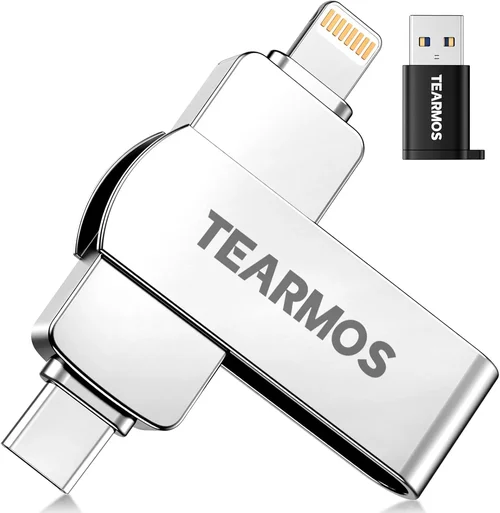
When it comes to storing your precious photo collection—whether you’re a hobbyist snapping vacation memories or a professional photographer archiving thousands of high-resolution RAW files—the question of whether an SSD is the best choice can’t be answered with a simple yes or no. It depends on your workflow, budget, and long-term goals. But one thing is clear: solid-state drives (SSDs) have revolutionized how we store, access, and protect digital images. Gone are the days when slow hard disk drives (HDDs) were the default for photo storage. Today, SSDs offer faster load times, greater reliability, and compact designs that make them ideal for modern photographers.
This comprehensive buying guide is designed to cut through the noise and help you make an informed decision about whether an SSD is right for your photo storage needs—and if so, which one to choose. Whether you’re backing up family albums, managing a growing portfolio, or working in fast-paced environments like weddings or events, understanding the nuances of SSD technology will empower you to protect your work and streamline your workflow. We’ll explore everything from performance specs and durability to budget considerations and real-world use cases, ensuring you walk away with actionable insights tailored to your unique situation.
The market for SSDs has exploded in recent years, with options ranging from affordable portable drives to enterprise-grade NVMe units capable of handling terabytes of data at lightning speeds. Brands like Samsung, SanDisk, Crucial, WD, and Kingston now offer a wide spectrum of products, each catering to different user profiles. Some prioritize speed for editing large files directly from the drive, while others emphasize portability for on-the-go backups. With prices dropping and capacities increasing, there’s never been a better time to upgrade your photo storage strategy. By the end of this guide, you’ll know exactly what to look for, what to avoid, and how to get the most value for your investment.

What to Look for When Buying Buying Guide
1. Budget & Price Range
Your budget is often the first—and sometimes the most decisive—factor when choosing an SSD for photo storage. Prices vary dramatically based on capacity, form factor, speed, and brand. Entry-level portable SSDs start around $50 for 500GB, while high-performance NVMe drives with 4TB+ can cost over $500. It’s tempting to go for the cheapest option, but remember: your photos are irreplaceable. Investing in a reliable drive from a reputable brand is rarely a mistake.
Consider how many photos you currently have and how quickly your collection is growing. A 1TB drive might seem like overkill today, but if you shoot in RAW format (which can consume 25–50MB per image), you could fill it up faster than you think. Factor in future-proofing—adding another 20–30% to your estimated needs is wise. Also, watch for seasonal sales like Black Friday or Amazon Prime Day, where SSDs often see significant discounts.
2. Performance Specifications
Speed matters—especially if you plan to edit photos directly from your SSD or transfer large batches quickly. SSDs are measured by read/write speeds, typically listed in MB/s (megabytes per second). For photo storage, you don’t need the extreme speeds required for 8K video editing, but faster drives still offer tangible benefits.
SATA SSDs (like the Samsung T7 Shield) usually cap out around 550 MB/s, which is plenty for most photo workflows. NVMe SSDs, however, can exceed 3,500 MB/s—ideal if you’re working with massive catalogs or using the drive as a scratch disk in Lightroom or Photoshop. Look for sequential read/write specs, as these reflect real-world file transfer performance. Random read/write speeds matter less for photo storage but become relevant if you’re running apps from the drive.
Also consider interface compatibility: USB 3.2 Gen 2 (10 Gbps) is standard for portable SSDs, while internal NVMe drives use PCIe lanes. Ensure your computer supports the drive’s interface to avoid bottlenecks.
3. Build Quality & Durability
Photos are often captured in unpredictable environments—beaches, mountains, rainy weddings—and your storage solution should survive them. Unlike HDDs, SSDs have no moving parts, making them inherently more resistant to drops, shocks, and vibrations. Many premium portable SSDs now feature ruggedized designs with IP65 or IP67 ratings, meaning they’re dustproof and water-resistant.
Look for drives with aluminum casings or reinforced rubber shells. Brands like LaCie and SanDisk offer models specifically engineered for outdoor and field use. If you travel frequently or shoot in harsh conditions, durability isn’t a luxury—it’s a necessity. Internal SSDs are less exposed but still benefit from quality NAND flash and robust controllers that prevent data corruption under heavy use.
4. Features & Functionality
Beyond raw storage, modern SSDs come packed with features that enhance usability and security. Hardware encryption (AES-256) protects your images from unauthorized access—critical if you carry sensitive client work. Some drives include built-in password protection or biometric fingerprint scanners.
Software suites are another differentiator. Samsung’s Magician, WD’s Dashboard, and Crucial’s Storage Executive offer drive health monitoring, firmware updates, and backup automation. Automatic backup tools can sync your photos to cloud services or local folders, reducing the risk of accidental deletion. Time Machine compatibility (for Mac users) and cross-platform support (exFAT formatting) ensure seamless integration across devices.
5. Brand Reputation
Not all SSDs are created equal, even if they share similar specs. Established brands invest heavily in quality control, firmware optimization, and customer support. Samsung, for instance, manufactures its own NAND flash and controllers, giving it tighter integration and reliability. Western Digital and Crucial (a Micron subsidiary) also have strong track records.
Avoid no-name brands or ultra-cheap drives from unknown manufacturers—they often use lower-grade components and lack proper validation. Check professional reviews from trusted sources like PCMag, Tom’s Hardware, or DPReview. User forums like Reddit’s r/DataHoarder or r/photography can reveal real-world failure rates and long-term performance.
6. Warranty & Support
A solid warranty is a strong indicator of a manufacturer’s confidence in their product. Most reputable SSDs come with 3- to 5-year limited warranties. Some, like the Samsung 990 PRO, offer up to 6 years or a terabyte written (TBW) limit—whichever comes first. TBW measures how much data can be written over the drive’s lifetime; higher numbers mean better endurance.
Check what the warranty covers: does it include data recovery? Is there expedited replacement? Customer support responsiveness varies widely—Samsung and Crucial are known for excellent service, while some brands outsource support to third parties. Register your drive upon purchase to activate warranty benefits.
7. Size & Portability
If you’re a traveling photographer or work remotely, portability is key. Portable SSDs are typically credit-card-sized and weigh under 100 grams, fitting easily into a camera bag or pocket. Internal SSDs require installation inside a desktop or laptop, so they’re less flexible but offer higher capacities and speeds.
Consider cable inclusion—many drives come with USB-C to USB-A and USB-C to USB-C cables, ensuring compatibility with older and newer devices. Some models even feature built-in cables or magnetic attachments for convenience. For studio use, internal NVMe drives mounted in a desktop provide maximum performance, while portable SSDs shine for field backups.
8. User Reviews & Ratings
While specs tell part of the story, user experiences reveal the rest. Look for patterns in reviews: are multiple users reporting early failures? Do people praise the drive’s quiet operation or complain about overheating? Pay attention to long-term feedback—some drives perform well initially but degrade over time due to poor thermal management or firmware bugs.
Amazon, Newegg, and B&H Photo are reliable sources for aggregated reviews. Filter for verified purchases and read both 5-star and 1-star reviews to get a balanced perspective. Be wary of fake reviews—look for detailed, specific comments rather than generic praise.
Different Types of Buying Guide

Common Buying Mistakes to Avoid
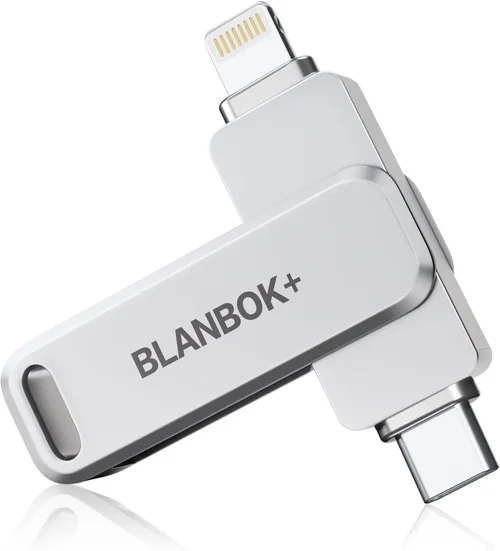
❌ Mistake: Choosing Capacity Over Reliability
Why it’s bad: Opting for the largest drive at the lowest price often means compromising on build quality and NAND type. Cheap SSDs may useQLC (Quad-Level Cell) memory, which wears out faster under heavy write loads—problematic if you’re constantly importing and deleting photos.
What to do instead: Prioritize TLC (Triple-Level Cell) or MLC (Multi-Level Cell) NAND for better endurance. A 1TB TLC drive from a trusted brand is safer than a 2TB QLC drive from an unknown seller.
❌ Mistake: Ignoring Backup Strategy
Why it’s bad: An SSD—no matter how reliable—is still a single point of failure. Relying solely on one drive for all your photos is risky. Drives can fail silently, get lost, or be stolen.
What to do instead: Follow the 3-2-1 backup rule: keep three copies of your data, on two different media types, with one offsite (e.g., cloud or remote drive). Use your SSD as a working copy, not your only archive.
❌ Mistake: Overlooking Interface Compatibility
Why it’s bad: Buying a USB 3.2 Gen 2×2 SSD for a laptop that only supports USB 3.0 means you’ll never reach advertised speeds. Similarly, installing an NVMe drive in a system without M.2 slots renders it useless.
What to do instead: Check your device’s specifications before purchasing. Use tools like CPU-Z (Windows) or “About This Mac” > System Report to verify supported interfaces.
❌ Mistake: Skipping Firmware Updates
Why it’s bad: Outdated firmware can cause performance degradation, compatibility issues, or even data loss. Manufacturers release updates to fix bugs and improve stability.
What to do instead: Install the manufacturer’s management software and enable automatic update notifications. Check for updates every 3–6 months.
❌ Mistake: Assuming All SSDs Are Equal for Long-Term Archiving
Why it’s bad: SSDs can lose data when powered off for extended periods (typically 1–2 years, depending on temperature and NAND type). They’re not ideal for cold storage.
What to do instead: For long-term archival, consider M-DISC-compatible optical drives or enterprise HDDs in RAID configurations. Use SSDs for active projects and frequent access.
❌ Mistake: Neglecting Thermal Management
Why it’s bad: High-performance NVMe drives generate significant heat during sustained transfers. Without proper cooling, they throttle speeds or fail prematurely.
What to do instead: Use heatsinks for internal NVMe drives, especially in compact builds. For portable SSDs, avoid enclosing them in tight cases during large transfers.
❌ Mistake: Falling for “Gaming” or “Pro” Labels Without Need
Why it’s bad: Marketing terms like “gaming SSD” or “creator edition” often inflate prices without delivering meaningful benefits for photo storage. You’re paying for RGB lighting or branding, not functionality.
What to do instead: Focus on core specs: capacity, speed, endurance, and warranty. A standard consumer SSD with strong reviews will serve photo needs just as well—often at a lower cost.
Budget Guidelines: How Much Should You Spend?
– Entry-Level ($50–$100): Ideal for casual photographers or those with modest collections. Expect 500GB–1TB SATA portable SSDs from brands like Kingston or Crucial. Speeds around 500 MB/s are sufficient for importing and viewing photos. These drives lack rugged features but offer solid reliability for home use.
– Mid-Range ($100–$200): The sweet spot for most users. You’ll find 1TB–2TB portable NVMe SSDs (e.g., Samsung T7, SanDisk Extreme) with speeds up to 1,050 MB/s, hardware encryption, and durable builds. Perfect for editing directly from the drive or backing up shoots on location.
– Premium ($200–$400): For professionals and enthusiasts handling large volumes of high-res images. Look for 2TB–4TB NVMe drives with IP65 ratings, bundled software, and 5-year warranties. Models like the Samsung T7 Shield or LaCie Rugged SSD Pro offer enterprise-level durability and performance.
– Luxury ($400+): Reserved for studio environments or extreme workflows. Think 4TB+ internal NVMe drives (Samsung 990 PRO, WD Black SN850X) or multi-drive RAID enclosures. These deliver maximum speed and capacity but are overkill for most photographers.

Expert Tips for Getting the Best Deal
– Buy During Major Sales Events: Black Friday, Cyber Monday, Amazon Prime Day, and Back-to-School seasons consistently offer 20–40% discounts on SSDs. Sign up for price alerts on CamelCamelCamel or Honey.
– Choose Reputable Retailers: Purchase from authorized sellers like Amazon (sold by Amazon, not third parties), B&H Photo, Newegg, or directly from manufacturer websites. This ensures warranty validity and reduces counterfeit risk.
– Bundle When Possible: Some retailers offer SSD + memory card reader or SSD + cloud storage bundles at a discount. These add-ons can save money if you need them anyway.
– Check Refurbished Options: Certified refurbished SSDs from Samsung, WD, or Crucial often come with full warranties and sell for 20–30% less. Ensure they include original accessories.
– Verify Return Policies: Even the best drives can be DOA (dead on arrival). Choose retailers with hassle-free returns (30+ days) and prepaid return labels.
– Test Immediately After Purchase: Run a full diagnostic using tools like CrystalDiskInfo or the manufacturer’s software. Check SMART status, temperature, and error logs within the first week.
– Register Your Drive: Activate warranty coverage and receive firmware update notifications. Most brands require registration within 30 days.
– Consider Future Upgrades: If building a desktop, leave room for additional M.2 slots. For laptops, check if the SSD is user-replaceable—some ultrabooks solder storage permanently.

Frequently Asked Questions
Q: Can I store RAW photos on an SSD?
A: Absolutely. SSDs handle large RAW files (20–100MB each) with ease. Their fast read speeds allow quick previews in Lightroom or Capture One, and write speeds ensure smooth imports from memory cards.
Q: Is an SSD better than an HDD for photo storage?
A: For active use—yes. SSDs are faster, quieter, more durable, and consume less power. However, HDDs still win for long-term, low-cost archival due to better data retention when unpowered.
Q: How long do SSDs last for photo storage?
A: With typical photo workloads (mostly reads, occasional writes), a quality SSD can last 5–10 years. Check the TBW rating—a 1TB drive with 600 TBW can safely write 100GB daily for over 16 years.
Q: Should I use my SSD as my primary photo drive?
A: Yes, if it has sufficient capacity and speed. Many photographers use a fast internal SSD for their Lightroom catalog and working files, with backups on external drives or cloud.
Q: Do I need hardware encryption for personal photos?
A: It depends on sensitivity. For family photos, it’s optional. But if you shoot corporate events, weddings, or confidential subjects, encryption adds crucial protection against theft or loss.
Q: Can I recover data from a failed SSD?
A: It’s possible but expensive. Unlike HDDs, SSD data recovery requires specialized tools and cleanroom environments. Prevention (backups!) is far better than cure.
Q: Are USB-C SSDs compatible with older USB-A ports?
A: Yes, as long as you have the right cable (included with most drives). USB-C to USB-A cables maintain full speed on USB 3.0+ ports.
Q: Should I defragment my SSD?
A: No. Defragmentation is unnecessary and harmful to SSDs, as it increases write cycles. Modern OSes disable defrag for SSDs automatically.
Q: What’s the difference between SATA and NVMe SSDs?
A: SATA uses an older interface capped at ~550 MB/s. NVMe uses PCIe lanes, enabling speeds over 3,500 MB/s. NVMe is faster but requires compatible hardware.
Q: Can I use an SSD in a RAID setup for photos?
A: Yes. RAID 1 (mirroring) provides redundancy, while RAID 0 boosts speed (but increases risk). For photographers, RAID 1 is safer for critical backups.
Our Final Recommendations
– Best for Budget-Conscious Buyers: Crucial X9 Pro (1TB) – Reliable, compact, and priced under $90. Great for casual shooters needing portable backup.
– Best Overall Value: Samsung T7 (1TB) – Blends speed (1,050 MB/s), durability, and AES encryption at a reasonable price. A favorite among pros and enthusiasts.
– Best Premium Option: LaCie Rugged SSD Pro (2TB) – IP67-rated, Thunderbolt 3 support, and shock-resistant. Ideal for field photographers in extreme conditions.
– Best for Beginners: SanDisk Extreme Portable SSD (1TB) – User-friendly, includes backup software, and works out of the box with minimal setup.
– Best for Advanced Users: Samsung 990 PRO (2TB, internal NVMe) – Top-tier performance for editing 50MP+ RAW files directly from the drive. Perfect for high-end workstations.
Conclusion: Making the Right Choice
Choosing the right SSD for your photo storage isn’t just about speed or capacity—it’s about aligning technology with your creative lifestyle. Whether you’re preserving decades of family memories or building a professional portfolio, your storage solution should be as dependable as your camera. SSDs offer undeniable advantages: speed, silence, durability, and portability. But they’re not a silver bullet. Pair them with a smart backup strategy, regular maintenance, and realistic expectations about longevity.
As you weigh your options, remember that the “best” SSD is the one that fits your workflow, budget, and peace of mind. Don’t chase specs you won’t use. Don’t skimp on reliability for the sake of savings. And always—always—back up your backups. Your photos deserve nothing less than thoughtful, future-proof care. With the insights from this guide, you’re now equipped to make a confident, informed decision that will protect your visual stories for years to come.