
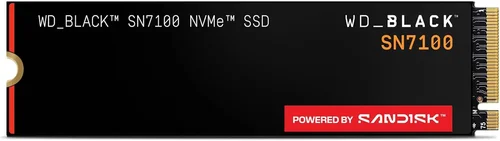
The world of storage has evolved dramatically over the past decade, and at the heart of this transformation is the M.2 SSD. Once a niche upgrade for tech enthusiasts, M.2 solid-state drives have now become the standard for modern computing—whether you’re building a high-performance gaming rig, upgrading a laptop, or assembling a compact workstation. With blazing-fast speeds, compact form factors, and ever-improving reliability, M.2 SSDs offer a compelling alternative to traditional SATA SSDs and even older mechanical hard drives. But with so many options on the market, how do you know if an M.2 SSD is truly the best choice for your needs—and which one to pick?
This comprehensive buyer’s guide is designed to cut through the noise and help you make an informed decision. Whether you’re a first-time builder, a seasoned PC enthusiast, or a professional looking to optimize your workflow, this guide will walk you through every critical aspect of choosing the right M.2 SSD in 2026. We’ll explore key performance metrics, compatibility concerns, price considerations, and real-world use cases. By the end, you’ll have a clear understanding of what makes M.2 SSDs stand out—and whether they’re the right fit for your system.
The M.2 SSD market has matured significantly, offering a wide range of options across different price points and performance tiers. From budget-friendly NVMe drives that deliver excellent everyday performance to cutting-edge PCIe 5.0 models pushing over 10,000 MB/s read speeds, there’s never been a better time to upgrade. However, not all M.2 SSDs are created equal. Some prioritize speed, others focus on endurance, and a few aim to balance cost and performance. This guide will help you navigate these trade-offs and find the perfect drive for your specific needs—whether you’re gaming, editing 4K video, or simply want your laptop to boot faster.

What to Look for When Buying Buying Guide
1. Interface and Protocol: NVMe vs SATA
One of the most critical decisions when buying an M.2 SSD is understanding the difference between NVMe and SATA interfaces. While both fit into the same M.2 slot physically, they operate on entirely different protocols and offer vastly different performance levels.
NVMe (Non-Volatile Memory Express) drives use the PCIe (Peripheral Component Interconnect Express) interface, allowing them to communicate directly with the CPU via high-speed lanes. This results in significantly faster data transfer rates—modern NVMe SSDs can achieve sequential read/write speeds of 3,500–10,000+ MB/s, depending on the generation. In contrast, SATA-based M.2 SSDs are limited by the older SATA III interface, capping speeds at around 550 MB/s. While SATA M.2 drives are cheaper and still faster than traditional HDDs, they don’t unlock the full potential of the M.2 form factor.
For most users in 2026, NVMe is the clear winner. Unless you’re working with an older system that only supports SATA M.2, investing in an NVMe drive ensures you’re future-proofing your setup. Look for drives labeled “NVMe PCIe Gen3,” “Gen4,” or “Gen5” to confirm the interface. Gen4 and Gen5 drives offer the highest performance but require compatible motherboards and may generate more heat, so ensure your system can support them.
2. Form Factor and Physical Compatibility
M.2 SSDs come in various lengths and widths, commonly referred to by a four- or six-digit code like 2280, 2260, or 2242. The first two digits indicate the width (22mm), while the last two or three denote the length in millimeters. The 2280 size (22mm x 80mm) is by far the most common and widely supported across desktops, laptops, and mini PCs.
Before purchasing, always check your motherboard or laptop manual to confirm which M.2 slot(s) are available and what sizes they support. Some compact laptops only accept shorter 2242 or 2260 drives, while high-end desktops may offer multiple 2280 slots. Additionally, ensure your system has an M.2 slot that supports the interface you want—some older motherboards only support SATA M.2, not NVMe.
Another physical consideration is the presence of a heatsink. High-performance NVMe drives, especially PCIe Gen4 and Gen5 models, can get very hot under sustained load. Some come with built-in heatsinks, while others require a third-party solution. If your case has limited airflow or you plan to use the drive for intensive tasks like video editing or gaming, a heatsink is highly recommended.
3. Performance Specifications: Speed, IOPS, and Latency
When evaluating M.2 SSD performance, three key metrics stand out: sequential read/write speeds, random IOPS (Input/Output Operations Per Second), and latency.
Sequential speeds measure how quickly large files (like videos or game installations) can be read from or written to the drive. For everyday use, speeds above 3,000 MB/s are excellent, while professional workloads may benefit from Gen4 or Gen5 drives pushing 7,000–12,000 MB/s. However, real-world performance often depends more on random IOPS—how well the drive handles small, scattered file operations. A drive with high IOPS (e.g., 500,000+ random read IOPS) will feel snappier when launching apps, booting the OS, or multitasking.
Latency, or the time it takes to access data, is also crucial. Lower latency means faster response times, which translates to a more responsive system. NVMe drives typically offer much lower latency than SATA SSDs due to their direct connection to the CPU.
When comparing specs, don’t just focus on peak speeds. Look at sustained performance under load, as some drives throttle significantly when they overheat. Real-world benchmarks from trusted sources like Tom’s Hardware, AnandTech, or StorageReview can provide a more accurate picture than manufacturer claims.
4. Storage Capacity and Use Case Alignment
M.2 SSDs are available in capacities ranging from 128GB to 8TB, with 500GB, 1TB, and 2TB being the most popular for consumers. Your ideal capacity depends heavily on how you use your computer.
For basic tasks like web browsing, office work, and light media consumption, a 500GB drive is usually sufficient. However, modern operating systems and applications can consume 100–200GB alone, so 1TB is increasingly the sweet spot for most users. Gamers should consider 1TB or more, as AAA titles can easily take up 100–200GB each. Content creators working with 4K video, RAW photos, or 3D assets may need 2TB or larger drives to avoid constant file management.
It’s also wise to leave some free space—typically 10–20% of total capacity—to maintain optimal performance and longevity. SSDs slow down as they fill up, and wear-leveling algorithms work more efficiently with spare space.
5. NAND Flash Type: TLC, QLC, and Beyond
The type of NAND flash memory used in an SSD significantly impacts its performance, endurance, and cost. Most consumer M.2 SSDs use either TLC (Triple-Level Cell) or QLC (Quad-Level Cell) NAND.
TLC stores three bits of data per cell, offering a good balance of speed, endurance, and price. It’s ideal for general use, gaming, and moderate workloads. QLC stores four bits per cell, increasing storage density and lowering cost per gigabyte, but at the expense of write speed and endurance. QLC drives often use a small SLC (Single-Level Cell) cache to boost short bursts of performance, but sustained writes can slow dramatically once the cache is full.
For most users, TLC is the safer choice. QLC can be acceptable for secondary storage or light use, but avoid it for primary drives if you frequently write large files. Some high-end drives now use PLC (Penta-Level Cell) NAND, but these are still emerging and best suited for enterprise applications.
6. Endurance and TBW Rating
Endurance refers to how much data can be written to an SSD over its lifetime, typically measured in TBW (Terabytes Written). A higher TBW rating indicates a more durable drive, which is especially important for write-heavy tasks like video editing, database management, or frequent file transfers.
For example, a 1TB TLC SSD might have a TBW rating of 600–700TB, while a QLC drive of the same capacity could be as low as 200–300TB. While most consumers will never reach these limits, professionals and power users should prioritize higher endurance. Check the manufacturer’s specifications and warranty terms—many brands offer longer warranties on drives with higher TBW ratings.
7. Brand Reputation and Reliability
Not all SSD brands are created equal. Established manufacturers like Samsung, Western Digital, Crucial, Kingston, and Sabrent have a proven track record of reliability, consistent performance, and strong customer support. They also tend to use higher-quality components and offer better firmware updates.
Avoid no-name or ultra-budget brands that may use inferior NAND or lack proper testing. While they might seem like a bargain, they can fail prematurely or suffer from performance degradation. Look for brands that provide detailed specifications, transparent warranty policies, and active firmware support.
Reading user reviews and professional benchmarks can also help identify potential issues like overheating, inconsistent speeds, or early failures. Sites like Reddit’s r/buildapc or r/DataHoarder often have real-world feedback from long-term users.
8. Warranty and Support
A solid warranty is a strong indicator of a manufacturer’s confidence in their product. Most reputable M.2 SSDs come with a 3- to 5-year limited warranty, often tied to the TBW rating. For example, a drive with a 600TBW rating may offer a 5-year warranty or until 600TB is written—whichever comes first.
Check the warranty terms carefully. Some brands require registration, while others offer hassle-free replacements. Also, consider the availability of customer support—can you easily contact them if something goes wrong? Brands with regional service centers or online RMA portals tend to offer better post-purchase experiences.
Different Types of Buying Guide

Common Buying Mistakes to Avoid
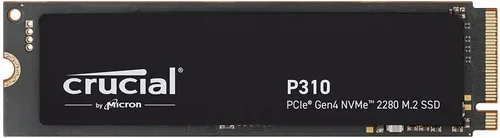
❌ Mistake: Ignoring Motherboard Compatibility
Why it’s bad: Not all M.2 slots support NVMe. Some older motherboards only have SATA M.2 slots, and plugging an NVMe drive into one will result in it not being detected. Additionally, PCIe Gen4 and Gen5 drives require compatible chipsets and BIOS support.
What to do instead: Always check your motherboard’s manual or manufacturer website to confirm M.2 slot specifications. Look for details on supported interfaces (SATA/NVMe), PCIe generation, and physical size. If in doubt, consult forums or contact support.
❌ Mistake: Choosing QLC for a Primary Drive
Why it’s bad: QLC drives have lower write endurance and slower sustained write speeds, which can lead to performance drops during large file transfers or system updates. They’re also more prone to wear over time.
What to do instead: Opt for TLC NAND for your primary OS and application drive. Reserve QLC for secondary storage or backup purposes where cost per gigabyte is more important than performance.
❌ Mistake: Overlooking Thermal Throttling
Why it’s bad: High-performance NVMe drives can overheat under sustained load, causing thermal throttling—where the drive slows down to prevent damage. This negates the speed advantages and can affect system stability.
What to do instead: Invest in a quality heatsink, especially for Gen4 and Gen5 drives. Ensure your case has adequate airflow, and consider drives with built-in thermal management features.
❌ Mistake: Buying Based on Price Alone
Why it’s bad: The cheapest SSDs often use inferior components, lack DRAM caches, or have poor firmware. They may fail prematurely or offer inconsistent performance.
What to do instead: Balance cost with brand reputation, warranty length, and real-world reviews. A slightly more expensive drive from a trusted brand can save you headaches down the line.
❌ Mistake: Not Checking Warranty Terms
Why it’s bad: Some warranties are voided if the drive exceeds its TBW limit, even if it’s still functioning. Others require registration or have limited regional support.
What to do instead: Read the fine print. Choose drives with generous warranties and clear RMA policies. Register your drive if required.
❌ Mistake: Assuming All NVMe Drives Are Fast
Why it’s bad: Not all NVMe drives deliver high performance. Some budget models use slower controllers or lack DRAM, resulting in mediocre real-world speeds.
What to do instead: Look beyond the “NVMe” label. Check benchmarks for sequential and random performance, and prioritize drives with DRAM caches for better responsiveness.
❌ Mistake: Skipping Firmware Updates
Why it’s bad: Outdated firmware can cause compatibility issues, performance bugs, or even data corruption. Manufacturers often release updates to improve stability and security.
What to do instead: After installation, check the manufacturer’s website for firmware updates. Use their official tools to apply updates safely.
Budget Guidelines: How Much Should You Spend?
– Entry-Level ($40–$80 for 1TB): Ideal for budget builds or secondary storage. Look for reliable SATA M.2 or DRAM-less NVMe drives from brands like Kingston or Crucial. Expect decent performance for everyday tasks but limited sustained write speeds.
– Mid-Range ($80–$150 for 1TB): The sweet spot for most users. NVMe Gen3 or Gen4 drives with TLC NAND and DRAM caches offer excellent performance for gaming, productivity, and light content creation. Brands like Western Digital, Samsung, and Sabrent dominate this tier.
– Premium ($150–$300 for 1TB): For enthusiasts and professionals. High-end Gen4 or early Gen5 drives with top-tier controllers, large caches, and robust heatsinks. These drives excel in sustained workloads and offer the best longevity.
– Luxury ($300+ for 1TB): Cutting-edge Gen5 drives with maximum speeds, advanced thermal solutions, and enterprise-grade endurance. Best for users who demand the absolute best performance and are willing to pay a premium.
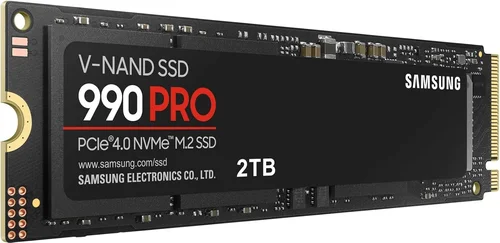
Expert Tips for Getting the Best Deal
– Buy during major sales events: Black Friday, Cyber Monday, Amazon Prime Day, and back-to-school seasons often feature significant discounts on SSDs. Sign up for deal alerts from retailers like Newegg, Amazon, or Best Buy.
– Compare prices across retailers: Use price comparison tools like PCPartPicker or Google Shopping to find the best deal. Don’t forget to factor in shipping and return policies.
– Check for bundle deals: Some manufacturers offer SSDs bundled with cloning software, heatsinks, or migration tools—adding value beyond the drive itself.
– Prioritize warranty over minor price differences: A $10 savings isn’t worth it if the drive has a shorter warranty or poor support. Invest in peace of mind.
– Test before committing: If possible, test the drive in your system before finalizing the setup. Use tools like CrystalDiskMark or AS SSD Benchmark to verify performance.
– Consider used or open-box deals: Reputable sellers sometimes offer lightly used or returned drives at a discount. Ensure they’re still under warranty and have low write counts.
– Don’t upgrade unnecessarily: If your current SSD is performing well, there’s no rush to upgrade. Wait for a compelling deal or a real performance bottleneck.

Frequently Asked Questions
Q: Can I use an M.2 SSD in a laptop?
A: Yes, many modern laptops support M.2 SSDs. However, you must check the laptop’s specifications to confirm the supported form factor (e.g., 2280), interface (SATA or NVMe), and whether the slot is user-upgradeable. Some ultrabooks have soldered storage, making upgrades impossible.
Q: Do I need a heatsink for my M.2 SSD?
A: It depends on the drive and usage. High-performance Gen4 and Gen5 NVMe drives benefit greatly from heatsinks, especially under sustained load. For Gen3 drives or light use, a heatsink is less critical but still recommended for longevity.
Q: Will an M.2 SSD make my computer faster?
A: Absolutely. Upgrading from an HDD or even a SATA SSD to an NVMe M.2 drive can drastically reduce boot times, application load times, and file transfer speeds. The difference is especially noticeable in gaming and content creation.
Q: Can I install my operating system on an M.2 SSD?
A: Yes, and it’s highly recommended. Installing your OS on an M.2 SSD ensures the fastest possible boot and system responsiveness. Most modern systems support booting from NVMe drives.
Q: Are M.2 SSDs reliable?
A: Yes, when purchased from reputable brands. Modern M.2 SSDs are built with advanced error correction, wear leveling, and power-loss protection. With proper use, they can last many years.
Q: What’s the difference between M.2 and 2.5-inch SSDs?
A: M.2 SSDs are smaller, connect directly to the motherboard, and often use NVMe for faster speeds. 2.5-inch SSDs use SATA and are larger, requiring a cable and power connection. M.2 is more compact and faster, while 2.5-inch drives are easier to install in older systems.
Q: Can I use multiple M.2 SSDs in one system?
A: Yes, if your motherboard has multiple M.2 slots. This allows you to set up RAID configurations for even faster performance or increased storage capacity. Ensure your chipset supports multiple NVMe drives.
Q: How do I clone my old drive to a new M.2 SSD?
A: Use cloning software like Macrium Reflect, Acronis True Image, or Samsung Data Migration. Connect both drives, clone the data, then swap them in your system. Most cloning tools are user-friendly and guide you through the process.
Q: Do M.2 SSDs consume more power?
A: NVMe M.2 SSDs can consume slightly more power under load compared to SATA SSDs, but the difference is minimal for most users. In laptops, the impact on battery life is usually negligible unless you’re constantly transferring large files.
Q: What happens if my M.2 SSD fails?
A: If under warranty, contact the manufacturer for a replacement. Always maintain backups of important data. SSDs can fail suddenly, so regular backups are essential regardless of drive type.
Our Final Recommendations
– Best for Budget-Conscious Buyers: Crucial P3 1TB (NVMe Gen3) – Excellent value, reliable performance, and strong endurance for the price.
– Best Overall Value: Samsung 980 Pro 1TB (NVMe Gen4) – Proven performance, robust build quality, and consistent speeds make it a top choice for most users.
– Best Premium Option: WD Black SN850X 1TB (NVMe Gen4) – High sustained speeds, excellent thermal management, and ideal for gaming and creative work.
– Best for Beginners: Kingston NV2 1TB (NVMe Gen4) – Easy to install, affordable, and delivers solid performance without complexity.
– Best for Advanced Users: Sabrent Rocket 4 Plus-G 1TB (NVMe Gen4) – High-end controller, large DRAM cache, and excellent for overclocking and heavy workloads.
Conclusion: Making the Right Choice
Choosing the right M.2 SSD in 2026 doesn’t have to be overwhelming. By focusing on key factors like interface, compatibility, performance, and endurance, you can find a drive that perfectly matches your needs and budget. Whether you’re upgrading an aging system or building a high-end PC, an M.2 SSD offers a significant leap in speed, responsiveness, and reliability over traditional storage.
Remember, the “best” SSD isn’t necessarily the fastest or most expensive—it’s the one that aligns with your specific use case, system compatibility, and long-term goals. Take the time to research, compare options, and avoid common pitfalls. With the insights from this guide, you’re well-equipped to make a confident, informed decision.
Don’t wait for your system to slow down—upgrade to an M.2 SSD today and experience the difference speed makes. Your future self will thank you.