
[FEATURED_IMAGE_PLACEOLDER]
If you’re building a new PC, upgrading your existing system, or simply reinstalling Windows, one of the most impactful decisions you can make is where to install your operating system. For years, traditional hard disk drives (HDDs) were the default choice—affordable, spacious, and widely available. But with the dramatic drop in solid-state drive (SSD) prices and the performance revolution they’ve brought to computing, the question is no longer if you should install Windows on an SSD, but which SSD and how to do it optimally.
This guide is designed to help you navigate the evolving landscape of storage technology in 2026. Whether you’re a first-time builder, a seasoned tech enthusiast, or a professional looking to maximize productivity, understanding the benefits, trade-offs, and best practices of installing Windows on an SSD is essential. We’ll walk you through everything from performance benchmarks and compatibility considerations to budget-friendly options and expert installation tips. By the end of this article, you’ll have a clear, actionable plan to get the most out of your Windows experience—starting with the right storage foundation.
The market today offers a dizzying array of SSDs: SATA, NVMe, M.2, PCIe 4.0, PCIe 5.0, DRAM-cached, DRAM-less, QLC, TLC—the list goes on. Each type has its own strengths and ideal use cases. Meanwhile, Windows 11 (and the upcoming Windows 12 in late 2026) continues to demand faster storage for features like DirectStorage, rapid app launches, and seamless multitasking. Installing Windows on an SSD isn’t just a performance upgrade—it’s a necessity for modern computing. This guide cuts through the noise, delivering a comprehensive, up-to-date roadmap to help you choose, install, and optimize Windows on the best SSD for your needs.

What to Look for When Buying Buying Guide
1. Performance Specifications
When evaluating SSDs for a Windows installation, performance is paramount. Unlike HDDs, which rely on spinning platters and mechanical read/write heads, SSDs use flash memory to deliver near-instant access to data. This translates into dramatically faster boot times, quicker application launches, and smoother overall system responsiveness.
Look for two key metrics: sequential read/write speeds and random IOPS (Input/Output Operations Per Second). Sequential speeds—measured in MB/s—determine how fast large files (like videos or game assets) are transferred. For Windows, random IOPS are even more critical, as the OS constantly accesses small files across the drive. A high IOPS rating (e.g., 500,000+ for random 4K reads) ensures snappy performance when opening settings, loading browsers, or switching between apps.
NVMe SSDs, especially those using PCIe 4.0 or 5.0 interfaces, far outperform older SATA SSDs. For example, a PCIe 4.0 NVMe drive can deliver over 7,000 MB/s read speeds, while a SATA SSD caps out around 550 MB/s. If your motherboard supports NVMe (most modern ones do), prioritize it for Windows installation. However, even a budget SATA SSD will feel like a night-and-day improvement over an HDD.
2. Storage Capacity
Windows itself requires a minimum of 64 GB of storage, but in 2026, that’s nowhere near enough. Windows 11 typically uses 30–40 GB after a clean install, and updates, temporary files, and system restore points can push that to 50 GB or more. Add essential software like browsers, office suites, and security tools, and you’re quickly approaching 80–100 GB.
For a smooth, future-proof experience, we recommend a minimum of 500 GB for the OS drive. This gives you room for Windows, core applications, and some personal files. If you plan to install large games, video editing software, or development tools, consider 1 TB or more. Many users opt for a dual-drive setup: a fast 500 GB or 1 TB NVMe SSD for Windows and programs, and a larger, slower HDD or SATA SSD for media and backups.
Keep in mind that SSDs perform best when they’re not nearly full. Aim to keep at least 10–15% of the drive free to maintain optimal write speeds and longevity. A 250 GB drive may seem sufficient, but it fills up quickly and can lead to performance degradation over time.
3. Form Factor & Compatibility
SSDs come in several form factors, and compatibility with your system is crucial. The most common types are:
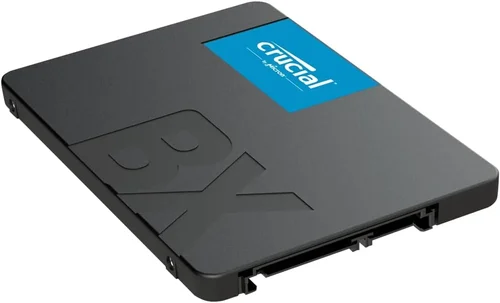
– 2.5-inch SATA SSDs: Resemble traditional laptop hard drives and connect via SATA cables. Ideal for older desktops and laptops that lack M.2 slots.
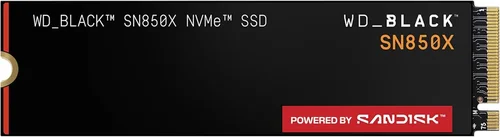
– M.2 SSDs: Compact, stick-like drives that plug directly into the motherboard. Available in SATA and NVMe variants. Check your motherboard’s M.2 slot type (Key B, Key M, or B+M) and supported lengths (e.g., 2280 = 22mm wide, 80mm long).
– PCIe Add-in Cards: Full-sized cards that slot into a PCIe x4 or x16 slot. Typically used in high-end workstations or servers.
Before buying, consult your motherboard manual or use tools like CPU-Z to verify M.2 and PCIe support. Most modern motherboards (Intel 600/700 series, AMD 600/800 series) support at least one NVMe M.2 slot. If you’re building a new system, ensure your case has mounting points for M.2 drives and adequate airflow—some high-performance NVMe drives can get hot under load.
4. NAND Flash Type & Endurance
The type of NAND flash memory used in an SSD affects its speed, durability, and cost. The main types are:
– SLC (Single-Level Cell): Stores 1 bit per cell. Fastest and most durable, but expensive. Rare in consumer drives.
– MLC (Multi-Level Cell): Stores 2 bits per cell. Good balance of speed and endurance. Found in higher-end consumer and prosumer drives.
– TLC (Triple-Level Cell): Stores 3 bits per cell. Most common in consumer SSDs. Offers good performance at a lower price.
– QLC (Quad-Level Cell): Stores 4 bits per cell. Cheaper and higher capacity, but slower write speeds and lower endurance.
For Windows installation, TLC is the sweet spot—offering excellent performance and sufficient endurance for typical use. QLC drives can be tempting for budget builds, but they may struggle with sustained writes and wear out faster under heavy workloads. Avoid QLC if you plan to use your SSD for video editing, virtual machines, or frequent large file transfers.
Endurance is measured in TBW (Terabytes Written). A 1 TB TLC SSD might have a 600 TBW rating, meaning it can safely write 600 terabytes over its lifetime. For context, the average user writes 20–30 GB per day—so even a modest SSD will last 10+ years. Still, check the TBW rating and warranty terms when comparing models.
5. DRAM Cache & Controller
A DRAM cache significantly improves SSD performance by storing the drive’s mapping table (FTL—Flash Translation Layer). This allows the SSD to quickly locate data without scanning the entire drive, reducing latency and improving random read/write speeds.
SSDs with DRAM cache (often labeled “DRAM-equipped” or “with DRAM”) consistently outperform DRAM-less models, especially during multitasking or heavy I/O workloads. DRAM-less SSDs rely on system memory (HMB—Host Memory Buffer), which can work well in theory but often leads to inconsistent performance, particularly on systems with limited RAM.
The controller is the SSD’s “brain,” managing data flow, error correction, wear leveling, and garbage collection. Top-tier controllers from companies like Phison, Silicon Motion, and Samsung deliver better performance, efficiency, and longevity. When comparing SSDs, look for models with well-reviewed controllers—brands like Samsung, WD, Crucial, and Sabrent often use high-quality in-house or partnered controllers.
6. Brand Reputation & Reliability
Not all SSDs are created equal. While many brands offer competitive specs on paper, real-world reliability varies widely. Stick with reputable manufacturers known for quality control, firmware updates, and customer support.
Top-tier brands like Samsung (980 Pro, 990 Pro), Western Digital (WD Black SN850X), Crucial (P5 Plus), and Kingston (KC3000) consistently rank high in independent reviews for performance, endurance, and reliability. These companies also offer robust software suites (e.g., Samsung Magician, WD Dashboard) for monitoring drive health, updating firmware, and optimizing performance.
Avoid no-name or ultra-budget brands that cut corners on components or firmware. A cheap SSD might save you $20 upfront, but a failure could cost you hours of reinstallation, lost data, or even hardware damage. Read user reviews on Amazon, Newegg, or Reddit to spot recurring issues like sudden disconnects, slowdowns, or early failures.
7. Warranty & Support
A strong warranty is a sign of manufacturer confidence. Most premium SSDs come with 5-year limited warranties, often tied to TBW limits (e.g., “5 years or 600 TBW, whichever comes first”). Some brands, like Samsung and Crucial, offer free data recovery services or extended warranties for registered products.
Check the warranty terms carefully. Some exclude certain use cases (e.g., server or enterprise use), while others require registration within 30 days of purchase. Also, verify whether the warranty covers only the drive or includes data loss—most consumer warranties do not cover data recovery costs.
Customer support quality varies. Samsung and WD offer responsive support via phone, chat, and email. Smaller brands may only provide email support with slow response times. If you’re building a system for work or critical use, prioritize brands with reliable support channels.
8. Price & Value for Money
SSD prices have dropped significantly since 2020, making high-performance storage accessible to nearly everyone. As of 2026, you can find a reliable 1 TB NVMe SSD for under $60, while premium models with PCIe 5.0 support range from $100–$200.
When evaluating value, consider cost per gigabyte, performance, endurance, and warranty. A $70 1 TB TLC NVMe SSD with a 5-year warranty and 600 TBW offers better long-term value than a $50 1 TB QLC drive with a 3-year warranty and 200 TBW.
Different Types of Buying Guide

Common Buying Mistakes to Avoid
❌ Mistake: Installing Windows on an HDD in 2026
Why it’s bad: HDDs are painfully slow compared to SSDs. Boot times can take minutes, apps launch sluggishly, and system responsiveness suffers. Modern Windows features like Fast Startup and background updates are optimized for SSDs and offer minimal benefit on HDDs.
What to do instead: Even a budget SATA SSD will transform your experience. If your system only has an HDD, upgrade to a 500 GB SSD—it’s one of the best-value upgrades you can make.
❌ Mistake: Choosing a DRAM-less SSD for the OS Drive
Why it’s bad: DRAM-less SSDs rely on system RAM for caching, which can lead to inconsistent performance, especially under load. They’re more prone to slowdowns when the drive fills up or during multitasking.
What to do instead: Always choose an SSD with a DRAM cache for Windows installation. The performance and longevity benefits far outweigh the small price difference.
❌ Mistake: Buying the Cheapest SSD Available
Why it’s bad: Ultra-budget SSDs often use inferior NAND (like QLC), weak controllers, or outdated firmware. They may fail prematurely or suffer from performance degradation.
What to do instead: Invest in a reputable brand with solid reviews. A $10–$20 premium can mean the difference between a drive that lasts 10 years and one that fails in 2.
❌ Mistake: Ignoring Thermal Throttling
Why it’s bad: High-performance NVMe SSDs generate heat, especially PCIe 4.0 and 5.0 models. Without proper cooling, they throttle speeds to prevent overheating, negating their performance advantage.
What to do instead: Use a heatsink if your case or motherboard doesn’t include one. Many M.2 slots now come with built-in heatsinks, or you can buy aftermarket ones for $10–$20.
❌ Mistake: Overlooking Firmware Updates
Why it’s bad: SSD firmware controls performance, security, and bug fixes. Outdated firmware can lead to instability, data corruption, or compatibility issues.
What to do instead: After installation, download the manufacturer’s SSD management tool (e.g., Samsung Magician) and check for firmware updates. Enable automatic notifications if available.
❌ Mistake: Filling the SSD to Capacity
Why it’s bad: SSDs need free space for wear leveling and garbage collection. When nearly full, write speeds drop significantly, and the drive wears out faster.
What to do instead: Keep at least 10–15% of the drive free. Use a secondary drive for large files like videos, games, or backups.
❌ Mistake: Not Backing Up Before Installation
Why it’s bad: Installing Windows on an SSD typically involves formatting the drive, which erases all data. Without a backup, you risk losing important files.
What to do instead: Always back up your data to an external drive or cloud service before reinstalling Windows. Use tools like Macrium Reflect or Windows Backup for full system images.
Budget Guidelines: How Much Should You Spend?
– Entry-Level ($30–$60): Ideal for budget builds or upgrading old systems. Look for 500 GB SATA SSDs or 1 TB NVMe PCIe 3.0 drives from brands like Crucial, Kingston, or TeamGroup. Expect solid performance for everyday tasks, but avoid QLC if possible.
– Mid-Range ($60–$100): The sweet spot for most users. A 1 TB NVMe PCIe 4.0 SSD (e.g., WD Black SN770, Samsung 980) offers excellent speed, reliability, and future-proofing. Perfect for gaming, productivity, and light content creation.
– Premium ($100–$150): For enthusiasts and professionals. PCIe 4.0 or 5.0 drives with high endurance (600+ TBW), DRAM cache, and top-tier controllers. Models like the Samsung 990 Pro or Sabrent Rocket 4 Plus deliver peak performance for demanding workloads.
– Luxury ($150+): Top-tier PCIe 5.0 drives with 2 TB+ capacity, advanced cooling, and enterprise-grade features. Best for 8K video editing, AI workloads, or extreme multitasking. Only necessary for specialized use cases.
Expert Tips for Getting the Best Deal
– Buy during major sales: Black Friday, Cyber Monday, Amazon Prime Day, and back-to-school season offer the best SSD discounts. Prices can drop 20–40% during these events.
– Check multiple retailers: Compare prices on Amazon, Newegg, Best Buy, and B&H. Sometimes smaller retailers offer bundle deals or free shipping.
– Look for open-box or refurbished deals: Reputable sellers like Amazon Renewed or Newegg Refurbished often sell high-quality SSDs at a discount with full warranties.
– Use price tracking tools: Set alerts on CamelCamelCamel, Honey, or Keepa to notify you when prices drop.
– Prioritize warranty and support: A longer warranty often indicates better build quality. Don’t sacrifice reliability for a few dollars.
– Test before finalizing: After installation, use tools like CrystalDiskMark or AS SSD Benchmark to verify performance matches specs.
– Enable TRIM and AHCI: Ensure TRIM is enabled in Windows (it usually is by default) to maintain SSD performance over time. In BIOS, set SATA mode to AHCI for optimal SSD support.
– Disable defragmentation: SSDs don’t benefit from defragmentation and can be harmed by it. Windows should disable it automatically, but double-check in Optimize Drives.

Frequently Asked Questions
Q: Can I install Windows on an external SSD?
A: Yes, you can install and run Windows from an external SSD using tools like Windows To Go or by creating a bootable USB installer. However, performance depends on the connection—USB 3.2 Gen 2 (10 Gbps) or Thunderbolt 3/4 is recommended. It’s great for portability but not ideal as a primary drive due to potential disconnects and slower speeds than internal NVMe.
Q: Should I partition my SSD for Windows?
A: Generally, no. Modern Windows installations handle partitioning automatically. Creating separate partitions for OS and data can complicate backups and reduce flexibility. Instead, use a single partition and store large files on a secondary drive.
Q: How long will an SSD last with Windows installed?
A: Most consumer SSDs last 5–10 years under normal use. With a 600 TBW rating and 30 GB of daily writes, a 1 TB SSD could last over 50 years. Real-world failure is more likely due to physical damage or controller issues than wear.
Q: Can I clone my HDD to an SSD instead of reinstalling Windows?
A: Yes, cloning is a great way to migrate your OS and files. Use tools like Macrium Reflect Free, Clonezilla, or Acronis True Image. Ensure the SSD is equal or larger in capacity, and align partitions for optimal performance.
Q: Do I need a heatsink for my M.2 SSD?
A: Not always, but recommended for PCIe 4.0 and 5.0 drives. If your motherboard includes a heatsink, use it. Otherwise, a $10–$15 aftermarket heatsink can prevent thermal throttling during sustained workloads.
Q: Is PCIe 5.0 worth it in 2026?
A: For most users, PCIe 4.0 is sufficient. PCIe 5.0 offers double the bandwidth, but real-world gains in boot time or app launch are minimal. It’s best for professionals working with massive files or future-proofing high-end builds.
Q: What’s the difference between NVMe and SATA SSDs?
A: NVMe uses the PCIe interface for much faster speeds (up to 14,000 MB/s vs. 550 MB/s for SATA). SATA SSDs are limited by the older SATA III interface. NVMe is the standard for modern systems.
Q: Can I use an SSD as a cache for my HDD?
A: Yes, with technologies like Intel Optane Memory or Samsung Rapid Mode. However, these are less common today. A better approach is to install Windows on the SSD and use the HDD for storage.
Q: Should I enable over-provisioning?
A: Over-provisioning reserves space for wear leveling and garbage collection. Most SSDs include some by default. Advanced users can manually set aside 7–10% using manufacturer tools, but it’s not necessary for typical use.
Our Final Recommendations
– Best for Budget-Conscious Buyers: Crucial P3 1TB NVMe PCIe 3.0 – Reliable, fast, and affordable at under $60. Great for upgrading older systems.
– Best Overall Value: WD Black SN770 1TB NVMe PCIe 4.0 – Excellent performance, 5-year warranty, and consistent speeds. Ideal for gaming and productivity.
– Best Premium Option: Samsung 990 Pro 1TB NVMe PCIe 4.0 – Top-tier performance, robust endurance, and excellent software support. Perfect for enthusiasts.
– Best for Beginners: Samsung 870 EVO 1TB SATA – Simple installation, universal compatibility, and proven reliability. Great for first-time builders.
– Best for Advanced Users: Sabrent Rocket 4 Plus 2TB NVMe PCIe 4.0 – High capacity, blazing speeds, and excellent cooling. Ideal for content creators and power users.
Conclusion: Making the Right Choice
Installing Windows on an SSD in 2026 isn’t just recommended—it’s essential. The performance leap over traditional HDDs is transformative, enabling faster boots, instant app launches, and a smoother, more responsive computing experience. Whether you’re building a new PC or upgrading an old one, investing in a quality SSD is one of the most impactful decisions you can make.
As you’ve learned, the key is to match the SSD to your needs, budget, and system capabilities. Prioritize NVMe for speed, TLC NAND for balance, and reputable brands for reliability. Avoid common pitfalls like DRAM-less drives or filling the SSD to capacity, and always back up your data before installation.
With the right SSD, your Windows experience will be faster, more efficient, and built to last. Take the time to research, compare, and choose wisely. Your future self—and your productivity—will thank you.