
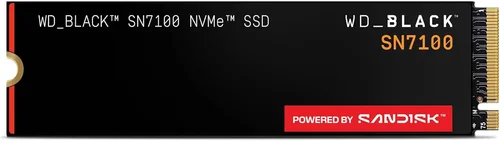
In the fast-evolving world of PC gaming, every millisecond counts. Whether you’re diving into a sprawling open-world RPG, engaging in high-stakes competitive shooters, or exploring photorealistic virtual environments, your storage drive plays a pivotal role in shaping your overall experience. While many gamers obsess over GPU power, CPU clock speeds, and RAM capacity, one component that’s often underestimated—yet increasingly critical—is the solid-state drive (SSD). A high-performance SSD doesn’t just reduce load times; it enhances gameplay fluidity, minimizes stuttering, and can even improve frame pacing in modern titles that stream assets dynamically from storage.
This guide is designed for gamers who want to make informed decisions when upgrading or building their rig. Whether you’re a casual player looking to breathe new life into an older system or a hardcore enthusiast chasing every possible performance edge, understanding what makes an SSD truly “gaming-ready” is essential. We’ll cut through the marketing jargon, decode technical specs, and help you identify the best SSD for your specific needs—without overspending on features you don’t need or settling for underpowered options that bottleneck your setup.
The SSD market in 2026 is more diverse and competitive than ever. With advancements in NAND flash technology, controller architectures, and interface standards like PCIe 5.0, today’s drives offer staggering speeds and reliability. However, not all SSDs are created equal—especially when it comes to gaming workloads. Unlike video editing or database operations, gaming involves frequent small-file reads, random access patterns, and sustained performance under load. This means raw sequential read/write numbers alone won’t tell the whole story. In this comprehensive buying guide, we’ll explore the key factors that truly matter for gaming, compare different SSD types, highlight common pitfalls, and provide expert-backed recommendations tailored to various budgets and use cases.

What to Look for When Buying Buying Guide
1. Interface and Form Factor
The interface determines how your SSD connects to your motherboard and ultimately dictates its maximum potential speed. For gaming in 2026, the two dominant interfaces are SATA III and NVMe (Non-Volatile Memory Express) over PCIe.
SATA III SSDs max out at around 550 MB/s due to bandwidth limitations of the SATA protocol. While still functional, they’re increasingly outdated for modern gaming rigs. Most new motherboards now prioritize M.2 slots supporting NVMe, which leverages the PCIe bus for dramatically higher throughput.
NVMe SSDs come in several generations: PCIe 3.0, 4.0, and the latest PCIe 5.0. PCIe 3.0 drives typically deliver up to 3,500 MB/s, while PCIe 4.0 pushes that to ~7,000 MB/s. PCIe 5.0 doubles that again, reaching up to 14,000 MB/s—though real-world gaming gains beyond PCIe 4.0 are minimal for most users today.
Form factor matters too. The M.2 2280 (22mm wide, 80mm long) is the standard for modern desktops and laptops. It’s compact, easy to install, and doesn’t require cables. Avoid older 2.5-inch SATA SSDs unless you’re working with legacy hardware.
2. Sequential vs. Random Performance
When browsing SSD specs, you’ll often see two types of performance metrics: sequential and random.
Sequential performance refers to reading or writing large blocks of data in a continuous stream—like loading a massive game level or texture pack. This is what most marketing materials highlight (e.g., “7,000 MB/s read”). While impressive, it’s only part of the picture.
Random performance, measured in IOPS (Input/Output Operations Per Second), reflects how well the drive handles many small, scattered requests—exactly what happens during gameplay when the engine loads assets on the fly. A game might need to pull dozens of small texture files, audio clips, or script data simultaneously. Drives with high random read IOPS (especially at low queue depths like QD1 or QD2) will feel snappier and reduce hitches.
For gaming, prioritize drives with strong random 4K read performance—ideally above 800K IOPS. Don’t be fooled by sky-high sequential numbers if random performance lags.
3. NAND Flash Type and Endurance
NAND flash memory comes in different types, primarily TLC (Triple-Level Cell) and QLC (Quad-Level Cell). TLC stores three bits per cell and offers a good balance of speed, endurance, and cost. QLC stores four bits per cell, increasing density and lowering price but reducing write speeds and longevity.
For gaming, TLC is the sweet spot. QLC drives can suffer from significant slowdowns during sustained writes (like installing large games or updates), and their lower endurance makes them less ideal for systems where the drive sees heavy use.
Endurance is measured in TBW (Terabytes Written)—the total amount of data that can be written over the drive’s lifetime. A 1TB TLC SSD might have a 600–700 TBW rating, while a QLC version could be as low as 200 TBW. While most gamers won’t hit these limits, higher TBW indicates better build quality and reliability.
Look for drives using 176-layer or higher 3D NAND for improved efficiency and longevity.
4. DRAM Cache Presence
A DRAM cache acts as a high-speed buffer between the SSD controller and NAND flash. It stores the Flash Translation Layer (FTL) map, which tracks where data is physically located on the drive. This dramatically improves performance, especially for random access and sustained workloads.
SSDs without DRAM (often called DRAM-less) rely on system RAM or slower HMB (Host Memory Buffer) technology. While HMB can work acceptably for light tasks, it introduces latency and can bottleneck performance during intense gaming sessions or multitasking.
For gaming, always choose an SSD with a dedicated DRAM cache. It’s a non-negotiable feature for consistent, responsive performance.
5. Thermal Management and Throttling
High-speed NVMe SSDs generate significant heat, especially PCIe 4.0 and 5.0 models. Without proper cooling, they can throttle—reducing speed to prevent overheating. This leads to inconsistent performance and longer load times during extended play sessions.
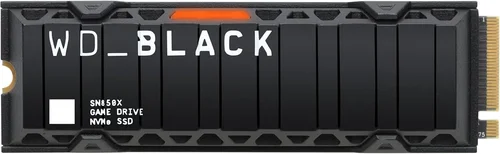
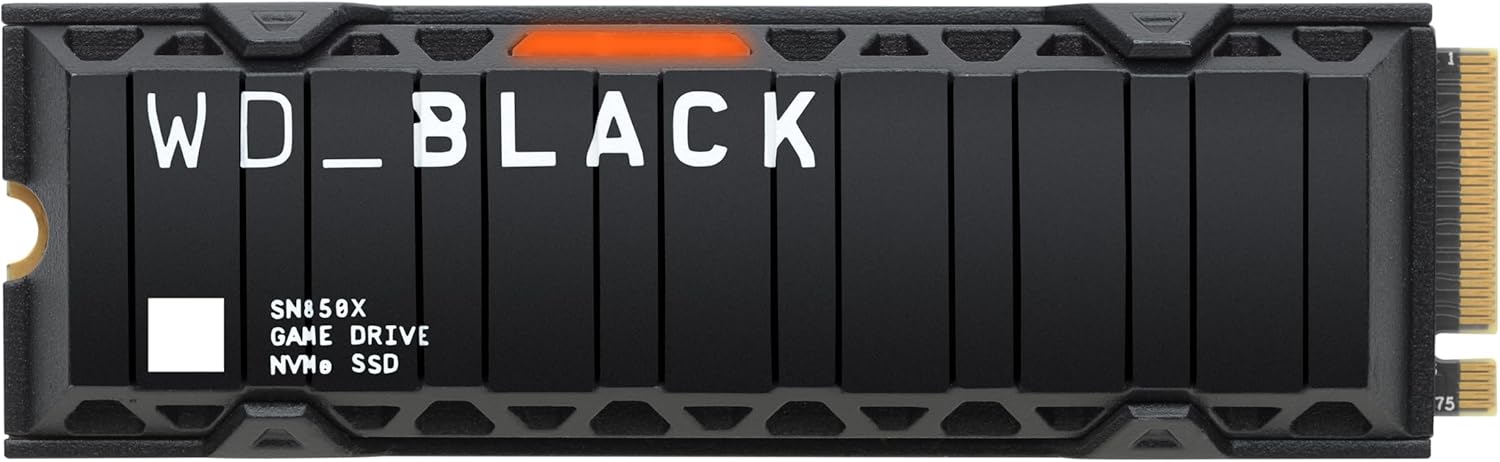
Many premium SSDs now include built-in heatsinks or thermal pads. If your case has limited airflow or you’re using a compact build (like an ITX system), consider a drive with integrated cooling or plan to add an aftermarket M.2 heatsink.
Monitor temperatures using tools like HWiNFO or CrystalDiskInfo. Sustained temps above 70°C can trigger throttling on some models.
6. Brand Reputation and Firmware Quality
Not all SSD manufacturers are equal. Established brands like Samsung, Western Digital, Crucial, Kingston, and Sabrent invest heavily in firmware optimization, quality control, and long-term support. Their drives often receive regular firmware updates that improve stability, fix bugs, and enhance performance.
Avoid no-name or ultra-budget brands that cut corners on components or lack proper validation. A cheap SSD might work fine initially but could fail prematurely or exhibit erratic behavior under load.
Check professional reviews and user forums for real-world reliability reports. A drive with great specs on paper can disappoint if the firmware is buggy or the controller overheats.
7. Warranty and Support
A solid warranty reflects manufacturer confidence in their product. Most reputable SSDs come with 5-year limited warranties, often tied to TBW limits (e.g., “5 years or 600 TBW, whichever comes first”).
Pay attention to the terms: some warranties require registration, original receipt, or proof of purchase. Others may void coverage if the drive is used in a RAID array or server environment.
Customer support quality varies widely. Samsung and Crucial, for example, offer excellent online resources and responsive service. Lesser-known brands may leave you stranded if issues arise.
8. Capacity and Future-Proofing
Game sizes continue to balloon. AAA titles like Starfield, Cyberpunk 2077, and Call of Duty: Modern Warfare III routinely exceed 150–200GB each. With multiple games installed, OS files, and mods, a 500GB drive fills up quickly.
For 2026, we recommend a minimum of 1TB for serious gamers. 2TB is ideal if your budget allows—it provides room for your OS, several large games, and future downloads without constant juggling.
Larger capacities also tend to perform better due to more available NAND channels and over-provisioning (extra space reserved for wear leveling and garbage collection).
Avoid 250GB or 500GB drives unless you’re on a tight budget and willing to manage storage aggressively.
Different Types of Buying Guide

Common Buying Mistakes to Avoid
❌ Mistake: Prioritizing Sequential Speeds Over Real-World Performance
Why it’s bad: Many buyers get dazzled by headline numbers like “14,000 MB/s” and assume it translates to faster gameplay. In reality, most games don’t benefit from ultra-high sequential speeds. The difference between a 3,500 MB/s and 7,000 MB/s drive in load times is often just a second or two—and often imperceptible.
What to do instead: Focus on random 4K read performance, DRAM cache presence, and consistent sustained speeds. A well-optimized PCIe 4.0 drive will outperform a throttling PCIe 5.0 drive in actual gaming scenarios.
❌ Mistake: Buying a DRAM-less SSD to Save Money
Why it’s bad: DRAM-less SSDs use system memory or slow HMB to manage data mapping, leading to higher latency and performance drops during multitasking or heavy asset streaming. You’ll notice stutters, longer initial loads, and inconsistent frame times.
What to do instead: Spend the extra $10–$15 for a DRAM-equipped model. The performance and reliability gains are worth it, especially for modern games that constantly access storage.
❌ Mistake: Ignoring Thermal Throttling
Why it’s bad: High-performance NVMe drives can hit 80°C+ under load. Without cooling, they throttle down to half speed or worse, negating their advantages. This is especially problematic in small form-factor builds or poorly ventilated cases.
What to do instead: Choose drives with built-in heatsinks or install an aftermarket M.2 cooler. Monitor temps during gameplay and ensure your case has adequate airflow.
❌ Mistake: Overpaying for PCIe 5.0 When PCIe 4.0 Suffices
Why it’s bad: PCIe 5.0 drives are significantly more expensive and generate more heat, yet offer negligible gaming benefits in 2026. Most games aren’t optimized to leverage that bandwidth, and the real-world difference is minimal.
What to do instead: Unless you’re doing 8K video editing or scientific computing, stick with PCIe 4.0. It offers the best balance of speed, price, and compatibility.
❌ Mistake: Choosing QLC NAND for Primary Gaming Drive
Why it’s bad: QLC drives slow down dramatically during large writes (like installing a 100GB game). Their lower endurance also raises long-term reliability concerns. They’re fine for secondary storage but risky as your main drive.
What to do instead: Opt for TLC NAND for your primary OS and game drive. Use QLC only for archival storage or infrequently accessed files.
❌ Mistake: Skimping on Capacity
Why it’s bad: A full SSD performs worse due to reduced over-provisioning and increased wear on remaining blocks. Constantly deleting and reinstalling games is frustrating and inefficient.
What to do instead: Aim for at least 1TB, preferably 2TB. If budget is tight, consider a 1TB PCIe 4.0 drive now and add a second drive later.
❌ Mistake: Not Checking Motherboard Compatibility
Why it’s bad: Some motherboards share PCIe lanes between M.2 slots and SATA ports. Installing an NVMe drive might disable a SATA port or reduce GPU bandwidth. Others may not support booting from certain M.2 slots.
What to do instead: Consult your motherboard manual before purchasing. Ensure the M.2 slot supports NVMe, PCIe 4.0 (if desired), and boot functionality.
Budget Guidelines: How Much Should You Spend?
– Entry-Level ($40–$70 for 1TB): Ideal for budget builds or upgrading older systems. Look for reliable SATA III or PCIe 3.0 NVMe drives from trusted brands like Crucial P3 or Kingston NV2. Expect decent performance for most games, though load times may be slightly longer than higher-tier options. Avoid no-name brands and QLC-based models in this range.
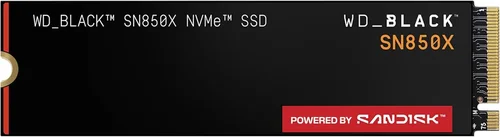
– Mid-Range ($70–$110 for 1TB): The sweet spot for most gamers. PCIe 4.0 NVMe drives like the Samsung 980 Pro, WD Black SN850X, or Crucial T700 offer excellent speed, strong random performance, and robust build quality. These drives handle modern games effortlessly and provide room for future growth. This tier delivers the best value for performance-conscious buyers.
– Premium ($110–$180 for 1TB): For enthusiasts who want top-tier performance and features. Drives in this range often include advanced controllers, high-end TLC NAND, integrated heatsinks, and extended warranties. Examples include the Sabrent Rocket 4 Plus-G and Corsair MP700. While gaming gains over mid-range are marginal, these drives excel in mixed workloads and offer peace of mind.
– Luxury ($180+ for 1TB): Reserved for professionals, extreme overclockers, or those future-proofing for years. PCIe 5.0 drives like the Gigabyte AORUS Gen5 12000 push the limits of speed but come with high power draw and heat output. Only consider if you have a high-end cooling solution and a motherboard that fully supports PCIe 5.0. For pure gaming, this tier is overkill.
Expert Tips for Getting the Best Deal
– Buy During Major Sales Events: Look for discounts during Black Friday, Cyber Monday, Amazon Prime Day, and back-to-school seasons. SSD prices drop significantly during these periods—sometimes by 20–30%.
– Compare Prices Across Retailers: Use price-tracking tools like CamelCamelCamel (for Amazon) or Honey to monitor historical pricing. Sometimes smaller retailers like Newegg or B&H offer better deals than Amazon.
– Check for Bundled Deals: Some motherboard or CPU bundles include free or discounted SSDs. These can offer excellent value if the drive matches your needs.
– Prioritize Warranty and Support Over Minor Price Differences: A $10 savings isn’t worth it if the drive has a shorter warranty or poor customer service. Stick with reputable brands.
– Consider Refurbished or Open-Box Units: Certified refurbished SSDs from manufacturers like Samsung or WD often come with full warranties and can save you 15–25%. Just ensure they’re factory-refurbished, not third-party resold.
– Test Before Committing Long-Term: Once installed, run benchmarks (CrystalDiskMark, ATTO) and monitor real-game load times. If performance seems off, check for firmware updates or thermal issues.
– Don’t Forget About Installation Ease: Some M.2 slots are hard to reach (e.g., under large GPUs). If building a new system, install the SSD before mounting the graphics card.
– Use SSD Optimization Tools: Enable TRIM, disable defragmentation, and ensure your OS is configured for SSD use. Windows and macOS handle this automatically, but it’s good to verify.
Frequently Asked Questions
Q: Does a faster SSD improve FPS in games?
A: No—SSD speed does not directly increase frames per second (FPS). FPS is determined by your GPU, CPU, and RAM. However, a fast SSD can reduce stuttering, eliminate texture pop-in, and shorten load times, making gameplay feel smoother and more responsive.
Q: Can I use an external SSD for gaming?
A: Yes, but with caveats. USB 3.2 Gen 2×2 (20 Gbps) or Thunderbolt 3/4 external SSDs can work well for gaming, especially on consoles like PS5 or Xbox Series X|S. However, latency is slightly higher than internal NVMe, and performance may vary. For PC gaming, internal drives are still preferred.
Q: Is PCIe 5.0 worth it for gaming in 2026?
A: Not yet. While PCIe 5.0 offers double the bandwidth of PCIe 4.0, no current game engine fully utilizes it. The real-world difference in load times is minimal—often less than a second. Save your money unless you’re also doing heavy video editing or AI workloads.
Q: How do I know if my SSD is throttling?
A: Use monitoring tools like HWiNFO64 or CrystalDiskInfo to check real-time temperatures and performance. If speeds drop significantly during extended use or temps exceed 75°C, throttling is likely occurring. Improve cooling or consider a drive with better thermal management.
Q: Should I install my OS and games on the same SSD?
A: Yes, for most users. Modern SSDs handle mixed workloads well, and having everything on one fast drive simplifies management. Just ensure you have enough free space (at least 15–20%) for optimal performance.
Q: Do SSDs wear out from gaming?
A: Unlikely. Gaming is primarily read-heavy, and modern SSDs are designed for millions of read cycles. Write endurance (TBW) is the real concern, but even heavy gamers would take years to reach the limit on a quality TLC drive.
Q: Can I clone my old SSD to a new one?
A: Absolutely. Tools like Macrium Reflect, Acronis True Image, or Samsung Data Migration allow you to clone your existing drive seamlessly. This preserves your OS, settings, and installed games.
Q: What’s the difference between NVMe and M.2?
A: M.2 is a physical form factor (the slot size), while NVMe is a protocol that defines how data is transferred. Not all M.2 drives are NVMe—some use SATA. Always check specifications to ensure you’re getting an NVMe drive if that’s what you want.
Q: Are cheaper SSDs safe to use?
A: It depends. Reputable budget brands like Crucial, Kingston, and Team Group offer reliable drives at lower prices. Avoid unknown brands with no reviews or support. If the deal seems too good to be true, it probably is.
Our Final Recommendations
– Best for Budget-Conscious Buyers: Crucial P3 1TB (PCIe 3.0 NVMe) – Offers excellent value with DRAM cache, strong random performance, and a 5-year warranty. Perfect for upgrading older systems or building a cost-effective gaming PC.
– Best Overall Value: WD Black SN850X 1TB (PCIe 4.0 NVMe) – Combines top-tier speed, reliable TLC NAND, low latency, and consistent performance under load. Ideal for mainstream gamers who want premium features without overspending.
– Best Premium Option: Samsung 990 Pro 2TB (PCIe 4.0 NVMe) – Samsung’s flagship drive delivers exceptional endurance, blazing speeds, and best-in-class firmware. The 2TB capacity ensures ample space for years of gaming.
– Best for Beginners: Kingston NV2 1TB (PCIe 4.0 NVMe) – Simple, reliable, and easy to install. Great for first-time builders or those upgrading from HDDs. Includes Kingston’s SSD Manager software for monitoring.
– Best for Advanced Users: Sabrent Rocket 4 Plus-G 2TB (PCIe 4.0 NVMe) – Features a high-performance Phison controller, excellent thermal throttling resistance, and aggressive pricing for the capacity. Ideal for enthusiasts who want maximum bang for buck.
Conclusion: Making the Right Choice
Choosing the right SSD for gaming isn’t just about chasing the highest numbers—it’s about understanding how storage impacts your actual experience. A high-performance SSD won’t boost your FPS, but it will make your games load faster, run smoother, and feel more immersive. By focusing on real-world metrics like random performance, thermal management, and build quality—not just sequential speeds—you’ll avoid common pitfalls and get the most value from your investment.
Remember, the best SSD is the one that matches your system, your budget, and your gaming habits. Whether you’re building a budget rig or assembling a high-end battlestation, prioritize reliability, capacity, and consistent performance. Don’t fall for marketing hype or overspend on features you won’t use. With the insights from this guide, you’re equipped to make a smart, informed decision that will enhance your gaming for years to come.
Take the time to assess your needs, compare options, and invest wisely. Your future self—and your game library—will thank you.