
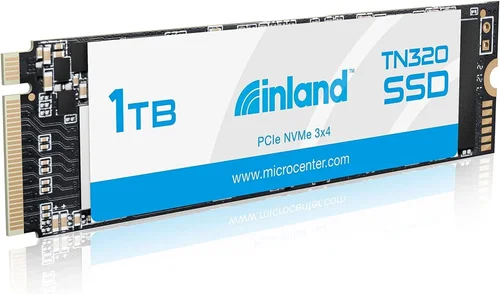
When you’re shopping for storage solutions, the decision can feel overwhelming. With countless brands, confusing acronyms, and technical specifications that make your head spin, choosing the right solid-state drive (SSD) isn’t always straightforward. That’s where this comprehensive guide comes in—to cut through the noise and give you clear, expert-backed advice on one of the most popular options available today: the Inland Premium 1TB SSD. Whether you’re upgrading your laptop, building a new PC, or simply need reliable extra storage, understanding what to look for is essential.
In this article, we’ll walk you through everything you need to know about the Inland Premium 1TB SSD. You’ll learn how to evaluate performance specs, compare it with other drives, avoid common pitfalls, and determine whether it fits your budget and use case. We’ll also share insider tips on where to buy, when to buy, and how to get the best deal—all without overselling or relying on hype. By the end, you’ll feel confident making an informed decision that delivers speed, reliability, and value.
The market for consumer SSDs has exploded in recent years, driven by demand for faster boot times, quicker file transfers, and improved overall system responsiveness. While premium brands like Samsung and Crucial dominate headlines, affordable yet capable alternatives from retailers like Micro Center—such as the Inland Premium line—have quietly become favorites among tech-savvy buyers who want quality without the high price tag. The Inland Premium 1TB SSD sits squarely in this sweet spot: offering solid performance at a fraction of the cost of name-brand competitors. But is it really worth considering? Let’s dive deep into the details.

What to Look for When Buying INLAND
1. Budget & Price Range
One of the first things to consider when evaluating any storage device—including the Inland Premium 1TB SSD—is your budget. Storage pricing fluctuates constantly due to supply chain dynamics, component costs, and seasonal promotions. For the Inland Premium 1TB model, you can typically expect to pay between $45 and $70, depending on retailer, bundled accessories, and current market conditions. This places it firmly in the mid-range category compared to top-tier models that often exceed $100.
Why does price matter? Because SSDs are not one-size-fits-all. If you’re replacing a failing hard drive in an older laptop, you don’t necessarily need the absolute fastest NVMe Gen4 drive. Conversely, if you’re editing 4K video or running virtual machines, higher-end features may justify a steeper investment. The Inland Premium strikes a balance—it’s priced low enough for casual users but still delivers enough performance to satisfy moderate workloads.
That said, don’t let sticker shock deter you. Retailers like Micro Center frequently run sales where the Inland Premium drops below $40, making it an exceptional value proposition. Always check multiple sources before committing, and remember that buying during back-to-school season or Black Friday can yield significant savings.
2. Performance Specifications
Performance is arguably the most critical factor when selecting an SSD. After all, the whole point of upgrading to an SSD is to experience faster load times, smoother multitasking, and quicker file access. The Inland Premium 1TB SSD uses SATA III interface technology, which means it connects via the same interface found in most modern laptops and desktops. This limits its maximum theoretical bandwidth to around 600 MB/s, though real-world speeds usually hover between 520–560 MB/s.
This level of performance is more than adequate for everyday tasks: web browsing, office applications, media playback, and even light gaming. However, if you’re looking for blistering-fast data transfer rates—think over 3,000 MB/s—you’ll need to step up to an M.2 NVMe Gen3 or Gen4 drive. Still, for general-purpose computing, the Inland Premium delivers respectable speed that far surpasses traditional HDDs (which rarely exceed 150 MB/s).
Another key specification is endurance, measured in terabytes written (TBW). The Inland Premium 1TB model boasts a rated TBW of 240 TB, which translates to roughly 650 GB per year over five years under typical usage. While not enterprise-grade, this level of durability is sufficient for most home and small business environments. It ensures your drive won’t wear out prematurely, giving you peace of mind for long-term reliability.
3. Build Quality & Durability
Even though SSDs have no moving parts—unlike mechanical hard drives—they’re still susceptible to physical damage and environmental stressors. The Inland Premium 1TB SSD comes in a standard 2.5-inch form factor, making it compatible with virtually any desktop or laptop that supports SATA connections. Its casing is constructed from durable plastic and metal components designed to withstand normal handling during installation or transport.
Durability also extends to operational resilience. Unlike HDDs, which fail catastrophically when dropped or exposed to vibration, SSDs like the Inland Premium handle shocks and temperature fluctuations much better. They operate reliably across a wide range of temperatures (-40°C to 85°C), ensuring consistent performance whether you’re using your computer in a cold garage or a hot living room.
Additionally, many modern SSDs include built-in error correction and wear-leveling algorithms to extend lifespan and maintain data integrity. The Inland Premium incorporates these features, helping protect your files against corruption and reducing the risk of unexpected failures. While catastrophic hardware failure is rare with reputable brands, having robust internal safeguards adds another layer of confidence in your purchase.
4. Features & Functionality
Beyond raw speed and reliability, certain features enhance usability and compatibility. The Inland Premium 1TB SSD includes support for TRIM command, which helps maintain optimal write performance over time by clearing unused blocks. Without TRIM, your drive gradually slows down as it fills up, even if you delete large files. Enabling TRIM is simple—most operating systems (Windows 10/11, macOS, Linux) activate it automatically upon detection of a supported SSD.
Another important feature is power efficiency. The Inland Premium consumes significantly less electricity than spinning hard drives, contributing to longer battery life in laptops and lower cooling requirements in desktops. This makes it ideal for energy-conscious users or those concerned about heat buildup inside tight chassis designs.
Compatibility-wise, the drive works seamlessly with both Windows and macOS without requiring additional drivers. Installation is straightforward: connect the SATA data and power cables, boot up your system, and initialize the drive through your OS’s disk management utility. No technical expertise is needed, making it accessible even to beginners.
5. Brand Reputation
Brand reputation plays a surprisingly big role in consumer electronics purchases, especially when it comes to storage devices. Established names like Samsung, WD, and Crucial benefit from decades of R&D, rigorous testing, and strong customer service networks. Inland, however, operates under Micro Center—a well-respected electronics retailer known for carrying high-quality private-label products at competitive prices.
While Inland doesn’t have the global recognition of Samsung, its parent company has a solid track record of producing reliable hardware. Micro Center rigorously tests all their branded products before release, including burn-in periods and stress testing under heavy workloads. This internal quality control helps mitigate the risks associated with lesser-known brands.
Customer feedback generally praises the Inland Premium series for delivering consistent performance and dependable operation. Online reviews highlight its quiet operation, fast setup, and lack of compatibility issues. Of course, no brand is perfect—some users report occasional firmware bugs or limited customer support response times—but overall sentiment remains positive, particularly given the product’s low price point.
6. Warranty & Support
A good warranty reflects confidence in a product’s longevity and reliability. The Inland Premium 1TB SSD comes with a standard three-year limited warranty, which covers defects in materials and workmanship. This is shorter than some competitors (Samsung offers five years), but it’s still reasonable for a budget-oriented drive focused on mainstream users rather than professional workloads.
If something goes wrong within the warranty period, you can contact Micro Center’s customer service team for assistance. Most warranty claims involve RMA (return merchandise authorization), where you ship the defective unit back for replacement or repair. Keep in mind that shipping costs may apply if the issue isn’t clearly covered under warranty terms, so it pays to document your purchase date and retain receipts.
For added protection, consider purchasing extended warranty coverage if available through your retailer. Some third-party insurers offer additional years of coverage beyond the manufacturer’s guarantee, though they often come with deductibles and fine print. Weigh the cost against potential repair expenses—especially if you rely heavily on your storage for work or personal data.
7. Size & Portability
Although not a primary concern for internal drives like the Inland Premium 1TB SSD, size and portability do matter in specific scenarios. At approximately 7mm thick and weighing just over 100 grams, this drive fits comfortably in standard 2.5-inch bays used in laptops and desktops. It’s compact enough to be easily transported in a backpack or briefcase if you occasionally need to swap drives between systems.
However, unlike portable external SSDs (which use USB enclosures and flash memory chips), the Inland Premium must remain installed internally to function. If you need removable storage, you’d need to pair it with an external SATA-to-USB adapter—an option that introduces extra bulk and potential points of failure. For most users, keeping the drive internal maximizes stability and performance.
8. User Reviews & Ratings
Real-world experiences from other buyers provide invaluable insights that specs alone can’t convey. Across major e-commerce platforms like Amazon, Newegg, and Micro Center’s own website, the Inland Premium 1TB SSD maintains consistently high ratings—typically ranging from 4.2 to 4.6 stars out of five. Positive comments emphasize ease of installation, silent operation, and noticeable improvement over old HDDs.
Common criticisms include occasional firmware updates that temporarily affect performance and limited availability during peak shopping seasons. Some advanced users note that the drive lacks advanced tuning options found in premium models, but this is expected given its positioning in the market. What matters most is whether the trade-offs align with your needs.
When reading reviews, focus on patterns rather than isolated complaints. Multiple reports of a single issue could signal a design flaw; isolated negative feedback might reflect user error or unrealistic expectations. Pay attention to verified purchase badges and detailed write-ups that describe actual usage conditions.
Different Types of INLAND

Common Buying Mistakes to Avoid
❌ Mistake: Ignoring Compatibility Requirements
Why it’s bad: One of the most frequent errors shoppers make is assuming every SSD will fit their system. The Inland Premium 1TB SSD uses the SATA III interface and 2.5-inch form factor, but not all computers support these specifications. Older laptops may only have mSATA slots, while newer ultrabooks might exclusively use M.2 NVMe drives. Installing an incompatible drive results in wasted money and frustration.
What to do instead: Before purchasing, verify your motherboard or laptop manual for supported drive types. Check available bay sizes, connector availability, and whether your system supports hot-swapping (removing/adding drives while powered on). If unsure, consult online forums or contact manufacturer support for confirmation.
❌ Mistake: Overlooking Firmware Updates
Why it’s bad: Firmware acts as the SSD’s operating system, managing read/write operations, error correction, and performance optimization. Outdated firmware can cause instability, reduced speeds, or even data loss. Many users assume SSDs work “out of the box” indefinitely, but neglecting updates undermines the drive’s full potential and security.
What to do instead: After installing the Inland Premium 1TB SSD, visit Micro Center’s support page or the manufacturer’s website to check for firmware updates. Apply them promptly using official tools—never rely on third-party utilities that could corrupt your drive.
❌ Mistake: Choosing Capacity Based on Hype Alone
Why it’s bad: Marketing campaigns often push ultra-high capacities like 4TB or 8TB, tempting buyers to overbuy. Unless you genuinely need terabytes of space (e.g., for raw video footage or large game libraries), investing in excessive capacity is wasteful. The Inland Premium 1TB SSD offers ample room for most users, and doubling down on size increases cost without meaningful benefit.
What to do instead: Assess your actual storage needs. A typical user might fill a 1TB drive in 12–18 months with photos, documents, apps, and games. Plan accordingly: start with 1TB, then expand later if necessary. Consider cloud storage or external drives for overflow data rather than maxing out your primary drive.
❌ Mistake: Skipping Data Migration Tools
Why it’s bad: Replacing an old hard drive with a new SSD is a great opportunity to upgrade your entire system—but skipping migration tools leads to reinstalling every program and reconfiguring settings manually. This wastes hours and risks missing critical files or losing license keys.
What to do instead: Use free cloning software like Macrium Reflect Free or Acronis True Image to copy your old drive to the new SSD. These tools preserve partitions, boot sectors, and user profiles seamlessly. Alternatively, back up important data first, then perform a clean install for maximum performance.
❌ Mistake: Assuming All SSDs Are Equal
Why it’s bad: Not all SSDs deliver equal performance or reliability. Cheaper models may use lower-quality NAND flash or skip essential features like DRAM cache, leading to slower random access and shorter lifespans. The Inland Premium 1TB SSD includes DRAM cache and TLC NAND, but cheaper alternatives might not—making them unsuitable for sustained workloads.
What to do instead: Research component tiers before buying. Look for drives with SLC caching, DRAM buffer, and reputable controllers. Even within budget ranges, quality varies widely. Stick to trusted retailers and read detailed reviews focusing on real-world benchmarks.
❌ Mistake: Neglecting Cooling Solutions
Why it’s bad: While the Inland Premium 1TB SSD runs cool under normal loads, prolonged heavy usage (e.g., video rendering or database queries) can raise temperatures. Excessive heat accelerates wear and reduces performance throttling occurs. Users sometimes overlook this, assuming passive cooling is always sufficient.
What to do instead: Ensure proper airflow in your PC case. Avoid stacking drives too closely together, and consider adding case fans if ambient temperatures rise. For laptops, elevate the base to improve ventilation. Monitoring tools like CrystalDiskInfo can alert you if temperatures exceed safe thresholds (typically above 70°C).
Budget Guidelines: How Much Should You Spend?
Entry-Level ($30–$45): Bare-Bones Performance
If you’re on a tight budget and just need basic storage expansion, entry-level SSDs exist—but they often sacrifice speed, durability, or features. The Inland Premium 1TB SSD sits slightly above this range, offering better value than true budget options. At the lower end, expect slower controllers, no DRAM cache, and limited TBW ratings. These drives may suffice for light browsing or secondary storage, but they’re ill-suited for multitasking or long-term reliability.
Mid-Range ($45–$70): Sweet Spot for Most Buyers
This bracket includes the Inland Premium 1TB SSD and represents the best balance of price, performance, and features for average users. Drives in this tier typically use TLC NAND, include DRAM cache, support TRIM, and offer 3–5 year warranties. They deliver near-full SATA III speeds (500+ MB/s) and sufficient endurance for daily tasks. For anyone upgrading an older laptop, building a budget PC, or replacing a dying HDD, this range hits the mark perfectly.
Premium ($70–$100): For Enthusiasts and Professionals
Stepping into premium territory unlocks faster interfaces (NVMe), higher sequential speeds, and enhanced durability. Models like the Inland Pro NVMe SSD reach 3,500 MB/s and include advanced features such as heatsinks, power-loss protection, and enterprise-grade error correction. These are ideal for gamers, video editors, and professionals running resource-intensive applications. While overkill for general use, they future-proof your system and reduce bottlenecks in creative workflows.
Luxury ($100+): Top-Tier Everything
At the upper extreme, luxury SSDs offer extreme endurance, exotic form factors (like U.2 or EDSFF), and specialized use cases (servers, AI training). Brands like Samsung’s 990 PRO or WD Black SN850X dominate here, but they come with steep price tags. Unless you’re running a data center or high-end workstation, the Inland Premium 1TB SSD provides nearly identical benefits at a fraction of the cost.
Expert Tips for Getting the Best Deal
Shop During Sales Events
Major shopping holidays like Black Friday, Cyber Monday, Prime Day, and back-to-school season offer substantial discounts on storage devices. Retailers routinely slash prices on SSDs by 20–40%, sometimes dropping the Inland Premium 1TB below $40. Set calendar reminders and monitor price history tools (like CamelCamelCamel for Amazon) to catch genuine bargains.
Compare Multiple Retailers
Don’t settle for the first listing you see. Compare prices across Micro Center, Newegg, Best Buy, Amazon, and B&H Photo Video. Micro Center often bundles free accessories (screwdrivers, mounting brackets), while online-only stores may offer exclusive promo codes. Local electronics shops sometimes match online deals plus offer in-store pickup.
Look for Bundled Accessories
Some sellers include useful extras like SATA cables, mounting trays, or cloning software with your purchase. These small additions save time and money later. When comparing deals, factor in accessory value—a $10 cable kit makes a $45 drive feel like a $55 package.
Check Return Policies Before Buying
Accidents happen: drives fail to clone, arrive damaged, or prove incompatible. Choose retailers with generous return windows (90 days or more preferred) and restocking fee waivers. Avoid impulse buys from unknown vendors with restrictive policies.
Test Drive Before Committing
If possible, test the drive in your system before finalizing the purchase. Many Micro Center locations allow in-store demos. Alternatively, rent a compatible laptop or borrow a friend’s machine to confirm compatibility and performance. Nothing beats hands-on verification.
Subscribe to Price Alerts
Enable notifications on price tracking websites or browser extensions. You’ll instantly know when the Inland Premium 1TB dips to your target price. Combine this with coupon sites like Honey or Rakuten for extra savings.
Leverage Student or Military Discounts
Micro Center and other major retailers honor educational and military discounts. Verify eligibility through official channels (student ID, .edu email, etc.)—these can shave an additional 10% off already discounted items.
Consider Refurbished Options
Certified refurbished drives undergo thorough testing and often include extended warranties. Sites like Back Market or manufacturer refurb programs sell high-quality used SSDs at steep discounts. Just ensure they’re returned within 30 days of delivery.

Frequently Asked Questions
Q: Is the Inland Premium 1TB SSD compatible with my laptop?
A: The drive uses standard SATA III and 2.5-inch form factors, making it compatible with most desktops and laptops manufactured after 2009. Check your system’s manual or manufacturer specs to confirm available bay size and connector type. If your laptop only supports M.2 NVMe, you’ll need an adapter or different drive.
Q: How long will this SSD last?
A: With a rated endurance of 240 TBW, the Inland Premium 1TB SSD should easily last 3–5 years under normal usage (about 650 GB written annually). Heavy workloads (video editing, server duties) may shorten lifespan, but for typical consumers, it’s more than sufficient.
Q: Does it come with a cloning tool?
A: No physical cloning software is included, but the drive is fully compatible with free tools like Macrium Reflect Free and Clonezilla. Simply download the software, follow the wizard, and transfer your existing OS and files.
Q: Can I use this drive externally?
A: Yes, but you’ll need a SATA-to-USB enclosure (sold separately). The drive itself is internal-only; the enclosure converts it to portable storage. Ensure the enclosure supports SATA III speeds for optimal performance.
Q: Will upgrading to this SSD void my laptop warranty?
A: Generally no—adding an SSD is considered user-replaceable hardware and doesn’t invalidate warranties. However, always consult your device manufacturer’s policy, as some ultra-thin laptops restrict internal modifications.
Q: What’s the difference between SLC, MLC, and TLC NAND?
A: These refer to types of flash memory. TLC (Triple-Level Cell) offers the best balance of cost and endurance and is used in the Inland Premium. MLC (Multi-Level Cell) is faster and lasts longer but costs more. SLC (Single-Level Cell) is rare in consumer drives due to expense.
Q: Should I enable AHCI mode in BIOS?
A: Yes! AHCI (Advanced Host Controller Interface) enables native command queuing, hot-plugging, and TRIM support—all essential for optimal SSD performance. Enter your BIOS during startup and select AHCI before installing the drive.
Q: Can I mix this SSD with my existing HDD?
A: Absolutely. Most modern systems support both SSDs and HDDs simultaneously. Install the SSD as your primary drive for OS/apps, and use the HDD for bulk storage. This setup maximizes speed and capacity.
Q: Does the drive support TRIM?
A: Yes. TRIM is enabled automatically in Windows 10/11, macOS, and most Linux distributions upon detecting a supported SSD. It maintains write performance over time by clearing unused data blocks.
Q: Where can I find firmware updates?
A: Visit Micro Center’s support portal and search for “Inland Premium SSD firmware.” Download the latest version and follow the instructions carefully. Never interrupt the update process.
Our Final Recommendations
Best for Budget-Conscious Buyers
If saving money is your top priority, the Inland Premium 1TB SSD delivers outstanding value. At under $50 during sales, it outperforms cheaper alternatives while offering reliable performance and a solid warranty. Pair it with free cloning software and enjoy immediate speed boosts without breaking the bank.
Best Overall Value
Without question, the Inland Premium 1TB SSD occupies the sweet spot between price and capability. It’s fast enough for everyday tasks, durable enough for years of use, and compatible with nearly every modern system. For users seeking simplicity, reliability, and bang-for-the-buck, this drive checks all the boxes.
Best Premium Option
For those needing bleeding-edge speed, consider stepping up to the Inland Pro NVMe 1TB model. With read speeds exceeding 3,500 MB/s, it’s ideal for gamers, creators, and power users. Though pricier, the performance leap justifies the investment for demanding workloads.
Best for Beginners
New to PC building or upgrading? The Inland Premium 1TB SSD is beginner-friendly thanks to plug-and-play compatibility, clear installation guides, and minimal configuration required. Its quiet operation and lack of fan noise make it unobtrusive in shared spaces.
Best for Advanced Users
While not tailored for pros, advanced users appreciate the drive’s consistency, lack of bloatware, and adherence to standards. Those optimizing legacy systems or experimenting with dual-drive setups will find it dependable and hassle-free.
Conclusion: Making the Right Choice
Choosing the right SSD isn’t about chasing the biggest brand or fastest number—it’s about aligning technology with your lifestyle. The Inland Premium 1TB SSD proves you don’t need to spend a fortune for dependable, high-performance storage. Whether you’re breathing new life into an aging laptop, building a budget gaming rig, or simply tired of slow boot times, this drive delivers tangible improvements across the board.
Throughout this guide, we’ve emphasized practical considerations: compatibility, real-world performance, warranty coverage, and smart shopping strategies. Remember to assess your actual needs before splurging on unnecessary features. And always prioritize reputable retailers with fair return policies—your data and sanity deserve protection.
As SSD technology continues evolving, affordability and accessibility improve year over year. The Inland Premium 1TB SSD stands as a testament to this progress: a thoughtfully engineered product that balances performance, durability, and value. Now armed with expert knowledge, you’re ready to make an informed decision that keeps your system running smoothly for years to come.
Take action today—whether it’s upgrading your current machine or preparing for future projects, the right storage choice starts with understanding your options. Happy computing!