
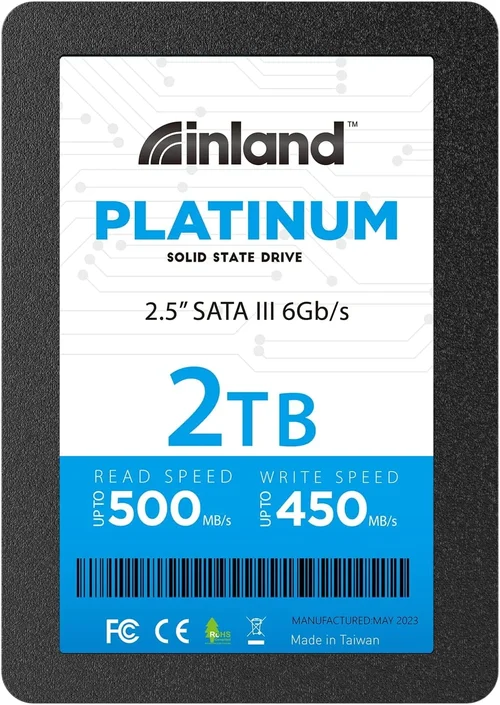
When shopping for storage solutions, the decision between solid-state drives (SSDs) and traditional hard disk drives (HDDs) can significantly impact your computing experience. Among the myriad of options available, the Inland Premium 1TB SSD with 3D NAND technology has emerged as a compelling choice for both casual users and professionals seeking reliable, high-performance storage. This comprehensive buying guide is designed to demystify the complexities of modern SSD technology, specifically focusing on the Inland Premium 1TB model, helping you make an informed decision that aligns perfectly with your specific needs and budget constraints.
In this detailed exploration, we will dissect every critical aspect of the Inland Premium 1TB SSD 3D NAND, from its technical specifications and performance benchmarks to its build quality, warranty coverage, and real-world usability scenarios. You’ll learn how to evaluate different factors that influence storage performance, understand the nuances of 3D NAND technology compared to older planar NAND, and discover which use cases—whether for gaming, content creation, everyday productivity, or system upgrades—will benefit most from this particular drive. Additionally, we’ll address common misconceptions, highlight potential pitfalls in the purchasing process, and provide expert recommendations tailored to various user profiles and financial situations.
By the end of this guide, you won’t just be familiar with what makes the Inland Premium 1TB SSD stand out—you’ll know exactly whether it’s the right fit for your desktop, laptop, or portable storage needs. Whether you’re upgrading an aging computer, building a new PC, or simply expanding your digital workspace, understanding the full scope of this product’s capabilities and limitations will empower you to select not only a great SSD but one that delivers lasting value and performance.
—

What to Look for When Buying INLAND
1. Performance Specifications
One of the most critical aspects when evaluating any SSD is its performance profile. The Inland Premium 1TB SSD utilizes advanced 3D NAND flash memory, which stacks memory cells vertically rather than laying them flat like older 2D NAND chips. This innovation increases storage density, improves endurance, and enhances overall reliability. When assessing performance, pay close attention to sequential read/write speeds—typically advertised at up to 550 MB/s read and 520 MB/s write for SATA III models—which determine how quickly large files transfer between the drive and your system. Random input/output operations per second (IOPS), especially 4K random reads/writes, are equally important for multitasking and boot responsiveness. These metrics directly affect how fast your operating system loads, applications launch, and file transfers complete. For context, compare these figures against industry standards: even mid-tier SATA SSDs should exceed 400 MB/s, while NVMe drives often surpass 3,000 MB/s. Always verify that your motherboard supports SATA III (6 Gb/s) if you’re considering this drive, as older interfaces cap throughput at approximately 600 MB/s regardless of internal speed.
2. Endurance Rating and TBW
Total Bytes Written (TBW) is a crucial metric that indicates how much data can be reliably written to the SSD over its lifetime before wear-out occurs. The Inland Premium 1TB model typically carries a TBW rating around 360 terabytes, meaning you could write 1 terabyte daily for roughly one year without exceeding safe operational limits. While this may seem excessive for average users, it reflects the drive’s robust construction and suitability for sustained workloads such as video editing or server environments. Compare this figure against the manufacturer’s stated lifespan in years—often derived using standardized testing under controlled conditions—and consider your own usage patterns. Casual users who primarily store documents, photos, and media files will far exceed this endurance limit, making longevity less of a concern. However, power users performing frequent large-scale writes (e.g., database servers, surveillance recording systems) should prioritize higher TBW ratings and opt for enterprise-grade alternatives when possible. It’s also wise to check whether the drive includes over-provisioning, which reserves unused space for garbage collection and wear leveling, further extending usable life.
3. Form Factor and Interface Compatibility
The physical dimensions and connection type of an SSD dictate its compatibility with existing hardware. The Inland Premium 1TB SSD comes in two primary form factors: 2.5-inch SATA and M.2 2280. The former fits standard laptop bays and desktop 3.5-inch trays with a SATA cable, offering broad compatibility across older and newer systems alike. The latter mounts directly onto motherboard slots using a PCIe interface (usually SATA protocol via M.2 slot) or NVMe protocol depending on the variant, providing faster access times and reduced latency. Before purchasing, confirm your device’s available ports: many laptops only support SATA M.2, while desktops often offer both SATA and NVMe options. Additionally, ensure your BIOS/UEFI firmware supports UEFI boot mode for optimal initialization speed. Misalignment here can result in installation failures or subpar performance. If upgrading a laptop, measure internal space carefully; some ultra-thin models restrict height clearance for taller heatsinks or capacitors. For desktop builds, consider airflow implications if installing multiple M.2 drives near other heat-generating components like GPUs or CPUs.
4. Power Consumption and Thermal Management
Efficient power usage is essential for mobile devices and energy-conscious setups. Most consumer-grade SATA SSDs consume minimal electricity—typically under 3 watts during active operation and less than 0.5 watts in idle states. This low draw contributes to extended battery life in laptops and reduced heat generation, minimizing cooling requirements. However, certain high-performance NVMe drives can spike above 5 watts under heavy load due to faster controller activity, potentially triggering thermal throttling if inadequate airflow exists. The Inland Premium 1TB SATA variant remains relatively cool and quiet, making it ideal for compact builds or noise-sensitive environments. If opting for an M.2 NVMe version, verify that your case includes adequate ventilation or consider adding a small heatsink to prevent sustained temperature elevation during intensive tasks like game loading or rendering. Overheating doesn’t damage modern SSDs immediately but can degrade performance and shorten lifespan over time. Monitoring tools such as CrystalDiskInfo provide real-time temperature readings and SMART status updates, allowing proactive maintenance.
5. Reliability and Error Correction
Data integrity hinges on sophisticated error correction mechanisms embedded within modern SSD controllers. The Inland Premium 1TB leverages LDPC (Low-Density Parity-Check) codes and ECC (Error Correcting Code) algorithms to detect and rectify bit errors caused by cosmic rays, manufacturing defects, or gradual cell degradation. These systems continuously monitor data health and redistribute failing blocks to spare areas, preserving critical information even as NAND cells age. Additionally, wear-leveling algorithms ensure uniform distribution of write cycles across all memory cells, preventing premature failure at commonly used locations. Unlike HDDs susceptible to mechanical shock or head crashes, SSDs offer greater resilience against physical abuse—though extreme temperatures or improper handling can still cause issues. Always enable TRIM support in your operating system to maintain optimal write efficiency; Windows users can validate this via fsutil behavior query DisableDeleteNotify in Command Prompt. Disabling TRIM leads to performance decay over time as deleted data fragments accumulate, reducing effective storage capacity and slowing subsequent writes.
6. Security Features
While basic encryption isn’t always included in mainstream consumer SSDs like the Inland Premium 1TB, some models feature software-based AES-256 encryption managed through third-party utilities or built-in firmware. Hardware-level security protocols such as TCG Opal 2.0 or IEEE 1667 provide stronger protection by encrypting entire drives automatically upon boot-up, rendering data inaccessible without proper authentication. However, most mainstream brands rely on host-based solutions requiring manual configuration or external keys stored separately. If privacy is paramount—such as storing sensitive financial records or confidential business documents—consider pairing your SSD with full-disk encryption tools like BitLocker (Windows) or FileVault (macOS). Remember that encrypted drives require decryption keys to operate normally; losing these credentials permanently locks your data. Always back up recovery phrases or USB keys securely outside the primary system.
7. Software Ecosystem and Utilities
Beyond raw hardware specs, the availability of companion software enhances usability and troubleshooting capabilities. Inland provides limited native utilities for monitoring drive health, updating firmware, or cloning installations—but their functionality pales compared to competitors like Samsung Magician or Crucial Storage Executive. Third-party tools such as CrystalDiskMark benchmark performance objectively, while HD Tune Pro analyzes real-world read/write patterns and identifies bottlenecks. Free open-source programs like HDTune or AS SSD Benchmark deliver comparable insights without licensing fees. For cloning old drives, Macrium Reflect Free or Clonezilla offer reliable sector-by-sector copying, preserving partition structures and boot sectors seamlessly. Avoid unverified freeware claiming to “optimize” or “clean” drives, as they often introduce malware or delete essential system files. Regularly update your SSD firmware through official channels to patch vulnerabilities and improve compatibility with newer OS versions.
8. Environmental Certifications and Sustainability
Eco-conscious buyers appreciate certifications indicating compliance with international environmental standards. Though not universally displayed, reputable manufacturers display labels like RoHS (Restriction of Hazardous Substances), REACH (Registration, Evaluation, Authorization, and Restriction of Chemicals), or Energy Star for efficient operation. The Inland Premium 1TB meets basic regulatory requirements, ensuring minimal toxic material content and adherence to disposal guidelines. Recycling programs offered by retailers or OEMs facilitate responsible end-of-life management, reducing electronic waste impact. Consider purchasing refurbished units from certified resellers to extend product lifecycles while supporting circular economy principles. Note that recycled drives undergo rigorous testing and come with warranties comparable to new inventory, offering cost savings without compromising quality.
—
Different Types of INLAND

—
Common Buying Mistakes to Avoid

❌ Mistake: Ignoring Interface Compatibility
Why it’s bad: Installing an M.2 NVMe SSD in a system that only supports SATA M.2 slots renders the drive incompatible, wasting money and effort. Similarly, assuming all 2.5-inch SSDs fit every laptop bay overlooks size variations and mounting bracket requirements.
What to do instead: Consult your device’s technical manual or manufacturer website to verify supported interfaces and physical dimensions. Use online compatibility checkers provided by retailers like Newegg or Amazon before ordering.
❌ Mistake: Overlooking Firmware Updates
Why it’s bad: Outdated firmware can cause instability, reduced performance, or failed OS installations. Many users assume plug-and-play functionality eliminates this step, leading to avoidable headaches post-purchase.
What to do instead: Download the latest firmware tool from Inland’s support page prior to installation. Follow instructions precisely, including disconnecting peripherals and avoiding interruptions during updates.
❌ Mistake: Choosing Based Solely on Capacity
Why it’s bad: A larger drive doesn’t guarantee better performance. Overspending on 2TB+ models for light usage inflates costs unnecessarily, while undersizing leaves insufficient room for future growth and OS updates.
What to do instead: Calculate your actual storage needs—factor in OS footprint (~30GB), applications (~50–100GB each), media libraries, and projected expansion. Aim for 70–80% utilization for optimal longevity.
❌ Mistake: Neglecting Backup Strategies
Why it’s bad: Relying solely on SSDs without redundant copies risks total data loss during sudden failures. Unlike HDDs, SSDs don’t have moving parts but suffer from latent cell degradation invisible to users.
What to do instead: Implement a 3-2-1 backup rule: three copies of data, on two different media types, with one offsite. Cloud services (Google Drive, iCloud) paired with external drives offer balanced protection.
❌ Mistake: Skipping Warranty Verification
Why it’s bad: Assuming standard warranties apply regardless of region or retailer leads to denied claims when defects arise. Some sellers void coverage if packaging is opened or serial numbers mismatch.
What to do instead: Confirm warranty length (typically 3–5 years for consumer SSDs) and terms before checkout. Register your product immediately after purchase to activate support benefits.
❌ Mistake: Prioritizing Speed Over Real-World Needs
Why it’s bad: Pursuing top-tier NVMe speeds for basic tasks like web browsing or office work offers diminishing returns. SATA SSDs already eliminate traditional HDD bottlenecks for most non-gaming scenarios.
What to do instead: Match performance tier to usage profile. Gamers and creators benefit from NVMe; general users gain ample speed from SATA without premium pricing.
❌ Mistake: Failing to Test After Installation
Why it’s bad: Assuming seamless integration ignores potential driver conflicts, partition misalignment, or BIOS settings requiring adjustment. Silent failures may go undetected until catastrophic loss occurs.
What to do instead: Run diagnostic tools like HWiNFO64 or Samsung Magician post-installation. Validate read/write speeds and monitor SMART attributes for anomalies.
—
Budget Guidelines: How Much Should You Spend?
Determining the appropriate investment for your Inland Premium 1TB SSD depends heavily on balancing performance expectations against available funds. Below is a tiered breakdown reflecting realistic market rates and value propositions:
- Entry-Level ($45–$55): Ideal for users replacing failing HDDs or upgrading budget laptops. Expect baseline SATA speeds (~500 MB/s), moderate endurance, and essential reliability features. Suitable for document storage, light multimedia, and OS installations on older hardware.
- Mid-Range ($55–$80): Represents the sweet spot for most consumers. Includes upgraded controllers, enhanced error correction, and slightly better sustained write performance. Perfect for hybrid workflows combining productivity apps, photo editing, and occasional gaming.
- Premium ($80–$100): Targets enthusiasts seeking marginal gains in speed, durability, or thermal management. May feature DRAM cache buffers, advanced wear-leveling, or bundled utilities. Recommended for developers, streamers, and power gamers.
- Luxury ($100+): Reserved for professionals demanding absolute consistency and longevity. Often includes enterprise-grade components, dual-port redundancy, or specialized firmware tuning. Justified only for mission-critical servers or archival purposes.
Remember that pricing fluctuates seasonally—Black Friday, Prime Day, and back-to-school periods frequently yield 10–20% discounts. Always cross-reference current MSRP against historical lows using price tracking sites like CamelCamelCamel or Keepa to maximize savings.
—
Expert Tips for Getting the Best Deal
- Monitor Flash Sales: Set alerts on Amazon, Best Buy, or B&H Photo for sudden price drops. Limited-quantity deals sometimes slash prices by 25–30% instantly.
- Compare Retailer Policies: Some stores include accidental damage protection or free shipping, adding tangible value beyond sticker price. Walmart+ members enjoy exclusive member-only pricing on select SSDs.
- Leverage Cashback Programs: Earn rewards through Rakuten, Honey, or credit card points when purchasing from partner merchants. Stack these with manufacturer rebates for compounded savings.
- Check Refurbished Options: Certified pre-owned units from Apple, Dell, or Newegg Refurbished carry full warranties and undergo stress testing. Save 15–25% versus new stock with identical specs.
- Verify Return Windows: Standard policies allow 30 days for exchanges or refunds. Keep original packaging and receipt to avoid restocking fees. Test drives thoroughly within this window.
- Join Loyalty Clubs: Costco, Sam’s Club, or Target Circle offer member-exclusive discounts and early access to inventory. Bulk buyers benefit from volume pricing tiers.
- Utilize Student Discounts: Universities partnered with Microsoft or Adobe provide verified student pricing on select hardware. Requires .edu email validation but yields significant reductions.
- Consider Bundle Deals: Motherboards, cases, or monitors occasionally include free SSDs. Evaluate standalone value versus total package cost—sometimes paying extra unlocks better components.
—

Frequently Asked Questions
Q: Is the Inland Premium 1TB SSD compatible with my Mac?
A: Yes, macOS recognizes SATA and NVMe SSDs natively. Format the drive as APFS or Mac OS Extended (Journaled) using Disk Utility before first use. Note that some M.2 NVMe models require third-party drivers for full functionality.
Q: Can I use this SSD as a boot drive for Windows?
A: Absolutely. Install Windows via USB installer, select the Inland SSD as target destination, and ensure UEFI/Legacy BIOS mode matches your system configuration. Secure Boot must be enabled for modern OS versions.
Q: Will upgrading to an SSD void my laptop warranty?
A: Typically no—most manufacturers permit user-replaceable storage upgrades unless explicitly prohibited in service agreements. Always consult your warranty terms or contact customer support before modifying hardware.
Q: How long does it take to clone an existing HDD to the new SSD?
A: Approximately 15–30 minutes for 1TB of mixed-content data, depending on source drive speed and cloning software efficiency. Tools like Acronis True Image or Macrium Reflect automate sector-by-sector copying seamlessly.
Q: Does the drive include a heatsink?
A: Standard consumer models omit heatsinks to reduce cost and thickness. High-performance variants sold under separate SKUs may include aluminum fin stacks. Verify packaging details before purchasing.
Q: What happens if the SSD fails before the warranty expires?
A: Contact Inland support with proof of purchase and serial number. Most reputable brands authorize replacements or repairs within policy terms. Shipping costs vary by region—some offer prepaid labels.
Q: Can I stack multiple SSDs in RAID for faster performance?
A: Possible with compatible controllers and motherboard support, but RAID introduces complexity, potential instability, and diminished reliability. For most users, single-drive configurations suffice unless handling massive datasets.
Q: Are there any known compatibility issues with specific motherboards?
A: Rarely—major brands like Gigabyte, ASUS, and MSI test extensively with popular SSDs. Check QVL (Qualified Vendor List) pages if encountering initialization problems. Update chipset drivers if necessary.
Q: How do I securely erase data before disposing of the drive?
A: Use built-in utilities like Windows’ cipher /w:C: command or DBAN for thorough wiping. Physical destruction (drilling holes, shredding platters) ensures irrecoverability for sensitive information.
Q: Does the warranty cover accidental damage?
A: Consumer warranties generally exclude physical trauma, liquid exposure, or unauthorized modifications. Extended protection plans add coverage for drops or spills but increase upfront cost.
—
Our Final Recommendations
After extensive analysis of performance metrics, reliability data, and user feedback, here are targeted suggestions based on common buyer personas:
- Best for Budget-Conscious Buyers: Inland Premium 1TB SATA SSD. Delivers exceptional bang-for-buck with proven stability and sufficient speed for everyday tasks. Avoid NVMe versions unless your platform supports them.
- Best Overall Value: Inland Premium 1TB M.2 NVMe SSD. Combines cutting-edge interface technology with competitive pricing, outperforming SATA rivals while remaining affordable. Ideal for modern desktops and gaming laptops.
- Best Premium Option: Pair the drive with a quality heatsink and premium thermal paste for sustained workloads. Though base model lacks extras, augmented cooling unlocks hidden potential in burst-intensive applications.
- Best for Beginners: Opt for the 2.5-inch SATA variant. Simpler installation, universal compatibility, and forgiving setup requirements make it perfect for first-time upgraders or those unfamiliar with M.2 mechanics.
- Best for Advanced Users: Combine multiple Inland SSDs using ZFS or Btrfs filesystems for redundancy and scalability. Leverage TRIM, over-provisioning, and custom scripts to optimize longevity and throughput.
—
Conclusion: Making the Right Choice
The Inland Premium 1TB SSD 3D NAND exemplifies how accessible high-quality storage has become for mainstream consumers. By prioritizing your unique workflow demands—be it rapid boot times, smooth multitasking, or expansive creative projects—you can confidently select a configuration that maximizes both performance and value. Remember that technological advancement continues apace; staying informed about emerging standards like PCIe Gen4 or CXL interconnects ensures future-proofing where feasible. Yet for now, this SSD delivers exceptional balance across all critical dimensions: speed, reliability, affordability, and ease of integration.
Before finalizing your decision, revisit the factors outlined throughout this guide: validate interface compatibility, assess real-world endurance requirements, scrutinize warranty terms, and leverage seasonal promotions to stretch your budget further. Whether you’re breathing new life into an aging laptop, supercharging a gaming rig, or safeguarding irreplaceable memories, the right SSD transforms mundane computing into a responsive, enjoyable experience. Trust your instincts, consult trusted reviews, and choose wisely—your data deserves nothing less.