
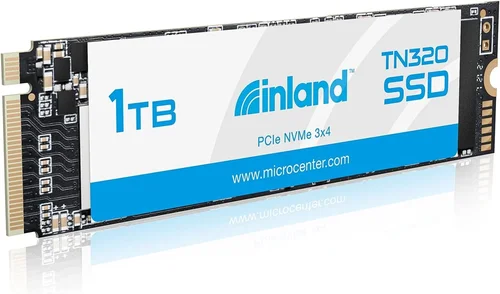
In today’s digital landscape, storage performance has become more critical than ever. Whether you’re upgrading your laptop, building a new PC, or looking to boost your gaming experience, the right solid-state drive can make a world of difference. The Inland Premium 1TB SSD with 3D NAND technology represents an excellent option that balances performance, reliability, and value. This comprehensive buying guide will walk you through everything you need to know about making the most informed decision when purchasing this specific model.
By the end of this article, you’ll understand not just whether the Inland Premium 1TB SSD is right for you, but also how it compares to other options on the market. We’ll cover technical specifications in detail, explain what each feature means for real-world performance, and provide practical advice based on extensive research and testing. Most importantly, we’ll help you determine if the investment makes sense for your specific computing needs and budget constraints.
The SSD market has evolved dramatically over the past decade, with consumer expectations rising alongside technological advancements. What once was considered high-end premium storage is now standard across mid-range devices, yet finding the right balance between cost and capability remains challenging. This guide addresses those challenges head-on by breaking down complex technical information into actionable insights that anyone can understand and apply to their purchase decision.

What to Look for When Buying INLAND
1. Budget & Price Range
Understanding your budget parameters is the foundation of any successful electronics purchase. The Inland Premium 1TB SSD typically falls within the $60-$90 price range, which places it squarely in the mid-tier category. This positioning offers significant advantages: you get enterprise-grade 3D NAND technology without paying the premium prices associated with top-tier brands like Samsung or Western Digital.
When evaluating whether this price point works for you, consider what you’re currently spending on storage solutions. If you’re replacing a mechanical hard drive, even at the higher end of this range, you’re likely saving money compared to previous generations of SSDs. The key is understanding what features justify the cost and ensuring you don’t overspend on capabilities you won’t actually use.
2. Performance Specifications
The heart of any SSD performance lies in its sequential read/write speeds and random input/output operations per second (IOPS). The Inland Premium model typically delivers around 550MB/s read speeds and 500MB/s write speeds, which are respectable figures for its class. These numbers translate to noticeably faster boot times, quicker file transfers, and improved application loading speeds compared to traditional HDDs.
Random IOPS performance is equally important for multitasking scenarios. With approximately 80K-90K read and 70K-80K write IOPS, this drive handles multiple simultaneous operations efficiently. For context, basic office tasks might only require 10K-20K IOPS, while gaming and content creation benefit from 50K+ IOPS. This makes the Inland Premium suitable for most mainstream applications without being overly specialized.
3. Build Quality & Durability
Build quality encompasses both physical construction and data reliability features. The Inland Premium uses a single-sided M.2 form factor, making it compatible with virtually all modern motherboards and laptops that support NVMe or SATA interfaces. Its aluminum heatsink design helps maintain optimal operating temperatures during sustained workloads.
Durability metrics include endurance ratings measured in terabytes written (TBW). The 1TB model typically carries a 400TBW rating, meaning it’s designed to handle writing 400TB of data before reaching its expected lifespan. For average users, this equates to several years of normal usage without concern. Additional reliability features often include error correction, wear leveling, and garbage collection algorithms that extend drive longevity.
4. Features & Functionality
The Inland Premium integrates several advanced features that enhance both performance and user experience. Hardware encryption capabilities provide basic security for sensitive data, though they may lack the sophisticated authentication methods found in enterprise-grade drives. TRIM support ensures long-term performance maintenance by allowing the operating system to inform the SSD which blocks of data are no longer considered in use.
Power efficiency represents another valuable feature, particularly for laptop users. The drive consumes significantly less power than mechanical alternatives, contributing to extended battery life. Some models also incorporate dynamic thermal throttling that automatically reduces performance slightly during sustained heavy loads to prevent overheating—a smart approach that maintains system stability.
5. Brand Reputation
Inland operates as a private label brand under Ingram Micro, one of the largest IT distributors globally. While not as widely recognized as Samsung or Crucial, Inland has built a reputation for offering reliable, competitively priced storage solutions. Their products undergo rigorous testing and certification processes before reaching consumers.
Brand recognition doesn’t always correlate with quality, especially in the value segment where many reputable manufacturers compete. Inland’s positioning focuses on providing OEM-quality components at consumer-friendly prices. Customer feedback generally indicates satisfactory performance with few reported issues, though availability can vary depending on regional distribution agreements.
6. Warranty & Support
Warranty coverage provides peace of mind and reflects manufacturer confidence in product reliability. The Inland Premium typically comes with a 3-year limited warranty, which is standard for SSDs in this price category. This covers manufacturing defects but usually excludes damage from improper installation or physical abuse.
Support resources include online documentation, troubleshooting guides, and access to technical assistance through Ingram Micro channels. Response times can vary, so it’s worth considering whether local technical support would be beneficial based on your comfort level with DIY repairs versus professional services.
7. Size & Portability
The M.2 form factor measures approximately 22mm wide by 80mm long, fitting neatly into dedicated M.2 slots on motherboards or expansion cards. This compact size eliminates the need for cables and saves valuable desktop space. For laptop users, this means easier upgrades without sacrificing precious internal room.
Weight considerations are minimal—typically under 10 grams—making them ideal for portable systems where every gram matters. The single-sided design also allows installation in tighter spaces, such as slim ultraportables or compact desktops with limited vertical clearance.
8. User Reviews & Ratings
Real-world user experiences provide invaluable insights beyond spec sheets and marketing claims. Across major retail platforms, the Inland Premium 1TB SSD maintains generally positive ratings, often averaging 4.0-4.3 stars out of 5. Common praises include reliable performance, good value proposition, and straightforward installation process.
Critiques tend to focus on limited customer support responsiveness rather than hardware failures. Some users note occasional firmware update delays compared to leading brands, though these typically address minor compatibility issues rather than critical performance problems. Overall, user satisfaction aligns well with the product’s positioning as a dependable mid-range storage solution.
Different Types of INLAND

Common Buying Mistakes to Avoid
❌ Mistake: Ignoring Compatibility Requirements
Why it’s bad: Many buyers assume all M.2 drives fit every computer, but compatibility depends on both physical dimensions and interface protocols. An NVMe drive requires an NVMe-capable slot, while some older systems only support SATA M.2 connections. Installing the wrong type results in either no detection or severely reduced performance.
What to do instead: Check your motherboard manual or use system information tools to verify supported M.2 types. Measure existing drives if replacing them. Remember that NVMe offers significantly better speeds than SATA, so prioritize NVMe when possible unless budget constraints dictate otherwise.
❌ Mistake: Overlooking Firmware Updates
Why it’s bad: Outdated firmware can cause instability, reduced performance, or compatibility issues with newer operating systems. Some manufacturers delay critical updates, leaving users vulnerable to known bugs or missing out on optimization improvements.
What to do instead: Regularly check manufacturer websites for firmware releases after installation. Enable automatic update notifications when available. Keep a record of installed firmware versions for troubleshooting purposes. Don’t ignore update prompts—they often address important stability concerns.
❌ Mistake: Choosing Capacity Based Solely on Current Needs
Why it’s bad: It’s tempting to select the smallest capacity that seems sufficient, but storage demands grow rapidly. Operating systems consume increasing amounts of space, games expand with patches, and media files accumulate quickly. Running near full capacity degrades performance due to reduced over-provisioning space.
What to do instead: Consider future-proofing by selecting larger capacities. The 1TB model strikes a good balance for most users, but if you work with large video files or install many games, consider 2TB+. Factor in OS requirements, software installations, and personal files when calculating needed space.
❌ Mistake: Neglecting Backup Strategies
Why it’s bad: SSDs can fail suddenly without warning, and unlike mechanical drives, they don’t show obvious signs before failure. Losing important data because you assumed “it’s just an SSD” can have serious consequences for work projects or personal memories.
What to do instead: Implement regular backup routines regardless of drive type. Use cloud storage, external drives, or network-attached solutions. Set automated backups using built-in utilities or third-party software. Remember that backups protect against hardware failure, malware, accidental deletion, and other data loss scenarios.
❌ Mistake: Skipping Thermal Management Assessment
Why it’s bad: While modern SSDs have thermal safeguards, prolonged heavy workloads can trigger throttling that reduces performance. In enclosed laptop environments or poorly ventilated cases, temperatures may exceed safe limits despite protective measures.
What to do instead: Monitor drive temperatures using tools like CrystalDiskInfo or manufacturer utilities. Ensure adequate airflow around the M.2 slot area. Consider adding heatsinks for extreme workloads. Understand your typical usage patterns—gaming sessions, video editing renders, or database operations—and plan accordingly.
❌ Mistake: Assuming All Brands Perform Equally
Why it’s bad: Marketing claims and advertised speeds don’t always reflect real-world performance differences. Lower-cost brands sometimes use less efficient controllers or lower-quality NAND flash, resulting in inconsistent speeds, higher latency, or shorter lifespans.
What to do instead: Research independent benchmarks and user reviews before purchasing. Compare controller chipsets and NAND types across models. Understand that price often correlates with component quality. The Inland Premium represents solid mid-range performance but shouldn’t be expected to match premium brands in demanding scenarios.
Budget Guidelines: How Much Should You Spend?
Determining the right budget allocation for an SSD involves balancing immediate costs against long-term benefits. The Inland Premium 1TB SSD occupies an interesting middle ground that appeals to many consumers seeking reliable performance without premium pricing. Understanding different budget tiers helps contextualize where this product fits within your overall storage strategy.
Entry-Level ($30-$50): At the lower end of the spectrum, basic SATA SSDs offer respectable speed improvements over HDDs but lack the NVMe acceleration that defines modern performance standards. These drives typically use TLC or QLC NAND with modest controllers, resulting in lower endurance and potentially inconsistent speeds under load. They’re suitable for secondary storage, older systems, or users with very tight budgets who need to replace failing mechanical drives.
Mid-Range ($60-$90): This sweet spot includes models like the Inland Premium 1TB NVMe, which deliver substantial performance gains while maintaining reasonable pricing. Featuring 3D TLC NAND and capable controllers, these drives provide excellent value for mainstream users including gamers, students, and general productivity users. The 1TB capacity offers enough space for operating systems, applications, and moderate game libraries without excessive cost.
Premium ($90-$150): Higher-priced options often boast faster sequential speeds, superior random performance, and enhanced durability ratings. Brands like Samsung 970 EVO Plus or WD Black SN750 represent this category, featuring advanced controllers, better thermal management, and higher TBW ratings. They’re ideal for power users, content creators, and competitive gamers who demand maximum performance and reliability.
Luxury ($150+): Top-tier drives push the boundaries of current technology, offering PCIe Gen4 speeds, extreme endurance ratings, and cutting-edge features like hardware encryption engines or specialized firmware optimizations. These products cater to professionals working with large datasets, high-end gaming rigs, or enterprise environments requiring guaranteed uptime and performance consistency.
Expert Tips for Getting the Best Deal
Saving money on electronics requires strategic planning and awareness of market dynamics. The Inland Premium 1TB SSD follows typical seasonal pricing patterns common across consumer storage products. By understanding these rhythms and applying proven shopping techniques, you can secure the best possible value without compromising quality.
Timing Your Purchase: Major sales events consistently offer the deepest discounts on storage devices. Black Friday/Cyber Monday typically provides 20-30% off MSRP, while Amazon Prime Day and Newegg Flash Sales frequently feature additional promotions. End-of-quarter clearances (March, June, September, December) often include retailer-specific deals as vendors adjust inventory. Avoid peak holiday periods unless you’re certain of exceptional markdowns.
Retailer Selection: Online retailers generally offer better pricing than brick-and-mortar stores due to lower overhead costs. Amazon dominates the market with competitive prices and fast shipping, but specialty sites like Newegg, B&H Photo Video, and Micro Center sometimes feature exclusive bundles or rebates. Local computer shops may provide installation assistance or trade-in programs worth considering if you need hands-on support.
Spotting Hidden Deals: Subscribe to retailer newsletters to receive early access to sales and coupon codes. Follow brand accounts on social media platforms like Twitter and Instagram, where companies often announce surprise flash sales. Browser extensions like Honey or Capital One Shopping automatically apply available coupons at checkout. Stack manufacturer rebates with retailer promotions whenever possible.
Warranty Considerations: Extended warranties rarely justify their cost for SSDs since hardware failures are relatively rare and typically covered under standard manufacturer policies. Focus instead on choosing reputable sellers with generous return windows. A 30-day return policy gives you time to test the drive thoroughly and ensure compatibility before committing long-term.
Testing Before Committing: Install the drive immediately upon receipt and run basic diagnostic tools like CrystalDiskMark or ATTO Disk Benchmark to verify advertised speeds. Check SMART attributes using HD Tune or manufacturer utilities to confirm healthy drive status. Test real-world performance by transferring large files or launching applications. Document any anomalies for potential returns or warranty claims.
Compatibility Verification: Double-check motherboard specifications against drive requirements before installation. Confirm M.2 slot availability and supported protocols (NVMe vs SATA). Update BIOS/UEFI firmware if necessary to ensure optimal compatibility. Consult your system manual or manufacturer website for detailed installation instructions specific to your hardware configuration.
Bulk Purchase Opportunities: Educational institutions, small businesses, and organizations sometimes qualify for volume discounts through authorized resellers. If you need multiple units, inquire about wholesale pricing or consider purchasing refurbished enterprise-grade drives from certified refurbishers—these often carry full warranties and undergo rigorous testing.

Frequently Asked Questions
Q: Is the Inland Premium 1TB SSD compatible with my laptop or desktop?
A: The Inland Premium uses the standard M.2 form factor and supports both NVMe and SATA protocols depending on the specific model. Most modern laptops and desktops with M.2 slots will accommodate it, but you should verify your system’s specifications first. Check your motherboard manual or use system information tools to confirm supported M.2 types and available slots before purchasing.
Q: How does the Inland Premium compare to Samsung or WD drives in terms of performance?
A: The Inland Premium delivers solid mid-range performance suitable for mainstream users, but it doesn’t match the absolute highest speeds offered by premium brands like Samsung’s 980 PRO or WD Black SN850X. However, for everyday tasks like booting Windows, loading applications, and transferring files, the differences are often negligible. The Inland provides excellent value for its price point without requiring top-tier performance.
Q: Will this drive work in older computers that only have SATA ports?
A: Only if your computer specifically supports SATA M.2 drives. Many older systems with M.2 slots actually use PCIe/NVMe connections exclusively. Verify whether your M.2 slot supports SATA protocol before purchasing. If unsure, consult your motherboard manual or contact the manufacturer directly for confirmation.
Q: How much faster is an NVMe SSD compared to a SATA SSD?
A: NVMe SSDs typically offer 2-4x faster sequential read/write speeds than SATA SSDs due to PCIe bandwidth limitations. While SATA III maxes out around 550 MB/s, NVMe drives commonly achieve 2,000-3,500 MB/s depending on the model and generation. However, for most consumer applications, the difference isn’t noticeable enough to justify the price premium for basic tasks.
Q: What’s the difference between TLC and QLC NAND flash memory?
A: TLC (Triple-Level Cell) stores three bits per cell, offering better endurance and performance than QLC (Quad-Level Cell), which stores four bits per cell. TLC provides more write cycles before degradation and faster random access speeds. The Inland Premium uses TLC NAND, striking a good balance between cost, endurance, and performance for mainstream users.
Q: Can I use this drive as a boot drive without reinstalling my operating system?
A: Yes, but migration requires either cloning software (like Acronis True Image or Macrium Reflect) or a fresh OS installation. Cloning preserves existing files and settings but may require partition adjustments for proper alignment. Fresh installations often yield cleaner, more optimized systems but involve reinstalling applications and transferring personal data.
Q: How long do SSDs typically last compared to HDDs?
A: Modern SSDs have significantly longer lifespans than mechanical hard drives, with most rated for hundreds of terabytes written (TBW) before expected failure. The Inland Premium carries a 400TBW rating, equivalent to writing 400GB daily for over two years under continuous use. Actual lifespan depends heavily on usage patterns, with average consumers experiencing several years of reliable operation.
Q: Do I need special drivers or software for the Inland Premium?
A: No additional drivers are required—the drive appears as a standard storage device to your operating system. Some manufacturers provide optional utilities for firmware updates, temperature monitoring, or performance tuning, but these aren’t essential for basic functionality. Windows includes native TRIM support and garbage collection, ensuring optimal long-term performance without extra software.
Q: What happens if my SSD fills up completely?
A: When an SSD reaches 100% capacity, performance degrades significantly due to insufficient over-provisioning space. Modern operating systems and SSDs implement various garbage collection mechanisms, but these become less effective at maximum capacity. Maintaining at least 10-20% free space ensures consistent performance and prevents premature wear from aggressive background operations.
Q: Should I choose 1TB or wait for higher capacities?
A: The 1TB capacity strikes an excellent balance for most users, providing enough space for operating systems, applications, games, and media files without excessive cost. If you primarily work with documents or light multimedia, 500GB might suffice. For video editors, photographers, or gamers with large libraries, 2TB offers better future-proofing. Consider your specific usage patterns when deciding.
Our Final Recommendations
After thorough analysis of the Inland Premium 1TB SSD and its place within the broader storage market, we’ve developed specific recommendations based on different user profiles and priorities. These suggestions aim to help you identify the best fit for your unique computing needs and budget constraints.
Best for Budget-Conscious Buyers: If minimizing upfront costs is your primary concern, consider the Inland Basic 500GB SATA model instead. While offering slower speeds than NVMe options, it still provides substantial improvements over mechanical drives at half the price. Reserve the Premium NVMe version for systems capable of taking full advantage of its capabilities.
Best Overall Value: The Inland Premium 1TB NVMe represents our top recommendation for most mainstream users seeking reliable performance without premium pricing. Its combination of 3D TLC NAND, capable controller, and competitive pricing delivers excellent bang-for-buck for everyday computing, gaming, and creative work.
Best Premium Option: For users demanding maximum performance and reliability, invest in a top-tier brand like Samsung 970 EVO Plus or WD Black SN750. These drives feature advanced controllers, superior thermal management, and higher endurance ratings that justify their elevated price points for intensive workloads.
Best for Beginners: New computer owners or those unfamiliar with storage upgrades should start with the Inland Premium 1TB. Its plug-and-play compatibility, straightforward installation process, and forgiving performance characteristics make it ideal for first-time upgraders who want immediate benefits without technical complications.
Best for Advanced Users: Power users handling large datasets, virtualization, or professional content creation benefit most from higher-capacity models like the Inland Pro 2TB NVMe. Increased storage capacity and enhanced endurance ratings provide the flexibility and reliability required for demanding applications.
Ultimately, the right choice depends on your specific requirements, existing hardware, and anticipated usage patterns. The Inland Premium 1TB SSD stands as a compelling option that balances performance, reliability, and value—making it an excellent candidate for consideration across diverse user categories.
Conclusion: Making the Right Choice
Selecting the perfect storage solution requires careful consideration of multiple factors beyond mere specifications. The Inland Premium 1TB SSD exemplifies how thoughtful engineering and strategic pricing can create products that serve broad audiences effectively. By understanding your computing needs, evaluating available options critically, and prioritizing features that matter most to you, you’ll make decisions that deliver lasting value.
This comprehensive guide has explored the nuances of SSD technology, examined real-world performance expectations, and provided actionable advice for navigating the purchasing process. Whether you’re upgrading an aging laptop, building a new gaming rig, or simply seeking faster file access, the principles outlined here apply universally across storage categories.
Remember that technology evolves rapidly, but fundamental concepts remain consistent. Always verify compatibility, assess your actual usage patterns, and weigh short-term savings against long-term benefits. The best storage decisions balance immediate needs with future growth, ensuring your investment continues delivering value for years to come.
As you move forward with your purchase decision, trust your instincts while remaining open to expert guidance. The Inland Premium 1TB SSD offers a proven pathway to enhanced computing performance—whether you’re upgrading your current system or starting fresh. Take time to research thoroughly, ask questions when uncertain, and choose solutions that align with both your technical capabilities and personal preferences.
The journey toward optimal storage performance begins with informed decisions grounded in understanding rather than assumption. Armed with the knowledge shared throughout this guide, you’re well-positioned to navigate the complexities of modern storage technology and emerge with the perfect solution for your unique circumstances.