
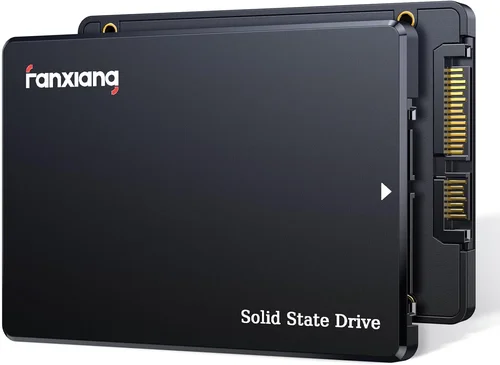
Solid-state drives (SSDs) have fundamentally transformed how we experience computing. Gone are the days of waiting minutes for a PC to boot up or applications to load—today’s SSDs deliver near-instant responsiveness, dramatically improving everything from system startup times to file transfers and multitasking performance. Whether you’re building a new PC, upgrading an aging machine, or simply looking to squeeze every ounce of speed out of your current setup, understanding how to use SSDs effectively is no longer optional—it’s essential.
This comprehensive guide is designed to help you make informed decisions about selecting, installing, and optimizing SSDs for maximum PC performance in 2026. We’ll walk you through the key factors that matter most—from performance specs and form factors to real-world usage scenarios and long-term reliability. You’ll learn not just what to buy, but how to use your SSD wisely to maintain peak speeds, extend its lifespan, and avoid common pitfalls that can degrade performance over time. With SSD technology evolving rapidly—featuring faster interfaces like PCIe 5.0, advanced NAND architectures, and smarter firmware—it’s more important than ever to stay ahead of the curve.
The market today offers a staggering array of options: from budget SATA drives ideal for basic upgrades to cutting-edge NVMe Gen5 SSDs capable of over 12,000 MB/s read speeds. Brands like Samsung, Crucial, WD, Kingston, and Sabrent continue to push boundaries, while newer players like Phison-powered OEMs offer compelling value. Whether you’re a gamer chasing faster load times, a content creator handling large video files, or a professional needing snappy application launches, this guide will equip you with the knowledge to choose the right SSD and configure it for optimal performance.

What to Look for When Buying an SSD
1. Interface & Form Factor
The interface determines how your SSD connects to your motherboard and directly impacts speed potential. The three main types are SATA, M.2 SATA, and M.2 NVMe (PCIe). SATA III drives max out around 550 MB/s—fine for older systems or secondary storage—but they’re bottlenecked by the legacy SATA protocol. M.2 SATA drives look like NVMe sticks but still use the SATA bus, so they offer no speed advantage over 2.5-inch SATA SSDs.
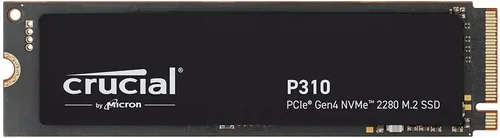
For modern performance, M.2 NVMe PCIe SSDs are the gold standard. PCIe 3.0 drives typically deliver 3,000–3,500 MB/s, while PCIe 4.0 models reach 5,000–7,000 MB/s. As of 2026, PCIe 5.0 SSDs are mainstream, offering sequential read speeds exceeding 12,000 MB/s—ideal for high-end workstations and gaming rigs. However, ensure your motherboard supports the PCIe generation your SSD uses; running a Gen5 drive on a Gen3 slot halves its performance.
Form factor also matters. Most consumer SSDs use the M.2 2280 size (22mm wide, 80mm long), which fits most modern motherboards. Always check your motherboard manual for supported lengths and keying (B-key vs. M-key slots). Avoid assuming compatibility—some laptops only accept shorter 2242 or 2230 modules.
2. NAND Flash Type
NAND flash memory is the core storage technology inside SSDs, and its type significantly affects speed, endurance, and cost. The main categories are SLC (Single-Level Cell), MLC (Multi-Level Cell), TLC (Triple-Level Cell), and QLC (Quad-Level Cell). SLC is fastest and most durable but prohibitively expensive for consumer use. MLC offers excellent balance but is rare in mainstream drives today.
Most consumer SSDs use TLC or QLC NAND. TLC stores three bits per cell, offering a good mix of performance, capacity, and affordability. It’s ideal for everyday computing, gaming, and moderate workloads. QLC stores four bits per cell, enabling higher capacities at lower prices (e.g., 4TB for under $200), but it’s slower—especially during sustained writes—and has lower endurance due to more complex voltage management.
As of 2026, many premium SSDs now feature advanced TLC with improved error correction and wear-leveling algorithms, narrowing the gap with MLC. QLC drives often include large SLC caches (temporary buffers that mimic faster TLC behavior) to mask their slower native write speeds. For example, a 2TB QLC SSD might sustain 5,000 MB/s for the first 200GB of writes before dropping to 100–200 MB/s once the cache fills.
Choose TLC for primary drives and heavy workloads. Reserve QLC for secondary storage, media libraries, or backup drives where speed isn’t critical. Avoid QLC if you frequently write large files (e.g., video editing, database operations).
3. DRAM Cache Presence
DRAM (Dynamic Random Access Memory) acts as a high-speed buffer between the SSD controller and NAND flash. SSDs with onboard DRAM can map logical block addresses to physical locations much faster, resulting in smoother performance—especially during random read/write operations common in OS and application usage.
DRAM-less SSDs rely on system memory (via HMB—Host Memory Buffer) or slower on-chip SRAM for mapping tables. While HMB works well for light tasks, it introduces latency and can bottleneck under heavy multitasking or sustained workloads. In real-world testing, DRAM-equipped SSDs consistently outperform DRAM-less counterparts in benchmarks like CrystalDiskMark and PCMark 10 Storage tests.
For a primary boot drive or system drive, always prioritize SSDs with DRAM. The performance difference is noticeable in boot times, application launches, and file operations. DRAM-less drives may save $10–$20, but the trade-off isn’t worth it for performance-critical roles. Check product specs carefully—some budget drives omit DRAM to cut costs, even if marketed as “high-speed.”
4. Sequential vs. Random Performance
SSD marketing often highlights sequential read/write speeds (e.g., “7,000 MB/s read”), which matter most for large file transfers like copying videos or loading game assets. However, random 4K read/write performance—measured in IOPS (Input/Output Operations Per Second)—is far more relevant for everyday computing.
Random performance determines how quickly your system can access small, scattered files—the kind used by your operating system, browsers, and applications. A drive with high sequential speeds but poor random IOPS will feel sluggish during normal use, even if it excels at copying ISO files.
Look for SSDs with strong random 4K QD1 and QD32 performance. For example, a good consumer NVMe SSD should deliver 60,000–100,000 IOPS for random 4K reads at queue depth 1 (typical for desktop use). High queue depths (QD32) matter more for servers or workstations running virtual machines.
Use synthetic benchmarks like AS SSD Benchmark or ATTO Disk Benchmark to compare real-world performance across drives. Don’t rely solely on manufacturer claims—real user reviews and third-party testing often reveal discrepancies.
5. Endurance & TBW Rating
SSD endurance is measured in TBW (Terabytes Written)—the total amount of data that can be written to the drive over its lifetime before failure becomes likely. Higher TBW means longer lifespan, especially important for write-intensive tasks.
For example, a 1TB TLC SSD might have a 600 TBW rating, while a similarly sized QLC drive may only offer 200 TBW. To put this in perspective: writing 50GB daily would take over 32 years to reach 600 TBW, but only 11 years for 200 TBW. Most users won’t hit these limits, but heavy workloads (video editing, databases, logging) accelerate wear.
Check the warranty period too—most premium SSDs offer 5 years, while budget models may only guarantee 3. A longer warranty often correlates with higher endurance. Also, monitor your drive’s health using tools like CrystalDiskInfo or the manufacturer’s utility (e.g., Samsung Magician, WD Dashboard).
6. Thermal Management & Throttling
High-performance NVMe SSDs generate significant heat, especially PCIe 4.0 and 5.0 models. Without proper cooling, they throttle (reduce speed) to prevent damage, negating their performance advantages. This is critical in small-form-factor PCs, laptops, or densely packed builds.
Look for SSDs with built-in heat spreaders or consider adding an aftermarket M.2 heatsink. Many motherboards now include integrated M.2 shields, but third-party aluminum or copper heatsinks often provide better thermal dissipation. In stress tests, a well-cooled Gen4 SSD can sustain 6,500 MB/s for minutes, while an uncooled one may drop to 2,000 MB/s within seconds.
Avoid placing SSDs near hot components like GPUs or VRMs. If building a compact system, prioritize low-profile designs or consider a SATA SSD for secondary storage to reduce thermal load.
7. Brand Reputation & Firmware Quality
Not all SSDs are created equal—even with identical specs. Firmware plays a crucial role in performance consistency, error handling, and longevity. Established brands like Samsung, Crucial (Micron), WD, and Kingston invest heavily in firmware optimization, resulting in more stable and reliable drives.
Avoid no-name or ultra-budget SSDs with unknown controllers or NAND sources. These often suffer from poor garbage collection, sudden performance drops, or early failure. Check user forums (e.g., Reddit’s r/buildapc, Tom’s Hardware) for reports of bugs or recalls.
Samsung’s 990 Pro and Crucial’s T700 are examples of drives praised for consistent performance and robust firmware. Even within brands, newer models often improve on predecessors—always check release dates and reviews.
8. Warranty & Support
A solid warranty reflects manufacturer confidence. Most reputable SSDs come with 3–5 years of coverage, sometimes prorated based on TBW usage. Some brands (like Samsung) offer free data recovery services for failed drives under warranty.
Check support responsiveness—can you easily RMA a drive? Are drivers and utilities regularly updated? Avoid brands with poor customer service or complicated return processes. A $10 savings isn’t worth months of downtime.
Different Types of SSDs Compared

Common Buying Mistakes to Avoid
❌ Mistake: Prioritizing Peak Speed Over Real-World Performance
Why it’s bad: Marketing focuses on sequential speeds, but most daily tasks rely on random 4K performance. A drive boasting 7,000 MB/s may feel sluggish if its random IOPS are weak.
What to do instead: Check reviews that include real-world benchmarks (e.g., boot time, app launch, file search). Prioritize balanced performance over headline numbers.
❌ Mistake: Ignoring Thermal Throttling
Why it’s bad: An uncooled Gen5 SSD can throttle to half its speed within seconds under load, making its high specs meaningless in practice.
What to do instead: Always use a heatsink for PCIe 4.0/5.0 drives in desktops. In laptops, ensure adequate airflow or consider a lower-power model.
❌ Mistake: Buying DRAM-less SSDs for System Drives
Why it’s bad: DRAM-less drives suffer from inconsistent performance, especially during multitasking or when the SLC cache fills.
What to do instead: Spend the extra $10–$15 for a DRAM-equipped model. Your OS and apps will thank you.
❌ Mistake: Overlooking Compatibility
Why it’s bad: Not all M.2 slots support NVMe—some are SATA-only. Installing an NVMe drive in a SATA M.2 slot won’t work.
What to do instead: Verify your motherboard’s M.2 slot type (PCIe x4, SATA, or both) and keying before purchasing.
❌ Mistake: Choosing QLC for Primary Storage
Why it’s bad: QLC drives slow dramatically after their SLC cache is exhausted, leading to frustrating delays during large writes.
What to do instead: Use TLC for your OS and applications. Save QLC for media storage or backups.
❌ Mistake: Skipping Firmware Updates
Why it’s bad: Outdated firmware can cause bugs, reduced performance, or compatibility issues with newer systems.
What to do instead: Use the manufacturer’s utility (e.g., Samsung Magician) to check for and install firmware updates regularly.
❌ Mistake: Not Monitoring Drive Health
Why it’s bad: SSDs fail silently. Without monitoring, you might lose data unexpectedly.
What to do instead: Install CrystalDiskInfo or your SSD brand’s tool to track wear level, temperature, and SMART attributes.
Budget Guidelines: How Much Should You Spend?
Entry-Level ($30–$60 for 1TB): Ideal for basic upgrades or secondary storage. Look for reliable SATA or PCIe 3.0 drives from trusted brands (e.g., Crucial BX500, WD Blue). Expect decent performance for everyday tasks but avoid heavy workloads.
Mid-Range ($60–$120 for 1TB): The sweet spot for most users. PCIe 3.0 or entry-level PCIe 4.0 NVMe drives (e.g., Samsung 980, Kingston KC3000) offer excellent speed, DRAM, and endurance. Perfect for gaming, office work, and light content creation.
Premium ($120–$200 for 1TB): For enthusiasts and professionals. High-end PCIe 4.0 drives (e.g., Samsung 990 Pro, WD Black SN850X) deliver top-tier performance, robust cooling, and 5-year warranties. Ideal for 4K video editing, large game libraries, and multitasking.
Luxury ($200+ for 1TB): Cutting-edge PCIe 5.0 SSDs (e.g., Crucial T700, Sabrent Rocket 5) with speeds over 12,000 MB/s. Best for workstations, 8K workflows, or future-proofing high-end builds. Requires compatible motherboards and active cooling.

Expert Tips for Getting the Best Deal
- Buy during seasonal sales: Black Friday, Prime Day, and back-to-school periods often feature 20–40% discounts on SSDs. Sign up for price alerts on Amazon, Newegg, or Best Buy.
- Compare total cost per GB: A 2TB drive may seem expensive upfront but offer better value than two 1TB drives. Calculate $/GB to find true bargains.
- Check retailer return policies: Ensure you can return or exchange if the drive is defective or incompatible. Some retailers charge restocking fees.
- Consider refurbished units: Manufacturer-refurbished SSDs often come with full warranties and significant savings—just avoid third-party “renewed” sellers.
- Bundle with other components: Some motherboard or CPU bundles include free or discounted SSDs. Great for new builds.
- Test before finalizing: After installation, run benchmarks and stress tests to confirm performance matches claims. Return if throttling or errors occur.
- Enable TRIM and over-provisioning: TRIM maintains speed by clearing unused data blocks. Over-provisioning (reserving 7–10% unallocated space) extends lifespan and sustains performance.
- Avoid filling beyond 80%: SSDs slow down as they fill up due to reduced free blocks for wear leveling. Keep at least 20% free space for optimal operation.

Frequently Asked Questions
Q: Can I use an SSD as both my boot drive and storage drive?
A: Absolutely. Most users install their OS, applications, and frequently used files on a single SSD. For larger media libraries, add a secondary HDD or larger SSD. Just ensure your primary SSD has enough capacity (500GB minimum, 1TB recommended).
Q: Do SSDs need defragmentation?
A: No. Unlike HDDs, SSDs have no moving parts, so defragmentation provides no benefit and actually reduces lifespan by increasing write cycles. Windows automatically disables defrag for SSDs and runs TRIM instead.
Q: Will an SSD improve gaming performance?
A: Yes—especially load times. Games like Cyberpunk 2077 or Starfield load significantly faster on NVMe SSDs. However, frame rates (FPS) depend on your GPU and CPU, not storage.
Q: How long do SSDs last?
A: Most consumer SSDs last 5–10 years under normal use. With typical daily writing of 20–50GB, you’ll likely upgrade before failure. Monitor TBW and SMART data to stay informed.
Q: Can I clone my old HDD to a new SSD?
A: Yes. Use free tools like Macrium Reflect, Clonezilla, or manufacturer utilities (e.g., Acronis True Image for WD). Ensure the SSD is equal or larger in capacity than the used space on your HDD.
Q: Are external SSDs worth it?
A: For portability and fast transfers, yes. USB 3.2 Gen 2×2 or Thunderbolt 4 external SSDs can reach 2,000 MB/s—ideal for photographers, videographers, or backup. Just ensure your port supports the interface.
Q: Should I enable write caching?
A: Generally yes—it improves performance. But ensure your system has a UPS or reliable power supply, as sudden outages can cause data loss if writes are pending.
Q: What’s the difference between NVMe and SATA M.2?
A: Physically similar, but NVMe uses the PCIe bus for much higher speeds. SATA M.2 drives are limited to ~550 MB/s. Check your motherboard manual to confirm which your slot supports.
Q: Can I mix SSD brands in RAID?
A: Technically yes, but not recommended. Mixed drives may have different performance, endurance, or firmware, leading to instability. Use identical models for RAID 0 or 1.
Q: Do SSDs consume less power than HDDs?
A: Yes—especially NVMe SSDs, which draw 2–5W under load vs. 6–10W for HDDs. This improves battery life in laptops and reduces heat in desktops.
Our Final Recommendations
Best for Budget-Conscious Buyers: Crucial P3 1TB (PCIe 3.0 NVMe) – Reliable, DRAM-equipped, and under $60. Perfect for upgrading older systems without breaking the bank.
Best Overall Value: Samsung 980 (Non-Pro) 1TB – Excellent balance of speed, endurance, and price. PCIe 3.0 but outperforms many Gen4 drives in real-world tasks.
Best Premium Option: Samsung 990 Pro 2TB – Top-tier PCIe 4.0 performance, superb cooling, and 5-year warranty. Ideal for gamers and creators who demand consistency.
Best for Beginners: WD Blue SN580 1TB – Simple installation, solid performance, and WD’s user-friendly dashboard. Great first NVMe drive.
Best for Advanced Users: Crucial T700 2TB (PCIe 5.0) – Blazing 12,400 MB/s speeds, built-in heatsink, and Micron’s proven NAND. For those building cutting-edge rigs with Z790/X670E boards.
Conclusion: Making the Right Choice
Choosing and using an SSD effectively is one of the most impactful upgrades you can make to any PC. The right SSD doesn’t just make your system faster—it transforms your entire computing experience, turning frustrating waits into seamless productivity. By focusing on interface compatibility, NAND type, DRAM presence, and real-world performance rather than just peak specs, you’ll avoid common traps and get lasting value from your investment.
Remember, the best SSD is the one that matches your specific needs, budget, and system capabilities. Don’t overspend on Gen5 speeds if your motherboard only supports Gen3. Don’t skimp on DRAM for a system drive just to save $10. And always prioritize reliability and support—your data is worth it.
As we move further into 2026, SSD technology will continue evolving, but the fundamentals remain: faster storage equals better performance. Whether you’re booting Windows in under 10 seconds, loading AAA games in moments, or editing 4K video without lag, your SSD is the silent hero behind it all. Take the time to choose wisely, install properly, and maintain diligently—and your PC will reward you with years of snappy, responsive performance.