
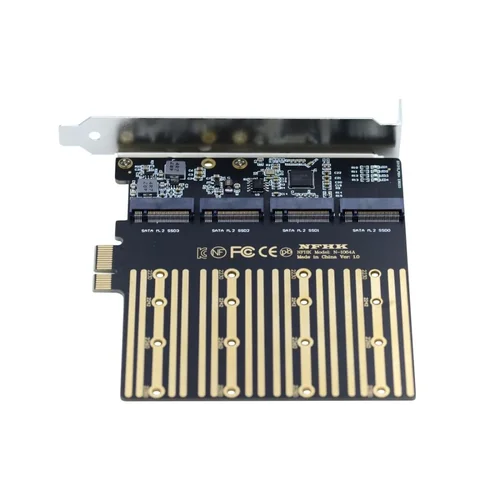
The ASRock X370 motherboard series has long been a favorite among AMD Ryzen enthusiasts, offering solid performance, reliable build quality, and excellent value for mid-range builds. While the X370 chipset launched in 2017 alongside AMD’s first-gen Ryzen processors, many users continue to rely on these boards today—especially those upgrading older systems or building cost-effective workstations. One of the most impactful upgrades you can make on an X370 system is installing a high-performance M.2 NVMe SSD. These drives dramatically improve boot times, application loading, file transfers, and overall system responsiveness compared to traditional SATA SSDs or HDDs.
However, getting the best possible performance from your M.2 SSD on an ASRock X370 board isn’t always as simple as just plugging it in. The X370 chipset has specific limitations regarding PCIe lane allocation, shared bandwidth with other components, and BIOS-level settings that can either unlock or throttle your drive’s potential. Without proper configuration, you might end up with an NVMe SSD running at half its rated speed—or worse, not being recognized at all. This guide exists to eliminate guesswork and help you maximize every byte per second your M.2 SSD is capable of delivering on your ASRock X370 platform.
In this comprehensive buying and setup guide, you’ll learn exactly how to select, install, and optimize an M.2 SSD for peak performance on ASRock X370 motherboards. We’ll cover everything from understanding PCIe lane sharing and BIOS updates to real-world benchmarks and firmware tweaks. Whether you’re building a new system around an older X370 board or upgrading an existing rig, this guide will ensure you get the most out of your investment. By the end, you’ll know which SSDs are compatible, how to avoid common pitfalls, and how to fine-tune your system for blazing-fast storage performance—all without breaking the bank.

What to Look for When Buying Buying Guide
1. PCIe Gen3 x4 Compatibility
The ASRock X370 chipset supports PCIe 3.0 lanes, but only a limited number are available for M.2 use. Most X370 boards feature a single M.2 slot that operates at PCIe 3.0 x4 speeds—the sweet spot for modern NVMe SSDs. However, this slot often shares bandwidth with SATA ports or PCIe x16 slots. When buying an M.2 SSD, ensure it’s designed for PCIe Gen3 x4 (not Gen4 or Gen5), as Gen4 drives will downclock to Gen3 speeds on X370 but may cost more unnecessarily. Look for drives like the Samsung 970 EVO Plus, WD Black SN750, or Crucial P5, which are optimized for Gen3 performance and widely tested on X370 platforms.
2. DRAM Cache Presence
A DRAM cache is essential for sustained performance, especially during large file transfers or multitasking. DRAM-less SSDs (like some budget Phison E12 or Silicon Motion controllers) use host memory buffering (HMB), which can work acceptably on newer systems but may cause stuttering or reduced speeds under heavy load on older X370 setups. Always prioritize SSDs with onboard DRAM—this small chip acts as a high-speed buffer for the drive’s mapping tables, drastically improving random read/write performance and longevity. For X370 users, a DRAM-equipped drive ensures consistent responsiveness even when the system is under pressure.
3. NAND Flash Type
The type of NAND flash used in an SSD directly impacts endurance, speed, and power efficiency. Look for TLC (Triple-Level Cell) NAND, which offers the best balance of cost, performance, and durability for consumer use. Avoid QLC (Quad-Level Cell) drives unless you’re on an extremely tight budget—QLC wears out faster and performs poorly during sustained writes. On an X370 system, where thermal throttling can be an issue due to limited M.2 heatsink options, TLC-based drives like those from Samsung or Micron tend to maintain better performance over time compared to QLC alternatives.
4. Thermal Management & Heatsink Support
M.2 SSDs can get hot—especially during large downloads or video editing tasks. The X370 chipset lacks native thermal monitoring for M.2 drives in many BIOS versions, and ASRock’s stock M.2 heatsinks (if included) are often minimal. When selecting an SSD, consider models with built-in thermal throttling protection or purchase a third-party M.2 heatsink. Drives like the Sabrent Rocket Q or Kingston KC3000 include basic heat spreaders, but adding a dedicated aluminum heatsink (e.g., from Thermalright or Jonsbo) can reduce temperatures by 10–15°C, preventing performance drops during extended use.
5. Firmware Updateability
Firmware plays a critical role in SSD stability and performance. Some manufacturers release regular firmware updates that fix bugs, improve compatibility, or enhance speed. On older platforms like X370, updated firmware can resolve issues with boot recognition or TRIM support. Choose brands known for robust firmware ecosystems—Samsung, Western Digital, and Crucial all offer reliable update tools. Avoid obscure brands with no update history, as you may be stuck with suboptimal performance or compatibility issues down the line.
6. Power Efficiency & Compatibility with Older PSUs
While M.2 SSDs draw power directly from the motherboard, some high-performance models can spike during peak loads. On older X370 systems, especially those with aging power supplies, this can cause instability. Opt for SSDs with conservative power profiles—look for drives rated under 8W peak power draw. Additionally, ensure your PSU has stable 3.3V rail output, as M.2 slots rely on this voltage. If your system frequently reboots or fails to detect the SSD, power delivery could be the culprit.
7. OS and File System Optimization
Even the fastest SSD won’t perform well if the operating system isn’t configured correctly. Windows 10 and 11 include native NVMe drivers, but older OS versions (like Windows 7) require manual driver installation. Always install the latest chipset drivers from AMD and enable AHCI mode in the BIOS. Additionally, format your SSD using NTFS with 4K alignment and enable TRIM (via `fsutil behavior set DisableDeleteNotify 0` in Command Prompt). For Linux users, ensure the kernel supports NVMe and that discard/trim is enabled in fstab.
8. BIOS Version and UEFI Support
One of the most overlooked factors is BIOS compatibility. Early X370 BIOS versions had poor NVMe support, often failing to boot from M.2 drives or limiting them to SATA speeds. Always update your ASRock X370 motherboard to the latest UEFI BIOS before installing an NVMe SSD. Check ASRock’s support page for your specific model (e.g., X370 Taichi, X370 Killer SLI/ac) and download the newest AGESA-based firmware. A recent BIOS ensures full PCIe 3.0 x4 support, proper boot order handling, and compatibility with modern SSDs.
Different Types of Buying Guide

Common Buying Mistakes to Avoid
❌ Mistake: Buying a PCIe Gen4 SSD for X370
Why it’s bad: The X370 chipset only supports PCIe 3.0, so a Gen4 SSD will run at Gen3 speeds anyway—yet you’ll pay a premium for unused bandwidth. This is a classic case of overpaying for specs you can’t use.
What to do instead: Stick with proven PCIe 3.0 x4 drives. You’ll save 20–30% and get identical real-world performance on this platform.
❌ Mistake: Ignoring BIOS Version Before Purchase
Why it’s bad: Older BIOS versions may not recognize NVMe drives at all or may force them into SATA mode. You could end up with a non-booting system or severely throttled speeds.
What to do instead: Check your current BIOS version in UEFI setup (usually under “Main” or “Advanced”). If it’s below P3.00 (varies by model), update it before installing the SSD.
❌ Mistake: Using DRAM-Less SSDs for OS Drives
Why it’s bad: DRAM-less drives rely on system RAM via HMB, which can cause lag during multitasking or large file operations—especially problematic on systems with 8GB or less RAM.
What to do instead: Always use a DRAM-cached SSD for your operating system and frequently used applications. Save DRAM-less models for secondary storage only.
❌ Mistake: Overlooking M.2 Slot Sharing
Why it’s bad: On many ASRock X370 boards, the M.2 slot disables 2–4 SATA ports when in use. If you unknowingly populate those SATA ports, your M.2 drive may not appear in BIOS.
What to do instead: Consult your motherboard manual’s “SATA and M.2 Configuration” section. Plan your storage layout accordingly—use M.2 for OS/apps and SATA for bulk storage.
❌ Mistake: Skipping Firmware Updates
Why it’s bad: Outdated firmware can cause compatibility issues, reduced speeds, or even data corruption. Some early NVMe drives had bugs that were only fixed via updates.
What to do instead: After installation, use the manufacturer’s utility (e.g., Samsung Magician, WD Dashboard) to check for and apply firmware updates.
❌ Mistake: Assuming All M.2 Slots Support NVMe
Why it’s bad: Some X370 boards have multiple M.2 slots—but only one supports NVMe. The others may be SATA-only. Installing an NVMe drive in a SATA M.2 slot will result in failure to detect.
What to do instead: Verify your motherboard’s M.2 specifications. For example, the ASRock X370 Taichi has one NVMe-capable M.2 slot and one SATA-only M.2 slot.
❌ Mistake: Neglecting Thermal Throttling
Why it’s bad: Without adequate cooling, high-performance NVMe drives can throttle down to 50% of their rated speed during sustained workloads, negating the benefits of fast storage.
What to do instead: Install a low-profile M.2 heatsink or ensure good case airflow. Monitor temps using tools like HWInfo or CrystalDiskInfo.
Budget Guidelines: How Much Should You Spend?
Entry-Level ($30–$50): At this price point, expect DRAM-less NVMe drives or older-generation SATA M.2 SSDs. These are suitable for basic computing, web browsing, and light office work. Examples include the Kingston A2000 (DRAM-cached but budget-priced) or the Teamgroup MP33. Performance is acceptable for everyday tasks but may struggle with large file transfers or gaming load times.
Mid-Range ($50–$90): This is the sweet spot for most X370 users. You’ll find reliable DRAM-cached TLC NVMe drives like the Samsung 970 EVO Plus, WD Blue SN570, or Crucial P3. These offer excellent sequential read/write speeds (up to 3,500/3,000 MB/s), strong random performance, and solid endurance (500–600 TBW for 1TB models). Ideal for gaming, content creation, and general productivity.
Premium ($90–$150): Targeted at enthusiasts and power users, this tier includes high-endurance drives with advanced controllers and superior thermal management. Models like the Samsung 980 Pro (running at Gen3 speeds), WD Black SN850 (Gen3 mode), or Sabrent Rocket 4.0 offer top-tier performance, robust firmware, and extended warranties (5–7 years). Perfect for video editors, developers, or anyone running virtual machines.
Luxury ($150+): These are typically overkill for X370 systems but may appeal to users planning future upgrades. Gen4 drives like the Corsair MP600 or Seagate FireCuda 530 deliver no extra speed on X370 but offer peace of mind for resale or migration to a newer platform. Only consider if you value brand prestige or plan to reuse the drive later.
Expert Tips for Getting the Best Deal
1. Buy During Seasonal Sales: Major retailers like Amazon, Newegg, and Best Buy often discount SSDs during Black Friday, Prime Day, or back-to-school seasons. Sign up for price alerts using tools like Honey or CamelCamelCamel to catch drops on specific models.
2. Prioritize Reputable Retailers: Purchase from authorized sellers to ensure warranty validity. Avoid third-party marketplace listings with unclear return policies—counterfeit SSDs are a real risk.
3. Check Manufacturer Refurbished Programs: Brands like Samsung and WD offer certified refurbished SSDs at 20–30% off with full warranties. These are rigorously tested and often indistinguishable from new units.
4. Bundle with Motherboard Upgrades: If you’re replacing an older board, look for combo deals that include both an X370 motherboard and an M.2 SSD. ASRock occasionally partners with SSD vendors for promotions.
5. Test Before Committing: Once installed, run benchmarks (CrystalDiskMark, AS SSD) to verify you’re getting full PCIe 3.0 x4 speeds (~3,400 MB/s read). If speeds are lower, check BIOS settings, driver versions, and thermal conditions.
6. Leverage Manufacturer Tools: Use utilities like Samsung Magician or Crucial Storage Executive to enable performance modes, update firmware, and monitor drive health. These tools can unlock hidden optimizations.
7. Consider Open-Box Deals: Retailers like Micro Center or Best Buy often sell open-box SSDs at steep discounts. As long as the drive is unopened or factory-sealed, it’s a safe bet.
8. Don’t Forget Return Windows: Most SSDs come with 30–90 day return policies. If your drive underperforms or fails to install, act quickly to avoid being stuck with it.
Frequently Asked Questions
Q: Will a PCIe Gen4 SSD work on my ASRock X370 motherboard?
A: Yes, but it will operate at PCIe 3.0 x4 speeds. There’s no performance benefit over a native Gen3 drive, so it’s not recommended unless you plan to reuse the SSD on a newer system later.
Q: Why isn’t my M.2 SSD showing up in BIOS?
A: Common causes include: outdated BIOS, M.2 slot disabled due to SATA port conflict, incorrect installation (not fully seated), or using an NVMe drive in a SATA-only M.2 slot. Update BIOS, reseat the drive, and consult your manual.
Q: Can I boot Windows from an M.2 NVMe SSD on X370?
A: Absolutely—as long as your BIOS supports NVMe boot (most post-2018 UEFI versions do). Install Windows via USB installer with NVMe drivers loaded, or clone from an existing drive using tools like Macrium Reflect.
Q: Do I need to enable anything in BIOS for NVMe support?
A: Generally, no—modern X370 BIOS versions auto-detect NVMe drives. However, ensure “CSM” (Compatibility Support Module) is disabled for UEFI-only boot, and verify that the M.2 slot is set to “Auto” or “PCIe” mode.
Q: How do I know if my M.2 SSD is thermal throttling?
A: Use monitoring software like HWInfo or CrystalDiskInfo to check drive temperature. If temps exceed 70°C during sustained writes and speeds drop significantly, throttling is likely occurring. Add a heatsink or improve case airflow.
Q: Can I use both M.2 and SATA SSDs simultaneously?
A: Yes, but check your motherboard manual—some SATA ports may be disabled when the M.2 slot is occupied. On the ASRock X370 Taichi, for example, SATA3_4 and SATA3_5 are disabled when M.2 is in use.
Q: Is TRIM enabled by default on Windows?
A: Yes, for NVMe drives in Windows 10/11. You can verify by opening Command Prompt as admin and typing: fsutil behavior query DisableDeleteNotify. If it returns “0”, TRIM is active.
Q: What’s the maximum capacity M.2 SSD supported by X370?
A: Most X370 boards support up to 2TB M.2 SSDs. Some newer BIOS versions may support 4TB, but compatibility varies. Stick with 1TB or 2TB for guaranteed support.
Q: Should I RAID two M.2 SSDs on X370?
A: Not recommended. The X370 chipset lacks native NVMe RAID support, and software RAID introduces complexity and potential instability. Use a single high-capacity drive instead.
Q: How often should I update my SSD firmware?
A: Only when a critical update is released—usually for security, compatibility, or performance fixes. Check every 6–12 months via the manufacturer’s tool. Never update firmware during a power outage risk.
Our Final Recommendations
Best for Budget-Conscious Buyers: WD Blue SN570 1TB – Offers excellent DRAM-cached performance at under $60, ideal for everyday use and light gaming. Reliable, low-power, and widely compatible with X370 systems.
Best Overall Value: Samsung 970 EVO Plus 1TB – The gold standard for PCIe 3.0 NVMe drives. Consistently delivers near-maximum speeds, superb endurance (600 TBW), and rock-solid firmware. A safe choice for any X370 build.
Best Premium Option: Crucial P5 Plus 1TB – While technically a Gen4 drive, it performs flawlessly at Gen3 speeds and includes a generous 5-year warranty. Excellent for users who want top-tier reliability and future flexibility.
Best for Beginners: Kingston NV2 1TB – Simple plug-and-play installation, decent performance, and Kingston’s user-friendly support. Great for first-time NVMe upgraders who want minimal hassle.
Best for Advanced Users: Sabrent Rocket Q 2TB – Combines high capacity, DRAM cache, and aggressive thermal throttling protection. Perfect for power users running VMs, large databases, or 4K video projects on their X370 workstation.
Conclusion: Making the Right Choice
Setting up an M.2 SSD for maximum performance on an ASRock X370 motherboard doesn’t require expensive hardware or expert-level knowledge—but it does demand attention to detail. From verifying BIOS compatibility and understanding PCIe lane sharing to selecting the right SSD type and managing thermals, each step plays a crucial role in unlocking your drive’s full potential. The X370 platform, though aging, remains highly capable when paired with the right storage solution.
Remember: the goal isn’t just raw speed—it’s consistent, reliable performance that enhances your daily computing experience. Avoid overspending on unnecessary Gen4 specs, prioritize DRAM and TLC NAND, and always keep your system updated. With the insights from this guide, you’re now equipped to make an informed decision that balances performance, price, and longevity.
Whether you’re breathing new life into an older Ryzen build or optimizing a budget workstation, the right M.2 SSD can transform your system from sluggish to snappy in minutes. Take the time to plan your setup, follow the recommendations above, and enjoy the immediate benefits of lightning-fast storage. Your future self—and your applications—will thank you.