
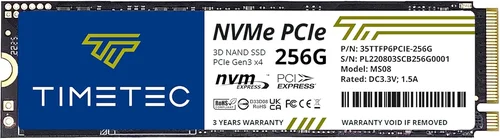
When it comes to modern computing, speed isn’t just a luxury—it’s a necessity. Whether you’re booting up your operating system, launching demanding applications, transferring large files, or loading complex games, every millisecond counts. And at the heart of that performance revolution lies the M.2 SSD. These compact, high-speed storage drives have transformed how we experience computing, delivering read and write speeds that were once unimaginable with traditional hard drives or even SATA SSDs. But here’s the catch: not all M.2 SSDs are created equal, and simply buying one doesn’t guarantee you’ll get the blazing-fast performance you’re after.
That’s why this guide exists. In 2026, the M.2 SSD market is more crowded and advanced than ever, with options ranging from budget-friendly NVMe drives to cutting-edge PCIe 5.0 models that push the limits of data transfer. Yet, many users still struggle to unlock their drive’s full potential due to compatibility issues, outdated firmware, improper installation, or simply choosing the wrong drive for their system. This comprehensive buying guide is designed to cut through the noise and help you make an informed decision. You’ll learn how to evaluate performance specs, understand compatibility requirements, avoid common pitfalls, and optimize your setup for maximum speed. Whether you’re building a new PC, upgrading an existing system, or just curious about how to get the most out of your storage, this guide will equip you with expert-level knowledge to achieve peak M.2 SSD performance.
From gamers and content creators to developers and everyday users, the demand for faster storage continues to grow. With 4K video editing, AI workloads, and next-gen gaming pushing hardware to its limits, your SSD isn’t just a storage device—it’s a performance multiplier. In this guide, we’ll walk you through every critical factor that influences M.2 SSD speed, compare different types and form factors, highlight common mistakes to avoid, and provide actionable tips to help you get the best deal. By the end, you’ll not only know which drive to buy but also how to install, configure, and maintain it for sustained high-speed performance. Let’s dive in and unlock the true potential of your M.2 SSD.

What to Look for When Buying Buying Guide
1. Interface and Protocol: NVMe vs SATA
The foundation of M.2 SSD speed lies in its interface and communication protocol. M.2 is a physical form factor, not a performance standard—so it can support both SATA and NVMe (Non-Volatile Memory Express) protocols. SATA-based M.2 SSDs use the older AHCI protocol and are limited to around 550 MB/s, which is comparable to traditional 2.5-inch SATA SSDs. While they’re cheaper and widely compatible, they don’t take advantage of the M.2 slot’s full potential.
NVMe, on the other hand, is built specifically for flash storage and leverages the PCIe (Peripheral Component Interconnect Express) bus, allowing for dramatically higher data transfer rates. NVMe drives can reach speeds exceeding 7,000 MB/s on PCIe 4.0 and over 12,000 MB/s on PCIe 5.0. When shopping for an M.2 SSD, always check whether it’s NVMe or SATA. Look for labels like “PCIe Gen4 x4” or “NVMe 1.4” in the product description. If you’re aiming for top-tier speed, NVMe is non-negotiable.
2. PCIe Generation: Gen3, Gen4, or Gen5?
The PCIe generation your SSD supports directly impacts its maximum theoretical bandwidth. As of 2026, PCIe 3.0, 4.0, and 5.0 are all in active use, with Gen5 being the latest and fastest.
– PCIe 3.0 x4: Offers up to ~3,500 MB/s. Still solid for everyday use and budget builds.
– PCIe 4.0 x4: Doubles that to ~7,000 MB/s. Ideal for gamers, streamers, and content creators.
– PCIe 5.0 x4: Pushes speeds beyond 12,000 MB/s. Best for high-end workstations, AI training, and future-proofing.
However, your motherboard must support the same or higher PCIe generation to take full advantage. A PCIe 5.0 SSD installed in a Gen3 slot will run at Gen3 speeds. Always verify your motherboard’s chipset and manual before purchasing. For example, Intel 600/700 series and AMD X670/B650 chipsets support PCIe 5.0, while older platforms may be limited to Gen3 or Gen4.
3. NAND Flash Type: TLC, QLC, and Beyond
The type of NAND flash memory used in an SSD affects both performance and endurance. Most consumer M.2 SSDs use either Triple-Level Cell (TLC) or Quad-Level Cell (QLC) NAND.
– TLC (3-bit): Stores three bits per cell. Offers a good balance of speed, endurance, and cost. Ideal for most users.
– QLC (4-bit): Stores four bits per cell, increasing density and lowering cost, but at the expense of write speed and longevity. QLC drives often use SLC caching to mask slowdowns during sustained writes.
In 2026, some high-end drives are beginning to adopt PLC (5-bit) NAND, though it’s still rare and primarily used in enterprise environments. For consumers, TLC remains the gold standard for performance and reliability. Avoid QLC if you plan to do heavy writing tasks like video editing or database work.
4. DRAM Cache: The Speed Booster
A DRAM cache acts as a high-speed buffer between the SSD controller and NAND flash, significantly improving performance—especially during random read/write operations. Drives with DRAM can maintain consistent speeds under load, while DRAM-less SSDs often slow down dramatically when the SLC cache is exhausted.
Most premium M.2 SSDs include a dedicated DRAM chip. Budget models may omit it to cut costs, relying instead on Host Memory Buffer (HMB), which borrows system RAM. While HMB works, it’s not as effective as onboard DRAM. For optimal speed and longevity, choose an SSD with a DRAM cache.
5. Controller and Firmware
The SSD controller is the brain of the operation, managing data flow, error correction, wear leveling, and garbage collection. Top-tier controllers from companies like Phison, Samsung, and Silicon Motion deliver better performance, efficiency, and reliability.
Firmware plays an equally important role. Regular firmware updates can fix bugs, improve compatibility, and even boost performance. Brands like Samsung and Western Digital are known for robust firmware support. When comparing drives, research the controller model and check if the manufacturer provides easy firmware update tools.
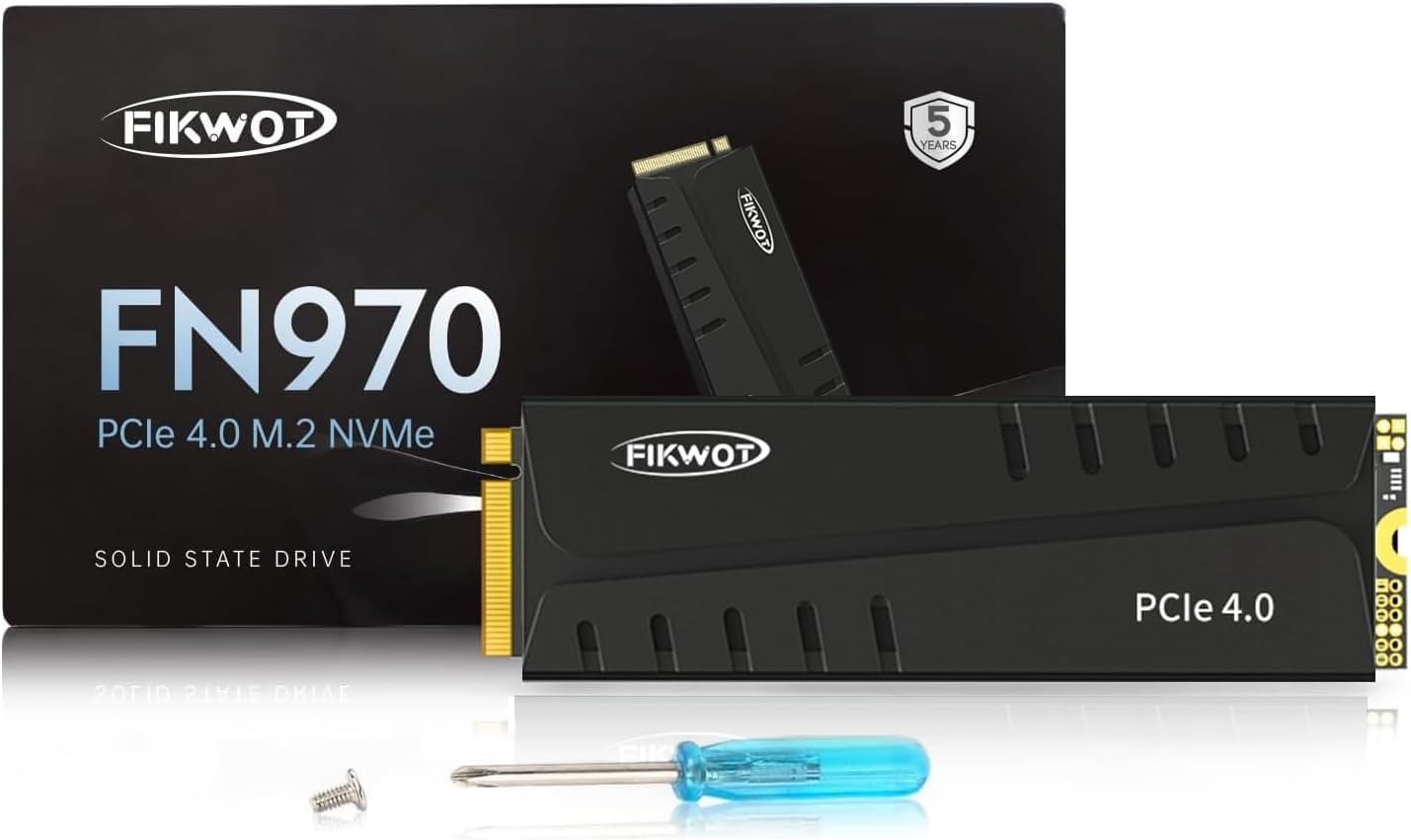
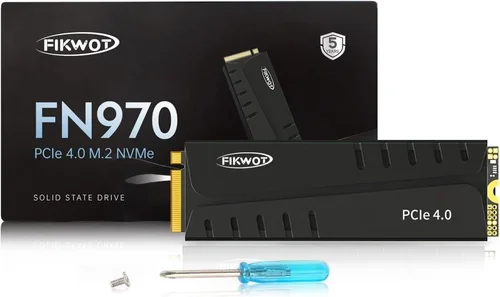
6. Thermal Management and Heatsinks
High-speed M.2 SSDs generate significant heat, especially PCIe 4.0 and 5.0 models. Excessive heat can trigger thermal throttling, where the drive slows down to prevent damage. This directly impacts sustained performance.
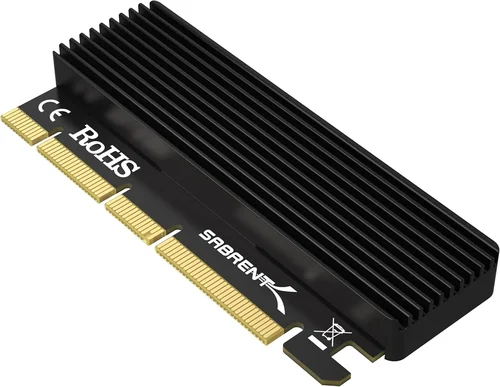
Many modern motherboards include built-in M.2 heatsinks, but if yours doesn’t, consider buying an SSD with an integrated heatsink or adding an aftermarket one. Some high-end drives, like the Samsung 990 Pro or WD Black SN850X, come with heatsinks pre-installed. For compact builds (e.g., laptops or mini-PCs), ensure the heatsink doesn’t interfere with other components.
7. Capacity and Performance Scaling
SSD performance often scales with capacity. Larger drives typically have more NAND chips and parallel channels, allowing for faster read/write speeds and better endurance. For example, a 1TB drive may outperform a 500GB model of the same series due to increased parallelism.
Additionally, SSDs perform best when they have free space. A nearly full drive (above 75% capacity) will experience slower write speeds due to reduced over-provisioning and garbage collection efficiency. Aim for at least 10–20% free space at all times.
8. Brand Reputation and Reliability
Not all SSDs are built to the same standards. Established brands like Samsung, Western Digital, Crucial, Kingston, and Sabrent have proven track records for quality, performance, and customer support. They invest heavily in R&D, use high-quality components, and offer comprehensive warranties.
Avoid no-name or ultra-budget brands that may use inferior NAND or lack proper testing. While they might seem like a bargain, they often fail prematurely or underperform. Check professional reviews and user feedback on platforms like Amazon, Newegg, or Reddit to gauge real-world reliability.
9. Warranty and Support
A strong warranty is a sign of confidence in a product’s durability. Most reputable M.2 SSDs come with 3- to 5-year limited warranties, often tied to terabytes written (TBW). For example, a 1TB drive might have a 600 TBW rating, meaning it can write 600 terabytes over its lifetime.
Higher TBW ratings indicate better endurance. If you’re using the drive for heavy workloads, prioritize models with longer warranties and higher TBW. Also, check if the manufacturer offers data recovery services or replacement programs.
Different Types of Buying Guide
Common Buying Mistakes to Avoid
❌ Mistake: Ignoring Motherboard Compatibility
Why it’s bad: Not all M.2 slots support NVMe or the latest PCIe generations. Installing a PCIe 5.0 SSD in a Gen3-only slot wastes its potential. Some motherboards share bandwidth between M.2 slots and SATA ports, disabling certain drives when others are used.
What to do instead: Check your motherboard manual for M.2 slot specifications. Use tools like CPU-Z or the manufacturer’s website to verify supported protocols and PCIe versions. If upgrading, ensure your CPU also supports the desired PCIe generation.
❌ Mistake: Buying Based on Peak Speeds Alone
Why it’s bad: Manufacturers often advertise maximum sequential read/write speeds, which are achieved under ideal conditions. Real-world performance—especially random 4K reads and sustained writes—can be much lower, especially on QLC or DRAM-less drives.
What to do instead: Look at professional benchmarks from sources like Tom’s Hardware, AnandTech, or StorageReview. Focus on mixed workloads and endurance tests, not just peak numbers.
❌ Mistake: Overlooking Thermal Throttling
Why it’s bad: High-speed drives can overheat during prolonged use, causing performance to drop by 30–50%. This is especially common in laptops or tightly packed PC cases.
What to do instead: Monitor drive temperatures using tools like HWInfo or CrystalDiskInfo. Invest in a heatsink if your case or motherboard lacks one. Ensure good airflow around the M.2 slot.
❌ Mistake: Choosing QLC for Heavy Workloads
Why it’s bad: QLC drives slow down significantly after the SLC cache is filled. Copying large video files or running VMs can become painfully slow.
What to do instead: Opt for TLC-based drives for any task involving frequent writes. Reserve QLC for secondary storage or light use.
❌ Mistake: Skipping Firmware Updates
Why it’s bad: Outdated firmware can cause compatibility issues, reduced performance, or even data corruption. Some updates include critical bug fixes.
What to do instead: Download the manufacturer’s SSD management tool (e.g., Samsung Magician, WD Dashboard) and check for updates regularly.
❌ Mistake: Not Leaving Free Space
Why it’s bad: SSDs need free space for garbage collection and wear leveling. A full drive will slow down over time.
What to do instead: Keep at least 10–20% of the drive free. Use built-in tools like TRIM (enabled by default in Windows) to maintain performance.
❌ Mistake: Assuming All M.2 Slots Are Equal
Why it’s bad: Some motherboards have multiple M.2 slots with different capabilities. Slot 1 might support PCIe 4.0, while Slot 2 is limited to SATA.
What to do instead: Consult your motherboard manual to identify which slot offers the best performance. Install your primary drive in the fastest slot.
Budget Guidelines: How Much Should You Spend?
Entry-Level ($25–$60): This range covers SATA M.2 and DRAM-less NVMe drives. Ideal for budget builds or upgrading older systems. Expect speeds around 500–2,000 MB/s. Best for web browsing, office work, and light gaming. Look for models like the Crucial P3 or Kingston NV2.
Mid-Range ($60–$120): The sweet spot for most users. Includes PCIe 3.0 and entry-level PCIe 4.0 NVMe drives with TLC NAND and DRAM. Speeds range from 3,000 to 5,000 MB/s. Great for gaming, streaming, and general productivity. Recommended models: Samsung 980, WD Blue SN580.
Premium ($120–$200): High-performance PCIe 4.0 drives with excellent endurance and thermal management. Ideal for content creators, developers, and enthusiasts. Expect 6,000–7,000 MB/s speeds. Top picks: Samsung 990 Pro, WD Black SN850X, Sabrent Rocket 4 Plus.
Luxury ($200+): Cutting-edge PCIe 5.0 drives with speeds exceeding 10,000 MB/s. Designed for professionals, AI workloads, and future-proofing. These drives often include advanced cooling and enterprise-grade features. Examples: Corsair MP700, Gigabyte Aorus Gen5 10000.
Expert Tips for Getting the Best Deal
– Buy during major sales: Look for discounts during Black Friday, Prime Day, or back-to-school seasons. SSD prices often drop significantly.
– Compare prices across retailers: Use price tracking tools like CamelCamelCamel or Honey to find the lowest price and track historical trends.
– Check for bundle deals: Some manufacturers offer SSDs with free software, migration tools, or extended warranties.
– Consider refurbished or open-box: Reputable sellers like Amazon Renewed or Newegg Refurbished offer tested drives at lower prices.
– Read return policies: Ensure the retailer allows returns in case of compatibility issues or defects.
– Test before finalizing: Use benchmarking tools like CrystalDiskMark or AS SSD to verify real-world performance after installation.
– Enable TRIM and AHCI: Ensure your OS is configured for optimal SSD performance. TRIM should be enabled by default in Windows 10/11 and macOS.
– Use manufacturer tools: Download SSD utilities for firmware updates, health monitoring, and performance optimization.

Frequently Asked Questions
Q: Can I use an M.2 SSD in a laptop?
A: Yes, many modern laptops support M.2 SSDs. However, check your laptop’s manual for supported form factors (2280 is most common) and protocols (NVMe vs SATA). Some ultrabooks only support SATA M.2 drives.
Q: Will a faster SSD improve gaming performance?
A: It can reduce load times and improve texture streaming in open-world games, but it won’t increase FPS. For gaming, a PCIe 3.0 or 4.0 NVMe drive is sufficient.
Q: Do I need to format a new M.2 SSD?
A: Most new SSDs come pre-formatted, but it’s good practice to initialize and format them using Disk Management (Windows) or Disk Utility (macOS).
Q: How long do M.2 SSDs last?
A: Modern SSDs are highly durable. With typical use, a 1TB TLC drive can last 5–10 years or more. Check the TBW rating and warranty for peace of mind.
Q: Can I install an M.2 SSD without opening my PC?
A: Some cases have tool-less M.2 access panels. Otherwise, you’ll need to open the case and secure the drive with a screw.
Q: Is PCIe 5.0 worth it in 2026?
A: For most users, PCIe 4.0 is still plenty fast. PCIe 5.0 is beneficial for professionals handling massive files or future-proofing high-end builds.
Q: What’s the difference between 2280 and 22110 M.2?
A: These refer to physical dimensions: 22mm wide × 80mm or 110mm long. 2280 is standard; 22110 is longer and used in workstations.
Q: Can I clone my old drive to a new M.2 SSD?
A: Yes, use cloning software like Macrium Reflect, Acronis True Image, or Samsung Data Migration to transfer your OS and data.
Our Final Recommendations
Best for Budget-Conscious Buyers: Crucial P3 1TB – A reliable PCIe 3.0 NVMe drive with DRAM and excellent value.
Best Overall Value: Samsung 980 1TB – PCIe 3.0 performance with Samsung’s proven reliability and software support.
Best Premium Option: Samsung 990 Pro 1TB – PCIe 4.0 flagship with top-tier speeds, endurance, and thermal management.
Best for Beginners: WD Blue SN580 1TB – Easy to install, reliable, and great for first-time NVMe upgrades.
Best for Advanced Users: Corsair MP700 2TB – PCIe 5.0 beast with 12,000+ MB/s speeds and robust cooling.
Conclusion: Making the Right Choice
Choosing the right M.2 SSD isn’t just about picking the fastest drive—it’s about matching performance, compatibility, and value to your specific needs. Whether you’re building a budget PC, upgrading a gaming rig, or setting up a professional workstation, understanding the nuances of interface, NAND type, thermal management, and real-world performance will help you avoid costly mistakes and unlock the full potential of your system.
Remember, speed isn’t just about raw numbers. It’s about consistency, reliability, and how the drive performs under real-world conditions. Don’t fall for marketing hype—focus on verified benchmarks, user reviews, and long-term durability. And once you’ve made your purchase, take the time to optimize your setup: enable TRIM, monitor temperatures, keep firmware updated, and maintain free space.
In 2026, M.2 SSDs continue to evolve, offering unprecedented performance in a compact form factor. With the knowledge from this guide, you’re now equipped to make a smart, informed decision that will keep your system running at peak speed for years to come. So go ahead—upgrade with confidence, and experience the difference that true high-speed storage can make.