
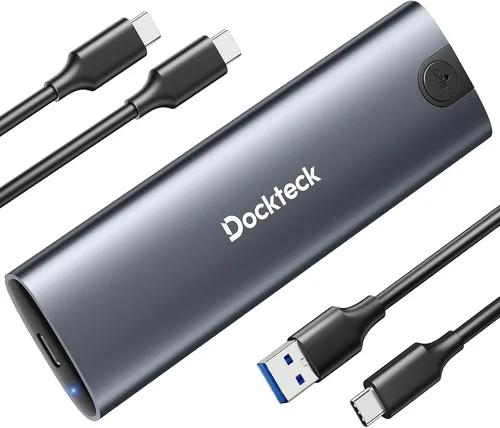
When it comes to modern computing, speed is everything. Whether you’re booting up your system, launching resource-heavy applications, transferring large files, or loading into a high-fidelity game, storage performance plays a pivotal role in your overall experience. In recent years, M.2 SSDs have emerged as the gold standard for fast, reliable, and compact storage—offering blistering read and write speeds that dwarf traditional SATA SSDs and especially mechanical hard drives. But not all M.2 SSDs are created equal. With a rapidly evolving market filled with technical jargon, varying form factors, and performance tiers, it’s easy to get overwhelmed—or worse, to end up with an SSD that doesn’t deliver the speed you were promised.
This guide is designed to cut through the noise and help you make an informed decision. Whether you’re building a new PC, upgrading an existing system, or simply curious about how to squeeze every last bit of performance from your storage, we’ll walk you through everything you need to know. You’ll learn how to interpret performance specs, understand the differences between PCIe generations and NVMe protocols, choose the right SSD for your use case, avoid common pitfalls, and ultimately get the best possible speed from your M.2 SSD investment. By the end of this article, you’ll be equipped with expert-level knowledge to confidently select, install, and optimize an M.2 SSD that meets—and exceeds—your expectations.
The M.2 SSD market in 2026 is more competitive than ever. Major players like Samsung, Western Digital, Crucial, Kingston, and newer entrants like Sabrent and Corsair are pushing the boundaries of speed, endurance, and value. PCIe 5.0 drives are now mainstream, offering theoretical bandwidths of up to 16 GT/s per lane, while PCIe 4.0 remains a sweet spot for most users due to its balance of performance and affordability. Meanwhile, advancements in 3D NAND technology, DRAM caching, and controller efficiency continue to drive real-world improvements in responsiveness and longevity. With prices steadily declining and capacities increasing, there’s never been a better time to upgrade—but only if you know what to look for.

What to Look for When Buying Buying Guide
1. Interface and Protocol: PCIe vs. SATA
The interface and communication protocol your M.2 SSD uses are the single most important factors in determining its maximum speed. M.2 is a physical form factor, not a performance standard—so it can support both SATA and PCIe (NVMe) interfaces. SATA-based M.2 SSDs are limited to around 550 MB/s, which is no faster than a 2.5-inch SATA SSD. In contrast, PCIe NVMe SSDs use the faster PCI Express bus and can achieve speeds well over 7,000 MB/s on PCIe 4.0 and even 14,000+ MB/s on PCIe 5.0. Always check whether the drive uses NVMe (Non-Volatile Memory Express) over PCIe—this is what enables high-speed data transfer. If you see “SATA” in the product name or description, it’s likely not the high-performance option you’re looking for.
2. PCIe Generation: 3.0, 4.0, or 5.0?
PCIe generations define how much bandwidth is available per lane. PCIe 3.0 offers about 1 GB/s per lane, PCIe 4.0 doubles that to 2 GB/s, and PCIe 5.0 doubles it again to 4 GB/s. Most consumer M.2 SSDs use four lanes (x4), so a PCIe 3.0 drive maxes out around 4 GB/s, PCIe 4.0 around 8 GB/s, and PCIe 5.0 up to 16 GB/s. While PCIe 5.0 drives are impressive on paper, they generate significantly more heat and often require robust cooling solutions like heatsinks or motherboard-integrated thermal pads. For most users—especially gamers and content creators—PCIe 4.0 offers the best balance of speed, compatibility, and thermal efficiency. Only consider PCIe 5.0 if you have a compatible motherboard (Z690, Z790, X670E, or newer) and a workload that truly benefits from ultra-high bandwidth, such as 8K video editing or large-scale data processing.
3. Sequential Read/Write Speeds
These are the headline numbers you’ll see in marketing materials: “Up to 7,400 MB/s read, 6,800 MB/s write.” While impressive, sequential speeds only tell part of the story. They reflect performance when moving large, contiguous files—like copying a video or installing a game. Real-world performance also depends on random read/write speeds (measured in IOPS), which affect how quickly your system can access small, scattered files (like OS boot files or application assets). A drive with high sequential speeds but poor random performance may feel sluggish during everyday tasks. Look for drives that advertise strong IOPS ratings—ideally 1M+ random read IOPS for high-end models. Also, note that sustained speeds may drop after the SLC cache is exhausted, especially on lower-end or DRAM-less drives.
4. DRAM Cache and NAND Type
DRAM (Dynamic Random Access Memory) acts as a high-speed buffer between the SSD controller and NAND flash, significantly improving performance and longevity. Drives with a dedicated DRAM chip typically offer better sustained speeds, lower latency, and longer lifespan. DRAM-less SSDs, often found in budget models, rely on system memory (HMB—Host Memory Buffer) or slower internal caching, which can lead to performance degradation under heavy workloads. Additionally, the type of NAND flash matters. TLC (Triple-Level Cell) is the most common and offers a good balance of speed, endurance, and cost. QLC (Quad-Level Cell) is cheaper and denser but slower and less durable, making it better suited for light usage. For maximum speed and reliability, opt for TLC or MLC (Multi-Level Cell) NAND with a DRAM cache.
5. Capacity and Endurance (TBW)
Larger SSDs often perform better due to more parallel NAND channels and larger SLC caches. A 1TB drive will typically outperform a 500GB model of the same series, especially in sustained write scenarios. Capacity also affects endurance, measured in Terabytes Written (TBW)—the total amount of data that can be written over the drive’s lifetime. A 1TB drive might have a 600 TBW rating, while a 2TB version could offer 1,200 TBW. For everyday users, even 400–600 TBW is more than sufficient, but professionals handling large datasets should aim for higher endurance ratings. Avoid very small capacities (below 500GB) unless you’re on a tight budget—they offer less flexibility and often reduced performance.
6. Thermal Management and Heatsinks
High-speed M.2 SSDs, especially PCIe 4.0 and 5.0 models, generate substantial heat during heavy workloads. Without proper cooling, they can throttle—reducing speeds to prevent overheating. Many motherboards now include M.2 heatsinks, but third-party solutions (like those from Thermal Grizzly or EKWB) can offer superior thermal performance. Some SSDs come with built-in heatsinks, but these may not fit in compact builds or laptops. Always check your case clearance and motherboard layout before purchasing a heatsink-equipped drive. Monitoring tools like HWInfo or CrystalDiskInfo can help you track SSD temperatures and detect throttling.
7. Brand Reputation and Firmware Support
Not all SSDs are created equal, even if they share similar specs. Established brands like Samsung, WD, and Crucial have a track record of reliability, consistent performance, and strong firmware updates. Lesser-known brands may offer tempting prices but can suffer from inconsistent quality control, poor customer support, or lack of long-term firmware optimization. Firmware updates can fix bugs, improve performance, and enhance compatibility—so choose a manufacturer that actively supports their products. Check user forums and professional reviews to see how a brand handles issues like data corruption or sudden failures.
8. Warranty and Support
A solid warranty is a strong indicator of a manufacturer’s confidence in their product. Most premium SSDs come with a 5-year limited warranty, often tied to TBW limits (e.g., “5 years or 600 TBW, whichever comes first”). Some brands, like Samsung, offer data recovery services or extended support plans. Avoid drives with only 1–3 year warranties unless they’re extremely budget-oriented. Also, consider the ease of RMA (Return Merchandise Authorization) processes—some companies make it simple, while others require extensive documentation or charge restocking fees.
Different Types of Buying Guide
Common Buying Mistakes to Avoid
❌ Mistake: Ignoring Motherboard Compatibility
Why it’s bad: Not all motherboards support PCIe 4.0 or 5.0, and some only have one M.2 slot. Installing a PCIe 5.0 drive on a PCIe 3.0 slot will work, but you’ll be limited to much lower speeds. Additionally, some older boards may not recognize newer NVMe drives without a BIOS update.
What to do instead: Check your motherboard’s manual or manufacturer website for M.2 slot specifications. Ensure it supports the PCIe generation and key type (M-key is standard for NVMe). If you’re building a new system, choose a board with at least one PCIe 4.0 or 5.0 M.2 slot for future-proofing.
❌ Mistake: Buying Based Solely on Peak Speeds
Why it’s bad: Marketing materials often highlight maximum sequential speeds, but real-world performance depends on sustained speeds, random I/O, and cache management. A drive that hits 7,000 MB/s in short bursts may drop to 500 MB/s once the cache fills up.
What to do instead: Look for reviews that test sustained performance under real workloads. Tools like ATTO, CrystalDiskMark, and PCMark 10 Storage Bench provide more realistic benchmarks. Prioritize drives with large SLC caches and DRAM buffers for consistent performance.
❌ Mistake: Overlooking Thermal Throttling
Why it’s bad: High-speed SSDs can overheat during prolonged use, causing the controller to throttle speeds to protect the drive. This leads to inconsistent performance, especially in small form factor PCs or laptops without adequate airflow.
What to do instead: Invest in a quality heatsink or choose a drive with built-in thermal management. Monitor temperatures using software like HWInfo. If building a compact system, consider lower-power PCIe 4.0 drives or ensure proper case ventilation.
❌ Mistake: Choosing QLC NAND for Heavy Workloads
Why it’s bad: QLC drives are slower, especially during writes, and have lower endurance. They’re fine for light use but struggle with tasks like video editing, large file transfers, or frequent database access.
What to do instead: Opt for TLC NAND for any serious workload. If budget is tight, consider a smaller TLC drive (e.g., 1TB) over a larger QLC one. Avoid QLC unless you’re using the drive for media storage or light browsing.
❌ Mistake: Skimping on Capacity
Why it’s bad: Smaller SSDs (250GB or less) often have fewer NAND chips, reducing parallelism and performance. They also fill up quickly, leading to slower speeds as free space diminishes.
What to do instead: Aim for at least 1TB for a primary drive. This provides ample space for the OS, applications, and games while maintaining optimal performance. Use smaller drives only for secondary storage or budget builds.
❌ Mistake: Ignoring Firmware and Brand Support
Why it’s bad: Poor firmware can lead to bugs, data corruption, or sudden failures. Some budget brands offer little to no firmware updates or customer support.
What to do instead: Stick with reputable brands that offer regular firmware updates and responsive support. Check forums and professional reviews for long-term reliability reports.
❌ Mistake: Not Checking Warranty Terms
Why it’s bad: A short warranty or one tied to low TBW limits may leave you unprotected if the drive fails early. Some warranties are voided if the drive is used in certain systems (e.g., servers).
What to do instead: Read the fine print. Choose drives with at least a 5-year warranty and a TBW rating that exceeds your expected usage. Register your drive with the manufacturer to ensure coverage.
Budget Guidelines: How Much Should You Spend?
– Entry-Level ($30–$60 for 1TB): These are typically PCIe 3.0 or DRAM-less NVMe drives. They’re fine for basic computing, web browsing, and light gaming, but expect lower sustained speeds and reduced endurance. Ideal for budget builds or secondary storage.
– Mid-Range ($60–$100 for 1TB): This is the sweet spot for most users. PCIe 4.0 NVMe drives with TLC NAND and DRAM cache offer excellent performance for gaming, content creation, and multitasking. You’ll get strong sequential and random speeds, good endurance, and reliable performance under load.
– Premium ($100–$150 for 1TB): High-end PCIe 4.0 or early PCIe 5.0 drives with advanced controllers, large caches, and superior thermal management. These are ideal for professionals, enthusiasts, and those who demand top-tier performance and longevity.
– Luxury ($150+ for 1TB): Cutting-edge PCIe 5.0 drives with peak speeds, enterprise-grade endurance, and premium features like hardware encryption or RAID support. These are overkill for most users but perfect for 8K video editing, AI workloads, or future-proofing high-end systems.

Expert Tips for Getting the Best Deal
– Buy During Seasonal Sales: Major retailers offer significant discounts during Black Friday, Cyber Monday, Amazon Prime Day, and back-to-school seasons. Sign up for deal alerts to stay informed.
– Compare Across Retailers: Don’t just check Amazon. Look at Newegg, Best Buy, B&H, and direct manufacturer stores. Sometimes, buying directly from Samsung or WD includes extended warranties or bundled software.
– Check for Bundled Software: Some SSDs come with free cloning software (like Acronis True Image), cloud storage, or antivirus suites. These add value beyond raw performance.
– Read Professional Reviews: User reviews can be biased or fake. Trust sites like Tom’s Hardware, AnandTech, or StorageReview for in-depth, unbiased testing.
– Test Before Committing: If possible, test the SSD in your system before finalizing the purchase. Use benchmarking tools to verify real-world performance matches claims.
– Consider Refurbished or Open-Box Deals: Reputable retailers often sell certified refurbished SSDs at a discount with full warranties. These can be a great way to save money without sacrificing quality.
– Don’t Overbuy: A PCIe 5.0 drive may be tempting, but if your workload doesn’t benefit from the extra speed, you’re paying for performance you won’t use. Match the drive to your actual needs.
– Monitor Firmware Updates: After purchase, check the manufacturer’s website periodically for firmware updates. These can improve performance, fix bugs, and enhance compatibility.

Frequently Asked Questions
Q: Can I use an M.2 SSD in any laptop or desktop?
A: Not necessarily. While M.2 is a standard form factor, compatibility depends on the slot type (Key M for NVMe, Key B+M for SATA), available space, and BIOS support. Check your device’s manual or manufacturer specs before purchasing.
Q: Do I need a heatsink for my M.2 SSD?
A: It depends. PCIe 4.0 and 5.0 drives benefit greatly from heatsinks, especially under sustained loads. PCIe 3.0 drives generate less heat and may not need one unless in a tightly packed case. If your motherboard includes a heatsink, use it.
Q: Will a faster SSD make my games load quicker?
A: Yes, but only up to a point. Games with large assets (like open-world titles) will load faster on a high-speed NVMe drive. However, once the game is loaded, in-game performance is more dependent on your GPU and CPU. The difference between PCIe 3.0 and 4.0 is often marginal in gaming.
Q: Can I install my OS on an M.2 SSD?
A: Absolutely. In fact, it’s highly recommended. Installing Windows or macOS on an NVMe SSD significantly reduces boot times and improves system responsiveness.
Q: How long do M.2 SSDs last?
A: Modern SSDs are extremely durable. With typical use, a 1TB TLC SSD can last 10+ years. Endurance is measured in TBW—most consumer drives offer 400–1,200 TBW, which is far more than average users will write in a decade.
Q: Should I enable TRIM?
A: Yes. TRIM helps maintain SSD performance by allowing the OS to inform the drive which blocks of data are no longer in use. It’s usually enabled by default in Windows, macOS, and Linux, but you can verify it in disk management tools.
Q: Can I use multiple M.2 SSDs in one system?
A: Yes, if your motherboard has multiple M.2 slots. You can use one for the OS and applications, and another for games or media. Just ensure your chipset and CPU support the total PCIe lane allocation.
Q: Are PCIe 5.0 SSDs worth it in 2026?
A: For most users, no—PCIe 4.0 offers excellent performance at a lower cost and with better thermal efficiency. PCIe 5.0 is only worth considering if you’re working with extremely large files (e.g., 8K video, scientific datasets) and have a compatible high-end system.
Q: What’s the difference between NVMe and SATA M.2?
A: NVMe uses the PCIe bus for high-speed data transfer, while SATA M.2 uses the older SATA interface, limiting speeds to around 550 MB/s. NVMe is significantly faster and recommended for performance-focused builds.
Q: Can I recover data from a failed M.2 SSD?
A: It depends on the failure type. Logical failures (corrupted files) can often be recovered with software. Physical failures (controller or NAND damage) may require professional data recovery services, which can be expensive. Always back up important data.
Our Final Recommendations
– Best for Budget-Conscious Buyers: Crucial P3 1TB (PCIe 3.0 NVMe) – Reliable, affordable, and widely compatible. Great for upgrading older systems or building a budget PC.
– Best Overall Value: Samsung 980 Pro 1TB (PCIe 4.0 NVMe) – Consistently top-tier performance, excellent endurance, and strong firmware support. A favorite among gamers and creators.
– Best Premium Option: WD Black SN850X 2TB (PCIe 4.0 NVMe) – High sustained speeds, large cache, and robust thermal performance. Ideal for demanding workloads.
– Best for Beginners: Kingston NV2 1TB (PCIe 4.0 NVMe) – Easy to install, good performance, and backed by a trusted brand. Perfect for first-time upgraders.
– Best for Advanced Users: Samsung 990 Pro 2TB (PCIe 4.0 NVMe) – Cutting-edge controller, exceptional random performance, and 5-year warranty. Built for enthusiasts and professionals.
Conclusion: Making the Right Choice
Choosing the right M.2 SSD isn’t just about picking the fastest drive on the market—it’s about finding the perfect balance of speed, capacity, reliability, and value for your specific needs. Whether you’re a casual user looking to speed up your daily tasks, a gamer wanting faster load times, or a professional handling massive files, the right SSD can transform your computing experience. By understanding key factors like interface, PCIe generation, NAND type, and thermal management, you can avoid common pitfalls and make a confident, informed decision.
Remember, the best SSD is the one that fits your system, your workload, and your budget. Don’t be swayed by marketing hype or peak numbers alone. Instead, focus on real-world performance, brand reputation, and long-term reliability. And once you’ve made your purchase, take the time to optimize your setup—enable TRIM, monitor temperatures, and keep your firmware updated.
With the insights from this guide, you’re now equipped to navigate the M.2 SSD market like a pro. So go ahead—upgrade your storage, boost your speed, and enjoy the lightning-fast performance that modern computing has to offer. Your system—and your patience—will thank you.