
[FEATURED_IMAGE_PLACEGOER]
External SSDs have become indispensable tools for Mac users in 2026. Whether you’re a creative professional editing 8K video, a developer running virtual machines, or simply someone who values fast file transfers and reliable storage, the right external SSD can dramatically improve your workflow. But here’s the catch: buying a high-quality drive is only half the battle. To truly unlock peak performance on macOS, proper formatting is essential. Without it, you might be leaving speed, compatibility, and stability on the table—even with the most expensive drive.
This comprehensive guide walks you through everything you need to know about selecting, setting up, and optimizing an external SSD for your Mac. We’ll cover what to look for when shopping, how different drive types compare, common pitfalls to avoid, budget considerations, and step-by-step formatting best practices. By the end, you’ll not only know which SSD to buy but also how to configure it so it runs like it was built into your Mac from day one.
The market today offers more choices than ever—from rugged, pocket-sized drives to thunderbolt-powered beasts capable of sustained multi-gigabyte transfers. Apple’s continued shift toward Apple Silicon (M1, M2, M3, and beyond) has also changed how macOS interacts with external storage, making proper setup even more critical. Whether you’re using a MacBook Air, MacBook Pro, Mac mini, or Mac Studio, this guide ensures your external SSD delivers maximum performance, longevity, and seamless integration with macOS Sonoma and beyond.

What to Look for When Buying Buying Guide
1. Interface & Connection Type
The interface determines how fast data moves between your Mac and the SSD. In 2026, the most common options are USB-C (with USB 3.2 Gen 2 or USB4), Thunderbolt 3/4, and USB 3.2 Gen 1 (formerly USB 3.0). Thunderbolt drives offer the highest bandwidth—up to 40 Gbps—making them ideal for video editors, 3D artists, and anyone working with large files. USB4, which is backward compatible with Thunderbolt 3, is now widely supported across Apple Silicon Macs and delivers similar speeds.
For general use—photo editing, document storage, backups—USB 3.2 Gen 2 (10 Gbps) is more than sufficient and often more affordable. Avoid older USB 3.2 Gen 1 (5 Gbps) unless you’re on a tight budget, as it bottlenecks even mid-tier SSDs. Always check your Mac’s port capabilities: newer MacBooks and desktops support Thunderbolt 4, while older Intel models may only support Thunderbolt 3 or USB 3.1.
2. Performance Specifications
Look beyond marketing claims like “up to 2,800 MB/s.” Real-world performance depends on sustained read/write speeds, not just peak bursts. High-end NVMe-based SSDs (like those from Samsung, SanDisk, or OWC) often deliver 2,000–2,800 MB/s, while SATA-based external SSDs max out around 550 MB/s. For most users, anything above 1,000 MB/s is excellent, but professionals should aim for 2,000+ MB/s.
Also consider IOPS (Input/Output Operations Per Second), especially if you’re running databases, VMs, or multitasking heavily. Higher IOPS mean better responsiveness under load. Check reviews that test real-world scenarios—not just synthetic benchmarks. A drive that throttles after 30 seconds of continuous use won’t help during a long render.
3. Build Quality & Durability
External SSDs face more physical stress than internal drives—they’re dropped, jostled, and exposed to dust and moisture. Look for drives with aluminum enclosures (which dissipate heat and add rigidity), rubberized coatings, and IP ratings for water/dust resistance (e.g., IP67). Brands like LaCie, G-Technology, and Samsung T series are known for rugged designs.
Heat management is equally important. NVMe SSDs generate significant heat during sustained workloads. Poorly designed enclosures can cause thermal throttling, dropping speeds by 50% or more. Passive cooling (aluminum casing) works for moderate use, but high-performance drives may benefit from active cooling or advanced thermal pads.
4. Capacity Needs
Storage needs vary wildly. Casual users storing documents, photos, and light media may be fine with 500GB–1TB. Photographers and videographers should start at 2TB, especially if shooting RAW or 4K/8K footage. Professionals working with large datasets, game libraries, or archival projects may need 4TB–8TB drives.
Remember: larger capacities often offer better performance per gigabyte due to more NAND chips and better wear leveling. Also, avoid filling your SSD beyond 75%—performance degrades as free space shrinks. If you plan to use the drive for Time Machine backups, double your working capacity to allow for versioning.
5. Compatibility with macOS
Not all SSDs play nicely with macOS out of the box. Some come preformatted for Windows (NTFS), which macOS can read but not write to without third-party software. Others use exFAT, which works across platforms but lacks journaling and advanced features. For best results, you’ll want to reformat to APFS (Apple File System) or Mac OS Extended (Journaled), depending on your macOS version and use case.
Apple Silicon Macs (M1 and later) work best with APFS, which supports encryption, snapshots, and fast directory operations. Intel Macs running macOS High Sierra or later also benefit from APFS, though older systems may require Mac OS Extended. Always verify compatibility before buying—especially if you’re using encryption or Time Machine.
6. Brand Reputation & Ecosystem Integration
Stick with reputable brands known for reliability and macOS support. Samsung, SanDisk, WD Black, OWC (Other World Computing), LaCie, and G-Technology consistently deliver well-engineered drives with good firmware and driver support. Avoid no-name brands with vague specs—they often use lower-grade NAND or poor controllers that fail prematurely.
Consider ecosystem integration too. If you use iCloud, Photos, or Time Machine, choose a drive that plays well with these services. OWC and LaCie, for example, offer utilities that enhance macOS integration, while Samsung’s Magician software provides health monitoring and performance tuning.
7. Warranty & Support
A good warranty reflects confidence in product quality. Most premium SSDs come with 3–5 years of coverage. Pay attention to whether the warranty is prorated (decreases over time) or full replacement. Also check if the brand offers data recovery services—some include limited recovery support in case of failure.
Customer support matters too. Can you get help via chat, phone, or email? Are drivers and firmware updates readily available? Brands like OWC and LaCie have strong reputations for responsive macOS-specific support, which can save hours of frustration.
8. Price-to-Performance Ratio
Don’t just chase the cheapest or fastest drive. Evaluate value based on your actual needs. A $200 1TB USB 3.2 Gen 2 drive may serve a student perfectly, while a $600 2TB Thunderbolt drive is justified for a filmmaker. Use price-per-gigabyte as a rough guide, but factor in build quality, speed, and longevity.
In 2026, expect to pay roughly $0.10–$0.15 per GB for mid-range NVMe drives, $0.15–$0.25 for Thunderbolt models, and under $0.10 for SATA-based options. Sales around Black Friday, Prime Day, and back-to-school season can shave 20–30% off retail prices.
Different Types of Buying Guide
Common Buying Mistakes to Avoid
❌ Mistake: Ignoring File System Compatibility
Why it’s bad: Buying an SSD preformatted for Windows (NTFS) means you can’t write to it on macOS without third-party tools. Even exFAT, while cross-platform, lacks journaling and can corrupt more easily during unexpected disconnects.
What to do instead: Always reformat your SSD to APFS (for macOS 10.13+) or Mac OS Extended (for older systems) using Disk Utility. This ensures full read/write support, encryption, and optimal performance.
❌ Mistake: Overlooking Thermal Throttling
Why it’s bad: Many budget SSDs use plastic enclosures that trap heat. Under sustained load, the drive slows down dramatically—sometimes cutting speeds in half—which defeats the purpose of buying a fast drive.
What to do instead: Choose drives with metal casings or active cooling. Check reviews that test sustained performance, not just burst speeds. If you’re doing long renders, consider a drive with a heatsink or external fan.
❌ Mistake: Choosing Based Solely on Peak Speed
Why it’s bad: Marketing often highlights “up to” speeds achieved in short bursts. Real-world tasks like copying large video files require consistent performance over minutes or hours.
What to do instead: Look for reviews that measure sustained write speeds over 10–30 minutes. A drive that maintains 1,500 MB/s for an hour is better than one that peaks at 2,800 MB/s but drops to 400 MB/s after 30 seconds.
❌ Mistake: Skipping Encryption for Sensitive Data
Why it’s bad: Losing an unencrypted SSD with personal or client data can lead to breaches, legal issues, and loss of trust. macOS makes encryption easy with FileVault, but it only works on properly formatted drives.
What to do instead: Enable encryption during formatting in Disk Utility (choose “APFS (Encrypted)”). Use a strong password and store the recovery key securely. The performance impact is negligible on modern Macs.
❌ Mistake: Buying the Cheapest Drive Available
Why it’s bad: Ultra-low-cost SSDs often use inferior NAND flash, weak controllers, or recycled components. They may fail prematurely or corrupt data silently.
What to do instead: Invest in a reputable brand with a proven track record. Spending $20–$30 more can mean the difference between a drive that lasts 5 years and one that fails in 6 months.
❌ Mistake: Not Testing Before Committing
Why it’s bad: Some SSDs have compatibility quirks with specific Mac models or macOS versions. A drive that works fine on an M1 MacBook might behave oddly on an Intel Mac mini.
What to do instead: If possible, test the drive with your actual workflow before storing critical data. Use Blackmagic Disk Speed Test or AmorphousDiskMark to verify real-world performance.
❌ Mistake: Forgetting About Backup Strategy
Why it’s bad: An external SSD is not a backup—it’s a single point of failure. Relying solely on one drive risks total data loss if it fails, gets lost, or is damaged.
What to do instead: Follow the 3-2-1 rule: keep 3 copies of your data, on 2 different media, with 1 copy offsite (e.g., cloud or another physical drive). Use Time Machine or a third-party tool like Carbon Copy Cloner.
Budget Guidelines: How Much Should You Spend?
- Entry-Level ($60–$120): Ideal for students, casual users, or secondary storage. Expect SATA-based SSDs with 500GB–1TB capacity and speeds around 400–550 MB/s. Brands like Kingston, Crucial, and SanDisk offer reliable options in this range. Great for documents, music, and light photo storage.
- Mid-Range ($120–$250): The sweet spot for most Mac users. You’ll find NVMe SSDs with USB 3.2 Gen 2 interfaces, delivering 1,000–2,000 MB/s. Capacities of 1TB–2TB are common. Perfect for photo editing, moderate video work, and general productivity. Look at models like the Samsung T7 Shield or SanDisk Extreme Pro.
- Premium ($250–$500): For professionals and power users. Thunderbolt 3/4 drives dominate here, offering 2,000–2,800 MB/s sustained speeds. Rugged builds, IP ratings, and advanced thermal management are standard. Ideal for 4K/8K video editing, 3D rendering, and large project files. Consider the OWC Envoy Pro FX or LaCie Rugged SSD Pro.
- Luxury ($500+): Top-tier performance and capacity. These include 4TB–8TB Thunderbolt drives, desktop-class SSDs with RAID support, or enterprise-grade models with hardware encryption and remote management. Reserved for studios, filmmakers, and users with extreme storage demands. Examples: G-Technology G-RAID Shuttle or Samsung X5.
Expert Tips for Getting the Best Deal
- Buy during seasonal sales: Black Friday, Cyber Monday, Amazon Prime Day, and back-to-school periods (July–August) offer the deepest discounts. Sign up for price alerts on sites like CamelCamelCamel or Honey.
- Check refurbished or open-box deals: Apple, Best Buy, and B&H often sell certified refurbished SSDs at 15–30% off with full warranties. These are thoroughly tested and nearly indistinguishable from new.
- Compare retailers: Prices vary significantly between Apple Store, Amazon, B&H, Adorama, and direct-from-brand sites. Sometimes the manufacturer offers exclusive bundles (e.g., free cables or software).
- Read return policies carefully: Ensure you can return the drive within 14–30 days if it doesn’t meet expectations. Some retailers charge restocking fees for opened electronics.
- Test immediately: Once you receive the drive, run a full speed test and check for bad sectors using Disk Utility’s First Aid. This catches defects early, before you store important data.
- Consider bundle deals: Some SSDs come with useful extras like USB-C to USB-A adapters, protective cases, or backup software licenses. These can add real value beyond the drive itself.
- Watch for firmware updates: After purchase, check the manufacturer’s website for firmware updates. These can improve performance, fix bugs, or enhance compatibility with newer macOS versions.
- Negotiate with customer service: If you find a lower price elsewhere, some retailers (like B&H or Adorama) will match it. It never hurts to ask!

Frequently Asked Questions
Q: Should I format my external SSD as APFS or Mac OS Extended?
A: For Macs running macOS High Sierra (10.13) or later—especially Apple Silicon models—use APFS. It’s faster, supports encryption, snapshots, and is optimized for SSDs. Use Mac OS Extended only if you need compatibility with macOS 10.12 or earlier, or if you’re using the drive with very old Macs.
Q: Can I use my external SSD with both Mac and Windows?
A: Yes, but not without trade-offs. Formatting as exFAT allows read/write on both platforms, but you lose journaling, encryption, and some performance benefits. For dual-use, consider partitioning the drive: one APFS partition for Mac, one exFAT for cross-platform files.
Q: Will formatting erase all data on the SSD?
A: Yes. Formatting completely wipes the drive. Always back up any existing data before reformatting. If the drive is new, this isn’t an issue—but double-check to avoid accidental data loss.
Q: How do I format an external SSD on macOS?
A: Open Disk Utility (Applications > Utilities), select your SSD from the sidebar, click “Erase,” choose APFS (or Mac OS Extended), give it a name, and click “Erase.” For advanced options like encryption or GUID Partition Map, click the dropdown menu before erasing.
Q: Does encryption slow down my SSD?
A: On Apple Silicon Macs, encryption has virtually no performance impact thanks to the Secure Enclave. On Intel Macs, there’s a minor overhead, but it’s negligible for most users. The security benefits far outweigh any tiny speed loss.
Q: Can I use my external SSD for Time Machine?
A: Absolutely. In fact, it’s recommended for faster backups. Just ensure the drive is formatted as APFS or Mac OS Extended (Journaled). Time Machine works best with dedicated drives, so avoid using the same SSD for active projects and backups.
Q: Why is my SSD slower than advertised?
A: Several factors: thermal throttling, USB hub usage (always plug directly into your Mac), outdated cables (use certified USB4/Thunderbolt cables), or background processes. Also, some drives slow down when nearly full—keep at least 25% free space.
Q: Is it safe to disconnect the SSD without ejecting?
A: No. Always eject via Finder or Disk Utility before unplugging. Sudden disconnects can corrupt data, especially during writes. macOS may show a warning, but it’s not worth the risk.
Q: Can I daisy-chain multiple SSDs via Thunderbolt?
A: Yes! Thunderbolt supports daisy-chaining up to six devices. This is great for expanding storage without cluttering your desk. Just ensure each drive has its own power if required, and use high-quality Thunderbolt cables.
Q: What’s the lifespan of an external SSD?
A: Most modern SSDs last 5–10 years under normal use, with endurance ratings measured in terabytes written (TBW). A 1TB drive might be rated for 600 TBW—meaning you could write 160GB daily for 10 years. Heavy users should monitor health with tools like DriveDx or SMART Utility.
Our Final Recommendations
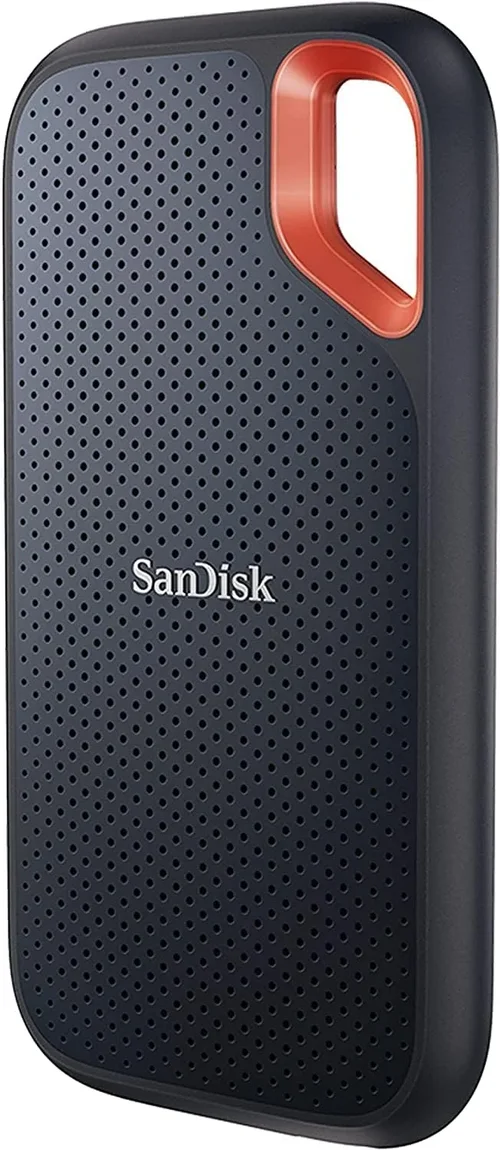
- Best for Budget-Conscious Buyers: SanDisk Extreme Portable SSD (1TB) – Reliable, rugged, and delivers solid 1,050 MB/s speeds for under $120. Great for students and casual users.
- Best Overall Value: Samsung T7 Shield (2TB) – IP65-rated, compact, and consistently hits 1,000+ MB/s. Perfect balance of price, performance, and durability for most Mac users.
- Best Premium Option: OWC Envoy Pro FX (2TB) – Thunderbolt 3, blazing 2,800 MB/s speeds, sleek aluminum design. Ideal for video editors and professionals who need reliability and speed.
- Best for Beginners: Crucial X9 Pro (1TB) – Simple setup, USB 3.2 Gen 2, and excellent macOS compatibility. Comes with cloning software and a 5-year warranty.
- Best for Advanced Users: LaCie Rugged SSD Pro (4TB) – Thunderbolt 3, IP67 rating, and professional-grade build. Built for filmmakers and creators working in harsh environments.
Conclusion: Making the Right Choice
Choosing and formatting an external SSD for your Mac isn’t just about picking the fastest or cheapest drive—it’s about aligning technology with your workflow, environment, and future needs. From understanding interface speeds and file systems to avoiding thermal throttling and ensuring proper encryption, every decision impacts performance, security, and longevity.
Remember: the best SSD is the one that disappears into your workflow. It should be fast enough to keep up, reliable enough to trust with your data, and formatted correctly to speak macOS’s language fluently. Whether you’re backing up family photos, editing a documentary, or running a development server, taking the time to set up your drive properly pays dividends in speed, stability, and peace of mind.
So don’t rush. Read reviews, compare specs, test before you commit, and always format with intention. Your Mac—and your files—will thank you. Now go forth, upgrade your storage, and unlock the full potential of your Apple ecosystem.