
[FEATURED_IMAGE_PLACEGOER]
If you’ve ever opened a laptop, clicked on a file, and waited—really waited—for it to load, you already know why upgrading to a solid-state drive (SSD) is one of the most impactful improvements you can make to your laptop. Whether you’re a student juggling assignments, a creative professional editing videos, or a casual user browsing the web, an SSD transforms your entire computing experience. It’s not just about speed—it’s about responsiveness, reliability, and future-proofing your device.
This comprehensive buying guide is designed to cut through the noise and help you make a smart, informed decision when choosing the best SSD for your laptop in 2026. The market is flooded with options—from budget SATA drives to blazing-fast NVMe Gen5 SSDs—and it’s easy to get overwhelmed. But don’t worry: we’ll walk you through every critical factor, from performance specs and compatibility to budget considerations and brand reputation. By the end of this guide, you’ll know exactly what to look for, what to avoid, and how to get the best value for your money.
Whether you’re upgrading an older laptop or building a new system, understanding SSD technology is essential. In recent years, SSDs have evolved rapidly. We’ve seen the rise of PCIe Gen4 and Gen5 interfaces, the dominance of NVMe over older SATA protocols, and the emergence of advanced features like hardware encryption, thermal throttling protection, and AI-powered wear leveling. At the same time, prices have dropped significantly, making high-capacity SSDs more accessible than ever. This guide will help you navigate these developments and choose an SSD that matches your needs, your laptop’s capabilities, and your budget.

What to Look for When Buying Buying Guide
1. Compatibility with Your Laptop
Before you even think about performance or price, you must ensure the SSD you choose is physically and technically compatible with your laptop. Not all SSDs fit all laptops—some require specific form factors, connectors, or firmware support.
Start by identifying your laptop model and checking the manufacturer’s specifications. Most modern laptops use either 2.5-inch SATA SSDs or M.2 NVMe SSDs, but there are important distinctions. For example, a 2.5-inch SSD connects via a SATA data and power cable, while an M.2 SSD plugs directly into the motherboard. M.2 drives come in different lengths (like 2242, 2260, and 2280) and key types (B-key, M-key, or B+M), so you need to match these exactly.
Additionally, check whether your laptop supports NVMe or only SATA. While most newer laptops support NVMe, older models may only accept SATA-based M.2 drives. You can usually find this information in your laptop’s manual or by using tools like Crucial’s System Scanner or Samsung’s Magician software. Installing an incompatible SSD can result in no boot, poor performance, or even hardware damage.
2. Form Factor and Physical Size
SSDs come in several form factors, and choosing the right one is crucial for a successful installation. The most common types are:
– 2.5-inch SATA SSDs: These resemble traditional hard drives and are typically used in older or budget laptops. They connect via SATA cables and require both data and power connections. While they’re reliable and widely compatible, they’re bulkier and slower than M.2 drives.
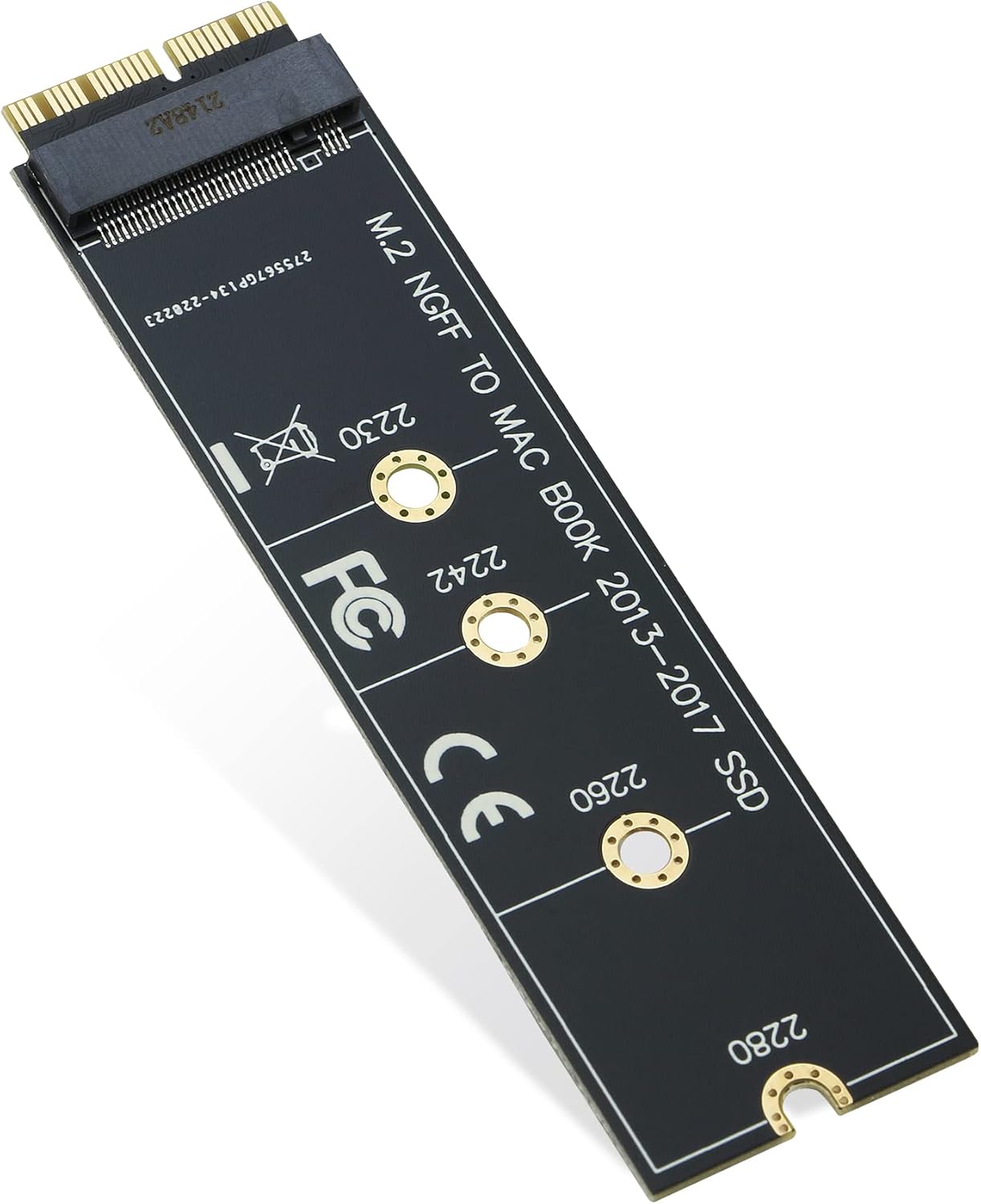
– M.2 SSDs: These are small, stick-like drives that plug directly into the motherboard. They’re the standard in modern laptops due to their compact size and high-speed capabilities. M.2 drives come in different lengths, with 2280 (22mm wide, 80mm long) being the most common.
– mSATA (mini-SATA): Less common today, these are smaller than 2.5-inch drives but larger than M.2. They’re mostly found in older business laptops and are being phased out.
When selecting an M.2 SSD, ensure your laptop has an available M.2 slot and that it supports the drive’s interface (SATA or NVMe). Some laptops have multiple M.2 slots—one for storage and one for Wi-Fi—so verify which one is for storage.
3. Interface and Protocol: SATA vs. NVMe
The interface and protocol determine how fast data can travel between your SSD and the rest of your system. There are two main types:
– SATA III: The older standard, with a maximum theoretical speed of 6 Gbps (around 550 MB/s in real-world use). SATA SSDs are reliable and affordable but significantly slower than NVMe drives. They’re ideal for older laptops or users who don’t need top-tier performance.
– NVMe (Non-Volatile Memory Express): A modern protocol designed specifically for SSDs, NVMe leverages the PCIe (Peripheral Component Interconnect Express) bus for much faster data transfer. NVMe drives can reach speeds of 3,500 MB/s (Gen3), 7,000 MB/s (Gen4), and even over 12,000 MB/s (Gen5).
Most new laptops support NVMe, but older models may only support SATA. If your laptop has an M.2 slot, it may support both SATA and NVMe—but not always. Check your motherboard specifications to confirm.
4. Storage Capacity: How Much Do You Really Need?
Storage capacity is one of the most personal decisions when buying an SSD. It depends on your usage patterns, file types, and future needs.
Here’s a general guide:
– 250GB–500GB: Suitable for basic users who mainly browse the web, use office apps, and store documents. Ideal for secondary drives or budget upgrades.
– 1TB: The sweet spot for most users. Enough space for the operating system, applications, games, and a decent media library.
– 2TB and above: Best for power users, content creators, gamers, or anyone working with large files like 4K video, RAW photos, or virtual machines.
Keep in mind that SSDs perform better when they’re not full. Aim to keep at least 10–20% of the drive free for optimal performance and longevity. Also, consider future needs—will you be installing more software or storing larger files in the next few years?
5. Performance Specifications: Speed, IOPS, and Endurance
Performance isn’t just about raw speed—it’s a combination of several metrics:
– Sequential Read/Write Speeds: Measured in MB/s, these indicate how fast large files (like videos or disk images) can be read or written. Higher numbers mean faster file transfers. For example, a Gen4 NVMe SSD might offer 7,000 MB/s read and 6,500 MB/s write.
– Random Read/Write IOPS: Input/Output Operations Per Second measure how quickly the drive can handle small, random requests—like opening apps or loading game levels. Higher IOPS mean better responsiveness. Look for drives with at least 500,000 IOPS for smooth multitasking.
– Endurance (TBW): Terabytes Written indicates how much data can be written to the drive over its lifetime. A higher TBW means longer lifespan. For example, a 1TB SSD with 600 TBW can write 600 terabytes before it may start to degrade.
– DRAM Cache: SSDs with a DRAM cache perform better under heavy workloads and last longer. DRAM-less SSDs are cheaper but may slow down when full or under sustained load.
For most users, a balance of speed, IOPS, and endurance is ideal. Gamers and professionals should prioritize high IOPS and TBW, while casual users can get by with moderate specs.
6. Build Quality and Durability
SSDs are more durable than traditional hard drives because they have no moving parts. However, not all SSDs are built equally. Look for:
– Controller Quality: The controller manages data flow and wear leveling. Reputable brands use high-quality controllers (like Phison, Silicon Motion, or Samsung’s in-house designs).
– NAND Flash Type: SSDs use different types of NAND memory:
– TLC (Triple-Level Cell): Most common, offers good balance of speed, endurance, and cost.
– QLC (Quad-Level Cell): Cheaper and higher capacity, but slower write speeds and lower endurance.
– MLC (Multi-Level Cell): More durable and faster, but expensive—mostly used in enterprise drives.
– SLC (Single-Level Cell): Fastest and most durable, but very costly.
For consumer use, TLC is the best choice. Avoid QLC unless you’re on a tight budget and don’t plan to write large amounts of data frequently.
– Thermal Management: High-performance NVMe drives can get hot, especially in thin laptops with poor airflow. Some SSDs include built-in heat spreaders or thermal pads. If your laptop has limited cooling, consider a drive with good thermal throttling protection.
7. Brand Reputation and Reliability
Not all SSD brands are created equal. Some have a proven track record of reliability, while others cut corners to reduce costs. Stick with reputable manufacturers known for quality and support.
Top-tier brands include:
– Samsung: Known for excellent performance, durability, and software (Samsung Magician).
– Western Digital (WD): Offers a wide range of reliable drives, including the WD Black and WD Blue series.
– Crucial (Micron): Great value, especially with their MX and P series.
– Kingston: Solid budget and mid-range options with good warranties.
– SK Hynix: High-performance drives, often used in premium laptops.
– Seagate: Reliable and widely available, with strong enterprise support.
Avoid no-name or ultra-cheap brands, especially those sold on unverified marketplaces. These often use inferior components and lack proper firmware updates or customer support.
8. Warranty and Support
A good warranty is a sign of a manufacturer’s confidence in their product. Most reputable SSDs come with a 3- to 5-year limited warranty. Some high-end models even offer 6- or 7-year coverage.
Check what the warranty covers:
– Does it include data recovery?
– Is it transferable if you sell the drive?
– Does it require registration?
Also, consider customer support. Can you easily contact the manufacturer? Do they offer firmware updates? Tools like Samsung Magician or WD Dashboard can help monitor drive health, update firmware, and optimize performance.
Different Types of Buying Guide

Common Buying Mistakes to Avoid

❌ Mistake: Ignoring Compatibility
Why it’s bad: Buying an SSD that doesn’t fit your laptop or isn’t supported by your motherboard is a waste of money. You might end up with a drive that doesn’t boot, performs poorly, or doesn’t work at all.
What to do instead: Always verify your laptop’s specifications before purchasing. Use manufacturer tools or third-party scanners to confirm form factor, interface, and protocol support.
❌ Mistake: Choosing the Cheapest Option Without Research
Why it’s bad: Ultra-cheap SSDs often use low-quality NAND, lack DRAM caches, and have poor endurance. They may fail prematurely or slow down significantly over time.
What to do instead: Prioritize value over price. Look for drives from reputable brands with good reviews and solid warranties. A slightly more expensive SSD can last years longer.
❌ Mistake: Overlooking Thermal Throttling
Why it’s bad: High-speed NVMe drives generate heat. In thin laptops with poor cooling, this can cause thermal throttling—where the drive slows down to prevent overheating, negating performance gains.
What to do instead: Choose SSDs with built-in heat spreaders or consider adding a thermal pad. Monitor temperatures using tools like HWInfo or CrystalDiskInfo.
❌ Mistake: Buying Too Little Storage
Why it’s bad: Running out of space forces you to constantly manage files, slows down the drive, and may require another upgrade sooner than expected.
What to do instead: Assess your current and future storage needs. If you’re close to filling a 500GB drive, go for 1TB. It’s often only $20–$30 more and provides peace of mind.
❌ Mistake: Ignoring Firmware and Software Support
Why it’s bad: Without firmware updates, your SSD may suffer from bugs, security vulnerabilities, or performance issues. Lack of monitoring tools makes it hard to track health.
What to do instead: Choose brands that offer robust software suites (like Samsung Magician or WD Dashboard) and regularly release firmware updates.
❌ Mistake: Not Backing Up Before Installation
Why it’s bad: Installing a new SSD often involves wiping your old drive. Without a backup, you risk losing important data.
What to do instead: Always back up your data before upgrading. Use cloud storage, external drives, or cloning software to transfer your OS and files.
❌ Mistake: Assuming All NVMe Drives Are Equal
Why it’s bad: NVMe is a protocol, not a performance guarantee. Some NVMe drives are much slower than others, especially DRAM-less or QLC-based models.
What to do instead: Check reviews and benchmarks. Look for drives with DRAM caches and TLC NAND for the best balance of speed and endurance.
Budget Guidelines: How Much Should You Spend?
– Entry-Level ($30–$70 for 500GB): Ideal for basic upgrades or older laptops. Look for SATA or M.2 SATA drives from brands like Crucial or Kingston. Expect speeds around 500 MB/s and 3-year warranties.
– Mid-Range ($70–$150 for 1TB): The sweet spot for most users. NVMe Gen3 or Gen4 drives with TLC NAND, DRAM caches, and 5-year warranties. Great for gaming, productivity, and light content creation.
– Premium ($150–$300 for 1TB): For power users and professionals. High-end NVMe Gen4 or Gen5 drives with top-tier performance, excellent endurance, and advanced features like hardware encryption.
– Luxury ($300+ for 1TB): Cutting-edge drives with maximum speed, capacity, and reliability. Often used in workstations or high-end gaming rigs. Overkill for most casual users.

Expert Tips for Getting the Best Deal
– Buy During Sales Events: Major retailers offer significant discounts during holidays. Keep an eye on Amazon, Newegg, Best Buy, and B&H Photo.
– Compare Prices Across Retailers: Use price tracking tools like CamelCamelCamel or Honey to find the lowest price and get alerts.
– Check for Bundled Deals: Some SSDs come with free cloning software, mounting kits, or external enclosures. These can add value.
– Read Professional and User Reviews: Look beyond marketing specs. Sites like Tom’s Hardware, AnandTech, and Reddit offer honest insights.
– Consider Refurbished or Open-Box Options: Certified refurbished SSDs from reputable sellers can save you 20–30% with full warranties.
– Test Before Committing: If possible, test the SSD in your laptop before finalizing the purchase. Some retailers offer generous return policies.
– Prioritize Warranty Over Price: A longer warranty often indicates better build quality. Don’t sacrifice coverage for a few dollars.
– Upgrade in Stages: If budget is tight, start with a smaller SSD for your OS and apps, then add a larger secondary drive later.
Frequently Asked Questions
Q: Can I install an SSD in any laptop?
A: Not necessarily. Check your laptop’s specifications to see if it supports SSD upgrades. Some ultrabooks have soldered storage, while others may lack the necessary connectors or space.
Q: Will an SSD make my laptop faster?
A: Yes—significantly. An SSD reduces boot times, speeds up app launches, and improves overall responsiveness, even on older laptops.
Q: Do I need to reinstall Windows after installing an SSD?
A: You can either reinstall Windows fresh or clone your existing drive. Cloning is faster but may carry over bloatware. A clean install is recommended for best performance.
Q: How long do SSDs last?
A: Most consumer SSDs last 5–10 years under normal use, depending on usage and TBW rating. Modern drives are very reliable.
Q: Can I use an external SSD with my laptop?
A: Yes, via USB 3.0, USB-C, or Thunderbolt. External SSDs are great for backups, media storage, or expanding capacity without opening your laptop.
Q: Is NVMe always better than SATA?
A: NVMe is faster, but only if your laptop supports it. In SATA-only systems, an NVMe drive will not work or will run at SATA speeds.
Q: Should I get a DRAM-less SSD?
A: Avoid DRAM-less SSDs for primary drives. They’re slower under load and wear out faster. Use them only for secondary storage or very light use.
Q: How do I monitor my SSD’s health?
A: Use tools like CrystalDiskInfo, Samsung Magician, or WD Dashboard to check health, temperature, and remaining lifespan.
Q: Can I mix SSD and HDD in my laptop?
A: Yes, if your laptop has space for both. Use the SSD for the OS and apps, and the HDD for bulk storage.
Q: What’s the difference between Gen3, Gen4, and Gen5 NVMe?
A: Each generation doubles the bandwidth. Gen3 offers ~3,500 MB/s, Gen4 ~7,000 MB/s, and Gen5 over 12,000 MB/s. Only use Gen4/Gen5 if your laptop supports it.
Our Final Recommendations
– Best for Budget-Conscious Buyers: Crucial MX500 (2.5-inch SATA) or Crucial P3 (M.2 NVMe Gen3) – reliable, affordable, and widely compatible.
– Best Overall Value: Samsung 980 Pro (1TB) – excellent Gen4 performance, 5-year warranty, and Samsung Magician software.
– Best Premium Option: WD Black SN850X (1TB) – top-tier Gen4 speeds, great for gaming and content creation.
– Best for Beginners: Kingston NV2 (1TB) – easy to install, good performance, and budget-friendly.
– Best for Advanced Users: SK Hynix Platinum P41 (1TB) – one of the fastest Gen4 drives with exceptional endurance and efficiency.
Conclusion: Making the Right Choice
Choosing the best SSD for your laptop doesn’t have to be overwhelming. By focusing on compatibility, performance, capacity, and reliability, you can find a drive that dramatically improves your computing experience. Remember: an SSD upgrade is one of the most cost-effective ways to breathe new life into an old laptop or maximize the potential of a new one.
Don’t rush the decision. Take time to research your laptop’s specs, compare options, and read reviews. Prioritize your needs—whether it’s speed, storage, or budget—and don’t be swayed by flashy marketing. A well-chosen SSD will serve you reliably for years, making every boot, launch, and file transfer faster and smoother.
Ready to upgrade? Start by checking your laptop’s compatibility, then explore the recommendations above. With the right SSD, you’ll wonder how you ever lived without it.