
Choosing the right solid-state drive (SSD) for your Windows 10 system isn’t just about picking the fastest or most expensive option on the shelf. It’s about finding the perfect balance between performance, reliability, compatibility, and value—tailored specifically to how you use your computer. Whether you’re upgrading an aging laptop, building a high-performance desktop, or simply looking to breathe new life into a sluggish machine, the SSD you select can make a dramatic difference in boot times, application responsiveness, and overall system efficiency.
Windows 10, while optimized for modern hardware, still benefits immensely from the speed and low latency that SSDs provide over traditional hard disk drives (HDDs). In fact, one of the most impactful upgrades you can make to any Windows 10 PC is swapping out an HDD for an SSD. But with so many options on the market—ranging from budget SATA drives to blazing-fast NVMe Gen4 and even emerging Gen5 models—it’s easy to feel overwhelmed. This guide cuts through the noise. You’ll learn exactly what matters when choosing an SSD for Windows 10, how to avoid common pitfalls, and which models offer the best performance per dollar in 2026.
The SSD market has evolved rapidly over the past few years. We’ve seen the rise of PCIe 4.0 and 5.0 interfaces, the refinement of 3D NAND and QLC technologies, and a significant drop in price per gigabyte. At the same time, brands like Samsung, Crucial, WD, Kingston, and Sabrent have raised the bar for reliability and software support. Whether you’re a casual user, a creative professional, or a gamer, there’s an SSD out there that fits your needs—and this guide will help you find it.

What to Look for When Buying Buying Guide
1. Budget & Price Range
Your budget is often the first filter when shopping for an SSD. Prices vary widely based on capacity, interface type, and technology used. As of 2026, you can find reliable SATA SSDs starting around $30 for 500GB, while high-end NVMe Gen5 drives can cost upwards of $300 for the same capacity. The key is to determine how much storage you realistically need and how much you’re willing to spend per gigabyte.
For most users, a 1TB SSD offers the sweet spot between cost and usability. It provides enough space for the operating system, essential applications, and a growing library of documents, photos, and games—without breaking the bank. If you’re on a tight budget, a 500GB drive may suffice, but be prepared to manage storage carefully. On the other hand, if you work with large files—like 4K video, 3D models, or game libraries—consider 2TB or larger drives.
2. Performance Specifications
Performance is where SSDs truly shine—and where the differences between models become most apparent. The two main metrics to consider are sequential read/write speeds and random IOPS (Input/Output Operations Per Second).
Sequential speeds measure how quickly large files (like videos or game installers) can be read from or written to the drive. For SATA SSDs, this typically caps around 550 MB/s due to the SATA III interface limitation. NVMe drives, however, leverage the PCIe bus and can reach speeds from 3,500 MB/s (Gen3) to over 12,000 MB/s (Gen5). While these numbers sound impressive, real-world benefits depend on your use case.
Random IOPS matter more for everyday tasks like opening applications, multitasking, and booting Windows. A drive with high IOPS will feel snappier when switching between browser tabs, launching Photoshop, or loading levels in a game. For Windows 10, a drive with at least 500,000 random read IOPS is ideal for smooth performance.
Also consider endurance, measured in terabytes written (TBW). This indicates how much data can be written to the drive over its lifetime. A 1TB drive with a 600 TBW rating can endure 600TB of writes—far more than most users will ever generate. Higher TBW usually correlates with better build quality and longer lifespan.
3. Build Quality & Durability
Not all SSDs are created equal when it comes to internal components and manufacturing standards. Higher-quality drives use better NAND flash memory (like TLC or MLC instead of QLC), more robust controllers, and often include power-loss protection or thermal throttling safeguards.
Look for drives that use 3D NAND technology, which stacks memory cells vertically to increase density and reliability. TLC (Triple-Level Cell) NAND offers a good balance of speed, endurance, and cost, while QLC (Quad-Level Cell) is cheaper but wears out faster under heavy write loads. For most Windows 10 users, TLC is the sweet spot.
Durability also extends to physical resilience. While SSDs have no moving parts (making them more shock-resistant than HDDs), some models include additional features like conformal coating to protect against humidity or extreme temperatures—useful if you live in a harsh climate or travel frequently with your laptop.
4. Features & Functionality
Modern SSDs come with a range of features that enhance usability, security, and longevity. One of the most important is TRIM support, which helps maintain performance over time by allowing the OS to inform the SSD which blocks of data are no longer in use. Windows 10 enables TRIM by default on compatible drives, so this should be standard.
Another key feature is hardware encryption, often via TCG Opal or IEEE 1667 standards. This allows you to secure your data with full-disk encryption without taxing your CPU. If you handle sensitive information—like business documents or personal financial records—look for an SSD with built-in AES-256 encryption.
Many manufacturers also offer proprietary software suites. Samsung’s Magician, Crucial’s Storage Executive, and WD’s Dashboard provide tools for monitoring drive health, updating firmware, enabling over-provisioning, and cloning your existing drive. These utilities can simplify setup and help you get the most out of your investment.
5. Brand Reputation
Brand matters—not because one company is universally better, but because established brands tend to offer more consistent quality, better customer support, and longer track records. Samsung, for example, has been a leader in NAND technology for years and consistently ranks high in reliability surveys. Crucial (a Micron brand) leverages in-house memory production for tighter quality control. Western Digital and Kingston also have strong reputations for durability and performance.
That said, newer brands like Sabrent, Team Group, and PNY have gained traction by offering competitive performance at lower prices. While they may not have the same legacy, many of their drives are built using similar components and offer solid warranties. The key is to research individual models rather than relying solely on brand names.
6. Warranty & Support
A good warranty is a strong indicator of a manufacturer’s confidence in their product. Most reputable SSDs come with a 3- to 5-year limited warranty, often tied to both time and endurance (e.g., “5 years or 600 TBW, whichever comes first”). This dual limitation protects both casual users and heavy writers.
Check the warranty terms carefully. Some brands require registration, while others offer hassle-free replacements. Also consider the availability of customer support—can you get help via phone, chat, or email? Are drivers and firmware updates readily available? A responsive support team can save you hours of frustration if something goes wrong.
7. Size & Portability
While most internal SSDs are standard 2.5-inch drives or M.2 modules, size can still matter depending on your system. Laptops and small-form-factor PCs often require M.2 drives, which come in different lengths (like 2280, meaning 22mm wide and 80mm long). Always verify your motherboard or laptop’s specifications before buying.
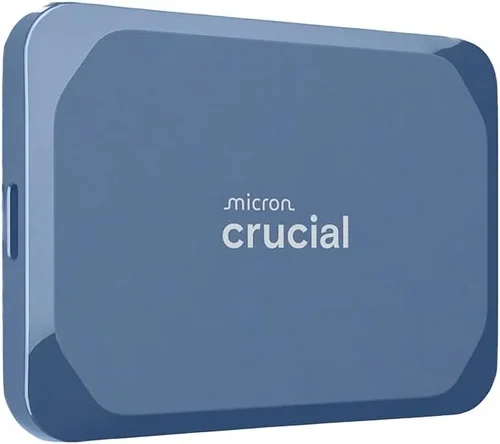
For external use, portable SSDs like the Samsung T7 or SanDisk Extreme offer fast USB 3.2 Gen 2 speeds and rugged designs. These are ideal for backing up Windows 10 systems, transferring large files, or running portable applications. Just ensure your USB ports support the drive’s interface—otherwise, you won’t get full speed.
8. User Reviews & Ratings
Never underestimate the power of real-world feedback. User reviews on Amazon, Newegg, Best Buy, and tech forums like Reddit or Tom’s Hardware can reveal issues that specs sheets don’t show—like inconsistent performance, firmware bugs, or poor customer service.
Look for patterns in reviews. If multiple users report the same problem (e.g., drive failure after six months), it’s a red flag. Conversely, consistent praise for reliability, speed, or ease of installation is a good sign. Pay attention to verified purchase reviews and those with detailed explanations—they’re more trustworthy than vague one-liners.
Different Types of Buying Guide

Common Buying Mistakes to Avoid
❌ Mistake: Ignoring Interface Compatibility
Why it’s bad: Buying an NVMe drive for a system that only supports SATA will result in a useless component. Many older motherboards and laptops lack M.2 slots or only support SATA-based M.2 drives.
What to do instead: Check your motherboard manual or laptop specs before purchasing. Use tools like CPU-Z or the manufacturer’s website to confirm supported interfaces.
❌ Mistake: Overpaying for Speed You Won’t Use
Why it’s bad: A Gen5 SSD delivering 12,000 MB/s won’t make your web browser load faster if you’re just checking email. You’re paying a premium for performance that doesn’t translate to real-world gains.
What to do instead: Match the drive to your workload. For everyday Windows 10 use, a Gen3 or even SATA SSD is more than sufficient. Save Gen4/Gen5 for content creation or heavy multitasking.
❌ Mistake: Choosing QLC NAND for Heavy Workloads
Why it’s bad: QLC drives are cheaper but wear out faster under sustained write loads. If you’re editing video, compiling code, or running virtual machines, QLC may degrade quickly.
What to do instead: Opt for TLC NAND for better endurance. If budget is tight, ensure the drive has a large SLC cache to buffer writes and extend lifespan.
❌ Mistake: Skipping Firmware Updates
Why it’s bad: Outdated firmware can cause compatibility issues, performance drops, or even data corruption. Manufacturers regularly release updates to fix bugs and improve stability.
What to do instead: Download the manufacturer’s utility software and check for updates after installation. Enable automatic notifications if available.
❌ Mistake: Neglecting Thermal Management
Why it’s bad: High-speed NVMe drives generate heat, especially Gen4 and Gen5 models. Without proper cooling, they may throttle performance to prevent overheating.
What to do instead: Use a heatsink if your case or motherboard supports it. For laptops, ensure adequate airflow. Avoid enclosing M.2 drives in tight spaces without ventilation.
❌ Mistake: Buying Based Solely on Price
Why it’s bad: The cheapest SSD may use inferior components, lack encryption, or have a short warranty. You could end up replacing it sooner than expected.
What to do instead: Balance cost with features, brand reputation, and warranty. A slightly more expensive drive with better support can save money in the long run.
❌ Mistake: Not Cloning Your Existing Drive
Why it’s bad: Manually reinstalling Windows 10 and all your apps is time-consuming and error-prone. You might forget important settings or licenses.
What to do instead: Use cloning software (like Macrium Reflect or Acronis True Image) to copy your entire system to the new SSD. This preserves your OS, programs, and files.
Budget Guidelines: How Much Should You Spend?
– Entry-Level ($30–$60): Ideal for basic upgrades or secondary storage. Expect SATA III or entry-level NVMe Gen3 drives with 500GB–1TB capacity. Performance is solid for everyday tasks, but endurance and features may be limited. Great for students or casual users.
– Mid-Range ($60–$120): The sweet spot for most Windows 10 users. You’ll find reliable NVMe Gen3 or Gen4 drives with TLC NAND, 1TB capacity, and strong warranties. These offer excellent speed, durability, and software support—perfect for gaming, office work, and light creative tasks.
– Premium ($120–$250): For power users and professionals. Look for high-end Gen4 or early Gen5 drives with 1TB–2TB capacity, high TBW ratings, and advanced features like hardware encryption and thermal monitoring. Ideal for video editors, developers, and gamers with large libraries.
– Luxury ($250+): Top-tier performance with cutting-edge technology. These drives push the limits of speed and capacity, often used in workstations or servers. While overkill for most, they’re worth considering if you demand the absolute best and future-proofing is a priority.
Expert Tips for Getting the Best Deal
– Buy during seasonal sales: Black Friday, Cyber Monday, Prime Day, and back-to-school periods often feature deep discounts on SSDs. Sign up for price alerts on sites like CamelCamelCamel or Honey.
– Compare retailers: Prices can vary significantly between Amazon, Newegg, Best Buy, and direct-from-manufacturer stores. Check for bundle deals (e.g., SSD + cloning kit).
– Watch for open-box or refurbished deals: Certified refurbished SSDs from reputable sellers often come with full warranties and can save you 20–30%. Just ensure they’re tested and include original accessories.
– Check return policies: Some retailers offer 30- or 60-day returns. This gives you time to test the drive and ensure compatibility with your system.
– Use manufacturer rebates: Brands like Samsung and Crucial frequently offer mail-in rebates that can reduce the effective price by $10–$30.
– Consider capacity upgrades later: Start with a 1TB drive and add a second SSD later if needed. This spreads out the cost and lets you prioritize performance first.
– Test before relying on it: After installation, run benchmarks (like CrystalDiskMark) and check SMART status to ensure the drive is performing as expected.
– Enable over-provisioning: Reserving 7–10% of the drive’s capacity for internal management can improve longevity and maintain performance over time.

Frequently Asked Questions
Q: Can I use an NVMe SSD in a SATA-only slot?
A: No. NVMe and SATA use different protocols and physical connectors. An NVMe drive will not fit or function in a SATA M.2 or 2.5″ slot. Always verify compatibility before buying.
Q: Will a faster SSD make Windows 10 boot faster?
A: Yes, but with diminishing returns. Upgrading from an HDD to any SSD will dramatically reduce boot time (from minutes to seconds). Moving from SATA to NVMe may shave off another 1–2 seconds, which is noticeable but not transformative.
Q: Do I need to enable AHCI or RAID mode in BIOS?
A: For most modern systems, AHCI is the default and recommended setting for SSDs. RAID is only necessary if you’re using multiple drives in a阵列. Windows 10 handles NVMe drives natively without special BIOS settings.
Q: Can I install Windows 10 on an external SSD?
A: Yes, but performance will depend on the USB interface. USB 3.2 Gen 2 (10 Gbps) is sufficient for smooth operation, but boot times and app loading will be slower than internal drives. Ensure your BIOS supports booting from external USB devices.
Q: How do I clone my old drive to a new SSD?
A: Use cloning software like Macrium Reflect Free, Acronis True Image, or the manufacturer’s tool (e.g., Samsung Data Migration). Connect both drives, select the source and destination, and follow the prompts. Always back up data first.
Q: What’s the difference between DRAM and DRAM-less SSDs?
A: DRAM-equipped SSDs have a dedicated memory cache for mapping data locations, improving speed and longevity. DRAM-less drives use system memory (HMB) or slower methods, which can impact performance under heavy loads. For Windows 10, a DRAM cache is recommended for best results.
Q: How long do SSDs last?
A: Most consumer SSDs last 5–10 years under normal use. Endurance is measured in TBW—check the warranty for specifics. For example, a 1TB drive with 600 TBW can handle about 100GB of writes per day for 16 years.
Q: Should I defragment my SSD?
A: No. Defragmentation is unnecessary and harmful to SSDs, as it increases write cycles. Windows 10 automatically disables defrag for SSDs and runs TRIM instead to maintain performance.
Q: Can I use an SSD as a cache drive?
A: Yes, with technologies like Intel Rapid Storage Technology (RST) or Samsung’s TurboWrite. However, this is less common today, as most users prefer a single large SSD over a hybrid setup.
Q: Are cheaper SSDs safe to use?
A: Many budget SSDs are safe and reliable, especially from known brands. Avoid no-name drives with no warranty or specifications. Stick to models with user reviews and manufacturer support.
Our Final Recommendations
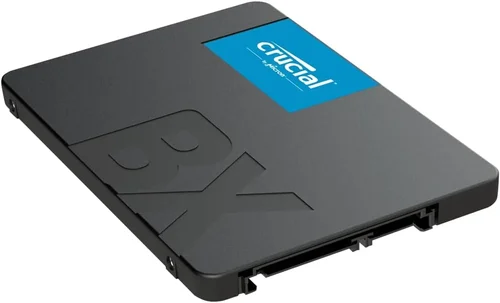
– Best for Budget-Conscious Buyers: Crucial BX500 1TB SATA SSD – At around $55, this drive offers solid performance, a 3-year warranty, and Crucial’s reliable software suite. Perfect for upgrading older systems without breaking the bank.
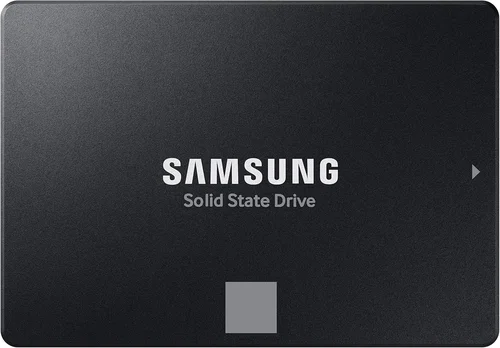
– Best Overall Value: Samsung 980 1TB NVMe Gen3 – Priced around $80, this drive delivers excellent speed (3,500 MB/s), 5-year warranty, and Samsung’s Magician software. It’s fast, reliable, and widely compatible.
– Best Premium Option: WD Black SN850X 1TB NVMe Gen4 – With speeds up to 7,300 MB/s, a 5-year warranty, and advanced thermal management, this drive is ideal for gamers and creators who demand top-tier performance.
– Best for Beginners: Kingston NV2 1TB NVMe Gen3 – Simple to install, affordable ($65), and backed by Kingston’s reputation for reliability. Great for first-time upgraders.
– Best for Advanced Users: Samsung 990 Pro 2TB NVMe Gen4 – One of the fastest consumer drives available, with 7,450 MB/s speeds, 1,200 TBW endurance, and AES encryption. Built for professionals and enthusiasts.
Conclusion: Making the Right Choice
Choosing the best SSD for Windows 10 doesn’t have to be overwhelming. By focusing on your specific needs—whether that’s budget, performance, or compatibility—you can find a drive that transforms your computing experience. Remember, the goal isn’t to buy the fastest or most expensive SSD, but the one that delivers the best value for how you use your PC.
Prioritize reliability and warranty over flashy specs, and always verify compatibility with your system. Use the tips and recommendations in this guide to avoid common pitfalls and make a confident decision. Whether you’re upgrading a laptop or building a new desktop, the right SSD will make Windows 10 feel faster, smoother, and more responsive than ever.
Take the time to research, compare options, and invest wisely. Your future self—and your computer—will thank you.