
[FEATURED_IMAGE_PLACEOLDER]
If you’re considering upgrading your computer with a solid-state drive (SSD), you’re making a smart move that can dramatically improve performance, responsiveness, and overall user experience. Whether you’re building a new PC, refreshing an aging laptop, or simply looking to speed up boot times and file access, installing an SSD is one of the most impactful upgrades you can make. But with so many options on the market—and varying levels of technical support from retailers like Best Buy—it’s easy to feel overwhelmed. That’s where this comprehensive buying guide comes in.
This guide is designed to walk you through every critical decision point when choosing and installing an SSD, especially if you’re planning to use Best Buy for your purchase or installation services. We’ll cover everything from understanding SSD types and performance specs to evaluating installation options, avoiding common pitfalls, and getting the best value for your money. By the end, you’ll have the confidence and knowledge to make an informed choice—whether you’re a first-time upgrader or a seasoned tech enthusiast.
The SSD market in 2026 is more diverse and competitive than ever. Prices have dropped significantly over the past few years, making high-capacity drives accessible to mainstream users. At the same time, advancements in NAND flash technology, controller designs, and interface standards (like PCIe 5.0 and NVMe) have pushed performance boundaries. Retailers like Best Buy now offer not only a wide selection of SSDs but also professional installation services, data migration support, and extended warranties. This combination of product availability and service convenience makes it easier than ever to upgrade—but only if you know what to look for.

What to Look for When Buying Buying Guide
1. Budget & Price Range
Your budget will play a major role in determining which SSD you can afford, but it shouldn’t be the only factor. SSDs range from under $50 for basic 500GB models to over $500 for high-performance 4TB drives. The key is balancing cost with your actual needs. For example, a budget-conscious user who primarily browses the web and uses office applications may not need a top-tier PCIe 5.0 drive, while a content creator working with 4K video will benefit from faster read/write speeds and larger capacities.
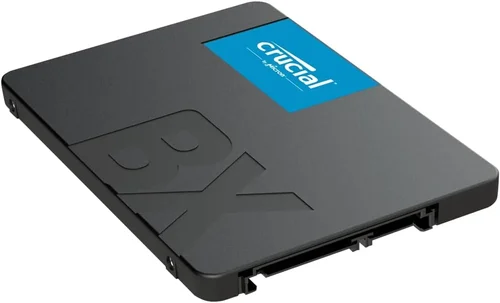
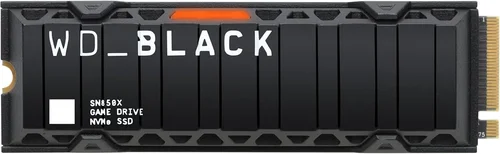
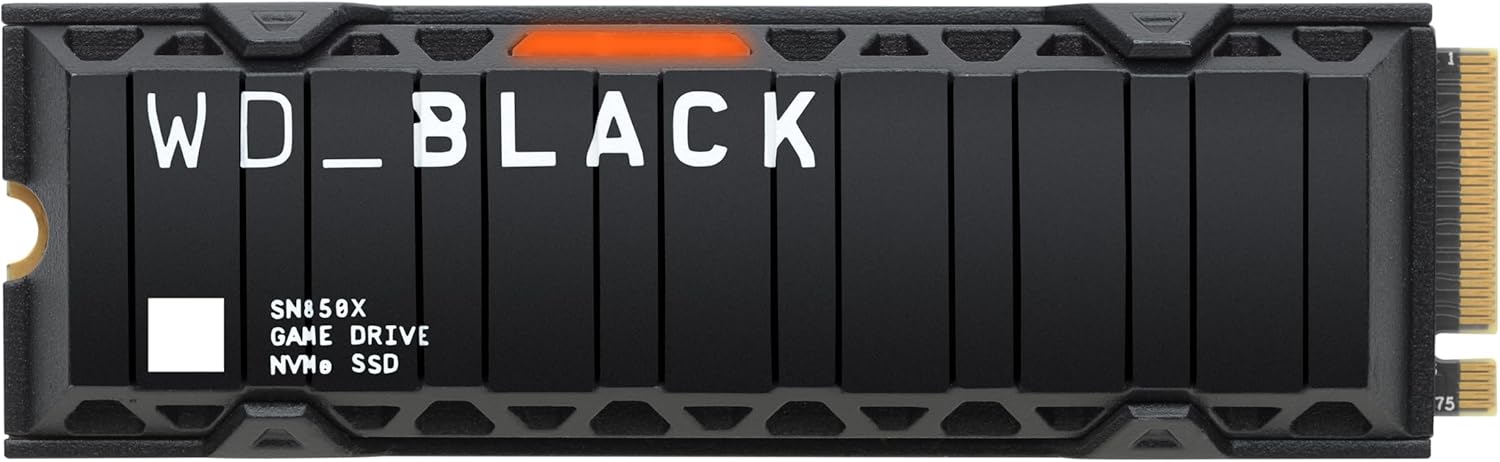
When shopping at Best Buy, you’ll find SSDs across all price tiers. Entry-level options like the Samsung 870 EVO (SATA) or Crucial MX500 offer excellent reliability at a low cost. Mid-range NVMe drives such as the WD Black SN850X or Samsung 980 Pro deliver blazing speeds for gaming and productivity. Premium models like the Sabrent Rocket 4 Plus or Corsair MP600 Pro XT are built for enthusiasts and professionals who demand maximum performance. Always compare price per gigabyte—this metric helps you evaluate true value. For instance, a 1TB drive at $80 ($0.08/GB) is a better deal than a 2TB drive at $200 ($0.10/GB), even though the latter has more storage.
2. Performance Specifications
Performance is where SSDs truly shine compared to traditional hard drives. The two most important metrics are sequential read and write speeds, measured in megabytes per second (MB/s). For example, a SATA SSD typically maxes out around 550 MB/s due to interface limitations, while NVMe PCIe 3.0 drives can reach 3,500 MB/s, and PCIe 4.0 models exceed 7,000 MB/s. PCIe 5.0 drives, now widely available in 2026, can hit over 12,000 MB/s—though real-world gains depend on your system’s compatibility.
Random read/write performance, measured in IOPS (Input/Output Operations Per Second), is equally important for multitasking and system responsiveness. A drive with high IOPS will launch applications faster, handle multiple browser tabs smoothly, and improve overall snappiness. Look for drives with strong 4K random performance—especially if you use your computer for gaming, photo editing, or software development.
Another performance factor is endurance, measured in terabytes written (TBW). This indicates how much data can be written to the drive over its lifetime. A 1TB drive with a 600 TBW rating is more durable than one with 300 TBW. For most users, even lower-end SSDs will last many years, but heavy workloads (like video editing or database management) benefit from higher endurance ratings.
3. Build Quality & Durability
SSDs have no moving parts, making them inherently more durable than HDDs. However, build quality still varies between brands and models. Look for drives with robust controllers, high-quality NAND flash memory (preferably TLC or MLC over QLC), and effective thermal management. Some premium SSDs include heatsinks or thermal pads to prevent throttling under heavy loads—critical for sustained performance in gaming or content creation.
Best Buy carries SSDs from reputable manufacturers known for reliability, such as Samsung, Western Digital, Crucial, Kingston, and Sabrent. These brands undergo rigorous testing and often use in-house components, which improves consistency and longevity. Avoid no-name or ultra-cheap SSDs, as they may use inferior NAND or lack proper firmware updates, leading to data loss or early failure.
Physical durability also matters if you’re installing the SSD in a laptop or portable device. M.2 NVMe drives are compact and lightweight, ideal for thin laptops, while 2.5-inch SATA SSDs are more common in desktops and older laptops. Ensure your device has the correct slot or bay before purchasing.
4. Features & Functionality
Modern SSDs come with a range of features that enhance usability and security. One of the most valuable is hardware-based encryption, such as TCG Opal or IEEE 1667 compliance, which protects your data if the drive is lost or stolen. This is especially important for business users or anyone storing sensitive information.
Another useful feature is power-loss protection, which ensures data isn’t corrupted during sudden shutdowns. While more common in enterprise drives, some consumer models now include basic capacitors to safeguard writes in progress.
Firmware updates and software suites are also worth considering. Brands like Samsung and Crucial offer free tools for monitoring drive health, optimizing performance, and cloning your existing drive. Best Buy often includes access to these tools with purchase, and their Geek Squad team can assist with setup.
Additionally, some SSDs support advanced features like SLC caching, which uses a portion of the drive as high-speed buffer to boost write speeds during short bursts. This improves real-world performance, especially when transferring large files.
5. Brand Reputation
Not all SSD brands are created equal. Established manufacturers with a history of reliability and innovation should be your first choice. Samsung, for example, has consistently led the market with cutting-edge technology and excellent customer support. Western Digital and Crucial (a Micron brand) are also highly trusted, offering a balance of performance and value.
Best Buy stocks a curated selection of SSDs from top-tier brands, reducing the risk of buying a subpar product. Their staff are generally knowledgeable and can help you compare models based on your needs. However, it’s still important to do your own research—read reviews, check benchmark results, and verify compatibility with your system.
Avoid brands with limited track records or those that frequently appear in user complaints about failure rates or poor customer service. A reputable brand may cost slightly more upfront, but the peace of mind and long-term reliability are worth it.
6. Warranty & Support
Warranty length is a strong indicator of a manufacturer’s confidence in their product. Most consumer SSDs come with a 3- to 5-year limited warranty, covering defects and premature failure. Some premium models, like the Samsung 990 Pro, offer up to 1.5 million hours mean time between failures (MTBF) and a 5-year warranty.
Best Buy enhances this protection by offering extended warranties through their Geek Squad Protection plans. These plans can cover accidental damage, power surges, and even data recovery services—valuable if you’re not comfortable handling drive failures yourself. However, weigh the cost of the plan against the drive’s price; for a $100 SSD, a $20 extended warranty may not be necessary.
Customer support is another consideration. Brands with responsive technical support and easy RMA (return merchandise authorization) processes save you time and frustration. Check online forums and review sites to see how quickly companies respond to issues.
7. Size & Portability
The physical size of the SSD depends on your device and installation method. The most common form factors are:
– 2.5-inch SATA: Fits in standard laptop and desktop drive bays. Easy to install but limited to SATA speeds.
– M.2 2280: Compact, stick-like drive that plugs directly into the motherboard. Supports both SATA and NVMe protocols.
– M.2 2242 or 22110: Smaller or larger variants, less common but used in some ultrabooks or workstations.
For most users, the M.2 2280 NVMe drive is the best choice due to its speed and space efficiency. However, older systems may only support 2.5-inch SATA drives. Always check your device’s specifications before buying.
Portability matters if you plan to use the SSD externally. Many users opt for portable SSDs like the Samsung T7 or SanDisk Extreme Pro, which connect via USB-C and offer fast transfer speeds. Best Buy sells both internal and external SSDs, so you can choose based on your use case.
8. User Reviews & Ratings
User reviews provide real-world insights that specs alone can’t offer. Look for patterns in feedback—consistent praise for speed and reliability is a good sign, while repeated complaints about failure or overheating should raise red flags. Best Buy’s product pages include customer ratings and detailed reviews, making it easy to gauge satisfaction.
Pay attention to reviews from users with similar systems or use cases. For example, if you’re installing an SSD in a 2020 MacBook Pro, look for reviews from others who’ve done the same. Also, check third-party sites like Amazon, Newegg, or Tom’s Hardware for additional perspectives.
Different Types of Buying Guide

Common Buying Mistakes to Avoid
❌ Mistake: Ignoring Compatibility
Why it’s bad: Buying an NVMe SSD for a system that only supports SATA will result in a drive that doesn’t work. Similarly, installing a PCIe 4.0 drive in a PCIe 3.0 slot limits performance, and some older motherboards may not recognize M.2 drives at all.
What to do instead: Check your device’s manual or manufacturer website to confirm supported SSD types. Use tools like Crucial’s System Scanner or Samsung’s Magician software to verify compatibility. When in doubt, ask Best Buy’s in-store tech specialists for help.
❌ Mistake: Overpaying for Unnecessary Performance
Why it’s bad: Spending $300 on a PCIe 5.0 SSD for a basic office PC is overkill. The performance gains won’t be noticeable in everyday tasks like web browsing or document editing.
What to do instead: Match the SSD to your use case. A PCIe 3.0 or 4.0 drive is more than sufficient for most users. Save the premium models for gaming, video editing, or 3D rendering.
❌ Mistake: Skipping Data Migration
Why it’s bad: Installing a new SSD without transferring your operating system and files means you’ll have to reinstall everything from scratch—a time-consuming process.
What to do instead: Use cloning software (like Acronis True Image or Macrium Reflect) to copy your existing drive to the new SSD. Best Buy’s Geek Squad offers data migration services for a fee, which can be worth it if you’re not tech-savvy.
❌ Mistake: Neglecting Thermal Management
Why it’s bad: High-performance NVMe drives can overheat, causing throttling and reduced speeds. This is especially true in small form-factor PCs or laptops with poor airflow.
What to do instead: Choose an SSD with a built-in heatsink or purchase an aftermarket M.2 heatsink. Ensure your case has adequate ventilation, and avoid stacking components too closely.
❌ Mistake: Buying Based Solely on Price
Why it’s bad: The cheapest SSD may use low-quality NAND or lack essential features like power-loss protection, leading to data corruption or early failure.
What to do instead: Prioritize reliability and brand reputation. A slightly more expensive drive from a trusted manufacturer will last longer and perform better over time.
❌ Mistake: Not Backing Up Before Installation
Why it’s bad: Even with careful cloning, there’s always a risk of data loss during the upgrade process.
What to do instead: Always create a full backup of your current drive before starting. Use cloud storage or an external hard drive to safeguard important files.
❌ Mistake: Assuming Best Buy Installation Is Always Worth It
Why it’s bad: While convenient, professional installation can cost $50–$100, which may not be justified for simple upgrades.
What to do instead: If you’re comfortable with basic hardware, DIY installation is fast and free. Watch a tutorial, gather the right tools (like a screwdriver), and follow step-by-step guides. Only opt for professional help if you’re unsure or dealing with a complex system.
Budget Guidelines: How Much Should You Spend?
– Entry-Level ($40 – $80): Ideal for basic upgrades in older systems. Look for 500GB–1TB SATA SSDs from brands like Crucial or Kingston. These drives offer a significant speed boost over HDDs and are perfect for everyday computing.
– Mid-Range ($80 – $150): The sweet spot for most users. A 1TB NVMe PCIe 3.0 or 4.0 SSD provides excellent performance for gaming, multitasking, and light content creation. Models like the WD Blue SN580 or Samsung 980 offer great value.
– Premium ($150 – $300): For enthusiasts and professionals. These drives feature high endurance, advanced controllers, and PCIe 4.0 or 5.0 support. Ideal for 4K video editing, 3D rendering, or high-FPS gaming.
– Luxury ($300+): Top-tier performance with maximum capacity and cutting-edge technology. These are best for workstations, servers, or users who demand the absolute best. Expect features like hardware encryption, robust heatsinks, and 5-year warranties.
Expert Tips for Getting the Best Deal
– Buy during sales events: Black Friday, Cyber Monday, and back-to-school season offer the deepest discounts on SSDs. Best Buy often runs bundle deals with laptops or desktops.
– Compare online and in-store prices: Sometimes online exclusives are cheaper, but in-store pickup can save shipping fees and let you inspect the product.
– Check for open-box deals: Best Buy sells open-box SSDs at reduced prices. These are often returned items in like-new condition with full warranties.
– Use Best Buy’s price matching: If you find a lower price elsewhere, Best Buy may match it—just bring proof.
– Consider the total cost of ownership: Factor in installation, data migration, and warranty extensions. Sometimes paying a bit more upfront saves money long-term.
– Test the drive after installation: Use tools like CrystalDiskMark or Samsung Magician to verify performance and health.
– Register your warranty: This ensures you’re covered in case of failure and may provide access to firmware updates.
– Recycle your old drive responsibly: Best Buy offers free electronics recycling, including old SSDs and HDDs.
Frequently Asked Questions
Q: Can Best Buy install an SSD for me?
A: Yes, Best Buy’s Geek Squad offers professional SSD installation services for both laptops and desktops. They can also assist with data migration, OS cloning, and system optimization. Prices vary by device complexity, typically ranging from $50 to $100.
Q: Will installing an SSD void my warranty?
A: In most cases, no—especially for user-replaceable drives. However, some laptops (like certain MacBooks or ultrabooks) have sealed designs, and opening them may void the warranty. Check your manufacturer’s policy before proceeding.
Q: Do I need to reinstall Windows after installing an SSD?
A: Not necessarily. If you clone your existing drive, the OS and all files transfer over. If you install fresh, you’ll need to reinstall Windows and your applications.
Q: How long does an SSD last?
A: Most consumer SSDs last 5–10 years under normal use, depending on usage patterns and TBW rating. Heavy write workloads may shorten lifespan, but for typical users, failure is rare.
Q: Can I use an SSD as external storage?
A: Yes, with an external SSD enclosure. These connect via USB-C and allow you to use an internal SSD as a portable drive. Best Buy sells both enclosures and pre-built external SSDs.
Q: Is NVMe always faster than SATA?
A: In terms of raw speed, yes—NVMe drives are significantly faster. However, for everyday tasks, the difference may not be noticeable. SATA SSDs still offer a massive improvement over HDDs.
Q: What’s the difference between TLC, MLC, and QLC NAND?
A: TLC (3-bit) offers a good balance of speed, endurance, and cost. MLC (2-bit) is more durable but pricier. QLC (4-bit) is cheaper and higher capacity but slower and less durable. For most users, TLC is the best choice.
Q: Can I install multiple SSDs in one system?
A: Yes, if your motherboard has multiple M.2 slots or SATA ports. This allows for RAID configurations or separate drives for OS and storage.
Q: Does Best Buy offer data recovery if my SSD fails?
A: Yes, through Geek Squad’s data recovery services. However, success isn’t guaranteed, and costs can be high. Regular backups are the best prevention.
Q: Should I enable TRIM on my SSD?
A: Yes. TRIM helps maintain SSD performance by clearing unused data blocks. It’s usually enabled by default in modern operating systems, but you can check in Windows via “fsutil behavior query DisableDeleteNotify.”
Our Final Recommendations
– Best for Budget-Conscious Buyers: Crucial MX500 1TB SATA SSD – Reliable, affordable, and widely compatible. Perfect for upgrading older systems.
– Best Overall Value: Samsung 980 1TB NVMe PCIe 3.0 – Excellent performance, strong endurance, and competitive pricing. A great all-around choice.
– Best Premium Option: WD Black SN850X 2TB NVMe PCIe 4.0 – Top-tier speed and capacity for gamers and creators. Includes a heatsink and 5-year warranty.
– Best for Beginners: Kingston NV2 1TB NVMe PCIe 4.0 – Easy to install, reliable, and budget-friendly. Great for first-time upgraders.
– Best for Advanced Users: Sabrent Rocket 4 Plus 4TB NVMe PCIe 4.0 – Massive capacity and blazing speeds. Ideal for workstations and high-end builds.
Conclusion: Making the Right Choice
Upgrading to an SSD is one of the most effective ways to breathe new life into your computer. Whether you’re looking to speed up boot times, improve game load times, or simply enjoy a more responsive system, the right SSD can make all the difference. With retailers like Best Buy offering a wide selection and professional installation services, there’s never been a better time to make the switch.
As you’ve learned, the key to a successful upgrade lies in understanding your needs, evaluating performance and compatibility, and avoiding common pitfalls. Don’t let budget constraints or technical jargon hold you back—armed with the knowledge from this guide, you’re ready to make a confident, informed decision.
Remember, the best SSD isn’t necessarily the fastest or most expensive—it’s the one that fits your system, your workflow, and your budget. Take your time, do your research, and don’t hesitate to ask for help. Whether you install it yourself or rely on Best Buy’s expertise, the result will be a faster, smoother, and more enjoyable computing experience.
So go ahead—upgrade with confidence. Your future self will thank you every time your computer boots up in seconds instead of minutes.