
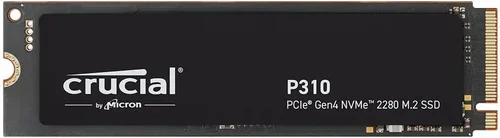
When it comes to upgrading or replacing the storage in your laptop, few decisions have as immediate and noticeable an impact as choosing the right NVMe SSD. Whether you’re a student juggling research projects and video lectures, a creative professional editing 4K footage on the go, or a gamer loading massive open-world titles, your laptop’s storage speed directly affects how smoothly—and how quickly—you can work, play, and create. In 2026, the NVMe SSD market has matured significantly, offering faster speeds, greater capacities, and better reliability than ever before. But with so many options flooding the market—from budget-friendly drives to blazing-fast PCIe Gen5 models—it’s easy to feel overwhelmed.
This comprehensive buying guide is designed to cut through the noise and help you make a confident, informed decision. You’ll learn not just which NVMe SSDs are currently leading the pack, but more importantly, how to evaluate them based on your specific needs. We’ll walk you through critical factors like performance benchmarks, form factor compatibility, endurance ratings, thermal management, and real-world usability. By the end of this guide, you won’t just know what to buy—you’ll understand why it’s the right choice for your laptop and lifestyle.
The NVMe SSD landscape in 2026 is both exciting and complex. While PCIe Gen4 remains the sweet spot for most users due to its balance of speed, power efficiency, and affordability, PCIe Gen5 drives are now hitting mainstream laptops, promising double the bandwidth—but often at the cost of higher heat output and price. Meanwhile, manufacturers continue to innovate with advanced NAND technologies (like 232-layer TLC and QLC), smarter controllers, and enhanced power management features tailored for mobile devices. Whether you’re upgrading an older laptop or building a new system from scratch, understanding these nuances will ensure you get the best possible performance without overspending or running into compatibility issues.

What to Look for When Buying Buying Guide
1. Form Factor & Compatibility
Before you even consider speed or capacity, you must confirm that the NVMe SSD you choose physically fits your laptop and is supported by its motherboard. The vast majority of modern laptops use the M.2 form factor, but not all M.2 slots are created equal. Most consumer laptops support M.2 2280 (22mm wide, 80mm long), but some ultraportables or older models may require shorter lengths like 2242 or 2260. Always check your laptop’s manual or manufacturer specifications before purchasing.
More critically, you need to verify whether your laptop supports NVMe protocol or is limited to SATA. While both can use the M.2 connector, SATA-based M.2 drives are significantly slower (capped around 550 MB/s) compared to NVMe drives that leverage PCIe lanes for multi-gigabyte speeds. If your laptop only has a SATA M.2 slot, buying an NVMe drive will result in it not being recognized at all. Use tools like CPU-Z or your laptop’s BIOS/UEFI to confirm interface support. Additionally, ensure your system supports the PCIe generation (Gen3, Gen4, or Gen5) of the SSD you’re considering—using a Gen5 drive in a Gen3 slot won’t break anything, but you’ll miss out on the performance gains.
2. Performance Specifications
Performance is often the first thing people look at when shopping for an NVMe SSD, and for good reason—it directly impacts boot times, application launches, file transfers, and overall system responsiveness. The two primary metrics to focus on are sequential read/write speeds and random IOPS (Input/Output Operations Per Second).
Sequential speeds (measured in MB/s or GB/s) matter most for large file operations—think copying videos, loading game levels, or backing up photos. For most users, a drive with 3,500 MB/s read and 3,000 MB/s write (typical of PCIe Gen4) is more than sufficient. However, if you regularly work with 8K video, large databases, or scientific datasets, you might benefit from Gen5 drives pushing 10,000–12,000 MB/s.
Random IOPS, on the other hand, reflect how well the drive handles countless small operations—like opening dozens of browser tabs, running multiple apps simultaneously, or accessing scattered system files. Higher IOPS mean snappier multitasking. Look for drives rated at 500K+ random read IOPS for smooth everyday use, and 700K+ if you’re a power user.
Keep in mind that advertised speeds are often “up to” values achieved under ideal lab conditions. Real-world performance can be 10–20% lower due to thermal throttling, background tasks, or system bottlenecks. Always check third-party reviews that include sustained workload tests, not just synthetic benchmarks.
3. Capacity Needs
How much storage do you actually need? This depends heavily on your usage patterns. For basic web browsing, office work, and light media consumption, a 500GB drive is usually enough—but it fills up faster than you’d think once you install Windows, essential apps, and a few games. A 1TB SSD is the new baseline for most users in 2026, offering ample space for the OS, productivity software, a modest game library, and personal files.
Creative professionals—video editors, 3D artists, photographers—should aim for 2TB or more. A single 4K video project can easily consume 500GB–1TB, and raw photo libraries grow rapidly. Gamers also benefit from larger capacities; modern AAA titles often exceed 100GB each, and with Game Pass or Steam libraries, 2TB is becoming the practical minimum for serious players.
While larger capacities generally offer better performance (due to more NAND chips for parallel operations) and longer lifespan (more cells to distribute write cycles), they come at a premium. Avoid going below 250GB unless you’re on an extremely tight budget—these drives often use slower QLC NAND and have minimal DRAM cache, leading to poor real-world performance.
4. NAND Type & Endurance
Not all NAND flash memory is created equal. The three main types used in consumer SSDs are SLC (Single-Level Cell), MLC (Multi-Level Cell), TLC (Triple-Level Cell), and QLC (Quad-Level Cell). SLC is fastest and most durable but prohibitively expensive—it’s mostly used in enterprise gear. MLC offers excellent endurance but is rare in consumer drives today. Most modern NVMe SSDs use TLC or QLC.
TLC strikes a great balance between cost, speed, and longevity, making it ideal for everyday users. QLC is cheaper and allows for higher capacities (like 4TB in a single drive), but it’s slower under sustained writes and has lower endurance because each cell stores four bits of data, increasing wear.
Endurance is measured in TBW (Terabytes Written)—the total amount of data that can be written to the drive over its lifetime. A typical 1TB TLC drive might have a 600–700 TBW rating, while a QLC counterpart could be as low as 200–300 TBW. For context, the average user writes less than 20TB per year, so even QLC drives are sufficient for casual use. But if you’re constantly transferring large files or running disk-intensive applications, opt for TLC.
5. DRAM Cache & Controller
The DRAM cache acts as a high-speed buffer between the CPU and NAND flash, storing mapping tables that tell the SSD where data is located. Drives with DRAM perform significantly better under mixed workloads and maintain speed during large file transfers. DRAM-less SSDs (often found in ultra-budget models) rely on system memory (HMB – Host Memory Buffer), which can work acceptably for light tasks but leads to stuttering and slowdowns during heavy use.
The controller is the SSD’s brain—it manages data flow, error correction, wear leveling, and garbage collection. Leading controllers in 2026 include Phison’s E18 and E26 (for Gen4/Gen5), Silicon Motion’s SM2264 and SM2268, and Samsung’s in-house designs. Generally, drives with reputable controllers from these brands offer better consistency, lower latency, and longer lifespans.
When comparing two similarly specced drives, the one with a robust controller and dedicated DRAM will almost always deliver a smoother, more reliable experience—especially important in a laptop where thermal headroom is limited.
6. Thermal Management & Power Efficiency
Laptops have tight thermal envelopes. Unlike desktops, they can’t accommodate large heatsinks or active cooling for SSDs. High-performance NVMe drives—especially PCIe Gen5 models—can generate significant heat under load, leading to thermal throttling where the drive deliberately slows down to prevent overheating. This negates the benefit of high speeds.
Look for drives with built-in thermal throttling protection and consider models that include a small heatsink or thermal pad (though many laptops won’t have room for aftermarket heatsinks). Some manufacturers, like Samsung and WD, design their laptop-focused SSDs with power-efficient controllers that minimize heat output without sacrificing too much performance.
Power efficiency is another critical factor for battery life. NVMe SSDs consume more power than SATA drives, but newer models are optimized for mobile use. Check reviews that measure idle and active power draw—lower is better for all-day productivity. Drives with advanced low-power states (like DevSlp) can significantly extend battery life when your laptop is sleeping or idle.
7. Brand Reputation & Reliability
Not all SSD brands are equal when it comes to long-term reliability and firmware support. Established players like Samsung, Western Digital, Crucial, Kingston, and SK Hynix have proven track records of consistent quality, robust firmware updates, and responsive customer service. They also tend to use higher-grade components and undergo rigorous testing.
Avoid no-name or obscure brands, especially those selling suspiciously cheap “Gen5” drives with inflated specs. These often use recycled or lower-bin NAND, lack proper error correction, and may fail prematurely. While you might save $20 upfront, a failed drive can cost you hours of recovery time—or worse, lost data.
That said, some lesser-known brands (like TeamGroup or Netac) offer decent value in the budget segment, but always cross-reference user reviews and professional testing before committing.
8. Warranty & Support
A solid warranty is a strong indicator of a manufacturer’s confidence in their product. Most reputable NVMe SSDs come with a 5-year limited warranty, often tied to both time and TBW (e.g., “5 years or 600 TBW, whichever comes first”). This dual-condition warranty protects you whether you use the drive heavily or keep it for many years.
Check what the warranty covers: does it include data recovery? Is advance replacement available? How easy is it to initiate a claim? Samsung and Crucial, for example, offer straightforward online RMA processes, while some brands require you to ship the drive first and wait weeks for a replacement.
Also consider software support. Many brands provide free utilities for cloning, monitoring health (via SMART data), and updating firmware. Samsung Magician and Western Digital Dashboard are particularly user-friendly and offer valuable insights into drive performance and longevity.
Different Types of Buying Guide

Common Buying Mistakes to Avoid
❌ Mistake: Ignoring Laptop Compatibility
Why it’s bad: Buying a Gen5 NVMe drive for a laptop that only supports Gen3 is a waste of money—you won’t see any speed benefit, and you might even face compatibility issues if the drive uses a newer connector standard. Similarly, installing a 2280 drive in a slot designed for 2242 will physically not fit.
What to do instead: Always verify your laptop’s M.2 slot length, interface (NVMe vs. SATA), and PCIe generation support before purchasing. Consult your user manual or use system info tools.
❌ Mistake: Prioritizing Peak Speeds Over Real-World Performance
Why it’s bad: A drive advertising “12,000 MB/s” may sound impressive, but if it throttles after 30 seconds due to heat, your actual experience will be disappointing. Synthetic benchmarks don’t reflect everyday usage.
What to do instead: Look for reviews that test sustained workloads, thermal behavior, and mixed read/write scenarios. Real-world performance matters more than peak numbers.
❌ Mistake: Choosing QLC NAND for Heavy Workloads
Why it’s bad: QLC drives slow down dramatically when their SLC cache is exhausted—common during large file transfers or video editing. This leads to frustrating lag and inconsistent performance.
What to do instead: Stick with TLC NAND for primary drives, especially if you regularly move large files. Reserve QLC for secondary storage or archival purposes.
❌ Mistake: Overlooking Warranty Terms
Why it’s bad: A 3-year warranty with a 100 TBW limit might seem fine—until you realize you’ll hit the write limit in two years of normal use, voiding coverage early.
What to do instead: Always check both the time and TBW limits. Aim for at least 5 years and 600 TBW for a 1TB drive.
❌ Mistake: Skipping Firmware Updates
Why it’s bad: Outdated firmware can cause bugs, reduced performance, or even data corruption. Many users never update their SSD firmware, missing critical stability improvements.
What to do instead: Download the manufacturer’s utility (e.g., Samsung Magician) and check for firmware updates after installation. Enable automatic notifications if available.
❌ Mistake: Buying Based Solely on Price
Why it’s bad: The cheapest drive often uses inferior components, lacks DRAM, or has poor endurance. You may end up replacing it within a year.
What to do instead: Consider total cost of ownership—including reliability, performance, and lifespan. Spending $20 more on a reputable brand can save you headaches down the line.
❌ Mistake: Not Backing Up Before Upgrading
Why it’s bad: Cloning or fresh-installing an OS on a new SSD carries risks. Without a backup, a failed clone or accidental format could mean losing everything.
What to do instead: Always create a full system image backup before swapping drives. Use tools like Macrium Reflect Free or Acronis True Image for reliable cloning.
Budget Guidelines: How Much Should You Spend?
– Entry-Level ($30–$60 for 1TB): Ideal for basic upgrades in older laptops or secondary storage. Expect PCIe Gen3 speeds (up to 3,500 MB/s), TLC or QLC NAND, and 3–5 year warranties. Great for students or casual users who need more space without breaking the bank. Examples: Crucial P3, Kingston NV2.
– Mid-Range ($60–$120 for 1TB): The sweet spot for most users in 2026. These are typically PCIe Gen4 drives with strong performance (5,000–7,000 MB/s), TLC NAND, DRAM cache, and robust endurance. Perfect for gamers, remote workers, and creatives who want speed without premium pricing. Examples: Samsung 980 Pro, WD Black SN850X.
– Premium ($120–$200 for 1TB): For enthusiasts and professionals who demand top-tier performance and reliability. These often feature advanced controllers, superior thermal management, and higher TBW ratings. PCIe Gen4 or early Gen5 models fall here. Ideal for video editors, developers, and power users. Examples: Sabrent Rocket 4 Plus, SK Hynix Platinum P41.
– Luxury ($200+ for 1TB): Cutting-edge PCIe Gen5 drives with speeds exceeding 10,000 MB/s, enterprise-grade endurance, and premium build quality. Only necessary for specialized workloads like 8K video production, AI training, or high-frequency data processing. Overkill for average users. Examples: Corsair MP700 Pro, Gigabyte AORUS Gen5.

Expert Tips for Getting the Best Deal
– Buy During Major Sales Events: NVMe SSD prices drop significantly during Black Friday, Cyber Monday, Amazon Prime Day, and back-to-school seasons. Historical data shows discounts of 20–40% are common on mid-range drives.
– Check Refurbished or Open-Box Options: Reputable retailers like Best Buy, Newegg, and B&H often sell certified refurbished SSDs at steep discounts. These come with full warranties and are thoroughly tested.
– Compare Total Cost per GB: Don’t just look at the sticker price. Calculate dollars per gigabyte (e.g., $80 for 1TB = $0.08/GB). Sometimes a slightly more expensive drive offers better value due to higher endurance or performance.
– Read Professional Reviews, Not Just User Ratings: User reviews can be biased or based on isolated issues. Sites like Tom’s Hardware, AnandTech, and StorageReview conduct rigorous, long-term testing that reveals real strengths and weaknesses.
– Verify Return Policies: Ensure the retailer offers at least a 30-day return window. Some SSDs may have compatibility quirks or fail shortly after installation.
– Consider Bundled Software: Some drives include free cloning software, cloud backup credits, or antivirus suites. While not essential, these can add tangible value.
– Monitor Drive Health Post-Purchase: Use tools like CrystalDiskInfo or the manufacturer’s utility to track wear level, temperature, and remaining lifespan. Early detection of issues can prevent data loss.
– Avoid “Too Good to Be True” Deals: If a 2TB Gen5 SSD is selling for $99, it’s likely counterfeit or uses severely degraded NAND. Stick to authorized retailers.

Frequently Asked Questions
Q: Can I use a PCIe Gen5 NVMe SSD in a Gen3 laptop?
A: Yes, but it will operate at Gen3 speeds (max ~3,500 MB/s). There’s no harm in doing so, but you won’t benefit from the Gen5 drive’s higher bandwidth. It’s generally not cost-effective unless you plan to upgrade your laptop soon.
Q: Do I need a heatsink for my laptop NVMe SSD?
A: Most laptops don’t have space for aftermarket heatsinks. However, some high-performance drives include a thin thermal pad or integrated heat spreader. If your laptop has poor airflow or you’re using a Gen5 drive, consider a low-profile heatsink—but only if there’s clearance above the M.2 slot.
Q: How do I clone my old drive to a new NVMe SSD?
A: Use cloning software like Macrium Reflect Free, Acronis True Image, or the manufacturer’s tool (e.g., Samsung Data Migration). Connect both drives (via USB adapter if needed), select source and destination, and start the clone. Ensure the new drive is equal or larger in capacity.
Q: Will a faster SSD improve my laptop’s battery life?
A: Not directly—but more efficient SSDs with better power management can reduce overall system draw, especially during idle or light use. Look for drives with low active and sleep power consumption.
Q: Can I install two NVMe SSDs in my laptop?
A: Only if your laptop has two M.2 slots. Many ultrabooks and thin laptops have only one. Check your model’s specifications or service manual. Some models allow replacing the Wi-Fi card with a second M.2 slot, but this is rare and not recommended for most users.
Q: What’s the difference between NVMe and SATA SSDs?
A: NVMe uses the PCIe interface for much higher speeds (up to 12,000+ MB/s vs. SATA’s 550 MB/s cap). NVMe also has lower latency and better parallelism. However, SATA SSDs are cheaper and sufficient for basic tasks.
Q: How long do NVMe SSDs last?
A: Under normal use, a quality NVMe SSD should last 5–10 years. With typical workloads (under 20TB written per year), even QLC drives exceed their TBW rating long before failing mechanically. Regular backups are still essential.
Q: Should I enable TRIM on my NVMe SSD?
A: Yes! TRIM helps maintain performance by telling the SSD which blocks are no longer in use. Windows, macOS, and Linux enable TRIM automatically for NVMe drives, but you can verify it in disk management tools.
Q: Are external NVMe SSDs worth it for laptops?
A: Absolutely—if you need portable high-speed storage. USB 3.2 Gen 2×2 or Thunderbolt 4 enclosures can deliver near-internal speeds. Great for video editors or gamers who move projects between devices.
Q: What happens if my NVMe SSD fails?
A: Unlike HDDs, SSDs often fail silently—no clicking sounds. You may notice slowdowns, file corruption, or the drive disappearing from BIOS. Always maintain backups. If under warranty, contact the manufacturer for replacement.
Our Final Recommendations
– Best for Budget-Conscious Buyers: Crucial P3 1TB (PCIe Gen3) – Reliable, affordable, and widely compatible. Perfect for upgrading older laptops without overspending.
– Best Overall Value: Samsung 980 Pro 1TB (PCIe Gen4) – Consistently top-tier performance, excellent endurance, and Samsung’s trusted reliability. A proven workhorse for most users.
– Best Premium Option: WD Black SN850X 2TB (PCIe Gen4) – Blazing speeds, robust thermal design, and gamer-focused features like RGB lighting (in some versions). Ideal for creators and enthusiasts.
– Best for Beginners: Kingston NV2 1TB (PCIe Gen3) – Simple installation, no-frills design, and solid everyday performance. Great first NVMe upgrade.
– Best for Advanced Users: Sabrent Rocket 4 Plus 2TB (PCIe Gen4) – High sustained speeds, excellent random performance, and competitive pricing. Favored by tech reviewers for its balance of power and efficiency.
Conclusion: Making the Right Choice
Choosing the right NVMe SSD for your laptop isn’t just about picking the fastest or cheapest option—it’s about finding the perfect match for your specific needs, budget, and hardware constraints. In 2026, the market offers unprecedented choice, but also greater complexity. By focusing on compatibility, real-world performance, endurance, and brand reliability, you can avoid common pitfalls and invest in a drive that will keep your laptop running smoothly for years to come.
Remember: a great SSD doesn’t just store your files—it transforms your entire computing experience. Faster boots, quicker app launches, seamless multitasking, and reliable data storage all contribute to a more productive and enjoyable workflow. Whether you’re editing videos on a cross-country flight, compiling code between meetings, or simply wanting your laptop to feel snappy again, the right NVMe SSD makes all the difference.
Take the time to assess your usage patterns, verify your laptop’s capabilities, and prioritize what matters most to you—be it speed, capacity, longevity, or value. With the insights from this guide, you’re now equipped to make a smart, confident decision. Don’t rush the process. A well-chosen SSD is one of the best upgrades you can make to any laptop—and one you’ll appreciate every single day.