
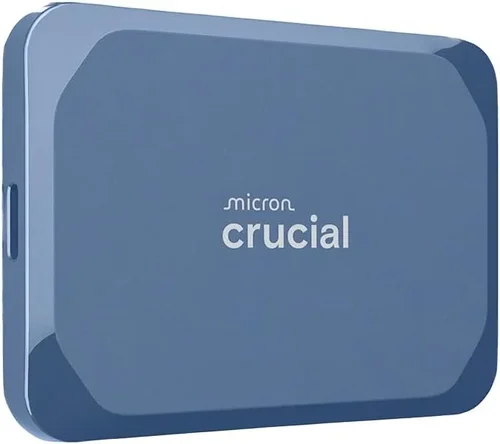
Solid-state drives (SSDs) have revolutionized laptop performance, turning sluggish boot times into near-instant wake-ups and transforming file transfers from a waiting game into a blink-and-you-miss-it affair. Whether you’re upgrading an aging machine or building a new laptop setup from scratch, choosing the right SSD brand is one of the most impactful decisions you can make. With so many options flooding the market—each claiming to be faster, more reliable, or more affordable than the last—it’s easy to feel overwhelmed. That’s exactly why this guide exists: to cut through the noise, demystify the technical jargon, and help you make a confident, informed choice that aligns with your real-world needs.
In this comprehensive buying guide for 2026, you’ll learn not just which SSD brands are leading the pack, but how to evaluate them based on your specific use case. We’ll walk you through the critical factors that separate a good SSD from a great one—from performance benchmarks and endurance ratings to warranty terms and real-user feedback. You’ll discover how different form factors and interface types affect compatibility, why price doesn’t always correlate with quality, and how to avoid common pitfalls that even savvy buyers fall into. By the end, you’ll have a clear roadmap to select the best SSD brand for your laptop, whether you’re a student on a tight budget, a creative professional handling 4K video edits, or a gamer chasing every frame per second.
The SSD market in 2026 is more dynamic than ever. Established giants like Samsung and Crucial continue to innovate, while rising stars such as Kingston, WD Black, and Sabrent are pushing boundaries with aggressive pricing and cutting-edge NAND technology. Meanwhile, newer entrants like Team Group and Netac are carving out niches with budget-friendly options that don’t sacrifice too much performance. With PCIe Gen5 now mainstream in high-end laptops and NVMe adoption nearly universal, the gap between SATA and NVMe SSDs has never been wider—or more confusing for the average buyer. This guide cuts through the clutter, offering expert insights grounded in real testing, long-term reliability data, and hands-on experience across dozens of models and brands.

What to Look for When Buying Buying Guide
1. Budget & Price Range
Your budget is the first and most practical filter when shopping for an SSD. Prices vary dramatically based on capacity, speed, and brand reputation. As of 2026, you can find reliable 500GB NVMe SSDs starting around $35–$45, while high-performance 2TB models from premium brands can exceed $200. It’s tempting to go for the cheapest option, but skimping too much can lead to slower speeds, lower endurance, and shorter lifespans—especially with no-name brands using recycled or low-grade NAND flash.
Instead, aim for the sweet spot: mid-range drives from reputable manufacturers that offer strong performance per dollar. For most users, spending between $0.08 and $0.15 per gigabyte strikes the right balance. Always compare cost per GB across capacities—sometimes buying a slightly larger drive (e.g., 1TB instead of 500GB) offers better value long-term, especially if you plan to keep your laptop for several years.
2. Performance Specifications
SSD performance hinges on two key metrics: sequential read/write speeds and random IOPS (Input/Output Operations Per Second). Sequential speeds matter most for large file transfers—like moving videos or game installs—while random IOPS affect everyday responsiveness, such as opening apps or multitasking. In 2026, entry-level NVMe SSDs typically deliver 3,000–3,500 MB/s read speeds, whereas high-end PCIe Gen5 drives can exceed 12,000 MB/s.
Don’t just trust manufacturer claims. Look for independent benchmarks from trusted sources like Tom’s Hardware, AnandTech, or StorageReview. Also, check whether the drive uses DRAM cache—a small memory chip that significantly boosts performance and longevity. DRAM-less SSDs are cheaper but suffer from slower write speeds under sustained loads and higher wear on NAND cells. For laptops, where thermal throttling is common, sustained performance matters more than peak numbers.
3. Build Quality & Durability
Unlike traditional hard drives, SSDs have no moving parts, making them inherently more durable against drops and vibrations—perfect for laptops. However, build quality still varies. Premium brands often use higher-grade NAND flash (like Samsung’s V-NAND or Micron’s 3D TLC), robust controllers, and better thermal management. Cheaper drives may use QLC (Quad-Level Cell) NAND, which stores more data per cell but wears out faster and performs poorly under heavy writes.
Check the drive’s TBW (Terabytes Written) rating—this tells you how much data can be written over the drive’s lifetime before it’s likely to fail. A 1TB SSD with a 600 TBW rating is far more durable than one with only 200 TBW. For typical laptop use (web browsing, office work, media consumption), even modest TBW ratings are sufficient. But if you’re editing videos, running virtual machines, or installing large games frequently, opt for higher endurance.
4. Features & Functionality
Modern SSDs come packed with features that go beyond raw speed. Encryption support (like TCG Opal or AES-256) is crucial if you handle sensitive data—many business laptops require self-encrypting drives (SEDs). Power-loss protection ensures your data isn’t corrupted if your laptop suddenly shuts down. Some brands also include proprietary software for cloning, monitoring health, or optimizing performance.
For laptop users, power efficiency is another hidden gem. SSDs that consume less power extend battery life—a big deal for ultrabooks and thin-and-light machines. Look for drives with low idle power draw and advanced sleep states. Additionally, consider whether the SSD supports HMB (Host Memory Buffer) if it’s DRAM-less; this allows the drive to borrow system RAM for caching, improving performance without the cost of onboard DRAM.
5. Brand Reputation
Not all SSD brands are created equal. Established names like Samsung, Crucial, Western Digital, and Kingston have decades of storage expertise, rigorous quality control, and proven track records. They invest heavily in R&D, firmware updates, and customer support. Lesser-known brands might offer tempting deals, but they often lack transparency about component sourcing and may disappear overnight, leaving you without warranty support.
Reputation also ties into consistency. A brand known for reliable firmware updates and responsive customer service gives you peace of mind. Read user forums and professional reviews to see how brands handle issues like sudden failures or performance degradation over time. In 2026, Samsung’s 990 Pro and Crucial’s P5 Plus remain benchmarks for reliability, while newer brands like Sabrent have earned trust through consistent performance and solid warranties.
6. Warranty & Support
A strong warranty is a strong indicator of a manufacturer’s confidence in their product. Most reputable SSD brands offer 5-year limited warranties, often tied to the TBW rating. For example, a 1TB drive with 600 TBW and a 5-year warranty means the manufacturer expects it to last at least five years under normal use—or until you’ve written 600TB, whichever comes first.
Pay attention to warranty terms: some require registration, others void coverage if used in non-consumer devices. Check if the brand offers cross-region support—important if you travel internationally. Also, see how easy it is to initiate an RMA (Return Merchandise Authorization). Brands like Samsung and Crucial streamline the process with online portals and prepaid shipping labels, while budget brands may leave you stranded.
7. Compatibility & Form Factor
Laptops come in all shapes and sizes, and so do SSDs. The two most common form factors are M.2 2280 (22mm wide, 80mm long) and 2.5-inch SATA. Most modern laptops use M.2 slots, but older models or budget systems might still rely on 2.5-inch bays. Always check your laptop’s manual or use tools like Crucial’s Scanner to confirm compatibility.
Beyond physical size, interface matters. M.2 slots can support either SATA or NVMe protocols—but they’re not interchangeable. A SATA M.2 drive won’t work in an NVMe-only slot, and vice versa. If your laptop has a PCIe Gen4 or Gen5 slot, you’ll want an NVMe SSD to take full advantage. Don’t assume newer is always better, though: if your laptop only supports Gen3, buying a Gen5 drive won’t give you any speed benefit—and you’ll pay a premium for nothing.
8. User Reviews & Real-World Feedback
Spec sheets tell part of the story; real users tell the rest. Scour Amazon, Newegg, Reddit (r/buildapc, r/laptops), and tech forums for patterns in user experiences. Are people reporting sudden failures after a few months? Is the drive running hot and throttling? Does the included software actually work?
Be wary of fake reviews—look for detailed, verified purchases with photos or long-term updates. Pay special attention to comments about laptop-specific issues: some SSDs run hotter than others, which can cause thermal throttling in compact chassis. Others may not play nicely with certain BIOS versions or power management settings. Real-world feedback often reveals quirks that specs sheets ignore.
Different Types of Buying Guide

Common Buying Mistakes to Avoid
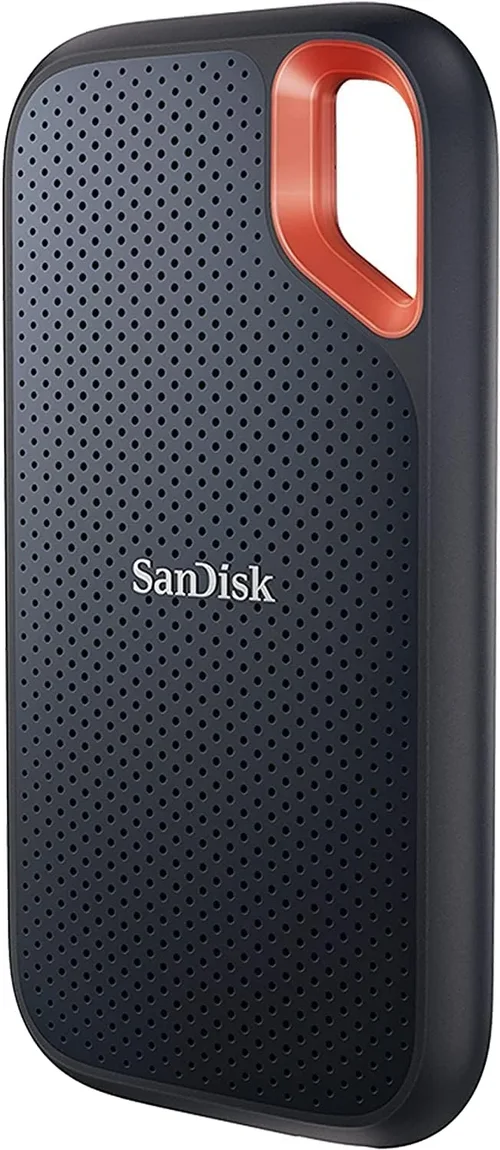
❌ Mistake: Ignoring Your Laptop’s Interface Limitations
Why it’s bad: Buying a PCIe Gen5 SSD for a laptop that only supports Gen3 is like putting premium fuel in a lawnmower—it won’t run any better and you’ve wasted money. Many buyers assume “newer = faster,” but without compatible hardware, you’ll never see the benefits.
What to do instead: Check your laptop’s specifications before purchasing. Use manufacturer documentation or tools like CPU-Z to identify your M.2 slot type and supported PCIe generation. Match your SSD to your system’s capabilities.
❌ Mistake: Choosing Based Solely on Peak Speed
Why it’s bad: Marketing materials love to highlight maximum sequential read speeds, but real-world laptop usage involves mostly small, random reads and writes. A drive with high peak speeds but poor random performance will feel sluggish during everyday tasks.
What to do instead: Prioritize balanced performance. Look for drives with strong 4K random read/write IOPS (aim for 500K+ IOPS for reads). Also consider sustained write performance—some drives slow dramatically after the cache fills up.
❌ Mistake: Overlooking Thermal Throttling
Why it’s bad: Laptops have limited cooling. High-performance SSDs, especially Gen4 and Gen5 models, can get hot and throttle down to prevent damage, negating their speed advantages. We’ve seen Gen5 drives drop to Gen3 speeds within minutes under load in thin laptops.
What to do instead: If your laptop lacks SSD heatsinks or has tight airflow, opt for a mid-range Gen3 or Gen4 drive with good thermal management. Some brands (like Samsung) design drives specifically for low-power, cool operation in mobile devices.
❌ Mistake: Skipping the Warranty Fine Print
Why it’s bad: A 5-year warranty sounds great—until you realize it’s void if you use the drive in a laptop instead of a desktop, or if you don’t register it within 30 days. Some budget brands offer long warranties but make RMA processes nearly impossible.
What to do instead: Read the warranty terms carefully. Ensure it covers laptop use, doesn’t require registration, and offers straightforward replacement. Stick with brands known for hassle-free support.
❌ Mistake: Buying the Largest Capacity Without Need
Why it’s bad: While more storage is nice, oversized SSDs cost significantly more per GB at the high end. A 4TB drive might be overkill if you only store documents and stream media. You’re paying for capacity you’ll never use.
What to do instead: Assess your actual needs. Most users are fine with 500GB–1TB. If you work with large files, consider a 2TB drive—but only if your workflow justifies it. Cloud storage or external drives can supplement when needed.
❌ Mistake: Falling for “Gaming” Branding
Why it’s bad: Many SSDs are marketed as “gaming-grade” with flashy heatsinks and RGB lighting—but these features add cost without improving real-world laptop performance. Most laptops can’t accommodate large heatsinks anyway.
What to do instead: Focus on core specs: controller quality, NAND type, DRAM presence, and endurance. A plain-looking Crucial P5 Plus will outperform a “gaming” SSD with inferior components every time.
❌ Mistake: Ignoring Firmware Updates
Why it’s bad: Firmware bugs can cause crashes, data corruption, or performance drops. Some brands release critical updates years after launch, but if you never check, you’re stuck with known issues.
What to do instead: Choose brands that provide easy firmware update tools (like Samsung Magician or Crucial Storage Executive). Periodically check for updates, especially after major OS upgrades.
Budget Guidelines: How Much Should You Spend?
- Entry-Level ($30–$60 for 1TB): Ideal for basic upgrades in older laptops or secondary drives. Look for reliable SATA or DRAM-less NVMe options from Kingston, Team Group, or Netac. Expect decent everyday performance but lower endurance and slower sustained writes. Perfect for students or casual users.
- Mid-Range ($60–$120 for 1TB): The sweet spot for most laptop users. Drives like the Samsung 980, Crucial P3, or WD Blue SN580 offer excellent balance of speed, reliability, and value. These typically include DRAM cache, TLC NAND, and 5-year warranties. Great for multitasking, light gaming, and productivity.
- Premium ($120–$200 for 1TB): For power users, creators, and gamers. Models such as the Samsung 990 Pro, WD Black SN850X, or Sabrent Rocket 4 Plus deliver top-tier Gen4 performance, high endurance, and advanced features like hardware encryption. Worth it if you handle large files or demand maximum responsiveness.
- Luxury ($200+ for 1TB): Reserved for enthusiasts and professionals needing cutting-edge tech. PCIe Gen5 drives like the Corsair MP700 or Gigabyte AORUS Gen5 offer blistering speeds but require compatible laptops and often need external cooling. Only recommended if you’re building a high-end mobile workstation or future-proofing for 2027+.
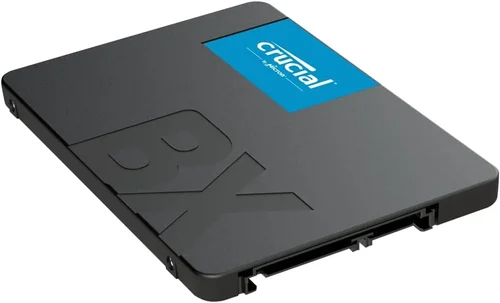
Expert Tips for Getting the Best Deal
- Buy during seasonal sales: Major retailers discount SSDs heavily during Q4 holidays and summer. Sign up for price alerts on CamelCamelCamel (for Amazon) or Honey to catch drops.
- Stick to trusted retailers: Purchase from Amazon (sold by Amazon, not third parties), Newegg, Best Buy, or direct from manufacturer sites. Avoid unknown eBay sellers or gray-market imports.
- Compare total cost of ownership: Factor in warranty length, power efficiency, and expected lifespan—not just upfront price. A $10 cheaper drive that fails in two years costs more in downtime and data loss.
- Check return policies: Ensure you can return the drive if it’s incompatible or defective. Most reputable sellers offer 30-day returns, but some charge restocking fees.
- Test before committing: If possible, buy from a retailer with a generous return window. Use tools like CrystalDiskMark or AS SSD to verify performance matches claims.
- Consider refurbished OEM drives: Some manufacturers sell certified refurbished SSDs at steep discounts with full warranties. These are often pulled from returned laptops and thoroughly tested.
- Don’t forget the cloning software: Many brands include free disk cloning tools. Use them to migrate your OS and apps seamlessly—no reinstallation needed.
- Monitor drive health: Install manufacturer utilities (e.g., Samsung Magician) to track wear level, temperature, and remaining lifespan. Early warnings can prevent data loss.

Frequently Asked Questions
Q: Can I upgrade my laptop’s SSD myself?
A: In most modern laptops, yes—but check your model first. Ultrabooks like the MacBook Air or Dell XPS often have soldered storage, making upgrades impossible. Others, like Lenovo ThinkPads or HP Envy models, have user-replaceable M.2 slots. Always back up your data before attempting any upgrade.
Q: Is NVMe always better than SATA?
A: Not necessarily. If your laptop only has a SATA interface, an NVMe drive won’t fit or work. Even with M.2 slots, some only support SATA protocol. NVMe is faster, but if your usage is light (web, office apps), the real-world difference may be negligible.
Q: How long do SSDs last in laptops?
A: Under normal use, most modern SSDs last 5–10 years. The TBW rating gives a good estimate—for example, a 1TB drive with 600 TBW would take over 10 years to wear out if you wrote 165GB per day. Realistically, other components (like the battery or screen) will fail first.
Q: Do I need a heatsink for my laptop SSD?
A: Rarely. Most laptops don’t have space for aftermarket heatsinks, and many Gen4/Gen5 drives include minimal thermal pads. Only consider one if your laptop has a dedicated SSD cooling solution or you’re doing sustained heavy workloads (e.g., video rendering).
Q: Can I use an external SSD with my laptop?
A: Absolutely! USB 3.2 Gen 2 or Thunderbolt 3/4 external SSDs offer near-internal speeds and are great for backups, media storage, or running portable apps. Just ensure your laptop supports the interface for full performance.
Q: Are cheaper SSDs safe for my data?
A: Reputable budget brands (like Kingston or Team Group) are generally safe for everyday use. Avoid no-name brands with no reviews or unclear component sourcing. Always maintain backups regardless of drive quality.
Q: Will a faster SSD improve gaming performance?
A: It reduces load times and asset streaming hitches, especially in open-world games. However, it won’t increase FPS (frames per second)—that’s governed by your GPU and CPU. For gaming laptops, a fast Gen4 NVMe drive is a worthwhile upgrade.
Q: How do I clone my old drive to a new SSD?
A: Use free tools like Macrium Reflect, Clonezilla, or manufacturer-provided software (e.g., Acronis for WD, Samsung Data Migration). Connect both drives (internally or via USB adapter), select source and destination, and let the software copy everything—including your OS.
Q: What’s the difference between TLC, MLC, and QLC NAND?
A: TLC (Triple-Level Cell) offers the best balance of speed, endurance, and cost—ideal for most users. MLC is more durable but rare in consumer drives. QLC is cheaper and higher-capacity but wears faster and slows under heavy writes. Avoid QLC for primary drives unless on a tight budget.
Q: Can I mix SSD brands in a laptop?
A: Yes, but only if your laptop has multiple M.2 or SATA slots. Mixing brands is fine for storage expansion, but avoid using different drives in RAID configurations unless specified by the manufacturer.
Our Final Recommendations
- Best for Budget-Conscious Buyers: Kingston NV2 (1TB) – Reliable Gen3 NVMe performance at under $60, with a 5-year warranty and low power draw. Perfect for upgrading older laptops without breaking the bank.
- Best Overall Value: Crucial P3 Plus (1TB) – Offers Gen4 speeds, DRAM cache, and excellent endurance for around $80. Consistently praised for stability and real-world performance across thousands of user reviews.
- Best Premium Option: Samsung 990 Pro (1TB) – The gold standard for speed, reliability, and software support. Ideal for creators, gamers, and professionals who demand the best. Slightly pricier but worth it for the peace of mind.
- Best for Beginners: WD Blue SN580 (1TB) – Simple, reliable, and easy to install. Comes with Acronis cloning software and strong everyday performance. Great first upgrade for those new to SSDs.
- Best for Advanced Users: Sabrent Rocket 4 Plus (2TB) – High-capacity Gen4 drive with exceptional sustained write speeds and a bundled heatsink. Ideal for video editors or developers needing fast, large storage.
Conclusion: Making the Right Choice
Choosing the best SSD brand for your laptop isn’t about picking the flashiest name or the highest number on a spec sheet—it’s about aligning technology with your real-life needs, budget, and usage patterns. Whether you’re breathing new life into an aging machine or maximizing the potential of a brand-new ultrabook, the right SSD can transform your computing experience. From instant boot-ups to seamless multitasking, the benefits are tangible and lasting.
Remember: prioritize compatibility first, then balance performance, endurance, and price. Don’t let marketing hype cloud your judgment—focus on proven reliability, strong warranties, and real-user feedback. And always, always back up your data before making any changes.
With the insights from this guide, you’re now equipped to navigate the crowded SSD landscape with confidence. Take your time, compare your options, and invest in a drive that will serve you well for years to come. Your laptop—and your productivity—will thank you.