
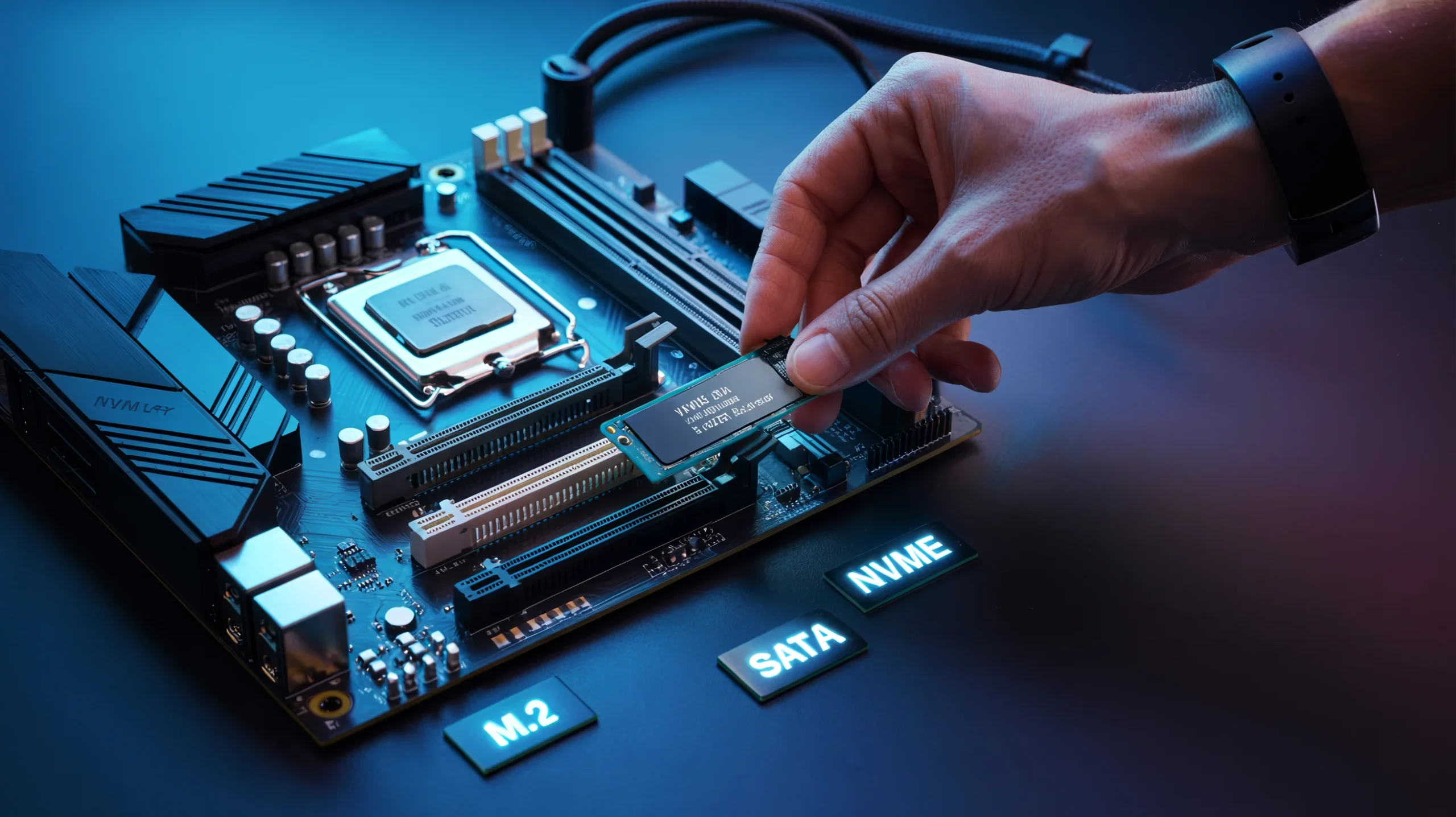
Planning a storage upgrade? The single most common — and costly — mistake buyers make is ordering an SSD without first confirming their system actually has an available, compatible slot. Wrong interface, wrong form factor, or simply no open slot at all, and you’re staring at a return label.
This guide cuts straight to the point. We’ll walk through four reliable methods to check your SSD slots on any desktop or laptop, explain what SATA, M.2, and NVMe slots look like, and show you how to avoid the pitfalls that trip up most upgraders.
4 Ways to Check SSD Slots at a Glance
| Method | Best For | Shows Empty Slots? | Difficulty |
|---|---|---|---|
| 1. Motherboard Manual | Most accurate, all slot types | ✅ Yes | Easy |
| 2. Visual Inspection | Used/unboxed systems, no docs | ✅ Yes | Easy–Medium |
| 3. OS System Tools | Quick check, no case opening | ⚠️ Partial | Easy |
| 4. BIOS / UEFI | Real-time, definitive | ✅ Yes | Easy |
Method 1: Check Your Motherboard Specifications
This is the fastest and most definitive approach. Your motherboard’s spec sheet lists every storage interface — exact slot counts, supported SSD form factors, and lane configurations — without you having to touch a screwdriver.
Step 1 — Find Your Motherboard Model Number
Your board’s model number is the key to everything. You’ll find it in one of three places:
- Printed on the board itself — look near the PCIe slots or along the edge of the PCB. It’s usually in bold white or yellow print.
- Sticker on the case — system integrators (Dell, HP, Lenovo) often attach a spec sticker on the chassis side panel or base.
- Via Windows Command Prompt — open CMD and run the command below.
wmic baseboard get product,manufacturerStep 2 — Look Up the Manual Online
Search for [your model number] manual PDF — most manufacturers (ASUS, MSI, Gigabyte, ASRock) host these on their support pages indefinitely. Open the manual and search for “M.2” or “storage” in the PDF. Look for the Storage or Connectors section, which shows a labeled board diagram with every slot indicated.
Pay special attention to bandwidth-sharing notes — e.g., “when M.2_2 is populated, SATA5 and SATA6 are disabled.” Missing this detail is one of the most common upgrade mistakes.
Step 3 — Note the Slot Types and Counts
Write down the number of SATA ports, M.2 slots, and any bandwidth-sharing restrictions. This is your upgrade roadmap.
Method 2: Visual Inspection (Open the Case)
Nothing beats seeing it with your own eyes. This method works even if you’ve lost the manual, bought a used system, or the manufacturer’s website is down.
⚠️ Safety First: Fully shut down your computer and unplug the power cable before opening the case. For laptops, remove the battery if possible. Touch an unpainted metal surface to discharge static before touching any components.
- Power down and disconnect everything — shut down, unplug the power cord and all peripherals. Wait 30 seconds for capacitors to discharge.
- Open the side panel — on desktops, remove thumbscrews from the rear of the left panel and slide it off. On laptops, unscrew the bottom panel (check iFixit for your model).
- Locate SATA ports — L-shaped connectors, usually in a row near the chipset. Count them and note how many have cables plugged in.
- Locate M.2 slots — long, thin horizontal slots near the CPU, sometimes hidden under a branded heatsink cover. Modern boards can have 2–5 of these.
- Count available vs. occupied slots — an empty M.2 slot has an unfilled standoff screw hole. An empty SATA port has no cable attached.
💡 Tip: Many M.2 slots on modern boards are hidden beneath heatsink covers with branding on them. Don’t assume a decorated panel is decorative — it could be hiding two or three M.2 slots underneath.
Method 3: Use Windows / macOS System Tools
Software tools won’t always reveal empty slots, but they confirm what’s installed and help you infer available capacity without opening your case.
Windows — Device Manager
- Right-click the Start button → Device Manager
- Expand Disk drives to see all installed storage devices
- Expand IDE ATA/ATAPI controllers to see SATA controllers and their active channels
Windows — System Information (msinfo32)
- Press Win + R, type
msinfo32, press Enter - Go to Components → Storage → Disks for detailed installed drive info
- Check System Summary for the baseboard product name
Free Third-Party Tools: CPU-Z or HWiNFO64
Both are free and widely trusted. CPU-Z has a dedicated Mainboard tab that shows your board model, chipset, and BIOS version at a glance — making it easy to then pull up the manual. HWiNFO64 goes deeper, showing PCIe lane assignments per slot. Either tool is faster than digging through Device Manager.
macOS — System Information
- Click the Apple menu → About This Mac
- Click More Info… → System Report
- Under Hardware, select NVMExpress or SATA/SATA Express to view installed drives
💡 Mac Users Note: On Apple Silicon Macs (M1 and later), storage is soldered directly to the logic board. There are no user-accessible SSD slots. The only expansion option is an external SSD via Thunderbolt or USB-C.
Method 4: Check Your BIOS / UEFI
The BIOS/UEFI firmware has real-time visibility into every storage interface on the board. It shows which slots are populated and which are empty — no operating system required.
- Restart your PC and tap the BIOS key repeatedly during POST. Common keys:
Del,F2,F10, orF12. The correct key is usually shown briefly on screen at startup. - Navigate to Storage / Advanced Settings — look for sections labeled “Advanced,” “Storage Configuration,” or “SATA Configuration.”
- Read the slot status — each port will show either a detected drive model or “Not Installed / Empty.” This gives you a definitive count of occupied vs. free slots.
SSD Interface Types Explained
Understanding slot types is just as important as counting them. A drive in the wrong form factor simply won’t fit, regardless of how many open slots you have.
SATA (Serial ATA)
The classic interface. SATA ports accept 2.5-inch SSDs (and HDDs) via an L-shaped data cable plus a separate power connector. Maximum throughput tops out around 600 MB/s — more than enough for general use, web browsing, and most applications. Most desktops have 4–8 SATA ports; laptops typically have just one.
M.2 Slots
A compact, card-style connector that eliminates cables entirely — the SSD plugs directly into the board. The most common size is 2280 (22mm wide × 80mm long). Critically, an M.2 slot can support either SATA speeds or the much faster NVMe protocol — check your board specs before buying to confirm which protocols your slot supports.
NVMe (Non-Volatile Memory Express)
Not a physical slot — NVMe is the communication protocol that runs over PCIe lanes through an M.2 slot. An NVMe SSD can deliver sequential reads of 3,000–7,000 MB/s (PCIe 4.0) or up to 14,000 MB/s (PCIe 5.0). If your M.2 slot supports PCIe 3.0 or higher, you can use NVMe. If it’s M.2 SATA-only, you cannot.
⚠️ M.2 Key Compatibility: M.2 connectors come in different notch (key) configurations — B key, M key, or B+M key. Most consumer NVMe SSDs use an M-key connector. Always verify your slot’s key type matches the drive before purchasing.
SATA vs M.2 vs NVMe — Full Comparison
| Feature | SATA SSD (2.5″) | M.2 SATA | M.2 NVMe (PCIe 4.0) |
|---|---|---|---|
| Max Read Speed | ~560 MB/s | ~560 MB/s | ~7,000 MB/s |
| Form Factor | 2.5-inch | M.2 card | M.2 card |
| Cable Required? | Yes (data + power) | No | No |
| Typical Price / TB | Low | Low | Medium–High |
| Best For | Budget upgrades, older systems | Thin laptops, SATA-only boards | Gaming, video editing, OS drives |
| Requires PCIe Lanes? | No | No | Yes (PCIe 3.0 / 4.0 / 5.0) |
| Available On | All desktops & most laptops | Most post-2016 boards | Most post-2018 boards |
Common SSD Slot Myths — Debunked
❌ Myth: “Any SSD will fit any slot.”
✅ Fact: SATA, M.2 SATA, and M.2 NVMe drives are physically and electronically different. A 2.5-inch SATA drive will not fit in an M.2 slot, and an NVMe drive won’t work in an M.2 SATA-only slot.
❌ Myth: “You can always add more slots later.”
✅ Fact: While PCIe M.2 adapter cards exist for desktops, they consume PCIe bandwidth and slots. Laptops have no such option. The number of native slots is fixed by your motherboard at manufacture.
❌ Myth: “All M.2 slots support NVMe.”
✅ Fact: Many budget and mid-range boards (especially pre-2019) have M.2 slots that only support the SATA protocol. Always confirm NVMe/PCIe support in your motherboard manual before purchasing an NVMe drive.
❌ Myth: “NVMe is always faster for everyday tasks.”
✅ Fact: For web browsing, office work, and loading most applications, the real-world difference between SATA and NVMe is negligible. NVMe shines for large file transfers, 4K video editing, and loading high-end games.
Real-World Upgrade Scenarios
🎮 Scenario 1: The Gamer Who Skipped This Step
Alex ordered a fast PCIe 4.0 NVMe SSD to cut game load times. When it arrived, he discovered his 2018 board had only an M.2 SATA slot — the NVMe drive showed as undetected in BIOS. A 10-minute spec check beforehand would have saved a return shipment and a two-day delay.
💰 Scenario 2: The Budget-Savvy Upgrade
Maria needed more storage and assumed she’d need an expensive NVMe drive. After running wmic baseboard get product and checking the manual, she found her desktop had three unused SATA ports. She picked up a quality 2TB SATA SSD for a fraction of the NVMe price — perfect for her workload.
💼 Scenario 3: The Laptop Surprise
James bought a used laptop listed as “upgradeable.” Opening the back panel, he found the M.2 slot was B-key only and SATA-limited. The NVMe drives he’d bookmarked used M-key connectors. A quick model-number lookup revealed he could use a B+M key SATA M.2 drive instead — problem solved for a fraction of the cost.
Frequently Asked Questions
How many SSD slots does a typical modern motherboard have?
Most mid-range desktop boards released after 2020 include 2–3 M.2 slots and 4–6 SATA ports. High-end enthusiast boards can have 4–5 M.2 slots. Budget boards may offer just one M.2 slot and 4 SATA ports. Gaming laptops often have 2 M.2 slots; budget laptops typically have one.
Can I use both SATA and M.2 SSDs at the same time?
Yes, on most modern boards you can run both simultaneously. However, watch for bandwidth-sharing restrictions — some M.2 slots share PCIe lanes with SATA ports, so populating certain M.2 slots disables specific SATA ports. This is always documented in your motherboard manual.
What if Windows doesn’t recognize my new SSD?
First, check BIOS to confirm the drive is detected there. If BIOS sees it but Windows doesn’t, the drive needs to be initialized and formatted. Open Disk Management (right-click Start → Disk Management), right-click the new drive, and select Initialize Disk, then create a new volume.
I lost my motherboard manual. What can I do?
Get your board model by running wmic baseboard get product,manufacturer in Command Prompt, then search for “[model] manual” on the manufacturer’s website. ASUS, Gigabyte, MSI, and ASRock all maintain support portals. ManualsLib is also a reliable archive for older boards.
Does it matter which M.2 slot I use if I have multiple?
Yes. The primary M.2 slot is typically connected directly to the CPU (full PCIe bandwidth), while secondary slots route through the chipset (slightly higher latency). For your OS or primary drive, always use the CPU-direct slot. Your motherboard manual will identify which slot is which.
How do I know if my M.2 slot supports PCIe 4.0 or 5.0?
This is listed in your motherboard specifications as “M.2 PCIe 4.0 x4” or “M.2 PCIe 5.0 x4.” PCIe 4.0 supports drives up to ~7,000 MB/s. PCIe 5.0, found on high-end Intel 12th-gen+ and AMD Ryzen 7000+ boards, supports drives up to ~14,000 MB/s.
Final Takeaway
Checking your SSD slots takes under 10 minutes and can save you hours of frustration, return shipping headaches, and wasted money. To recap your four options:
- Motherboard manual — the gold standard for complete accuracy
- Visual inspection — direct confirmation without software dependencies
- OS system tools — quick and non-invasive for populated slots
- BIOS / UEFI — real-time, reliable, and works without any OS
Once you know your slot count and types, picking the right SSD becomes a much simpler decision. Check out our SSD Buying Guides to find the best drive for your specific slot configuration and budget.
🔍 Not Sure Which SSD to Buy?
SSDbuddy tests and reviews SSDs across every interface, form factor, and price point — so you can upgrade with confidence.