
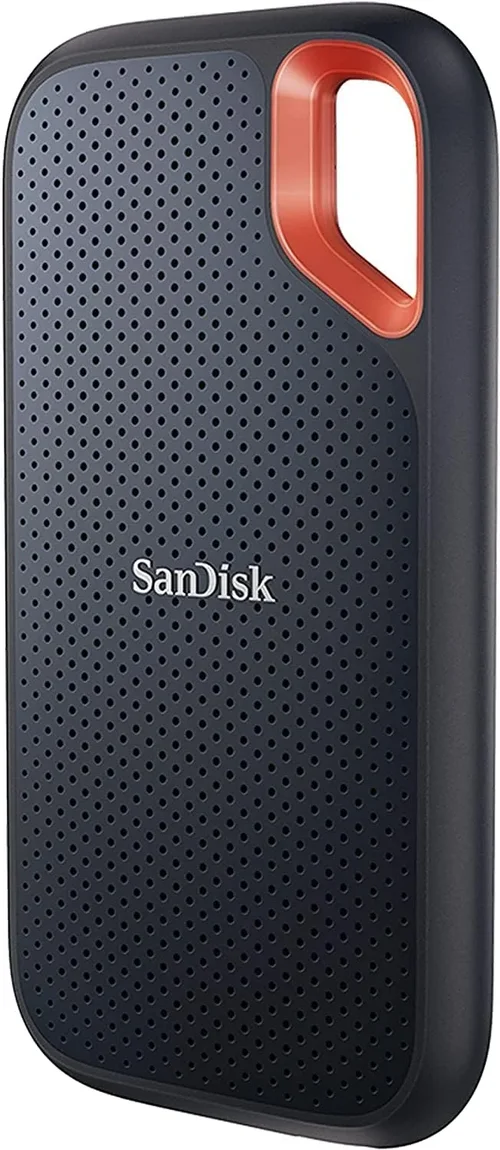
Solid-state drives have transformed the way we store and access data. Gone are the days of waiting minutes for a computer to boot or applications to load—today’s SSDs deliver near-instant responsiveness, making them essential upgrades for laptops, desktops, gaming rigs, and even servers. Whether you’re replacing an aging hard drive or building a high-performance system from scratch, choosing the right SSD can dramatically improve your computing experience. But with so many options on the market—varying in interface, form factor, speed, endurance, and price—it’s easy to feel overwhelmed.
This guide is designed to cut through the noise and help you make a confident, informed decision. We’ll walk you through every critical factor that matters when buying an SSD in 2026, from performance benchmarks and durability ratings to real-world use cases and budget considerations. You’ll learn how to match your specific needs—whether you’re a casual user, creative professional, gamer, or IT administrator—with the right drive. By the end, you won’t just know what to buy; you’ll understand why it’s the best choice for your setup.
The SSD market continues to evolve rapidly. Newer interfaces like PCIe 5.0 are pushing speeds beyond 10,000 MB/s, while advancements in NAND flash technology (like QLC and PLC) are making high-capacity drives more affordable than ever. At the same time, concerns around longevity, power efficiency, and compatibility remain relevant. This guide synthesizes expert insights, lab testing data, and real-user feedback to give you a complete picture of what to look for—and what to avoid—when shopping for your next SSD.

What to Look for When Buying Buying Guide
1. Interface and Form Factor
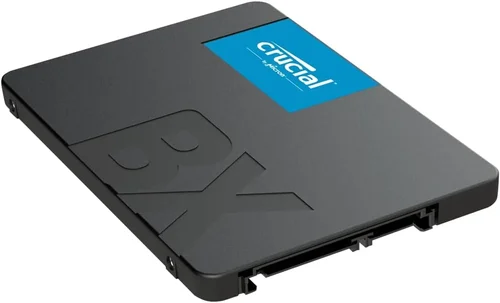
The interface determines how your SSD connects to your system and directly impacts its maximum speed potential. The three main types you’ll encounter are SATA, M.2 SATA, and NVMe (which uses PCIe lanes). SATA SSDs use the traditional 2.5-inch form factor and connect via SATA III cables, capping out at around 550 MB/s—perfect for older systems or budget builds. M.2 SATA drives look like tiny sticks of RAM but still rely on SATA bandwidth, so they offer no speed advantage over their 2.5-inch cousins.
NVMe SSDs, however, are where the real performance gains lie. These drives plug directly into M.2 slots on your motherboard and use PCIe lanes for data transfer. PCIe 3.0 NVMe drives typically hit 3,500 MB/s, PCIe 4.0 models reach up to 7,000 MB/s, and PCIe 5.0 drives now exceed 10,000 MB/s in sequential reads. If your motherboard supports it, NVMe is almost always the better choice for new builds. Just be sure to check your system’s compatibility: not all M.2 slots support NVMe, and some older laptops only accept SATA-based M.2 drives.
Form factor also matters for physical fit. Most modern desktops and ultrabooks use the M.2 2280 size (22mm wide, 80mm long), but you may encounter shorter variants like 2242 or 2260 in compact devices. Always verify your device’s specifications before purchasing.
2. Performance Specifications
When evaluating SSD performance, focus on two key metrics: sequential read/write speeds and random IOPS (Input/Output Operations Per Second). Sequential speeds matter most for large file transfers—like copying videos or loading game levels—while random IOPS reflect how well the drive handles many small files simultaneously, such as opening apps or browsing complex websites.
For most users, a drive with 3,000–5,000 MB/s sequential read and 2,500–4,500 MB/s write speeds will feel blazing fast. Gamers and content creators should aim higher, especially if working with 4K video or large project files. Random performance is often listed as 4K Q1T1 (single queue, single thread) or 4K Q32T1 (deep queue, multi-threaded). Higher IOPS numbers mean better multitasking and system responsiveness.
Don’t forget about sustained performance. Some budget SSDs use dynamic SLC caching, which delivers peak speeds only for short bursts before slowing down significantly once the cache fills. Look for drives with large, static caches or those that maintain consistent speeds under prolonged workloads—especially important for video editing or database operations.
3. Capacity Needs
SSD capacity directly affects both cost and usability. While 250GB might seem sufficient for basic tasks, modern operating systems, apps, and games consume space quickly. Windows 11 alone requires over 64GB, and a single AAA game can take 100GB or more. For general use, 500GB is the practical minimum. Creative professionals, gamers, and power users should consider 1TB or more.
It’s also wise to leave 10–20% of the drive unallocated. SSDs perform better and last longer when they have free space for wear leveling and garbage collection. Overfilling an SSD can lead to slower writes and reduced lifespan. If you need massive storage, consider pairing a fast NVMe SSD for your OS and frequently used programs with a larger, slower SATA SSD or HDD for media archives.
4. NAND Flash Type and Endurance
SSDs use different types of NAND flash memory, each with trade-offs between speed, durability, and cost. SLC (Single-Level Cell) is the most durable and fastest but too expensive for consumer use. MLC (Multi-Level Cell) offers good balance but is rare in mainstream drives today. TLC (Triple-Level Cell) is the standard for most consumer SSDs—it stores three bits per cell, offering a sweet spot of performance, capacity, and affordability.
QLC (Quad-Level Cell) is becoming common in budget and high-capacity drives. It’s cheaper and allows for larger capacities (like 4TB or 8TB in a single drive), but it’s slower, especially during sustained writes, and has lower endurance. PLC (Pent-Level Cell) is emerging in 2026, pushing density even further but raising concerns about longevity and error rates.
Endurance is measured in TBW (Terabytes Written)—the total amount of data you can write to the drive over its lifetime. A 1TB TLC SSD might have a 600 TBW rating, while a QLC version of the same capacity could be rated at 200–300 TBW. For typical home use, even QLC is more than sufficient. But if you’re running a server, editing 8K video daily, or doing heavy database work, prioritize TLC or enterprise-grade drives with higher TBW ratings.
5. DRAM Cache Presence
A DRAM cache acts as a high-speed buffer between the SSD controller and NAND flash, dramatically improving performance—especially for random reads/writes and boot times. Drives with DRAM can maintain consistent speeds and handle complex workloads far better than DRAM-less models.
DRAM-less SSDs use system memory (HMB—Host Memory Buffer) or rely entirely on the controller’s internal cache. While this reduces cost and power consumption, it often leads to slower performance under load and reduced longevity due to increased write amplification. Unless you’re on a very tight budget or using the drive for light, occasional tasks, always choose an SSD with a dedicated DRAM cache.
You can usually tell if a drive has DRAM by checking the product specs or looking at the PCB: a small chip near the controller typically indicates DRAM presence. Reputable brands almost always include DRAM in their mainstream and premium lines.
6. Brand Reputation and Reliability
Not all SSDs are created equal—even if they share the same specs on paper. Brand reputation matters because it reflects consistency in quality control, firmware updates, and long-term reliability. Established manufacturers like Samsung, Crucial (Micron), Western Digital, Kingston, and SK hynix have proven track records and invest heavily in R&D.
Avoid no-name or ultra-cheap brands that cut corners on components or use recycled NAND. These drives may fail prematurely or exhibit erratic behavior. Look for brands that publish detailed specs, offer transparent warranty terms, and provide firmware update tools. Community forums and professional reviews (like those from Tom’s Hardware or AnandTech) are great resources for gauging real-world reliability.
7. Warranty and Support
A solid warranty is a strong indicator of a manufacturer’s confidence in their product. Most reputable SSDs come with 3- to 5-year limited warranties, often tied to both time and TBW limits (e.g., “5 years or 600 TBW, whichever comes first”). Longer warranties usually correlate with higher-endurance NAND and better build quality.
Check what the warranty covers: does it include data recovery? Is RMA (Return Merchandise Authorization) process straightforward? Some brands offer expedited replacement services, while others require you to ship the drive first. Also, ensure the drive is registered if required—some warranties are void if not activated within a certain period.
Customer support quality varies widely. Samsung and Crucial, for example, offer excellent documentation and responsive support, while lesser-known brands may leave you stranded. If you’re buying for a business or mission-critical system, prioritize vendors with strong enterprise support channels.
8. Power Efficiency and Thermal Management
Especially important for laptops and small-form-factor PCs, power efficiency affects battery life and system thermals. NVMe SSDs, particularly PCIe 4.0 and 5.0 models, can generate significant heat under load. Without proper cooling, they may throttle performance to prevent overheating.
Look for drives with built-in thermal throttling protection and consider adding a heatsink if your case or laptop allows it. Some high-end M.2 SSDs come with integrated heat spreaders. Power consumption is usually listed in watts during active and idle states—lower is better for mobile devices.
Efficiency also ties into NAND type: QLC and PLC drives generally consume less power than TLC, making them attractive for always-on systems or portable devices—though at the cost of performance and endurance.
Different Types of Buying Guide

Common Buying Mistakes to Avoid
❌ Mistake: Ignoring Your System’s Compatibility
Why it’s bad: Buying a PCIe 5.0 NVMe SSD for a five-year-old laptop that only supports SATA will result in a paperweight. Even among M.2 drives, mixing up SATA and NVMe can lead to installation failures.
What to do instead: Check your motherboard or laptop manual for supported interfaces and form factors. Use tools like CPU-Z or manufacturer specs to confirm M.2 slot capabilities before purchasing.
❌ Mistake: Choosing Based Solely on Price
Why it’s bad: The cheapest SSD often uses inferior NAND, lacks DRAM, and has minimal endurance. You may save $20 upfront but risk data loss or needing a replacement in a year.
What to do instead: Balance cost with key features like DRAM, TBW rating, and brand reputation. A mid-range drive from a trusted brand usually offers far better long-term value.
❌ Mistake: Overlooking Endurance for High-Capacity Drives
Why it’s bad: Large QLC SSDs (like 4TB models) may seem like a bargain, but their low TBW ratings mean they wear out faster under heavy write loads—problematic for video editors or database users.
What to do instead: Match NAND type to your workload. Use QLC for archival storage or light use, and stick with TLC for primary drives or intensive tasks.
❌ Mistake: Assuming All NVMe Drives Are Fast
Why it’s bad: Some budget NVMe drives use slower controllers or lack proper cooling, leading to thermal throttling and inconsistent performance—sometimes even slower than SATA drives under load.
What to do instead: Read professional reviews that test sustained performance, not just peak benchmarks. Look for drives with robust controllers (like Phison E18 or Samsung Elpis) and good thermal design.
❌ Mistake: Skipping Firmware Updates
Why it’s bad: Outdated firmware can cause bugs, security vulnerabilities, or performance issues. Some drives even ship with known flaws that are patched post-launch.
What to do instead: Register your SSD with the manufacturer and check for firmware updates periodically. Most brands provide free utilities (e.g., Samsung Magician, WD Dashboard) to automate this.
❌ Mistake: Not Considering Future Upgrades
Why it’s bad: Buying a 250GB SSD today might seem sufficient, but within a year, you could run out of space—especially with growing game and app sizes.
What to do instead: Plan for 2–3 years of use. If budget allows, step up to 1TB even if you don’t need it immediately. It’s harder (and more expensive) to upgrade later.
❌ Mistake: Disregarding Power and Thermal Limits in Small Systems
Why it’s bad: High-performance NVMe drives can overheat in tightly packed laptops or mini-PCs, causing throttling or shutdowns during extended use.
What to do instead: In compact systems, consider slightly slower but cooler-running drives, or ensure adequate airflow/heatsinking. Check reviews for thermal performance in your specific device.
Budget Guidelines: How Much Should You Spend?
Entry-Level ($30–$60 for 500GB): Ideal for basic computing, web browsing, and light office work. Expect SATA or DRAM-less NVMe drives with modest speeds (500–2,000 MB/s). Brands like Kingston NV2 or Crucial BX500 fit here. Perfect for upgrading old HDDs or building budget PCs.
Mid-Range ($60–$120 for 1TB): The sweet spot for most users. You’ll find reliable NVMe PCIe 3.0 or 4.0 drives with DRAM, TLC NAND, and solid endurance (400–600 TBW). Examples include the Samsung 980, WD Black SN770, and Crucial P5 Plus. Great for gaming, productivity, and general multitasking.
Premium ($120–$250 for 1TB): For enthusiasts and professionals. These drives offer PCIe 4.0 or 5.0 speeds, advanced controllers, excellent thermal management, and high TBW ratings (600–1,200 TBW). Models like the Samsung 990 Pro, WD Black SN850X, and Sabrent Rocket 4 Plus excel here. Ideal for 4K/8K video editing, 3D rendering, and competitive gaming.
Luxury ($250+ for 1TB): Top-tier performance with cutting-edge tech. PCIe 5.0 drives with heatsinks, enterprise-grade endurance, and proprietary software suites. These are overkill for most consumers but valuable for workstations, servers, or users who demand absolute peak performance. Expect brands like Corsair, Gigabyte, or Phison-based OEM designs.
Remember: capacity scales price non-linearly. A 2TB drive rarely costs exactly double a 1TB model—often it’s 1.6x to 1.8x. If you need more space, consider whether a slightly slower SATA SSD for bulk storage paired with a fast NVMe for your OS makes more sense.
Expert Tips for Getting the Best Deal
1. Time Your Purchase Around Major Sales: Black Friday, Cyber Monday, Amazon Prime Day, and back-to-school seasons consistently offer the deepest SSD discounts. Retailers often clear out older-gen models (like PCIe 3.0) when new ones launch.
2. Buy Direct from Reputable Retailers: Stick with Amazon (sold by Amazon, not third parties), Newegg, Best Buy, or manufacturer websites. Avoid unknown eBay sellers or overseas marketplaces where counterfeit drives are common.
3. Compare Total Cost of Ownership: Factor in warranty length, expected lifespan, and performance needs—not just upfront price. A $20 cheaper drive that fails in two years costs more in downtime and replacement.
4. Watch for Bundled Deals: Some retailers include free cloning software, heatsinks, or extended warranties. Manufacturers occasionally bundle SSDs with motherboards or laptops at a discount.
5. Use Price Tracking Tools: Services like Honey, CamelCamelCamel, or Keepa alert you when prices drop on specific models. Set alerts for your target drive and wait for a dip.
6. Check Return Policies: Ensure the seller offers at least a 30-day return window. Test the drive immediately after installation—some defects only appear under load.
7. Consider Refurbished or Open-Box Options: Certified refurbished drives from manufacturers (e.g., Samsung Renewed) often come with full warranties and significant savings. Open-box deals at Micro Center or Best Buy can also yield bargains.
8. Don’t Forget About Software: Many premium SSDs include valuable utilities: Samsung Magician for optimization, Acronis True Image for cloning, or WD Dashboard for monitoring. These add real value beyond raw specs.

Frequently Asked Questions
Q: Can I use an NVMe SSD in a SATA-only M.2 slot?
A: No. NVMe and SATA M.2 drives use different keying (notches) and protocols. A SATA M.2 slot will not recognize an NVMe drive, and vice versa. Always verify your slot type before buying.
Q: Will a faster SSD make my old computer feel new?
A: Absolutely—if it currently uses an HDD. Even a basic SATA SSD will drastically improve boot times, app launches, and overall responsiveness. However, if your system is bottlenecked by RAM or CPU, the gains will be less dramatic.
Q: Do I need a heatsink for my M.2 SSD?
A: For PCIe 4.0 and 5.0 drives under heavy load (gaming, rendering), yes—especially in small cases or laptops with poor airflow. PCIe 3.0 drives usually don’t require one for typical use.
Q: How long do SSDs really last?
A: For average users, easily 5–10 years—often longer than the device itself. With modern TBW ratings and wear leveling, you’d need to write hundreds of terabytes annually to wear one out prematurely.
Q: Is it safe to buy used SSDs?
A: Generally not recommended. Unlike HDDs, SSDs don’t show physical wear, so it’s hard to assess remaining life. Used drives may be near end-of-life or have hidden defects.
Q: Can I install an SSD without reinstalling Windows?
A: Yes, using cloning software like Macrium Reflect, Acronis, or the manufacturer’s tool. Clone your existing drive to the SSD, then swap them. Ensure the SSD is equal or larger in capacity.
Q: Does SSD speed affect gaming performance?
A: Indirectly. Faster SSDs reduce level load times and texture streaming hitches, especially in open-world games. But once loaded, gameplay FPS is unaffected. For most gamers, PCIe 3.0 or 4.0 is plenty.
Q: What’s the difference between OEM and retail SSDs?
A: OEM (Original Equipment Manufacturer) drives are sold in bulk without retail packaging or software. They’re often cheaper but may have shorter warranties or lack support tools. Retail versions include full accessories and customer service.
Q: Should I enable TRIM?
A: Yes—always. TRIM helps maintain SSD performance over time by informing the drive which blocks are no longer in use. It’s enabled by default in Windows 10/11, macOS, and modern Linux distros.
Q: Can I use an SSD as external storage?
A: Definitely. Pair an M.2 NVMe SSD with a USB 3.2 Gen 2×2 enclosure for portable speeds up to 2,000 MB/s. Just ensure the enclosure supports your drive’s form factor and interface.
Our Final Recommendations
Best for Budget-Conscious Buyers: Crucial BX500 1TB SATA SSD – Reliable, widely compatible, and priced under $70. Perfect for upgrading older systems without breaking the bank.
Best Overall Value: Samsung 980 1TB NVMe PCIe 3.0 – Excellent balance of speed, endurance, and price. Includes DRAM, TLC NAND, and Samsung’s trusted reliability.
Best Premium Option: Samsung 990 Pro 2TB NVMe PCIe 4.0 – Blazing-fast speeds (7,450 MB/s), top-tier endurance (1,200 TBW), and superb thermal control. Ideal for creators and power users.
Best for Beginners: WD Blue SN580 1TB NVMe PCIe 4.0 – Simple setup, solid performance, and WD’s user-friendly dashboard. Great first NVMe drive for new builders.
Best for Advanced Users: Sabrent Rocket 5 2TB NVMe PCIe 5.0 – Pushes beyond 10,000 MB/s with a built-in heatsink and Phison E26 controller. For those who want cutting-edge speed and don’t mind the premium price.
Conclusion: Making the Right Choice
Choosing the best SSD isn’t just about chasing the highest numbers on a spec sheet—it’s about aligning technology with your real-world needs. Whether you’re breathing new life into an aging laptop, building a dream gaming rig, or setting up a professional workstation, the right SSD can transform your experience. Prioritize compatibility, endurance, and consistent performance over flashy peak speeds. Invest in a reputable brand with strong support, and don’t skimp on capacity or DRAM if your budget allows.
Remember, an SSD is more than a storage device—it’s the foundation of your system’s responsiveness. Take the time to assess your usage patterns, research thoroughly, and buy with confidence. With the insights from this guide, you’re equipped to make a smart, future-proof decision that delivers speed, reliability, and value for years to come. Now go upgrade—your computer will thank you.