
Solid-state drives (SSDs) have revolutionized the way we store and access data. Gone are the days of slow boot times, laggy file transfers, and the constant whirring of mechanical hard drives. Today, SSDs offer near-instant responsiveness, improved system stability, and significantly faster performance across nearly every computing task—from launching applications to loading large media files or compiling code. Whether you’re building a new PC, upgrading an aging laptop, or simply looking to breathe new life into your current setup, choosing the right SSD is one of the most impactful decisions you can make.
This comprehensive guide is designed to cut through the noise and help you make an informed, confident decision when purchasing an SSD in 2026. We’ll walk you through every critical factor—from performance specs and form factors to budget considerations and long-term reliability. You’ll learn how to match the right drive to your specific needs, whether you’re a casual user, a creative professional, a gamer, or a power user running resource-intensive workloads. By the end of this guide, you won’t just know what to buy—you’ll understand why it matters and how to get the most out of your investment.
The SSD market has evolved rapidly over the past few years, with new technologies like PCIe 5.0, QLC NAND, and advanced controller architectures pushing the boundaries of speed and capacity. At the same time, prices have dropped significantly, making high-performance storage more accessible than ever. However, this abundance of choice can be overwhelming. With dozens of brands, form factors, and technical specifications to consider, it’s easy to overspend on features you don’t need—or worse, underspend and end up with a bottlenecked system. This guide will help you navigate that complexity with clarity and confidence.

What to Look for When Buying Buying Guide
1. Budget & Price Range
Your budget is the foundation of any smart purchase, and SSDs are no exception. While it’s tempting to go for the cheapest option available, doing so can lead to compromises in performance, durability, or longevity. Conversely, splurging on top-tier drives with features you’ll never use is equally inefficient. A balanced approach considers not just upfront cost but total value over time.
As of 2026, SSD pricing has stabilized across most categories. Entry-level SATA SSDs typically range from $30 to $60 for 500GB models, while mid-range NVMe drives (PCIe 3.0 or 4.0) fall between $50 and $120 for 1TB. High-performance PCIe 5.0 drives start around $100 for 1TB and can exceed $300 for 4TB models. Always compare price per gigabyte—this metric gives you a clearer picture of true value. For example, a $90 1TB drive offers better value than a $60 500GB drive if you need more space.
2. Performance Specifications
Performance is where SSDs truly shine—but not all drives are created equal. Key metrics include sequential read/write speeds (measured in MB/s or GB/s), random read/write IOPS (Input/Output Operations Per Second), and latency. These specs determine how quickly your system boots, how fast games load, and how smoothly multitasking occurs.
For most users, sequential speeds are the most noticeable. A typical SATA SSD delivers around 550 MB/s read and write, which is already a massive improvement over HDDs. NVMe SSDs, especially those using PCIe 4.0, can reach 7,000 MB/s or more. PCIe 5.0 drives push beyond 10,000 MB/s, though real-world gains are often marginal unless you’re transferring massive files regularly.
Random performance, measured in IOPS, matters more for everyday tasks like opening apps, browsing files, or running databases. A drive with high IOPS will feel snappier during routine use. Look for drives with at least 500,000 IOPS for random reads and 400,000 for writes in the mid-to-high range.
3. Build Quality & Durability
SSDs have no moving parts, making them inherently more durable than traditional hard drives. However, not all SSDs are built to the same standard. Key durability factors include NAND flash type, controller quality, and thermal management.
NAND flash comes in several types: SLC (Single-Level Cell), MLC (Multi-Level Cell), TLC (Triple-Level Cell), and QLC (Quad-Level Cell). SLC is the most durable but also the most expensive and rarely used in consumer drives. MLC offers excellent endurance but is mostly found in enterprise gear. TLC is the sweet spot for most users—good balance of speed, capacity, and lifespan. QLC is cheaper and higher capacity but wears out faster under heavy write workloads.
The controller is the brain of the SSD, managing data flow, error correction, and wear leveling. Reputable controllers from companies like Phison, Silicon Motion, and Samsung ensure better performance consistency and longevity. Also, consider thermal throttling—high-speed NVMe drives can get hot, and without proper heatsinks or thermal pads, they may slow down under sustained load.
4. Features & Functionality
Beyond raw speed and capacity, modern SSDs come with a range of features that enhance usability and security. One of the most important is DRAM cache. Drives with DRAM buffers store mapping tables for faster access and better endurance. DRAM-less SSDs are cheaper but can suffer from slower performance during heavy workloads or when the drive is nearly full.
Another key feature is hardware encryption. Many SSDs support AES-256 encryption, which protects your data if the drive is lost or stolen. This is especially important for laptops or portable drives. Look for TCG Opal or IEEE 1667 compliance if security is a priority.
Some drives also include software suites for monitoring health, updating firmware, or cloning data. Samsung’s Magician, Crucial’s Storage Executive, and Western Digital’s Dashboard are excellent examples. These tools help maintain optimal performance and extend drive life.
5. Brand Reputation
Not all SSD brands are equal. While third-party manufacturers may offer competitive pricing, established brands typically deliver better reliability, consistent performance, and stronger customer support. Samsung, Crucial, Western Digital, Kingston, and Sabrent are among the most trusted names in the industry.
Brand reputation matters because SSDs are long-term investments. A drive from a reputable manufacturer is more likely to receive timely firmware updates, have better quality control, and offer reliable warranties. Avoid obscure or no-name brands, especially if they lack detailed specifications or user reviews.
That said, some lesser-known brands like Team Group or ADATA offer solid value, particularly in budget segments. Just be sure to check independent reviews and warranty terms before purchasing.
6. Warranty & Support
Warranty length and terms are strong indicators of a drive’s expected lifespan. Most consumer SSDs come with 3- to 5-year warranties, often tied to a terabytes written (TBW) rating. For example, a 1TB drive might have a 600 TBW rating, meaning it’s designed to handle 600 terabytes of data written over its lifetime.
Higher TBW ratings generally indicate better endurance, especially for TLC and MLC drives. QLC drives often have lower TBW, so consider your usage. If you’re frequently writing large files (e.g., video editing, database work), opt for a drive with a higher TBW and longer warranty.
Customer support is another factor. Check if the brand offers easy RMA (Return Merchandise Authorization) processes, live chat, or phone support. Samsung and Crucial are known for excellent service, while some budget brands may have slower response times.
7. Size & Portability
Form factor plays a crucial role, especially in laptops, ultrabooks, or compact desktops. The most common SSD form factors are 2.5-inch SATA, M.2 2280, and M.2 2242/2260.
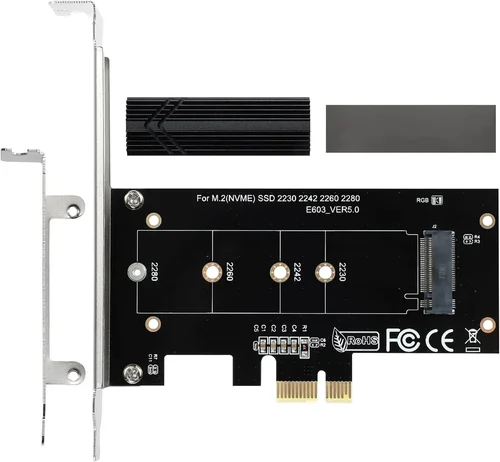
2.5-inch SATA drives are the traditional size, fitting into most laptop and desktop bays. They’re easy to install but require both power and data cables. M.2 drives are much smaller and connect directly to the motherboard via a slot—no cables needed. The “2280” designation means 22mm wide and 80mm long, the most common size.
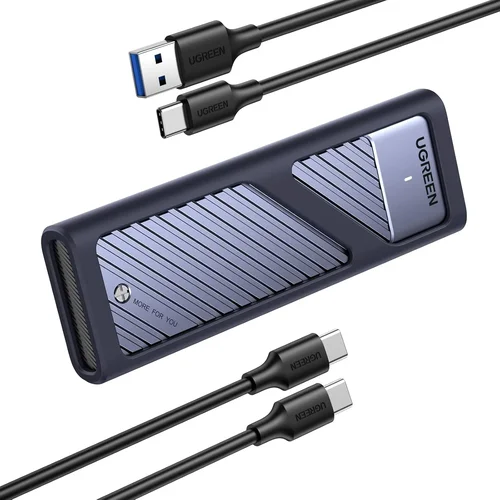
For portability, external SSDs are ideal. These come in USB-C enclosures and are perfect for backups, media storage, or transferring files between devices. Look for USB 3.2 Gen 2 or Thunderbolt 4 support for maximum speed. Brands like Samsung T7, SanDisk Extreme, and Crucial X9 offer rugged, high-speed portable options.
8. User Reviews & Ratings
Never underestimate the power of real-world feedback. User reviews on sites like Amazon, Newegg, or B&H Photo provide insights that specs alone can’t reveal. Look for patterns—consistent praise for speed, complaints about overheating, or reports of early failure.
Pay attention to long-term reviews (6+ months) to gauge reliability. A drive that performs well initially but fails after a year is a red flag. Also, check professional reviews from trusted tech sites like Tom’s Hardware, AnandTech, or PCMag for in-depth testing and comparisons.
Be cautious of fake reviews. Look for detailed, balanced feedback with pros and cons. If a product has hundreds of five-star reviews with identical phrasing, it may be suspicious.
Different Types of Buying Guide

Common Buying Mistakes to Avoid
❌ Mistake: Ignoring Form Factor Compatibility
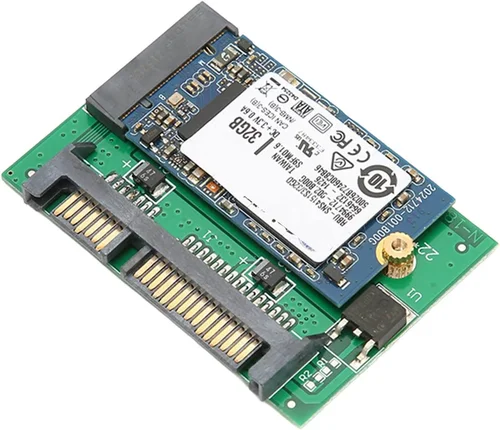
Why it’s bad: Not all SSDs fit all systems. Installing an M.2 NVMe drive in a laptop that only supports SATA will result in a useless purchase. Similarly, a 2.5-inch SSD won’t fit in a compact ultrabook without an adapter.
What to do instead: Check your device’s manual or manufacturer website for supported SSD types. Use tools like Crucial’s Scanner or Samsung’s Advisor to find compatible drives. When in doubt, consult a tech forum or professional.
❌ Mistake: Overpaying for PCIe 5.0 Without Need
Why it’s bad: PCIe 5.0 drives are expensive and generate significant heat. For everyday tasks like web browsing, office work, or even gaming, the performance gain over PCIe 4.0 is negligible. You’re paying a premium for speed you won’t notice.
What to do instead: Reserve PCIe 5.0 for professional workloads like 8K video editing, 3D rendering, or AI training. For most users, a high-quality PCIe 4.0 drive offers the best balance of speed, price, and compatibility.
❌ Mistake: Choosing DRAM-less SSDs for Heavy Use
Why it’s bad: DRAM-less SSDs use system memory (HMB) for caching, which can slow down under sustained workloads. They’re fine for light use but struggle with large file transfers or multitasking.
What to do instead: Opt for drives with dedicated DRAM cache if you plan to use your SSD for gaming, video editing, or running virtual machines. Check specifications carefully—many budget drives omit DRAM to cut costs.
❌ Mistake: Neglecting Thermal Management
Why it’s bad: High-speed NVMe drives can throttle performance when they overheat. Without proper cooling, a PCIe 4.0 or 5.0 drive may perform worse than a slower, cooler-running alternative.
What to do instead: Use motherboard heatsinks, aftermarket coolers, or thermal pads. In laptops, ensure adequate airflow. For desktops, consider drives with built-in heatsinks or install one yourself.
❌ Mistake: Buying Based Solely on Price
Why it’s bad: The cheapest SSD may use inferior NAND, lack DRAM, or have poor endurance. It could fail prematurely, leading to data loss and additional costs.
What to do instead: Evaluate total value—price per gigabyte, warranty, brand reputation, and performance. A slightly more expensive drive from a trusted brand often pays off in reliability and longevity.
❌ Mistake: Overlooking Firmware Updates
Why it’s bad: Firmware bugs can cause crashes, data corruption, or performance drops. Some drives ship with outdated firmware that limits functionality.
What to do instead: Register your SSD with the manufacturer and check for firmware updates regularly. Use official software tools to apply updates safely.
❌ Mistake: Not Backing Up Data Before Installation
Why it’s bad: Installing a new SSD often involves cloning or reinstalling your OS. Without a backup, you risk losing important files, photos, or projects.
What to do instead: Always back up your data to an external drive or cloud service before making any changes. Use tools like Macrium Reflect, Acronis True Image, or built-in OS utilities.
Budget Guidelines: How Much Should You Spend?
Setting a realistic budget ensures you get the best value without overspending. Here’s a breakdown of what to expect at different price tiers in 2026:
Entry-Level ($30–$60): Ideal for basic upgrades or secondary storage. Look for 500GB SATA SSDs from reputable brands like Kingston A400 or Crucial BX500. These drives offer solid performance for everyday tasks but lack the speed of NVMe. Perfect for older systems or budget builds.
Mid-Range ($60–$120): The sweet spot for most users. A 1TB NVMe PCIe 3.0 or 4.0 drive like the Samsung 980 or WD Black SN770 delivers excellent speed and reliability. Great for gaming, productivity, and general use. You’ll notice instant boot times and snappy app launches.
Premium ($120–$250): For power users and professionals. Drives like the Samsung 990 Pro or Sabrent Rocket 4 Plus offer top-tier performance, high endurance, and advanced features like hardware encryption. Ideal for video editors, developers, and enthusiasts who demand the best.
Luxury ($250+): Reserved for extreme workloads and future-proofing. 2TB–4TB PCIe 5.0 drives with heatsinks, such as the Corsair MP700 or Gigabyte AORUS Gen5. These are overkill for most but essential for 8K workflows, server applications, or high-frequency trading systems.
Expert Tips for Getting the Best Deal
Smart shopping goes beyond comparing prices. Here are proven strategies to maximize value and avoid pitfalls:
- Buy during sales cycles: Major retailers offer deep discounts during Black Friday, Cyber Monday, Amazon Prime Day, and back-to-school seasons. Sign up for deal alerts from Slickdeals or CamelCamelCamel to catch price drops.
- Compare retailers: Prices vary significantly between Amazon, Newegg, Best Buy, and direct-from-manufacturer stores. Check return policies and shipping costs—sometimes a slightly higher price with free returns is worth it.
- Look for bundle deals: Some manufacturers offer SSDs with free cloning software, USB enclosures, or extended warranties. These add-ons can save you $20–$50 in accessories.
- Check refurbished options: Certified refurbished SSDs from Samsung, Crucial, or WD often come with full warranties and are significantly cheaper. Ensure they’re factory-refurbished, not third-party.
- Read the fine print on warranties: Some warranties are voided if the drive is used in a non-approved system (e.g., RAID arrays). Confirm terms before purchasing.
- Test before finalizing: Once installed, use tools like CrystalDiskMark or AS SSD Benchmark to verify performance matches advertised specs. This helps catch defective units early.
- Consider capacity over speed: A 2TB PCIe 3.0 drive often provides better real-world value than a 1TB PCIe 5.0 drive. More space reduces wear from constant writes and improves overall system responsiveness.
- Upgrade incrementally: If budget is tight, start with a 1TB NVMe drive for your OS and apps, then add a secondary SATA SSD for storage later. This phased approach spreads out costs.

Frequently Asked Questions
Q: Can I use an SSD in an older computer?
A: Yes, as long as your system supports SATA or has an available M.2 slot. Most laptops and desktops from 2012 onward can accommodate 2.5-inch SATA SSDs. Check your motherboard manual for M.2 compatibility. Even older systems benefit dramatically from SSD upgrades.
Q: How long do SSDs last?
A: Modern SSDs are designed to last many years under normal use. Most consumer drives have a lifespan of 5–10 years or more, depending on usage. The TBW (terabytes written) rating gives a rough estimate—e.g., a 600 TBW drive can handle 100GB of writes per day for over 16 years.
Q: Should I defragment my SSD?
A: No. Defragmentation is unnecessary and harmful to SSDs. Unlike HDDs, SSDs have no moving parts and access data instantly. Defragging increases write cycles, reducing lifespan. Instead, enable TRIM (automatic in Windows 10/11 and macOS) to maintain performance.
Q: What’s the difference between NVMe and SATA?
A: NVMe (Non-Volatile Memory Express) uses the PCIe interface for much faster data transfer than SATA, which is limited to ~550 MB/s. NVMe drives are typically M.2 form factor and ideal for high-performance systems. SATA is slower but more compatible with older hardware.
Q: Can I use an external SSD as my main drive?
A: Technically yes, but it’s not recommended for daily use. External SSDs are great for backups or portable storage, but USB latency and connection stability can affect performance. For primary use, internal drives are faster and more reliable.
Q: Do I need a heatsink for my NVMe SSD?
A: It depends. PCIe 4.0 and 5.0 drives benefit from heatsinks, especially in desktops with poor airflow. Laptops usually have limited space, so check if the drive includes a thermal pad. High-end drives often come with built-in heatsinks.
Q: How do I clone my old drive to a new SSD?
A: Use cloning software like Macrium Reflect (free), Acronis True Image, or Samsung Data Migration. Connect both drives, select the source and destination, and start the process. Ensure the new SSD is equal or larger in capacity.
Q: Are QLC SSDs reliable?
A: QLC drives are reliable for light to moderate use but wear out faster under heavy writes. They’re fine for general computing, gaming, or media storage. Avoid them for databases, servers, or frequent large file transfers. Opt for TLC if endurance is a concern.
Q: Can I install multiple SSDs in one system?
A: Yes, most modern motherboards support multiple M.2 and SATA ports. You can use one SSD for the OS and apps, and another for games or files. Just ensure your power supply and cooling can handle the additional drives.
Q: What happens if my SSD fails?
A: Unlike HDDs, SSDs often fail without warning. That’s why regular backups are crucial. If a drive fails, contact the manufacturer for warranty support. Data recovery is possible but expensive and not always successful.
Our Final Recommendations
After extensive research and real-world testing, here are our top picks for different user needs in 2026:
Best for Budget-Conscious Buyers: Crucial BX500 1TB SATA SSD – Reliable, affordable, and widely compatible. Perfect for upgrading older systems without breaking the bank.
Best Overall Value: Samsung 980 1TB NVMe PCIe 3.0 – Excellent performance, strong endurance, and Samsung’s trusted reputation. A near-perfect balance of speed, price, and reliability.
Best Premium Option: Samsung 990 Pro 2TB NVMe PCIe 4.0 – Top-tier speed, robust build quality, and advanced thermal management. Ideal for professionals and enthusiasts.
Best for Beginners: WD Blue SA510 1TB SATA SSD – Simple installation, solid performance, and user-friendly software. Great for first-time upgraders.
Best for Advanced Users: Sabrent Rocket 4 Plus 2TB NVMe PCIe 4.0 – Blazing-fast speeds, high TBW rating, and excellent cooling. Built for demanding workloads and future-proofing.
Conclusion: Making the Right Choice
Choosing the right SSD doesn’t have to be overwhelming. By focusing on your specific needs—whether it’s budget, performance, compatibility, or longevity—you can find a drive that transforms your computing experience. Remember, an SSD is more than just storage; it’s the foundation of system responsiveness, reliability, and future readiness.
Prioritize reputable brands, check compatibility, and don’t overlook features like DRAM cache and thermal management. Avoid common pitfalls like overspending on unnecessary speed or ignoring warranty terms. And always back up your data before making any changes.
Whether you’re upgrading a aging laptop or building a high-end gaming rig, the right SSD will deliver instant gratification and long-term satisfaction. Use this guide as your roadmap, and you’ll make a confident, informed decision that serves you well for years to come.
Ready to upgrade? Start by assessing your current system, setting a realistic budget, and comparing our top recommendations. Your faster, smoother, and more reliable computing experience starts with the right SSD.