
[FEATURED_IMAGE_PLACEOLDER]
The Xbox One revolutionized home gaming when it launched, but as games grew larger and more complex, its internal hard drive quickly became a bottleneck. Loading screens stretched longer, texture pop-in became frustratingly common, and the overall gaming experience started to feel sluggish—especially compared to modern standards. Enter the solid-state drive (SSD): a game-changing upgrade that can breathe new life into your Xbox One. Whether you’re playing fast-paced shooters, sprawling open-world RPGs, or retro titles via backward compatibility, an SSD delivers noticeably faster load times, smoother performance, and a more responsive system overall.
This comprehensive buying guide is designed for every type of Xbox One owner—from casual weekend gamers to dedicated enthusiasts who want to squeeze every last drop of performance from their console. You’ll learn not just why an SSD matters, but how to choose the right one based on your budget, usage habits, and technical comfort level. We’ll walk you through key specifications, compare different SSD types, highlight common pitfalls, and provide expert-backed recommendations so you can make a confident, informed decision. By the end, you’ll know exactly what to look for, how to install it, and how to get the most out of your investment.
The market for Xbox One-compatible SSDs has matured significantly since the console’s debut. Today, you’ll find everything from budget-friendly SATA SSDs to high-performance NVMe drives in external enclosures, all promising to turbocharge your gaming experience. However, not all SSDs are created equal—and not all are optimized for the Xbox One’s unique architecture. Some offer blazing speeds that the console can’t fully utilize, while others sacrifice durability for low cost. This guide cuts through the marketing noise and delivers practical, real-world advice tailored specifically to Xbox One users in 2026.

What to Look for When Buying an SSD for Xbox One
1. Compatibility with Xbox One Hardware
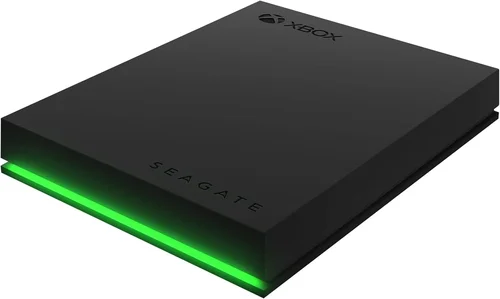
The first and most critical factor is ensuring your SSD is compatible with your specific Xbox One model. The original Xbox One and Xbox One S support external storage via USB 3.0, which means you’ll need an external SSD housed in a USB 3.0 enclosure. The Xbox One X also uses USB 3.0 for external drives, so the same rule applies. Importantly, the Xbox One does not support internal NVMe SSD upgrades—unlike the Xbox Series X|S—so you cannot replace the internal drive with a faster M.2 SSD. This limitation means your upgrade path is entirely external.
Always verify that the SSD enclosure explicitly states USB 3.0 (or USB 3.1 Gen 1) compatibility. While USB 3.2 and USB-C enclosures may work, they must maintain backward compatibility with USB 3.0 speeds. Also, ensure the drive is formatted correctly: Xbox One requires external storage to be formatted using its proprietary file system, which happens automatically when you set it up through the console’s settings.
2. Performance Specifications: Speed Matters—But Not Too Much
SSD performance is typically measured in read and write speeds, expressed in megabytes per second (MB/s). For Xbox One, sequential read speeds above 400 MB/s will deliver tangible improvements in game loading times. However, there’s a point of diminishing returns. The Xbox One’s USB 3.0 interface caps theoretical bandwidth at around 625 MB/s, but real-world performance rarely exceeds 400–500 MB/s due to protocol overhead.
Therefore, investing in an SSD with 3,500 MB/s speeds (common in NVMe drives) is overkill unless you plan to use the same drive on a PC or future console. A SATA-based SSD with 500–550 MB/s read speeds is ideal—it maxes out the Xbox One’s capabilities without wasting money on unused performance. Focus on consistent performance under load rather than peak benchmarks. Look for drives with strong sustained read speeds and low latency, as these impact real-game loading more than burst speeds.
3. Storage Capacity: Balancing Cost and Convenience
Xbox One games range from under 10 GB to well over 100 GB, with many AAA titles now exceeding 150 GB. Backward-compatible Xbox 360 and original Xbox games are smaller, but modern releases demand serious space. A 500GB SSD might hold 4–6 large games, which quickly fills up if you’re an avid player. For most users, a 1TB SSD strikes the best balance between cost and capacity, allowing you to store 8–12 modern games plus system data.
If you primarily play indie titles or older games, a 500GB drive may suffice. But if you’re into franchises like Call of Duty, Red Dead Redemption, or Starfield, consider 2TB for future-proofing. Keep in mind that Xbox One reserves about 10–15% of external storage for system use, so a 1TB drive gives you roughly 850–900GB of usable space. Also, larger capacities often come with better endurance ratings (measured in terabytes written, or TBW), meaning they’ll last longer under heavy use.
4. Build Quality & Durability
Since your SSD will likely be plugged into the back or side of your Xbox One—often in a tight entertainment center—it needs to withstand heat, dust, and occasional bumps. Look for enclosures made from aluminum or reinforced plastic, which dissipate heat better than cheap plastic shells. Passive cooling (no fans) is preferred to avoid noise and failure points.
Internally, prioritize SSDs with NAND flash memory rated for high endurance. TLC (triple-level cell) NAND offers a good balance of speed, capacity, and longevity, while QLC (quad-level cell) is cheaper but wears out faster under frequent writes. Avoid no-name brands that use undocumented or recycled NAND. Reputable manufacturers like Samsung, Crucial, WD, and Kingston rigorously test their components for reliability. Also, check if the drive includes power-loss protection or error correction features—these add peace of mind during unexpected shutdowns.
5. Brand Reputation & Reliability
Not all SSD brands are equal. Stick with established names that have proven track records in both consumer and enterprise storage. Samsung’s T-series external SSDs, for example, are known for rock-solid firmware and consistent performance. Crucial’s X6 and X8 models offer excellent value without cutting corners on quality. Western Digital’s My Passport SSD line is another reliable choice, often bundled with backup software and hardware encryption.
Avoid generic or “Amazon’s Choice” drives from unknown manufacturers. These may use inferior controllers or counterfeit NAND, leading to data corruption or premature failure. Check professional reviews from sources like Tom’s Hardware, AnandTech, or StorageReview, and cross-reference user feedback on retailer sites. A brand with a history of honoring warranties and providing timely firmware updates is worth the slight premium.
6. Warranty & Support
A solid warranty is a strong indicator of a manufacturer’s confidence in their product. Most reputable SSDs come with 3- to 5-year limited warranties. Samsung, for instance, offers a 5-year warranty on its T7 Shield, while Crucial provides 5 years on the X8. Longer warranties often correlate with higher endurance ratings (e.g., 600 TBW for 1TB drives).
Pay attention to what the warranty covers: some exclude physical damage or misuse, while others require registration within 30 days of purchase. Also, check if the manufacturer offers data recovery services or replacement expediting. Good customer support can save you days of frustration if something goes wrong. Avoid brands with vague warranty terms or those that redirect you to third-party resellers for claims.
7. Portability & Design
While your SSD will mostly stay connected to your Xbox One, you might occasionally want to move it between consoles (e.g., from living room to bedroom) or use it on a PC. In that case, size and cable management matter. Compact, pocketable designs like the Samsung T7 or SanDisk Extreme Pro are ideal. Look for drives under 100 grams with rounded edges that won’t snag on cables.
Cable inclusion is another practical detail. Many enclosures come with both USB-C and USB-A cables, ensuring compatibility with older Xbox One models that lack USB-C ports. Some even include a carrying case or rubberized coating for drop protection. Avoid bulky enclosures with protruding connectors—they can block adjacent USB ports on your console.
8. Price-to-Performance Ratio
Ultimately, you want the best value for your money. As of 2026, expect to pay $60–$80 for a reliable 500GB external SSD, $90–$120 for 1TB, and $160–$220 for 2TB. Prices fluctuate based on NAND supply, so timing your purchase around major sales events (like Black Friday or Prime Day) can save 20–30%. Don’t chase the cheapest option—saving $10 now could cost you $100 in replacement costs later.
Calculate cost per gigabyte: a $100 1TB drive equals $0.10/GB, while a $70 500GB drive is $0.14/GB. The larger drive offers better long-term value. Also, consider bundled software: some drives include free cloud storage, antivirus, or backup tools that add indirect value. But never pay extra for features you won’t use.
Different Types of SSDs for Xbox One

Common Buying Mistakes to Avoid
❌ Mistake: Buying an Internal NVMe SSD for Direct Installation
Why it’s bad: The Xbox One lacks an M.2 slot and cannot recognize NVMe drives internally. Attempting to install one will result in a non-functional drive and wasted money.
What to do instead: Always use an external SSD via USB. If you already own an NVMe drive, purchase a compatible USB 3.2 enclosure to repurpose it.
❌ Mistake: Choosing a Drive Based Solely on Peak Speed
Why it’s bad: Marketing often highlights maximum read speeds (e.g., “3,500 MB/s!”), but the Xbox One’s USB 3.0 bottleneck means you’ll never see those speeds. You’re paying for performance you can’t use.
What to do instead: Prioritize drives with consistent 400–550 MB/s speeds and strong real-world reviews. A SATA SSD is perfectly sufficient.
❌ Mistake: Ignoring Power Requirements
Why it’s bad: Some high-performance enclosures draw more power than the Xbox One’s USB port can supply, causing disconnects or failed recognition.
What to do instead: Choose bus-powered (no external adapter) drives that comply with USB 3.0 power specs. Avoid enclosures requiring Y-cables or wall plugs unless absolutely necessary.
❌ Mistake: Overlooking File System Formatting
Why it’s bad: If you format the SSD on a PC first, the Xbox One may refuse to recognize it or require reformatting, which erases all data.
What to do instead: Let the Xbox One format the drive automatically during setup. Only pre-format if you’re certain the drive uses exFAT and is under 2TB.
❌ Mistake: Skipping Firmware Updates
Why it’s bad: Outdated firmware can cause compatibility issues, reduced speeds, or data corruption—especially after Xbox system updates.
What to do instead: Register your drive with the manufacturer and check for firmware updates every 6–12 months. Most brands offer free update tools.
❌ Mistake: Buying Based on “Gaming” Branding Alone
Why it’s bad: Many “gaming” SSDs are just repackaged consumer drives with RGB lighting and inflated prices—no real performance benefit for consoles.
What to do instead: Focus on core specs and reliability. A plain Samsung T7 outperforms most flashy “gamer” drives at a lower cost.
❌ Mistake: Neglecting Backup Strategy
Why it’s bad: SSDs can fail suddenly without warning. If your games are stored only on the external drive, a failure means redownloading everything.
What to do instead: Use Xbox Cloud Save for game progress, and consider keeping frequently played titles on the internal drive as a backup. Regularly back up save files to OneDrive.
Budget Guidelines: How Much Should You Spend?
- Entry-Level ($50–$80): Ideal for casual gamers or those upgrading from a failing HDD. Expect 500GB SATA SSDs in basic enclosures (e.g., Crucial X6, Kingston XS2000). Performance is solid, but build quality may be plasticky. Great for indie games and older titles.
- Mid-Range ($90–$130): The sweet spot for most users. 1TB drives from reputable brands (Samsung T7, WD My Passport SSD) offer excellent speed, durability, and warranty coverage. Perfect for balanced gaming libraries.
- Premium ($140–$220): For enthusiasts who want maximum capacity and ruggedness. 2TB drives with aluminum housings, IP ratings, and bundled software (e.g., SanDisk Extreme Pro). Ideal for travelers or those with large game collections.
- Luxury ($230+): Includes 4TB+ desktop SSDs or enterprise-grade drives with Thunderbolt support. Overkill for Xbox One alone, but justified if you also use the drive for video editing or PC gaming.
Expert Tips for Getting the Best Deal
- Buy During Major Sales Events: SSD prices drop significantly during holiday sales. Historical data shows November and July offer the deepest discounts.
- Check Manufacturer Refurbished Programs: Samsung, WD, and Crucial sell certified refurbished drives at 20–30% off with full warranties. These are rigorously tested and often indistinguishable from new.
- Compare Total Cost of Ownership: Factor in warranty length, bundled software, and expected lifespan. A $100 drive with a 5-year warranty is better value than a $80 drive with 1 year.
- Read Professional Reviews, Not Just Star Ratings: User reviews can be biased or fake. Trust in-depth analyses from tech sites that test real-world performance and endurance.
- Verify Return Policies: Ensure the retailer offers at least 30 days for returns. Some stores charge restocking fees for opened electronics—avoid these.
- Test Before Committing: Once installed, run a few large games and note load times. If performance seems off, check if the drive is properly recognized in Settings > System > Storage.
- Consider Multi-Console Use: If you own a PC or plan to upgrade to Xbox Series X|S, choose a USB-C NVMe drive now. It’ll work across all platforms.
- Avoid “Too Good to Be True” Deals: Drives priced 50% below market average are likely counterfeit or used. Stick to authorized retailers like Amazon (sold by Amazon, not third parties), Best Buy, or Newegg.

Frequently Asked Questions
Q: Will an SSD improve frame rates or graphics quality on Xbox One?
A: No. An SSD only affects loading times, texture streaming, and system responsiveness. It does not increase FPS, resolution, or visual fidelity. For better graphics, consider upgrading to Xbox Series X|S.
Q: Can I use the same SSD for both Xbox One and PC?
A: Yes, but with caveats. The Xbox One will format the drive to its proprietary system, making it unreadable on PC until reformatted (which erases data). For dual use, keep a separate drive or use cloud saves.
Q: How much faster is an SSD compared to the internal HDD?
A: Expect 2–5x faster load times. For example, Red Dead Redemption 2 might load in 45 seconds on HDD versus 15–20 seconds on SSD. Menu navigation and game launches also feel snappier.
Q: Do I need to install the SSD internally?
A: No, and you can’t. The Xbox One only supports external SSDs via USB. Internal upgrades are not possible without hardware modification (not recommended).
Q: Will my Xbox One overheat with an SSD attached?
A: Unlikely. Modern SSDs generate minimal heat, and the Xbox One’s ventilation is sufficient. However, avoid enclosing the drive in tight spaces without airflow.
Q: Can I store Xbox 360 games on an external SSD?
A: Yes! Backward-compatible titles benefit just as much from faster storage. Load times for Mass Effect or Halo will improve noticeably.
Q: What happens if my SSD fails?
A: You’ll lose access to installed games, but your saves are backed up to the cloud (if enabled). Simply replace the drive and redownload your games—no permanent data loss.
Q: Is a USB hub necessary for connecting an SSD?
A: Only if you’re running out of USB ports. The SSD uses one port and doesn’t interfere with controllers or headsets. Most users connect it directly to the console.
Q: Do SSDs work with Xbox Game Pass titles?
A: Absolutely. Whether you download via Game Pass or buy digitally, all games benefit from SSD speed. Streaming via Xbox Cloud Gaming is unaffected, however.
Q: How long do external SSDs typically last?
A: With normal use, 5–7 years is typical. Most drives include TBW (terabytes written) ratings—e.g., 600 TBW for 1TB means you’d need to write 100GB daily for 16 years to reach the limit.
Our Final Recommendations
- Best for Budget-Conscious Buyers: Crucial X6 (1TB) – Reliable, fast enough for Xbox One, and often under $100. Great entry point with 5-year warranty.
- Best Overall Value: Samsung T7 (1TB) – Blazing 1,050 MB/s speeds (overkill but future-proof), compact design, and legendary reliability. Priced around $110.
- Best Premium Option: SanDisk Extreme Pro (2TB) – Rugged, IP55-rated, with USB-C and USB-A cables included. Ideal for travelers and power users.
- Best for Beginners: WD My Passport SSD (1TB) – Simple setup, intuitive software, and strong customer support. Perfect for first-time upgraders.
- Best for Advanced Users: Sabrent Rocket Q NVMe in Enclosure (2TB) – High-end NVMe performance in a USB 3.2 shell. Ideal if you also use the drive on a PC or plan to upgrade consoles soon.
Conclusion: Making the Right Choice
Upgrading your Xbox One with an SSD is one of the most impactful improvements you can make—right up there with a 4K TV or surround sound system. It transforms sluggish load screens into near-instant transitions, reduces texture pop-in, and makes navigating the dashboard feel fluid and modern. While the Xbox One may be a legacy console in 2026, an SSD ensures it remains a joy to play, not a relic to endure.
As you weigh your options, remember that compatibility, reliability, and real-world performance matter far more than marketing buzzwords or peak benchmarks. Don’t overspend on features the Xbox One can’t use, but also don’t cut corners on build quality or warranty. Prioritize your needs: if you play a handful of large games, a 1TB mid-range SSD is perfect. If you’re a collector or frequent traveler, invest in something rugged and high-capacity.
Ultimately, the best SSD is the one that fits your lifestyle, budget, and gaming habits. Use this guide as your roadmap—compare specs, avoid common traps, and take advantage of sales. Once installed, you’ll wonder how you ever gamed without it. So go ahead: give your Xbox One the speed boost it deserves, and get back to what really matters—playing great games, faster than ever.