
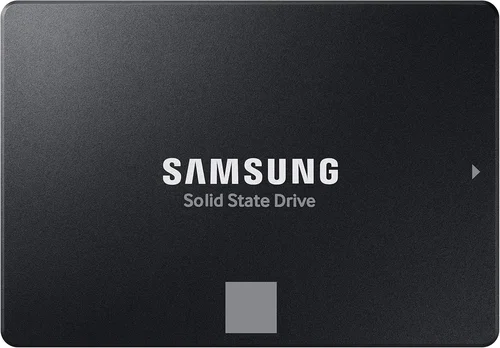
When it comes to building, upgrading, or replacing a computer system in 2026, one of the most critical decisions you’ll face is choosing between a traditional Hard Disk Drive (HDD) and a Solid State Drive (SSD). This choice affects everything from boot times and application loading speeds to overall system responsiveness and long-term reliability. With rapid advancements in storage technology, the gap between HDDs and SSDs has widened significantly—not just in performance, but also in price, capacity, and use-case suitability. Whether you’re a casual user, a content creator, a gamer, or a professional relying on data-intensive workflows, understanding the nuances between these two storage types is essential to making an informed decision.
This comprehensive guide is designed to cut through the noise and help you determine which storage solution—HDD or SSD—is truly the best fit for your needs. We’ll explore the key factors that influence performance, durability, cost, and usability, compare different types of drives across various categories, and highlight common pitfalls to avoid. You’ll also find expert-backed budget guidelines, actionable buying tips, and real-world recommendations tailored to different user profiles. By the end of this article, you’ll have a clear, confident understanding of not just what to buy, but why it matters for your specific situation.
The storage market in 2026 continues to evolve at a rapid pace. While SSDs have become the dominant choice for primary system drives due to their speed and reliability, HDDs still hold a strong position in high-capacity, cost-effective storage for backups, media libraries, and archival purposes. Newer technologies like NVMe Gen5 SSDs and helium-filled HDDs are pushing the boundaries of what’s possible, while falling prices are making high-performance storage more accessible than ever. With so many options available—from budget SATA SSDs to enterprise-grade NVMe drives and multi-terabyte HDDs—it’s easy to feel overwhelmed. That’s why this guide focuses on practical, real-world insights rather than just technical specs. We’ll help you navigate the landscape with clarity, so you can invest wisely in storage that enhances your computing experience.

What to Look for When Buying Buying Guide
1. Budget & Price Range
Your budget is often the first and most decisive factor when choosing between an HDD and an SSD. In 2026, the price gap between the two has narrowed significantly, but it still plays a major role in determining value. HDDs remain the most cost-effective option for large storage capacities, typically offering 1TB of space for under $40. In contrast, SSDs—especially high-performance NVMe models—can cost two to three times more per gigabyte. For example, a 1TB SATA SSD might run around $60–$80, while a 1TB NVMe Gen4 SSD could cost $90–$120. If you’re on a tight budget and need massive storage (like 4TB or more), an HDD is still the clear winner. However, if you’re prioritizing speed and system responsiveness, even a modest SSD investment can deliver transformative results.
It’s also important to consider total cost of ownership. While SSDs may have a higher upfront cost, they consume less power, generate less heat, and are less prone to mechanical failure—factors that can reduce long-term expenses, especially in laptops or always-on systems. Additionally, many users find that pairing a smaller SSD (250GB–500GB) for the operating system and frequently used applications with a larger HDD for bulk storage offers the best balance of performance and affordability. This hybrid approach is especially popular among budget-conscious gamers and students.
2. Performance Specifications
Performance is where SSDs truly shine—and where HDDs struggle to keep up. The most noticeable difference lies in read and write speeds. A typical 7200 RPM HDD delivers sequential read/write speeds of around 80–160 MB/s, while even a basic SATA SSD can achieve 500–550 MB/s. NVMe SSDs, which connect directly to the PCIe bus, blow these numbers out of the water, with Gen3 models hitting 3,500 MB/s and Gen4 drives reaching up to 7,000 MB/s. In real-world terms, this means your computer boots in seconds instead of minutes, applications launch instantly, and large files transfer in a fraction of the time.
But performance isn’t just about raw speed. Random access performance—how quickly a drive can locate and retrieve small pieces of data scattered across the disk—is equally important for everyday tasks like opening multiple browser tabs, loading game levels, or multitasking between apps. SSDs excel here due to their lack of moving parts, allowing near-instant access to data. HDDs, with their spinning platters and mechanical read/write heads, suffer from latency and seek time, which can cause noticeable delays. For users who value snappiness and responsiveness, especially in laptops or workstations, SSDs are almost always the better choice.
3. Build Quality & Durability
Durability is a critical consideration, especially for portable devices or environments where physical shocks are a concern. HDDs are inherently fragile due to their mechanical components. The spinning platters and moving actuator arms make them vulnerable to damage from drops, vibrations, or sudden movements. Even minor impacts can cause head crashes or misalignment, leading to data loss or drive failure. This makes HDDs less ideal for laptops, external drives used on the go, or industrial applications.
SSDs, on the other hand, have no moving parts. They’re built with NAND flash memory chips mounted on a circuit board, making them far more resistant to physical shock, temperature fluctuations, and wear from constant use. This robustness translates to longer lifespans in mobile and high-usage scenarios. That said, SSDs aren’t indestructible. They have a finite number of write cycles per memory cell, though modern wear-leveling algorithms and over-provisioning have greatly extended their usable life. For most consumers, an SSD will outlast the lifespan of the device itself. When durability and reliability are top priorities—such as in field work, travel, or rugged environments—SSDs are the clear winner.
4. Features & Functionality
Beyond basic storage, modern drives come with a range of features that can influence your decision. SSDs often support advanced technologies like TRIM (which helps maintain performance over time), garbage collection, and hardware encryption (such as TCG Opal or AES-256). Many NVMe SSDs also support features like HMB (Host Memory Buffer), which allows them to use system RAM for caching when they lack onboard DRAM, improving performance in budget models.
HDDs, while more limited in features, still offer benefits like native command queuing (NCQ) and large cache sizes (up to 256MB on high-end models), which help optimize data flow. Some enterprise-grade HDDs also support features like rotational vibration sensors and error recovery controls, making them suitable for RAID arrays and server environments. Additionally, certain HDDs are designed for specific use cases—like surveillance drives optimized for 24/7 video recording or NAS drives built for multi-bay enclosures and constant read/write cycles.
When evaluating features, consider how they align with your use case. For example, if you’re building a home media server, a NAS-optimized HDD with high MTBF (mean time between failures) and vibration resistance may be ideal. If you’re a gamer or content creator, an NVMe SSD with DRAM cache and high endurance ratings will deliver better performance and longevity.
5. Brand Reputation
Brand reputation matters—not just for marketing, but for reliability, customer support, and long-term performance. In the SSD market, brands like Samsung, Crucial, Western Digital, Kingston, and Sabrent have established strong track records for quality and consistency. Samsung’s 990 Pro and Crucial’s P5 Plus are frequently cited as top performers in independent benchmarks. These brands also offer robust firmware updates, detailed performance monitoring tools (like Samsung Magician), and strong warranties.
HDD manufacturers like Seagate, Western Digital, and Toshiba dominate the high-capacity market. WD’s Red and Purple series are well-regarded for NAS and surveillance use, while Seagate’s IronWolf line is popular among professionals. While lesser-known brands may offer lower prices, they often cut corners on components, firmware, or quality control, leading to higher failure rates and shorter lifespans. Sticking with reputable brands reduces the risk of data loss and ensures better support if issues arise.
6. Warranty & Support
Warranty length and support quality are strong indicators of a manufacturer’s confidence in their product. Most consumer SSDs come with 3- to 5-year limited warranties, often tied to terabytes written (TBW)—a measure of how much data can be written over the drive’s lifespan. For example, a 1TB SSD might have a 600 TBW rating, meaning you could write 164GB per day for five years before hitting the limit. High-end models like the Samsung 990 Pro offer up to 1,200 TBW, making them suitable for heavy workloads.
HDDs typically come with 2- to 5-year warranties, but unlike SSDs, their failure is often sudden and catastrophic due to mechanical wear. Some manufacturers, like Seagate, offer data recovery services as part of their warranty, which can be a lifesaver in the event of failure. When comparing warranties, look not just at duration, but also at coverage terms, ease of RMA (return merchandise authorization), and whether the warranty is transferable (important for resale value).
7. Size & Portability
Physical size and form factor play a role, especially in compact builds or portable devices. The most common form factors are 2.5-inch (for laptops and desktops), M.2 (for ultrabooks and small form factor PCs), and 3.5-inch (for desktop HDDs). M.2 SSDs are incredibly compact—about the size of a stick of gum—and connect directly to the motherboard, eliminating cables and saving space. This makes them ideal for thin laptops and mini-PCs.
HDDs, particularly 3.5-inch models, are bulkier and require both power and data cables, which can complicate cable management in small cases. However, 2.5-inch HDDs are available for laptop use, though they’re thicker and heavier than their SSD counterparts. For users prioritizing portability, quiet operation, and minimal heat output, M.2 SSDs are the best choice.
8. User Reviews & Ratings
While specs and benchmarks are important, real-world user experiences provide invaluable insights. Look for reviews on trusted platforms like Amazon, Newegg, or specialized tech sites (e.g., Tom’s Hardware, AnandTech). Pay attention to patterns in feedback—consistent complaints about failure rates, overheating, or poor customer service are red flags. Conversely, widespread praise for reliability, performance, or value can reinforce a drive’s credibility.
User reviews also highlight practical considerations that specs sheets miss, such as compatibility with certain motherboards, ease of installation, or noise levels (especially for HDDs). For example, some high-RPM HDDs can be audibly loud under load, which may be unacceptable in quiet environments. Similarly, certain NVMe SSDs may throttle under sustained workloads due to heat, a detail often revealed only in long-term user testing.
Different Types of Buying Guide

Common Buying Mistakes to Avoid
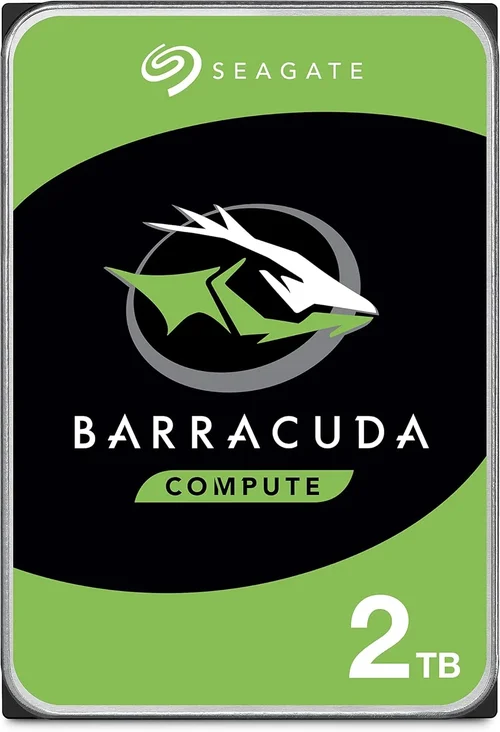
❌ Mistake: Prioritizing Capacity Over Performance
Why it’s bad: Choosing a large HDD solely for its terabyte count can result in a sluggish system, especially if it’s your primary drive. Slow boot times, laggy applications, and long file transfers can frustrate even casual users.
What to do instead: Use an SSD for your operating system and frequently used programs, and pair it with a larger HDD for media and backups. This hybrid setup delivers the best of both worlds.
❌ Mistake: Ignoring Form Factor Compatibility
Why it’s bad: Not all drives fit all systems. Installing an M.2 SSD in a motherboard that only supports SATA, or trying to fit a 3.5-inch HDD in a compact case, can lead to installation headaches or outright incompatibility.
What to do instead: Check your motherboard or laptop specifications before buying. Ensure the drive’s form factor, interface (SATA/NVMe), and physical dimensions are supported.
❌ Mistake: Overlooking Endurance Ratings (TBW)
Why it’s bad: SSDs have a limited number of write cycles. Buying a low-end SSD with poor endurance can lead to premature failure, especially if you’re editing videos, running virtual machines, or performing heavy file transfers.
What to do instead: Check the terabytes written (TBW) rating and choose a drive with sufficient endurance for your workload. For heavy users, aim for at least 600 TBW for a 1TB drive.
❌ Mistake: Buying the Cheapest Drive Available
Why it’s bad: Extremely low-priced SSDs often use inferior NAND flash, lack DRAM cache, or have poor firmware, leading to performance degradation and higher failure rates.
What to do instead: Stick to reputable brands and models with proven track records. A slightly higher investment in a quality drive pays off in reliability and longevity.
❌ Mistake: Neglecting Cooling for High-Performance SSDs
Why it’s bad: NVMe Gen4 and Gen5 SSDs can generate significant heat under load, leading to thermal throttling and reduced performance.
What to do instead: Use a heatsink or thermal pad, especially in compact builds. Many motherboards include M.2 heatsinks—use them.
❌ Mistake: Assuming All SSDs Are the Same
Why it’s bad: Not all SSDs are created equal. SATA, NVMe Gen3, Gen4, and Gen5 drives vary widely in speed, price, and use case.
What to do instead: Match the SSD type to your system’s capabilities and performance needs. Don’t buy a Gen4 SSD for a Gen3-only motherboard.
❌ Mistake: Forgetting to Back Up Data Before Upgrading
Why it’s bad: Replacing or upgrading a drive without backing up data risks permanent loss.
What to do instead: Always create a full backup using cloning software or cloud storage before making changes.
Budget Guidelines: How Much Should You Spend?
– Entry-Level ($30–$60): At this price, you’re looking at 1TB HDDs or 250GB–500GB SATA SSDs. Ideal for basic computing, light browsing, and document work. A 500GB SATA SSD like the Crucial MX500 offers excellent value for system upgrades.
– Mid-Range ($60–$120): This is the sweet spot for most users. You can get a 1TB SATA SSD or a 1TB NVMe Gen3 SSD (e.g., WD Black SN770). Perfect for gaming, productivity, and general use. Offers a great balance of speed, capacity, and price.
– Premium ($120–$250): For enthusiasts and professionals. 1TB–2TB NVMe Gen4 SSDs (like Samsung 990 Pro or Sabrent Rocket 4 Plus) deliver top-tier performance for video editing, 3D rendering, and high-end gaming. Also includes high-capacity NAS HDDs for server use.
– Luxury ($250+): Top-tier options like 4TB NVMe Gen5 SSDs or enterprise-grade storage arrays. Reserved for workstations, data centers, or users who demand maximum speed and reliability. Overkill for average consumers but essential for specialized workflows.
Expert Tips for Getting the Best Deal
– Buy during seasonal sales: Major discounts occur during Black Friday, Cyber Monday, Amazon Prime Day, and back-to-school periods. SSD prices often drop 20–30% during these events.
– Compare prices across retailers: Use tools like PCPartPicker, CamelCamelCamel, or Google Shopping to track price history and find the best deals.
– Consider refurbished or open-box drives: Certified refurbished SSDs from reputable sellers often come with full warranties and can save you 15–25%.
– Check for bundle deals: Some retailers offer SSDs bundled with cloning software, enclosures, or installation kits—great for first-time upgraders.
– Read the fine print on warranties: Ensure the warranty covers both time and TBW, and understand the RMA process.
– Test before finalizing: Use tools like CrystalDiskMark or AS SSD to benchmark performance after installation.
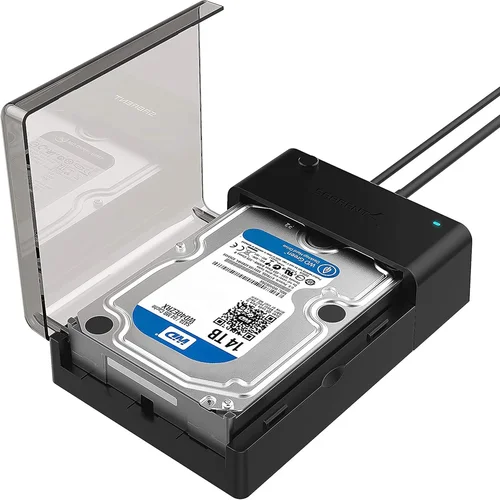
– Don’t forget the enclosure: If repurposing an old drive as external storage, invest in a quality USB 3.2 or Thunderbolt enclosure.
– Monitor drive health: Use software like CrystalDiskInfo or Samsung Magician to track SSD health and prevent surprises.

Frequently Asked Questions
Q: Can I use both an HDD and an SSD in the same system?
A: Absolutely. Many users install an SSD as the primary drive for the OS and applications, and an HDD for storing large files like videos, photos, and games. This hybrid approach maximizes both speed and capacity.
Q: Do SSDs really last as long as manufacturers claim?
A: Yes, for most users. Modern SSDs are designed to outlast the typical lifespan of a computer. Unless you’re writing terabytes of data daily, endurance is rarely an issue.
Q: Are NVMe SSDs worth the extra cost over SATA?
A: For most users, yes—especially if your motherboard supports NVMe. The speed difference is dramatic, particularly in boot times and large file transfers.
Q: Can I recover data from a failed SSD?
A: It’s more difficult than with HDDs due to wear-leveling and encryption. Professional data recovery services may help, but success isn’t guaranteed. Regular backups are essential.
Q: Do SSDs need defragmentation?
A: No. SSDs don’t benefit from defragmentation and it can actually reduce their lifespan. Windows automatically disables defrag for SSDs and enables TRIM instead.
Q: Are external SSDs faster than external HDDs?
A: Yes, significantly. External SSDs over USB 3.2 or Thunderbolt can reach 1,000 MB/s or more, while external HDDs max out around 150 MB/s.
Q: What’s the difference between DRAM and DRAM-less SSDs?
A: DRAM SSDs have a dedicated memory cache for faster performance and better longevity. DRAM-less models use system RAM (HMB) and are cheaper but may slow under heavy use.
Q: Can I upgrade my laptop’s storage myself?
A: Many laptops allow it, but check your model’s service manual. Some ultrabooks have soldered storage, making upgrades impossible.
Q: Are there eco-friendly storage options?
A: SSDs consume less power and have longer lifespans, making them more energy-efficient over time. Some brands also use recycled materials in packaging.
Q: What’s the future of storage?
A: NVMe Gen5 and PCIe 5.0 SSDs are gaining traction, with speeds exceeding 10,000 MB/s. QLC and PLC NAND are increasing capacity, while technologies like CXL and computational storage are emerging for AI and data centers.
Our Final Recommendations
– Best for Budget-Conscious Buyers: Crucial MX500 1TB SATA SSD – Reliable, fast, and affordable. Perfect for upgrading older systems.
– Best Overall Value: WD Black SN770 1TB NVMe Gen4 SSD – Excellent performance, great price, and strong endurance. Ideal for gamers and creators.
– Best Premium Option: Samsung 990 Pro 2TB – Top-tier speed, reliability, and software support. Built for professionals and enthusiasts.
– Best for Beginners: Kingston NV2 1TB NVMe Gen3 SSD – Easy to install, no heatsink needed, and great for first-time upgraders.
– Best for Advanced Users: Sabrent Rocket 4 Plus 4TB – Massive capacity, Gen4 speeds, and excellent for workstations and content creation.
– Best for Bulk Storage: Seagate IronWolf 4TB NAS HDD – Designed for 24/7 operation, vibration-resistant, and perfect for home servers.
Conclusion: Making the Right Choice
Choosing between an HDD and an SSD in 2026 isn’t about picking a winner—it’s about matching the right technology to your needs. SSDs deliver unmatched speed, durability, and responsiveness, making them the best choice for primary storage in almost every scenario. HDDs, while slower, remain unbeatable for high-capacity, low-cost storage of large files and backups. The key is understanding your priorities: Are you building a gaming rig, a media server, or a budget laptop? Do you value speed, capacity, or cost-efficiency most?
By considering factors like budget, performance, durability, and use case—and avoiding common pitfalls—you can make a confident, informed decision. Whether you go all-in on NVMe speed or opt for a hybrid setup, the right storage choice will enhance your computing experience for years to come. Don’t just buy what’s trendy—buy what works for you. And remember: in storage, as in life, balance is everything. Invest wisely, back up regularly, and enjoy the seamless performance that modern drives make possible.