
The external SSD market has exploded in recent years, transforming from a niche accessory for tech enthusiasts into an essential tool for everyday users. Whether you’re a photographer backing up high-resolution images, a student transferring large project files, or a gamer expanding console storage, the right external SSD can dramatically improve your workflow and data security. With speeds that dwarf traditional hard drives, compact designs that fit in your pocket, and increasingly affordable prices, it’s no surprise that external SSDs have become the go-to storage solution for millions. However, with dozens of brands, confusing specifications, and rapidly evolving technology, choosing the best one can feel overwhelming. That’s exactly why this guide exists—to cut through the noise and help you make a smart, informed decision.
In this comprehensive buying guide, you’ll learn everything you need to know about external SSDs in 2026. We’ll walk you through the most critical factors to consider—from performance and durability to budget and brand reliability—so you can match your needs with the perfect drive. You’ll discover the key differences between types of external SSDs, avoid common purchasing mistakes, and get expert tips on how to get the best value for your money. Whether you’re shopping for your first external SSD or upgrading from an older model, this guide will equip you with the knowledge to choose confidently. By the end, you’ll not only understand what makes one drive better than another but also know exactly which one is right for your lifestyle and use case.
The external SSD landscape today is more diverse and competitive than ever. Major players like Samsung, SanDisk, Crucial, and WD have been joined by innovative newcomers offering impressive performance at lower price points. USB 3.2 Gen 2, Thunderbolt 4, and even USB4 are now common, enabling transfer speeds that were unimaginable just a few years ago. At the same time, concerns around data integrity, long-term reliability, and real-world performance have become more pressing. This guide will help you navigate these complexities, ensuring you invest in a drive that delivers both speed and peace of mind. Let’s dive in.

What to Look for When Buying Buying Guide
1. Performance Specifications
Performance is arguably the most important factor when choosing an external SSD. Unlike traditional hard drives, SSDs use flash memory to store data, which allows for much faster read and write speeds. When evaluating performance, look for two key metrics: sequential read speed and sequential write speed, typically measured in megabytes per second (MB/s). For example, a drive with 1,050 MB/s read and 1,000 MB/s write speeds will transfer a 10GB video file in under 10 seconds, compared to over a minute with a standard HDD.
But raw speed isn’t the whole story. Real-world performance depends on several factors, including the interface (USB 3.2 Gen 2, Thunderbolt 3/4, USB4), the internal controller, and the type of NAND flash used. Thunderbolt-enabled drives often offer speeds up to 2,800 MB/s or more, making them ideal for professionals working with 4K/8K video or large datasets. However, these drives are typically more expensive and require compatible hardware. For most users, a USB 3.2 Gen 2 drive with 1,000 MB/s speeds offers an excellent balance of performance and affordability.
2. Build Quality & Durability
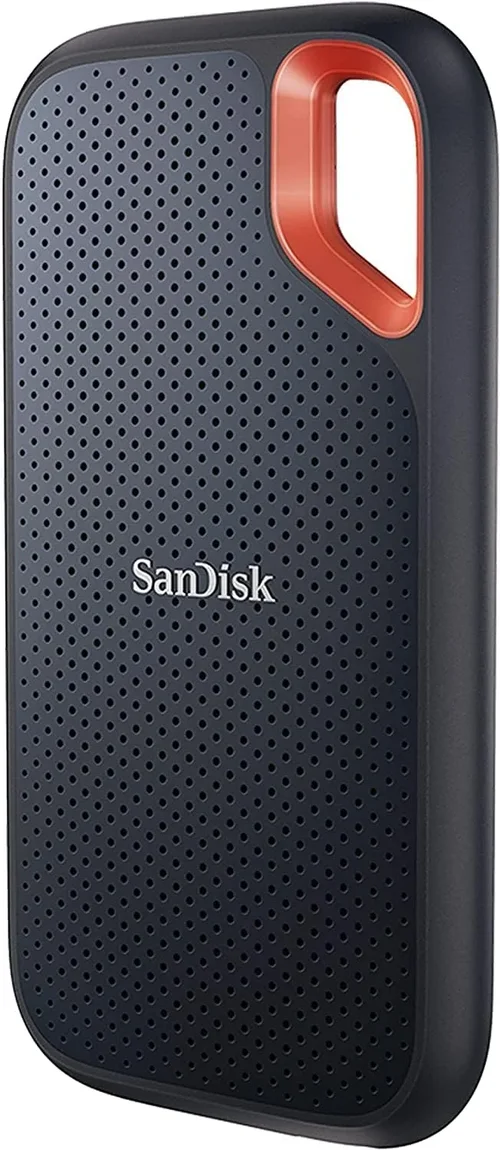
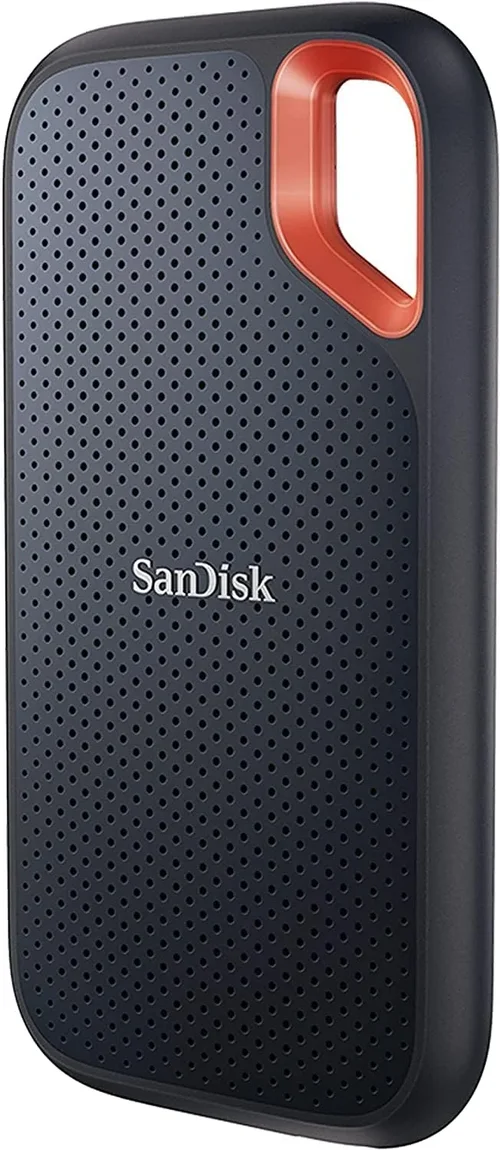
External SSDs are often carried around, tossed into bags, or used in less-than-ideal conditions. That’s why build quality and durability matter—especially if you’re using the drive for travel, fieldwork, or outdoor shoots. Look for drives with ruggedized designs, shock resistance, and IP ratings for water and dust protection. For instance, the SanDisk Extreme Pro offers an IP55 rating, meaning it’s protected against limited dust ingress and water jets from any direction.
Materials also play a role. Aluminum enclosures not only look premium but also help dissipate heat, which can improve long-term performance and lifespan. Rubberized coatings provide better grip and shock absorption. Some drives even feature drop resistance up to 3 meters, which is reassuring if you’re prone to accidents. While no drive is indestructible, investing in one with solid build quality can save you from costly data loss and frequent replacements.
3. Storage Capacity
Storage capacity directly impacts how much data you can store and how long the drive will remain useful. External SSDs typically range from 250GB to 8TB, with 1TB and 2TB being the most popular choices for general users. A 500GB drive might suffice for documents, photos, and light media, but if you work with video, games, or large software libraries, you’ll want at least 1TB or more.
Consider your current and future needs. If you’re a content creator shooting 4K video, even 2TB might fill up quickly. On the other hand, if you’re using the drive primarily for backups or file transfers, a 1TB model could last years. Keep in mind that higher capacities often come with better performance due to more NAND chips and advanced controllers. Also, avoid the temptation to buy the largest drive available unless you truly need it—overspending on unused space is a common mistake.
4. Interface & Connectivity
The interface determines how fast data can travel between your SSD and your computer. The most common interfaces in 2026 are USB 3.2 Gen 2 (10 Gbps), USB4 (up to 40 Gbps), and Thunderbolt 3/4 (up to 40 Gbps). USB 3.2 Gen 2 is widely supported and offers speeds up to 1,250 MB/s, making it suitable for most users. USB4 and Thunderbolt deliver significantly faster speeds and support daisy-chaining multiple devices, but they require compatible ports and are usually found on premium drives.
Another consideration is cable inclusion. Some drives come with both USB-C and USB-A cables, ensuring compatibility with older devices. Others only include a USB-C cable, which may require you to purchase an adapter. Also, check whether the drive supports USB Power Delivery (USB-PD) if you plan to use it with laptops that charge via USB-C. A well-designed interface ensures seamless connectivity across devices and maximizes performance.
5. Portability & Form Factor
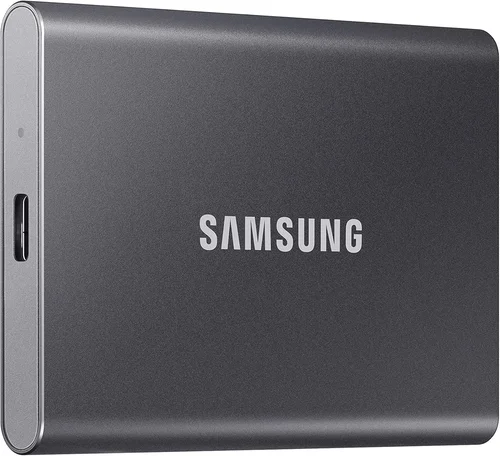
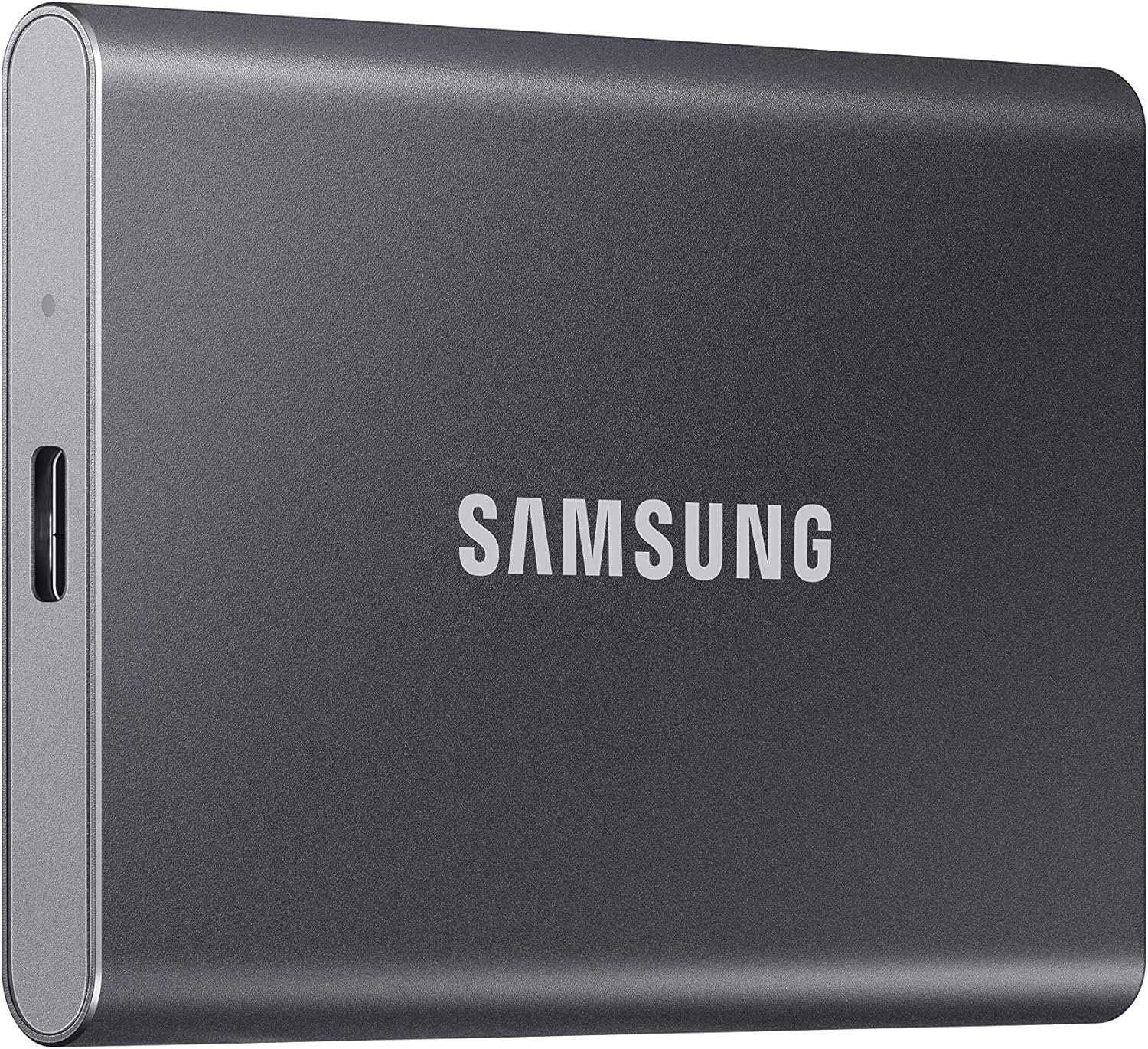
One of the biggest advantages of external SSDs is their portability. Most are small enough to fit in a pocket or slip into a laptop bag without adding bulk. However, size and weight can vary. Some drives, like the Samsung T7 Shield, are about the size of a credit card and weigh under 60 grams, making them ideal for travel. Others, especially rugged models, may be slightly larger and heavier due to protective casing.
Consider where and how you’ll use the drive. If you’re frequently on the go, a compact, lightweight model is essential. If you’re using it primarily at a desk, size may be less of a concern. Also, look for drives with integrated cable storage or slim profiles that won’t snag in bags. A well-designed form factor enhances usability and reduces the risk of damage during transport.
6. Brand Reputation & Reliability
Not all SSD brands are created equal. Established manufacturers like Samsung, SanDisk, Crucial, and Western Digital have a proven track record of producing reliable, high-performance drives. These companies invest heavily in research, quality control, and firmware updates, which translates to better long-term reliability and customer support.
Newer or lesser-known brands may offer tempting prices, but they often cut corners on components or lack robust testing. Reading user reviews and checking failure rates can help you avoid problematic models. Look for brands that provide detailed specifications, transparent warranty terms, and active customer service. A reputable brand may cost a bit more upfront, but it can save you from data loss and frustration down the line.
7. Warranty & Support
A solid warranty is a strong indicator of a manufacturer’s confidence in their product. Most reputable external SSDs come with a 3- to 5-year limited warranty, covering defects and premature failure. Some brands, like Samsung, even offer data recovery services or extended warranty options for an additional fee.
When comparing warranties, pay attention to the terms. Does it cover accidental damage? Is it transferable if you sell the drive? Are there geographic restrictions? Also, check the availability of customer support—live chat, phone, or email. A responsive support team can be invaluable if you encounter issues. Don’t overlook this factor; a good warranty can turn a stressful situation into a manageable one.
8. Security Features
If you’re storing sensitive data—financial records, personal photos, or confidential work files—security should be a top priority. Many external SSDs now include hardware encryption, password protection, and biometric authentication. For example, the Samsung T7 Touch features a built-in fingerprint scanner, allowing only authorized users to access the drive.
Software-based encryption is also common, often through bundled utilities like BitLocker (Windows) or FileVault (macOS). However, hardware encryption is generally more secure and doesn’t rely on the host system. Some drives even meet military-grade encryption standards (AES-256), providing peace of mind for professionals in law, healthcare, or government. While not essential for everyone, security features are worth considering if data privacy is a concern.
Different Types of Buying Guide
Common Buying Mistakes to Avoid
❌ Mistake: Ignoring Real-World Performance
Why it’s bad: Many buyers focus solely on advertised speeds, which are often measured under ideal lab conditions. In reality, performance can drop significantly during sustained transfers, especially with lower-quality drives or when the drive is nearly full. This can lead to frustratingly slow backups or file transfers.
What to do instead: Look for reviews that test real-world performance, including large file transfers and mixed workloads. Check if the drive uses DRAM cache, which helps maintain speed during extended use. Drives without DRAM may slow down dramatically after the cache fills up.
❌ Mistake: Overlooking Compatibility
Why it’s bad: A Thunderbolt 4 drive won’t deliver its full speed on a USB 3.0 port, and some drives may not work properly with certain operating systems or devices. This can result in reduced performance or complete incompatibility.
What to do instead: Verify that your computer has the required ports and supports the drive’s interface. Check the manufacturer’s compatibility list, especially if you’re using a Mac, Linux system, or older PC. When in doubt, choose a USB 3.2 Gen 2 drive for broad compatibility.
❌ Mistake: Choosing Based on Price Alone
Why it’s bad: The cheapest SSDs often use inferior NAND flash, lack DRAM, or have poor controllers, leading to shorter lifespans and unreliable performance. You might save $20 upfront but end up replacing the drive sooner.
What to do instead: Balance price with quality. Look for drives from reputable brands with good warranties. A mid-range drive from Samsung or SanDisk often offers better long-term value than a bargain model from an unknown brand.
❌ Mistake: Neglecting Backup Strategy
Why it’s bad: An external SSD is not a backup solution—it’s a storage device. Relying on a single drive for all your data is risky. If the drive fails, is lost, or gets corrupted, you could lose everything.
What to do instead: Use the 3-2-1 backup rule: keep three copies of your data, on two different media, with one copy offsite. Pair your SSD with cloud storage or a second physical drive for true data protection.
❌ Mistake: Ignoring Heat Management
Why it’s bad: SSDs generate heat during heavy use, and excessive heat can degrade performance and shorten lifespan. Some budget drives lack proper thermal management, leading to throttling or failure.
What to do instead: Choose drives with aluminum enclosures or built-in heat sinks. Avoid covering the drive during use, and consider models with thermal throttling protection. If you plan to use the drive for long transfers, ensure it has adequate cooling.
❌ Mistake: Not Checking Warranty Terms
Why it’s bad: A short or restrictive warranty can leave you stranded if the drive fails. Some warranties only cover manufacturing defects and exclude normal wear, accidental damage, or data loss.
What to do instead: Read the fine print. Look for warranties of at least 3 years, and prefer those that cover data recovery or offer replacement without hassle. Register your drive upon purchase to activate warranty coverage.
❌ Mistake: Buying the Wrong Capacity
Why it’s bad: A 250GB drive might seem sufficient, but it can fill up quickly with modern files. Conversely, buying an 8TB drive for light use is a waste of money.
What to do instead: Assess your current storage needs and project future growth. If you’re unsure, start with 1TB—it’s the sweet spot for most users. You can always add another drive later.
Budget Guidelines: How Much Should You Spend?
Entry-Level ($50 – $120): This tier includes budget-friendly SSDs from brands like Kingston, PNY, and lesser-known manufacturers. Expect capacities from 250GB to 1TB, USB 3.2 Gen 1 or Gen 2 support, and speeds around 500–1,000 MB/s. These drives are great for students, casual users, or secondary backups. However, they may lack DRAM, have plastic enclosures, and come with shorter warranties. Ideal for light file transfers and document storage.
Mid-Range ($120 – $250): This is the sweet spot for most buyers. Drives like the Samsung T7, SanDisk Extreme, and Crucial X8 offer excellent performance (1,000+ MB/s), durable builds, and 3- to 5-year warranties. Capacities typically range from 500GB to 2TB. You’ll get better components, improved heat dissipation, and often include both USB-C and USB-A cables. Perfect for photographers, gamers, and professionals who need reliable, fast storage without breaking the bank.
Premium ($250 – $500): Aimed at power users and creatives, these drives feature Thunderbolt 3/4 or USB4 support, enabling speeds up to 2,800 MB/s. Models like the Samsung X5, SanDisk Extreme Pro, and LaCie Rugged SSD Pro offer rugged designs, hardware encryption, and high capacities (up to 4TB). They’re ideal for 4K/8K video editing, large game libraries, and professional workflows. Expect premium materials, excellent thermal management, and top-tier support.
Luxury ($500+): These are the elite of external SSDs, often used in enterprise or high-end creative environments. Examples include the G-Technology G-RAID and certain OWC Envoy Pro FX models. They offer massive capacities (up to 8TB), RAID configurations, dual Thunderbolt ports, and enterprise-grade reliability. While overkill for most users, they’re worth considering for studios, data centers, or anyone who demands maximum performance and redundancy.
Expert Tips for Getting the Best Deal
– Buy During Major Sales Events: Look for discounts during Black Friday, Cyber Monday, Amazon Prime Day, and back-to-school seasons. Many retailers offer 20–30% off top models. Sign up for price alerts on sites like CamelCamelCamel or Honey to catch deals early.
– Compare Prices Across Retailers: Don’t settle for the first price you see. Check Amazon, Best Buy, B&H Photo, Newegg, and manufacturer websites. Sometimes, the same drive is $20 cheaper at one store, or includes a free accessory.
– Consider Refurbished or Open-Box Models: Certified refurbished drives from reputable sellers often come with full warranties and can save you 15–30%. Just ensure they’re tested and include original accessories.
– Check Return Policies: A generous return window (30 days or more) gives you time to test the drive and ensure it works as expected. Avoid sellers with strict or no-return policies.
– Test Before Committing: Once you receive the drive, run a speed test using tools like CrystalDiskMark (Windows) or Blackmagic Disk Speed Test (macOS). Verify that real-world performance matches advertised specs.
– Register Your Drive: Many manufacturers require registration to activate the full warranty. It also helps with firmware updates and support.
– Bundle When Possible: Some retailers offer bundles with cables, cases, or software. These can add value, especially if you need extras.
– Watch for Firmware Updates: Check the manufacturer’s website periodically for firmware updates, which can improve performance, fix bugs, or enhance security.
Frequently Asked Questions
Q: Are external SSDs faster than internal SSDs?
A: Generally, no. Internal SSDs connect directly to the motherboard via NVMe or SATA, offering lower latency and higher bandwidth. However, high-end external SSDs with Thunderbolt or USB4 can come close, especially for sequential transfers. For most users, the difference is negligible in everyday use.
Q: Can I use an external SSD for gaming?
A: Absolutely. Many gamers use external SSDs to expand console storage (like PS5 or Xbox Series X) or to store PC games. While load times may be slightly longer than internal NVMe drives, they’re still much faster than HDDs. Just ensure the drive meets the console’s speed requirements.
Q: Do external SSDs need to be formatted?
A: Most come pre-formatted for your operating system (exFAT for cross-platform use, NTFS for Windows, APFS for macOS). If you need to reformat, use Disk Utility (macOS) or Disk Management (Windows). Be aware that formatting erases all data.
Q: How long do external SSDs last?
A: With proper use, most external SSDs last 5–10 years. Lifespan depends on usage, write cycles, and environmental factors. SSDs have a limited number of write cycles, but modern drives are designed to outlast typical consumer use.
Q: Can I recover data from a failed external SSD?
A: It depends. If the drive is recognized but corrupted, software tools like Recuva or Disk Drill may help. If the drive is physically damaged, professional data recovery services are required—and can be expensive. Always maintain backups.
Q: Are USB-C and Thunderbolt the same?
A: No. USB-C is a connector type, while Thunderbolt is a protocol. Thunderbolt 3 and 4 use USB-C connectors but offer much higher speeds and additional features like daisy-chaining and video output. Not all USB-C ports support Thunderbolt.
Q: Should I buy a drive with DRAM?
A: Yes, if performance and longevity matter. DRAM cache helps maintain speed during sustained transfers and improves overall reliability. Drives without DRAM (often called DRAM-less) are cheaper but may slow down under heavy use.
Q: Can I use an external SSD with a smartphone or tablet?
A: Some Android devices and iPads support external SSDs via USB-C, but functionality varies. You may need a powered hub or specific apps to access files. Check your device’s specifications before purchasing.
Q: Is hardware encryption worth it?
A: If you handle sensitive data, yes. Hardware encryption is faster, more secure, and doesn’t rely on the host system. Software encryption can be bypassed if the drive is removed and connected to another computer.
Q: Do I need a cooling fan on my external SSD?
A: Most don’t require active cooling. Passive heat dissipation via metal enclosures is usually sufficient. However, if you’re doing long, intensive transfers (like video editing), a drive with good thermal design will perform better and last longer.
Our Final Recommendations
Best for Budget-Conscious Buyers: Kingston XS2000 – At under $100 for 1TB, this drive offers USB 3.2 Gen 2 speeds (2,000 MB/s), a compact design, and solid reliability. It’s a great entry point for students and casual users.
Best Overall Value: Samsung T7 Shield – With speeds up to 1,050 MB/s, IP65 rating, and a 3-year warranty, the T7 Shield delivers performance, durability, and peace of mind at a reasonable price. Ideal for travelers and professionals.
Best Premium Option: SanDisk Extreme Pro – Featuring Thunderbolt 3 support, 2,800 MB/s speeds, and an IP55 rating, this drive is built for demanding workflows. Perfect for video editors and content creators.
Best for Beginners: Crucial X8 – Simple, reliable, and fast, the X8 is easy to set up and works seamlessly across devices. Its sleek design and consistent performance make it a great first SSD.
Best for Advanced Users: Samsung X5 – A Thunderbolt 3 powerhouse with 2,800 MB/s speeds and hardware encryption. Designed for professionals who need maximum performance and security.
Conclusion: Making the Right Choice
Choosing the best external SSD in 2026 doesn’t have to be overwhelming. By focusing on your specific needs—whether it’s speed, durability, capacity, or budget—you can narrow down the options and find a drive that truly enhances your digital life. Remember, the “best” SSD isn’t necessarily the fastest or most expensive; it’s the one that aligns with your workflow, environment, and long-term goals.
We’ve covered the essential factors, from performance and build quality to security and warranty, so you can shop with confidence. Avoid common pitfalls like ignoring real-world performance or overlooking compatibility, and take advantage of expert tips to get the best deal. Whether you’re backing up family photos, editing videos, or expanding your gaming library, the right external SSD will make the process faster, safer, and more enjoyable.
Now that you’re equipped with this knowledge, it’s time to take action. Assess your needs, compare your options, and invest in a drive that will serve you well for years to come. Your data deserves the best—don’t settle for less.