
If you’re reading this, chances are you’ve already felt the frustration of slow file transfers, lagging backups, or watching your laptop’s internal storage slowly fill up like a clogged sink. In today’s fast-paced digital world—where 4K videos, massive game libraries, and high-resolution photo libraries are the norm—relying on outdated external hard drives just won’t cut it anymore. That’s where external SSDs come in: compact, lightning-fast, and increasingly affordable, they’ve become essential tools for everyone from students and creatives to IT professionals and casual users alike.
This guide is designed to cut through the noise and help you make a smart, informed decision. Whether you’re backing up your MacBook, expanding storage for your gaming PC, or carrying sensitive work files between offices, choosing the right external SSD can dramatically improve your workflow, protect your data, and save you time. We’ll walk you through every critical factor—from speed and durability to price and real-world performance—so you don’t end up with a flashy drive that fails when you need it most. By the end, you’ll know exactly what to look for, which brands to trust, and how to avoid common pitfalls that trip up even savvy buyers.
The external SSD market has exploded in recent years, with options ranging from budget-friendly 500GB models under $50 to rugged, high-capacity drives costing over $500. Major players like Samsung, SanDisk, Crucial, and WD have been joined by newer brands offering competitive specs at lower prices. At the same time, USB standards have evolved rapidly—USB 3.2, USB4, and Thunderbolt 3/4 now dominate, each offering vastly different performance levels. With so many choices, it’s easy to feel overwhelmed. But don’t worry: this guide demystifies the tech, compares real-world use cases, and gives you actionable advice tailored to your needs—no engineering degree required.

What to Look for When Buying Buying Guide
1. Performance Specifications
When it comes to external SSDs, performance isn’t just about bragging rights—it directly impacts how quickly you can move files, load applications, or edit videos directly from the drive. The two key metrics here are read and write speeds, typically measured in megabytes per second (MB/s). For context, a standard HDD might hit 100–150 MB/s, while even entry-level external SSDs often exceed 400 MB/s. High-end models can reach 2,000 MB/s or more, especially those using USB4 or Thunderbolt interfaces.
But speed isn’t just about the drive itself—it’s also about the connection. USB 3.2 Gen 2 (10 Gbps) is common and offers solid speeds up to ~1,000 MB/s. USB4 and Thunderbolt 3/4 (40 Gbps) unlock much higher bandwidth, enabling speeds over 2,800 MB/s, which is crucial for 8K video editing or large database work. Always check that your computer supports the same standard as the drive; plugging a Thunderbolt SSD into a USB 3.0 port will bottleneck performance severely.
Another performance factor is random read/write performance, often measured in IOPS (input/output operations per second). This matters more for tasks like running virtual machines or loading many small files (e.g., game assets or photo catalogs). While most consumer reviews focus on sequential speeds, professionals should pay attention to IOPS ratings if they’re using the drive for active workloads.
2. Budget & Price Range
External SSDs vary wildly in price, and understanding what you’re paying for helps avoid overspending—or underspending and getting a dud. As of 2026, you can find decent 1TB drives starting around $60–$80, while premium 4TB models with Thunderbolt support can cost $600 or more. The sweet spot for most users is the $100–$200 range, where you get reliable performance, good build quality, and capacities between 1TB and 2TB.
Price often correlates with interface technology. USB 3.2 Gen 2 drives are generally cheaper than USB4 or Thunderbolt equivalents. Similarly, drives with DRAM cache (a small memory buffer that speeds up file operations) tend to cost more but offer better sustained performance. If you’re primarily transferring large media files (like video footage), DRAM may not be critical. But if you’re frequently accessing many small files, it’s worth the extra cost.
Be wary of extremely low-priced SSDs from unknown brands. Some cut corners by using lower-grade NAND flash memory or omitting essential components like thermal throttling protection. These drives may work fine initially but degrade quickly under heavy use. Stick to reputable brands unless you’re willing to accept higher risk for marginal savings.
3. Build Quality & Durability
Unlike traditional hard drives, SSDs have no moving parts, making them inherently more resistant to drops and shocks. However, build quality still varies significantly. Look for drives with aluminum or magnesium alloy enclosures—these dissipate heat better and feel more premium than plastic shells. Ruggedized models often include IP ratings (like IP65 or IP67), meaning they’re dustproof and water-resistant, which is ideal for photographers shooting in harsh environments or travelers who frequently move gear.
Drop resistance is another key factor. Many manufacturers claim their drives can survive drops from 1–2 meters onto concrete. While this is useful, real-world testing shows that even “rugged” drives can fail if dropped awkwardly. Consider your usage: if you’re tossing the drive in a backpack daily, invest in one with reinforced corners and rubberized grips.
Heat management is often overlooked but critical. High-speed transfers generate heat, and without proper thermal design, the drive may throttle (slow down) to prevent damage. Premium drives include heat sinks or thermal pads, while cheaper ones may overheat during prolonged use. If you plan to edit video directly from the SSD or run long backups, prioritize models with active cooling or robust passive散热设计.
4. Features & Functionality
Beyond raw speed and durability, modern external SSDs come packed with features that enhance usability and security. Hardware encryption (often AES-256) is a must if you handle sensitive data—look for drives with built-in password protection or biometric authentication (like fingerprint scanners). Some models even include self-destruct mechanisms after multiple failed login attempts.
Software ecosystems are another differentiator. Brands like Samsung and SanDisk offer companion apps for automatic backups, drive health monitoring, and firmware updates. These tools can extend the drive’s lifespan and simplify maintenance. However, avoid drives that require proprietary software just to function—this can create compatibility issues across devices.
Portability features matter too. Slim, pocket-sized drives (under 100g) are great for on-the-go use, while larger desktop-style SSDs offer higher capacities and better cooling but sacrifice convenience. Consider whether you need a built-in cable (reduces clutter) or a detachable one (more flexible). Also, check connector types: USB-C is universal, but some older devices still use USB-A—make sure you have the right adapter or cable.
5. Brand Reputation
Not all SSD brands are created equal. Established names like Samsung, Western Digital (WD), SanDisk, and Crucial have proven track records for reliability, customer support, and consistent performance. They also invest heavily in R&D, resulting in better firmware, longer lifespans, and fewer compatibility issues. Lesser-known brands may offer tempting prices, but they often lack long-term support or rigorous quality control.
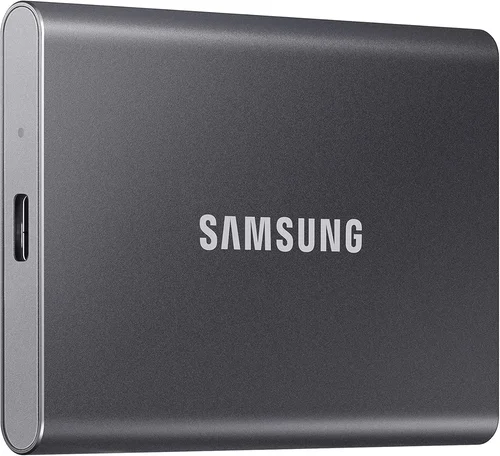
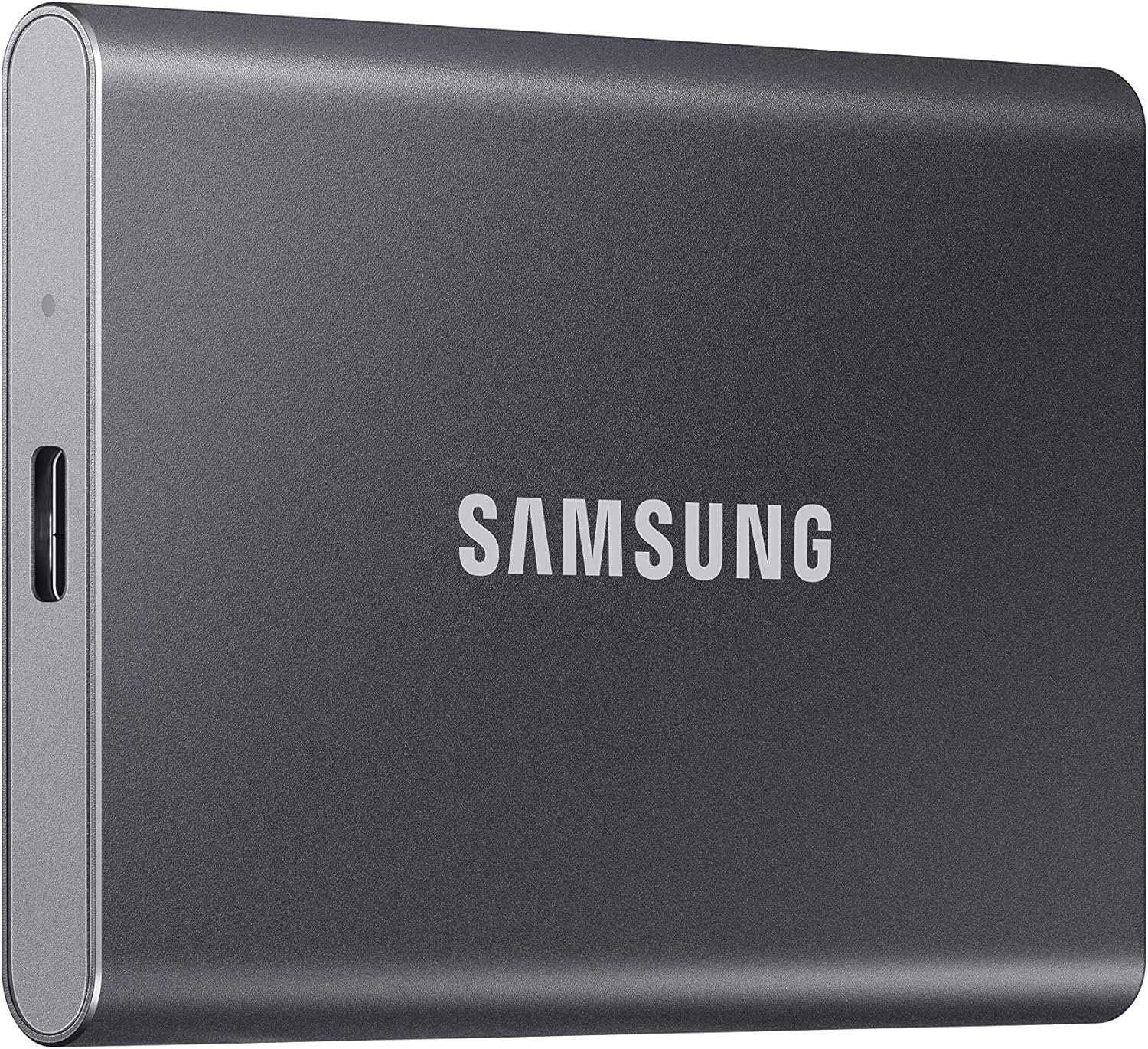
Check brand reputation through user forums, professional reviews, and warranty terms. Samsung’s T series, for example, is renowned for its balance of speed, durability, and value. SanDisk’s Extreme Pro line is favored by videographers for its rugged design and Thunderbolt support. Meanwhile, brands like Kingston and ADATA offer solid mid-tier options with good warranties.
Avoid “white-label” drives sold under generic names on marketplaces like Amazon. These are often rebranded units from factories that also supply major brands but may use inferior components. If a deal seems too good to be true, it probably is.
6. Warranty & Support
A strong warranty is a silent indicator of a manufacturer’s confidence in their product. Most reputable brands offer 3–5 years of coverage, sometimes prorated based on terabytes written (TBW). For example, a 1TB drive might have a 600 TBW rating—meaning you could write 600TB of data over its lifetime before hitting the warranty limit. Heavy users should check TBW ratings; casual users will likely never reach them.
Customer support quality varies widely. Samsung and Apple (for their external SSDs) offer responsive live chat and detailed troubleshooting guides. Smaller brands may only provide email support with slow response times. Before buying, search for “[Brand] SSD support review” to see real user experiences.
Return policies are equally important. Retailers like Amazon, Best Buy, and B&H Photo typically allow 30-day returns, giving you time to test the drive. Avoid sellers with restocking fees or short return windows—especially for expensive drives.
7. Size & Portability
External SSDs range from thumb-drive-sized (like the Samsung T7 Shield) to desktop bricks (like the G-Technology G-RAID). Your choice depends on how and where you’ll use it. Frequent travelers should prioritize compact, lightweight models that fit in a pocket or laptop sleeve. Photographers and videographers might prefer slightly larger drives with dual ports or hardware RAID for redundancy.
Weight matters too. A 50g drive won’t weigh down your bag, but a 300g model might. Consider the total package—some drives include bulky cables or adapters that add bulk. If portability is key, look for models with integrated cables or minimal accessories.
Noise is another subtle factor. While SSDs are silent by nature, some high-performance models include tiny fans for cooling, which can produce faint whirring sounds. If you’re recording audio or working in quiet environments, opt for fanless designs.
8. User Reviews & Ratings
Never rely solely on manufacturer specs. Real-world user reviews reveal issues that labs miss—like inconsistent speeds after months of use, poor cable quality, or software bugs. Platforms like Amazon, Newegg, and Reddit’s r/DataHoarder community offer unfiltered feedback.
Pay attention to recurring complaints. If multiple users report the same drive failing after six months, that’s a red flag. Conversely, consistent praise for reliability or ease of use is a strong endorsement. Look for reviews from users with similar needs—e.g., “I use this for 4K video editing” versus “I just back up family photos.”
Professional reviews add another layer. Sites like PCMag, CNET, and StorageReview conduct controlled tests measuring real transfer speeds, heat output, and failure rates. Cross-reference these with user experiences for a complete picture.
Different Types of Buying Guide
Common Buying Mistakes to Avoid
❌ Mistake: Ignoring Interface Compatibility
Why it’s bad: Buying a Thunderbolt SSD for a laptop that only supports USB 3.0 is like putting a race car engine in a golf cart—you won’t get the performance you paid for. The drive will operate at the lowest common denominator, wasting your investment.
What to do instead: Check your device’s port specifications before purchasing. Use tools like System Information (macOS) or Device Manager (Windows) to confirm USB/Thunderbolt support. When in doubt, choose USB 3.2 Gen 2 for broad compatibility.
❌ Mistake: Overlooking Real-World Speed Tests
Why it’s bad: Manufacturer specs often reflect ideal lab conditions with large, sequential files. In reality, mixed file sizes, background processes, and cable quality can reduce speeds by 20–40%.
What to do instead: Rely on third-party benchmarks and user reports. Test any new drive with your typical workload—copy a folder of photos, a video project, or game files—to verify performance.
❌ Mistake: Skimping on Backup Strategy
Why it’s bad: An external SSD is not a backup solution—it’s a single point of failure. If it fails, gets lost, or is corrupted, your data is gone unless you have another copy.
What to do instead: Follow the 3-2-1 rule: keep three copies of your data, on two different media, with one offsite (e.g., cloud storage). Use your SSD as one part of a broader backup plan.
❌ Mistake: Choosing Based Solely on Price
Why it’s bad: The cheapest SSD may use low-end NAND that wears out quickly or lacks thermal management, leading to premature failure.
What to do instead: Balance cost with key features like warranty length, brand reputation, and TBW rating. A $20 more upfront can save hundreds in data recovery later.
❌ Mistake: Neglecting Cable Quality
Why it’s bad: A poor-quality USB-C cable can bottleneck speeds, cause disconnects, or even damage ports. Many drives ship with subpar cables to cut costs.
What to do instead: Invest in a certified USB4 or Thunderbolt cable (look for logos like “USB-IF Certified”). Keep spare cables handy—they’re often the first thing to fail.
❌ Mistake: Forgetting About Future Needs
Why it’s bad: Buying a 500GB drive today might seem sufficient, but 4K video and game libraries grow fast. Running out of space forces another purchase sooner than expected.
What to do instead: Project your storage needs 2–3 years ahead. If you’re close to filling 1TB now, jump to 2TB. The price per GB drops significantly at higher capacities.
❌ Mistake: Not Checking Return Policies
Why it’s bad: Some retailers charge restocking fees or have short return windows, making it hard to test the drive thoroughly.
What to do instead: Buy from retailers with generous return policies (30+ days, no questions asked). Test the drive immediately upon arrival.
Budget Guidelines: How Much Should You Spend?
Entry-Level ($40–$80): Ideal for students, casual users, or secondary storage. Expect capacities of 500GB–1TB, USB 3.2 Gen 1 or Gen 2 speeds (400–1,000 MB/s), and basic plastic builds. Brands like Crucial and Kingston offer reliable options here. Perfect for document backups, photo storage, or light media.
Mid-Range ($80–$200): The sweet spot for most buyers. You’ll find 1TB–2TB drives with aluminum enclosures, USB 3.2 Gen 2 or USB4 support, and speeds up to 2,000 MB/s. Samsung T7, SanDisk Extreme, and WD Black P50 fall here. Great for gamers, photographers, and remote workers who need speed and portability.
Premium ($200–$500): For professionals and power users. These drives offer Thunderbolt 3/4, rugged designs, hardware encryption, and capacities up to 4TB. Expect speeds over 2,800 MB/s and robust warranties. Models like the Samsung X5 or SanDisk Professional PRO-BLADE excel in video editing and high-performance workflows.
Luxury ($500+): Top-tier options for studios and enterprises. Includes desktop SSDs with RAID 0/1 support, multi-drive enclosures, and enterprise-grade NAND. Used for mission-critical backups, NAS replacements, or collaborative editing. G-Technology and OWC dominate this space.
Expert Tips for Getting the Best Deal
- Time your purchase: Major sales occur during Black Friday, Prime Day, and back-to-school seasons (July–September). Sign up for deal alerts from Slickdeals or CamelCamelCamel to track price drops.
- Buy from authorized retailers: Avoid third-party sellers on marketplaces. Purchase directly from brand websites or trusted stores like B&H, Adorama, or Best Buy to ensure authenticity and full warranty coverage.
- Check refurbished options: Many brands sell certified refurbished SSDs at 20–30% off with full warranties. These are rigorously tested and often indistinguishable from new units.
- Bundle when possible: Some retailers offer discounts when you buy an SSD with a laptop, camera, or docking station. Look for package deals during holiday sales.
- Read the fine print on warranties: Some warranties require registration within 30 days or void if used with non-certified cables. Keep your receipt and register promptly.
- Test before committing: Use tools like CrystalDiskMark (Windows) or Blackmagic Disk Speed Test (macOS) to verify advertised speeds. Run a full backup to check for errors.
- Consider used enterprise drives: Data centers often retire high-end SSDs with plenty of life left. Sites like ServerMonkey sell them cheaply—but only if you understand TBW and wear leveling.
- Don’t forget the cable: As mentioned earlier, a quality cable is essential. Keep spares in your bag, car, and desk drawer.
Frequently Asked Questions
Q: Can I use an external SSD as my primary drive?
A: Technically yes, but it’s not recommended for most users. While modern SSDs are fast enough, constant read/write operations can wear them out faster, and connection instability (e.g., unplugging) can corrupt data. Use it for active projects or backups, not as a replacement for your internal drive.
Q: Are external SSDs safe for long-term storage?
A: SSDs retain data well when powered off, but they’re not ideal for archival storage. Unlike tape or optical media, SSDs can lose data after 1–2 years without power. For long-term backups, combine SSDs with cloud storage or HDDs kept in climate-controlled environments.
Q: Do I need Thunderbolt for video editing?
A: Not necessarily. USB 3.2 Gen 2 (10 Gbps) is sufficient for 4K editing. However, Thunderbolt is essential for 8K, multi-stream workflows, or when using the SSD as a scratch disk. Match your interface to your camera’s output and editing software requirements.
Q: Can I use an external SSD with gaming consoles?
A: Yes, but with caveats. PlayStation 5 and Xbox Series X|S support external SSDs for storing (not playing) next-gen games. You can play backward-compatible titles directly from the drive. Ensure the SSD meets the console’s speed requirements (e.g., PS5 needs USB 3.2 Gen 2).
Q: How do I format my external SSD?
A: For cross-platform use, format as exFAT. On Windows, use Disk Management; on macOS, use Disk Utility. Avoid FAT32—it has a 4GB file size limit. NTFS works on Windows but requires third-party tools on Mac.
Q: What’s the difference between SLC, MLC, TLC, and QLC NAND?
A: These refer to how many bits are stored per memory cell. SLC is fastest and most durable but expensive; QLC is cheapest but slower and less durable. Most consumer SSDs use TLC or QLC. For general use, TLC is fine; for heavy workloads, look for drives with SLC caching.
Q: Can I recover data from a failed external SSD?
A: It depends. If the controller fails but NAND is intact, professional recovery services (like DriveSavers) may help—but it’s costly ($500–$3,000). Prevention is key: always maintain backups.
Q: Do external SSDs get hot?
A: Yes, especially during large transfers. Most have thermal throttling to prevent damage. If your drive feels too hot to touch (>60°C), stop using it and check for obstructions or faulty cables.
Q: Are there eco-friendly external SSDs?
A: Some brands, like Samsung and Western Digital, use recycled materials and offer take-back programs. Look for drives with minimal packaging and energy-efficient designs. However, SSDs still have a carbon footprint—extend their life through careful use.
Q: Can I use an external SSD with a smartphone or tablet?
A: Yes, if your device supports USB OTG (On-The-Go). Many Android phones and iPads (with USB-C) can read files directly from an SSD using a compatible app like FileBrowser or Documents by Readdle.
Our Final Recommendations
Best for Budget-Conscious Buyers: Crucial X6 – At under $70 for 1TB, it offers solid 800 MB/s speeds, compact design, and Crucial’s reliable TLC NAND. Perfect for students and casual users who need affordable, no-frills storage.
Best Overall Value: Samsung T7 Shield – Combines IP65 ruggedness, 1,050 MB/s speeds, AES-256 encryption, and a sleek aluminum body. Priced around $120 for 1TB, it’s the gold standard for everyday performance and durability.
Best Premium Option: Samsung X5 – Thunderbolt 3 delivers 2,800 MB/s speeds, ideal for 8K video editors and professionals. With a magnesium chassis and 5-year warranty, it’s built for demanding workflows—though it comes at a $400+ price tag.
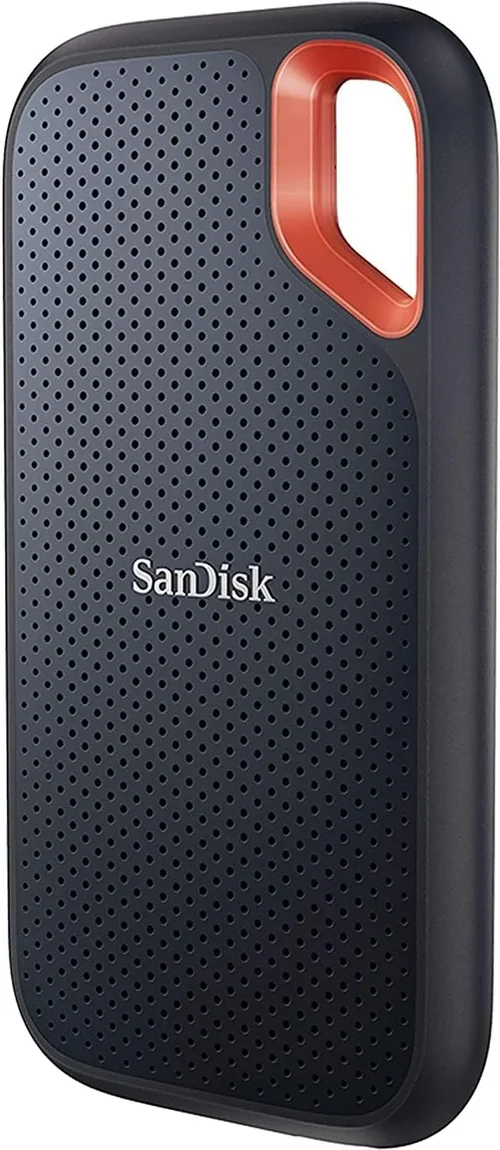
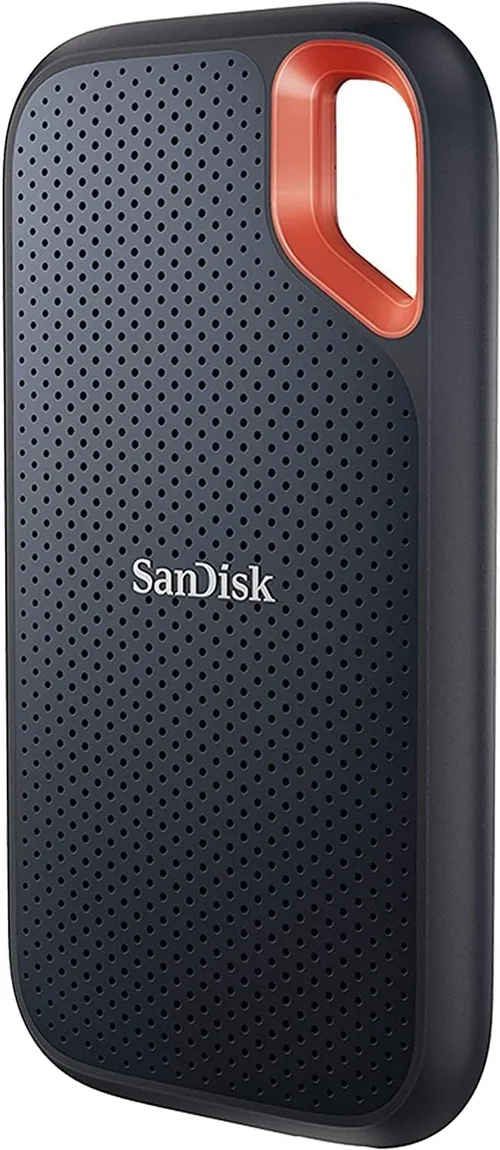
Best for Beginners: SanDisk Extreme – User-friendly, widely compatible, and includes SanDisk’s RescuePro Deluxe software for data recovery. The 1TB model hits the sweet spot at $110 with USB 3.2 Gen 2 speeds.
Best for Advanced Users: OWC Envoy Pro FX – Thunderbolt 3/USB4 dual-mode, IP67 rating, and tool-less design make it a favorite among tech-savvy creatives. Supports daisy-chaining and works seamlessly across Mac and PC.
Conclusion: Making the Right Choice
Choosing the right external SSD doesn’t have to be overwhelming. By focusing on your specific needs—whether that’s portability, speed, durability, or budget—you can narrow down the field to a handful of excellent options. Remember: the best drive isn’t always the fastest or most expensive; it’s the one that fits seamlessly into your workflow and protects your data reliably over time.
Prioritize performance specs that match your use case, invest in reputable brands with strong warranties, and never skip the backup strategy. Avoid common pitfalls like interface mismatches or cheap cables, and take advantage of seasonal sales to get the best value. Whether you’re a student backing up essays, a photographer storing RAW files, or a video editor cutting 8K footage, there’s an external SSD out there that’s perfect for you.
Now that you’re armed with expert knowledge, it’s time to make your move. Don’t let slow transfers or full drives hold you back any longer. Pick a drive that aligns with your priorities, test it thoroughly, and enjoy the freedom that comes with fast, reliable, and portable storage. Your future self—and your files—will thank you.