
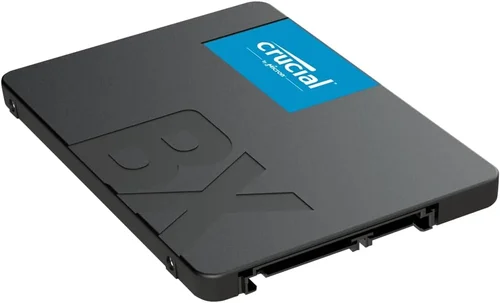
Solid-state drives (SSDs) have revolutionized how we store and access data. Gone are the days of waiting minutes for a computer to boot or hours to transfer large files. Today’s SSDs deliver near-instant responsiveness, dramatically faster application loading times, and significantly improved system reliability compared to traditional hard disk drives (HDDs). Whether you’re upgrading an aging laptop, building a high-performance gaming rig, or equipping a workstation for professional creative work, choosing the right SSD is one of the most impactful decisions you can make for your computing experience.
This comprehensive buying guide is designed to cut through the noise and help you make an informed decision in 2026’s crowded and rapidly evolving SSD market. With dozens of brands, form factors, interface standards, and performance tiers available, it’s easy to feel overwhelmed—especially when prices can range from under $20 to over $500 for a single drive. Our goal is to equip you with the knowledge to evaluate your specific needs, understand what truly matters in SSD performance and longevity, and ultimately select a drive that delivers the best balance of speed, reliability, value, and future-proofing for your use case.
The SSD landscape has matured significantly in recent years. While early adopters had to contend with high costs and limited capacities, today’s market offers something for everyone—from ultra-affordable SATA drives ideal for basic upgrades to blazing-fast PCIe Gen5 NVMe SSDs capable of saturating the latest motherboard interfaces. Major players like Samsung, Western Digital, Crucial, Kingston, and Sabrent continue to push technological boundaries, while newer entrants and value-focused brands have driven prices down across all categories. This guide will walk you through every critical consideration, from raw performance specs to real-world durability, so you can confidently choose the best SSD brand and model for your needs.

What to Look for When Buying Buying Guide
1. Budget & Price Range
Your budget is often the first and most practical filter when shopping for an SSD. Prices vary dramatically based on capacity, interface type, performance tier, and brand reputation. As of 2026, you can find reliable SATA SSDs starting around $15 for 240GB models, while high-end PCIe Gen5 NVMe drives in 4TB capacities can exceed $400. It’s important to understand that while higher price doesn’t always guarantee better real-world performance, it often correlates with superior build quality, longer warranties, and more consistent speeds under sustained workloads.
When setting your budget, consider not just the upfront cost but also cost per gigabyte (GB). For example, a 1TB drive priced at $80 offers better value ($0.08/GB) than a 500GB drive at $45 ($0.09/GB). Additionally, avoid the temptation to go for the absolute cheapest option—especially in the sub-$20 range—as these often use lower-quality NAND flash memory and lack robust error correction, which can lead to data corruption or premature failure. A good rule of thumb: allocate at least $0.07–$0.12 per GB for a reliable, mid-tier SSD that balances performance and longevity.
2. Performance Specifications
SSD performance is typically measured in two key metrics: sequential read/write speeds and random read/write IOPS (Input/Output Operations Per Second). Sequential speeds—often advertised in MB/s—matter most for tasks like copying large files, loading games, or transferring video footage. Random IOPS, on the other hand, reflect how well the drive handles many small, scattered operations simultaneously, which is crucial for multitasking, database work, or running virtual machines.
For most consumers, sequential speeds above 500 MB/s (SATA III limit) are sufficient for everyday use. However, if you’re building a gaming PC or working with 4K/8K video, you’ll want a PCIe NVMe SSD with read speeds of 3,500 MB/s or higher. In 2026, PCIe Gen4 drives are the sweet spot for performance and value, offering speeds up to 7,000 MB/s, while Gen5 drives push beyond 10,000 MB/s—but often at a significant premium and with increased heat output. Don’t get swayed by peak numbers alone; sustained performance under load (especially during large file transfers or heavy multitasking) is a better indicator of real-world usability.
3. Build Quality & Durability
Not all SSDs are built equally, even if they share the same interface and capacity. Build quality encompasses the type of NAND flash memory used (SLC, MLC, TLC, or QLC), the quality of the controller chip, thermal management, and overall design integrity. Higher-end drives typically use TLC (Triple-Level Cell) or even MLC (Multi-Level Cell) NAND, which offer better endurance and longevity compared to QLC (Quad-Level Cell), which stores more data per cell but wears out faster.
Endurance is measured in Terabytes Written (TBW)—the total amount of data that can be written to the drive over its lifetime. A 1TB SSD might have a TBW rating of 600–1,200 TB, depending on the NAND type and brand. For typical consumer use (light browsing, office work, occasional gaming), even QLC drives are more than adequate. But if you plan to use your SSD for frequent large file writes—like video editing, software development, or running a home server—opt for a drive with higher TBW and DRAM cache, which improves both performance and lifespan.
4. Features & Functionality
Modern SSDs come with a range of features that go beyond raw speed. One of the most important is DRAM cache—a small amount of fast memory that acts as a buffer between the host system and the NAND flash. Drives with DRAM cache maintain consistent performance during heavy workloads and have longer lifespans due to better wear leveling. DRAM-less SSDs are cheaper but can suffer from performance drops when the drive is nearly full or under sustained load.
Other valuable features include hardware encryption (such as TCG Opal or AES-256), which protects your data if the drive is lost or stolen; thermal throttling protection, which prevents overheating in compact systems like laptops or small-form-factor PCs; and power-loss protection, which safeguards data during unexpected shutdowns—critical for workstations and servers. Some premium drives also include software suites for drive monitoring, cloning, and firmware updates, which can simplify maintenance and extend the drive’s useful life.
5. Brand Reputation
Brand reputation matters in the SSD world because it often correlates with consistency, reliability, and customer support. Established brands like Samsung, Western Digital, Crucial (a Micron brand), and Kingston have spent years refining their NAND technology, controllers, and firmware. They also tend to offer longer warranties, more transparent specifications, and better post-purchase support.
That said, newer or lesser-known brands can offer excellent value, especially in the budget segment. Brands like Team Group, ADATA, and Netac have gained traction by delivering solid performance at competitive prices. However, be cautious with no-name or ultra-cheap drives sold on third-party marketplaces—these may use recycled or lower-grade components and often lack proper firmware updates or warranty coverage. When in doubt, stick with brands that have a proven track record and positive reviews from trusted tech publications.
6. Warranty & Support
A strong warranty is a strong indicator of a manufacturer’s confidence in their product. Most reputable SSD brands offer warranties ranging from 3 to 5 years, with some high-end models extending to 7 years. More importantly, look at the warranty terms: is it based on time, TBW, or both? A 5-year warranty with a 600 TBW limit means the warranty expires when either condition is met. High-end drives often have higher TBW ratings, effectively giving you longer usable life.
Customer support is another often-overlooked factor. If your drive fails or you encounter compatibility issues, you’ll want a brand that offers responsive, knowledgeable support via email, chat, or phone. Samsung and Crucial, for example, provide excellent online resources and firmware tools, while some budget brands may only offer limited email support with slow response times. Before buying, check the brand’s support page and user forums to see how they handle real-world issues.
7. Form Factor & Compatibility
SSDs come in several physical forms, and choosing the right one is essential for compatibility. The most common types are:
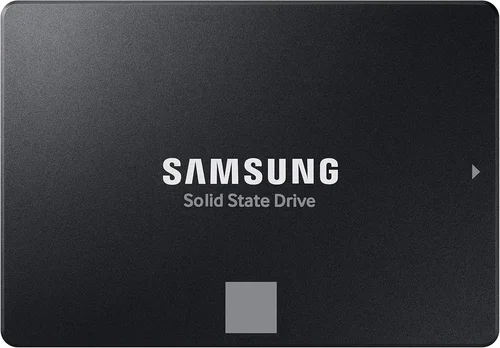
– 2.5-inch SATA SSDs: Resemble traditional laptop hard drives and connect via SATA cables. Ideal for upgrading older laptops or desktops.
– M.2 SATA SSDs: Small, stick-like drives that plug directly into the motherboard but still use the SATA interface (limited to ~550 MB/s).
– M.2 NVMe SSDs: Also M.2 form factor but use the faster PCIe interface. Available in Gen3, Gen4, and Gen5 variants. Gen4 is currently the most popular for high-performance builds.
– U.2 SSDs: Larger, enterprise-grade drives used in servers and workstations. Rare in consumer systems.
Always check your device’s specifications before buying. Laptops may only support M.2 2280 (80mm length) drives, while some motherboards have multiple M.2 slots with different speed capabilities. Also, ensure your system supports the interface—older systems may not support NVMe or PCIe Gen4/Gen5.
8. User Reviews & Ratings
While manufacturer specs give you the technical picture, user reviews reveal real-world performance, reliability, and potential issues. Look for patterns in reviews: are multiple users reporting the same failure mode? Is the drive consistently slower than advertised under load? Are firmware updates improving performance over time?
Trusted review sites like Tom’s Hardware, AnandTech, and PCMag conduct rigorous testing, but don’t ignore customer reviews on retail platforms like Amazon, Newegg, or Best Buy. Pay attention to verified purchase reviews and look for detailed feedback rather than generic “fast” or “slow” comments. Also, check forums like Reddit’s r/buildapc or r/DataHoarder for community insights, especially for niche use cases like NAS setups or long-term archival storage.
Different Types of Buying Guide

Common Buying Mistakes to Avoid
❌ Mistake: Prioritizing Peak Speed Over Real-World Performance
Why it’s bad: Many buyers focus solely on advertised sequential read speeds (e.g., “7,000 MB/s!”) without considering how the drive performs under sustained load or when nearly full. Some drives use aggressive caching that delivers high burst speeds but drops dramatically once the cache is exhausted.
What to do instead: Look for reviews that test sustained write performance and mixed workloads. A drive that maintains 3,000 MB/s during a 100GB file transfer is often more useful than one that peaks at 7,000 MB/s but drops to 800 MB/s after 30 seconds.
❌ Mistake: Ignoring TBW and NAND Type
Why it’s bad: Choosing a QLC-based SSD for heavy write workloads (like video editing or database use) can lead to premature wear and data loss. QLC drives have lower endurance and may slow down significantly when full.
What to do instead: Match the NAND type to your usage. Use TLC or MLC for demanding tasks and QLC only for light, read-heavy workloads like media storage or casual gaming.
❌ Mistake: Buying the Cheapest Drive Available
Why it’s bad: Ultra-low-cost SSDs often cut corners on components, lack DRAM cache, and use outdated controllers. They may fail sooner and offer poor performance consistency.
What to do instead: Invest in a reputable brand with at least a 3-year warranty. The extra $10–$20 often buys significantly better reliability and peace of mind.
❌ Mistake: Overlooking Compatibility
Why it’s bad: Buying an M.2 NVMe drive for a laptop that only supports SATA M.2 or a Gen5 drive for a motherboard that doesn’t support it results in wasted money and frustration.
What to do instead: Double-check your device’s manual or manufacturer website for supported form factors, interfaces, and lengths (e.g., M.2 2280). Use tools like Crucial’s System Scanner for compatibility checks.
❌ Mistake: Neglecting Thermal Management
Why it’s bad: High-performance NVMe drives, especially Gen4 and Gen5, generate significant heat. Without proper cooling, they throttle performance to prevent damage, negating their speed advantage.
What to do instead: Use a heatsink if your case or motherboard supports it. In laptops or small PCs, consider drives with built-in thermal throttling protection or lower-power models.
❌ Mistake: Not Checking Firmware Updates
Why it’s bad: Some SSDs ship with buggy firmware that causes crashes, data corruption, or performance issues. Manufacturers often release updates to fix these problems.
What to do instead: Before buying, check the brand’s support page for recent firmware updates and user reports. Avoid drives with known, unresolved issues.
❌ Mistake: Assuming All NVMe Drives Are Equal
Why it’s bad: NVMe is an interface standard, not a performance guarantee. A Gen3 NVMe drive is much slower than a Gen4 or Gen5 model, even if both are labeled “NVMe.”
What to do instead: Always check the PCIe generation (Gen3, Gen4, Gen5) and ensure your system supports it. Don’t pay Gen4 prices for a Gen3 drive.
Budget Guidelines: How Much Should You Spend?
– Entry-Level ($15–$50): Ideal for basic upgrades or secondary storage. Expect SATA or low-end NVMe drives with capacities from 240GB to 1TB. Performance is adequate for web browsing, office apps, and light gaming. Look for brands like Kingston, Team Group, or Crucial BX series. Avoid no-name brands in this range.
– Mid-Range ($50–$150): The sweet spot for most users. You’ll find reliable PCIe Gen3 and Gen4 NVMe SSDs with 1TB–2TB capacities, DRAM cache, and strong endurance. Brands like Samsung 980 Pro, WD Black SN850X, and Crucial P5 Plus offer excellent performance and reliability. This tier delivers the best balance of speed, capacity, and value.
– Premium ($150–$300): For enthusiasts, content creators, and power users. These drives offer top-tier Gen4 or early Gen5 performance, high TBW ratings, and advanced features like hardware encryption and thermal monitoring. Expect 2TB–4TB capacities from brands like Samsung, Sabrent, and Corsair. Ideal for 4K/8K video editing, large game libraries, and professional workloads.
– Luxury ($300+): Reserved for bleeding-edge systems and enterprise use. These are typically high-capacity Gen5 NVMe drives (4TB+) with extreme speeds, robust cooling solutions, and 5–7 year warranties. Examples include the Samsung 990 Pro 4TB and Sabrent Rocket 4 Plus-G. Only necessary if you demand maximum performance and future-proofing.

Expert Tips for Getting the Best Deal
– Buy During Major Sales Events: Look for discounts during Black Friday, Cyber Monday, Amazon Prime Day, and back-to-school seasons. SSDs often see 20–40% price drops during these periods.
– Compare Prices Across Retailers: Use price-tracking tools like CamelCamelCamel (for Amazon) or Honey to monitor historical pricing and set alerts for drops.
– Check Refurbished or Open-Box Options: Reputable retailers like Best Buy, Newegg, and Amazon Renewed offer certified refurbished SSDs with full warranties at significant discounts.
– Prioritize Capacity Over Peak Speed: A 2TB Gen3 drive often provides better real-world value than a 1TB Gen5 drive. More space means less frequent file management and better long-term performance.
– Read the Fine Print on Warranties: Some warranties require registration within 30 days of purchase. Others void coverage if the drive is used in a RAID array. Know the terms before buying.
– Test Before Committing: If possible, test the SSD in your system before finalizing the setup. Use tools like CrystalDiskMark or AS SSD Benchmark to verify performance matches expectations.
– Consider Future Upgrades: If you plan to build a new PC soon, consider buying a Gen4 or Gen5 drive now to avoid needing another upgrade later.
– Don’t Forget the Heatsink: High-performance NVMe drives benefit from heatsinks, especially in compact builds. Some motherboards include them; otherwise, buy a compatible aftermarket solution.

Frequently Asked Questions
Q: Is NVMe always faster than SATA?
A: Not necessarily. While NVMe drives have much higher potential speeds, real-world differences depend on your use case. For everyday tasks like web browsing or office work, the difference may be negligible. However, for gaming, video editing, or large file transfers, NVMe’s faster access times and higher throughput make a noticeable difference.
Q: Can I use an M.2 SSD in a laptop that originally had a 2.5-inch HDD?
A: Only if your laptop has an M.2 slot. Many modern laptops do, but some older models only support 2.5-inch drives. Check your laptop’s manual or manufacturer website. If no M.2 slot is available, you’ll need a 2.5-inch SATA SSD.
Q: Do I need a DRAM cache?
A: For most users, yes. DRAM cache improves performance consistency and longevity. DRAM-less SSDs can work for light use but may slow down under heavy workloads or when nearly full. If budget allows, always choose a drive with DRAM.
Q: How long do SSDs last?
A: Modern SSDs are highly durable. A typical 1TB TLC SSD with a 600 TBW rating could last over 10 years with average use (writing 160GB per day). Most users will never reach the TBW limit, and the drive will likely become obsolete before it fails.
Q: Can I recover data from a failed SSD?
A: Data recovery from SSDs is more difficult than from HDDs due to wear leveling and TRIM commands. If the drive is still detectable, tools like Recuva or professional services may help. For critical data, always maintain backups.
Q: Should I enable TRIM?
A: Yes. TRIM helps maintain SSD performance by informing the drive which blocks of data are no longer in use. It’s enabled by default in Windows, macOS, and most Linux distributions.
Q: Are Gen5 SSDs worth it in 2026?
A: Only if you have a compatible system and demanding workloads. Gen5 drives offer incredible speeds but come at a premium and generate more heat. For most users, Gen4 remains the better value.
Q: Can I use an SSD as a boot drive?
A: Absolutely. In fact, using an SSD as your primary (boot) drive is one of the best upgrades you can make. It drastically reduces boot times, application load times, and system responsiveness.
Q: Do SSDs need defragmentation?
A: No. Unlike HDDs, SSDs have no moving parts, so defragmentation is unnecessary and can reduce the drive’s lifespan by increasing write cycles. Modern operating systems automatically disable defragmentation for SSDs.
Our Final Recommendations
– Best for Budget-Conscious Buyers: Crucial P3 1TB (PCIe Gen3 NVMe) – Offers excellent value at around $60, with solid performance, DRAM cache, and a 5-year warranty. Perfect for upgrading older systems or building a budget gaming PC.
– Best Overall Value: Samsung 980 Pro 1TB (PCIe Gen4 NVMe) – A proven performer with speeds up to 7,000 MB/s, robust build quality, and Samsung’s reliable firmware. Priced around $100, it’s the go-to choice for most users.
– Best Premium Option: WD Black SN850X 2TB (PCIe Gen4 NVMe) – Combines top-tier speed, excellent thermal management, and a 5-year warranty. Ideal for gamers and creators who demand consistent high performance.
– Best for Beginners: Kingston NV2 1TB (PCIe Gen4 NVMe) – Simple, reliable, and affordable. Easy to install with no complex setup, making it perfect for first-time upgraders.
– Best for Advanced Users: Sabrent Rocket 4 Plus-G 4TB (PCIe Gen4 NVMe) – High capacity, extreme endurance (1,400 TBW), and blazing speeds. Comes with a heatsink and is ideal for workstations and content creation rigs.
Conclusion: Making the Right Choice
Choosing the best SSD brand and model in 2026 doesn’t have to be overwhelming. By focusing on your specific needs—whether that’s budget, performance, capacity, or compatibility—you can narrow down the options and find a drive that delivers lasting value. Remember, the “best” SSD isn’t always the fastest or most expensive; it’s the one that fits your use case, budget, and system requirements.
Prioritize reputable brands, check real-world reviews, and don’t overlook factors like endurance, warranty, and thermal performance. Whether you’re breathing new life into an old laptop or building a high-end gaming rig, the right SSD will transform your computing experience with faster boot times, quicker application launches, and smoother multitasking.
Take the time to assess your needs, compare options, and invest wisely. With the insights from this guide, you’re now equipped to make a confident, informed decision. Your future self—and your faster, more responsive system—will thank you.