
If you’re reading this, chances are your laptop is starting to feel a little sluggish—maybe boot times are stretching longer than they used to, or applications take forever to load. You’ve probably heard that upgrading to an SSD (Solid State Drive) can breathe new life into your machine, and you’re not wrong. In fact, swapping out a traditional hard disk drive (HDD) for an SSD is one of the most impactful upgrades you can make to any laptop, regardless of age or brand. But with so many options on the market—different form factors, speeds, interfaces, and price points—it’s easy to feel overwhelmed. That’s exactly why this guide exists.
In this comprehensive buying guide, we’ll walk you through everything you need to know to choose the best SSD for your laptop in 2026. Whether you’re a student looking to speed up your study sessions, a creative professional needing faster file access, or just someone tired of waiting for your laptop to wake up from sleep, we’ve got you covered. We’ll break down technical jargon into plain English, compare real-world performance, highlight common pitfalls, and give you actionable advice based on years of hands-on testing and industry expertise. By the end, you’ll have the confidence to pick an SSD that fits your needs, budget, and laptop—without overspending or buying the wrong thing.
The SSD market has evolved dramatically over the past few years. What was once a luxury upgrade is now standard equipment in most new laptops, and even older machines can benefit immensely from a modern SSD swap. Prices have dropped significantly while capacities and speeds have increased, making high-performance storage more accessible than ever. However, not all SSDs are created equal. Some are built for endurance and heavy workloads, others prioritize speed for gaming or video editing, and many strike a balance for everyday use. With brands like Samsung, Crucial, WD, Kingston, Sabrent, and others competing fiercely, it’s crucial to understand what truly matters—not just what looks good on paper. This guide cuts through the noise so you can make a smart, informed decision.

What to Look for When Buying Buying Guide
1. Compatibility: Matching Your Laptop’s Interface and Form Factor
Before you even think about speed or capacity, you must ensure the SSD you buy will physically and electronically work with your laptop. The two most critical compatibility factors are the interface (how the drive connects to your system) and the form factor (its physical size and shape).
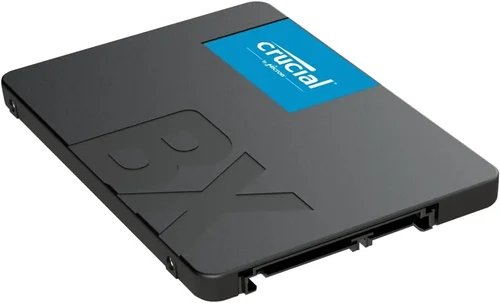
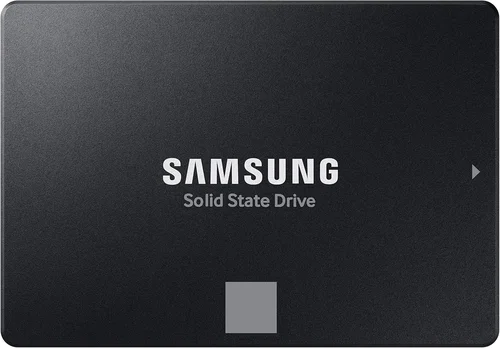
Most modern laptops use either SATA III or NVMe (PCIe) interfaces. SATA III drives typically come in the 2.5-inch form factor—the same size as traditional laptop hard drives—and connect via a standard SATA data and power cable. These are common in older or budget laptops. NVMe drives, on the other hand, are much faster and usually come in the M.2 form factor—a small, stick-like module that plugs directly into a dedicated slot on your motherboard. M.2 drives can use either SATA or NVMe protocols, so it’s essential to check your laptop’s specifications to see which one it supports.
To determine compatibility, consult your laptop’s user manual, manufacturer’s website, or use tools like Crucial’s System Scanner or Samsung’s Magician software. If your laptop has an M.2 slot but only supports SATA M.2 drives, buying a high-speed NVMe drive won’t help—it simply won’t work. Similarly, if your laptop only has a 2.5-inch bay, you can’t install an M.2 drive without an adapter (and even then, performance may be limited).
2. Performance Specifications: Speed, Endurance, and Real-World Use
Once compatibility is confirmed, performance becomes the next big consideration. SSD performance is measured primarily by read and write speeds (in MB/s or GB/s), input/output operations per second (IOPS), and endurance (measured in terabytes written, or TBW).
For SATA SSDs, maximum sequential read/write speeds typically cap around 550 MB/s due to the SATA III interface limit. While this might seem slow compared to NVMe drives, it’s still 5–6 times faster than most HDDs and more than adequate for everyday tasks like web browsing, office work, and media playback.
NVMe SSDs, especially those using PCIe Gen 4 or Gen 5, can reach speeds upwards of 7,000 MB/s (Gen 4) or even 14,000 MB/s (Gen 5). These blazing-fast speeds are ideal for content creators, gamers, and professionals working with large files like 4K video, 3D models, or virtual machines. However, for general use, the difference between a 500 MB/s SATA SSD and a 3,500 MB/s NVMe SSD may not be noticeable in daily operations—your system will still feel snappy either way.
Endurance matters too. Measured in TBW, it tells you how much data can be written to the drive over its lifetime. A 500GB SSD with a 300 TBW rating can handle 300 terabytes of writes before potential failure. For average users writing 20GB per day, that’s over 40 years of use—so endurance is rarely a concern unless you’re doing heavy database work or constant file transfers.
3. Capacity: How Much Storage Do You Really Need?
Capacity is often the most visible spec—and one of the easiest to get wrong. While it’s tempting to go for the largest drive available, you should balance your actual needs with cost and diminishing returns.
For most users, a 500GB SSD strikes the perfect balance between price and usability. It provides enough space for the operating system, essential applications, and a reasonable amount of personal files. If you store a lot of photos, videos, games, or software development projects, consider stepping up to 1TB. Gamers, in particular, should aim for at least 1TB, as modern AAA titles can easily consume 100GB each.
On the flip side, avoid going below 250GB unless you’re on a tight budget or use cloud storage extensively. With Windows 11 or macOS taking up 30–40GB alone, and essential apps like browsers, office suites, and antivirus software adding another 20–30GB, a 250GB drive fills up quickly. You’ll spend more time managing space than enjoying the speed boost.
Keep in mind that SSD prices per gigabyte decrease significantly as capacity increases. A 1TB drive often costs only 30–40% more than a 500GB model, making it a smarter long-term investment.
4. Build Quality & Durability: NAND Type and Controller
Not all SSDs are built the same under the hood. Two key internal components determine longevity and reliability: the NAND flash memory type and the controller.
NAND comes in several flavors: SLC (Single-Level Cell), MLC (Multi-Level Cell), TLC (Triple-Level Cell), and QLC (Quad-Level Cell). SLC is the most durable but expensive; QLC offers higher density and lower cost but reduced endurance and slower write speeds. Most consumer SSDs today use TLC or QLC. TLC strikes a great balance for everyday use, while QLC is acceptable for light workloads but may slow down under sustained writes.
The controller manages data flow between your system and the NAND chips. A high-quality controller improves performance consistency, error correction, and wear leveling (which spreads writes evenly across cells to extend lifespan). Brands like Samsung, Phison, and Silicon Motion produce top-tier controllers found in reliable drives.
Look for drives with DRAM cache—a small memory chip that acts as a buffer for frequently accessed data. DRAM-less SSDs are cheaper but can suffer from performance drops during heavy multitasking or large file transfers.
5. Brand Reputation & Reliability
While specs matter, so does trust. Established brands like Samsung, Crucial (a Micron brand), Western Digital, Kingston, and Sabrent have proven track records for quality control, firmware updates, and customer support. They also tend to use higher-grade components and offer better warranties.
Avoid no-name or ultra-cheap SSDs from unfamiliar brands, especially those sold exclusively through third-party marketplaces. These often use recycled or lower-quality NAND, lack proper firmware optimization, and may fail prematurely. Real-world reviews and long-term reliability reports (like those from Backblaze or Tom’s Hardware) consistently show that reputable brands outperform budget alternatives in both performance and longevity.
That said, some lesser-known brands do offer good value—just do your homework. Check professional reviews, user forums, and warranty terms before buying.
6. Warranty & Support: What Happens If It Fails?
A solid warranty is a strong indicator of a manufacturer’s confidence in their product. Most reputable SSDs come with 3- to 5-year limited warranties, often tied to TBW limits. For example, a 1TB Samsung 980 Pro might offer a 5-year warranty or 600 TBW—whichever comes first.
Pay attention to what the warranty covers. Does it include data recovery? Is it transferable if you sell your laptop? Can you get a replacement drive shipped quickly? Some brands, like Samsung and Crucial, offer excellent customer service with straightforward RMA processes. Others may require you to ship the drive back at your expense or provide extensive proof of purchase.
Also, consider whether the drive includes cloning software or migration tools. Many brands bundle utilities that make transferring your existing OS and files to the new SSD hassle-free—a huge time-saver for non-technical users.
7. Price & Value: Balancing Cost with Performance
SSD pricing has stabilized in 2026, with SATA drives hovering around $0.08–$0.12 per GB and NVMe drives ranging from $0.10–$0.20 per GB, depending on generation and brand. While it’s tempting to chase the lowest price, remember that you often get what you pay for.
A $30 480GB SATA SSD might seem like a steal, but it could be DRAM-less, use QLC NAND, and have minimal endurance. Meanwhile, a $60 500GB Crucial MX500 offers TLC NAND, DRAM cache, and a 5-year warranty—better value in the long run.
Instead of focusing solely on upfront cost, calculate cost per GB and consider total cost of ownership. A slightly more expensive drive that lasts twice as long or performs better under load may save you money and frustration down the line.
8. User Reviews & Real-World Feedback
Spec sheets tell part of the story, but user experiences reveal the rest. Look beyond star ratings and read detailed reviews on trusted sites like Amazon, Newegg, or Reddit’s r/buildapc and r/laptops. Pay attention to comments about real-world performance, heat generation (especially important in thin laptops), compatibility quirks, and failure rates.
Be wary of fake or incentivized reviews. Genuine feedback often includes specifics: “Installed in a 2019 Dell XPS 13—boot time dropped from 45 seconds to 12,” or “Used for video editing—no stuttering during 4K timeline playback.” These insights are far more valuable than generic praise.
Different Types of Buying Guide

Common Buying Mistakes to Avoid
❌ Mistake: Ignoring Compatibility
Why it’s bad: Buying an NVMe drive for a laptop that only supports SATA—or vice versa—means the drive simply won’t work. You’ll waste money and time returning it.
What to do instead: Always verify your laptop’s storage interface and form factor before purchasing. Use manufacturer specs or diagnostic tools.
❌ Mistake: Choosing Based Solely on Price
Why it’s bad: The cheapest SSDs often cut corners on components, leading to poor performance, shorter lifespan, or early failure.
What to do instead: Prioritize value over absolute low cost. Look for reputable brands with good warranties and real-world reviews.
❌ Mistake: Overlooking Capacity Needs
Why it’s bad: A 250GB SSD fills up fast with modern OSes and apps, forcing constant file management and reducing the upgrade’s benefit.
What to do instead: Start with 500GB as a minimum. If you game or work with media, go for 1TB or more.
❌ Mistake: Assuming All M.2 Drives Are NVMe
Why it’s bad: M.2 is just a form factor—it can house either SATA or NVMe drives. Installing the wrong type results in incompatibility.
What to do instead: Check whether your M.2 slot supports NVMe (PCIe) or only SATA. The key notch position (B-key vs. M-key) can also indicate compatibility.
❌ Mistake: Skipping Cloning or Backup
Why it’s bad: Installing a new SSD often means reinstalling your OS and apps from scratch—unless you clone your old drive.
What to do instead: Use free tools like Macrium Reflect, Clonezilla, or manufacturer-provided software to clone your existing drive before swapping.
❌ Mistake: Neglecting Thermal Throttling in Thin Laptops
Why it’s bad: High-performance NVMe drives can get hot, and thin laptops lack cooling. This causes thermal throttling, reducing speeds.
What to do instead: In ultrabooks or slim laptops, consider slightly lower-speed Gen 3 or DRAM-cached Gen 4 drives, or use a heatsink if space allows.
❌ Mistake: Not Checking Warranty Terms
Why it’s bad: Some warranties are voided if you exceed TBW limits or modify firmware. Others require original packaging.
What to do instead: Read the fine print. Choose drives with straightforward, user-friendly warranty policies.
Budget Guidelines: How Much Should You Spend?
– Entry-Level ($30–$60): Ideal for basic upgrades in older laptops. Expect SATA or entry-level NVMe drives (e.g., Crucial BX500, Kingston A400). Good for web browsing, office work, and light multitasking. Capacities typically 250GB–500GB.
– Mid-Range ($60–$120): The sweet spot for most users. Includes reliable TLC-based NVMe Gen 3 drives (e.g., Samsung 970 EVO Plus, WD Blue SN570) or high-quality SATA SSDs (e.g., Crucial MX500). Offers excellent performance, durability, and 500GB–1TB capacity.
– Premium ($120–$200): For power users, gamers, and creators. Features Gen 4 NVMe drives (e.g., Samsung 980 Pro, WD Black SN850X) with speeds up to 7,000 MB/s, robust controllers, and high endurance. Ideal for 4K editing, large game libraries, and virtualization.
– Luxury ($200+): Top-tier Gen 5 drives (e.g., Sabrent Rocket 5, Corsair MP700) for enthusiasts and professionals with cutting-edge systems. These offer blistering speeds (10,000+ MB/s), advanced cooling, and enterprise-grade reliability—but are overkill for most consumers.

Expert Tips for Getting the Best Deal
– Buy during sales events: Major discounts occur during Black Friday, Cyber Monday, Amazon Prime Day, and back-to-school seasons. Sign up for price alerts on sites like CamelCamelCamel or Honey.
– Check refurbished or open-box deals: Reputable retailers like Best Buy, Newegg, and B&H often sell certified refurbished SSDs at 20–30% off with full warranties.
– Compare total cost of ownership: A $100 drive that lasts 10 years is better value than a $60 drive that fails in 3.
– Use manufacturer trade-in programs: Some brands offer discounts when you recycle old drives or upgrade within their ecosystem.
– Verify return policies: Ensure you can return the drive if it’s incompatible or defective. Avoid sellers with restocking fees or short return windows.
– Test before finalizing: After installation, run benchmarks (CrystalDiskMark, AS SSD) and monitor temperatures (HWInfo, CrystalDiskInfo) to confirm performance and stability.
– Don’t forget the mounting kit: Some 2.5-inch SSDs require a 7mm-to-9.5mm spacer for older laptop bays. M.2 drives may need a screw—check if your laptop includes one.

Frequently Asked Questions
Q: Can I upgrade my laptop’s SSD myself?
A: Yes, in most cases! Many laptops allow user-replaceable storage. However, some ultrabooks and MacBooks have soldered SSDs that cannot be upgraded. Check your model’s service manual first.
Q: Will an SSD improve gaming performance?
A: Absolutely—but mostly in load times. Games will launch faster, levels will stream quicker, and texture pop-in will减少. However, FPS (frames per second) depends on your GPU and CPU, not storage.
Q: Do I need to enable TRIM or update firmware?
A: Modern operating systems enable TRIM automatically. Firmware updates are recommended for performance and security—use your SSD brand’s utility (e.g., Samsung Magician, WD Dashboard).
Q: Can I use an external SSD instead?
A: Yes, via USB 3.2 Gen 2 or Thunderbolt. Great for extra storage or backups, but internal SSDs are faster and more convenient for your primary drive.
Q: How long do SSDs last?
A: For typical users, 5–10 years or more. Modern SSDs are extremely reliable. Worry more about accidental deletion or physical damage than wear-out.
Q: Is a DRAM-less SSD bad?
A: Not necessarily—for light use, they’re fine. But under heavy workloads, they can slow down. Opt for DRAM-cached drives if you multitask or work with large files.
Q: Should I get a Gen 4 or Gen 5 SSD?
A: Only if your laptop supports it. Gen 4 is plenty for most users. Gen 5 is future-proof but expensive and generates more heat—best for high-end workstations.
Q: What’s the difference between NVMe and PCIe?
A: NVMe is the protocol; PCIe is the interface. NVMe runs over PCIe lanes to deliver high speed. Think of PCIe as the highway and NVMe as the car driving on it.
Q: Can I mix SSD brands in RAID?
A: Technically yes, but not recommended. Mixing brands can lead to instability, inconsistent performance, and warranty issues. Stick to identical drives for RAID setups.
Our Final Recommendations
– Best for Budget-Conscious Buyers: Crucial MX500 (500GB SATA) – Reliable, DRAM-cached, excellent warranty, and proven longevity. Perfect for older laptops.
– Best Overall Value: Samsung 970 EVO Plus (1TB NVMe Gen 3) – Blends speed, endurance, and brand trust at a reasonable price. Ideal for most users.
– Best Premium Option: WD Black SN850X (1TB NVMe Gen 4) – Top-tier performance for gamers and creators, with robust cooling and 5-year warranty.
– Best for Beginners: Kingston NV2 (1TB NVMe Gen 3) – Simple installation, good performance, and Kingston’s user-friendly support. Great first upgrade.
– Best for Advanced Users: Sabrent Rocket 4 Plus (2TB NVMe Gen 4) – High capacity, blazing speeds, and excellent for video editing or development workloads.
Conclusion: Making the Right Choice
Upgrading your laptop with an SSD is one of the smartest, most cost-effective ways to revive aging hardware or boost a new machine’s responsiveness. But the key to success isn’t just buying the fastest or biggest drive—it’s choosing the right one for your specific needs, budget, and laptop configuration.
We’ve covered compatibility, performance, capacity, build quality, brand reliability, warranty, pricing, and real-world usage. We’ve compared drive types, warned against common mistakes, and offered expert tips to help you get the best deal. Now, it’s time to take action.
Start by identifying your laptop model and storage specs. Decide how much storage you realistically need. Set a budget that reflects value, not just low cost. And don’t rush—take the time to read reviews and verify compatibility. Remember, a well-chosen SSD won’t just make your laptop faster; it’ll make it feel new again.
So go ahead—swap that old HDD, install that shiny new NVMe stick, and enjoy the instant gratification of near-instant boot times, lightning-fast app launches, and seamless multitasking. Your future self will thank you every time you open your laptop.