
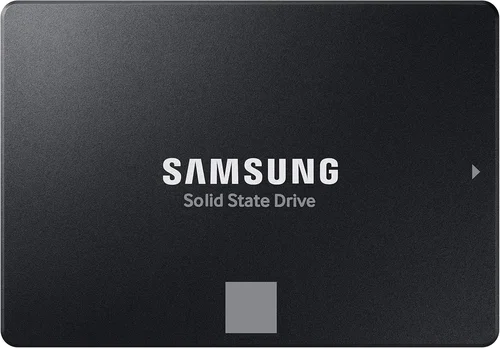
The solid-state drive (SSD) is no longer a luxury upgrade—it’s a necessity. If you’re still running your laptop on a traditional hard disk drive (HDD), you’re missing out on faster boot times, quicker application launches, and a noticeably more responsive computing experience. In 2026, SSDs have become the standard for laptops across all categories, from budget-friendly Chromebooks to high-end gaming rigs and professional workstations. But with so many options on the market—varying in form factor, interface, performance, and price—choosing the right SSD can feel overwhelming.
This comprehensive buying guide is designed to cut through the noise and help you make an informed decision tailored to your specific needs. Whether you’re upgrading an older laptop, building a new system, or simply looking to boost your current machine’s speed, we’ll walk you through every critical factor to consider. You’ll learn how to evaluate performance specs, understand compatibility requirements, avoid common pitfalls, and get the best value for your budget. By the end of this guide, you’ll have the confidence and knowledge to select the perfect SSD that delivers both reliability and performance.
The SSD market in 2026 is more dynamic than ever. Advancements in NAND flash technology, the widespread adoption of PCIe Gen 5, and the growing popularity of NVMe over SATA have reshaped what’s possible in laptop storage. At the same time, prices have stabilized, making high-capacity SSDs more accessible than ever. However, not all SSDs are created equal. Some prioritize raw speed, while others focus on endurance, power efficiency, or compact design. This guide will help you navigate these trade-offs and find the ideal balance for your use case—whether you’re a student, creative professional, gamer, or business user.

What to Look for When Buying Buying Guide
1. Compatibility: Form Factor and Interface
Before you even consider speed or capacity, you must ensure the SSD you choose is physically and electrically compatible with your laptop. The two most critical aspects here are the form factor and the interface.
Most modern laptops use one of three SSD form factors: M.2 2280, M.2 2242, or 2.5-inch SATA. The M.2 2280 (22mm wide, 80mm long) is by far the most common in newer laptops, offering a compact design ideal for slim devices. The 2.5-inch SATA SSDs are bulkier and typically found in older or budget laptops, but they’re still widely used due to their simplicity and compatibility with legacy systems.
The interface determines how the SSD communicates with your laptop’s motherboard. The two primary interfaces are SATA III and NVMe (Non-Volatile Memory Express). SATA III is older and limited to around 600 MB/s, while NVMe leverages the PCIe (Peripheral Component Interconnect Express) bus, enabling much faster data transfer rates—up to 7,000 MB/s or more with PCIe Gen 4 and Gen 5.
To check compatibility, consult your laptop’s user manual or manufacturer’s website. Look for specifications like “M.2 NVMe slot” or “SATA III SSD support.” Some laptops support both, but only one at a time. Installing an NVMe SSD in a SATA-only slot (or vice versa) won’t work. Also, verify the keying of the M.2 slot—most consumer laptops use the M-key (with two notches), which supports NVMe, while B-key slots are typically for SATA or older standards.
2. Performance Specifications: Speed and IOPS
Once compatibility is confirmed, performance becomes the next major consideration. SSD performance is typically measured in two key areas: sequential read/write speeds and random input/output operations per second (IOPS).
Sequential speeds refer to how fast large files (like videos or disk images) can be read from or written to the drive. These are usually advertised in MB/s (megabytes per second). For example, a PCIe Gen 4 NVMe SSD might offer sequential read speeds of up to 7,000 MB/s and write speeds of 6,500 MB/s, while a SATA III SSD maxes out around 550 MB/s.
Random IOPS, on the other hand, measure how quickly the drive can handle small, scattered data requests—like opening multiple browser tabs, loading game assets, or running database queries. High IOPS are crucial for multitasking and responsive system performance. A good NVMe SSD can deliver over 1 million IOPS, whereas SATA SSDs typically manage 100,000–200,000 IOPS.
When comparing SSDs, don’t just focus on peak speeds. Real-world performance often depends on sustained performance under load. Some budget SSDs use DRAM-less designs or slower NAND types (like QLC), which can cause significant slowdowns during prolonged writes. Look for drives with DRAM cache and TLC (Triple-Level Cell) or MLC (Multi-Level Cell) NAND for better consistency.
Also, consider the controller—the “brain” of the SSD. High-quality controllers from manufacturers like Phison, Silicon Motion, or Samsung’s in-house designs offer better performance, power efficiency, and longevity.
3. Storage Capacity: How Much Do You Really Need?
Storage capacity is one of the most straightforward yet often misunderstood aspects of SSD selection. While it’s tempting to go for the largest drive available, you should balance your actual needs with budget and performance.
For most users, a 500GB SSD is the sweet spot. It provides enough space for the operating system, essential applications, and a reasonable amount of personal files. If you’re a student or office worker who primarily uses cloud storage, 500GB may even be more than enough.
Gamers, video editors, and content creators, however, will benefit from 1TB or larger drives. Modern games can take up 100GB or more each, and 4K video projects easily consume hundreds of gigabytes. A 2TB SSD is ideal for heavy workloads, while 4TB drives are available for professionals who need maximum local storage.
Keep in mind that SSDs perform best when they’re not nearly full. Aim to keep at least 10–20% of the drive’s capacity free to maintain optimal performance and longevity. Overfilling an SSD can lead to slower write speeds and reduced lifespan due to increased wear on the NAND cells.
4. NAND Flash Type: TLC, QLC, MLC, and SLC
The type of NAND flash memory used in an SSD significantly impacts its performance, endurance, and price. There are four main types: SLC, MLC, TLC, and QLC.
SLC (Single-Level Cell) stores one bit per cell and offers the highest endurance and speed but is extremely expensive and rarely used in consumer SSDs. MLC (Multi-Level Cell) stores two bits per cell and strikes a good balance between cost and performance, often found in enterprise drives. TLC (Triple-Level Cell) stores three bits per cell and is the most common in consumer SSDs due to its affordability and decent performance. QLC (Quad-Level Cell) stores four bits per cell, offering higher capacities at lower prices but with reduced write endurance and slower write speeds.
For most laptop users, TLC is the ideal choice. It provides excellent performance for everyday tasks and moderate workloads. QLC drives are acceptable for light users who prioritize capacity over speed, but they may struggle with sustained writes—such as video editing or large file transfers.
Avoid DRAM-less QLC SSDs if possible. These drives rely on system memory (HMB—Host Memory Buffer) for caching, which can lead to inconsistent performance and faster wear. Look for SSDs with dedicated DRAM cache, especially if you plan to use your laptop for demanding applications.
5. Endurance and Lifespan: TBW and Warranty
SSD lifespan is measured in terabytes written (TBW)—the total amount of data that can be written to the drive over its lifetime. Higher TBW ratings indicate greater endurance. For example, a 1TB SSD might have a TBW rating of 600TB, meaning you could write 600 terabytes of data before the drive is likely to fail.
To put this in perspective, the average user writes about 10–20GB per day. At 15GB/day, it would take over 100 years to reach a 600TBW limit. However, heavy users—such as video editors or developers—may write 100GB or more daily, which could reduce the effective lifespan to 10–15 years.
Warranty length is another indicator of endurance. Most reputable SSDs come with a 3- to 5-year warranty. Some high-end models offer up to 10 years. A longer warranty often correlates with higher-quality components and better endurance.
When comparing SSDs, check both the TBW rating and the warranty period. A drive with a high TBW but short warranty may use lower-quality NAND, while a drive with a long warranty but low TBW might be overpriced. Aim for a balance—look for at least 150TBW per 500GB of capacity and a minimum 3-year warranty.
6. Power Efficiency and Thermal Management
Laptops are power-constrained devices, and SSDs can impact battery life and thermal performance. High-performance NVMe SSDs, especially PCIe Gen 4 and Gen 5 models, can generate significant heat under load, which may lead to thermal throttling—reducing speed to prevent overheating.
Look for SSDs with built-in thermal throttling protection and efficient power management. Some drives include dynamic thermal sensors that adjust performance based on temperature. Others use low-power states to reduce energy consumption when idle.
Power efficiency is also crucial for battery life. While SSDs generally consume less power than HDDs, some NVMe drives draw more current during active use. Check manufacturer specifications for idle and active power consumption (measured in watts). For ultrabooks and thin-and-light laptops, prioritize drives with low power draw and effective heat dissipation.
7. Brand Reputation and Reliability
Not all SSD brands are created equal. While third-party manufacturers offer competitive prices, established brands like Samsung, Crucial, Western Digital, Kingston, and SK Hynix have a proven track record of reliability, performance, and customer support.
Samsung’s 990 Pro and 980 Pro series are renowned for their speed and endurance. Crucial, a subsidiary of Micron, offers excellent value with drives like the P5 Plus and X9 Pro. Western Digital’s WD Black SN850X is a favorite among gamers, while Kingston’s KC3000 delivers strong performance at a reasonable price.
Avoid no-name or ultra-budget brands that lack transparency about components or firmware. These drives may use recycled NAND, outdated controllers, or poor-quality PCBs, leading to early failure or data loss.
Check independent reviews from trusted sources like Tom’s Hardware, AnandTech, or PCMag. Look for consistency in performance benchmarks, user feedback, and failure rates. A brand with a strong reputation is more likely to honor warranties and provide timely firmware updates.
8. Warranty and Customer Support
A solid warranty and responsive customer support can make a big difference if something goes wrong. Most reputable SSDs come with a 3- to 5-year limited warranty that covers defects and premature failure. Some high-end models offer up to 10 years.
Read the fine print. Warranties often require registration, proof of purchase, and may exclude damage from improper installation or physical abuse. Some brands also offer data recovery services or expedited replacement programs.
Customer support quality varies widely. Samsung and Crucial are known for excellent support, with online tools, live chat, and detailed troubleshooting guides. Others may offer only email support with slow response times.
Before buying, check the manufacturer’s support page. Look for firmware update tools, diagnostic software, and clear warranty terms. A good support experience can save you time and stress if you encounter issues.
Different Types of Buying Guide
Common Buying Mistakes to Avoid
❌ Mistake: Ignoring Compatibility
Why it’s bad: Buying an SSD that doesn’t fit your laptop’s form factor or interface is a waste of money and time. You might end up with a drive that physically doesn’t install or isn’t recognized by the system.
What to do instead: Always verify your laptop’s SSD specifications before purchasing. Use manufacturer tools or third-party scanners to confirm compatibility.
❌ Mistake: Choosing Based on Price Alone
Why it’s bad: The cheapest SSDs often use low-quality components, lack DRAM cache, or have poor endurance. They may fail prematurely or deliver inconsistent performance.
What to do instead: Balance price with features. Look for drives with TLC NAND, DRAM cache, and a solid warranty. A slightly higher upfront cost can save you from data loss and replacement headaches.
❌ Mistake: Overlooking Thermal Throttling
Why it’s bad: High-performance NVMe SSDs can overheat in thin laptops, causing the drive to slow down to prevent damage. This negates the benefits of fast speeds.
What to do instead: Choose SSDs with thermal management features or consider adding a heatsink if your laptop allows it. Monitor temperatures using tools like HWMonitor or CrystalDiskInfo.
❌ Mistake: Buying More Capacity Than Needed
Why it’s bad: Overspending on a 2TB SSD when you only need 500GB is inefficient. You’re paying for unused space and potentially sacrificing performance if the drive uses QLC NAND.
What to do instead: Assess your actual storage needs. Use cloud storage or external drives for large media files. Opt for a smaller, faster SSD for your OS and applications.
❌ Mistake: Skipping Firmware Updates
Why it’s bad: Outdated firmware can cause compatibility issues, performance bugs, or security vulnerabilities. Some SSDs may even fail to work properly without the latest firmware.
What to do instead: Download the manufacturer’s SSD management software (e.g., Samsung Magician, Crucial Storage Executive) and check for firmware updates regularly.
❌ Mistake: Not Backing Up Before Installation
Why it’s bad: Installing a new SSD often requires reinstalling the operating system or cloning your existing drive. Without a backup, you risk losing important data.
What to do instead: Always back up your data before upgrading. Use tools like Macrium Reflect, Acronis True Image, or built-in OS utilities to create a full system image.
❌ Mistake: Assuming All NVMe SSDs Are Equal
Why it’s bad: NVMe is a protocol, not a performance guarantee. Some NVMe SSDs use slower PCIe Gen 3 lanes or QLC NAND, offering little advantage over SATA drives.
What to do instead: Check the PCIe generation and NAND type. Look for PCIe Gen 4 or Gen 5 with TLC NAND for the best performance. Read benchmarks to compare real-world speeds.
Budget Guidelines: How Much Should You Spend?
– Entry-Level ($30–$60): Ideal for basic upgrades in older laptops. Expect SATA III or M.2 SATA SSDs with 250GB–500GB capacity. Performance is modest but significantly better than HDDs. Brands like Kingston and Team Group offer reliable options in this range.
– Mid-Range ($60–$120): The sweet spot for most users. Look for 500GB–1TB NVMe PCIe Gen 3 or Gen 4 SSDs with TLC NAND and DRAM cache. Drives like the Samsung 980, Crucial P3, and WD Blue SN580 deliver excellent performance and value.
– Premium ($120–$250): For gamers, creators, and power users. These SSDs offer 1TB–2TB capacity, PCIe Gen 4 speeds, and high endurance. Models like the Samsung 990 Pro, WD Black SN850X, and Sabrent Rocket 4 Plus are top performers with robust warranties.
– Luxury ($250+): Top-tier drives for enthusiasts and professionals. Expect 2TB–4TB capacities, PCIe Gen 5 support, and cutting-edge features like hardware encryption and advanced thermal management. These are overkill for most users but ideal for high-end workstations.

Expert Tips for Getting the Best Deal
– Buy During Sales Events: Major retailers like Amazon, Newegg, and Best Buy offer significant discounts during Black Friday, Cyber Monday, and back-to-school seasons. Sign up for price alerts to catch deals.
– Compare Prices Across Retailers: Use tools like Google Shopping or PriceGrabber to compare prices. Sometimes, smaller retailers or manufacturer websites offer better deals than big-box stores.
– Check for Bundled Deals: Some SSDs come with free cloning software, heatsinks, or installation kits. These extras can add value and simplify the upgrade process.
– Consider Refurbished or Open-Box Units: Reputable sellers often offer certified refurbished SSDs at lower prices with full warranties. These are a great way to save money without sacrificing quality.
– Read Return Policies: Ensure the retailer offers a hassle-free return window (at least 30 days) in case the SSD is incompatible or defective.
– Test Before Committing: After installation, run benchmarks using tools like CrystalDiskMark or AS SSD to verify performance. Monitor temperatures and check for errors in the system log.
– Register Your SSD: Many manufacturers require registration to activate the full warranty. Do this promptly after purchase to avoid issues later.

Frequently Asked Questions
Q: Can I upgrade my laptop’s SSD myself?
A: In most cases, yes. Many laptops have easily accessible SSD slots under a panel on the bottom. However, some ultrabooks and MacBooks have soldered storage, making upgrades impossible. Check your laptop’s service manual or teardown videos on YouTube before attempting.
Q: Will a faster SSD improve gaming performance?
A: It depends. Faster SSDs reduce game load times and improve asset streaming in open-world games. However, once the game is loaded, FPS (frames per second) is primarily determined by your GPU and CPU. For gaming, a PCIe Gen 3 or Gen 4 NVMe SSD is sufficient.
Q: Do I need a heatsink for my SSD?
A: Not always. Most laptops have limited space, and many SSDs are designed to operate safely without one. However, if you’re using a high-performance Gen 4 or Gen 5 SSD in a compact chassis, a heatsink can help prevent thermal throttling.
Q: How do I clone my old drive to a new SSD?
A: Use cloning software like Macrium Reflect Free, Acronis True Image, or Samsung Data Migration. Connect both drives (using a USB adapter if needed), select the source and destination, and start the clone process. Ensure the new SSD is equal to or larger than the used space on the old drive.
Q: Can I use an external SSD with my laptop?
A: Yes, and it’s a great option for expanding storage or backing up data. USB 3.2 Gen 2 or Thunderbolt 3/4 external SSDs offer fast speeds and portability. Just ensure your laptop supports the required interface.
Q: How long do SSDs last?
A: Most consumer SSDs last 5–10 years under normal use, depending on usage patterns and TBW ratings. Modern drives are highly reliable, and failure is rare before the warranty expires.
Q: Is DRAM cache necessary?
A: For most users, yes. DRAM cache improves performance consistency, especially during sustained writes. DRAM-less SSDs can slow down significantly under load and wear out faster.
Q: What’s the difference between NVMe and SATA?
A: NVMe is a faster protocol that uses the PCIe bus, while SATA is older and limited to about 600 MB/s. NVMe SSDs are significantly faster but require compatible hardware.
Q: Can I mix SSD types in my laptop?
A: Only if your laptop has multiple storage slots. Some models support both an M.2 NVMe and a 2.5-inch SATA drive. Check your laptop’s specifications to confirm.
Our Final Recommendations
– Best for Budget-Conscious Buyers: Crucial P3 1TB – Offers excellent NVMe Gen 3 performance at a low price, with TLC NAND and a 5-year warranty.
– Best Overall Value: Samsung 980 1TB – Reliable, fast, and well-priced. Great for everyday use with strong performance and Samsung’s excellent support.
– Best Premium Option: Samsung 990 Pro 2TB – Top-tier Gen 4 performance, high endurance, and advanced thermal management. Ideal for power users.
– Best for Beginners: WD Blue SN580 500GB – Easy to install, reliable, and affordable. Perfect for first-time upgraders.
– Best for Advanced Users: Sabrent Rocket 4 Plus 2TB – PCIe Gen 4 speeds, high capacity, and robust build quality. Great for content creators and gamers.
Conclusion: Making the Right Choice
Choosing the right SSD for your laptop doesn’t have to be complicated. By focusing on compatibility, performance, capacity, and reliability, you can find a drive that transforms your computing experience. Remember to prioritize your specific needs—whether that’s speed for gaming, capacity for media, or longevity for professional work.
Don’t fall for marketing hype or the cheapest option. Invest in a quality SSD from a reputable brand, and you’ll enjoy faster boot times, quicker file access, and a more responsive system for years to come. Use the tips and guidelines in this article to make an informed decision, and don’t hesitate to seek help if you’re unsure.
Your laptop deserves the best storage solution. With the right SSD, you’re not just upgrading hardware—you’re unlocking your device’s full potential.