
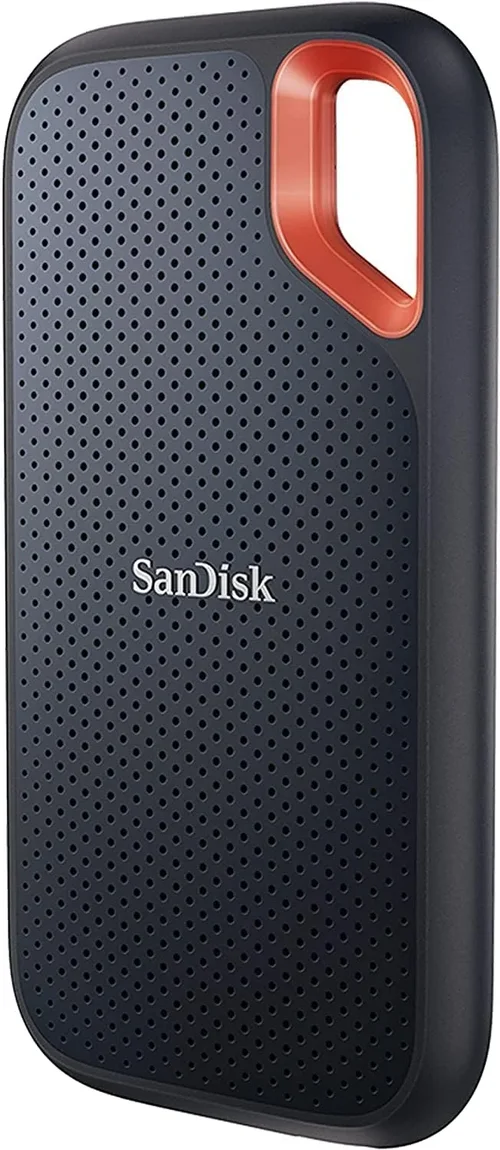
The world of solid-state drives (SSDs) has evolved dramatically over the past decade, transforming from a luxury upgrade to an essential component in any modern PC build. Whether you’re building a high-performance gaming rig, upgrading an aging laptop, or assembling a workstation for content creation, choosing the right SSD can make or break your system’s responsiveness, reliability, and overall user experience. In 2026, the SSD market is more competitive than ever—offering blistering speeds, rock-solid endurance, and increasingly affordable pricing across all categories. But with so many options flooding the market, it’s easy to feel overwhelmed by technical jargon, conflicting reviews, and rapidly changing technology standards.
This comprehensive buying guide is designed to cut through the noise and deliver expert-level insights tailored to real-world needs. You’ll learn how to evaluate SSDs based on your specific use case—whether that’s everyday computing, gaming, video editing, or enterprise-level workloads. We’ll break down the critical factors that matter most, compare different types of SSDs, highlight common pitfalls to avoid, and provide actionable recommendations based on performance, value, and long-term reliability. By the end of this guide, you’ll have the confidence to choose the best SSD for your PC without overspending or compromising on quality.

What to Look for When Buying Buying Guide
1. Form Factor and Interface Compatibility
The physical size and connection type of your SSD must match your system’s capabilities. The two most common form factors are 2.5-inch SATA drives and M.2 drives, which plug directly into the motherboard. M.2 drives come in various lengths (e.g., 2280, meaning 22mm wide and 80mm long) and support either SATA or NVMe protocols. NVMe M.2 SSDs are significantly faster than their SATA counterparts because they use the PCIe interface instead of the older SATA III bottleneck (capped at ~600 MB/s). Always check your motherboard manual or manufacturer specs to confirm which M.2 slots are available and whether they support PCIe Gen3, Gen4, or even Gen5. For example, if you own a newer AMD Ryzen 7000 or Intel 13th/14th Gen system, you likely have PCIe Gen5 support—but using a Gen5 drive in a Gen4 slot will limit its speed. Similarly, laptops often have space constraints; some only accommodate shorter M.2 2242 drives, while others may require a 2.5-inch bay with SATA power and data connectors.
2. Performance Specifications: Speed, IOPS, and Latency
SSD performance isn’t just about sequential read/write speeds—though those numbers dominate marketing materials. Real-world responsiveness depends heavily on random read/write performance, measured in Input/Output Operations Per Second (IOPS). For everyday tasks like booting Windows, launching apps, or loading game levels, high random 4K read speeds (often 50–100K IOPS or more) matter far more than peak sequential throughput. Sequential speeds (e.g., 7,000 MB/s for Gen4 NVMe) are important for large file transfers, video editing, or database operations, but most users won’t notice the difference between 3,500 MB/s and 7,000 MB/s in daily use. Latency—the time it takes for the drive to respond to a request—is another underappreciated metric. Lower latency means snappier system behavior. When comparing drives, look beyond advertised peak speeds and check independent benchmarks (like those from Tom’s Hardware or AnandTech) for real-world performance under mixed workloads.
3. NAND Flash Type and Controller Quality
Not all SSDs are built with the same internal components. The type of NAND flash memory—SLC, MLC, TLC, or QLC—directly impacts endurance, speed, and cost. SLC (single-level cell) is the fastest and most durable but prohibitively expensive for consumer use. MLC (multi-level) offers good balance but is rare in mainstream drives today. Most consumer SSDs use TLC (triple-level) or QLC (quad-level) NAND. TLC provides excellent performance and decent endurance for typical users, while QLC is cheaper and higher-capacity but slower under sustained writes and less durable. The controller—the SSD’s “brain”—manages data flow, error correction, wear leveling, and garbage collection. High-quality controllers from companies like Phison, Silicon Motion, or Marvell ensure consistent performance and longevity. Avoid no-name brands with obscure controllers, as they often cut corners on firmware optimization and thermal management.
4. Endurance and TBW Rating
SSD endurance is measured in Terabytes Written (TBW)—the total amount of data that can be written to the drive over its lifetime before it may start failing. A 1TB SSD might have a TBW rating of 600–1,200TB, depending on NAND type and manufacturer. For context, the average user writes less than 20GB per day, meaning even a modest 600TBW drive could last over 80 years under normal use. However, heavy workloads like video editing, database servers, or frequent large file transfers can accelerate wear. Always check the TBW rating relative to capacity: higher TBW per GB indicates better endurance. Manufacturers also specify Mean Time Between Failures (MTBF), typically 1.5–2 million hours, though this is more of a theoretical metric than a practical one.
5. DRAM Cache Presence
A DRAM cache acts as a high-speed buffer between the host system and NAND flash, dramatically improving performance—especially during random access and sustained writes. DRAM-less SSDs rely on slower HMB (Host Memory Buffer) technology, which borrows a small portion of your system RAM. While HMB works adequately for light tasks, it struggles under heavy multitasking or large file operations. For gaming, productivity, or creative work, always prioritize SSDs with a dedicated DRAM cache. You’ll notice smoother performance, faster boot times, and better responsiveness when switching between apps. Budget drives often omit DRAM to cut costs, but the performance penalty is real—and often not worth the savings.
6. Thermal Management and Throttling
High-speed NVMe SSDs, especially PCIe Gen4 and Gen5 models, generate significant heat during intensive workloads. Without proper cooling, they throttle—reducing speed to prevent overheating. This can turn a 7,000 MB/s drive into a 2,000 MB/s one under sustained load. Many premium M.2 SSDs now include built-in heatsinks or thermal pads, and some motherboards feature M.2 heatsinks or shields. If you’re building a compact PC or using a drive in a cramped case, consider adding an aftermarket M.2 heatsink. Monitor temperatures using tools like HWInfo or CrystalDiskInfo; sustained temps above 70°C can trigger throttling. For Gen5 drives, active cooling (like small fans) may be necessary in high-end builds.
7. Brand Reputation and Firmware Support
Stick with reputable brands known for consistent quality, reliable firmware updates, and strong customer support. Leaders like Samsung, Western Digital, Crucial, Kingston, and Sabrent have proven track records. Avoid ultra-cheap no-name brands that may use recycled NAND or outdated controllers. Firmware updates can fix bugs, improve performance, and extend lifespan—so choose a brand that actively supports its products. Samsung’s Magician and WD’s Dashboard software, for example, offer optimization tools, health monitoring, and secure erase functions. A good brand also means easier RMA processes if something goes wrong.
8. Warranty and Support
Most SSDs come with 3- to 5-year limited warranties, often tied to TBW limits (e.g., “5 years or 600TBW, whichever comes first”). Longer warranties usually indicate higher confidence in product durability. Check the fine print: some warranties require registration, original receipt, or prohibit certain uses (like mining). Also consider the ease of return—brands with global service centers or local distributors make replacements smoother. Avoid gray-market imports sold through third-party sellers, as they may void warranty coverage.
Different Types of Buying Guide

Common Buying Mistakes to Avoid
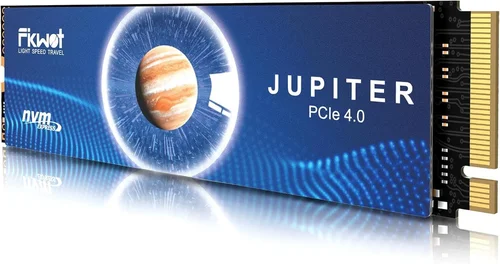
❌ Mistake: Prioritizing Peak Speeds Over Real-World Performance
Why it’s bad: Marketing materials love to highlight maximum sequential read speeds, but these rarely reflect everyday usage. A drive rated at 7,400 MB/s may feel no faster than a 3,500 MB/s drive when loading a game or opening Photoshop because most tasks involve small, random file accesses.
What to do instead: Focus on random 4K read/write performance and real-world benchmarks. Look for reviews that test boot times, app launches, and multitasking scenarios.
❌ Mistake: Buying DRAM-less SSDs for Primary Storage
Why it’s bad: DRAM-less drives suffer from inconsistent performance, especially under load. They’re prone to slowdowns during file transfers or when the drive fills up.
What to do instead: Always choose an SSD with a DRAM cache for your OS and frequently used applications. Save DRAM-less models only for secondary storage or archival purposes.
❌ Mistake: Ignoring Thermal Throttling in High-Performance Drives
Why it’s bad: Without adequate cooling, Gen4 and Gen5 SSDs can throttle dramatically, negating their speed advantages. This is especially problematic in small form-factor PCs or poorly ventilated cases.
What to do instead: Invest in an M.2 heatsink or ensure your case has good airflow. Monitor drive temps regularly and consider drives with built-in thermal solutions.
❌ Mistake: Overlooking Compatibility with Older Systems
Why it’s bad: Plugging a PCIe Gen4 NVMe drive into a Gen3-only motherboard won’t break anything, but you’ll miss out on half the performance—and pay a premium for unused capability.
What to do instead: Match your SSD generation to your platform. If you’re on a Gen3 system, a high-end Gen3 drive often offers better value than a Gen4 model.
❌ Mistake: Choosing Based Solely on Price per GB
Why it’s bad: The cheapest SSDs often use QLC NAND, lack DRAM, and have poor controllers—leading to disappointing performance and shorter lifespans.
What to do instead: Balance cost with features. A slightly more expensive TLC-based drive with DRAM will outperform and outlast a bargain-bin QLC model.
❌ Mistake: Skipping Firmware Updates and Health Monitoring
Why it’s bad: Outdated firmware can cause stability issues, security vulnerabilities, or missed performance optimizations.
What to do instead: Use manufacturer-provided tools (like Samsung Magician) to keep firmware updated and monitor drive health regularly.
❌ Mistake: Assuming All NVMe Drives Are Equal
Why it’s bad: NVMe is just a protocol—not a guarantee of speed or quality. Some “NVMe” drives are actually SATA-based M.2 sticks masquerading as faster options.
What to do instead: Verify the interface: true NVMe drives use PCIe lanes. Check specifications carefully and avoid misleading product titles.
Budget Guidelines: How Much Should You Spend?
- Entry-Level ($30–$60 for 1TB): Ideal for basic computing, web browsing, and office tasks. Look for reliable SATA or Gen3 NVMe drives from trusted brands (e.g., Crucial BX500, Kingston NV2). Expect modest speeds (500–3,500 MB/s) and basic endurance. Perfect for upgrading old HDDs or building budget PCs.
- Mid-Range ($60–$120 for 1TB): The sweet spot for most users. Offers Gen3 or entry-level Gen4 NVMe performance with DRAM cache, TLC NAND, and solid warranties. Great for gaming, streaming, and light content creation. Models like the WD Black SN770 or Samsung 980 Pro (Gen4) fall here.
- Premium ($120–$200 for 1TB): Designed for enthusiasts and professionals. Features high-end Gen4 or Gen5 speeds, robust thermal solutions, and excellent endurance (800+ TBW). Ideal for 4K video editing, 3D rendering, or competitive gaming. Examples include the Samsung 990 Pro and Sabrent Rocket 4 Plus.
- Luxury ($200+ for 1TB): Cutting-edge Gen5 drives with blistering speeds (10,000–14,000 MB/s), advanced controllers, and enterprise-grade reliability. Best for AI developers, data scientists, or users who demand absolute peak performance. Only recommended if your platform supports Gen5 and you have a clear need for the extra bandwidth.
Expert Tips for Getting the Best Deal
- Buy During Seasonal Sales: SSD prices drop significantly during holiday sales, back-to-school promotions, and Amazon Prime Day. Historical data shows 20–30% discounts are common in Q4.
- Compare Retailers: Don’t just check Amazon. Newegg, Best Buy, B&H, and Micro Center often run exclusive deals. Use price-tracking tools like CamelCamelCamel or Honey to find the lowest historical price.
- Consider Refurbished or Open-Box Units: Reputable retailers like Best Buy or manufacturer-certified refurbished programs offer like-new SSDs at 15–25% off with full warranties.
- Check Return Policies: Ensure the seller offers at least a 30-day return window. Some SSDs may have compatibility issues or DOA (dead on arrival) units.
- Bundle with Other Components: Motherboard or CPU bundles sometimes include free or discounted SSDs. These can offer exceptional value if the drive meets your specs.
- Test Before Committing: Once installed, run benchmarks (CrystalDiskMark, ATTO) and monitor temps. If performance is below spec or throttling occurs, initiate a return early.
- Register Your Drive: Many manufacturers require registration to activate the full warranty. Do this immediately after purchase to avoid issues later.
- Avoid “Too Good to Be True” Deals: If a 2TB Gen4 NVMe drive is selling for $50, it’s likely counterfeit or using recycled parts. Stick to authorized sellers.

Frequently Asked Questions
Q: Can I use an NVMe SSD in a SATA-only M.2 slot?
A: No. NVMe and SATA M.2 drives use different keying (notches) and protocols. A SATA M.2 slot will not support an NVMe drive, and vice versa. Always verify your motherboard’s M.2 slot type before purchasing.
Q: Will a faster SSD make my games load quicker?
A: Yes—but only up to a point. Games benefit most from fast random read speeds, which modern NVMe drives provide. However, beyond ~3,500 MB/s, diminishing returns set in. A Gen3 NVMe is often sufficient for gaming unless you’re playing titles with massive open worlds (e.g., Starfield).
Q: How much SSD storage do I really need?
A: For most users, 1TB is the practical minimum in 2026. Windows 11 alone takes 64–100GB, and modern games can consume 100–200GB each. If you edit videos or store large media libraries, consider 2TB or more.
Q: Are external SSDs worth it?
A: Absolutely—for portability and backup. USB 3.2 Gen 2×2 or Thunderbolt 4 external SSDs offer near-internal speeds and are perfect for creators on the go. Just ensure your laptop supports the interface.
Q: Should I fill my SSD to capacity?
A: No. SSDs need free space (10–20%) for wear leveling and garbage collection. Filling a drive beyond 80% can degrade performance and reduce lifespan.
Q: Do SSDs fail suddenly like HDDs?
A: Not usually. Most SSDs show warning signs via SMART data (e.g., reallocated sectors, high wear indicators). Monitoring tools can alert you before failure occurs.
Q: Can I clone my old HDD to a new SSD?
A: Yes—and it’s highly recommended. Use free tools like Macrium Reflect or Samsung Data Migration to transfer your OS, apps, and files seamlessly.
Q: Is PCIe Gen5 worth it in 2026?
A: Only if you have a compatible platform (Intel 13th/14th Gen or AMD Ryzen 7000+) and workloads that benefit from ultra-high bandwidth (e.g., 8K video, AI training). For most users, Gen4 remains the optimal balance of speed and value.
Q: What’s the difference between consumer and enterprise SSDs?
A: Enterprise drives prioritize endurance, power-loss protection, and 24/7 operation. They’re overkill for home use and significantly more expensive. Stick with consumer models unless you’re running a server.
Q: How do I securely erase an SSD before selling it?
A: Use the manufacturer’s secure erase tool (e.g., Samsung Magician’s “Secure Erase”) or the ATA Secure Erase command via Parted Magic. Never use standard formatting—it doesn’t wipe data effectively.
Our Final Recommendations
- Best for Budget-Conscious Buyers: Crucial P3 1TB (Gen3 NVMe) – Reliable TLC NAND, DRAM cache, and excellent value at under $60. Perfect for upgrading older systems or building a budget PC.
- Best Overall Value: WD Black SN770 1TB (Gen4 NVMe) – Blends near-top-tier Gen4 speeds (5,150 MB/s) with low power consumption and no heatsink needed. Ideal for gamers and creators.
- Best Premium Option: Samsung 990 Pro 2TB (Gen4 NVMe) – Flagship performance, exceptional endurance (1,200 TBW), and Samsung’s legendary reliability. Comes with a heatsink variant for compact builds.
- Best for Beginners: Kingston NV2 1TB (Gen3 NVMe) – Simple installation, no-frills design, and solid everyday performance. Great first NVMe drive for those new to SSDs.
- Best for Advanced Users: Sabrent Rocket 5 2TB (Gen5 NVMe) – Pushes PCIe Gen5 limits with 10,000+ MB/s speeds, robust thermal design, and premium components. Built for enthusiasts who want the absolute best.
Conclusion: Making the Right Choice
Choosing the best SSD for your PC doesn’t have to be overwhelming—if you know what to prioritize. Start by matching the drive to your system’s capabilities and your actual usage patterns. Don’t chase peak specs you’ll never use; instead, focus on real-world performance, reliability, and long-term value. Remember that even a modest NVMe upgrade from an HDD will transform your computing experience, making boot times near-instant and applications feel lightning-fast.
Whether you’re a casual user, a hardcore gamer, or a professional creator, there’s an SSD out there that fits your needs and budget. Use the factors, comparisons, and tips in this guide to make an informed decision. And when in doubt, lean toward trusted brands with strong warranties and proven track records. Your data—and your patience—will thank you.
Now that you’re armed with expert knowledge, it’s time to upgrade with confidence. Browse reputable retailers, compare your shortlist, and invest in a drive that will keep your PC running smoothly for years to come. Happy building!