
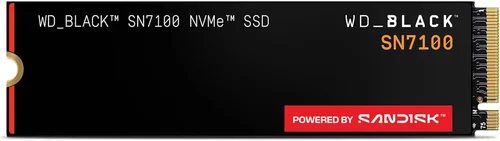
When it comes to upgrading your computer’s storage, few components offer the same transformative impact as an M.2 SSD. Whether you’re building a high-performance gaming rig, reviving an aging laptop, or simply craving faster boot times and snappier application loading, M.2 SSDs have become the gold standard for modern storage solutions. But with so many options flooding the market—and retailers like Best Buy prominently featuring them—it’s easy to feel overwhelmed. That’s exactly why this comprehensive buying guide exists: to cut through the noise, clarify your choices, and help you make a confident, informed decision.
In this expert-level guide, we’ll walk you through everything you need to know about purchasing an M.2 SSD in 2026—starting with whether Best Buy is a reliable source (spoiler: yes, but with caveats), and expanding into the critical factors that truly matter when selecting the right drive for your needs. You’ll learn how to interpret performance specs like sequential read/write speeds and IOPS, understand the differences between SATA and NVMe protocols, evaluate endurance ratings, compare brands, and avoid common pitfalls that even seasoned tech enthusiasts sometimes fall into. Whether you’re on a tight budget or ready to splurge on top-tier performance, this guide will equip you with the knowledge to choose wisely.
The M.2 SSD market has matured significantly over the past few years. What was once a niche upgrade for enthusiasts is now mainstream, with drives available at nearly every price point and form factor. Retailers like Best Buy, Amazon, Newegg, and Micro Center all carry robust selections, but not all shopping experiences are created equal. While Best Buy offers convenience, in-person support, and frequent promotions, it’s essential to know what you’re getting—and what you might be missing—compared to other channels. By the end of this guide, you won’t just know if Best Buy sells M.2 SSDs (they do, extensively), but more importantly, how to evaluate those options alongside broader market trends to find the perfect fit for your system.

What to Look for When Buying Buying Guide
1. Interface & Protocol: NVMe vs. SATA
The single most important technical distinction in M.2 SSDs is the interface protocol: NVMe (Non-Volatile Memory Express) or SATA. While both use the same physical M.2 connector, they operate on entirely different communication standards. NVMe drives connect directly to your motherboard’s PCIe lanes, enabling dramatically faster data transfer rates—often 3–7 times faster than SATA-based M.2 SSDs. SATA M.2 drives, despite their compact form factor, are bottlenecked by the older SATA III interface, capping speeds around 550 MB/s.
If your system supports NVMe (which most modern PCs and laptops do), there’s almost no reason to choose a SATA M.2 SSD unless you’re working with an extremely tight budget or upgrading an older machine that lacks PCIe support. Always check your motherboard or laptop specifications before purchasing. Look for terms like “PCIe Gen3 x4” or “PCIe Gen4 x4”—these indicate NVMe compatibility and generation, which directly impacts speed potential.
2. PCIe Generation: Gen3, Gen4, or Gen5?
PCIe generations define how much bandwidth is available to your SSD. As of 2026, PCIe Gen4 is the sweet spot for most users, offering double the bandwidth of Gen3 (up to ~8,000 MB/s vs. ~4,000 MB/s). PCIe Gen5 drives are now available and can exceed 12,000 MB/s, but they come with significant trade-offs: higher cost, increased heat output, and limited real-world benefits for typical workloads like gaming, office tasks, or media consumption.
Unless you’re a content creator working with 8K video, running AI workloads, or building a bleeding-edge workstation, Gen4 delivers excellent performance without the premium price or thermal challenges of Gen5. Most mainstream CPUs and motherboards from the last two years support Gen4, making it the ideal choice for new builds and upgrades. If you’re using an older system (pre-2020), you’ll likely be limited to Gen3—but even then, a Gen3 NVMe SSD is still a massive upgrade over traditional HDDs or SATA SSDs.
3. Capacity: How Much Storage Do You Really Need?
Capacity directly affects price, performance, and longevity. Modern M.2 SSDs range from 250GB to 8TB, but your ideal size depends on usage. For basic computing—web browsing, office apps, light gaming—a 500GB drive is sufficient. However, if you install multiple AAA games (which can easily consume 100–200GB each), store large photo/video libraries, or run virtual machines, aim for 1TB or more.
It’s also worth noting that SSDs perform better and last longer when they’re not nearly full. Manufacturers recommend keeping at least 10–20% of the drive free for over-provisioning, which helps with wear leveling and garbage collection. A 1TB drive with 800GB used will degrade faster and slow down more than the same drive with 600GB used. If budget allows, stepping up to 2TB gives you headroom for years of growth.
4. Performance Specifications: Read/Write Speeds & IOPS
Manufacturers advertise peak sequential read and write speeds (e.g., “7,000 MB/s read”), but these numbers only tell part of the story. Real-world performance depends heavily on random read/write speeds, measured in IOPS (Input/Output Operations Per Second). For everyday tasks like opening apps, loading levels in games, or multitasking, random 4K performance matters far more than sequential throughput.
Look for drives that publish both sequential and random performance metrics. A high-end Gen4 drive might boast 7,000 MB/s sequential reads but only 500K IOPS random 4K reads—while a mid-tier drive with 5,000 MB/s sequential could deliver 800K IOPS. The latter will feel snappier in daily use. Also, note that sustained performance under heavy loads can drop significantly if the drive lacks adequate cooling or DRAM cache.
5. DRAM Cache: The Hidden Performance Booster
DRAM (Dynamic Random Access Memory) cache acts as a high-speed buffer between the SSD controller and NAND flash memory. Drives with DRAM cache handle small, random writes much more efficiently, maintain consistent performance under load, and improve overall longevity. DRAM-less SSDs use system memory (HMB—Host Memory Buffer) instead, which can work well in theory but often leads to inconsistent performance, especially on systems with limited RAM or heavy multitasking.
For anything beyond basic use, always prioritize SSDs with dedicated DRAM. This is especially critical for Gen4 and Gen5 drives, where the lack of DRAM can cause dramatic slowdowns during sustained transfers. Check product specs carefully—some budget models omit DRAM to cut costs, and this isn’t always clearly disclosed in marketing materials.
6. Endurance & TBW Rating
SSD endurance is measured in TBW (Terabytes Written)—the total amount of data that can be written to the drive over its lifetime. Higher TBW means greater longevity. For example, a 1TB Samsung 980 Pro has a 600 TBW rating, while a budget Kingston NV2 might offer only 200 TBW for the same capacity.
While most users will never reach their drive’s TBW limit (even heavy writers may take 5–10 years), it’s a useful metric for comparing reliability. Content creators, database administrators, or anyone running frequent large file transfers should opt for drives with higher TBW ratings. Consumer-grade drives typically range from 150 TBW (250GB) to 1,200 TBW (2TB+), while enterprise models go much higher.
7. Brand Reputation & Reliability
Not all SSDs are created equal—even if they share the same controller and NAND type. Established brands like Samsung, Western Digital, Crucial, Kingston, and SK hynix have proven track records for quality control, firmware stability, and long-term reliability. Lesser-known or generic brands may offer tempting prices but often cut corners on components, lack robust firmware updates, or provide minimal customer support.
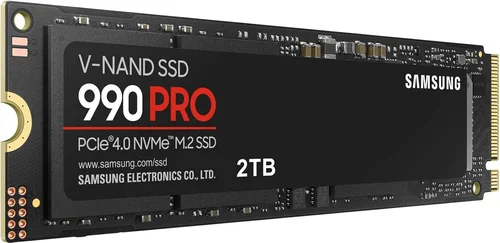
Samsung’s 990 Pro and WD Black SN850X are consistently top performers in independent reviews, while Crucial’s P5 Plus offers excellent value. Avoid no-name brands unless you’re willing to accept higher risk of early failure or compatibility issues. Reading professional reviews (from sources like Tom’s Hardware, AnandTech, or StorageReview) is far more reliable than relying solely on user ratings.
8. Warranty & Support
A solid warranty is a strong indicator of a manufacturer’s confidence in their product. Most reputable M.2 SSDs come with 5-year limited warranties, often tied to TBW limits (e.g., “5 years or 600 TBW, whichever comes first”). Some brands, like Samsung and WD, also offer data recovery services or migration software as part of their support package.
When buying from retailers like Best Buy, check whether the warranty is honored directly through the manufacturer or requires store involvement. In most cases, you’ll register the drive with the brand and handle RMA (Return Merchandise Authorization) directly, but it’s good to confirm. Also, keep your receipt—some warranties require proof of purchase.
Different Types of Buying Guide

Common Buying Mistakes to Avoid
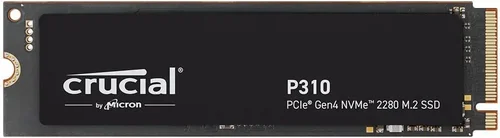
❌ Mistake: Ignoring Your System’s Compatibility
Why it’s bad: Buying a Gen4 NVMe SSD for a laptop that only supports SATA M.2 will result in a non-functional drive—or worse, damage if forced incorrectly. Even within NVMe, some systems only support 2280-sized drives (22mm wide, 80mm long), while others accommodate 2242 or 22110 variants.
What to do instead: Always consult your device’s manual or manufacturer website before purchasing. Use tools like Crucial’s Scanner or Samsung’s Advisor to auto-detect compatible drives. When in doubt, call tech support.
❌ Mistake: Prioritizing Peak Speed Over Real-World Performance
Why it’s bad: A drive advertising “12,000 MB/s” may sound impressive, but if it throttles after 30 seconds due to overheating or lacks DRAM, your actual experience will be disappointing. Many users report no noticeable difference between Gen3 and Gen4 in everyday tasks.
What to do instead: Focus on consistent performance, thermal design, and random I/O speeds. Look for reviews that test sustained workloads, not just synthetic benchmarks.
❌ Mistake: Overlooking Thermal Management
Why it’s bad: High-speed NVMe drives generate significant heat. Without proper cooling, they throttle performance to prevent damage. This is especially problematic in laptops or small-form-factor PCs with limited airflow.
What to do instead: Choose drives with built-in heat spreaders or plan to add an aftermarket M.2 heatsink. Some motherboards include integrated heatsinks—check if yours does before buying a pre-cooled drive.
❌ Mistake: Buying Based Solely on Price
Why it’s bad: The cheapest SSD often uses lower-quality NAND, lacks DRAM, or has minimal endurance. You may save $20 upfront but risk data loss or premature failure.
What to do instead: Aim for the best value within your budget—not the lowest price. Mid-range drives like the Crucial P5 Plus or WD Blue SN580 offer excellent reliability at reasonable costs.
❌ Mistake: Skipping Firmware Updates
Why it’s bad: Outdated firmware can cause compatibility issues, security vulnerabilities, or performance bugs. Some drives ship with known issues fixed only in later updates.
What to do instead: After installation, visit the manufacturer’s website to download and apply the latest firmware. Most brands provide simple utilities for this.
❌ Mistake: Not Checking Return Policies
Why it’s bad: If the drive is defective or incompatible, you don’t want to be stuck with it. Some retailers charge restocking fees or have short return windows.
What to do instead: Confirm the return policy before buying. Best Buy typically offers 15-day returns for opened electronics, but exceptions apply. Keep all packaging until you’ve verified functionality.
Budget Guidelines: How Much Should You Spend?
Entry-Level ($30–$60 for 500GB–1TB):
This tier includes DRAM-less NVMe drives and older SATA M.2 models. Suitable for basic upgrades in older systems or as secondary storage. Expect modest speeds (1,500–3,500 MB/s for NVMe) and lower endurance. Examples: Kingston NV2, Team Group MP33.
Mid-Range ($60–$120 for 1TB):
The sweet spot for most users. These drives feature DRAM cache, Gen3 or Gen4 NVMe support, and solid endurance (400–600 TBW). Ideal for gaming, productivity, and general use. Examples: Crucial P5 Plus, WD Blue SN580, Samsung 980 (non-Pro).
Premium ($120–$250 for 1TB–2TB):
High-performance Gen4 drives with excellent cooling, top-tier controllers, and robust warranties. Perfect for content creators, streamers, and enthusiasts who demand speed and reliability. Examples: Samsung 990 Pro, WD Black SN850X, Sabrent Rocket 4 Plus.
Luxury ($250+ for 2TB+):
Cutting-edge Gen5 drives or ultra-high-capacity models (4TB–8TB). These are overkill for most consumers but valuable for professionals handling massive datasets. Expect premium pricing, advanced thermal solutions, and enterprise-grade features. Examples: Corsair MP700, Seagate FireCuda 540.
Expert Tips for Getting the Best Deal
– Shop during major sales events: Black Friday, Prime Day, and back-to-school seasons often feature deep discounts on SSDs. Best Buy frequently runs “Doorbuster” deals on storage during these periods.
– Compare online and in-store pricing: Best Buy’s website sometimes lists lower prices than in-store shelves. Use the app to check real-time inventory and price-match competitors like Amazon or Newegg.
– Look for open-box deals: Best Buy’s open-box section can yield near-new SSDs at 10–30% off. These are typically returned items that pass inspection—great for budget-conscious buyers.
– Bundle with other components: When building a PC, consider purchasing your SSD alongside a motherboard or CPU. Retailers often offer bundle discounts that aren’t advertised separately.
– Check for student or military discounts: Best Buy offers exclusive pricing for verified students, teachers, and military personnel—saving you 5–10% instantly.
– Verify authenticity: Counterfeit SSDs are rare but exist. Buy only from authorized retailers. Best Buy is generally safe, but avoid third-party sellers on their marketplace unless rated highly.
– Test immediately after install: Use tools like CrystalDiskMark or AS SSD to confirm advertised speeds. If performance is far below specs, initiate a return while still within the window.
– Register your warranty: Don’t skip this step! It ensures you’re covered if issues arise months down the line.

Frequently Asked Questions
Q: Does Best Buy sell M.2 SSDs?
A: Yes, Best Buy carries a wide selection of M.2 SSDs from major brands like Samsung, Western Digital, Crucial, and Kingston. You can find them both online and in physical stores, with options ranging from budget SATA models to high-end Gen5 NVMe drives.
Q: Can I install an M.2 SSD myself?
A: Absolutely! Installation is straightforward: power off your system, locate the M.2 slot on your motherboard (or laptop), insert the drive at a slight angle, and secure it with a screw. Most systems include the necessary screw, but some laptops require a specialty tool.
Q: Will an M.2 SSD work in any laptop?
A: Not necessarily. Older laptops may lack M.2 slots entirely, or only support SATA-based M.2 drives. Always check your laptop’s service manual or use manufacturer compatibility tools before buying.
Q: Do I need to format a new M.2 SSD?
A: Yes, but it’s simple. After installing, boot into Windows and use Disk Management to initialize and format the drive. Choose NTFS for Windows systems.
Q: Are M.2 SSDs more reliable than 2.5-inch SSDs?
A: Reliability depends more on the brand and model than the form factor. However, M.2 drives eliminate cables and connectors, reducing potential points of failure. Both types use the same underlying NAND technology.
Q: Can I use an M.2 SSD as a boot drive?
A: Definitely. In fact, most modern systems are designed to boot from M.2 NVMe drives. Just ensure your BIOS/UEFI recognizes the drive and set it as the primary boot device.
Q: What’s the difference between M.2 2280 and 2242?
A: These numbers refer to physical dimensions: 22mm wide by 80mm long (2280) is the most common. 2242 is shorter (42mm) and used in ultra-compact devices. Always match your system’s supported size.
Q: Do M.2 SSDs require special drivers?
A: No. Windows 10 and 11 include native NVMe drivers. macOS and Linux also support NVMe out of the box. No additional software is needed for basic functionality.
Q: How long do M.2 SSDs last?
A: Under normal use, most consumer M.2 SSDs last 5–10 years. Factors like write intensity, temperature, and quality of NAND affect lifespan. Monitoring tools like CrystalDiskInfo can track health over time.
Q: Is it worth upgrading from a SATA SSD to NVMe?
A: If your system supports NVMe, yes—especially for gaming and large file transfers. The difference in load times and responsiveness is noticeable, though not revolutionary for light tasks.
Our Final Recommendations
Best for Budget-Conscious Buyers: Crucial P3 1TB – A reliable Gen3 NVMe drive with DRAM, offering excellent value at under $60. Perfect for upgrading older systems without breaking the bank.
Best Overall Value: WD Blue SN580 1TB – Combines Gen4 speeds, low power consumption, and strong endurance in a sleek package. Ideal for laptops and desktops alike.
Best Premium Option: Samsung 990 Pro 2TB – Consistently tops performance charts with blazing Gen4 speeds, superb thermal management, and a 5-year warranty. A favorite among enthusiasts.
Best for Beginners: Kingston NV2 1TB – Simple, affordable, and widely compatible. Great for first-time upgraders who want a hassle-free experience.
Best for Advanced Users: Sabrent Rocket 4 Plus-G 2TB – Pushes Gen4 limits with 7,400 MB/s reads, built-in heatsink, and exceptional sustained performance for demanding workloads.
Conclusion: Making the Right Choice
Choosing the right M.2 SSD doesn’t have to be overwhelming—even with the vast array of options at retailers like Best Buy. By focusing on compatibility, real-world performance, endurance, and brand reliability, you can confidently select a drive that meets your needs today and lasts for years to come. Remember: the fastest drive isn’t always the best one for your situation. A well-balanced mid-range NVMe SSD often delivers the most satisfying upgrade experience for the majority of users.
Take the time to assess your system’s capabilities, define your usage patterns, and set a realistic budget. Use the tips and comparisons in this guide to navigate promotions, avoid common traps, and maximize your investment. Whether you’re breathing new life into an old laptop or building a dream gaming PC, the right M.2 SSD is out there—and now you know exactly how to find it. Happy upgrading!